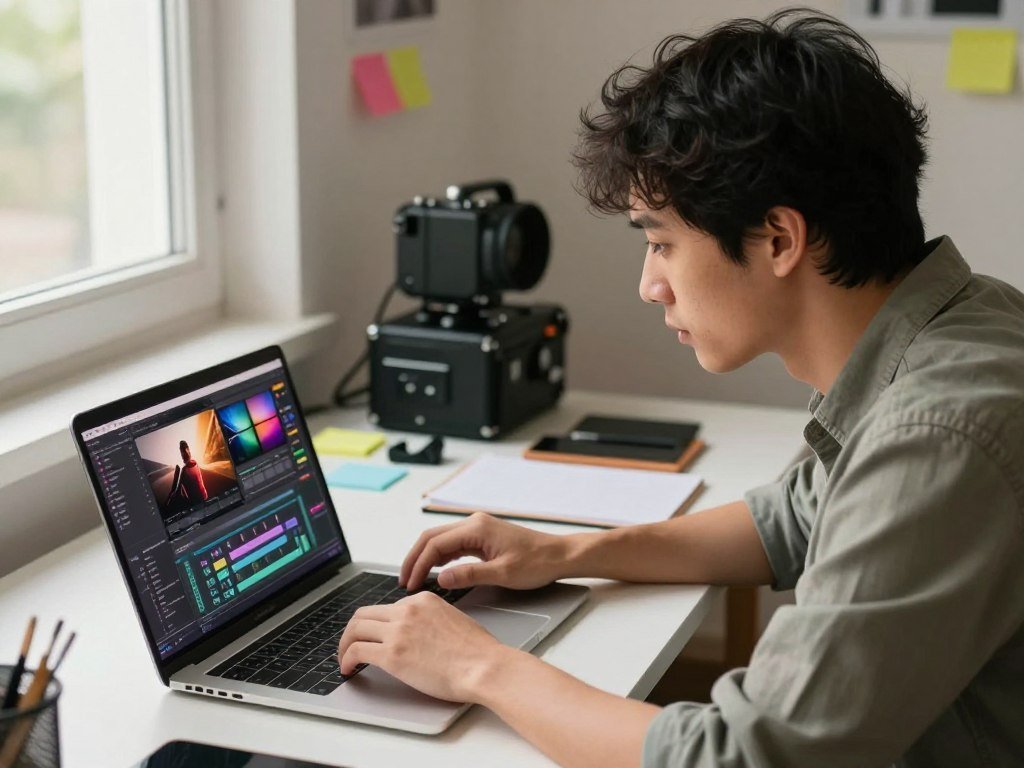
DaVinci Resolve is the strongest all-around free choice for creators who want professional editing, color, effects, and audio tools in one desktop app. But the best free video editing software for you depends on your skill, device, and the project you plan to finish.
Clipchamp or ACDSee Luxea offers a gentler start, while CapCut suits quick short-form video for social media. Each free version has its own limits, including export rules or paid assets. A clear match can save you time and help you finish content without paying for tools you do not need.
Key Takeaways
- Choose DaVinci Resolve for advanced desktop tools and room to grow.
- Try Clipchamp or ACDSee Luxea for a more approachable first edit.
- Use CapCut for quick vertical clips and social media content.
- Check each free version’s export limits and paid-asset rules first.
- Start with the editor that fits your current device and the kind of video you plan to finish.
Best Free Video Editing Software at a Glance
For most desktop creators, DaVinci Resolve offers the broadest free toolkit, while Clipchamp is easier to approach for quick edits. Your best fit depends on the kind of video you make and the limits you can accept.
Check the free-plan export rules before you choose. The best video editing software can still leave you with the wrong format or resolution for your project.
| Editor | Best fit | Platforms | Free-plan export or restriction |
|---|---|---|---|
| DaVinci Resolve | Experienced editors and broad projects | Windows, macOS, Linux | UHD output |
| ACDSee Luxea | Beginners | Windows | Free version adds an intro and outro |
| Lightworks | Aspiring pro editors | Windows, macOS, Linux | 720p and MPEG-only free exports |
| Shotcut | Open-source desktop editing | Windows, macOS, Linux | Free, open-source editor |
| Clipchamp | Browser and Windows beginners | Web, Windows | 1080p |
These five video editors are part of a shortlist of seven options. CapCut is a practical pick for short-form work, and iMovie suits Mac users who want a simple start.
Treat export limits as part of the choice, not as a detail to discover after finishing a project.
Use the table to narrow your options, then weigh the fit against your device and editing experience. A simple edit may not need a full desktop suite.
What Should You Check Before Choosing a Free Editor?
A beginner should start with an editor whose basic cut, title, and export controls are easy to find. A simple interface can make the first project less frustrating, especially when you are still learning how video editing works.
The best free video editing software for beginners is the simplest option that exports your needed format without a paid asset. Clipchamp, iMovie, or ACDSee Luxea is easier to approach than DaVinci Resolve.
Match the interface to your editing experience
Editing software ranges from guided templates to workspaces built for advanced tools. Resolve can handle projects from social clips to feature-length films, but its many controls can challenge new users.
Think about how you want to work. A guided editor can help you make a quick title and cut, while a more open timeline gives you control over many clips and layers.
The timeline is the workspace where you arrange video and audio clips in sequence and make edits. A crowded timeline takes more practice to manage, so match its complexity to your project.
Check export limits against your finished video
A common delivery target for online clips is 1080p. Also check the frame rate, watermark rules, operating-system support, and whether the editor can read your media files.
Computer demands matter, too. A detailed project with effects can be harder to play on an older device than a simple cut with a few titles.
- Device and operating system
- Intended resolution and frame rate
- Free-only assets in the editor
- Timeline complexity for your project
Before committing to a long project, confirm that one short test export meets your target resolution and format. That check can expose a format or playback problem while the edit is still small.
DaVinci Resolve: Best Overall for Serious Projects
Resolve is the best overall choice for an editor who wants room to grow from basic cuts into color, effects, and audio finishing. One desktop app combines video editing, color correction, visual effects, motion graphics, and audio post-production.
Resolve Free exports up to Ultra HD 3840 × 2160 at up to 60 fps. It runs on Windows, macOS, and Linux, and can serve both quick social edits and feature-length work.
How the editing pages fit together
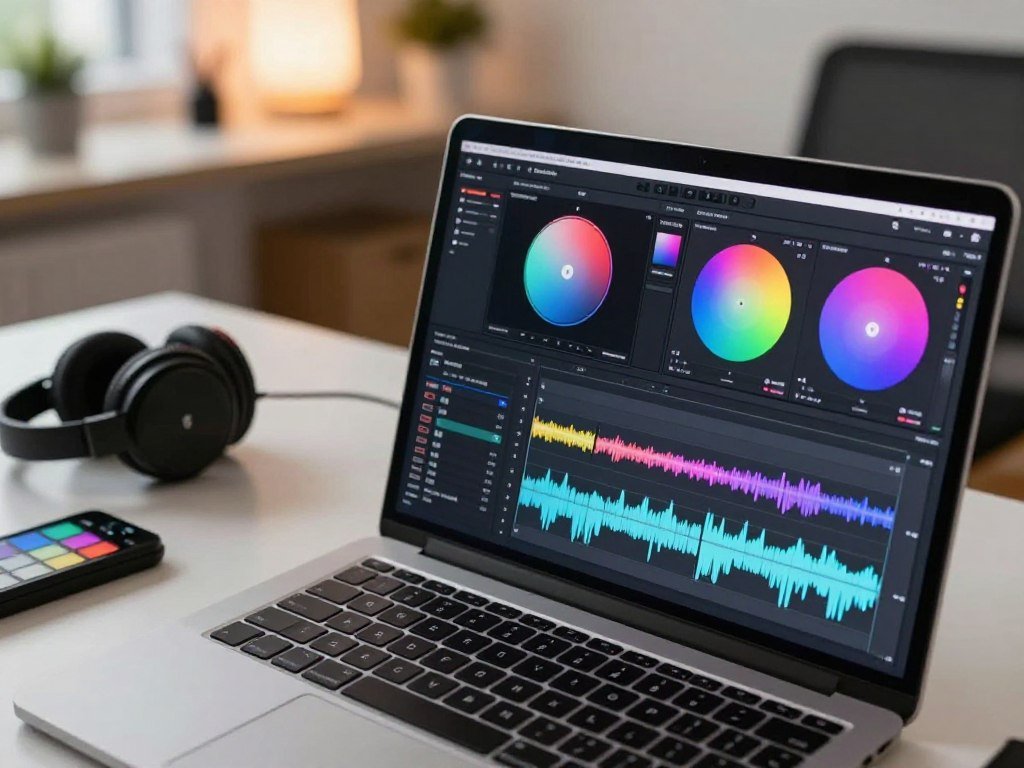
The Media page helps you organize assets, while Cut and Edit support different editing workflows. Fusion handles visual effects and motion graphics, and Color is for color grading.
Fairlight is the audio workspace, and Deliver handles output. Fairlight can support up to 2,000 audio tracks with real-time effects, EQ, and dynamics processing.
That range makes the software useful when your edit needs more than clips and titles. You can work on picture, sound, and color in the same application.
What Resolve 21 adds
Resolve 21 adds a Photo page, along with more than 100 motion-graphics effects. Its newer AI tools include IntelliSearch and CineFocus.
The Photo page and AI tools add new options, but they sit alongside the core editing pages. The central workflow still covers media, editing, color, effects, audio, and delivery.
Who should start with the free version
Resolve can suit an experienced editor or a new creator willing to learn its layout. Its advanced tools offer room to grow, but the range of controls takes time to understand.
For a quick clip, you can start with a basic cut and skip the specialized tools. For complex work, its connected pages can support a broader editing process.
Beginners can start on Cut or Edit and learn the specialized pages only when a project needs them.
ACDSee Luxea: Best for Beginners on Windows
A Windows beginner who wants labeled controls and a manageable first timeline should consider ACDSee Luxea. Its accessible navigation can make basic video editing feel less daunting.
Luxea is Windows-only, and its free version adds an intro and outro to videos. Check that branding before you plan a finished video around the free version.
The editor includes common editing tools and effects, along with keyframing. Keyframes let you set how an effect or setting changes over time, such as a gradual zoom.
Luxea supports 4K, screen recording, and webcam recording. Those features can help if you make a tutorial, record a presentation, or combine a webcam view with screen footage.
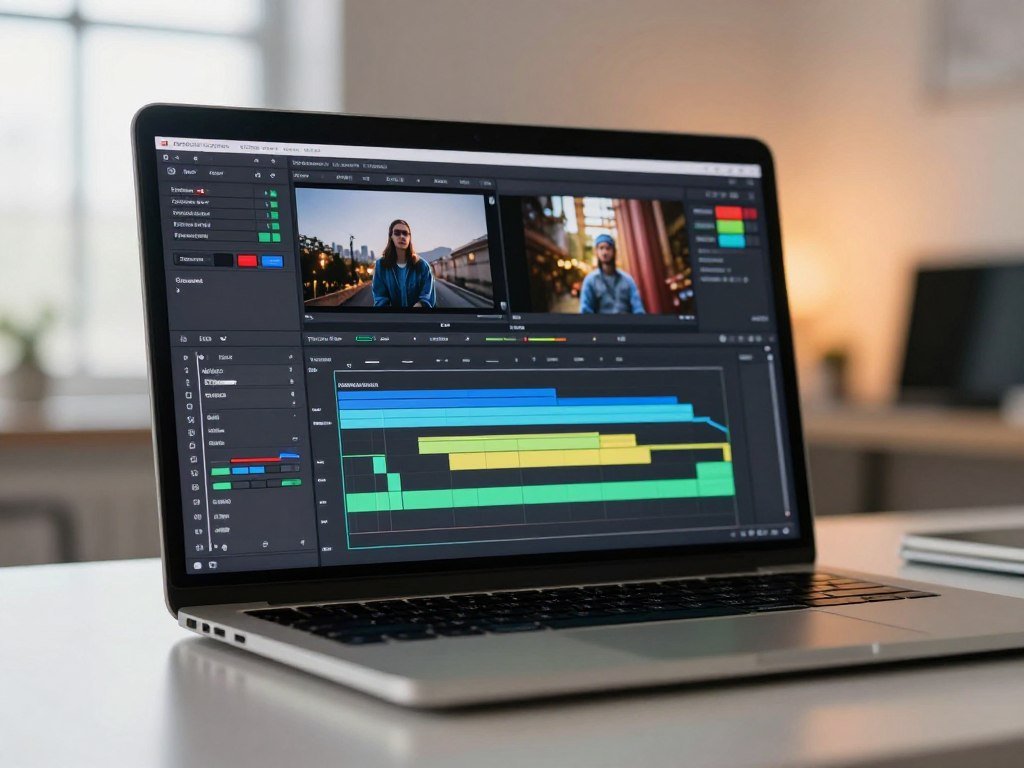
Its controls offer a clear route into basic editing without requiring you to learn a large professional suite at once. You can start with a few clips, add effects, and explore keyframes as your edits grow.
A 2025 review of ACDSee Luxea Pro’s interface and tools also reports Windows-only support, keyframing, 4K editing, and recording features. Luxea is a fit for new creators who want a Windows editor with room to learn.
It is not the right pick if you need a professional suite or a cross-platform app. Its free version’s intro and outro can also affect a branded video, even when the rest of the edit is ready.
Check the free version’s intro and outro on a sample export before building a branded video around it.
Lightworks: A Free Route Toward Pro Editing
Lightworks suits an aspiring pro editor who values a multilayer timeline more than high-resolution exports on the free plan. Its layered workflow can help you explore a more involved style of video editing.
The free version exports at 720p and limits exports to MPEG format. That restriction can rule it out if your finished video needs full HD.
Lightworks runs on Windows, macOS, and Linux. Its timeline supports multiple layers, and its color correction and visual effects tools offer ways to shape a more complex edit.
Working across layers can help when your project has several clips, titles, or visual elements to arrange. You can explore that workflow without starting in a basic one-track editor.
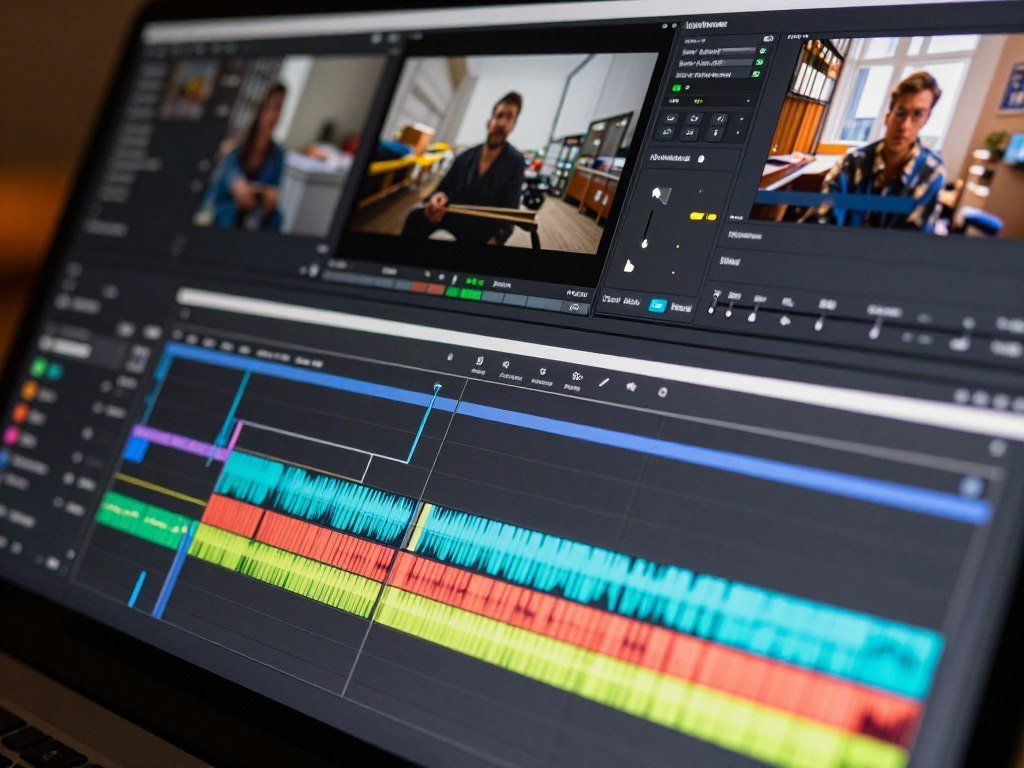
Lightworks may appeal if you want to build skills for pro editing software. Its interface has a steeper learning curve than a simple beginner editor, so expect to spend time finding tools.
The free export limits matter most at the end of a project. A full HD video needs more than the free tier’s 720p ceiling, and the MPEG-only rule narrows your output choices.
If your delivery needs full HD, rule out the free tier before spending time on a finished edit.
Shotcut: Best Open-Source Desktop Editor
Shotcut is a strong open-source choice when broad format support matters more than a polished, guided interface. Its FFmpeg support helps it work with a wide range of media formats.
Shotcut is free, open-source, and runs on Windows, macOS, and Linux. It also offers advanced color-grading tools for editors who want more control over the image.
The editor includes filters, effects, markers, time remapping, and keyframing. Those tools let you shape both the look and timing of a video without relying on a template.
Shotcut’s interface is sparse, so new users may need time to find the controls they need. A few short practice edits can help you learn how its panels and filters fit together.
Shotcut is listed for computers with 4 GB of RAM, but that number is not a promise of smooth playback. Your project, media, and computer all affect how editing feels.
Voiceover work can also depend on the setup you use. Test recording and playback on your own computer before you bring in a longer narration or a full project.
Test voiceover and playback with a short project before moving a larger edit into Shotcut.
Clipchamp: Best for Browser-Based Editing
Clipchamp is a practical starting point when you want to make a short video without installing a full desktop editor. Its browser workflow suits light projects on the web or Windows.
The free version exports up to 1080p. The web editor supports Microsoft Edge and Google Chrome, so you can make a basic edit in either browser.
Clipchamp offers a multitrack timeline, templates, stock assets, and basic effects. Screen recording is also built in, which can help with tutorials or short demonstrations.
Browser performance depends on your computer and internet connection. A project with many clips or effects may feel different from a small edit, especially on an older device.
Use this four-step workflow for a quick first cut:
- Import your clips.
- Arrange and trim them on the timeline.
- Add titles or transitions.
- Export at 1080p.
Templates can speed up an edit, but some stock media and features require a paid plan. A premium item in your timeline can stop an export until your plan supports it.
Check that every stock item and feature in the timeline is available on your plan before exporting.
CapCut: Best for Short-Form Social Videos
For a creator making quick vertical clips, CapCut pairs a free entry point with accessible editing tools. Fast social edits are its strength, while DaVinci Resolve is stronger for complex long-form work.
CapCut’s free plan costs $0 and includes free templates and basic editing tools. Some features and assets require Pro, so check the item before you build an edit around it.
Quick edits for vertical platforms
CapCut is a practical choice among these picks for short-form video on social media. Its mobile-friendly workflow includes templates, captions, speech-to-text, speed controls, background removal, and color correction.
Those tools can help you turn a few phone clips into a vertical edit without setting up a complex desktop project. For more examples of phone-based editing tools, see AI features on phones for editing video and audio.
- Trim and reorder clips.
- Add captions.
- Adjust speed.
- Apply a basic color correction.
Free features and paid upgrades
CapCut Pro is listed at $19.99 per month or $179.99 per year in October 2026. Pro includes 1 TB of cloud storage and 1,200 AI credits per month.
Pro also includes 4K/60fps export, while the free-plan frame-rate limits are not specified in its pricing information. Web free accounts may face watermark or bitrate limits on 4K exports.
Free features can be enough for a quick clip, but paid assets may change the final export. A template can also add a removable logo clip at the end, which differs from a watermark across the video.
Compare the value of Pro’s storage and AI credits with the features you will actually use before subscribing.
iMovie: Best for Mac Beginners
For a Mac user making a straightforward widescreen video, iMovie is an easy place to begin. Its approachable timeline helps you arrange clips, add transitions, and shape a simple edit.
iMovie supports 16:9 projects, so it is not the pick for vertical or square social videos. It is a good choice for straightforward widescreen work on Apple devices.
The editor includes effects and an audio library, giving you basic ways to add polish and sound. You can move a project between Mac, iPhone, and iPad, which helps if you switch between Apple devices.
For a short home video or a basic presentation, the simpler layout can be enough. You can focus on the order of your clips instead of learning a large set of professional controls.
iMovie is listed with a minimum of 8 GB of RAM. The device still needs to handle your footage smoothly, especially if you add effects or work with larger files.
Its fixed project shape is the key limit to consider. A widescreen edit can work well for many uses, but a vertical or square destination needs another editor.
Confirm that 16:9 fits your destination before starting an iMovie project.
Which Editor Fits Your Project and Device?
For a long-form YouTube edit, choose DaVinci Resolve; for a quick vertical clip, choose CapCut. The project type points you toward the right video editing software faster than a long feature list.
DaVinci Resolve is the best free video editing software for YouTube long-form projects, while CapCut is a better match for fast social shorts. The table matches other users and projects with a first choice.
Long-form YouTube and feature projects
| Project or user | First choice | Why it fits | Key trade-off |
|---|---|---|---|
| Feature-length or complex YouTube video | DaVinci Resolve | Broad editing, grading, effects, and audio | Steeper learning curve |
| Social shorts | CapCut | Quick templates and social-focused tools | Some features are Pro-only |
| Beginner on Windows | Clipchamp or Luxea | Approachable workflows | Clipchamp is browser-based; Luxea is Windows-only |
| Beginner on Mac | iMovie | Simple Apple workflow | 16:9 projects |
| Open-source cross-platform editing | Shotcut | Format support and color tools | Sparse interface |
Resolve can handle a wide range of longer projects, from an involved YouTube video to feature-length work. The added control can pay off when a project needs careful color or layered effects.
Social clips, beginners, and lighter computers
CapCut suits quick vertical edits built for social platforms. Clipchamp gives beginners a browser-based option, while iMovie keeps a simple Mac workflow.
Shotcut suits cross-platform editors who want open-source tools and broad media support. A project’s aspect ratio and intended export can settle a close choice between otherwise suitable apps.
For a lighter computer, a small test edit can reveal more than a feature list. A project with many layers may feel quite different from a few trimmed clips.
Let the project’s aspect ratio and export target break a tie between otherwise suitable apps.
Which Free Editors Export Without a Watermark?
A free editor can produce a clean export, but a paid-only effect or asset can still change the result. Check the exact items in your edit before you expect a clean finished video.
DaVinci Resolve, Shotcut, OpenShot, Kdenlive, Clipchamp, and iMovie are candidates for watermark-free work. A paid-only tool or asset can still block or mark an export.
Resolve Free has no time limit, subscription requirement, or general watermark on work made with free tools. A Studio-only Resolve FX effect may show a Studio watermark in the preview.
| Editor or case | What to inspect | Result or action |
|---|---|---|
| Resolve free tools | Free-tool export | No general watermark |
| Resolve Studio-only FX | Preview | May show Studio watermark |
| CapCut template | Ending clip | Delete the logo clip |
| CapCut Pro asset | Export | Pro needed to remove watermark |
| Clipchamp premium asset | Export | Upgrade or replace it |
CapCut templates may add a logo clip at the end, which you can remove. A Pro-only asset is different: removing its watermark requires Pro.
Clipchamp can block an export when your timeline uses premium stock media or features. Replacing the item with one available on your plan may let you finish without upgrading.
A logo clip at the end is not the same as a watermark across the video. Check the full export for both.
Export a short sample and watch it from beginning to end before editing a full project.
Is DaVinci Resolve Free Enough for Your Work?
Resolve Free is enough when your delivery stays at Ultra HD or below and you do not need Studio-only tools. For many standard projects, the free version covers editing without a subscription.
Resolve Free supports media at unlimited resolutions, but mastering and output are limited to Ultra HD or below. That range can suit many web videos and other standard edits.
DaVinci Resolve Studio is listed at $295 as a one-time desktop purchase on Blackmagic Design’s US website. Studio adds the DaVinci AI Neural Engine and tools for specific workflows.
Those tools include Magic Mask, Super Scale, Speed Warp, Smart Reframe, object removal, and facial-recognition workflows. You do not need Studio simply to keep using Resolve Free.
The paid edition makes sense when a project needs one of its added tools or output capabilities. For example, Smart Reframe can help with a workflow that needs a change in framing.
Resolve Free has no time limit or subscription requirement. You can keep using it for future edits if its output limit and included tools meet your needs.
Upgrade only when a specific project requires a Studio feature or output capability.
Is CapCut Still Available in the United States?
CapCut is available in the United States as of August 2026, following a 2025 outage and later service restoration. The dates matter because the earlier disruption does not describe its current status.
CapCut went dark in the United States on January 19, 2025, and service returned after enforcement was delayed. The TikTok USDS Joint Venture deal closed January 22, 2026.
What changed in CapCut’s US availability
An executive order on January 21, 2025, delayed enforcement, and service was restored. By August 2026, CapCut was available in the United States.
The app’s status changed over time, so the 2025 outage should not be treated as a current ban. Its US privacy policy was last updated April 15, 2026, and names TikTok USDS Joint Venture LLC as operator.
What its privacy policy says
The policy lists uploaded or generated photos, images, audio, video, metadata, prompts, technical identifiers, and approximate location among information it may collect. It also describes device and network information.
The policy says CapCut may analyze faces, bodies, scenery, or speech to provide services. It also says face or body information used for an effect is deleted after that effect is applied.
What the privacy lawsuit means
Users, including residents of California and Illinois, filed a privacy lawsuit in July 2023. A federal judge allowed California privacy claims to proceed while dismissing federal claims and some other state claims without prejudice.
The surviving claims are allegations allowed to proceed, not a finding that CapCut is liable or that every user’s data was exposed. A court ruling on which claims may continue does not decide every claim’s truth.
- Avoid uploading sensitive footage.
- Review permissions before granting access.
- Read the current policy before using AI effects.
Treat the policy and court ruling as reasons to make an informed choice, not as proof that every use exposes private information.
What Other Free Editors Are Worth Considering?
VSDC is worth checking on a lower-memory Windows computer, while Shotcut and Kdenlive offer broader platform support. These alternatives can suit a range of editing needs beyond the main picks.
VSDC lists a 2 GB RAM minimum, and Shotcut lists 4 GB. Those requirements are starting points, not guarantees of smooth playback on every computer.
Open-source alternatives
| Editor | Best use | Platform or hardware detail | Limitation |
|---|---|---|---|
| VSDC | Windows users with limited RAM | Windows, 2 GB minimum | Windows-only |
| OpenShot | Basic open-source editing | Windows, Linux, Mac via Daily Build | Official Mac build has issues |
| Kdenlive | Cross-platform open-source editing | Windows, macOS, Linux | GPU rendering is experimental |
| Adobe Premiere Rush | Quick guided edits | Windows, Mac | Single video track; 1080p/60fps export |
| Adobe Express | Fast browser edits | Web | Premium assets require a paid plan |
OpenShot supports Windows and Linux, while its Mac option uses a Daily Build and has known build issues. Kdenlive offers more platform range, though GPU rendering remains experimental.
Editors for specific devices and quick tasks
Adobe Premiere Rush gives you guided editing, with a single video track and exports up to 1080p at 60 fps. Adobe Express is a browser choice that offers free 4K downloads without a watermark, though premium assets need a paid plan.
Canva Video works for simple MP4 or GIF social assets, but it is not a full desktop editor. The best free video editing software for a low-end PC depends on the computer, project, and available RAM.
VSDC’s 2 GB and Shotcut’s 4 GB listings can help you narrow options, but they do not promise good performance. Verify the current system requirements for your operating system before installing any of these alternatives.
How Can You Choose and Test Your First Editor?
Choose one editor by matching your device and finished-video format, then test it with a short representative clip. A small trial can show whether the software fits your workflow before you spend hours editing.
Test the same kind of clip and export you expect to use in your real project. A 1080p sample and a 4K sample help only when both match your intended delivery.
- Choose the operating system you will edit on.
- Select a representative source clip.
- Test the timeline and playback.
- Export at your intended resolution.
- Inspect the finished file and check for watermarks or premium-asset warnings.
Windows, macOS, and Linux each have several options in this group. Testing on your actual device helps reveal playback issues that a feature list cannot show.
Watch the exported file from beginning to end, and check that its image and sound fit your goal. A short sample also shows whether the timeline feels clear enough for your usual edits.
Keep the editor that completes your real workflow cleanly, not simply the one with the longest feature list.
Conclusion
If you want one editor to grow into, start with DaVinci Resolve. It offers the broadest desktop toolkit among these free video options, though its controls take time to learn.
Clipchamp or iMovie can give you a simpler start on the right platform. CapCut fits fast short-form work when its free tools and asset rules suit your plan.
Pick the app that fits your device and finished video, then try it with a small project. Download the best-fit free option and make a short test export before beginning your next full project.
FAQ
Is DaVinci Resolve really free?
Yes, DaVinci Resolve Free has no time limit or subscription requirement. It supports Ultra HD output and includes many editing tools for standard projects. Studio is a separate paid desktop edition with extra tools and capabilities. If your edit stays within the free version’s output limits, you can keep using it without paying a recurring fee.
What is the best free video editing app?
DaVinci Resolve is the best all-around desktop pick for broad editing needs. CapCut is a better fit for quick social clips, while iMovie suits Mac beginners making widescreen videos. Your choice should match your device and the final video format. A short test export can show whether the free version handles your project cleanly.
Which video editor is 100% free?
Shotcut and Kdenlive are free, open-source video editors. They do not follow the same free-tier model as apps that offer paid features or assets. Other editors may still support useful free workflows, but some tools can require payment. Check the exact export and asset rules for your project before choosing.
Is CapCut still free?
Yes, CapCut’s free plan costs $0 and includes templates and basic editing tools. Some assets or features require CapCut Pro, so a project that uses them may need an upgrade. A template may also add a removable logo clip at the end. Check what your timeline uses before exporting a finished video.
Why is CapCut being banned?
CapCut went dark in the United States on January 19, 2025, during a period of enforcement uncertainty. Service returned after an executive order delayed enforcement on January 21, 2025. The TikTok USDS Joint Venture deal closed January 22, 2026, and CapCut was available in the United States as of August 2026. That dated history does not mean it is currently banned.
Is CapCut still banned in the USA?
No, CapCut was available in the United States as of August 2026. The service went dark in January 2025, then returned after enforcement was delayed. Its status changed again after the TikTok USDS Joint Venture deal closed in January 2026. The earlier outage is important context, but it does not describe the app’s August 2026 availability.
What’s better than CapCut for editing?
DaVinci Resolve is better suited to complex editing and color work, while Clipchamp offers a simpler browser-based workflow. Shotcut is a strong choice if you want open-source desktop editing across major computer platforms. No one editor suits every project. Match the choice to your clip length, editing experience, and final format.
Is CapCut safe, yes or no?
A yes-or-no answer cannot guarantee how every user’s information is handled. CapCut’s policy describes collection of uploaded content and technical data, among other details. A privacy lawsuit’s surviving California claims are allegations allowed to proceed, not a final finding of liability. Avoid uploading sensitive footage, review app permissions, and read the current policy before using AI effects.