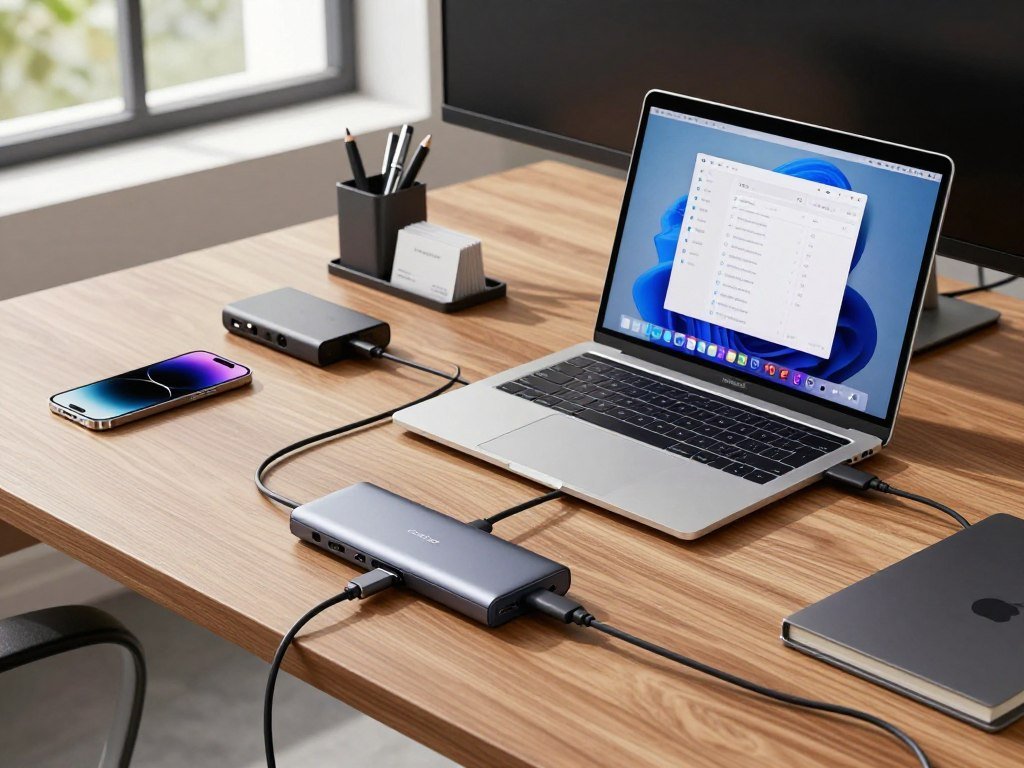
A slim laptop can be easy to carry and still leave you short of the connections your workday needs. The best USB-C hub for you depends on your laptop, your devices, and the displays you use. One connection can add access to displays, storage, wired networking, and charging, helping you keep work moving at your desk or on the go.
DisplayPort Alt Mode is a USB-C feature that carries DisplayPort video signals through a USB-C connection. The picks ahead cover everyday use, travel, and more demanding desk setups, so you can match ports to the way you work.
Key Takeaways
- Anker 555 is a strong fit for a mixed home-office setup.
- Choose a budget model by checking its display rate and data ports.
- Match the hub’s video support to your laptop’s display limits.
- A dock suits a fixed desk with more screens and accessories.
- Decide which accessories must stay connected at the same time, since that count shapes the rest of the choice.
Best USB C Hub for Most Setups
For a PC that needs fast storage, a wired network, and a 4K monitor from one accessory, the Anker 555 is the strongest all-around fit. One compact unit gives you useful desk ports without becoming a full dock.
The Anker 555 has 10Gbps USB-A and USB-C data ports, Gigabit Ethernet, and SD and microSD card readers. Its HDMI port supports one 4K display at 60Hz, which suits a work monitor with a smooth, clear picture. It covers the common needs of a mixed PC desk: data, network, cards, and video.
That range also works for many other laptops with compatible USB-C connections. You can leave a keyboard, mouse, wired network cable, and external storage attached, then connect a monitor when you sit down. The hub’s card slots also help if you move photos from an SD or microSD card.
Why the Anker 555 fits a mixed desk setup
The Anker USB-C hub to shortlist is the 555 when you want one portable device for desk accessories and display output. Its 10Gbps ports support faster data devices than 5Gbps ports, while Ethernet gives you a wired network option. For a Windows PC, this mix can cut down on separate adapters.
Pass-through charging lets a compatible charger power the laptop through the hub. The 100W power input supplies up to 85W to the connected laptop, not the full 100W. Keep that difference in mind if your laptop needs more power during demanding work.
At 4.5 ounces and 0.6 inches thick, the hub can travel in a laptop bag. An included carrying pouch helps keep it together with its cable and accessories. An 18-month warranty adds a useful period of coverage.
When a lighter feature set is enough
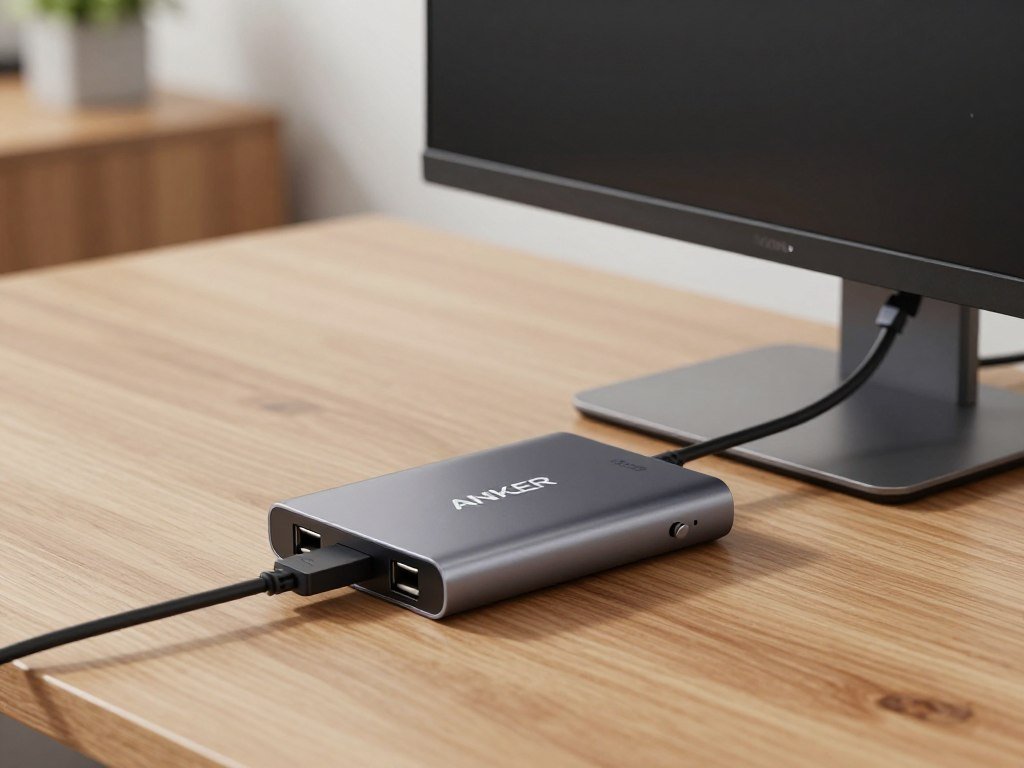
You may not need every port on the 555. A small USB-C hub can make more sense if your daily setup uses just a monitor, a mouse, or one drive. A smaller feature set can also mean fewer connections to manage when you move between rooms.
Check which ports you use each week before paying for extras. If you rely on a card reader or wired network, losing those features could mean carrying another adapter. If you only need one display and basic accessories, a lighter model may be easier to pack.
Think about where the hub will live, too. A desk hub can stay connected to several devices, while a travel hub should be easy to store and set up. Keep the included pouch with the hub so its cable and card-reader connections are ready for travel.
Which Budget Hub Covers the Basics?
A budget hub can cover the essentials, but its HDMI refresh rate and data ports determine which setup it can handle comfortably. Choose by the task you need it to do, not just by the number of sockets.
The Plugable USBC-4IN1 suits a 4K 60Hz display and fast data. The Hiearcool adds card slots, while the UGREEN Revodok 105 5-in-1 is aimed at basic USB-A accessories. The Hiearcool and UGREEN are limited to 4K at 30Hz.
| Model | HDMI output | USB connections | Other useful connections |
|---|---|---|---|
| Plugable USBC-4IN1 | 4K at 60Hz | One USB-A and one USB-C, both 10Gbps | Pass-through charging |
| Hiearcool USB-C Hub | 4K at 30Hz | Two USB-A ports | SD and microSD card readers; up to 100W USB-C charging input |
| UGREEN Revodok 105 5-in-1 | Up to 4K at 30Hz | One 5Gbps USB-A 3.0 and two USB-A 2.0 ports | USB-C pass-through charging; no SD card slots |
The Plugable costs $34.95 at list price and gives you a faster display refresh rate than the other two options. Its 10Gbps USB-A and USB-C ports also make it a better fit for fast data than hubs with slower connections. If you often move files from a drive, that difference matters more than a high port count.
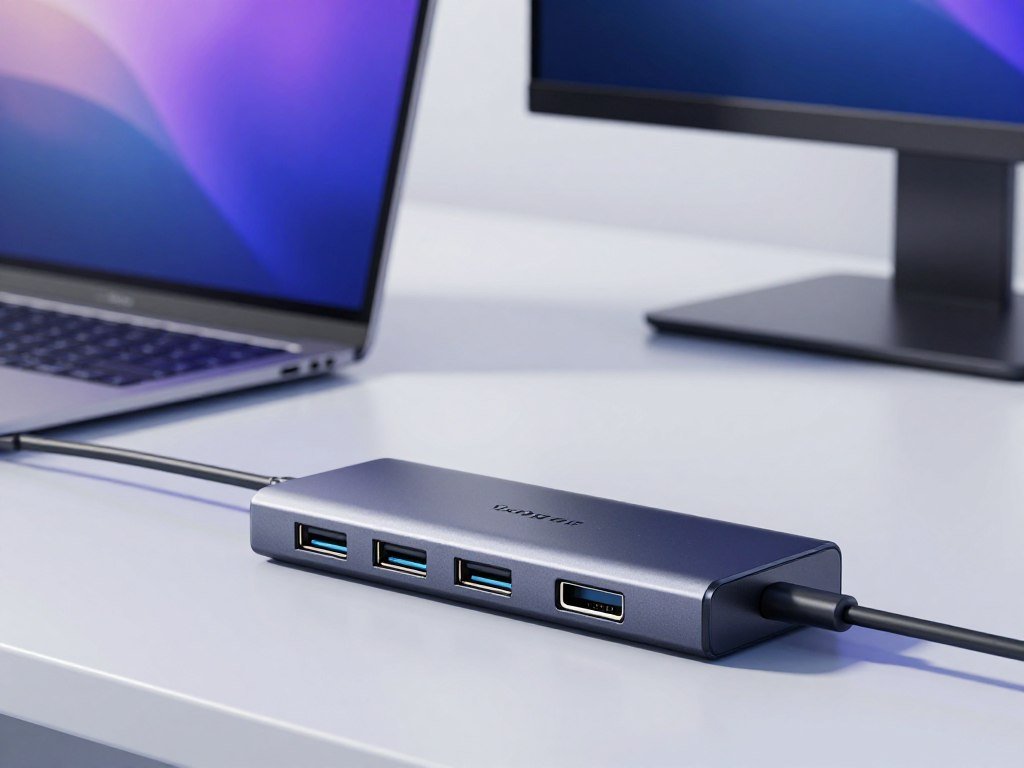
The Hiearcool is the more useful match when SD and microSD cards matter. Its two USB-A ports suit everyday devices, and its charging input supports up to 100W. That input rating describes what the hub can accept; it does not by itself state how much power reaches your laptop.
The UGREEN keeps the connection mix simple, with three USB-A ports in two speed classes. Its USB-A 2.0 ports can handle low-demand items such as a keyboard or mouse, while the USB 3.0 port suits a routine drive. It has no card slots, so photo imports call for another reader.
For an external 4K display used all day, favor the Plugable’s 60Hz output over a 30Hz budget alternative. The smoother refresh makes moving windows and scrolling feel more natural. Check that your laptop’s USB-C connection can send video before choosing any HDMI hub.
Is the Anker 341 a Good Everyday Hub?
The Anker 341 is a sensible everyday pick when card readers and several familiar accessories matter more than the fastest transfers. It keeps things simple with common ports for a modest desk or travel kit.
The 7-in-1 model has two USB-A 3.0 ports, one USB-C data port, HDMI, SD and microSD card readers, and a USB-C power-delivery input. You can connect a keyboard, mouse, occasional drive, display, and camera card without carrying separate readers. Its USB-A 3.0 and USB-C data ports top out at 5Gbps.
That speed works for routine files and common peripherals. You can use the USB-C data port for a compatible device while the USB-A ports handle older accessories. The card slots are handy when you bring photos back from a camera or move files between cards.
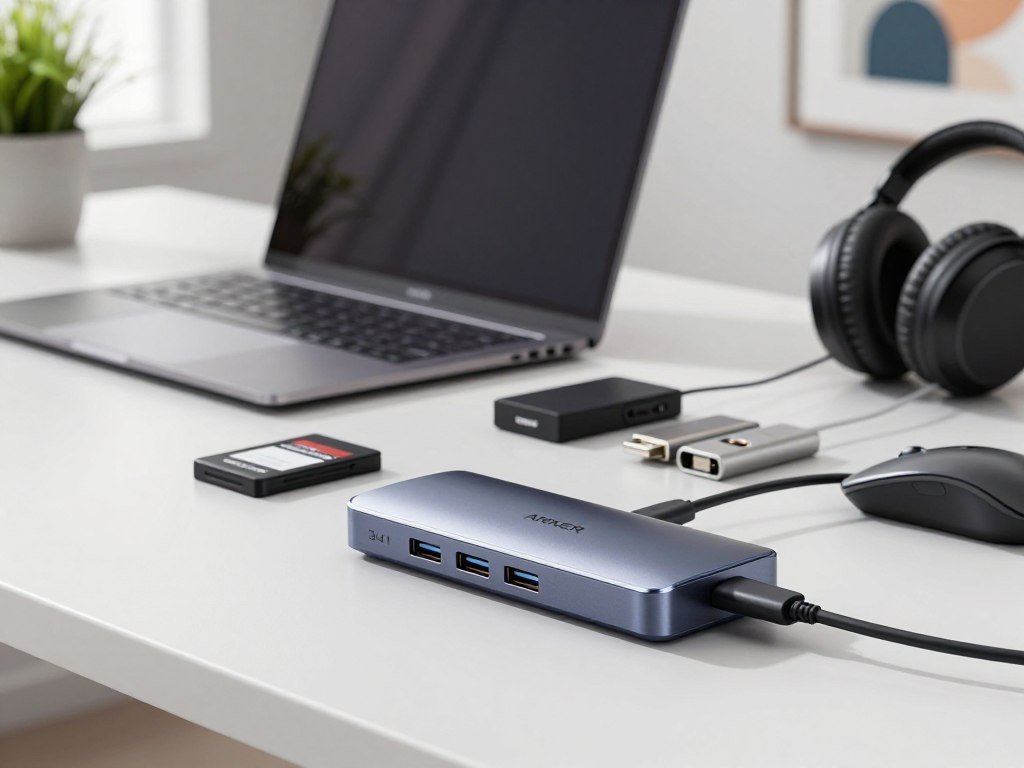
The HDMI port adds a display connection, while the power-delivery input allows pass-through charging with a suitable charger. The hub’s role is to bring these everyday connections together, not to replace a full desk dock. Its modest port mix can be easier to carry than a larger unit.
There is a tradeoff for frequent large-file transfers. A 5Gbps connection is less appealing when you regularly move large video files or work from a fast external drive. Transfer speed also depends on the drive, cable, and host connection, so a faster hub alone cannot guarantee quicker copies.
Think about your week, not just an occasional task. If most of your time goes to documents, browsing, and card imports, the Anker 341’s mix can be enough. A power input and familiar data ports make it a practical everyday choice for a simple setup.
Choose it for a modest monitor and routine file access, not a workflow built around the quickest external drives. That keeps the hub’s speed limit from becoming an avoidable bottleneck. The card readers remain a useful bonus even when your drive needs are light.
Which Hubs Add Ethernet and Card Readers?
A hub with Ethernet and card readers can replace two separate accessories when you work between a desk and a camera bag. These compact picks differ most in their display support and charging details.
The Plugable USBC-7IN1E adds Gigabit Ethernet, SD and microSD card readers, USB 3.0 ports, and 4K HDMI video. Its list price is $39.95. The UGREEN 7-in-1 USB-C Hub SKU 60515 stands out for 4K 60Hz output and up to 95W delivered to the laptop.
| Model | Network and card features | Display and power details |
|---|---|---|
| Plugable USBC-7IN1E | Gigabit Ethernet; SD and microSD card readers | USB 3.0 ports; 4K HDMI video |
| UGREEN 7-in-1 USB-C Hub SKU 60515 | Ethernet and card-reader details not listed here | Up to 4K 60Hz; up to 95W to the laptop |
| OWC USB-C Travel Dock | Ethernet; updated version adds an SD card slot | HDMI; USB-C charging input; two USB-A ports |

The Plugable gives you a direct mix for wired networking and card imports. You can connect a network cable and copy camera files without a separate Ethernet adapter or reader. Its 4K HDMI output adds a display connection for a desk or hotel workspace.
The UGREEN’s listed strengths are its 4K 60Hz output and up to 95W delivered to a connected laptop. This makes it a useful option when display clarity and charging matter more than a stated card-slot feature. Its listed information does not name card readers or Ethernet, so do not assume they are included.
The OWC USB-C Travel Dock has two USB-A ports, Ethernet, HDMI, and a USB-C charging input. Its updated version adds an SD card slot, which can help if you import camera files on trips. That version difference matters when an SD connection is part of your regular kit.
A compact travel hub can keep several useful connections in one small unit, but feature details vary by model and revision. The OWC’s combination makes sense for a bag that moves between wired networks and external screens. Check the exact OWC version before choosing it if an SD slot is essential.
Which Hub Gives You Fast Data and Wired Ethernet?
For a desk that moves large files and needs wired networking, start with the Plugable USBC-9IN1E or the UGREEN Revodok Pro 109. Both target busier setups, though their port mixes are different.
The Plugable USBC-9IN1E combines Gigabit Ethernet, UHS-II card readers, multiple 10Gbps USB ports, 4K 60Hz HDMI, and 140W pass-through charging. Its list price is $49.95. The mix suits a desk where drives, cards, and network access all matter.
The UGREEN Revodok Pro 109 has one 10Gbps USB-C port, one 10Gbps USB-A port, and two 5Gbps USB-A ports. Connected devices share the upstream bandwidth, so several transfers cannot each reach the maximum rate at once. A fast port rating describes a ceiling, not a promise for every active device.
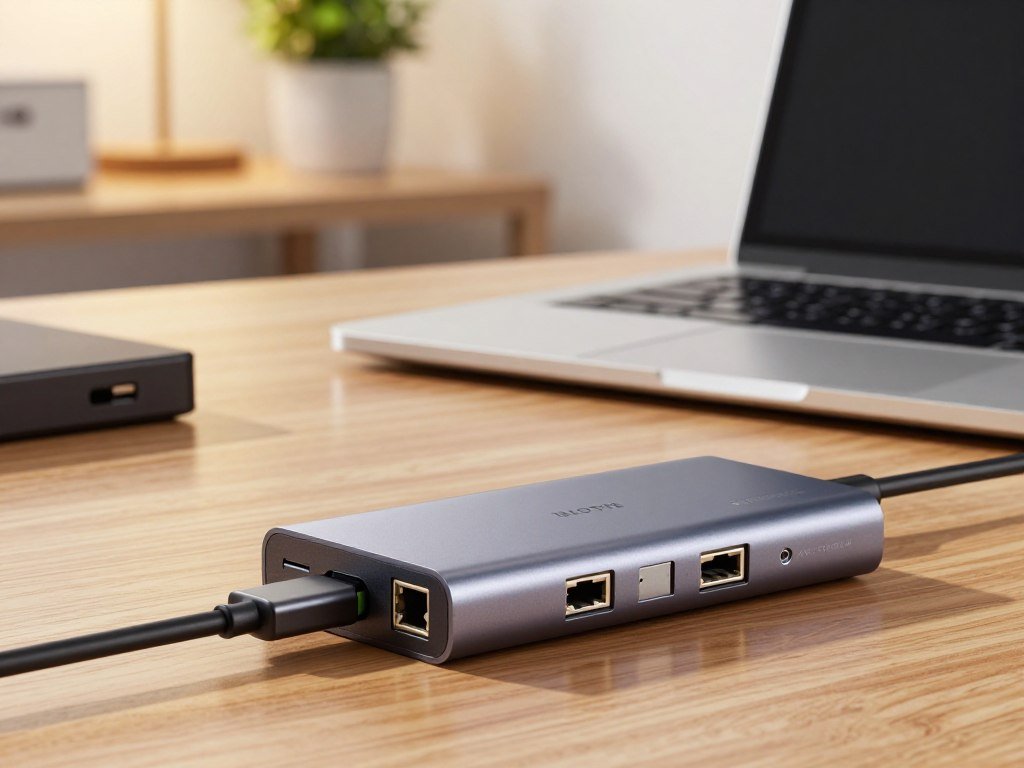
Use the Plugable when card work is a regular part of your day. UHS-II readers are useful with compatible cards, and multiple 10Gbps ports give you more than one fast connection. Ethernet can keep a large upload or shared work file on a wired network.
The UGREEN provides a clearly stated selection of high-speed USB-A and USB-C ports. It can suit a desk built around external drives and common accessories. Keep in mind that multiple devices draw from the same upstream connection, even when the individual ports have high ratings.
A few questions can narrow the choice before you compare details:
- How many fast data devices will be active at the same time?
- Do you need a wired Ethernet connection at your desk?
- Do you regularly use SD or microSD cards?
- Must the hub charge your laptop while connected?
The answers point to the port mix you will actually use. For example, Ethernet and card readers may matter more than an extra high-speed port if you often import photos and work from a wired network. If fast storage is the main need, make sure the drive uses a port with a matching rate.
Pass-through charging is another separate job from data transfer. The Plugable’s 140W rating describes its pass-through charging support, while your charger and laptop affect the power delivered. Choose the model whose data, network, card, and power features match your real desk routine.
Reserve the fastest ports for the drive or card transfer that matters most during a busy session. That simple habit can help one important job finish before several lower-priority devices compete for bandwidth.
Which USB-C Hub Fits the MacBook Neo?
The MacBook Neo’s faster USB-C port is the one to use for a hub that handles a monitor or high-speed storage. Use the 10Gbps port, not the slower connection, for the hub.
In 2026, the Neo has one 10Gbps USB 3 USB-C port and one 480Mbps USB 2 USB-C port. Connect a standard hub such as the Plugable USBC-4IN1 to the 10Gbps port for one external display and fast data. A standard hub supports one native external monitor on this laptop.
The 480Mbps port is better suited to low-demand accessories than a monitor hub or fast drive. Putting the hub there can restrict data speeds, even if the hub itself has faster ports. Choose the faster port for the connection carrying the most work.
- Identify the Neo’s 10Gbps USB-C port.
- Attach the hub and display to that port.
- Use DisplayLink hardware if two external screens are required.
DisplayLink is a display-compression adapter technology that can send video through a compatible dock or adapter. It is needed for a two-screen setup beyond the Neo’s native external-display support. A standard hub does not create a second native external display on this laptop.
The Plugable USBC-4IN1 is a straightforward choice when you need one external display and fast data. It has 4K 60Hz HDMI and fast USB-A and USB-C data ports, which suit a basic work setup. You can choose another model if your desk also needs Ethernet or card readers.
Before you connect the display, confirm which Neo port you are using. The two USB-C ports have very different data rates, so their identical shape can be misleading. That difference can affect both storage work and the feel of a monitor-connected setup.
Confirm the Neo’s display requirement before buying a hub with multiple video outputs. Extra video sockets cannot change the laptop’s native monitor support. DisplayLink equipment is the specific route for two external screens.
Which USB-C Hub Offers the Most Display Flexibility?
The Anker 565 gives you both HDMI and DisplayPort, so it suits setups where a single video connector would be limiting. That choice of outputs lets you match the hub to different monitor cables.
The hub has a 10Gbps USB-C data port, a 10Gbps USB-A data port, Gigabit Ethernet, and SD and microSD card slots. Its 100W power input supplies up to 85W to a connected laptop. With a DP 1.4 laptop, it supports one 4K 60Hz monitor or two 2K 60Hz monitors.
This makes the Anker 565 an HDMI-oriented choice for a laptop whose host connection supports DP 1.4. Use one monitor when you want a sharper 4K image, or two monitors when more screen space matters more than resolution. The two supported modes give you a clear choice for different desks.
DisplayPort can help when your monitor or cable uses that connector, while HDMI works with a wide range of screens. You also get a wired network port and memory-card slots in the same hub. That mix can keep video, network, and file-import connections together.
Check the laptop’s display support before expecting a specific mode. The Anker 565’s listed modes require a DP 1.4 host, so the hub cannot supply that feature if the laptop does not. A USB-C port’s shape alone does not tell you which video modes it can send.
Power is another detail to plan for when your display and data devices stay connected. The hub’s 100W input rating does not mean the laptop receives 100W; the stated laptop output is up to 85W. Use a compatible charger that can support your laptop’s needs.
The best USB-C hub for HDMI depends on whether the priority is one sharper screen or two lower-resolution external screens. Decide which arrangement matches your desk before comparing the remaining ports. Verify that the laptop supports DP 1.4 before expecting the listed display modes.
Which Hubs Can Run Two External Monitors?
For two 4K 60Hz screens on Windows, the UGREEN Revodok 206 and Revodok Pro 106 are relevant options when the laptop is compatible. Host support matters as much as the hub’s video ports.
In 2026, both UGREEN models support dual 4K 60Hz displays on compatible Windows systems and up to 8K 30Hz on one display. The Pro 106 also supports 4K 60Hz with a DisplayPort 1.4 host. Its downstream USB-C ports carry data only, not video or laptop-charging power.
| Model | Two-display mode | Single-display mode | Notable condition |
|---|---|---|---|
| UGREEN Revodok 206 SKU 15852 | Dual 4K 60Hz | Up to 8K 30Hz | Compatible Windows systems |
| UGREEN Revodok Pro 106 SKU 45363 | Dual 4K 60Hz | Up to 8K 30Hz | Compatible Windows systems; DP 1.4 host for 4K 60Hz |
| Anker 565 | Two 2K 60Hz monitors | One 4K 60Hz monitor | DP 1.4 laptop host |
The Revodok 206 is the direct match when you want two 4K screens on a compatible Windows computer. The Revodok Pro 106 offers the same stated dual-display resolution and adds a clear DP 1.4 condition for its 4K 60Hz single-screen mode. Read the model number closely, since similar product names can hide different port roles.
The Pro 106’s downstream USB-C ports are useful for data devices, but they do not send video to another monitor. They also do not provide power-delivery charging to a laptop. Treat the ports according to their stated role rather than their USB-C shape.
Windows display settings can help you choose whether screens extend or mirror. Microsoft’s external monitor troubleshooting guide covers checks for multi-monitor connections. A display splitter may copy one image rather than create separate workspaces.
Host support and hub support must align for the listed modes to work. A two-display feature on the hub does not override limits in the laptop’s graphics system or connection. Check the host computer and the exact port function before treating every USB-C connector as a display output.
Can One Hub Connect Three Monitors?
The Anker 14-in-1 has the physical outputs for up to three simultaneous monitor connections. It offers two HDMI ports and one VGA port, giving you three places to attach screens.
In 2026, the hub’s two HDMI outputs and VGA output can connect up to three monitors at once. It also has Gigabit Ethernet, SD and microSD card readers, and an AUX port. Three output connectors do not guarantee three independent extended desktops on every computer.
The computer’s operating system and display technology help determine what appears on each screen. Some systems may mirror an image instead of extending the desktop, even when several displays are plugged in. The hub’s listed maximum describes its connections, not every host computer’s capacity.
Use the two HDMI ports for screens with HDMI inputs, and the VGA port for a compatible older display. The additional Ethernet and card-reader connections can be useful in a fixed workspace. AUX provides another connection for compatible audio gear.
Before setting up three screens, check the computer’s support for extended displays. A multi-output hub cannot add display capacity that the computer does not have. The operating system may also affect whether the screens can show separate content.
Try each screen one at a time if the full setup does not behave as expected. That helps separate a cable or display issue from a host limit. Keep track of which monitor is on HDMI and which uses VGA while testing.
Confirm whether the computer can extend to three separate screens rather than mirror an image. The number of video sockets is only one part of a working multi-monitor setup. Check the computer’s own display settings before relying on three separate work areas.
When Is a Powered Dock Better for a Desk Setup?
A powered dock becomes the better desk choice when a small hub cannot support the screens and peripherals you want to leave connected. A permanent setup benefits from more ports and a stable power plan.
The UGREEN Revodok Docking Station CM615 supports two 4K 60Hz displays and requires you to provide a power supply. It can suit a desk where two screens are the main need. The Plugable UD-6950PDZ supports three 4K 60Hz displays, six USB-A ports, and 60W power.
That makes the Plugable a better fit for three-screen work with several USB-A accessories. The six ports can keep items such as a keyboard, mouse, and other desk devices connected. Its 60W power supply also helps reduce the number of separate laptop connections.
The CM615 asks you to supply a power source separately, so include that in your setup plan. A dock that supports two screens may be enough if your work does not call for three. For a fixed desk, the larger size can be less of a concern than it would be in a travel bag.
DisplayLink docks can be useful for productivity-focused multi-display work. They rely on display software and are less suited to high-frame-rate gaming, where direct video output is often a better fit. Choose around the work you do rather than the largest screen count on a product label.
A dock can turn one laptop connection into a stable group of desk connections. It can also reduce repeated plugging and unplugging when the laptop moves between home and work. That convenience matters most when the displays and accessories stay in place.
Count the displays and always-connected accessories before adding a dock to a compact laptop setup. The CM615 suits a two-screen plan, while the Plugable is built for three 4K displays and more USB-A devices. Pick the size and power arrangement that fit the desk you actually use.
USB-C Hub or Docking Station: What Should You Buy?
Choose a hub for a small, movable setup and a dock when a permanent workstation needs more connections and dedicated power. Your daily routine is the best guide to the right size.
A USB-C hub usually suits a few peripherals, one display, and a bag-friendly setup. Hubs typically have 4-10 ports and cost about $30-$150. A dock tends to offer more ports, a separate power adapter, and a higher price.
More features can add cost and setup steps. A dock may make sense when you leave many accessories connected, while a compact hub can travel with your laptop. Think about the number of things you use together, not just the total sockets on the device.
- How many displays will you connect at the same time?
- How many accessories do you use, and which types of ports do they need?
- Must the setup stay powered while the laptop is connected?
- How often do you move the computer between workspaces?
If you carry the computer every day, a small hub is easier to pack and reconnect. If the laptop stays at a permanent workstation, a dock can keep more devices ready. The same user may want a small travel hub and a larger home setup, depending on their routine.
Budget is part of the choice, but so is setup complexity. A dock often needs more desk space and a separate power supply. A hub may be the simpler fit when you only need a few added connections and one display.
Consider whether the laptop charger can stay in your bag or should live at the desk. Some hubs support pass-through charging, while docks often have their own power arrangement. Either way, match the charging setup to the laptop’s needs.
If you only need one extra connection, a single-port adapter may be more practical than either. A small adapter avoids paying for ports you will not use. Choose the larger device only when its extra connections solve a real problem.
Which Ports and Speeds Matter Most?
A fast hub cannot make a slow host connection or an incompatible video port perform beyond its limits. Match both ends of the connection to your devices.
USB data rates tell you how quickly a hub can move files between the laptop and an accessory. USB 2.0 is enough for low-demand items, while faster storage benefits from a higher rate. The host connection sets a ceiling for the data shared across the hub.
Match USB data speed to the devices you use
| Standard | Maximum stated rate | Typical use |
|---|---|---|
| USB 2.0 | 480Mbps | Low-demand peripherals |
| USB 3.0 / USB 3.2 Gen 1 | 5Gbps | Routine drives |
| USB 3.2 Gen 2 | 10Gbps | Faster storage |
These labels describe different maximum rates, not guaranteed file-copy times. A drive, cable, host port, and other active devices can each affect performance. A 10Gbps port can help a fast drive, but it cannot make a slower drive operate at that rate.
A regular keyboard or mouse needs far less data speed than an external SSD. If your hub has a mix of port rates, reserve the faster one for a storage device that can use it. A lower-speed port remains fine for many basic accessories.
Check the video standard and host connection
HDMI 1.4 supports 4K at 30Hz, while HDMI 2.0 supports 4K at 60Hz. The refresh rate affects how often the screen updates, which can make everyday movement look smoother. Choose the standard that matches your display and work.
USB-C video output from a hub requires a host port that supports video, such as DisplayPort Alt Mode or Thunderbolt. A USB-C-shaped host port alone does not guarantee video output. Look for the host’s video support before expecting a hub’s HDMI port to work.
A USB-C port can carry data, power, and video, but not every port supports all three. That is why a laptop’s exact configuration matters more than a familiar connector shape. The laptop port and configuration guide can help you check those details for a specific model.
Read the hub’s host-connection speed as well as its downstream port ratings. A hub with fast accessory ports still depends on the single connection back to the computer. Match the speed printed for the hub’s host connection to the drive or display demands of the setup.
How Much Power Delivery Does Your Laptop Need?
A 100W power rating on a hub does not necessarily mean the laptop receives 100W. Check the laptop output, not only the number shown for the hub’s input.
Pass-through charging sends power from a USB-C charger through the hub to the laptop. The hub itself uses some power, so the amount that reaches the computer can be lower than its maximum input. USB-C hubs typically deliver about 80-85W to a laptop from a 100W power input.
That difference matters when you compare a hub with your laptop’s charger. A hub may list the power it can accept, while a separate figure describes what it delivers to the laptop. Read both numbers so you do not mistake input capacity for laptop charging power.
The laptop’s power needs vary by model and workload. A computer may draw more power during demanding tasks than during light browsing. Compare the hub’s stated laptop output with the wattage your computer needs for normal use.
A charger must be supplied when the hub does not include one. You may also need a compatible USB-C charger and cable to use pass-through charging. Check that the charger’s output can support the hub’s input requirements.
Charging and data are separate functions, even when they share one USB-C connection. A hub’s power rating does not tell you how many devices it can charge from its downstream ports. Look for stated details about laptop output and accessory charging separately.
If your laptop’s original charger supplies more power than the hub passes through, the laptop may charge more slowly under heavy use. The difference depends on the computer’s draw at that time. Compare the hub’s laptop-output figure with the wattage of the laptop’s original charger.
Which Macs Support More Than One External Display?
Mac display support depends on the chip generation, so two HDMI sockets on a hub do not guarantee two extended screens. Check the exact Mac before you plan a multi-monitor desk.
In 2026, M1 and M2 MacBook Air models support one native external display. An M3 MacBook Air supports two external displays with its lid closed, while an M4 model supports two with its built-in display active. The chip generation changes the number of native screens.
MacBook display support varies by chip generation
Those MacBook Air limits affect which hub can meet your display plan. A hub may have several video outputs, but the laptop still has to support the screens. Plan around the Mac’s native display capacity before choosing a model.
MacBook users who need one external monitor have a wider range of standard hub options. If you need more than one, the chip and the way you use the built-in screen can change the answer. A port list alone does not show those system limits.
Match the hub to the Mac’s actual display mode
Standard MST hubs cannot create two independent extended desktops on macOS. MST is a way to send more than one display signal through a connection, but macOS does not use standard MST hubs for two separate extended screens. A MacBook or iMac user should check the computer’s own display support first.
The best USB-C hub for a Mac or MacBook Air is the one whose port mix fits your peripherals and whose display behavior matches that Mac. You might need card readers, USB-A ports, Ethernet, or charging more than multiple video outputs. Match those everyday needs to the display mode the Mac supports.
An iMac buyer should choose based on the connections needed for the desk, such as drives, a keyboard, or a wired network. The iMac’s own display support still matters if you plan to add external screens. A hub can add connections, but it does not replace the computer’s display limits.
If a Mac’s native support does not meet your plan, DisplayLink hardware may be another route, depending on the setup. It uses display-compression technology and may require software. Check the Mac’s compatibility with the specific DisplayLink device before you rely on it.
Choose the hub for the ports you need after confirming the screen arrangement. That keeps a useful accessory from becoming a costly mismatch. Check the exact Mac model’s external-display limit before choosing a multi-monitor hub.
What Should You Check Before Buying?
Before ordering, make a short inventory of the laptop connection and every accessory you expect to leave plugged in. A quick count helps you avoid buying ports you cannot use.
A USB-C hub uses one upstream connection to the computer and provides multiple downstream connections for devices. Downstream ports may be USB-A or USB-C. The number of sockets does not mean every port can handle every function.
- Confirm the laptop has the required host connection.
- Count the devices that stay connected.
- Distinguish USB-A from USB-C accessory needs.
- Confirm each port’s data, video, or charging role.
- Check cable reach and desk placement.
The upstream connection carries the traffic between the laptop and all downstream ports. A hub’s sockets may serve different roles, and some USB-C ports are data-only. Read the port details instead of assuming every connector can send video or charge the laptop.
Start with the laptop’s exact model and configuration. Two versions of one laptop family may have different ports or display support. A laptop model and port guide can help you check the setup before settling on a hub.
Think about cable reach if the hub will sit beside a monitor or under a desk. A short cable may leave the hub hanging from the laptop, while a longer reach can make a desk easier to arrange. Place it where you can reach card slots and frequently used ports.
Also count the devices you need at the same time, not the total devices you own. A drive, camera card, phone, and keyboard may all be part of a workday, but not always connected together. That distinction can change how many downstream ports you need.
Keep the final choice tied to the connections you will use every week, not a port count that looks impressive on a box. A smaller hub with the right ports is often easier to live with than an oversized one. Check each listed port’s role before you buy.
Conclusion
The right choice is the one that covers your everyday connections without relying on a display or power feature your laptop cannot use. For many mixed-port setups, the Anker 555 is a strong place to start.
A compact budget pick can suit a narrower set of needs, while a powered multi-display dock makes more sense for a fixed desk. Your laptop, ports, and screen plan should guide the decision, not the product’s socket count.
Write down your laptop model and the connections you require, then confirm its host port and display limits. Check your laptop’s model and connection requirements before choosing your hub.
FAQ
Can a USB-C hub charge a laptop while its other ports are in use?
Yes, a USB-C hub can charge a laptop while its other ports are in use if it supports pass-through charging and has a compatible charger connected. The hub routes power to the laptop while also connecting accessories. Check the wattage listed for laptop output, since the hub’s maximum input rating may be higher than the power it passes through.
Does a 100W USB-C hub deliver 100W to a laptop?
No, a 100W USB-C hub does not always deliver 100W to a laptop. That number can describe the maximum power entering the hub, and the hub uses some power itself. Look for a separate laptop-output figure, then compare it with the wattage your laptop needs during regular use.
Will a USB-C hub slow down an external SSD?
Yes, a USB-C hub can slow down an external SSD if its ports or host connection are slower than the drive. Devices also share upstream bandwidth, so simultaneous transfers compete for the same connection. A 5Gbps or 10Gbps host link sets the overall ceiling, even when one downstream port lists a higher rate.
Can a regular USB-C hub run two extended displays on a Mac?
No, a standard MST hub cannot create two independent extended desktops on macOS. The Mac’s chip sets its native display support, and a regular hub cannot raise that limit. Some setups may use DisplayLink hardware and software, but you should check that the Mac and device support the display arrangement you need.
Do all USB-C ports support an external monitor?
No, not all USB-C ports support an external monitor. The host port must carry video through DisplayPort Alt Mode, Thunderbolt, or another compatible display method. A USB-C connector can look the same while offering different features, so check the laptop’s port details before connecting a hub or display.
Is a USB-C hub the same as a docking station?
No, a USB-C hub is generally smaller and easier to carry than a docking station. Hubs often add a few ports for travel or a simple desk, while docks tend to offer more connections and a separate power supply. A dock suits a larger workstation that keeps more accessories and screens connected.