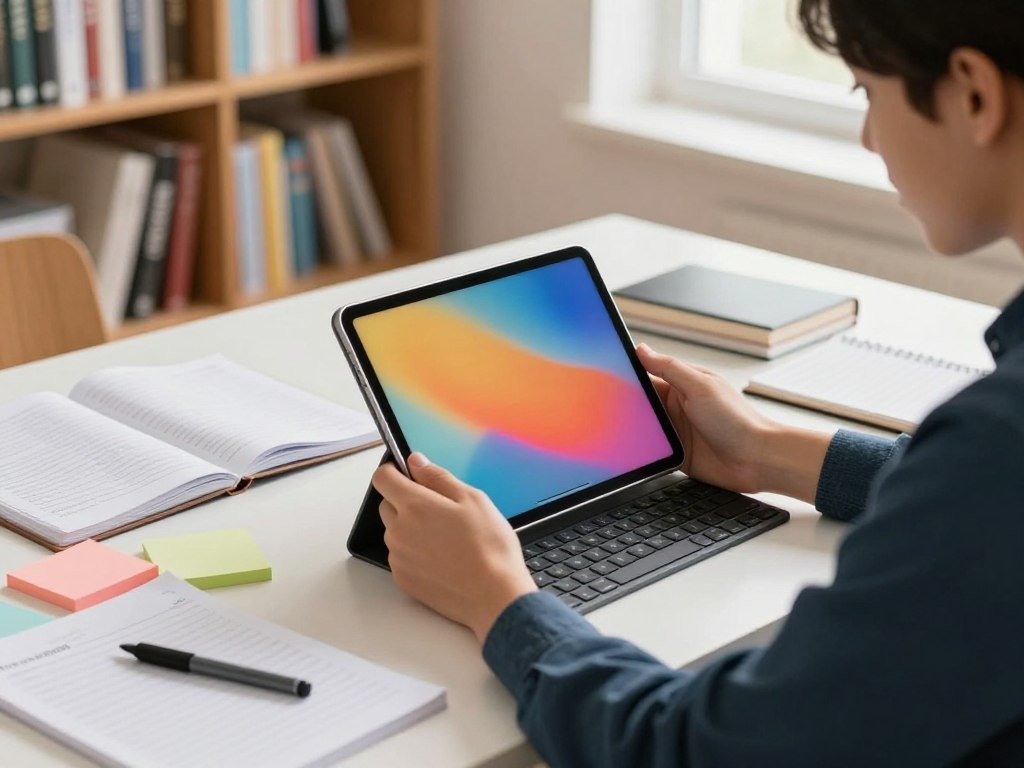
A tablet can be a lighter study companion or a laptop alternative, but the right choice depends on what you need it to do every day. Some people want a digital notebook for reading and handwritten notes. Others expect a device to handle typing, multitasking, and work apps.
A 2-in-1 is a device that works as a tablet and can also be set up for laptop-style typing with a keyboard. The accessories and software you need can change the total value, so compare the full setup, not just the tablet.
This roundup helps you match a screen and operating system to your school or work routine. It also shows when a tablet can cover your daily tasks and when a laptop still makes more sense. Decide whether handwriting, typing, or desktop software matters most before comparing models.
Key Takeaways
- Choose by the apps your school or job requires.
- Pick a stylus-centered tablet for handwritten notes and PDF markup.
- Budget for a keyboard, stylus, or stand if needed.
- Check offline storage needs before choosing a model.
- Keep a laptop in mind for specialized desktop programs.
Best Tablets for Students & Work by Study Style
For a typical mix of reading, coursework, and video calls, start with an iPad; choose a Galaxy Tab if handwritten notes are central, or a Windows 2-in-1 if desktop programs are essential. Your apps and current accessories can change which tablet offers the best balance.
An iPad is the straightforward pick for broad classroom-app use. Apple’s iPadOS has a wide range of study and work apps, while the tablet remains easy to carry between classes. You can add a keyboard and mouse for longer typing sessions or a desk setup.
Choose the device that runs the apps your school or employer requires, not the one with the biggest screen.
A Samsung Galaxy Tab is a strong fit when handwriting and Android multitasking shape your day. Android tablets can give you flexible ways to work across apps, and select models support stylus use. A Windows 2-in-1 makes more sense when your classes or job rely on full desktop software.

Tablets give you a larger canvas for apps and creative projects than a phone, with less bulk than a laptop. They can also connect to a keyboard and mouse, though the exact setup depends on the model. For a broader student tablet buying guide, compare the apps, screen, storage, and battery life you use most.
List the work apps you already rely on, including any tools supplied by your school or employer. A student who writes by hand may value a stylus more than a keyboard. Someone preparing long reports may prefer typing comfort and desktop software access.
Check that the device supports the apps required by your school or employer before choosing by screen size alone.
Is the Apple iPad (A16) Enough for Everyday Coursework?
The $349 iPad (A16) is a sensible starting point for everyday coursework if you do not need Apple Pencil Pro or Apple Intelligence. For core classwork, it handles reading, common class apps, browsing, and typed assignments.
The 11-inch display gives you room for notes and course material, but accessories cost extra. If you are comfortable buying a keyboard and stylus separately, the iPad can serve as a familiar study device without requiring a high-end setup.
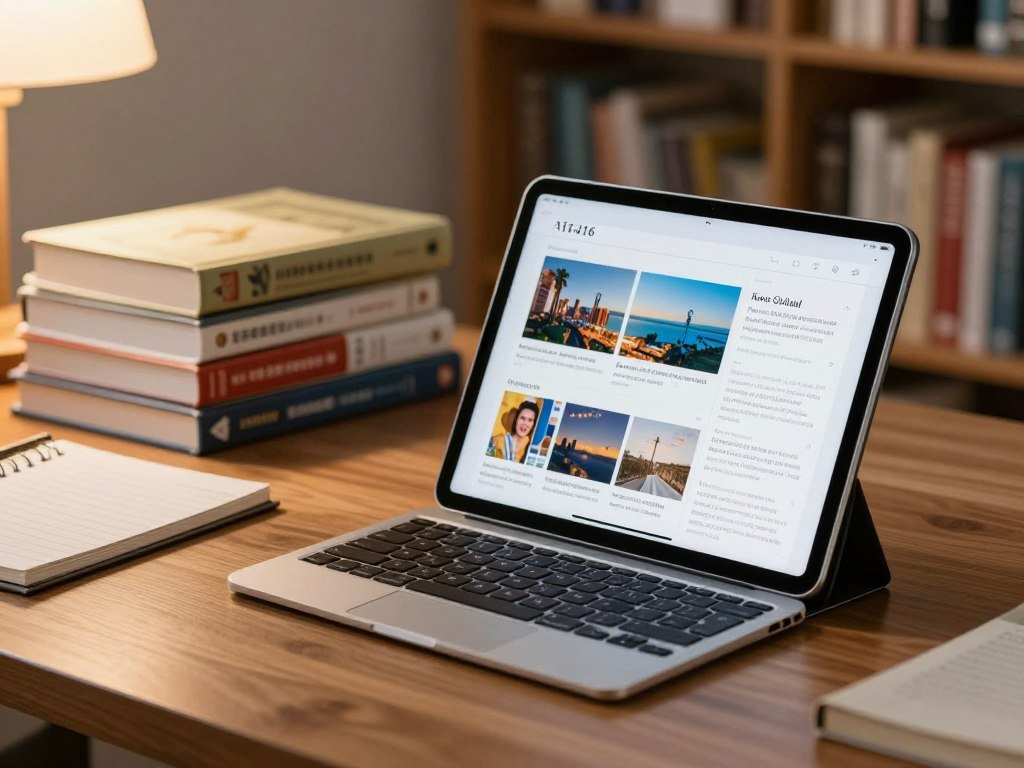
The A16 model does not support Apple Pencil Pro or Apple Intelligence. That matters if either feature is part of the workflow you expect. Apple lists the 11-inch iPad at $349 in the United States, and accessories are sold separately.
Check these details before you decide what belongs in your setup:
- Confirm that the required apps work on this iPad.
- Decide whether handwriting is essential for your classes.
- Price the keyboard and stylus separately.
- Estimate how much content you must store offline.
Those checks can prevent a low tablet price from hiding the cost of a complete study setup. Offline files also matter when you study in places with weak or no internet access. Think about lecture videos, course PDFs, and downloaded books.
Add the cost of any keyboard or pencil you plan to use before comparing its value with a bundle that includes accessories.
Is the Samsung Galaxy Tab S10 FE the Better Pick for Handwritten Notes?
For handwritten class notes on a mid-sized screen, the Galaxy Tab S10 FE is the Samsung pick to consider. A tablet with a pen is especially useful for annotating PDFs, writing equations, and sketching diagrams. That direct input can feel more natural than typing every thought.
The 10.9-inch Galaxy Tab S10 FE has 128GB of storage and a US Wi-Fi price of $549.99 in 2026. Samsung Notes can sync notes across Galaxy devices, so your class material can follow you between compatible devices.
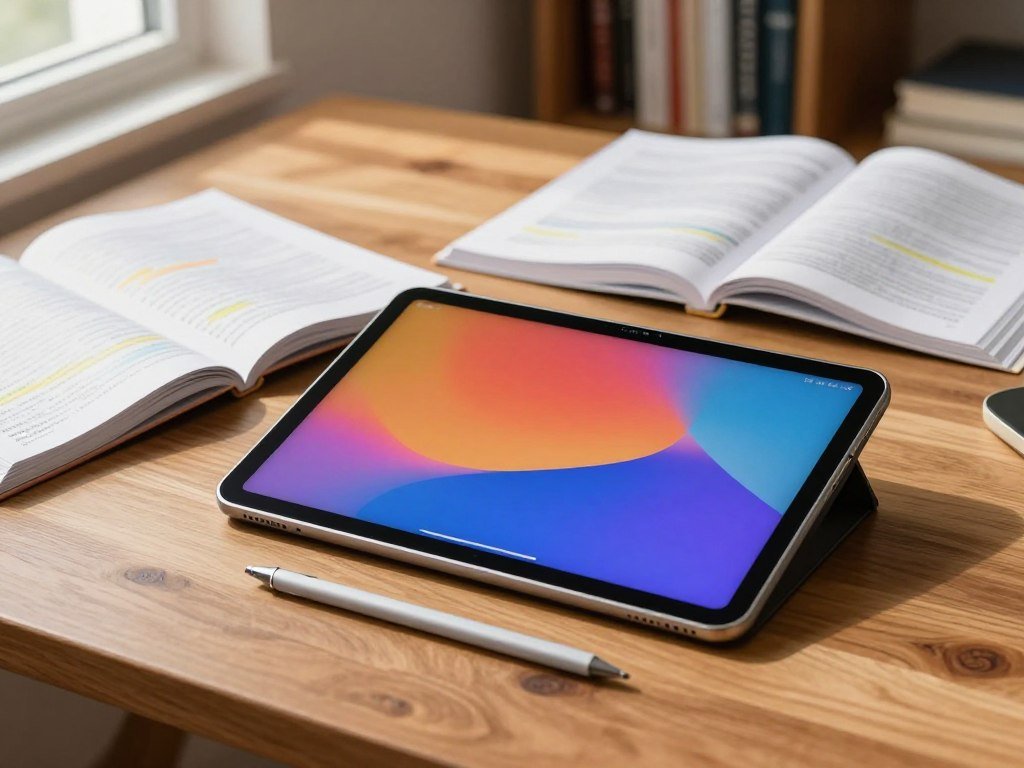
Samsung tablets support microSD expansion up to 1TB, which gives you room for more saved course files. DeX opens multiple windows and adds a taskbar for a PC-like experience. That can help when you need notes, research, and a class app open at once.
The keyboard remains a separate typing consideration. A stylus can suit handwritten notes and markups, while a keyboard can make essays and longer assignments easier to type. Think about whether your day involves more writing by hand or producing polished documents.
In 2026, the Galaxy Tab S10 FE series is eligible for up to $110 in instant trade-in credit. The credit depends on the qualifying device and program eligibility, so treat it as a possible reduction rather than a guaranteed discount.
Verify trade-in eligibility for the specific device you would exchange before including any credit in your budget.
When Does the Larger Galaxy Tab S10 FE+ Make Sense?
Choose the Galaxy Tab S10 FE+ if the extra screen space is useful enough to justify its $699.99 US price. Its 13.1-inch display gives students and creators more room for split-screen research, drawing, or large documents. That added workspace is the main reason to choose it.
The FE+ suits work that benefits from a broad canvas. You could keep research beside a draft, view a large page without frequent zooming, or draw with more space for details. The larger screen can make those tasks feel less cramped.
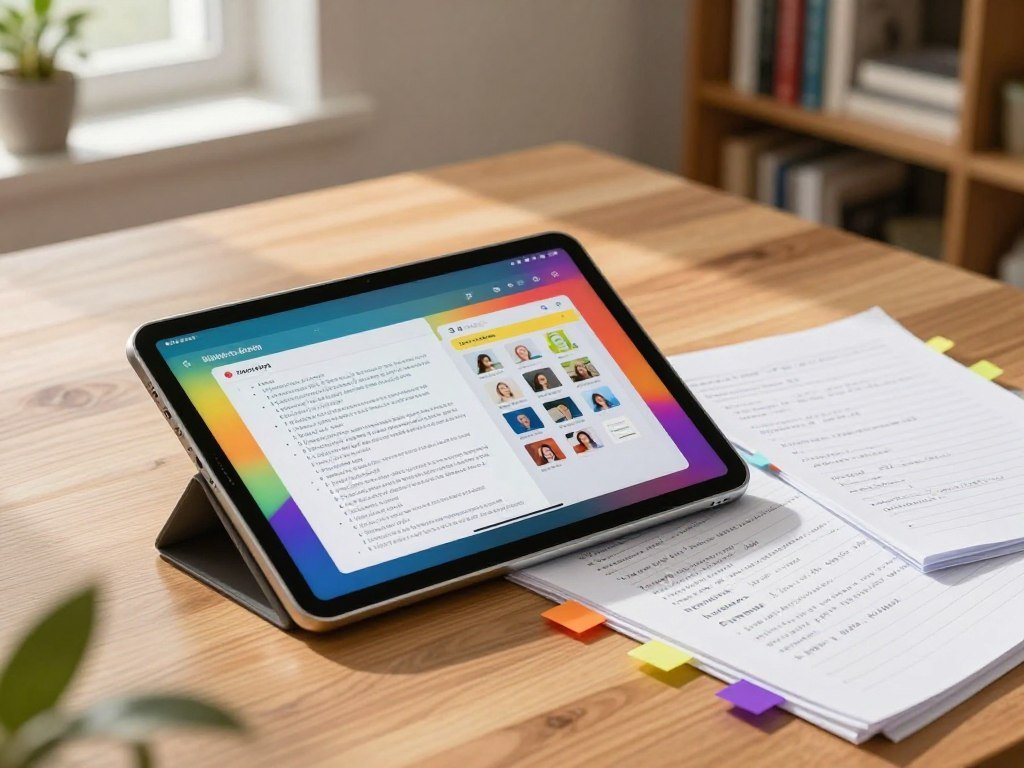
The smaller FE has a more portable footprint, while the FE+ gives you more display area. Neither size is automatically better for every student. Consider how often you carry the tablet between classes and how much split-screen work you do at a desk.
Samsung identifies the Galaxy Tab S10 FE+ as a tablet for students and creators, and it has a 4.0 rating. A rating offers context, not a promise that every owner will like the size or daily experience. Your class materials and drawing habits matter more than a score alone.
For large documents, you may spend less time zooming or switching between pages. For a packed bag or a small desk, the extra canvas may be less useful. The price makes sense when the display helps with tasks you repeat often, rather than occasional viewing.
Picture the device open beside your notes or textbook to judge whether its larger display will earn its place in your bag.
Is the 2026 iPad Air M4 Worth the Step Up?
The iPad Air M4 is the stronger iPad choice when your school or work routine calls for more performance, a larger display option, or advanced connectivity. It suits creative work, frequent video calls, and heavier multitasking. The size choice sets the balance between workspace and portability.
The 2026 iPad Air M4 comes in 11-inch and 13-inch sizes, with 12GB of unified memory. The M4 chip has an 8-core CPU and a 9-core GPU. The 11-inch screen is easier to carry, while the 13-inch model gives you more room for split-screen work.
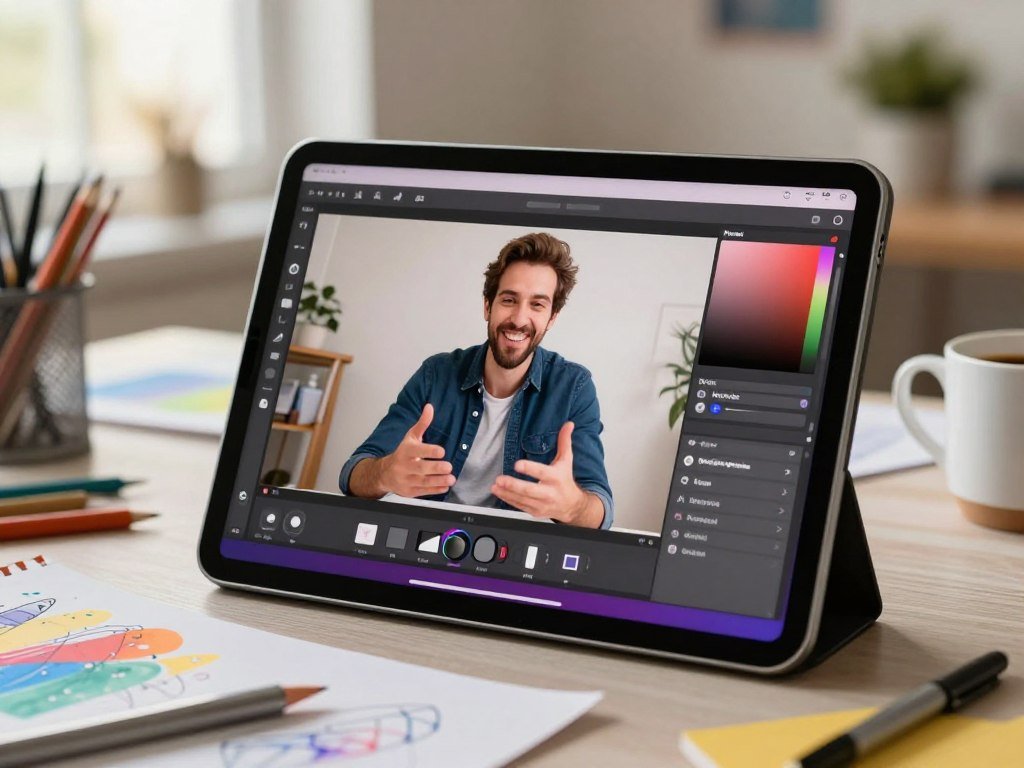
The 11-inch display has a 2360×1640 resolution, and the 13-inch display has a 2732×2048 resolution. Both sizes support Apple Pencil Pro and Apple Pencil (USB-C). Pencil Pro attaches magnetically for pairing, charging, and storage.
The two Pencil options serve different needs, so compare their features before buying. Pencil Pro offers magnetic attachment for pairing, charging, and storage. Apple Pencil (USB-C) is the other supported choice for handwriting and drawing.
The Air supports Wi-Fi 7, Bluetooth 6, and USB-C. Its 12MP Center Stage front camera can keep you in view during video calls. The 12MP rear camera records 4K video, which may help with class projects or work clips.
Optional cellular models support 5G and eSIM for people who need a connection away from Wi-Fi. A cellular option makes most sense if you often work or study outside reliable networks. Wi-Fi remains the simpler fit for regular campus and home use.
Choose the screen size around the work you do most often, since the larger canvas is less convenient to carry.
Which Specialized Tablets Suit Reading, Drawing, or a Bigger Workspace?
Students who need more specialized tools than a standard study slate should compare large-screen Android models with focused reading and note-taking devices. The best fit depends on whether you need conventional apps, a reading-oriented screen, or color.
Android models offer different blends of screen space, included tools, and multitasking. A large display can help with drawing or side-by-side documents, while an included stylus or keyboard can reduce the number of separate items to buy.
Android tablets for a large canvas and included tools
The Lenovo Idea Tab Pro includes a stylus and fast charger, supports microSD cards, and has multitasking modes. The Lenovo Yoga Tab has an 11.1-inch screen, 12GB of memory, and 256GB of storage. It includes a keyboard case and pen, with stated battery life of up to 11 hours.
The Samsung Galaxy Tab S12 Ultra is the large-screen Samsung option, with a 14.6-inch display and an S Pen. It may appeal if you want a broad drawing or writing surface. The Lenovo Yoga Tab combines a keyboard case and pen, while the Idea Tab Pro supplies a stylus and charger.
E-ink-style screens and focused note-taking
The TCL Nxtpaper 11 Plus switches between full-color and e-ink-style display modes. The Kindle Scribe includes a Premium Pen and works with Microsoft Word, linking reading and writing tools in one device.
The Boox Note Air5 C has a color resolution of 1240 x 930 at 150 ppi, and a black-and-white resolution of 2480 x 1860 at 300 ppi. The reMarkable Paper Pro requires a subscription for its complete feature set. That cost matters if you plan to keep the tablet for years.
The best note-taking tablet with a stylus for students depends on whether they need conventional apps, a reading-oriented screen, or color. A focused screen may suit reading and handwriting, while a standard Android tablet offers more familiar app use.
Check whether a complete feature set depends on a subscription before choosing a device for long-term coursework.
What Are the Best Lower-Cost and Longer-Support Options?
Budget buyers should compare long-term support and usable storage alongside the purchase price. The iPad Air M3 is a lower-priced Air option in the stated 2026 pricing context. For a different priority, the Samsung Galaxy Tab A11 stands out for software support.
The Galaxy Tab A11 has seven years of software support, including operating-system versions. That promise may matter if you plan to keep a tablet through several school years. The Fire HD 8 suits basic reading when a compact screen and modest storage are acceptable.
The 11-inch iPad Air with M3 started at $599 in 2026. It has a 60Hz Liquid Retina IPS display and storage options of 128GB, 256GB, 512GB, and 1TB. Apple states battery life of 10 hours. It weighs 16.3 ounces and measures 9.74 x 7.02 x 0.24 inches.
The Fire HD 8 has an 8-inch display, 32GB of storage, and 3GB or 4GB of memory. Its compact screen can suit reading and simple tasks, but it leaves less room for split-screen study. Consumer Reports offers a tablet buying guide that covers major tablet brands and buying questions.
Compare these three details before choosing a lower-cost model:
- Storage space for offline class materials.
- The software-support period for the device.
- Whether the screen suits split-screen study.
Favor a model with enough storage for offline class materials if reliable internet access is not part of your daily routine.
Which Operating System Fits Your Classes and Work Apps?
Choose the operating system by checking the exact apps and software your coursework or job requires. Start with your required tools, then compare how each platform handles your daily tasks.
iPadOS, Android, Fire OS, ChromeOS, and Windows 11 are distinct options for study and work. A familiar app may work differently across platforms, and some software only runs as a full desktop program.
Match the platform to the apps you already use
The table shows the main fit and a key limit for four common platforms. Check the specific app versions your classes or workplace use.
| Platform | Useful fit | Limitation |
|---|---|---|
| iPadOS | Polished classroom apps | Not full desktop software |
| Android | Flexible split-screen and stylus options on select models | Features vary by model |
| Fire OS | Basic reading and assignments | Limited app selection; Fire Max 11 lacks Google services |
| Windows 11 | Desktop file management and full desktop software | Tablet use depends on device design |
ChromeOS is another option, especially when your school uses browser-based tools. Check whether your course apps work online and offline. For desktop needs, a laptop buying guide can help you compare computer options by software and workload.
Know when you still need a laptop
Reading, research, handwritten notes, and video meetings commonly work well on tablets. Technical courses or jobs that require specialized desktop programs may still call for a laptop. A keyboard helps with typing, but it does not turn every tablet into a full desktop computer.
File handling also matters when your work involves many folders, local files, or desktop-only tools. A laptop can be the safer choice for those workflows. Linux users can compare Linux laptop options when their work depends on that system.
Confirm any specialized program runs on the device itself before relying on a tablet as your only computer.
Which Accessories Make a Tablet More Useful for Work?
A keyboard and stand make a tablet more comfortable for typed assignments, while a stylus suits handwritten notes and markup. Choose accessories by task, not by how many can fit in your bag.
A small set of useful add-ons can make a tablet work better at a desk. Some models lack a kickstand or enough ports, so plan around the way you type, watch, and connect devices.
Choose a keyboard, stylus, or stand for the task
Each accessory solves a different problem. A keyboard supports longer typing, while a stand keeps the screen steady during calls or reading.
- Keyboard for essays and long documents.
- Stylus for handwriting and PDF markup.
- Adjustable stand for hands-free viewing or video calls.
- USB-C hub for added ports and pass-through charging.
A USB-C hub can add connections and pass-through charging when the tablet supports those features. For a desk setup with a larger screen, compare UHD monitors for work by ports and charging support. A stand also helps keep a tablet at a steady viewing angle during video meetings.
Decide whether a tablet can replace your laptop
A keyboard-and-stand setup improves laptop-style work, especially for typing and video calls. It may not replace a laptop when your workflow depends on desktop software or a full file-management environment.
Think about where you work most often. A tablet can be easy to carry to class, while a laptop may fit better when your work needs several desktop apps. The accessory setup should match the tasks you repeat, not just an ideal desk arrangement.
A keyboard can make a tablet easier to type on, but it cannot add desktop software the device does not support.
Add the accessories you will actually use to the device budget rather than assuming they come in the box.
Conclusion
The best fit is the device that supports your real coursework or work apps without making the accessories an afterthought. Start with the balance you need between handwriting, typing, and portability. A tablet that fits your daily habits is more useful than one chosen only for screen size.
Check your school or workplace software requirements and price the accessories you need as part of the same setup. That gives you a clearer total cost and helps prevent app or typing surprises after purchase.
Check your required apps and complete setup cost, then choose the model that fits your daily routine.
FAQ
How much storage do students need on a tablet?
64GB to 128GB can be enough when your documents live in cloud storage. Aim for at least 128GB or microSD expansion if you save offline video and large PDFs. Downloaded lectures, books, and class files can fill space faster than basic notes. Check whether your tablet supports removable storage before counting on that option.
Can a tablet completely replace a student laptop?
A tablet can cover reading, notes, research, and video meetings, but specialized desktop software may still require a laptop. The key issue is whether your course tools run on the tablet itself. A keyboard helps with long assignments, but it does not add desktop programs or every file-management feature. Check the software list for each class.
Is an iPad or Samsung Galaxy Tab better for handwritten notes?
The Galaxy Tab S10 FE is the Samsung-centered handwriting pick. It suits students who want to write notes, mark up PDFs, and use Samsung Notes. An iPad can also work well if its supported stylus fits your routine. Compare exact stylus compatibility and accessory costs, then consider which apps you already use for class.
Does the Apple iPad (A16) work with Apple Pencil Pro?
No, the Apple iPad (A16) does not support Apple Pencil Pro. Check compatible stylus models before you buy, since a pen that works with another iPad may not work with this one. The A16 model also does not support Apple Intelligence. Match the tablet and stylus to the features you plan to use.
Is the Amazon Fire Max 11 good for college?
The Fire Max 11 can handle basic assignments and reading, but its limited app selection and lack of Google services may rule it out for some coursework. Check whether your school tools are available through its app selection or browser. If a required app depends on Google services, that gap can affect daily classwork.
Should I get a Wi-Fi or cellular tablet for school?
Wi-Fi works well when you have stable networks at home, school, and work. Cellular is useful if you often study or work away from Wi-Fi, such as during travel or field work. A cellular tablet needs a service plan, so include that recurring cost in your decision. You can also use a phone hotspot when needed.
What should I check before buying a tablet with a keyboard?
Confirm that the keyboard fits the exact tablet model, whether the keyboard comes in the box, and whether your apps support the workflow. Keyboard fit can vary across models and screen sizes. Check how the tablet stands while you type, too. If you plan to use a mouse, confirm that the device supports it.