
The deadline is close, but your key ideas already sit in notes or a document. An AI presentation maker can turn that material into a first draft, giving you a place to start.
You still need to review the facts, shape the story, and adjust the design for your audience. The goal is a useful deck, not a finished presentation from one click.
These tools can save time on the first round of slide work, especially when the content is clear but the layout is not. You remain in control of the message, the examples, and what makes the final cut.
The best time-saving result is a first draft that leaves you free to focus on the message.
Key Takeaways
- Start with notes or a document that holds the facts you need.
- Pick a tool based on your preferred editing and export workflow.
- Give the maker a clear audience, purpose, and set of must-keep points.
- Check the generated content and visuals before presenting.
- Try a short, low-risk brief before uploading sensitive work files.
What Can an AI Presentation Maker From Text Create?
A text-based tool can turn a topic, outline, or source document into a structured first draft with slide titles and visual layouts. That structure can include short text, suggested images, and a sequence built around your main points.
You decide what stays in the deck. A tool can organize the content and suggest a design, but you still need to choose which claims, examples, and visuals fit your talk.
Gamma imports PowerPoint and PDF files and connects to more than 25 tools. In Gamma, a card is one slide or section.
Canva offers access to more than 3 million free stock photos and graphics. That gives you a broad set of visual options, though you still need to select images that fit the subject.
An imported file can supply text without preserving its original layout. A dense report may become a new set of slides, not a copy of its pages.
These features help you create presentations from existing content, even when you do not have a finished slide outline. A good draft can also give you a starting point for a new story, such as a class lesson or project update.

Treat generated visuals as design suggestions, not evidence that the content is accurate.
Purdue OWL’s presentation guidance stresses that you should adapt a talk to its purpose and audience. A sales pitch, a lesson, and a staff update need different levels of detail.
If a draft moves from a source file into a new design, compare its content with the original. A polished slide can still leave out a key detail or present a point in the wrong order.
Generated layouts may also shift the emphasis of your ideas. Review each slide as part of the whole story, not just as a single page with attractive design.
For a closer look at how to review generated material, see this guide to using AI as a first draft. The same habit helps you check presentation content against the source.
How Do You Turn Text Into a Presentation?
Start with the notes or file that contains the information the audience needs, not with a blank slide. A clear source gives the generator useful material to arrange.
Review the outline before you create the full presentation. That gives you a chance to fix missing points before the tool turns them into slides.
- Collect the source text or file you want to use.
- State the topic, goal, and audience.
- Review and edit the generated outline.
- Generate the draft and check its slide order.
Adobe Express accepts PDF, DOCX, PPT, TXT, and XLS files. It also lets you edit the generated outline before building the slides.
QuillBot accepts PDF, DOCX, PPTX, PNG, JPG, JPEG, and WebP inputs. That range can help when your material is spread across documents and images.
A scanned page may look like text but contain only an image. Image-only scans may need OCR, or optical character recognition, to turn words into selectable text.
Once you have an outline, check that its order makes sense for the audience. A presentation about a project might start with the goal, then show progress, risks, and the decision needed.
Do not assume a generator will keep every heading or detail from a long document. Compare the outline with the source and add back any point the audience needs.
You can also use a short excerpt instead of uploading a whole file when only one part matters. This keeps the working material focused on the presentation’s purpose.
Before generating, confirm that the material you upload contains selectable text if you expect the tool to extract its wording.
Which AI Presentation Maker Fits Your Workflow?
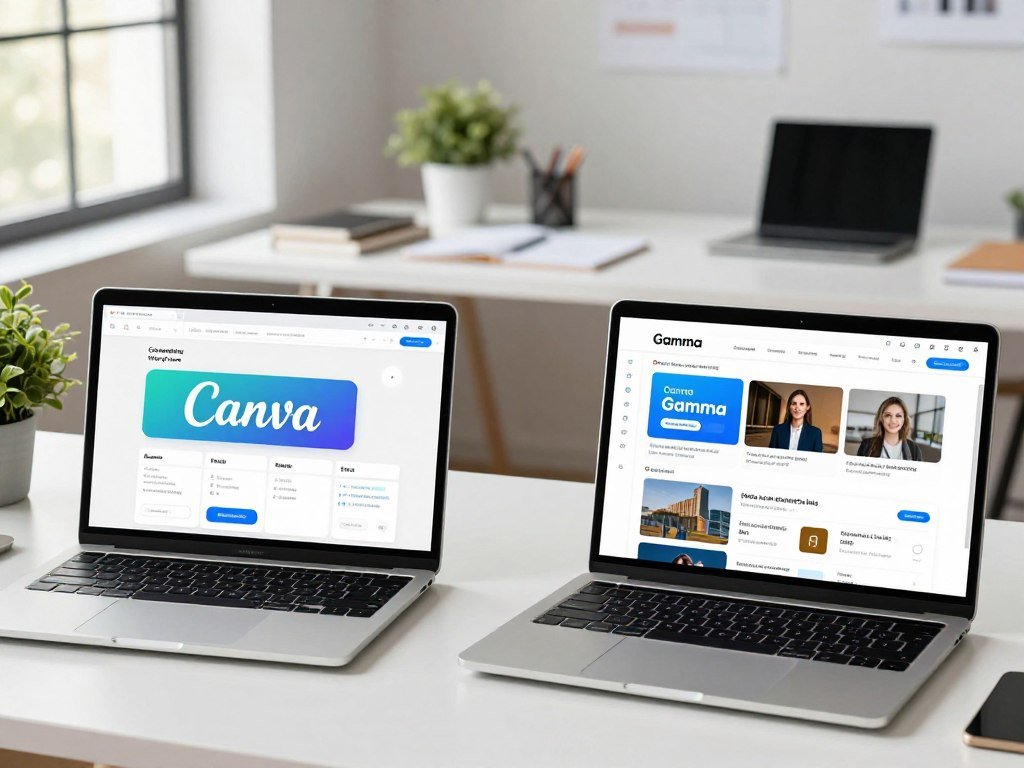
For most readers who want a prompt-based first draft and visual customization, start by comparing Canva with Gamma. Canva suits branded visual editing, while Gamma favors an outline-first draft.
Choose Plus AI when you want to create native slide files inside PowerPoint or Google Slides. Your best AI presentation maker from text depends on which editing workflow matters most.
Canva is a strong starting choice if you want to guide a draft with a prompt, compare generated template choices, and edit the result. Gamma can start from a prompt, an outline, or imported files.
| Tool | Starting point | Output or editing workflow |
|---|---|---|
| Canva | Prompt | Generated template choices and editable draft |
| Gamma | Prompt, outline, or imported files | Exports from an outline-first editor |
| Slidesgo | Topic text and template choice | Editable PPTX download |
| Plus AI | Work inside PowerPoint or Google Slides | Native files in either slide program |
| PPT AI | Word, PDF, TXT, or Markdown input | PPT, PPTX, or PDF output |
For outline-first drafts: Gamma
Gamma works well when you want to start from an outline or bring in existing files. Its card-based structure lets you shape a sequence before spending time on each design detail.
That can suit a project update, lesson, or early pitch where the order of ideas needs work. You can revise the outline and then refine the cards into a deck.
For branded visuals: Canva or Slidesgo
Canva is useful when you want to edit a generated draft with visual tools and brand elements. Slidesgo takes a more template-led approach, with more than 800 professional templates and over 400 free templates.
Slidesgo downloads editable PPTX files that work with Google Slides and PowerPoint. Its approach can help when a template is the main design choice, rather than a prompt-led draft.
A free AI presentation maker from text may have caps on use or limits on exports. An AI presentation maker from text app can mean a browser tool or an add-in inside slide software.
For PowerPoint and Google Slides workflows: Plus AI
Plus AI works inside PowerPoint and Google Slides. It creates native PowerPoint files or Google Slides presentations, which can keep the work in a familiar editor.
PPT AI suits people starting from documents. Its browser-based maker is responsive and optimized for smartphones and tablets, so you can use it on a smaller screen.
Beautiful.ai’s Smart Slides adjust layouts automatically. Any tool’s accessibility still needs a check after export: authoring-tool guidance from the W3C covers both accessibility in the tool and in the content it produces.
If you are comparing presentation tools with video products, note that their outputs solve different tasks. A video generator tool comparison covers clips and footage, not a slide deck.
Choose the workflow that gives you the file and level of editing control you will actually use.
What Should You Put in the Prompt?
A useful prompt tells the tool who will see the slides and what those people should understand or do afterward. Clear direction gives the maker a better basis for arranging your content.
Name the audience, goal, and facts that must stay intact. A short prompt with those details can be more useful than a long brief full of vague requests.
Set the audience, purpose, and voice
Say who will see the presentation and what the deck needs to accomplish. “Help coworkers choose between two launch dates” gives the tool a clearer job than “make a presentation about the launch.”
Then set a voice that suits the audience. A calm professional tone may fit an internal update, while a lively style may work better for a student project.
QuillBot’s prompt guidance names audience, tone, key points, and slide count as useful details. Vanderbilt’s prompt patterns guidance also stresses clear instructions and relevant context.
Specify length and must-keep points
Give a slide count or a useful range, then name the details the tool should not drop. This can include dates, results, risks, or the decision you need from the audience.
For example, request six slides and identify three findings that must appear. A limit helps keep a simple update from growing into a long report.
Keep facts distinct from opinions in your input. If you include a forecast or an estimate, label it so the generated text does not present it as a confirmed result.
Add source material and request an outline
Paste relevant notes or add a document when the presentation depends on specific details. Ask the tool to show an outline before generating slides, so you can review the planned order.
Here is a complete example: “Create a six-slide project update for coworkers. Use a calm, professional tone. Explain whether we are on track for launch. Include these three findings: testing is complete, two bugs remain, and training starts Monday. End by asking the team to approve the launch date. Show an outline first.”
Leave out confidential details that are not needed to make the slides. You can often describe a situation without naming a client, employee, or account.
When revising generated text, keep its meaning intact while making it sound natural for your audience. This guide to revising AI writing offers a related approach to human review.
Read the prompt once as if you were the intended audience and remove any instruction that would not change the finished deck.
How Much Do AI Presentation Makers Cost?
Gamma’s free account starts with 400 one-time credits, while its paid plans trade higher recurring prices for monthly credit allowances. Seat count also matters when a team plan sets a minimum.
Gamma Free allows up to 10 cards per prompt. A card is one slide or section, and a 10-slide deck used 38 of the 400 credits in a hands-on example.
| Gamma plan | Per-seat monthly price | Monthly credit allowance |
|---|---|---|
| Plus | $12 monthly, or $9 with annual billing | 1,000 credits |
| Pro | $25 monthly, or $18 with annual billing | 4,000 credits |
| Team | $20 with annual billing, 2-seat minimum | 6,000 per seat |
| Business | $40 with annual billing, 10-seat minimum | 10,000 per seat |
| Ultra | $100 monthly, or $90 with annual billing | 20,000 credits |
Other tools use different prices and AI allowances. Check both before choosing a free AI PPT maker for repeated work.
- Canva’s paid plan is $15 monthly or $12 with annual billing. Canva Free includes up to 20 Standard or Premium AI uses, while Pro includes 10 times Free’s AI use.
- Plus AI paid plans start at $10 per month and include a free trial.
- PPT AI Plus costs $9.90 monthly or $7.90 with annual billing. Pro costs $19.90 monthly or $13.90 with annual billing.
- Microsoft Copilot for PowerPoint lists at $20-$30 per user monthly with annual billing.
- SlidesAI lists at $10 monthly with annual billing, and Pitch Plus costs $10 monthly with annual billing.
Canva AI for Presentations counts toward its monthly AI allowance. Canva AI 2.0 features are on Pro, Teams, Business, and Nonprofit plans, while Free has limited monthly AI use.
Beautiful.ai lists at $12 monthly with annual billing. These prices show why “free” does not mean unlimited creation, and why team seat rules can change the total charge.
The recurring charge for each user is the per-seat monthly price. The FTC’s ROSCA guidance covers disclosure and consent for online recurring subscriptions.
Before subscribing, compare the renewal terms and cancellation details with the recurring-charge disclosures required for online subscriptions.
Can You Edit and Export the Slides?
A download can be editable without every visual element remaining a separately editable object. Text may stay editable while a chart or icon exports as a picture.
Choose an export format that works in the editor you plan to use. PPTX is the Office Open XML presentation format standardized in ECMA-376.
| Tool | Export formats | Editability or export condition |
|---|---|---|
| Gamma | PDF, PPTX, PNG, Google Slides | Free exports carry a “Made by Gamma” badge |
| Canva | PPTX, PDF, video, image | Exported deck can move to another editor |
| PPT AI | PPT, PPTX, PDF | Exports slide files or a PDF |
| AiPPT.com | PPTX, PDF, image files | Edit text, layouts, images, themes, and structure |
| Adobe Express | PDF, Microsoft PowerPoint | Exports a PDF or PowerPoint file |
In a hands-on Gamma export test, all 10 slides kept editable text in PowerPoint. A bar chart and icons on two slides became pictures instead of separate objects.
That distinction matters if you need to change a chart’s data or move an icon later. The text can remain easy to edit while some visual designs become fixed images.
PPT AI exports PPT, PPTX, and PDF files. Canva exports PPTX, PDF, video, and image files; Adobe Express offers PDF and Microsoft PowerPoint exports.
AiPPT.com allows edits across text, layouts, images, themes, and structure before export. QuillBot also exports JPG, PNG, GIF, PDF, and PPTX.
A downloadable AI presentation maker from text is useful when its file opens in your next editor. Select the needed format, then inspect the downloaded file before presenting.
For more app options, this ChatGPT app comparison covers presentation connections and other task-focused tools.
PPT AI’s listed export formats include PPT, PPTX, and PDF. Those file types do not guarantee that every imported design element will stay editable.
Open the exported file in the software you plan to present from and check the text, charts, and icons there.
How Do You Check the Deck Before Presenting?
The most important pre-presentation check is whether every claim still matches the source information you meant to communicate. Check the meaning, not just the spelling and layout.
Generated wording is not a verified citation. Confirm claims with your original material, and add or verify source notes yourself.
- Verify names, numbers, and claims against the original material.
- Make sure each slide has one clear point.
- Check text contrast against WCAG 2.2 AA ratios.
- Review image and text rights, including whether human creative contributions are present.
WCAG 2.2 Level AA sets a 4.5:1 contrast ratio for normal text and 3:1 for large text. The W3C contrast guidance explains the minimum ratios.
Contrast affects whether people can read your slides from the back of a room or on a small screen. Light text on a pale background may look clean but still be hard to see.
Copyrightability depends on human authorship and the specific work. The U.S. Copyright Office distinguishes human creative work from material generated solely by AI.
Review images and wording as well as the deck’s claims. A visual that looks plausible may still show the wrong object or send the wrong message.
If normal-size text falls below a 4.5:1 contrast ratio, change the text or background before sharing the deck.
For another example of human review in a practical AI workflow, see this guide to using AI in real estate. Its focus on checking facts and handling sensitive details applies to presentation work, too.
Who Benefits Most From Text-to-Slide Tools?
A text-to-slide tool is most useful when you already have information to organize but have not shaped it into a clear visual sequence. The first draft can help turn scattered notes into a story.
These tools fit work that starts with content, not a finished design. A short announcement or a deck built from a ready-made brand template may be quicker to assemble by hand.
For lessons and student projects
Teachers can use a draft to group lesson topics, examples, and discussion questions into a sequence. Students can turn research notes into project presentations, then revise the slides to reflect their own ideas.
Slidesgo identifies teachers, students, and businesses as audiences for its templates. QuillBot lists class presentations, project updates, and pitches as common uses.
A generated lesson deck should fit the time available and the students’ knowledge. If the outline assumes facts they have not learned, add context before you share it.
For pitches and client-facing work
A pitch or client proposal can start from an existing brief, instead of a blank slide. The tool can arrange the problem, proposed work, and next step into a draft sequence.
Use the deck to make the main idea easier to follow, not to add claims the brief does not support. A client-facing presentation still needs careful wording and a visual style that fits your brand.
For team updates and collaboration
A team can co-edit a project update rather than pass several separate drafts around. Adobe Express supports real-time collaboration, and Pitch Free supports up to five members.
Shared editing can help people add progress notes and review the same deck. Agree on a clear process for resolving edits, so the final slides do not keep competing versions of the same fact.
When the deck includes several contributors, a shared file can keep comments close to the slide they discuss. That is easier to track than feedback scattered across email threads.
Use a text-to-slide tool for recurring updates, class work, or a first pitch draft when the source material is ready. It is less helpful when you only need a few lines and already know the layout.
For a deck shared by several people, agree on one person to approve the final wording before the presentation.
What Should You Check About Privacy and Team Controls?
Before uploading a confidential brief, check who can access it and how the service handles stored content. Those controls can affect whether a work file is suitable for an outside tool.
Review access, retention, training use, and security before sharing sensitive files. NIST’s AI Risk Management Framework includes privacy and security among the risks organizations should manage.
Gamma’s content-training opt-out and SSO are limited to its Business tier, which includes advanced data controls. Gamma earned SOC 2 Type II certification in October 2025.
Its report is available under NDA to Business and Enterprise buyers. Gamma’s October 2025 SOC 2 Type II certification is a product-specific security detail, not a reason to skip your own review.
PPT AI says content processed through its free maker is encrypted and automatically deleted after 24 hours. That policy applies to PPT AI, not to other presentation tools.
If a file contains material your organization cannot share with an external service, do not upload it until the authorized security contact approves that use.
Gamma’s SOC 2 report is available under NDA to Business and Enterprise buyers. A team should also check its own rules for client data, employee details, and unpublished plans.
Conclusion
A short, real brief is the easiest way to judge whether a text-to-slide workflow saves useful time. The best fit is the tool whose inputs, editing process, and export match the task in front of you.
Choose a brief with a clear audience and goal, then make one first draft. Keep the test short and avoid details you would not want to share with an outside service.
You will learn more from one actual deck than from guessing how a tool might handle a long report. Choose a suitable free or trial option, enter that brief, and review the resulting deck before building the next one.
FAQ
How many slides should a 10-minute presentation have?
About 5-10 slides is a useful starting point for a 10-minute presentation. Use fewer slides when each one needs careful explanation, such as a chart or detailed example. You can use more when the slides are simple and your speaking pace is quick. Match the count to your audience and the amount of detail they need.
Can a text-to-slide tool preserve charts from a spreadsheet?
Sometimes, but a text-to-slide tool may not keep every chart as an editable object. A chart can export as a picture, even when the slide text remains editable. If you need to change the data later, open the downloaded file and test the chart in your presentation software. Keep the original spreadsheet so you can rebuild it if needed.
Will a presentation maker cite the sources in my uploaded files?
Do not assume a presentation maker will cite sources from your uploaded files. It may use the file’s wording without adding source notes or showing where each claim came from. Check the generated claims against the original and add or verify citations yourself. This matters most when the deck includes research, sales figures, or claims that others may rely on.
Can I make slides from a scanned PDF?
Yes, if the scanned PDF’s words can be read as text, but image-only pages may need OCR first. OCR turns words in an image into selectable text that a tool can use. Scan quality can affect what it recognizes, so check names, numbers, and punctuation after conversion. If the file already has selectable text, you can try uploading it directly.
Is AI-generated presentation text copyrightable?
It depends on the human authorship in the specific work. U.S. copyright protection does not treat material generated solely by AI the same as human-created expression. Your original writing, creative choices, and meaningful edits may matter, but a tool’s output alone does not settle the question. Keep track of the human work that shaped the final deck.
Can I present a downloaded deck without an internet connection?
Yes, a downloaded PPTX or PDF can be used offline if it opens correctly in your chosen presentation software. Open the file before the event and check that fonts, images, charts, and slide order look right. Some embedded media or online features may need a connection, so test those elements separately. Keep a local copy on the device you will use.