
Most Mac developers should start with Visual Studio Code, while people building Apple-platform apps need Xcode. Your language, project type, preferred level of customization, and budget all shape the choice. A good fit can make daily coding smoother without adding tools you do not need.
This roundup covers code editors, full development environments, and other coding apps. It includes free and paid options, with choices for solo work and team projects. You can compare flexible tools with focused editors and language-specific environments before changing your setup.
Some tools are lightweight code editors, while others combine editing with tools for building, testing, and debugging. The right level depends on what you make and how you prefer to work. A larger setup can help with a complex app, but it can feel like extra weight for a quick script.
Think about the languages you use, the platforms you build for, and how much control you want over your workflow. Then choose a tool that fits your budget and the way you already work. The right choice is the one that supports your projects without making your everyday setup harder to manage.
Key Takeaways
- Visual Studio Code is a flexible starting point for many Mac projects.
- Xcode is the right fit for building apps for Apple platforms.
- Zed puts speed and live collaboration near the center of its design.
- Cursor makes AI assistance part of the editing workflow.
- JetBrains IDEs offer focused tools for specific languages.
- Free-use terms differ, especially for commercial projects.
Which Mac Code Editors Are Worth Comparing?
A general-purpose editor, an Apple development environment and a language-specific IDE solve different problems, so the shortlist should start with your workflow. Visual Studio Code is a broad-purpose pick, while Xcode serves Apple app development. Your project matters more than a tool’s place on a ranking.
Use the table to compare each tool by its strongest fit, not as a claim that one product suits every project. An IDE is an integrated development environment that combines code editing with tools for tasks such as building, testing and debugging software.
| Tool | Category | Strongest fit |
|---|---|---|
| Visual Studio Code | Code editor | General coding |
| Cursor | AI-focused editor | AI-assisted coding |
| Xcode | IDE | Apple-platform apps |
| Zed | Code editor | Focused, fast editing |
| JetBrains IDEs | Language-specific IDEs | Specialized development |
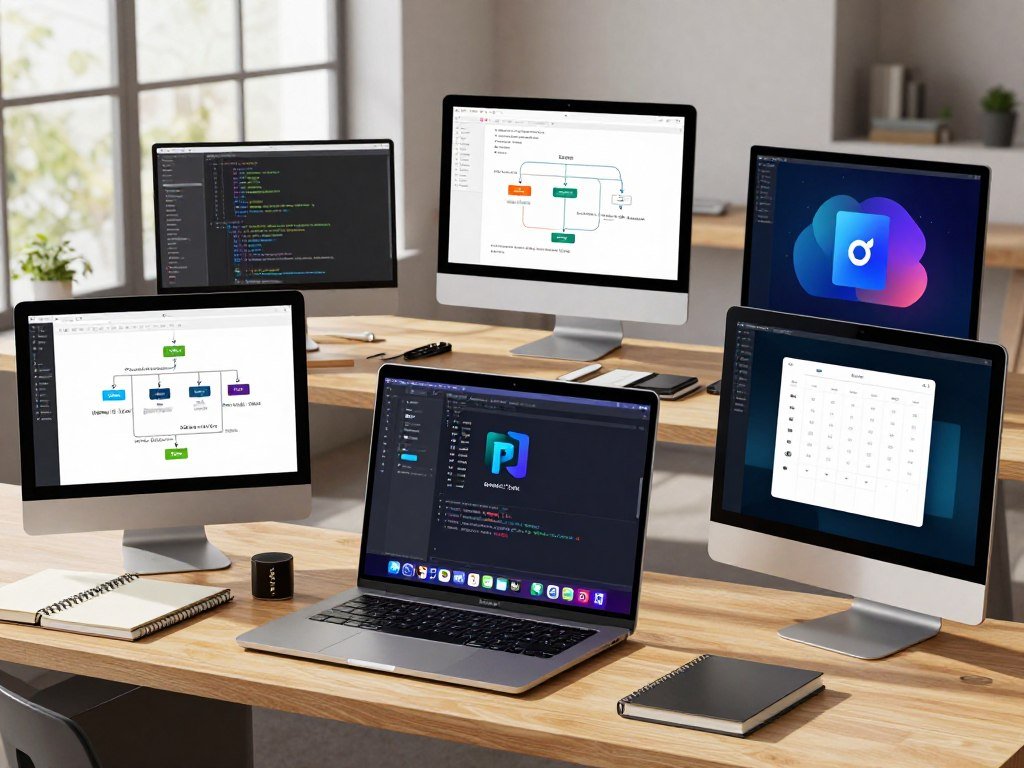
Choose the tool that fits your main project, even if another one has more features.
The shortlist covers common coding needs, from a web project to software built for an Apple device. It is not a ranking that makes one tool right for every project. A broad editor can handle varied files, while a dedicated environment may give you more support for one kind of development.
It also helps to separate product category from project fit. A code editor can be a good match for a task even when an IDE offers more built-in tools. Your team’s existing workflow can matter too, since shared settings and project instructions often shape which options work well.
For solo work, start with the language and project you use most often. For a team, check what tools members already use and what the project needs to build and test. This shortlist should leave you with a manageable set of options, rather than a long list of apps to install.
Use the comparison to narrow your options to the one or two tools that match your main project.
What Is the Difference Between a Code Editor, IDE, and Coding App?
A code editor is usually enough for writing and organizing files, while an IDE is useful when a project needs integrated development tools. The key difference is how much the app includes beyond editing. An IDE is an integrated development environment that combines code editing with tools for tasks such as building, testing and debugging software.
A code editor can gain features through extensions, but that does not automatically give it a complete build-and-test environment. A coding app is a wider category that includes editors, IDEs, and utilities that support programming work.

When a code editor is enough
A code editor focuses on writing and changing files. If you are editing a script, a web page, a configuration file, or documentation, a lightweight editor may cover the task. You can add tools when you need them, rather than starting with a large setup.
That approach can suit projects where the build process happens elsewhere or where you mainly edit text. It also keeps a simple task from turning into a search through menus you rarely use. The editor remains the place where you work on files, while other tools can handle separate jobs.
When a full IDE earns its place
An IDE can be useful when your project needs a built-in way to build, test, and debug software. Its tools can work together in one environment, which may help when a project has many parts or specialized needs. That support matters more than a long feature list.
Before choosing, check these three points:
- Does the project need a dedicated build environment?
- Does its language need specialized debugging?
- Is lightweight file editing the main task?
The term coding app covers more than IDEs. A text editor, a code editor, an IDE, and a testing utility can all support programming, but they do not do the same job. Choose the smallest category that still gives you the build, test and debugging support your project requires.
Best Code Editor for Mac: Visual Studio Code
For most people who want one flexible place to work across different programming languages, VS Code is the strongest starting point. Its many extensions can add support for different coding tasks, so you can shape the editor around the project in front of you. That flexibility suits developers who switch between languages.
Extensions add useful support, but a large collection can make setup more involved. Add tools when a project calls for them, rather than trying to install every feature at once.
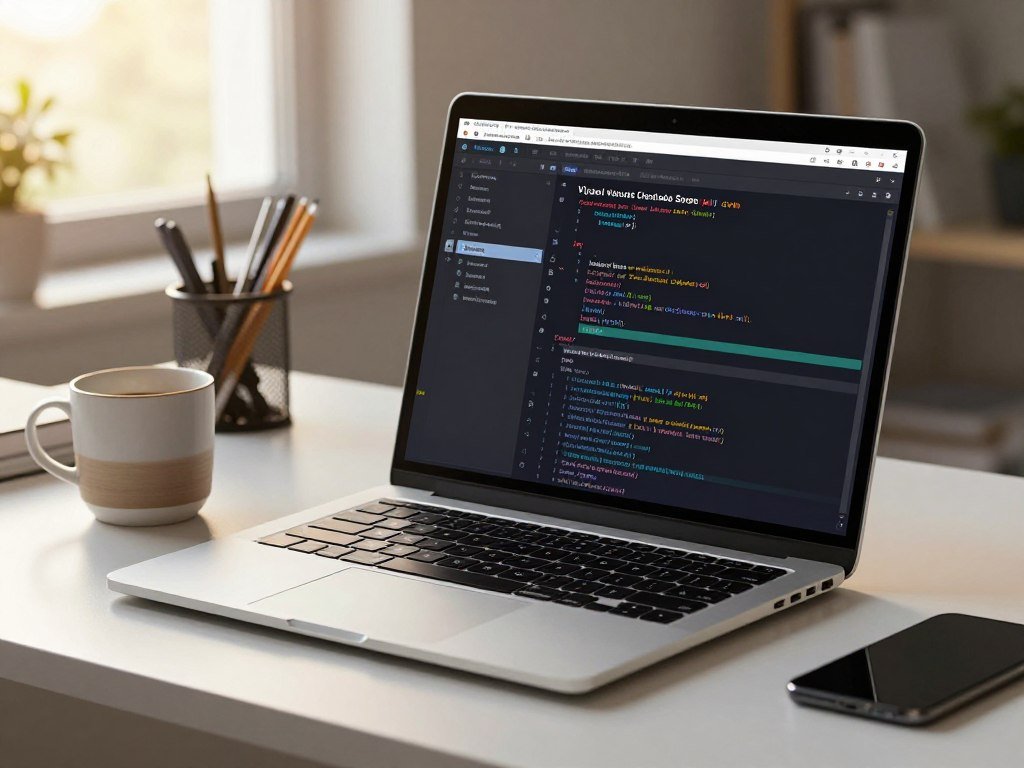
Language support through extensions
Visual Studio Code supports many programming languages through extensions. Its marketplace includes language support and themes, as well as debuggers and service integrations. Those additions can help the editor fit a project without forcing every user into the same setup.
A small number of well-chosen extensions can make a project easier to work on. Too many can add settings, menus, and updates that you do not need. The best setup is often the one that solves the problem you have today, not every problem you might meet later.
- Language support for the programming languages in your project
- Themes that change the editor’s appearance
- Debuggers for finding problems in code
- Service integrations for connected development tools
Git, debugging and terminal tools
VS Code includes Git integration, debugging tools, and a built-in terminal. Git helps you track changes to files, while debugging tools let you inspect code as it runs. The terminal gives you a place to run commands without leaving the editor.
These tools can keep common work close together. You can edit a file, check changes, run a command, and examine a problem in the same app. That can make a varied development workflow feel less scattered across windows.
VS Code also works as a code editor when you do not need every built-in tool. You can begin with basic editing, then add the language support or service links your project needs. Keep the installation focused by adding only extensions that solve a current project need.
Is Zed a Good Choice for Fast, Collaborative Editing?
Zed is worth trying if you want a fast-feeling editor with collaboration and AI assistance built in. It is written in Rust and focuses on speed. The appeal is a focused place to edit, with shared work and AI features as part of the experience.
Zed’s extension ecosystem is smaller than Visual Studio Code’s, so a project with a required VS Code extension may not be a good time to switch. That practical limit matters more than a general claim about speed.

Real-time collaborative editing can help when two developers need to work in the same code at once. AI assistance gives you another way to work with code in the editor. These tools may suit teams that want shared editing without building the same workflow from separate apps.
The smaller extension ecosystem is not automatically a problem. If your projects use common tools and Zed supports the work you need, its focused design may be a welcome change. If your setup depends on a particular extension, though, switching can mean rebuilding part of your workflow.
Consider how you work with other developers, not just how quickly an editor opens. A shared project may rely on specific extensions, settings, or team habits. Changing those can take more effort than trying a new app on a personal task.
For a low-risk test, open a small project that does not depend on unusual tools. Check whether its files, language support, and shared editing needs fit. Before moving a team project, check that its essential extensions and shared workflow are supported.
When Do Mac Developers Need Xcode?
If you are developing an iOS or macOS app, Xcode is the IDE to put in your toolkit. It is Apple’s development environment for apps built for Apple platforms. Platform work is the reason to choose it, not a need to edit every kind of file.
Use Xcode for Apple app development, including iOS and macOS projects; use another editor for tasks that do not need that environment. Swift is a programming language used for Apple-platform development.

iOS and macOS are distinct Apple platforms, even though both can be part of a Mac development setup. If you are building an app for an iPhone or a Mac, Xcode is the tool designed for that work. The project’s target platform helps decide whether you need its full environment.
Editing a script is a different task from building an Apple app. A web project or a documentation file may need a code editor or text editor, not an IDE made for app development. Opening a larger environment for every small change can add steps without helping the work.
You can keep another editor for projects outside Apple development. That makes sense if your day includes both an iOS app and a web project, or if you often make quick changes to plain files. The tools can have different jobs on the same Mac.
Swift’s role in Apple-platform development does not mean every Swift task needs the same workflow. Match the environment to the app you are building and the tools your project uses. Match the tool to the platform you are shipping for, rather than opening Xcode for every small editing task.
Which JetBrains IDE Fits Your Programming Language?
Choose a JetBrains IDE by the language and development workflow you use most. IntelliJ IDEA, PyCharm, WebStorm, and CLion each focus on different languages. A closer match can save setup time when a project needs more than basic file editing.
Choose the IDE whose built-in language tools fit your main project, rather than picking by brand alone. JetBrains IDEs include code intelligence, refactoring, testing, and debugging tools.
| IDE | Language focus |
|---|---|
| IntelliJ IDEA | Java and Kotlin |
| PyCharm | Python |
| WebStorm | JavaScript and TypeScript |
| CLion | C and C++ |
Match an IDE to your language
IntelliJ IDEA focuses on Java and Kotlin, while PyCharm focuses on Python. WebStorm is for JavaScript and TypeScript, and CLion is for C and C++. This gives you a clear starting point if one of those languages is central to your work.
Language focus does not mean you can only open one type of file. It means the IDE is built around tools for a particular kind of development. A specialized environment can suit a project when its language tools match what you do each day.
What the JetBrains toolset adds
Language-aware code intelligence can help you work with code in context. Refactoring tools help change code structure, while testing and debugging tools support checks and problem-solving. Together, these features can matter more as a project grows or its development needs become more specialized.
Those tools may be more than you need for a small script or quick edit. A lightweight editor can be simpler when you mainly change files and run a separate tool. A dedicated IDE earns its place when you regularly rely on its built-in support.
Consider how often you repeat setup tasks. If you keep adding similar language tools to a general editor, a focused IDE may bring that work together. A specialized IDE is most useful when its built-in language tools replace repeated setup in your daily work.
Is Cursor Worth Choosing for AI-Assisted Coding?
Cursor makes sense when you want AI assistance to be a regular part of editing rather than an occasional add-on. It supports code generation, refactoring, questions about a codebase, and edits across a project. That workflow can help with routine changes, but it does not remove your need to understand the code.
Review and test AI-generated code before relying on it. An AI tool can suggest changes, but you remain responsible for checking whether they fit the project and work as expected.
Cursor is based on VSCodium and puts AI features close to the editing process. You can ask questions about a codebase, request a change, or use it to help reshape existing code. That can be useful when the project is unfamiliar or a task involves repeated edits.
Possible uses include:
- Generating boilerplate for a new feature
- Understanding unfamiliar code in a project
- Refactoring a function to make a change
- Making a project-wide change across files
AI suggestions can save time on a first draft, but they still need a careful read. Check the changes against the task, run relevant tests, and look for effects on nearby code. A change that looks sensible in one file may affect how another part of the app works.
For teams, agree on how AI-generated edits fit into code review and testing. The same checks that apply to other code changes still matter. You can also compare coding assistants by their fit for your work in this 2026 AI chatbot comparison.
Use Cursor when its AI features help with tasks you actually do, not just because the tools are available. Treat every generated change as a draft until you understand it and have tested the result.
Is Sublime Text a Better Fit for Large Files?
Sublime Text is a strong option when quick editing and handling large files matter more than having every development feature built in. It is a cross-platform editor suited to fast editing of large files and projects. Lean editing can be useful when a larger setup feels slow or unnecessary for the task.
Test Sublime Text with your own file sizes and project tasks before making it your main editor. A tool that feels fast on a small sample may behave differently on the files you handle each day.
A lean editor can be handy for a quick change to a large text file, or for edits that do not need a full development environment. You can open the file, make the change, and return to your main project tools. That keeps a small job from requiring a larger workflow.
The tradeoff is how much you want built in. A speed-focused editor may suit editing, while a more fully configured development environment can offer a closer set of tools for building and testing. Your own project will show which side matters more.
Sublime Text uses a one-time license model. That payment structure may appeal if you prefer a license over a recurring plan, though the editing workflow should still be your main reason to choose it. A license alone does not make it the best tool for every project.
Try it on a copy of the largest files you actually work with. Check how it handles the edits and tasks you perform, not just how quickly it opens a small file. Test it on the largest files you actually work with before making it your main project editor.
Which Mac-Native Editors Are Worth Considering?
Mac-native options range from focused text editors to projects adding more programming-language support. CotEditor is a native, open-source macOS text editor, while BBEdit adds language-server and worksheet-style features. The right fit depends on whether you want text tools or more development support.
CodeEdit is a native macOS open-source project, and its extension and language-server capabilities are still in progress. That makes it a project to assess against your needs, rather than a stand-in for every established coding app.
| Product | Platform focus | Main strength | Development-tool depth |
|---|---|---|---|
| CotEditor | macOS | Text settings and snippets | Text-focused |
| BBEdit | macOS | Language servers and worksheets | Some coding support |
| CodeEdit | macOS | Native open-source project | Tools in progress |
CotEditor and BBEdit for text work
CotEditor is built for macOS and focuses on text handling. It offers text-focused settings and snippets, which can help when you edit files without needing a full IDE. Its role is closer to a text editor than a complete development environment.
BBEdit supports language servers and worksheet-style work. A language server can add language-aware features to an editor, while worksheets suit some kinds of interactive work. That gives BBEdit more development support than a basic text tool, though its strength remains text work.
CodeEdit for a native coding environment
CodeEdit is an open-source project designed for macOS. It is working toward extension and language-server capabilities, which could add more programming support. Since those features are in progress, check whether the current tools meet your project’s needs.
Mac-native design may matter if you prefer an app built around the macOS environment. It should not be the only test, though. A familiar interface cannot replace language support that your work depends on.
Pick CotEditor or BBEdit for text-centered tasks, and evaluate CodeEdit against the language tools your project needs.
What Happened to the Atom Code Editor?
Atom is no longer a maintained editor, although its community fork Pulsar continued development. Atom’s final release was version 1.63.1, dated November 23, 2022. That release was followed by Atom’s end of life on December 15, 2022.
Atom and Pulsar are separate projects: Atom ended, while Pulsar continued as a community fork. Atom was a free, open-source editor for macOS, Linux, and Windows under the MIT license.
The Atom code editor for Mac was once a familiar option for editing files and writing code. Its cross-platform support made it available on more than one operating system. That history does not make Atom a current, maintained choice.
GitHub announced Atom’s end of life for December 15, 2022, when Atom repositories were to be archived. The final release, version 1.63.1, came before that date. A project reaching end of life is different from a new release under the same name.
Key dates and events:
- November 23, 2022: Atom version 1.63.1 was released.
- December 15, 2022: Atom reached end of life.
- December 15, 2022: Atom repositories were to be archived.
Pulsar is a community fork that continued development after Atom’s end of life. A fork is a separate project built from an earlier codebase, so its changes and maintenance belong to its community. Treat it as a distinct editor when assessing whether it suits your work.
If you want an actively developed option, assess Pulsar separately rather than treating it as a current Atom release.
Which Free Code Editors Can Mac Users Try?
Mac developers can start without paying, but the free-use conditions are not the same across editors. Zed and CotEditor have free options, while some other products limit free use or provide a free mode. Read the terms alongside the tool’s fit for your project.
The best free code editor for Mac is the one whose free-use terms fit your project, including whether your work is commercial. A free mode, free core features, and a non-commercial license are different offers.
| Product | Free-use condition | Mac availability |
|---|---|---|
| Zed | Free; Pro plan is $10 per month | macOS, Windows, Linux |
| CotEditor | Free text editor | macOS |
| BBEdit | Free mode; paid price is $59.99 | macOS |
| WebStorm | Free for non-commercial use | macOS, Windows, Linux |
| IntelliJ IDEA or PyCharm | Free core functionality for commercial and non-commercial projects | macOS |
Zed runs on macOS, Windows, and Linux, and its Pro plan costs $10 per month. CotEditor is a free Mac text editor. BBEdit has a free mode and a listed price of $59.99, so it is not the same kind of offer as a tool that is free to use.
WebStorm is free for non-commercial use on macOS, Windows, and Linux. IntelliJ IDEA and PyCharm include free core functionality for both commercial and non-commercial projects. JetBrains IDEs also offer a separate 30-day trial.
Those terms can change which option fits a side project, a business app, or a coding class. A free mode may not include every feature, while a restriction on commercial use may rule out a tool for paid work. Check whether your project is commercial before choosing an option with a non-commercial restriction.
What Is the Best Code Editor for Beginners and Multiple Languages?
A beginner who wants one approachable editor for several languages should start with VS Code. Its interface is described as intuitive, and extensions can add support for multiple programming languages. Start simply, then add tools as your projects call for them.
No editor supports every programming language in exactly the same way. Some projects need language extensions, while specialized work may benefit from a dedicated IDE.
A comfortable first setup
A first coding setup should help you focus on learning the project, not managing a pile of tools. Begin with one editor and the language support needed for your first task. You can add more after you understand what the next project requires.
Use this starter checklist:
- Install one language extension for your current project.
- Learn how to open a project folder.
- Use the integrated terminal when you need to run commands.
- Add tools only after a project requires them.
Opening a project folder helps keep related files together in the editor. The integrated terminal gives you a place to run commands when the project calls for it. You do not need to learn every feature before you can begin editing code.
One editor across programming languages
VS Code can support different programming languages through extensions, so one editor may work for several projects. The support still varies by language and task. A basic script and a large application may need different tools, even when they use the same language.
Some programming languages need their own extensions or deeper development tools. A specialized project may be easier to manage in an IDE that includes language-aware features. Keep your setup small until that added support solves a problem you actually face.
You can also use a general editor for many tasks and bring in a dedicated environment for one demanding project. That does not mean you chose the wrong first tool. Learn one editor’s core workflow before adding multiple tools or installing extensions you do not yet need.
Can You Use the Same Code Editor on Mac and Windows?
Windows users who also develop on a Mac can use Visual Studio Code on both systems. VS Code is free and runs on macOS, Windows, and Linux. One shared editor can make it easier to move between computers.
Keep extensions and project instructions consistent across machines, but expect each operating system to need its own setup. A shared app does not make file paths, dependencies, or system tools identical.
VS Code is a strong best code editor for Windows choice if you also work on a Mac. It supports many programming languages through extensions, and Zed supports many languages through its editor features and extensions. A familiar editor can make the switch between systems feel less disruptive.
The project still depends on the operating system beneath the editor. A command that works on macOS may need a different setup on Windows, and a project may rely on system tools that are not shared. Keep those details in project instructions instead of assuming the editor handles them.
Use the same extensions where they fit both systems, and write down any machine-specific steps. This helps teammates or your future self set up the project without guessing. A consistent editor helps, but it cannot replace clear project notes.
Keep a short project setup guide so the editor configuration does not become the only record of how the app runs.
Note the commands needed to install dependencies, start the app, and run tests. If the project needs different steps on each system, name both sets clearly. A short guide can prevent a working editor setup from hiding missing project instructions.
Conclusion
Start with the editor that matches the work you plan to do this week, not the most elaborate setup you can imagine. VS Code is a sensible general-purpose starting point, while Xcode fits Apple-platform app development. A specialized IDE can help when your project needs deeper language tools.
Pick one real task and see how the tool handles it. Choose one option, open a real project and see whether it makes your next development session easier.
FAQ
Can a code editor replace a compiler?
Usually, a code editor cannot replace a compiler because editing code and compiling it are separate tasks. A compiler turns source code into a form a computer can run, while an editor changes the files. Some IDEs connect those steps, so you can build or run a project from the same environment. You still need the right compiler or runtime for your language.
Can I code without an internet connection?
Yes, local coding and editing usually work offline once your tools and project files are on your Mac. You can change files and run local tools without a network connection. Downloading extensions, syncing settings, and using online AI features may need internet access. A project may also rely on online services, so its full workflow could be limited while offline.
Do I need separate editors for different programming languages?
No, one flexible editor can support many programming languages, often through extensions. That may be enough when you edit files and use separate tools to build or test the project. A language-specific IDE can help when a project needs deeper built-in support for testing, debugging, or code changes. Choose based on the work, not just the language name.
Can I use more than one code editor on the same Mac?
Yes, you can install and use more than one code editor on the same Mac. Developers may keep a general editor for project work and a text-focused tool for quick changes to files. Keep project settings and instructions clear so different apps do not create conflicting habits. You can choose the editor that best fits each task.
Is Atom still available for Mac development?
Atom reached end of life on December 15, 2022, so it is no longer a maintained editor for Mac development. Its final release was version 1.63.1, dated November 23, 2022. Pulsar is a separately developed community fork that continued work after Atom ended. Treat Pulsar as its own project, not as a current Atom release.
How should I choose an editor when my team already has a standard?
Use the team’s supported workflow for shared projects, then check whether its extensions, formatting, and debugging tools match the setup. A standard editor can help teammates share project instructions and review changes with fewer differences. If a tool is missing, discuss the gap with the team before changing your own setup. That keeps a personal preference from disrupting shared work.