A phone that holds your messages, photos, accounts, and payment details deserves the same everyday security attention as a computer. Malware can expose personal information, disrupt daily tasks, or put sensitive information at risk. A few repeatable habits can lower those risks without turning phone care into a full-time job.
Built-in tools give you a useful starting point, but no setting can replace careful choices about apps, links, and accounts. Sideloading means installing an app from outside an official app store. That choice can bring threats past protections you might expect from a store download.
These steps focus on practical actions you can take with the phone you already own. You do not need to buy extra software to make meaningful changes. Start with the protections already on your phone, then strengthen the habits that control what gets installed and opened.
Key Takeaways
- Keep built-in phone protections turned on.
- Get apps from the official store for your phone.
- Review the permissions each app requests.
- Install operating system and app updates.
- Use a strong passcode and two-factor authentication.
- Pause before opening unexpected links or attachments.
How to Protect Your Smartphone From Malware With Built-In Protections
Android phones already include an app scanner, while Apple’s Lockdown Mode is an optional hardening setting for higher-risk situations. Play Protect is on by default, and most Android users should leave it on. These built-in tools can protect a phone for free, though they work in different ways.
Play Protect scans apps from Google Play before download, checks installed apps over time, and checks apps from other sources. It can warn you about harmful apps, disable them, or remove them automatically. You can also start a scan in the Google Play Store’s Play Protect settings.
Keep Google Play Protect on for Android
Play Protect can also flag apps removed from Google Play if they may reach your personal information. It may offer to uninstall them. On Android versions 6.0-10, it may reset permissions for apps unused for three months.
For an unknown app, Play Protect may ask to scan its code in real time. That check sends app details to Google for code-level evaluation. Google says the system scans 200 billion Android apps each day.
Play Protect may block an unverified app that uses sensitive permissions often targeted in financial scams. A Play Protect warning about an app can help you spot a risk before it exposes data.
Use Lockdown Mode only for heightened threat risks
Lockdown Mode suits people facing targeted attacks, not routine malware cleanup. Apple recommends installing the latest software before turning it on. It is available on these platforms:
| Apple platform | Earliest supported version | Version with additional protections |
|---|---|---|
| iPhone | iOS 16 | iOS 17 |
| iPad | iPadOS 16 | iPadOS 17 |
| Apple Watch | watchOS 10 | watchOS 10 |
| Mac | macOS Ventura | macOS Sonoma |
Lockdown Mode blocks most message attachments, with some image, video, and audio exceptions. An iPhone or iPad will not auto-join non-secure Wi-Fi, and it disconnects from one when you enable the mode.
It also turns off 2G and 3G cellular support on iPhone and iPad. While enabled, it blocks configuration profiles and Mobile Device Management enrollment or supervision. You must enable it separately on each iPhone, iPad, and Mac; an iPhone enables it on its paired Apple Watch.
Lockdown Mode is for targeted threats, not routine malware cleanup.
Read antivirus test scores as one part of the choice
In September 2026, AV-TEST assessed 14 Android mobile security products using default settings. Each product could earn six points for protection, performance, and usability. These five products scored:
| Product and version | Protection | Performance | Usability |
|---|---|---|---|
| Google Play Protect 53.0 | 5.5 | 6 | 6 |
| Bitdefender Mobile Security 3.3 | 6 | 6 | 6 |
| Norton 360 26.14 | 6 | 6 | 6 |
| Avast Antivirus & Security 26.13 | 6 | 6 | 6 |
| AVG Antivirus Free 26.15 | 6 | 6 | 6 |
Avira, Kaspersky, McAfee, and F-Secure also scored six points in all three areas. AhnLab scored 5.5 for protection, six for performance, and five for usability. G Data scored five, six, and five; securiON scored six, six, and five.
The AV-TEST seal requires at least 10 points across all three categories. You can compare more free antivirus software options, but test scores cover tested versions and settings. A perfect test score is a snapshot of those tested settings, not a guarantee that any app can prevent every threat.
iPhone users should keep iOS updated and use Lockdown Mode only when its stricter limits fit their risk. Android users who want another security app can weigh test results alongside what the app offers.
Install Apps From Trusted Stores and Review Their Permissions
A familiar-looking app can still be unsafe, so verify who made it before tapping Install. Use Google Play or Apple’s App Store, and check the developer and listing first. Fake applications can copy a real app’s name or look, then seek access to private data.
Check the app and its developer before installing
Google Play and Apple’s App Store are the official app stores for their platforms. Sideloading from an unexpected email link or attachment makes it harder to judge an app before installation. Take a moment to confirm the exact app name and developer.
These basic checks help you judge what an app may do with your information:
- Use Google Play or Apple’s App Store.
- Confirm the developer’s name.
- Avoid unrequested download links.
- Review each requested permission.
- Remove apps you no longer need.
Grant only the access the app needs
Permissions control access to features such as your location, contacts, camera, microphone, and photos. A map may need location access, but a simple flashlight app has little reason to request your contacts.
An app asking for more access than its function needs is a reason to decline installation or revoke access. Permission needs can change after an app update, so review them again. For app makers, testing app access rules helps limit user data exposure.
Android 16 added a runtime permission that requires apps to declare access to the local network. That can limit an app’s ability to find devices on your home network. If a permission is not essential to the app’s purpose, deny it or choose an “only while using” option when available.
Android’s local-network permission rules explain which access apps must request. Check permissions again after an app changes, since an update can alter what it needs.
Keep Your Operating System and Apps Updated
An outdated operating system can leave a known weakness unpatched even when you use apps carefully. Install security updates as soon as they are available, or turn on automatic updates. Updates fix flaws that attackers may use to reach your device or information.
Enable automatic updates when practical, or check regularly for operating system and app updates. Android update timing can depend on Google, your device maker, and your mobile carrier. A new release may not reach every phone on the same day.
Updates can add safeguards as well as fix known software weaknesses. Android 16 uses AES-256 encryption for Wi-Fi location ranging on devices that support IEEE 802.11az. That protects a specific way supported devices measure location over Wi-Fi.
Android 16 can also hide one-time passwords from the lock screen in higher-risk situations. Those include times when the device is not connected to Wi-Fi and has not been recently unlocked. Keeping software current can add protections you did not have when the phone was new.
NIST’s mobile-device guidance covers security through deployment, use, and disposal. It applies to personal phones as well as devices provided by an organization. The NIST mobile-device security guidance treats phone care as an ongoing task, not a one-time setup.
If an older phone no longer receives security updates, plan to replace it rather than relying on an antivirus app to fill that gap.
Secure Your Lock Screen, Accounts, and Lost-Phone Options
A strong screen lock keeps a lost phone from immediately exposing the accounts and information stored on it. Use a strong passcode, biometric unlock, and two-factor authentication. Add a SIM PIN and unique account passwords to make unauthorized access harder.
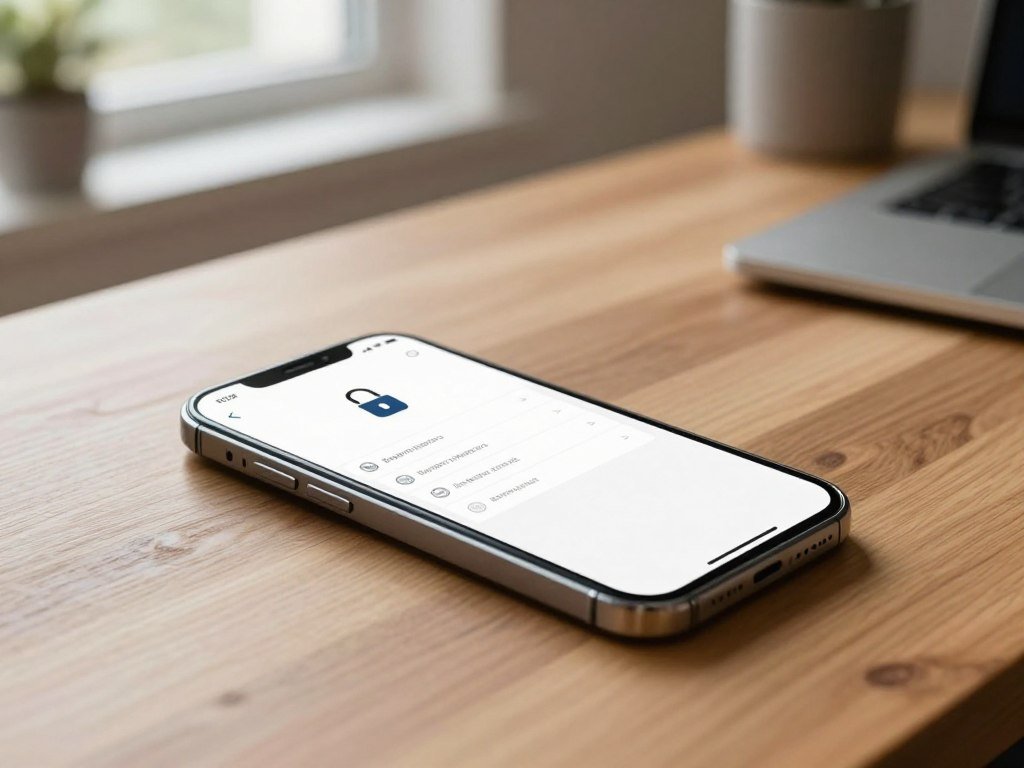
Physical security starts when you take control of your phone. Keep it with you, and lock the screen whenever you leave it unattended. A fingerprint or face scan can make unlocking easy while your passcode remains the backup credential.
Set up a lost-phone plan before theft or loss happens. Google Find Hub can locate an Android phone, play an alarm, lock it, or wipe it. Apple Find My offers location and remote actions for Apple devices.
Android 15 added Theft Detection Lock and Offline Device Lock, and improved Remote Lock and Factory Reset. These features can help respond when someone takes a phone or disconnects it from a network. Check that Google Find Hub recovery options are ready to use.
Back up important files regularly before you might need a remote wipe. Saved card details, passwords in notes, and photos of sensitive documents raise the cost of a compromised phone. Keep those items out of easy reach when you can.
Check that your recovery and remote-lock options work before the phone goes missing.
Spot Warning Signs and Check for Malware
A sudden battery drain or an unfamiliar app deserves a check, but neither one alone proves the phone has malware. Treat unusual activity as a clue, not a diagnosis. Pop-ups, overheating, battery or data spikes, changed browser settings, and odd account activity can have other causes.
Treat unusual activity as a clue, not a diagnosis
Unexpected ads, unknown apps, changed browser settings, and unexplained data use are possible warning signs. So are messages or charges you do not recognize. A faulty app, weak signal, or account issue can create similar symptoms.
Google’s Android malware removal steps offer a sensible order for checking a device. Use these steps to narrow down what is happening:
- Note when the symptoms started and what changed.
- Run a Play Protect scan on Android.
- Review installed apps and special permissions.
- Test the phone in safe mode.
- Remove apps identified as suspicious.
- Change important passwords from a separate trusted device.
Scan, remove, and recover in a safe order
A scan is a useful check, but a clean result does not rule out every compromise. It can help catch known harmful apps without proving that every account or file is safe. Possible malware warning signs are clues, not a final diagnosis.
Contact your bank if you see payment activity you do not recognize. Back up essential files if the issue continues, then consider a factory reset. Restore only a backup you believe is clean.
A clean scan cannot rule out every compromise, so investigate account activity too.
If suspicious account activity continues after cleanup, use a separate trusted device to secure the affected accounts and seek qualified support.
Avoid Risky Links and Use Safer Networks
An unexpected message that demands quick action is a reason to pause before tapping its link or opening its attachment. Go to a company through its official app or by typing its web address yourself. Phishing and smishing messages can arrive by email, text, or social media.
Urgent language, mismatched URLs, unexpected attachments, and QR codes can all lure you into a risky tap. A familiar logo does not prove a message came from the company it names. Reach the company through a method you already trust.
Legitimate secure websites use HTTPS, shown by the HTTPS padlock in the browser. The padlock encrypts the connection, but it does not prove who runs the website. A scam site can still use encryption, so check the web address and the reason you were sent there.
Avoid entering sensitive information during transactions on open public Wi-Fi. Use a trusted VPN when you need a safer connection on a public network. Turn Bluetooth or NFC off when you are not using them.
In March 2026, CISA urged highly targeted people, including senior government, military, and political figures, to review its mobile communications security best practices. Those specific risks may not fit every reader, but careful message and network habits matter to everyone.
Never send passwords or payment-card details through an unsolicited text, email, or direct message.
Conclusion
A safer phone comes from keeping its basic protections active and making deliberate choices about what it can access. Routine care and cautious decisions work together; one suspicious sign calls for a check, not panic.
You can keep phone security manageable by making small checks part of your regular routine. The next useful step takes only a moment: review the settings you may overlook during a busy day.
Take two minutes today to check for updates and confirm that your phone locks when you set it down.
FAQ
How do I stop malware on my phone?
Keep your phone’s operating system and apps updated, use official app stores, leave built-in protections on, and avoid unexpected links. No single step blocks every threat. Check app permissions and protect your accounts with unique passwords and two-factor authentication. If odd behavior starts, scan the phone and review recent changes before deciding that malware caused them.
How to secure an Android phone?
Keep Google Play Protect enabled, install Android and app updates, use a strong screen lock, and review app permissions. Add a SIM PIN and turn on two-factor authentication for key accounts. Set up Find Hub before losing the phone, so you can locate or lock it. Back up important files in case you need to erase the device.
What are the signs of malware?
Unexpected ads, unfamiliar apps, changed browser settings, unexplained battery or data use, and unknown messages or charges can signal trouble. These clues do not prove malware is present. A weak signal, a buggy app, or an account problem can cause similar changes. Check when the issue began and scan the phone before removing apps or resetting it.
What are five ways to protect myself from malware?
Update software, install apps from official stores, keep Play Protect on where available, secure accounts with a passcode and two-factor authentication, and avoid suspicious links. These steps cover common ways malware reaches phones or exposes data. Also review permissions when an app changes. If a feature does not need access to your contacts or photos, deny that request.
How do I clear my malware?
Scan the phone, review and remove suspicious apps, and test in safe mode. Change important passwords from a separate trusted device, especially if account activity looks odd. If the problem persists, back up essential files and consider a factory reset. Restore only a clean backup, then contact your bank if you find payment activity you did not make.
What is the most protection against malware?
The most protection comes from layers: updated software, built-in scanning, careful app and permission choices, strong authentication, and cautious link handling. Each layer can reduce a different risk, but none guarantees a safe phone. A strong passcode can limit access after theft, while updates and app checks help reduce software risks. Keep recovery options ready as well.
What’s the best malware protection for your phone?
For most Android users, the best starting point is Google Play Protect, which comes on by default. People considering another Android app can compare independent test scores and check which features fit their needs. iPhone users should keep iOS updated and use Lockdown Mode for heightened targeted threats. Lockdown Mode adds limits, so it is not a routine malware cleaner.
Do I still need antivirus in 2026?
Android phones include Play Protect, which is on by default, so an extra security app is optional. Compare independent test results if you want added tools, and remember that scores cover specific tested versions. iPhone app protections work differently from Android malware scanners. Updated iOS and careful choices remain important, while Lockdown Mode is meant for higher-risk situations.



