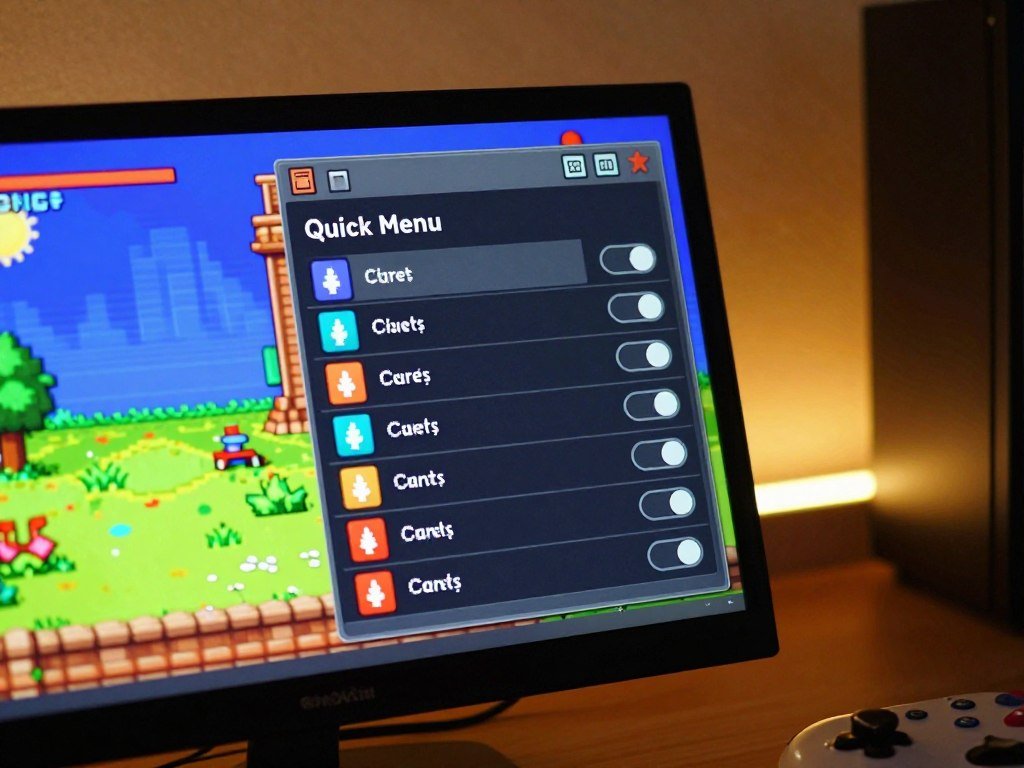
You can download RetroArch’s cheat database and apply compatible codes from the Quick Menu while a game is running. This PC-focused walkthrough helps you choose and manage cheats without replacing your current emulator setup. RetroArch loads different cores to run games for different systems. A core is the emulator module RetroArch loads to run a particular system. You supply your own game files and any required BIOS files. Cheat availability and compatibility can vary by game, release, and core. You can test one code at a time, then keep the settings that work for your game. Start with a working game, and avoid changing unrelated settings while you set up cheats. Have the game and its working core ready before you start changing cheat settings.
Key Takeaways
- RetroArch uses a core to run each system’s games.
- Update the cheat files, then select a file for your game.
- Enable only the codes you want to test.
- Check that a code matches the game release and core.
- Save selected cheats for one game or a whole core.
- Keep normal game saves separate from save states.
RetroArch Cheats PC Setup 13 Steps 2026: What to Prepare First
A cheat setup can only work after RetroArch can launch the game with the intended core. RetroArch is a frontend: it loads cores, which are emulator modules that run games for particular systems. Begin with a working game, not a cheat file.
The core must match the game’s system, and the game must already launch successfully. RetroArch does not include commercial games or system BIOS files. Use game files you are entitled to use, and provide any BIOS files required by the system and core.
Keep game files and settings in places you can access, and use only game files you are entitled to run.
A protected Windows folder can block changes or make files harder to find. Keep games you manage in an accessible location, such as a folder in your user profile. RetroArch also needs to be able to read the game file from that location.
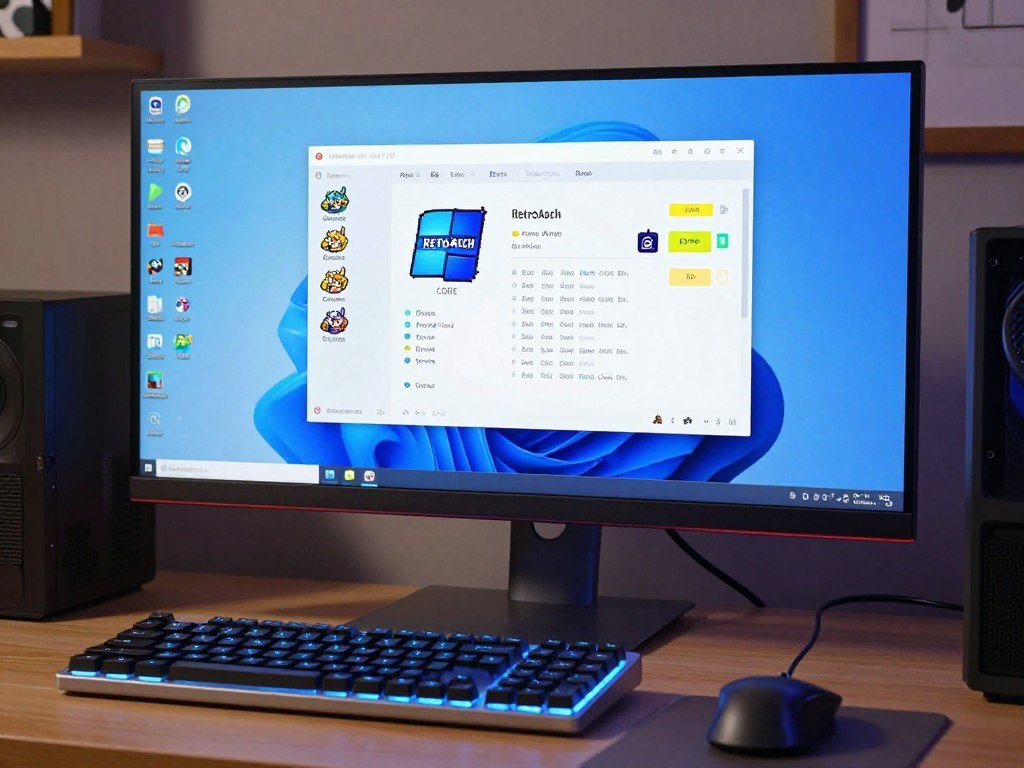
Check the game and core
Load the game with the core made for its system. If the game does not reach gameplay, fix that first. A cheat menu cannot help with a game that never starts.
Keep your game files in a writable location
Choose a folder you can open and manage in Windows. This makes it easier to find the game file and keep your setup organized.
- RetroArch launches.
- The game loads.
- The right core is selected.
- The game’s file location is accessible.
Confirm that the game reaches gameplay before starting cheat setup.
Step 2: Download the RetroArch Cheats Database
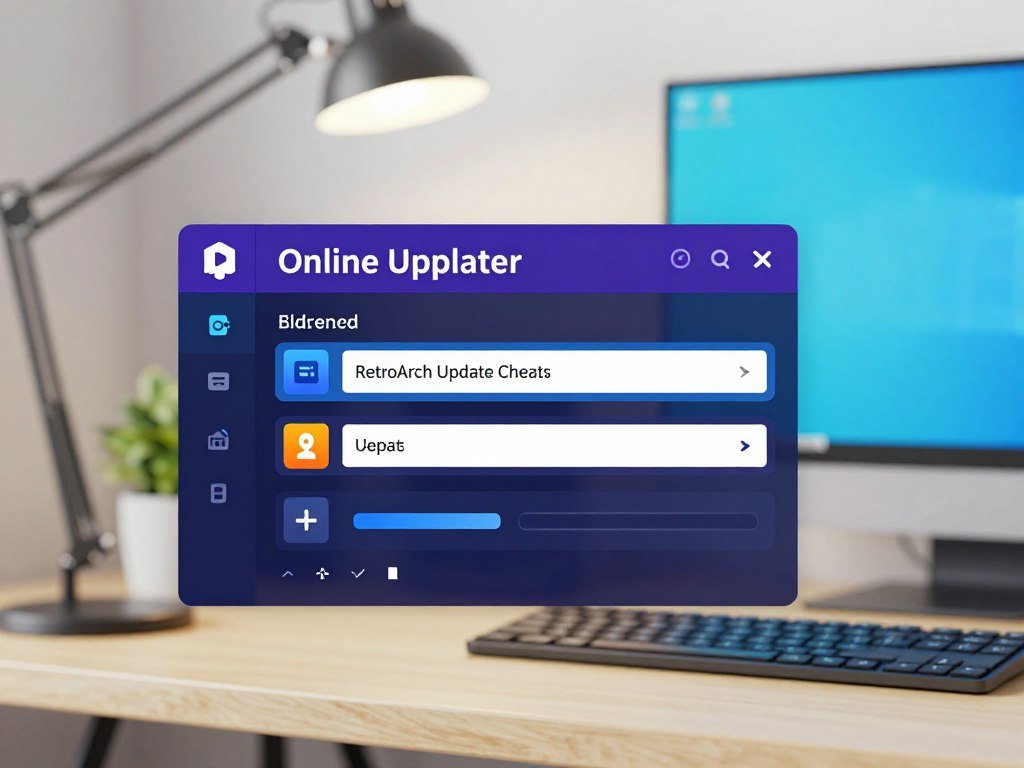
RetroArch’s built-in Update Cheats option is the simplest way to download its available cheat files. The Online Updater saves these files for later selection, so you can look for a game-specific entry when a game is running. The download does not turn codes on.
Updating the database only gets cheat files onto your setup; you still choose which file and codes to use. The Libretro cheat-code collection includes files made for particular games, organized by system.
Find the updater option
Open the Main Menu and select Online Updater, then choose Update Cheats. The menu path is Main Menu > Online Updater > Update Cheats. RetroArch downloads the available files to its cheat directory for later use.
Use this short sequence:
- Open Online Updater.
- Select Update Cheats.
- Wait for the update to finish.
Confirm the update completes
Wait for RetroArch to show a completion notice before leaving the menu. If the update is still running, its files may not be ready for selection.
Keep in mind that the download updates the collection, not every game’s settings. It does not apply codes to all games or select a matching entry for you. The available Libretro cheat-code database contains game-specific files, but a matching file may not exist for every title.
Wait for the update to finish before testing whether a particular game has a matching file.
Step 3: Launch the Game With Its Correct Core
Load the exact game you want to modify and confirm it reaches a playable screen. You can start from a playlist or choose Load Content, then select the game file. Use the same game that you plan to test with cheats.
RetroArch runs game content through a selected core, so the core must fit the game’s system. If RetroArch asks which core to use, choose one made for that system. A different core can have different features and compatibility.
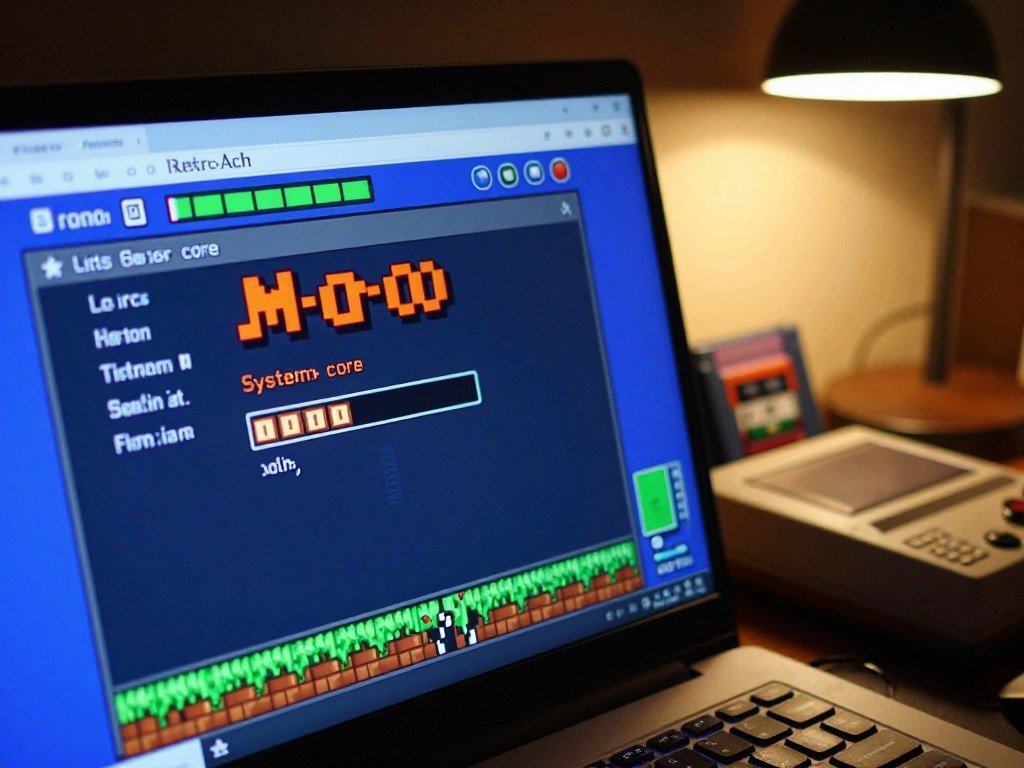
After you select the game and core, wait for gameplay to begin. A title screen or playable scene confirms that the content started. You can then access the in-game controls for that running game.
BIOS requirements depend on the system and core. Some systems or cores need BIOS files to start certain games. If you already have a game that runs correctly, keep that working setup for this process.
If the game returns to the menu or fails to start, fix that launch problem before looking for cheats. A cheat file cannot make a failed game load.
Keep the same game and core running while you open its cheat controls.
Step 4: Open the Quick Menu and Find Cheats
On a Windows keyboard, press F1 while the game is running to bring up its Quick Menu. This is RetroArch’s in-game controls panel, and it holds options for the active game. F1 opens the game’s menu, not the main settings screen.
Choose Cheats from the Quick Menu to reach the controls for the running game. Those controls belong to the current game session, so opening the main RetroArch settings screen is not the same thing.
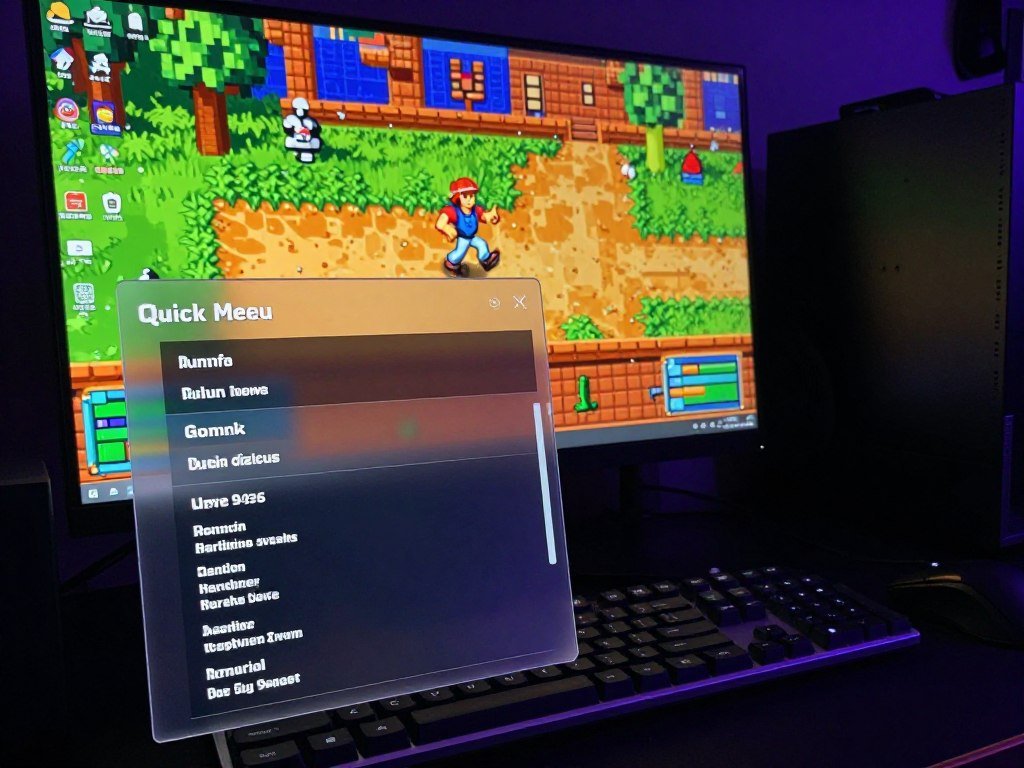
Use the Windows keyboard shortcut
Press F1 during gameplay. If you use a controller, use the menu-toggle input assigned to that controller rather than assuming every device has the same button. The menu hotkey can vary with your input settings.
You can check the assigned menu-toggle input in RetroArch’s input settings. Look for the control that opens the menu, then return to the running game and try it. Avoid changing video settings for a menu shortcut problem.
Navigate to Cheats
When the Quick Menu appears, move through its options and select Cheats. The option is inside the menu for the active game. It is not a general tool on the main RetroArch screen.
If you return to gameplay before choosing Cheats, open the Quick Menu again. The panel stays tied to the current game, so you can reach its controls while play is paused.
If F1 does not open the menu, check the assigned menu-toggle input rather than changing unrelated video settings.
Step 5: Load the Cheat File for the Game
Load Cheat File (Replace) starts a fresh cheat list for the game currently running. In the Quick Menu, open Cheats, choose that option, and select the file that matches the game. Replace clears the current list before loading the chosen one.
After choosing the file, select the entries you want and choose Apply Changes. These actions serve different purposes: loading fills the list, selecting sets the toggles, and applying puts those settings into effect.
Replace the current cheat list
Use Quick Menu > Cheats > Load Cheat File (Replace), then select desired cheats and choose Apply Changes. Replace loads the chosen file in place of the current list. Append adds entries to that list, while Apply Changes activates the selected settings.
| Menu choice | What it does | When to use |
|---|---|---|
| Load Cheat File (Replace) | Replaces the current list | Start with one game file |
| Load Cheat File (Append) | Adds entries to the list | Keep current entries too |
| Apply Changes | Activates selected settings | After changing toggles |
Choose a file that matches the game
Browse the system folder that matches the game’s console, then find the title’s entry. A system folder can hold many game files, so use the game name and release details to choose carefully.
Read the entry names before confirming. Similar titles or different releases can have separate files, and the wrong one may offer codes that do not match your game.
Check the game name and release details before confirming the file selection.
Step 6: Turn On Only the Cheats You Want
Start with one clearly described cheat instead of enabling every entry in the list. Read the loaded game-specific descriptions, then switch only the code you intend to test to On. One code is easier to check than a full list.
Do not enable codes together when they change the same in-game value. For example, two codes that both affect a player’s health may conflict or make the result hard to explain.
Select individual entries
Review each description in the Cheats menu. The label may tell you the effect, such as changing an in-game amount or granting an item. Turn on the entry you want and leave unrelated options off.
Some descriptions may be brief or unclear. If you cannot tell what a code changes, leave it off until you can identify its purpose. That keeps the test easier to understand.
Avoid enabling conflicting codes together
Test codes that affect the same value one at a time. If you enable both at once, you may not know which one caused a change or whether the codes interfere with each other.
- Identify the code.
- Enable it.
- Test its effect.
- Disable it if the result is unexpected.
Keep a note of which code was active if the game’s behavior changes unexpectedly.
Step 7: Apply Changes and Test the Result
Select Apply Changes after setting the cheats you want to test. RetroArch uses this Quick Menu action to activate the selected cheat settings. Changing a toggle is not the last step.
Test one visible effect before adding another code. A small, clear test makes it easier to see whether the selected entry works in the current game session.
Apply the selected codes
After changing a toggle in Cheats, choose Apply Changes. The game remains available through the Quick Menu, so you can return to play and check the result without loading the content again.
Choose an effect you can observe in normal play. For example, check the part of the game named in the cheat description rather than guessing from an unrelated screen.
Check the game before adding more
If the effect looks wrong, return to Cheats and turn that entry off. Apply the changed settings again, then test the game before you try another code.
A code can appear in the list without producing the expected effect. Its settings may not match the game release or the core that is running it. Treat the label as a starting point, not a promise that every version works.
Test a single change before adding another code to the active set.
Step 8: Apply Cheats Automatically When the Game Loads
Set Apply Cheats on Load to Yes if you want the chosen cheats applied when the game starts. Find the option in the Cheats menu. This setting controls startup behavior, not which file or entries you select.
Apply Cheats on Load does not choose a game file or turn on your preferred entries. Select the matching file and codes separately, then use the startup option to have those selected settings applied at load.
Use this option after you have tested the selected codes during the current session. That way, you know what the game should do when it starts, and can tell whether automatic application worked.
If you do not want cheats applied at startup, leave the option off and apply the settings when needed. The setting affects game loading, not the way you choose entries in the list.
Reopen the game once to verify that the automatic setting behaves as expected.
Step 9: Save Cheats for One Game or the Whole Core
Save Game Cheat File is the narrower choice when the selection should belong to just one game. Use it after testing the selected cheats and deciding that you want to keep that game’s setup. It saves for one game, rather than every game using its core.
Save Core Cheat File stores selected cheats for games that use that core. Choose it only when you want that broader scope, since the saved selection can affect other games launched through the same core.
Keep a setup for one game
Choose Save Game Cheat File when the codes suit one title and should stay tied to it. This is the clearer option when other games use the same core but need different codes.
After saving, keep the game’s entry distinct from the core-wide option. A one-game setup is easier to manage when you move between titles that share an emulator module.
Reuse a setup across a core
Choose Save Core Cheat File when the saved selection should be reused for games launched with that core. This can affect other games using the same core, so consider the scope before saving.
| Option | Scope | Use it when |
|---|---|---|
| Save Game Cheat File | One game | Keep a title-specific selection |
| Save Core Cheat File | Games on one core | Reuse the selection across games |
| Load Cheat File (Replace) | Current cheat list | Load a file, not save toggles |
Choose the core-wide option only when you want the saved selection reused for other games on that core.
Step 10: Find or Load a .cht File Manually
A RetroArch cheat file is a game-specific plain-text .cht file that you select manually. It can be useful to inspect the files available to RetroArch or choose one directly. Not every game has an entry.
Check the system folder, game title, and release details before selecting a .cht file. A file with a familiar name may still refer to a different game version.
Check RetroArch’s cheat directory
Open Settings > Directory and inspect the cheat directory RetroArch uses. That path shows where the program expects cheat files. The files are plain text and use the .cht extension.
The Libretro database repository groups cheat files into folders by system. Its files are selected manually, and a game can have more than one entry.
| File detail | What to check | Why it matters |
|---|---|---|
| .cht extension | File ends in .cht | Identifies a cheat file |
| System folder | Folder matches the console | Separates system files |
| Multiple game entries | Title and release details | Helps avoid a mismatched file |
Match the system and game entry
Open the folder for the game’s system and inspect the available entries. More than one file may exist for the same game, so compare the title and release information rather than choosing the first result.
Load the selected file from Cheats while the right game is running. If the file list does not include the title, do not assume that another game’s file will work.
Keep any manually chosen file in the directory RetroArch is set to use.
Step 11: Add Pokémon Cheats in RetroArch
Pokémon cheat setup starts by matching the cheat entry to the exact title and release, not just the franchise. Pokémon Red is a Game Boy game, while a Game Boy Advance title needs a Game Boy Advance core. The system matters as much as the series name.
Choose an entry that matches the specific game and release. Regional versions may not share the same codes, so do not assume a file for one release fits another.
Match the Pokémon game and release
Check the exact Pokémon title in the file list. Pokémon Red gives you a Game Boy example; a Game Boy Advance game needs a core made for that system. A matching series name alone is not enough to pick a file.
Release information can matter because codes may target different game versions. Check the title and any version details shown with the entry before loading it.
For a related example of how a Pokémon release can affect emulator cheats, see this FireRed cheat setup guide. Its code advice concerns FireRed releases, not every Pokémon game.
Load and test a single entry
Load the file that matches the game, enable one entry, apply the change, and test it in-game. Watch for the effect named in the description, then decide whether to keep that code active.
Do not switch on several Pokémon codes at once. One-at-a-time testing helps you spot a release mismatch or a code that behaves differently than expected.
If the first code does not behave as expected, turn it off before testing another entry.
Step 12: Create a Custom Cheat With Memory Search
RetroArch’s memory address/value search lets a user investigate a value when a ready-made code is not available. You can track a number that changes in the game, such as a counter, then search for its changing value. It takes experimentation.
Memory search is not the same as loading an existing .cht file. You use the search to find possible memory addresses, then test a candidate before treating it as a working code.
Search for a changing value
Note a value you can see in the game, then run a search for it. Change that value through normal play, return to the search, and look for the new value. Each comparison can remove addresses that do not match.
The Libretro cheat-code collection includes user-contributed codes made with RetroArch’s built-in memory address/value search feature. Your own search may take several tries, depending on how clearly the value changes.
Refine the result and test it
Repeat the comparison after another in-game change to narrow the possible addresses. When you have a candidate, test it carefully in the same game and core. A result is only useful if it produces the effect you intended.
- Record the starting value.
- Run a search.
- Change the in-game value.
- Repeat the search and test a candidate.
Save a verified result only after testing it in the same game and core.
Step 13: Check the Setup Before You Finish
Before finishing, confirm that the intended game and core still run with only the selected cheats enabled. Check that the active list contains the codes you meant to test. Keep game saves separate from RetroArch’s cheat settings.
A save state is a snapshot of the game, not a replacement for its own save system. Test a normal in-game save separately so you know that progress is stored through the game’s usual method.
Save states preserve a snapshot of the current game state. They can be useful checkpoints, but they do not confirm that the game’s regular save files work. Keep both types of save distinct when checking your setup.
RetroArch’s settings and cheat selection also differ from game progress. A saved cheat choice does not act as a game save, and an in-game save does not store your cheat list.
Keep a normal in-game save for progress that matters, and use save states as additional checkpoints.
Troubleshoot RetroArch Cheats on PC
Start by identifying whether the failure is a missing file, an inactive code, or a selection that was not saved. Check one of those causes at a time. Separate the problem first, then change only what relates to it.
A database update cannot guarantee a matching file or a code that works with every game release and core. The right next check depends on what you see in the Cheats menu.
Change one setting at a time so the result points to a specific cause.
The game has no matching cheat file
Check the game title, the system folder, and all available game-specific entries. A game can have more than one file, and the names may include release details. A database update does not create a file for every title.
If no matching entry appears, do not load a different game’s file just because the system is the same. You can use memory search to investigate a value, but it requires careful testing.
A code is listed but has no effect
First verify the game release and selected core. Then make sure you applied changes after toggling the code. Test one code at a time so another entry does not hide or disrupt its effect.
Cheat support can depend on the core. For example, the official Libretro site describes LRPS2 using game-specific .pnach files, showing that not every core follows the same cheat-file format.
The cheat selection does not persist
Check whether you chose Save Game Cheat File or Save Core Cheat File. The game option saves a selection for one title; the core option saves it for games using that core. Confirm which scope you want before saving again.
A saved selection can be broader than expected if you choose the core option. Check the option name in the menu rather than assuming both save actions keep the same scope.
| Symptom | First check | Next action |
|---|---|---|
| No matching file | Title and system folder | Inspect available entries |
| Code has no effect | Release and core | Apply, then test one code |
| Selection not retained | Save option used | Choose game or core scope |
- Confirm the game title.
- Verify the system folder.
- Check the selected core.
- Test one code at a time.
Change one setting at a time so the result points to a specific cause.
Conclusion
A reliable RetroArch cheat setup starts with a game that already runs correctly on its chosen core. Load a file that matches the game, then test only the codes you intend to use. A single clear test can help you spot a mismatch before it affects more of your setup.
Start with one game and confirm its normal save works. Then test one cheat and check its effect before adding anything else. Pick one game and test one compatible cheat before building a larger setup.
FAQ
Why is there no Cheats option in RetroArch’s Quick Menu?
The Cheats option appears in the Quick Menu while a game is running. On Windows, press F1 during gameplay to open that menu, then look through its options. If F1 does not work, check the assigned menu-toggle input. The main RetroArch settings screen is separate from the Quick Menu, so opening general settings will not show the running game’s cheat controls.
Can RetroArch cheats work with every core?
No, RetroArch cheats do not work the same way with every core. Cheat files and codes are game-specific, and compatibility depends on both the game and the core. Some cores may use different formats or support different cheat features. A code listed for one game and core may not work with another release or emulator module, even if the games look similar.
Do RetroArch cheats work on Pokémon games?
Yes, RetroArch cheats can work with Pokémon games when the file matches the specific title and release. Pokémon Red is a Game Boy game, while a Game Boy Advance title needs a core for that system. Do not assume that codes for one regional or game release will work with another. Test one entry before trying additional codes.
What is the difference between Save Game Cheat File and Save Core Cheat File?
Save Game Cheat File stores selected cheats for one game, while Save Core Cheat File stores them for games using that core. Use the game option when the setup should stay with one title. Choose the core option only when you want the selection reused across games on that emulator module. The scope can affect which other games receive the saved selection.
Can I add my own cheats to RetroArch?
Yes, you can investigate a game value with RetroArch’s built-in memory address/value search. Record a visible value, search for it, change it through play, then search again. Repeat the comparison to narrow possible addresses, and test a candidate carefully. Memory search takes experimentation, and it is different from selecting an existing .cht file.
Does updating cheats automatically turn them on?
No, updating the cheat database downloads files but does not automatically turn codes on. You still need to select a file that matches the game, choose the entries you want, and apply those settings. The Apply Cheats on Load option controls whether selected cheats are applied when the game starts. It does not pick the file or codes for you.