
A company already paying for Microsoft 365 will usually get more value from Teams, while a chat-first team using tools from several vendors will often prefer Slack. Your choice affects how staff share updates, find decisions, and coordinate hybrid work each day. Collaboration software works best when it fits habits people already have.
A Huddle is an informal, audio-first Slack conversation that can also use video and screen sharing. Meeting habits and existing licenses should guide your comparison, not a feature list alone. This review gives you a practical way to weigh those needs before you choose.
Key Takeaways
- Teams usually fits organizations already using Microsoft 365.
- Slack often suits chat-first teams with apps from many vendors.
- Teams includes structured meeting tools within its work platform.
- Slack centers daily work on channels and third-party apps.
- Compare the licenses you have with the tools staff use most.
- The best choice is the platform your employees will actually use as their main place for coordination.
Slack vs Microsoft Teams 2026: Which Fits Your Business?
For most organizations, existing Microsoft 365 use is the first signal, while a mixed software stack and chat-heavy work point toward Slack. Practical fit matters more than a universal winner in a Slack vs Microsoft Teams 2026 review.
Slack’s strengths are chat and third-party integrations; Teams’ strengths are Microsoft 365 fit and structured meetings. The right platform depends on where your staff already work and how they share information.

| Dimension | Slack | Microsoft Teams |
|---|---|---|
| Primary strength | Channel-based team messaging | Microsoft 365 work hub |
| Messaging approach | Channels, direct messages, optional threads | Chats and channels grouped by team |
| Integrations | Broad third-party app ecosystem | Deep Microsoft 365 connections |
| Best-fit organization | Chat-first team with mixed vendor apps | Microsoft 365 organization with regular meetings |
Slack and Microsoft Teams pros and cons become clearer when you map each tool to daily work. Slack keeps topic-based conversations easy to follow, while Teams brings chat, meetings, calling, and file collaboration into the Microsoft 365 ecosystem.
Choose the platform that fits the work your employees already do, not the platform with the loudest market-share claim.
Searches about Slack and Microsoft Teams market share can mix unlike measures. Licensing, active use, and adoption are different, so check which platform your staff and partners already use before treating a ranking as decisive.
Slack can feel more direct when chat drives coordination. Teams may reduce the need to switch apps when Microsoft documents and meetings shape the workday.
Treat an app’s fit with your current work as more useful than a market-share claim alone.
What Do the Free Plans Include?
Slack Free can support basic team messaging, but the 90-day searchable-history window is the constraint most likely to affect everyday work. Searchable history lets users find messages and files from the latest 90 days.
Slack also deletes data more than one year old on a rolling basis, a separate limit from searchable history. The plan allows up to 10 third-party or custom app installations, and Huddles are limited to one-on-one meetings.

Those limits may be fine for a small team testing channel-based work. They can become a problem when employees rely on old decisions, connect many apps, or make group calls often.
Search access and data deletion are not the same thing. A message can fall outside the searchable window before it reaches the rolling deletion limit, so the team may no longer find it through Slack search.
Before adopting the free plan, answer these three questions:
- How long must your team find old messages and files?
- How many connected apps does your team rely on?
- Are group calls a regular need for your staff?
These checks reveal whether the free tier supports the way your users work. A team that keeps key decisions elsewhere may have less need for long chat history.
Before adopting the free tier, check whether the team needs to retrieve decisions made more than 90 days ago.
How Do Slack and Teams Compare on Price?
Slack Pro costs more than Teams Essentials at the listed annual rates, while an existing Microsoft 365 subscription can change the comparison. Seat price is only one part of what your organization pays.
Slack Pro costs $8.75 per user per month with monthly billing, or $7.25 with annual billing. Business+ costs $18 monthly or $15 with annual billing, per user.

| Plan | Price per user per month | Billing condition | What the plan adds |
|---|---|---|---|
| Slack Pro monthly | $8.75 | Monthly billing | Unlimited message history and app integrations |
| Slack Pro annual | $7.25 | Annual billing | Unlimited message history and app integrations |
| Slack Business+ monthly | $18 | Monthly billing | Unlimited history, app integrations, and AI features |
| Slack Business+ annual | $15 | Annual billing | Unlimited history, app integrations, and AI features |
| Teams Essentials annual | $4.00 | Annual billing | Standalone Teams plan for meetings and collaboration |
Slack Pro and Business+
Slack Pro and Business+ both include unlimited message history and app integrations. Business+ costs more, but adds AI features that may help teams find and use workspace information.
For Slack vs Teams pricing, compare the features employees will use, not just the monthly number. A higher tier has little value if your team does not need its added tools.
Microsoft Teams licensing
Teams Essentials costs $4.00 per user per month with annual billing. Microsoft Teams Enterprise and Microsoft Teams EEA pricing starts at $8.55 per user per month, which is a different tier from Essentials.
Microsoft Teams became a separate purchase from Office 365 and Microsoft 365 suites on November 1, 2025. Existing licenses can affect the cost of adding the app.
Compare the full cost, not just the chat seat
A Microsoft 365 bundle may already include productivity apps and storage your staff need. That bundle can change the total-value comparison with Slack, which organizations may license alongside their other work tools.
Compare the added seat cost against the productivity apps and storage your organization would otherwise license.
Which Platform Handles Everyday Messaging Better?
Slack is generally the better fit when employees rely on fast, searchable, topic-based conversations throughout the day. Flexible channels let teams organize chat around projects, clients, or shared tasks.
Slack search filters include sender, channel, date, and file type. These filters help users narrow a busy conversation without scrolling through unrelated messages.
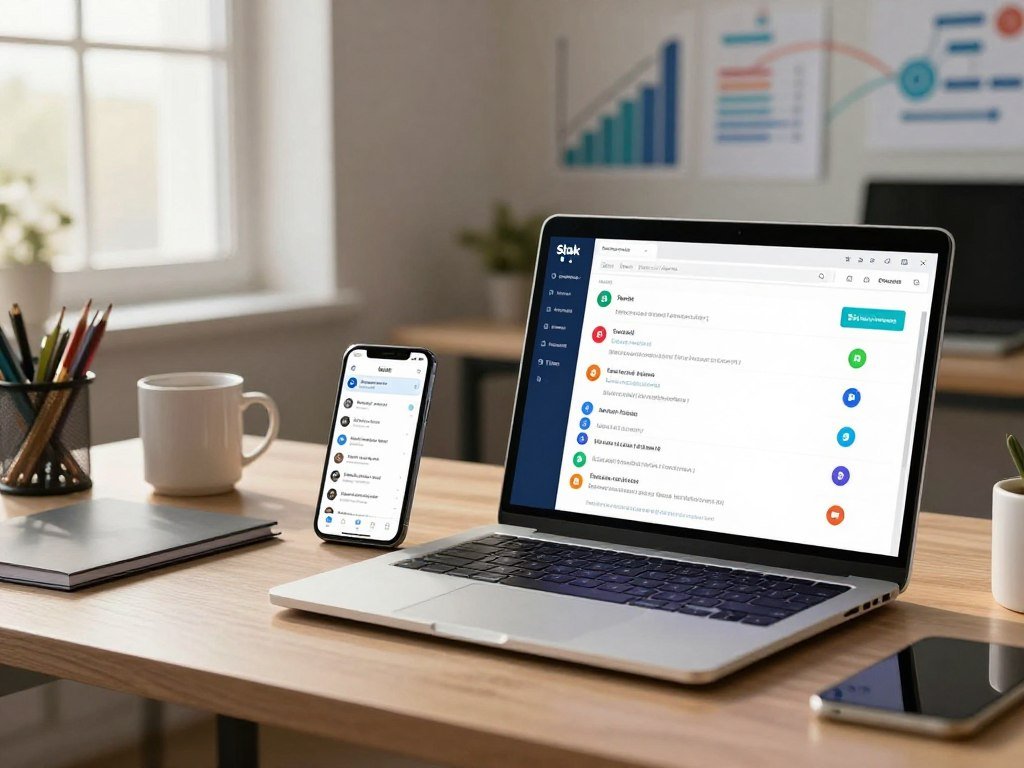
Channels, threads, and conversation structure
Slack channels can stay open for quick replies, while optional threads group responses under one message. That structure suits teams that want focused topics without making every conversation formal.
Teams groups channels under teams and supports up to 1,000 channels per team. That limit applies to each team, not to a whole organization or workspace.
Teams channel threads became generally available in August 2025. They give users a way to keep replies together while preserving the broader channel conversation.
Search and notifications
Both platforms offer notification controls, and both can become noisy when employees join too many busy channels. Teams should set a shared naming approach and clear rules for which updates need an alert.
Search quality also depends on how people name channels and share files. A channel called “Client launch” is easier to spot later than one with a vague label.
Pick a structure that helps staff tell project updates from casual chat. Make the rules simple enough that new users can follow them without asking for a map.
Set channel naming and notification rules before a workspace grows into a maze.
Which Platform Is Stronger for Meetings and Video Calls?
Teams is the stronger choice for structured meetings because it supports breakout rooms and in-meeting transcription. Formal sessions benefit from tools built for a planned agenda and group discussion.
Slack Huddles suit quick, informal calls, while Teams offers more features for organized video meetings. Group audio and video Huddles require a paid Slack plan.
| Meeting need | Slack | Microsoft Teams |
|---|---|---|
| Quick informal call | Huddle in a channel or direct message | Start a Teams call |
| Group audio/video | Paid plans include group Huddles | Structured group meetings |
| Breakout discussion | Not a core Huddle feature | Breakout rooms |
| In-meeting transcription | Less feature-rich for formal meetings | In-meeting transcription |
Informal conversations with Slack Huddles
A Huddle starts from an existing Slack conversation, which can make a quick question easier to resolve aloud. Users can add video or share a screen when the conversation needs more context.
Slack Free limits Huddles to one-on-one meetings. Slack Pro and Business+ include group audio and video through Huddles.
Structured meetings in Microsoft Teams
Teams is better suited to planned sessions that need breakout rooms or transcription. Those features can help a host manage discussion without asking people to move to another tool.
How to choose based on meeting habits
A Slack-versus-Teams-versus-Zoom decision should separate team chat from dedicated meeting services. Slack centers on ongoing messaging, while Zoom is a meeting-focused option rather than a direct replacement for a channel workspace.
If employees mostly need brief, spontaneous calls, Huddles may feel more natural. If scheduled video conferencing is central, Teams has a stronger set of built-in meeting tools.
If most calls are short and spontaneous, prioritize a tool your team can start without turning every conversation into a formal meeting.
How Do Slack and Teams Fit Into Your App Ecosystem?
Slack has the larger documented third-party app directory, while Teams has a natural advantage for organizations built around Microsoft 365. App fit matters when employees need work tools to share updates or trigger routine tasks.
Slack supports more than 2,600 app integrations. Teams connects closely with Microsoft 365 apps and uses Power Automate for workflows.
Third-party integrations
Slack’s broad app directory can suit a team that uses software from several vendors. Teams may feel simpler when documents, calendars, and meetings already live in Microsoft 365.
Google Workspace also changes the comparison. Google Chat handles team messaging, while Drive and Docs form part of a wider productivity suite for Google-first organizations.
For legal teams, Checkbox can capture requests from Slack, Microsoft Teams, and email, then classify and route them. That kind of shared intake can help staff keep requests moving across tools. Teams comparing other legal workflow products can also review AI tools for lawyers.
Workflows and automation
Slack’s no-code automation tool is Workflow Builder. Microsoft’s workflow automation tool is Power Automate, which can connect Teams with other services and business processes.
Before you commit, test these integration points:
- List the apps employees use every day.
- Check whether workflows need a connector or built-in automation.
- Test whether app permissions match company policy.
Shared workplace tools
OfficeSpace works inside Slack and Microsoft Teams for colleague and amenity searches, desk and meeting-room bookings, and facility requests. Actions taken in either app sync with OfficeSpace in real time.
Integration tests can reveal permission issues that a feature list will not show. Test the integrations employees need most before making either platform the center of the workflow.
How Do File Collaboration and Workspace Tools Compare?
Teams is the stronger fit for in-app Office document collaboration, while Slack’s canvases and lists need a downgrade check before a team changes plans. File location affects how staff edit, share, and find important work.
Teams stores and supports collaboration on Office files through SharePoint and OneDrive. Slack supports file sharing and links to outside storage services.
When a team shares a channel file in Teams, it is stored in a corresponding SharePoint site. Changes sync between SharePoint and Teams, and users can set view, edit, or review permissions.
Microsoft’s Teams file collaboration guide explains how users share, create, and work on files through OneDrive and SharePoint.
Slack canvases and lists can help teams keep notes or track simple work beside conversations. They are workspace tools, not a replacement for a carefully managed document library.
In 2026, existing Slack canvases become read-only when a workspace downgrades to Free. Access to Slack lists is removed after a downgrade, so users cannot keep working in them.
Those changes are different: a canvas remains viewable but cannot be edited, while a list is no longer accessible. Check where important files live and whether a plan change would interrupt key workspace tools.
Keep essential files in a location the team can still access if its collaboration plan changes.
What AI Features Come With Each Platform?
Slack Business+ bundles several workspace AI features, while Microsoft Copilot requires a separate paid license. How your staff work should guide whether those features are worth the added cost.
Microsoft 365 Copilot Business costs $21 per user per month as an add-on for small and midsize businesses. That price comes on top of the organization’s Microsoft subscription.
Slack AI for workspace knowledge
In 2026, Slack Business+ includes AI search, daily recaps, file summaries, and workflow generation. These tools can help users catch up on conversations or find useful details in shared content.
Slack Enterprise+ extends search across connected apps, databases, and systems. That wider search may help larger organizations look beyond Slack messages for answers.
Microsoft Copilot for meetings and documents
Microsoft Copilot offers help with meeting recaps and action items, along with assistance for documents. Teams using Microsoft 365 may find that work fits their existing files and meeting routines.
Copilot is a separate paid license, not a feature included automatically with every Microsoft subscription. Its cost adds to the organization’s current Microsoft plan.
Match AI features to the work employees do
Test whether your staff need conversation catch-up, meeting follow-up, or document help before paying for AI tools. Each task calls for a different kind of support.
For a wider look at work-focused assistants, compare AI chatbots and their work uses with the jobs your team wants to speed up.
Choose AI by the task it reliably removes, not by the length of a feature list.
What Should Businesses Know About Data Retention and Security?
Slack’s default retention differs by plan, and a retention setting that deletes data makes that deletion permanent. Default retention is not the same as a custom rule set by an administrator.
In 2026, Slack paid plans keep data for the lifetime of a workspace by default; free-plan data can be kept for 90 days or one year. A custom retention setting can shorten or change that period.
What happens to messages and workspace data
When a retention setting deletes Slack data, the deletion is permanent. A team should not treat chat as the only copy of a decision or record it may need later.
Retention rules also shape what remains available to staff. The exact effect depends on the workspace settings and the plan in use.
Access, privacy, and company controls
Employers may be able to access company workspace content through administrator permissions, exports, and retention controls. Workplace messages should not be treated as private personal communications.
Security depends on more than where messages sit. Administrators set who can access the workspace and how company data is managed.
Questions to settle with your administrator
Ask which retention and export policies apply before discussing sensitive business or personal information. That conversation can clarify what the organization keeps and who can access it.
For records that matter, decide whether your team should store a copy in an approved file system. Chat can support coordination, but it may not be the right long-term record.
Confirm the workspace’s retention and access rules with its administrator before relying on chat as a long-term record.
How Does External Collaboration Work?
Slack Pro supports external collaboration across shared channels with up to 250 organizations, while Teams guest access depends on Microsoft configuration. Partner access should match the way your teams share work outside the company.
Slack Connect creates shared channels for work with outside organizations. Slack Free offers one-on-one external direct messages, which are different from shared channels and group chats.
Slack Connect and external direct messages
Slack Pro supports external direct messages, group chats, and channels with up to 250 organizations. A shared Slack Connect channel lets people from separate organizations take part in one ongoing conversation.
Free users can send one-on-one external direct messages. That option does not provide the same shared-channel setup for a project with several partners.
Microsoft Teams guest access
Teams guest access requires configuration through Microsoft Entra B2B Direct Connect. Bring your organization’s administrator into the setup early, especially when a partner needs access to shared work.
Before choosing, settle three practical questions:
- How many partner organizations need access?
- Will partners need group chats or shared channels?
- Who will configure guest access and handle setup?
Those answers help set expectations for both your staff and outside partners. They also identify who will handle access before the first invitation goes out.
Decide who owns guest setup before inviting an outside partner into a work conversation.
Which Interface Is Easier for Employees to Adopt?
Slack’s simpler channel-and-message layout may feel easier to pick up, while Teams puts more work tools in the same interface. Daily comfort matters because employees need to find their usual tasks without extra effort.
Slack puts channels and direct messages in a simple left-hand menu. Teams uses tabs to bring chat, files, meetings, and apps together.
Teams can feel busier to new users because more work functions appear in one place. That same layout may suit employees who want fewer separate apps open during the day.
Slack supports custom emoji, while Microsoft Teams does not. It is a small culture and expression difference, not a strong reason to choose a business platform.
Both tools offer notification controls. Practical defaults help staff avoid constant alerts, especially when they belong to many active conversations.
Try common tasks with employees from different roles. Ask them to find a team update, start a direct message, and return to a file.
A test with real work can expose small points of friction that a product tour may miss. Include people who are less comfortable with new software, not only frequent app users.
Let a small cross-section of employees try both layouts using the same everyday tasks before selecting a default.
What Alternatives Are Worth Considering?
Lark, Mattermost, and Discord address different needs rather than acting as identical Slack and Teams replacements. Choose by operating needs, not by the fact that each product offers messaging.
Lark suits teams testing a broad free tier, Mattermost fits groups able to run self-hosted software, and Discord can work for community-style communication. Each option asks for a different tradeoff.
Lark for a generous free starting tier
In 2026, Lark’s free plan supports up to 20 users, 100 GB of storage, and 18 months of message history. That mix can help a small team test a broad set of work tools without an immediate paid plan.
Check whether its app and communication setup matches the way your employees already share work. A free tier is useful only if the team can work within its limits.
Mattermost for self-hosting and open-source code
Mattermost offers a self-hosted option and open-source code. Internal IT must deploy and maintain it, so the organization takes on more direct work.
This setup may suit organizations that want to run the service on their own systems and have staff to manage it. It is a poor fit when no one owns deployment or upkeep.
Discord for community-style communication
Discord offers free messaging and voice channels, along with roles, permissions, and bots. Those community features may work for groups that value open voice rooms and member roles.
Its community model may not match every business workflow. Teams that need formal records or tightly managed project communication should test the fit carefully.
An alternative can lower one burden while adding another, such as IT upkeep or a community-style structure.
Make ownership part of the decision. A tool with a low starting cost can still need time, setup, and clear rules from your staff.
Choose an alternative only after checking who will manage it and whether its communication model matches your organization.
Conclusion
The right choice is the one that fits the tools your team already relies on and the way it actually communicates. Choose Teams when Microsoft 365 and structured meetings drive the work; choose Slack when chat and varied third-party apps lead.
Start by comparing the licenses your organization already pays for. Then run a short trial with real channels, integrations, and meeting routines, so employees can judge the daily fit.
Check your current licenses, then test the leading option with a real team workflow before making the switch.
FAQ
Does Slack integrate with Microsoft Teams?
Yes, third-party automation can connect workflows between Slack and Microsoft Teams, but it does not merge them into one shared workspace. Each platform keeps its own messages, channels, and access rules. A shared app such as OfficeSpace works in both, which can help teams use the same workplace tasks from either interface.
Is Slack still widely used?
Yes, Slack remains an active business collaboration platform. Its use at your company depends on whether employees and partners already rely on it for daily work. Ask which apps your teams open, where customers expect replies, and how often staff use Slack channels before treating general popularity as proof of local adoption.
What are the disadvantages of using Slack?
Slack Free limits searchable history to 90 days, allows 10 app installations, and restricts Huddles to one-on-one meetings. A downgrade can also make existing canvases read-only and remove access to lists. These limits matter most when a team depends on old chat decisions, several connected apps, or shared workspace tools.
Who is Slack’s biggest competitor?
Microsoft Teams is Slack’s direct competitor, especially for organizations using Microsoft 365. Teams combines chat, meetings, calls, and file collaboration within that ecosystem. Slack is often a closer fit for chat-first teams that use apps from several vendors. Compare how your employees work before choosing between them.
What is replacing Slack?
No single product is replacing Slack across all organizations. Microsoft Teams is a major alternative, while Lark, Mattermost, and Discord serve different needs. The right choice depends on your software stack, IT resources, and communication habits. A team should test its real workflows before moving messages and routines to another platform.
Why do people use Slack instead of teams?
People may choose Slack when they want chat-first work, flexible channels, filtered search, and a broad third-party app directory. Those features can suit teams that spend much of the day coordinating in text. Teams may be a better fit when Microsoft 365, shared Office files, and structured meetings shape daily work.
Can my employer see my Slack conversations?
Yes, company administrators may access workspace content through permissions, exports, and retention controls. The exact access depends on company settings and the plan in use. Treat workplace messages as company communications, not private personal chats. Ask an administrator how your organization handles retention and exports before sharing sensitive information.
How much does Slack cost?
In 2026, Slack Pro costs $7.25 per user per month with annual billing or $8.75 with monthly billing. Business+ costs $15 per user per month annually or $18 monthly. Both paid plans include unlimited message history and app integrations. Your total cost depends on the plan and number of users.