
A password or payment detail may take only seconds to type, but it can expose sensitive information if someone is secretly recording it. A keylogger can threaten your information security, yet odd device behavior alone cannot show that one is present.
You can check for signs on a computer or phone, learn what each check can reveal, and choose a safe response. You will also find ways to lower the risk of future attacks without treating every glitch as a crisis.
That distinction matters: a slow app or a drained battery can have many causes. The user should look for specific clues and consider the kind of device involved. Treat a device’s odd behavior as a reason to check, not as proof of an infection.
Key Takeaways
- A keylogger can be software or a physical device.
- Typing delays and crashes are clues, not proof.
- Windows, Android, and iPhone each offer different checks.
- Inspect hardware connections as well as software.
- Use a clean device to protect accounts if risk seems real.
- Updates and multi-factor authentication can reduce exposure.
What Is a Keylogger and How Can You Detect One?
A keylogger records what you type on a computer or mobile device, which can expose details such as passwords and payment information. Credential theft means the unauthorized capture or use of someone’s login details.
A keylogger focuses on keystrokes, the characters entered through a keyboard or touchscreen. It may capture usernames, passwords, credit card numbers, or private messages as you type them.

A device user may not notice the recording as it happens. The captured typing can be stored on the device or sent to another person, depending on the keylogger.
The practical risk is that sensitive information can be taken without the device user noticing.
The definition of a keylogger covers software and physical devices that record keyboard input. Either type can put account credentials or personal information at risk.
Keylogging is narrower than broad monitoring because it centers on what you type. A keylogger does not need to record every screen or track every action to expose important details.
People often enter sensitive details while signing in, paying bills, or writing messages. A captured password can give someone a path into an account, while private messages may reveal personal facts.
The risk depends on what you type while the keylogger is active and how the person behind it uses the records. The practical risk is that sensitive information can be taken without the device user noticing.
What Types of Keyloggers Can Affect Your Device?
A keylogger can be a hidden program on the device or a physical device placed in the keyboard connection. The two types need different checks because one runs in software and the other sits in plain hardware.
A software scan cannot rule out an attached hardware device. A software keylogger may arrive through a link, file, or download, while a hardware keylogger needs physical access to the connection.
How software keyloggers operate
Software keyloggers can arrive as malware or spyware and run quietly in the background. A phishing link, infected email attachment, or malicious download may install the program.
Some software keyloggers disguise their processes as familiar or legitimate programs. That can make a name look harmless, so an unfamiliar entry needs checking before you remove it.
Keyloggers may work without an obvious window or alert. A clean-looking desktop does not tell you whether hidden software is present, and one strange process does not prove keylogging.
How hardware keyloggers are installed
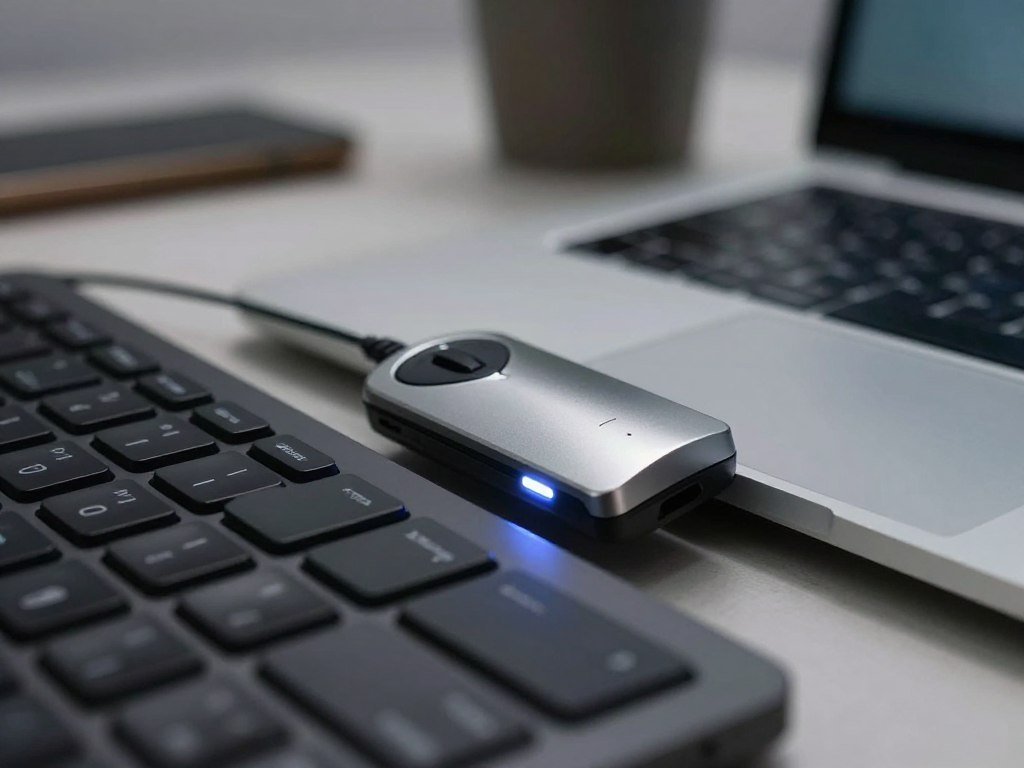
A hardware keylogger can be an inline adapter between a keyboard and a computer. It records input through the connection, so a software scan may not detect it.
Check the cable path from the keyboard to the computer. Look for an unexpected adapter, connector, or small device that you do not recognize.
Some connections include ordinary adapters, so compare the setup with the device’s usual arrangement before drawing a conclusion. If the computer belongs to work or school, ask the device manager about unfamiliar equipment.
| Type | How it reaches the device | Useful detection check |
|---|---|---|
| Software | Phishing link, infected attachment, or malicious download | Run an up-to-date malware scan and review unknown software |
| Hardware | Physical adapter placed between keyboard and computer | Inspect the keyboard cable and connection by hand |
These types can both capture keystrokes, but they leave different clues. A malware scan can help find suspicious software, while a physical check can reveal an inline device.
Do not assume every adapter is harmful; some serve a normal connection purpose. If an unfamiliar adapter sits between the keyboard and computer, inspect it rather than relying on a software scan.
Can Employers Legally Monitor Keystrokes?
An employer may monitor activity in some circumstances, but ownership of a device alone does not settle every legal question. Federal rules include limited exceptions, while state notice laws can add duties.
The Electronic Communications Privacy Act has exceptions for ordinary business monitoring and prior consent. Neither exception makes every form of employee monitoring lawful.
An employer may rely on a business-extension exception when monitoring occurs in the ordinary course of business on company-owned devices and networks. A separate exception applies when at least one party has consented.
Federal rules and consent
The federal rule does not resolve every question about purpose, consent, or state law. The facts of a workplace matter, including the device and the monitoring method, may affect the analysis.
Company ownership alone is not enough to assume any monitoring is allowed. An employee should read the workplace policy and notice, especially when personal activity may be involved.
State notice requirements
New York, Connecticut, Delaware, and Maine require written notice before electronic employee monitoring. Some states also require acknowledgement or renewed notice.
New York employers must give prior written or electronic notice at hiring, post it conspicuously, and obtain written or electronic employee acknowledgement. Delaware allows a one-time signed written notice or a daily electronic notice shown when employees access company systems.
| Rule | Notice or consent requirement | Specific condition |
|---|---|---|
| Federal ECPA exceptions | Ordinary-course business monitoring or prior consent | Business exception covers company-owned devices and networks |
| New York notice law | Prior written or electronic notice and acknowledgement | Give notice at hiring and post it conspicuously |
| Delaware notice rule | Signed written notice or daily electronic notice | Electronic notice appears when staff access company systems |
The New York monitoring law sets out those notice duties for employers. It also exempts some non-targeted monitoring used only for system maintenance or protection.
Employers and employees should check the state rules that apply to their situation. For a real dispute, employment counsel can help explain how the law fits the facts.
Before relying on a workplace monitoring policy, check the rules that apply in the employee’s state.
How Can You Check a Windows PC?
Lagging keystrokes or unexplained crashes can justify a closer check, but neither symptom confirms a keylogger. Start with visible activity and verify unfamiliar entries before changing the system.
Task Manager can help you review active apps, background processes, and startup entries. An unknown entry or slow performance alone does not establish an infection.
Other clues can include high CPU or RAM use, unusual outgoing network activity, pop-ups, or antivirus alerts. Those signs can also come from normal software problems, so check them in context.
Review running processes and startup apps
Open Task Manager, then review the apps and background processes that are running. Look for names you do not recognize, but do not end a process just because its name seems odd.
Review startup entries for programs that launch when Windows starts. Search an unfamiliar name and check whether it belongs to a known app or system component.
How to check for keyloggers on Windows 10 follows the same cautious approach: verify an unfamiliar program before removing it. Detecting a keylogger on Windows can start with Task Manager, but a process name is only a clue.
- Open Task Manager from the Start menu or taskbar.
- Review active apps and background processes.
- Inspect startup entries for unknown programs.
- Look up an unfamiliar process before acting on it.
Windows performance problems can have many causes, including a full drive or an app using too many resources. Compare unusual activity with the programs you were using at the time.
Check installed programs and physical connections
Review installed programs for software you do not remember adding. Check the program name and its purpose before uninstalling it, since shared computers may have tools installed by someone else.
A physical keylogger may sit between the keyboard and computer, so inspect the connection as well. An unexpected adapter can be a reason to ask the device owner or workplace IT team about it.
Task Manager on a PC and Activity Monitor on a Mac show apps and background processes. For a Windows PC, search an unfamiliar process name before ending it, since a legitimate system process can look unfamiliar.
How Do You Check an Android Phone?
On Android, Google Play Protect provides a built-in place to check for potentially harmful apps. It offers a useful first check, though no single scan proves that a phone is clear.
Play Protect checks apps before download from Google Play and scans an Android device periodically. It may warn about, disable, or remove an app it detects as harmful.
Play Protect is on by default. Its settings and scan results are available through the Google Play Store, so you can review them without installing another tool first.
Run Google Play Protect
Open the Google Play Store and tap the profile icon. Select Play Protect to view its settings and recent scan results.
Check that the protection setting remains on, then review any warning the tool shows. Play Protect can help identify harmful software, but it cannot guarantee that every threat will be found.
The Play Protect settings are in Google Play Store, profile icon, then Play Protect Settings. Microsoft Defender also supports malware scans on Android.
- Open the Google Play Store app.
- Tap your profile icon.
- Select Play Protect.
- Review the settings and scan results.
Review apps and unusual behavior
Check the installed apps for names you do not recognize or remember adding. Search an app’s name and purpose before removing it, since some phone tools have unfamiliar names.
Unusual battery use or sluggish behavior can point to a problem, but neither confirms keylogging. Updates, older batteries, and busy apps can also affect how a phone behaves.
To detect a keylogger on Android, pair an app review with an up-to-date malware scan. The same approach can help you tell if your phone may have one without relying on a single symptom.
Use a trusted security tool if you want a second scan, and keep Android and apps current. Keep Play Protect turned on, its default setting, and review any warning before dismissing it.
What Should You Check on an iPhone?
An unfamiliar keyboard or configuration profile is worth checking, but its presence alone does not prove that a keylogger is installed. Review the settings and consider why each item is on the phone.
An iPhone lets you review keyboard access, profiles, apps, and usage in Settings. A work or school iPhone may have approved tools that you would not find on a personal device.
A third-party keyboard without full access is sandboxed from starting network connections. Full access can allow networking and access to shared group containers and named pasteboards.
Review keyboards and configuration profiles
Open Settings, then General, Keyboard, and Keyboards to see the installed keyboards. You can remove an unfamiliar keyboard from that list after checking whether you or your device manager added it.
Configuration profiles appear under Settings, General, and VPN & Device Management. A profile can manage settings or access, so its name and purpose matter.
iOS switches to its default keyboard when a password field is active. That behavior does not prove the rest of the device is safe or show what a keyboard can do elsewhere.
For the question of how to detect a keylogger on iPhone, begin with unfamiliar keyboards and profiles, then review apps and their activity. Full access changes what a third-party keyboard may be able to do.
Check installed apps and usage
Open Settings, General, and iPhone Storage to review installed apps. Look for apps you do not recognize and check their names before deleting them.
Battery use by app appears under Settings, Battery. Cellular data use by app appears under Settings, Cellular.
- Review each app’s battery use for unexplained changes.
- Check cellular use for apps that send unexpected amounts of data.
- Compare recent activity with when you used each app.
- Identify suspicious apps or profiles before removing them.
These checks can help you identify an unfamiliar keyboard or app, but usage patterns do not prove keylogging. To get rid of a suspected keylogger, remove an unfamiliar keyboard and follow up carefully on suspicious apps or profiles.
Review a profile’s purpose before changing it, especially if the iPhone is managed by work or school.
What Should You Do If You Suspect a Keylogger?
If a device may be recording keystrokes, disconnect it from the internet before using it to change account details. Limit further exposure first, then use another device for account protection.
Change important passwords from a clean device, not the device you suspect. A keylogger on the suspected device could capture new passwords as you type them.
- Disconnect the suspected device from the internet.
- Use a clean device to change important passwords.
- Run an up-to-date malware scan on the suspected device.
- Follow the security tool’s instructions to quarantine or remove detected threats.
Disconnecting the device can help stop a keylogger from sending captured data. If it belongs to work or school, contact the IT team before making changes that could affect its setup.
Microsoft Defender offers a Quick scan, and Scan options include other scan types. Defender Offline is Microsoft’s most complete scan option, though available options vary by platform.
Microsoft Defender supports malware scans on Windows, Android, and macOS. Use the scan options available on the device, then follow the tool’s instructions if it finds malware.
If you suspect account misuse, check important accounts from the clean device for unfamiliar sign-ins or changes. Change account passwords only from a device you trust to be clean.
How Can You Reduce the Risk of Keylogging?
Prevention works best when updated software and cautious handling of links and downloads reinforce each other. Small habits can reduce the chance that malware reaches a device or gains access to an account.
Keep your operating systems and apps updated to patch known vulnerabilities. Updates for Windows, Android, macOS, and iOS can close flaws that attackers might otherwise target.
- Install updates for your operating system and apps.
- Check unexpected links and attachments before opening them.
- Turn on multi-factor authentication for important accounts.
- Avoid entering sensitive details on public computers.
Phishing links and infected attachments can deliver harmful software. Confirm that an unexpected message is real before opening its link or file, even when it seems to come from someone you know.
Careful download choices also reduce the chance of installing a bundled threat. Get software from a trusted publisher or app store, and read the install steps before accepting extra programs.
Multi-factor authentication adds a separate authentication factor, such as a code or prompt. When an attacker has only a captured password, that extra check can block account access.
A captured password should not be the only barrier protecting an important account.
For more privacy while using public networks, compare free VPN options for everyday use and check their logging policies. A VPN protects traffic routed through its connection, but it cannot stop phishing or malicious downloads.
Turn on multi-factor authentication for important accounts so a captured password is not the only barrier protecting them.
Conclusion
A warning sign deserves a careful check, not a panicked guess. Slow typing, unusual activity, or an unfamiliar app can have ordinary causes, so look for more than one clue.
Software and hardware threats need different checks: a scan can help find malware, while a physical inspection can reveal an attached device. You do not need to prove the cause before taking a safe first step.
If a device seems compromised, disconnect it and use a trusted device to secure important accounts. If you have a specific concern now, start by disconnecting the device and securing your accounts from a clean one.
FAQ
How do I know if there is a keylogger on my computer?
Slow typing, crashes, unusual network activity, or unfamiliar processes can be clues, but none confirms a keylogger. A computer can show these signs because of routine software problems or heavy use. Run an up-to-date malware scan and check unfamiliar programs before removing them. A physical keylogger may need a hands-on check of the keyboard connection.
What is the difference between a keylogger and spyware?
A keylogger focuses on recording typed input, while spyware is a broader category of software that monitors or collects user information. Some keyloggers may also be classed as spyware, but spyware does not always record keystrokes. The terms describe different scopes: one points to captured typing, and the other covers wider forms of monitoring.
What is a keylogger?
A keylogger is software or a hardware device that records keystrokes on a computer or mobile device. It may capture details typed into websites, apps, or messages. Software versions run on the device, while hardware versions can sit in a keyboard connection. The device user may not notice the recording while it happens.
Are keyloggers legal?
Legality depends on consent, ownership, purpose, and applicable federal and state rules. Federal law has exceptions for certain ordinary business monitoring and monitoring with prior consent, but those exceptions do not make every use legal. Workplace notice laws differ by state. A real workplace concern may need review under the laws that apply to that employee.
How do I find out if I have a keylogger on my phone?
Review unfamiliar apps and use the phone’s built-in or a trusted malware check. On Android, Play Protect scans apps and can warn about harmful ones. On iPhone, check keyboards, profiles, and installed apps. Slow performance or unusual battery use alone does not prove a keylogger, since many ordinary issues can cause those changes.
Can my employer track my keystrokes?
An employer may monitor keystrokes in some circumstances, but federal exceptions and state notice requirements apply. Company ownership by itself does not settle every legal question. Check the workplace policy and any notice you received, then consider the employee’s state. State rules can require written notice, acknowledgement, or other steps before electronic monitoring begins.
How can I tell if my employer is spying on my computer?
Review who owns the device, the written policies, and any monitoring notices. A slow computer or strange process cannot establish that your employer is monitoring you. Ask the company’s IT or HR team what tools are installed and why. State law may set notice rules, so the answer can depend on where the employee works.
How to know if an employer is keystroke logging?
Look for a monitoring policy or notice, then ask the employer’s IT or HR team about any tools on the device. A managed work computer may have authorized monitoring, subject to applicable law and workplace rules. Performance symptoms do not show that keystroke logging is happening. Keep a copy of relevant policies or notices if you need to clarify a concern.



