You can sign in to many websites and apps without typing a password by approving a prompt on a device you already use. A passkey can make that everyday step quicker and easier, especially when you have several accounts to manage. It lets your device or credential manager verify you without asking you to type a password.
This beginner-friendly guide explains what the prompts mean, how local verification works, which devices support passkeys, and what choices affect daily use. You will also learn what to expect if you cannot use your usual device. The key idea is simple: your device proves the sign-in is yours without sending the service a reusable password.
Key Takeaways
- A passkey is a digital credential, not a fingerprint or face scan.
- Your device or credential manager uses it to approve a sign-in.
- Local verification can use a face, fingerprint, PIN, or pattern.
- Passkeys are designed to resist phishing on look-alike websites.
- Synced and device-bound passkeys have different access and recovery needs.
- Check your account’s backup sign-in options before relying on one device.
What Is a Passkey and How Does It Work? In Plain English
On a phone, a passkey sign-in usually looks like choosing an account and approving a prompt with the phone’s normal unlock method. The exact screen depends on the phone, app, browser, and service. Usually, you choose an account, then confirm the sign-in with your face, fingerprint, PIN, or pattern.
A passkey is a digital credential stored or accessed by an authenticator, not a face scan or fingerprint. FIDO standards let the authenticator keep the private key while the service registers a related public key. Your local verification method unlocks the credential on your device, and that method is not sent to the service.
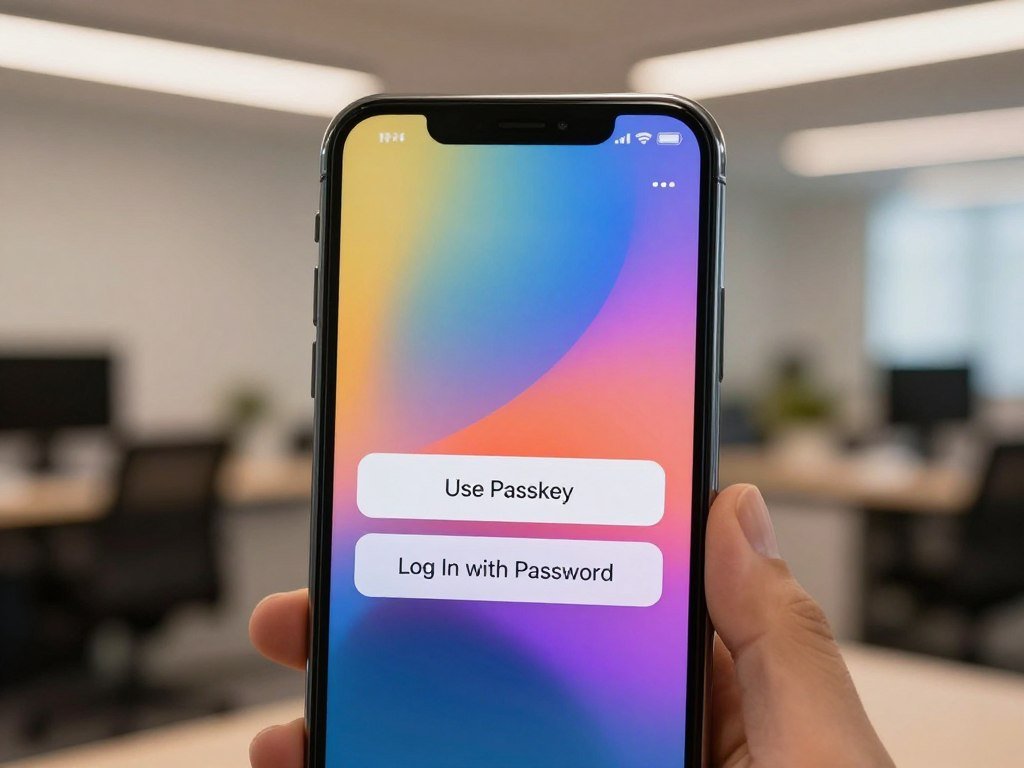
What the sign-in prompt looks like
A prompt may show one account, several saved accounts, or a choice of nearby devices. Some screens ask you to pick an account before unlocking; others begin with the unlock step. If you see “Use a passkey,” follow the prompt, then check that the account shown is yours.
A typed example password might be “BlueRiver42!” That string is readable and can be copied or typed. A passkey is not a word or code you can view, memorize, or enter in a password box.
A fingerprint is not the passkey
Your face, fingerprint, PIN, or pattern provides local verification. The device uses that method to let the authenticator access the credential; the service does not receive your face scan or fingerprint. The exact method depends on the device and its settings.
A passkey has no readable string for you to memorize or type.
A prompt can look different from one device to another, but the basic task stays familiar: choose the right account and approve sign-in.
What Happens When You Register and Sign In?
When you create a passkey, your authenticator makes a separate key pair for that account on that service. Public-key cryptography is a method that uses a related public key and private key so a service can verify a sign-in without receiving the private key. The private key stays with the authenticator, while the service registers the public key.

Creating a passkey
Registration links a new key pair to one account on one service. Your authenticator holds the private key, while the service stores the public key. That separation lets the service check a sign-in without keeping a copy of the secret needed to prove it.
Here is the process in four actions:
- Your authenticator creates a unique key pair for the account and service.
- The service registers the public key with that account.
- At sign-in, the service sends a fresh challenge to the authenticator.
- After local verification, the authenticator signs the challenge and returns the response for checking.
Proving it is you at sign-in
The challenge is a fresh request from the service, rather than a reusable password or one-time code. Your authenticator uses the private key to sign that request after you approve local verification. The signature shows that the authenticator has access to the matching private key.
The service then checks the signature with the public key registered to your account. This check is part of authentication, the process of confirming that a sign-in belongs to you. A challenge used once cannot serve as a reusable password for another sign-in.
The service checks the signature against its public key and grants access only when the challenge is valid.
Why Are Passkeys Resistant to Phishing?
A passkey made for one website will not answer a sign-in request from a look-alike website. That connection between the credential and the real website is called origin binding. It helps stop a fake page from collecting a passkey the way it might collect a typed password.
A passkey is presented only to the website or app for which it was registered. For example, a passkey made for mybank.com will not sign in to mybank-login.example. The names may look alike, but the authenticator checks the site’s real identity before using the credential.
The FIDO Alliance explains this protection through verifier name binding, which ties authentication to the registered service. That makes a passkey resistant to common credential-harvesting pages, but it does not make every account immune to attack.
A service’s server breach also does not reveal the private key needed to sign in, because the service stores the public key instead. Other risks can remain, including a compromised device, a stolen session, or a trick that gets you to approve the wrong account prompt.
Before approving a prompt, check that you opened the intended service and account.
Are Passkeys Safer Than Passwords and Traditional 2FA?
For phishing resistance and a quick sign-in, a passkey has an advantage over a password and a code that can be entered on a fake site. It can also pair possession of the authenticator with a device PIN or biometric as multifactor authentication. Passkeys reduce common phishing risks, though recovery and service setup still matter.
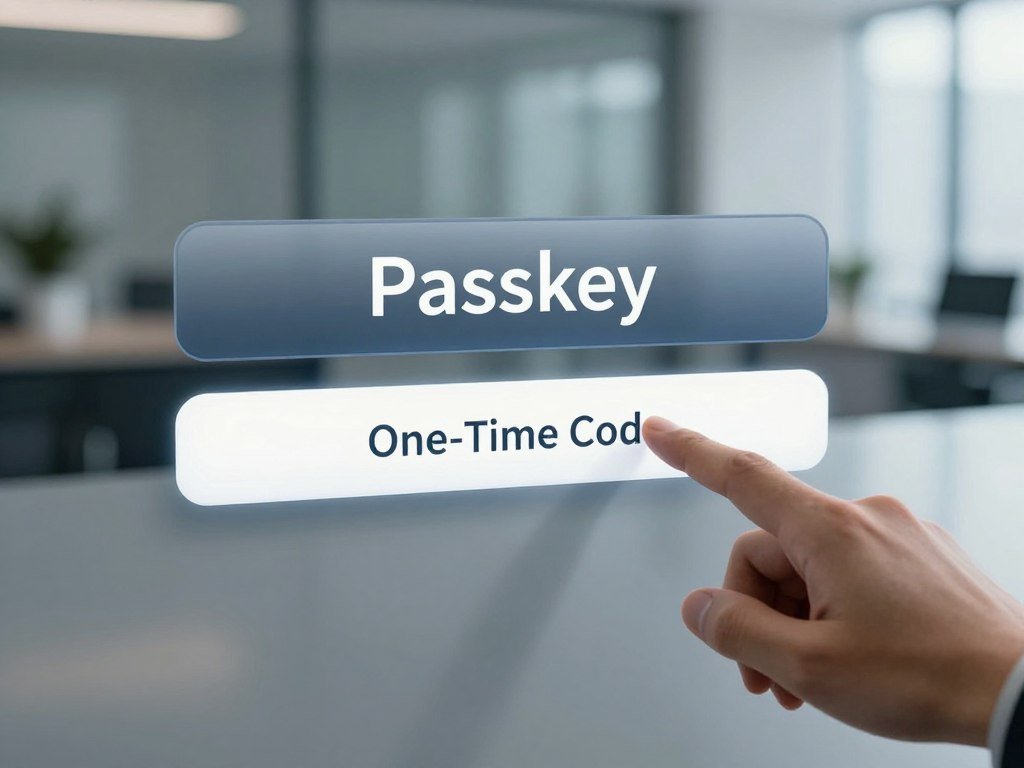
This comparison shows what you present during sign-in and how well each method resists phishing.
| Method | Phishing resistance | What the user presents |
|---|---|---|
| Passkey | Resistant | Local approval from an authenticator |
| Password | Can be phished | Typed password |
| Password plus a one-time code | Code can be phished | Password and code |
One-time codes add a second step, but a fake site can ask you to enter the code and pass it to the real service. A passkey does not work that way. A device PIN or biometric can pair with the passkey without sending your local verification method to the service.
In a 2024 FIDO Alliance survey, 53% of respondents had enabled passkeys on at least one account, and 22% had enabled them on every account where possible. Microsoft reported that 99% of users in its consumer Microsoft-account experience successfully registered synced passkeys.
Microsoft also reported 3 seconds for synced-passkey sign-in versus 69 seconds for password plus traditional MFA. Successful sign-ins were 95% for synced passkeys versus 30% for password plus traditional MFA. These figures reflect that specific comparison, not every service or user. See a fuller passkeys, passwords, and 2FA comparison for trade-offs around sign-in and recovery.
Treat the performance figures as specific reported comparisons, not a promise that every sign-in will take the same time.
Should You Choose a Synced or Device-Bound Passkey?
Choose a synced passkey when convenience across your devices matters most, and consider a device-bound option when an organization needs tighter control. The main trade-off is access across devices versus keeping each credential on one physical authenticator. Work rules may limit which type you can register.
Here is how common options differ in storage and everyday use.
| Type | Where the private key is kept | How it works across devices | Fitting use case |
|---|---|---|---|
| FIDO2 security key | On the physical key | Use the same key with supported devices | Strict device control |
| Microsoft Authenticator | In the app on one device | Device-bound option in Microsoft Entra ID | Managed work account |
| Synced credential manager | Through its account or cloud service | Available on devices with manager access | Convenient personal use |
Device-bound passkeys stay on one authenticator
A device-bound passkey stays on one physical authenticator, such as a FIDO2 security key or a supported Microsoft Authenticator setup. It does not become available on another device through syncing. This can suit a team that needs stronger control over where credentials live.
Some organizations use attestation, a registration check that can verify an authenticator model and device identity. Microsoft Entra ID excludes synced passkeys when an organization enforces attestation. That is an organization policy, not a rule for every passkey account.
Synced passkeys are available through a credential manager
Apple iCloud Keychain and Google Password Manager are examples of credential managers that can make passkeys available across a user’s devices. Microsoft Entra ID also supports synced passkeys in settings without enforced attestation. Access depends on being able to use the credential manager account.
Microsoft recommends FIDO2 security keys for highly regulated environments and users with elevated privileges. It describes synced passkeys as a convenient, lower-cost option for most other users. Those recommendations apply to Microsoft’s guidance, not every organization’s risk policy.
Check your organization’s attestation policy before choosing a synced credential manager for a work account.
How Do Passkeys Work Across Devices?
A synced credential manager can make a passkey available on a second device, while a QR code can connect a nearby phone to a computer sign-in. Those are separate paths: one uses the manager’s access across devices, and the other uses a nearby device holding the passkey.
A QR flow does not sync a device-bound passkey to the computer. Instead, the computer shows a code, and the phone scans it to approve sign-in. A proximity check confirms that the phone and computer are near each other.
For a synced passkey, sign in to the credential manager on another supported device. The manager can then provide access to the credential there, subject to its account and device setup. This can help when you switch from a phone to a laptop.
For a nearby-device flow, the phone and computer communicate after the QR scan. The proximity check helps reduce risks in cross-device handoffs, where a code may appear on a screen anyone can see. The IETF’s cross-device security guidance discusses checks for these flows.
A QR code is a bridge for that sign-in, not a way to hand your personal credential to someone else. The phone still holds or accesses the passkey and approves the request.
For a QR sign-in, keep the passkey-holding phone near the device displaying the code.
How Do You Create a Passkey on Android or Another Device?
On Android, search Settings for “Password Manager” to find Google’s passkey controls. That search can take you to options for saving passkeys and automatic passkey creation. You can also manage Google Password Manager in Chrome or on its website, using devices signed in to the same Google Account.
Most setup starts after you sign in to an account and choose the service’s create-passkey prompt or account settings. A supported app or website may offer the prompt right after sign-in. On other devices, you may be asked where to save the credential.
Find Google Password Manager on Android
To find a passkey, look in the credential manager used when it was saved. On Android, Google Password Manager lists saved passkeys. Search Settings for “Password Manager” to reach its controls, or open the manager through Chrome on a signed-in device.
Use these five Android actions to set up the controls and save a passkey:
- Open the Settings app on your Android device.
- Search Settings for “Password Manager.”
- Check the save-passkey and automatic-creation controls.
- Return to a supported app or website and sign in.
- Approve the service’s create-passkey prompt.
Save a passkey when a site offers one
“Offer to save passwords and passkeys” is on by default in Google Password Manager, though you or an enterprise administrator can manage it. If automatic passkey creation is enabled, Google Password Manager can create a passkey after you sign in with a saved password.
If a site offers a passkey, follow its prompt and approve the save request. Android can complete the process in Google Password Manager, while another device may let you choose a different credential manager. The saved account should match the account you just used.
Confirm which credential manager saved the passkey before relying on it on another device.
What Happens If You Lose the Device With Your Passkey?
Losing a phone does not have the same effect on every passkey; the storage choice determines the first recovery step. A synced passkey may remain available through its credential manager, while a device-bound passkey stays with the lost or broken authenticator. Keep another sign-in or recovery route for important accounts.
If the passkey was device-bound
A device-bound passkey does not sync to other devices or the cloud. Losing its authenticator also means losing that passkey, unless you have another registered passkey or account recovery method. A second registered option can save you from waiting for a recovery process.
For a Google Account, recovery can involve answering questions to confirm account ownership and resetting the password when prompted. Changes to Google account recovery information may take up to 7 days to take effect. Work or school account users may need help from an administrator.
If the passkey was synced
A synced passkey depends on access to its credential manager or cloud account. You may be able to use it from another device if you can sign in to that manager. If you cannot access the manager account, follow its recovery steps before expecting the passkey to appear elsewhere.
Use this short recovery checklist:
- Try another passkey already registered to the account.
- Use the account’s recovery process if no other passkey works.
- Contact a work or school administrator if the account is managed.
The account provider may ask for details that show you own the account. Recovery information helps with that check, so update it while you still have access.
Keep recovery contact information current before a device goes missing.
Which Devices and Browsers Support Passkeys?
Microsoft’s listed baseline spans Windows 10, macOS Ventura, ChromeOS 109, iOS 16, and Android 9 or newer. Those minimums cover the operating system, but they do not guarantee that every app or service supports passkeys. The website or app must support passkeys too.
Microsoft lists these minimum platform versions:
- Windows 10 or newer.
- macOS Ventura or newer.
- ChromeOS 109 or newer.
- iOS 16 or newer.
- Android 9 or newer.
Microsoft Authenticator passkeys require iOS 17 or newer, or Android 14 or newer. Microsoft’s browser requirements are Edge 109 or newer, Safari 16 or newer, and Chrome 109 or newer. Microsoft Password Manager requires Edge 142 or newer.
These version rules come from Microsoft’s listed support, so another service may have different requirements. A work or school administrator can also restrict the authentication method or credential manager available to your account.
Check the version of the browser and the authenticator you actually plan to use, not just the operating system.
What Is Changing for Microsoft Entra ID Users?
Microsoft Entra ID’s passkey default began September 1, 2026, with separate later retirement dates for SMS and voice authentication. The dates differ by user group, so the right deadline depends on whether you are a Global Administrator or an external user.
After the retirement date that applies to you, SMS or voice as your only MFA method will no longer be enough. In-scope users with no other available MFA method must register a passkey during sign-in to keep accessing the account.
The changes take effect in stages:
| Date | Affected users | What changes |
|---|---|---|
| September 1, 2026 | Users enabled for SMS or voice | Passkeys become the default; passkeys are automatically enabled |
| February 1, 2027 | In-scope users except Global Administrators and external users, including internal guests | Microsoft-provided SMS and voice authentication retire |
| July 1, 2027 | Global Administrators and external users | Microsoft-provided SMS and voice authentication retire |
The September change sets passkeys as the default authentication experience. It also automatically enables passkeys for users who are enabled for SMS or voice authentication.
The February retirement covers internal guest users, but not external users or Global Administrators. Those two groups have the July date. The retirement applies to Microsoft-provided SMS and voice authentication, not every sign-in method used by an organization.
Ask your organization’s administrator which retirement date applies to your account and whether another MFA method is already available.
Can You Sign In Without a Passkey?
If a site does not support passkeys, use the sign-in method that service still offers, such as its password route. Your choices depend on the service and account, and enrolling a passkey does not always remove password sign-in. Passkey support is specific to each service.
Depending on the account, try one of these routes:
- Use the service’s password sign-in.
- Choose another authentication method the service offers.
- Follow the service’s account recovery process.
Google says users can still sign in with a password and a second factor after enrolling a passkey. Other services may set different fallback options, or may let an account owner turn off a password after passkey setup.
Do not assume every service keeps the same fallback options after you enroll.
If you can sign in now, check which backup methods remain available for that account. A work or school account may have fewer choices because an administrator sets its sign-in rules.
Conclusion
A passkey gives you a simpler sign-in without sending the service a reusable password. It uses a credential held by an authenticator, with local verification to approve the sign-in. Passkeys are designed to resist phishing, but your best storage choice depends on whether convenience across devices or device-bound control matters more.
For a personal account, a synced credential manager may make daily access easier. A device-bound option may fit a managed account with tighter rules. Either way, knowing where the passkey lives and how you can recover access helps prevent a locked account.
Create one for a frequently used account, then confirm how you would regain access if your device were unavailable.
FAQ
How does a passkey work on your phone?
Your phone stores or accesses the private key, asks for local verification, then signs the service’s challenge. The service checks that signature without receiving the private key. You approve with a face, fingerprint, PIN, or pattern, depending on your phone’s settings. Your biometric stays on the device and does not become a password sent to the service.
How can I share passkeys between my devices?
Use a synced credential manager on your devices, or connect a nearby phone to a computer with a QR flow and proximity check. That lets you use your own passkey across your devices without giving another person your credential. Do not share a personal passkey with someone else; it is tied to your account and should stay under your control.
Are passkeys safer than 2FA?
Passkeys offer phishing-resistant sign-in and can pair possession of an authenticator with local biometric or PIN verification. Traditional one-time codes can be phished when a fake site asks you to enter them. The answer still depends on the service’s setup and recovery process, since those can affect account security even when sign-in uses a passkey.
Is there a downside to using passkeys?
Yes, recovery can be harder if you use a device-bound passkey and lose its authenticator without another sign-in route. Synced passkeys depend on access to the credential manager or cloud account that holds them. You can reduce disruption by keeping another registered passkey or recovery method available for important accounts.
Do I still have a password if I have a passkey?
Usually, enrolling a passkey does not automatically delete your password, but each service sets its own options. Google still permits users to sign in with a password and a second factor after passkey enrollment. Check the account’s sign-in settings to see whether its password remains active and what fallback methods it offers.
What happens to passkeys if you lose your phone?
Recovery depends on whether the passkey was device-bound or synced and whether another recovery method is available. A device-bound passkey stays on the lost phone, so you need another registered passkey or the account’s recovery process. A synced passkey may be available through its credential manager after you regain access to that account.
Is your fingerprint a passkey?
No, your fingerprint is a local method that unlocks the passkey on your device. The authenticator uses the credential after that check, while the service receives a signed response to its challenge. Your biometric information is not sent to the service as part of passkey authentication.
How do I login without a passkey?
Use the service’s available password sign-in, choose another authentication method it offers, or follow its account recovery process. Options vary by service, and a work or school administrator may limit them. If you enrolled a passkey, check the account settings rather than assuming that password sign-in or another backup method remains available.



