A computer can appear normal even when someone has quietly gained access to it. That possibility puts your files, accounts, and device security at risk, especially if you use the machine for work or banking. Still, slow performance or a strange pop-up does not confirm a rootkit infection. Many common software and hardware problems can cause unusual behavior.
This beginner’s guide explains the threat, the signs worth checking, and the limits of scans and removal tools. You will also see when a Windows scan can help and when a device may need expert care. A careful check can help you respond without making a bad situation worse. Suspicion is a reason to investigate, not a diagnosis. Treat unexplained security changes as a reason to investigate, not as proof of an infection.
Key Takeaways
- A rootkit can hide activity and help an attacker keep privileged access.
- Rootkits can affect different parts of a device, from apps to firmware.
- Slowdowns and other warning signs can have causes unrelated to malware.
- An offline scan may help, but a clean result cannot guarantee safety.
- Some infections need a trusted backup, a reinstall, or specialist help.
- Disconnect a device if security tools stop or a scan finds a threat.
What Is a Rootkit and Why Is It Dangerous?
A rootkit is malware that hides its presence while helping an attacker keep privileged access to a device. Root comes from the privileged Unix account, while “kit” means the software tools that help maintain that access. Its danger is hidden control over a system, not automatic self-spreading.
The basic meaning applied to rootkits found in 2022 and still applies today. A rootkit is not the same thing as a virus. A virus is malware that can attach itself to files and spread when those files run, while a rootkit describes software that hides access or activity. A rootkit may arrive alongside other malware, but it does not have to copy itself.
Attackers use rootkits to keep access while making their activity harder to spot. They may hide files, processes, or system activity from normal checks. Some steal passwords or other sensitive information; others change system files or help load ransomware and keyloggers.
A rootkit’s hidden access can put your passwords, files, and device control at risk.
The name can sound like a separate kind of attack, but it is more useful to think about what the software lets an attacker do. That access may support data theft, further malware, or changes that disrupt normal use. A rootkit can also make it harder for you to trust what the device reports.
Unix “root” refers to a powerful account with broad control. On other systems, attackers may seek similar high-level access, even when the account has a different name. A rootkit’s privileged access can let an attacker make changes that an ordinary user account cannot.
Its danger comes from the hidden access it enables, not from being a separate kind of self-spreading virus.
How Do Rootkits Hide and Get Installed?
A rootkit can make a compromised system report a false picture of its own files and processes. System calls are requests that software makes to the operating system, and a rootkit may intercept them. A misleading file or process list cannot, by itself, prove that a device is clean.
This can affect what you see in a file browser, a process list, or system tools. A kernel-level rootkit can reach deeper by changing the operating-system kernel, the core part that manages hardware and software. Those changes can make normal checks less reliable.
Rootkits can reach a device through several routes. The table shows common examples and the weakness or access each route may involve.
| Entry route | Concrete example | What the attacker exploits | Practical point to remember |
|---|---|---|---|
| Phishing email or malicious download | A fake invoice attachment | A user opening harmful content | Check unexpected files before opening |
| Unpatched software vulnerability | An old browser with a known flaw | Software that lacks a security fix | Install updates promptly |
| Infected USB drive | A drive left in a shared area | Trust in removable media | Do not plug in unknown drives |
| Bundled or supply-chain software | A compromised software update | Trust in a vendor or installer | Use trusted software sources |
| Physical access | Someone uses an unattended computer | Direct access to the device | Keep devices under your control |
An attacker may rely on a person to run a file, take advantage of an unpatched flaw, or gain access another way. The route does not tell you which type of rootkit is present. It does show why software and physical access both matter.
Treat an unexpected USB drive as untrusted and do not plug it into a personal or work computer.
What Types of Rootkits Can Affect a Device?
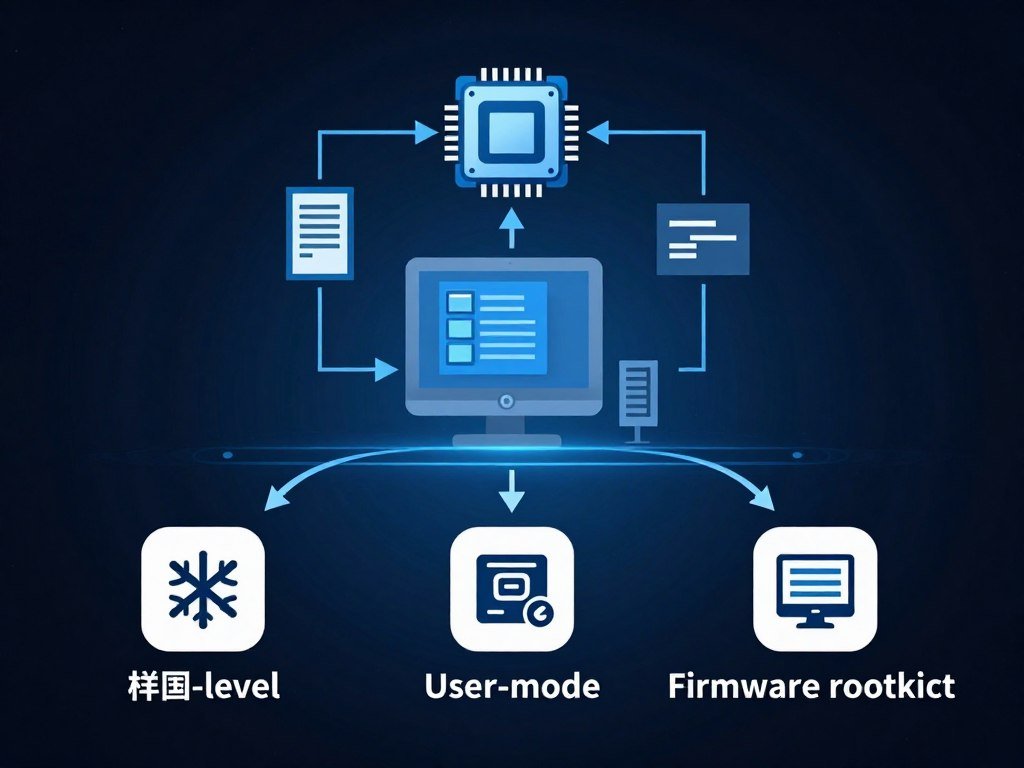
A rootkit’s location, from an application to firmware, shapes how deeply it can hide. Firmware is low-level software that helps a device’s hardware start and work. Rootkits in lower system layers can be harder to find and may outlast changes to the operating system.
The table compares five types by where they operate and what that location can mean. Names can vary across security products, but these locations help explain how rootkits differ.
| Type | System layer or location | What it can affect | Persistence or visibility characteristic |
|---|---|---|---|
| User-mode or application | App or user-level process | Application files and activity | May be easier to inspect than deeper types |
| Kernel-mode | Operating-system kernel | Core system functions and processes | Can interfere with security checks |
| Bootloader | Master boot record or volume boot record | Startup code before the operating system | May not appear in the standard file system |
| Firmware | Device firmware or BIOS | Hardware startup and low-level control | Can remain below a normal operating-system reinstall |
| Memory | Computer memory while running | Active instructions and processes | May disappear after reboot, but cleanup can remain |
A user-mode or application rootkit works at the level where programs run. It may target an app or use user-level access to hide activity. The exact effect depends on the software and permissions involved.
A kernel-mode rootkit works in the operating-system kernel. Because the kernel manages core system tasks, changes there may affect many programs at once. That depth can also make the rootkit harder for ordinary tools to inspect.
A bootloader is software that starts loading the operating system when a computer powers on. A bootloader rootkit may infect the master boot record or volume boot record, which help start a computer. It may not appear among standard files because it acts before the operating system loads.
Firmware rootkits target low-level code tied to a device’s hardware. A rootkit in this location may remain active even if you reinstall the operating system. Firmware problems call for care because the affected code sits below the usual file and app checks.
Memory rootkits run in a computer’s memory. An ordinary reboot can make one disappear, but that does not always finish cleanup if other changes remain. By contrast, bootloader and firmware rootkits may persist across a normal restart.
A hypervisor rootkit targets the virtualization layer, which sits beneath a virtual machine’s operating system. That placement can let it affect the view or activity of the virtual machine. It is a distinct location, not one of the five rows in the table.
A bootloader or firmware infection deserves special caution because an operating-system reinstall may not reach the layer it occupies.
What Signs Can Point to a Rootkit Infection?
A sudden slowdown alone is weak evidence, but several unexplained changes deserve attention. Patterns matter more than one odd moment. These warning signs justify a closer check, but none confirms a rootkit on its own.
Watch for changes that you cannot explain, especially when they affect security tools or system behavior:

- Unexplained slowdowns that begin suddenly or keep returning.
- Unusual network activity when you are not using network-heavy apps.
- Security software or a firewall stopping unexpectedly.
- Unexplained changes to system settings.
- Unknown processes or services running on the device.
A single slow app may come from a full drive, a software update, or aging hardware. Network traffic can also rise during normal syncing or downloads. The context and timing help you judge whether a change needs attention.
Security software that stops without your action is a stronger reason to investigate. A failed update or a damaged app can cause the same problem, so check for a clear explanation before drawing a conclusion. An unfamiliar process may also belong to software you recently installed.
Some rootkits leave no obvious sign for you to notice. That makes symptoms useful clues, not a reliable test. If a device acts strangely, record when the change began and what happened before it.
A single performance problem does not prove an infection, but unexpected security-tool shutdown warrants prompt investigation.
How Can You Check for a Rootkit?
Start with an up-to-date security scan, then compare its results with behavior that seems inconsistent. Comparison helps because no single scan sees every system layer. A clean result is useful, but it does not guarantee that a rootkit is absent.
A rootkit hiding a process from normal process listings is one example of concealed malware. A scan may miss activity that the operating system does not show clearly. You can get a fuller picture by comparing scan results with changes you have observed.
Compare scanner results with system behavior
Signature-based checks look for known malware patterns. Behavior-based checks look for actions that resemble an attack, even when the exact code is unfamiliar. Some rootkit checks use memory-dump analysis to look for instructions running in memory.
Compare those results with what the device does. If a security tool reports no threat but a firewall keeps stopping, note the mismatch and seek another trusted check. A memory scan can add evidence, but it is not a guarantee.
Scan before the operating system loads
A boot-time scan checks a device before the operating system loads. That can make it harder for an active rootkit to hide from the scanner. A trusted external environment can serve a similar purpose because it does not rely on the system being checked.
Boot-time scanning is one option for investigating a stubborn concern. A scan before Windows starts can inspect a device from outside its usual operating environment. The method and results still depend on the device and the tool.
Match the tool to the device and the risk
Choose a scanner based on its platform, its features, and how many devices you manage. These examples have different uses and limits.
| Tool | Platform or scope | Stated capability | Fit or limitation |
|---|---|---|---|
| Malwarebytes | Windows and other supported devices | Free anti-rootkit scanner; Premium adds real-time antivirus and anti-malware defenses | Free scanner is separate from Premium protection |
| AVG AntiVirus FREE | Windows | Rootkit scanner and protection against harmful downloads and unsafe email attachments | Free option for home users |
| GMER | Windows | Free tool for kernel-level inspection | Particularly suited to older Windows systems |
| Sophos Rootkit and Bootkit Detection and Removal | Windows and macOS | Rootkit and bootkit checks with remote management for multiple devices | May suit teams that need remote management |
These tools do not all offer the same depth or management features. A standalone scanner may lack centralized management, scalability, and advanced threat detection for a larger organization. Compare free antivirus options by platform, features, and limits before choosing one.
Treat a clean scan as one useful signal, not a guarantee that a deeply hidden infection is absent.
How Do You Run Microsoft Defender Offline on Windows 11?
On an x64 Windows 11 PC, Microsoft Defender Offline can scan from a trusted environment outside the normal Windows kernel. Prepare first, because the scan restarts the device. Microsoft Defender Antivirus must be the primary antivirus and not in passive mode to receive scan updates.
Save open files and close programs before starting. Suspend BitLocker protection on the system drive so the restart does not prompt for its recovery key. Check that Windows Recovery Environment (WinRE), the Windows recovery feature, is enabled.
WinRE must be enabled for the offline scan to run. If WinRE is disabled, the scan may not start and Windows may show no error message. Fixing that condition first can prevent a confusing failed attempt.
Launch the scan in either of these ways:
- Open Windows Security > Virus & threat protection > Scan options, then choose Microsoft Defender Offline scan.
- Open PowerShell and run Start-MpWDOScan.
The scan takes about 15 minutes and restarts the device when it finishes. Save your work first because open programs will close during that restart. After Windows starts again, review the scan results in Windows Security.
Microsoft Defender Offline applies to x64 Windows 11, not ARM versions of Windows 11 or Windows 10. It scans outside the normal Windows kernel, which can make it harder for active malware to interfere. This is one check, not proof that every system layer is clean.
If Microsoft Defender Antivirus is not the primary antivirus or runs in passive mode, it does not receive scan updates. This condition affects the scan’s updates, so check the security app’s status before relying on it.
If BitLocker protects the system drive, suspend it first so a restart does not leave you needing its recovery key.
Can Rootkits Be Removed?
Rootkit removal is possible in some cases, but no removal method guarantees that a compromised machine is clean. Recovery takes care because a rootkit can affect parts of a system that ordinary tools cannot fully check. Back up vital data before attempting removal.
Start with a cautious response rather than running many tools at random. Use this order when a serious infection seems credible:
- Disconnect the device from the internet.
- Back up vital data, but do not treat the backup as clean.
- Run reputable specialized scans or get qualified incident-response help.
- If compromise remains credible, restore from a known-clean backup or reinstall from trusted media.
Keep the backup limited to the data you need. Malware can affect files, so a copied backup should not be trusted automatically. A specialist can help decide what to keep and how to check it.
A reinstall can clear many software problems, but bootkits and firmware rootkits may survive a full operating-system reinstall. The reason is location: those infections can sit below the operating system or affect startup code. Repeating consumer scans may not reach them.
When the suspected infection involves firmware or startup code, qualified help may be safer than another routine scan. A technician can assess whether the device needs a different recovery method. The right response depends on what layer appears affected.
Keep a known-clean backup separate from the device so it remains useful if the system itself cannot be trusted.
How Can You Reduce the Risk of a Rootkit?
Keeping software patched and limiting who can install programs reduces common opportunities for an attacker. Small habits can lower the chance that malware gains the access it needs. Use only the privileges required for the task at hand.
Make these practices part of how you use your devices:
- Install operating-system and application updates promptly.
- Use reputable security software and keep it current.
- Limit everyday accounts to the access they need.
- Restrict software installation to trusted sources.
Least privilege means giving an account only the access it needs. If malware reaches a standard account, it may have fewer ways to change system settings or install software for all users. This limit cannot prevent every attack, but it can reduce the damage from a compromised account.
Linux users may also rely on SELinux or AppArmor. These are Linux security frameworks that can enforce rules about what software may do. They are not tools that typical Windows users need to install.
Security software can check files and help block harmful activity, but its features differ by product and device. Review what a product covers before you rely on it. Free antivirus features and limits can vary across computer and phone apps.
Use a standard account for routine work when possible, reserving administrator access for tasks that require it.
What Are Some Real-World Rootkit Examples, Including on Android?
The Sony BMG CD incident shows that software can install hidden components without a user realizing it. Hidden installation can affect trust, even when the software is presented as a useful feature. A rootkit can hide activity and enable privileged access on an Android phone, just as on a computer.
These examples show different kinds of concealment and system impact. They do not mean every rootkit acts in the same way.
Rootkit examples that show how malware hides
Sony BMG included a copy-protection rootkit on certain music CDs released in 2005, without users’ knowledge or consent. The company later recalled affected CDs after legal consequences. The incident showed how hidden software could reach users through a product they expected to play music.
Stuxnet was discovered in 2010 and targeted industrial control systems. It caused equipment those systems ran to malfunction. The example shows how malware can affect real processes, not just files on a personal computer.
NTRootkit is an early malicious rootkit that targeted Windows. Machiavelli targeted Mac OS. Each name points to a specific example, not a template for all rootkit attacks.
How to detect a rootkit on Android
On Android, unusual battery drain, unexpected data use, or apps behaving strangely can be warning signs. They are not proof of a rootkit; ordinary app faults can cause similar changes. Check which apps use battery and data before deciding what to do.
Avoid sideloading Android apps outside Google Play. AVG AntiVirus & Security’s Google Play listing says its Android app scans apps, games, settings, and files in real time, and includes a Wi-Fi network scanner. Its Smart Scan checks for vulnerabilities hidden in less obvious places on a phone.
Those listed features do not guarantee that an app will find every rootkit. A phone scan is one clue to consider alongside the phone’s behavior. If a factory reset becomes necessary after removal fails, save essential data first.
Do not treat a phone scan as proof that every hidden threat has been removed.
If an Android factory reset becomes necessary after removal fails, back up essential data first.
Conclusion
A rootkit is dangerous because it can hide the access and activity an attacker wants to keep. A scan can help assess a device, but it is only one part of the check. The device’s behavior and the system layer at risk also matter.
If security tools stop unexpectedly or a scan identifies a threat, disconnect the device from the internet. Seek trusted technical help before using it for sensitive accounts. Do not enter passwords or financial details on a device you believe may be compromised.
If you suspect a compromise, disconnect the device and get trusted help before entering passwords or financial information on it.
FAQ
How can I check for rootkit infections?
Run an up-to-date scan from reputable security software, then compare the result with the device’s behavior. An offline or boot-time scan can help because it checks the system before the usual operating environment loads. A clean result is useful, but it cannot rule out every deeply hidden rootkit. If security tools stop or system changes continue, seek another trusted check.
Can rootkits be removed?
Yes, some rootkits can be removed with specialized tools, but removal does not always prove that a device is clean. Bootloader and firmware rootkits may survive an operating-system reinstall because they occupy a lower system layer. Back up vital data before trying to remove malware. If the infection appears to affect startup code or firmware, qualified technical help may be safer.
What is the best tool for removing rootkits?
No single tool is best for every device or rootkit. Malwarebytes offers a free anti-rootkit scanner, while GMER is a free Windows tool for kernel-level inspection, particularly on older systems. Check that a tool supports your operating system and the system layer you need to inspect. Larger organizations may need centralized management and wider threat detection.
How to protect yourself from rootkits?
Keep your operating system and apps updated, use reputable security software, and limit who can install programs. Avoid untrusted downloads and use accounts with only the access needed for everyday work. These habits reduce common openings and can limit damage if malware reaches an account. They lower risk, but they cannot prevent every attack or replace a careful response.
Can you give me an example of a rootkit?
Sony BMG included a copy-protection rootkit on certain music CDs released in 2005 without users’ knowledge or consent. The company later recalled the affected CDs after legal consequences. The incident is an example of hidden software included with a product, rather than a typical modern attack. Other rootkits have targeted computer systems or industrial control equipment.
What are the symptoms of a rootkit?
Possible signs include unexplained slowdowns, unusual network activity, security tools stopping, setting changes, and unknown processes. None of these symptoms proves a rootkit is present. Hardware problems, ordinary app faults, and software updates can cause similar behavior. Look for several unexplained changes, note when they began, and compare them with results from a current security scan.
How do I check if I have any malware?
Run a current security scan and review system or network behavior that seems unexpected. If one scan finds nothing but the device continues to act strangely, consider a trusted offline or boot-time scan. Scanners can miss deeply hidden threats, so a clean result is not a guarantee. Avoid using the device for sensitive accounts if you have a credible reason to suspect compromise.



