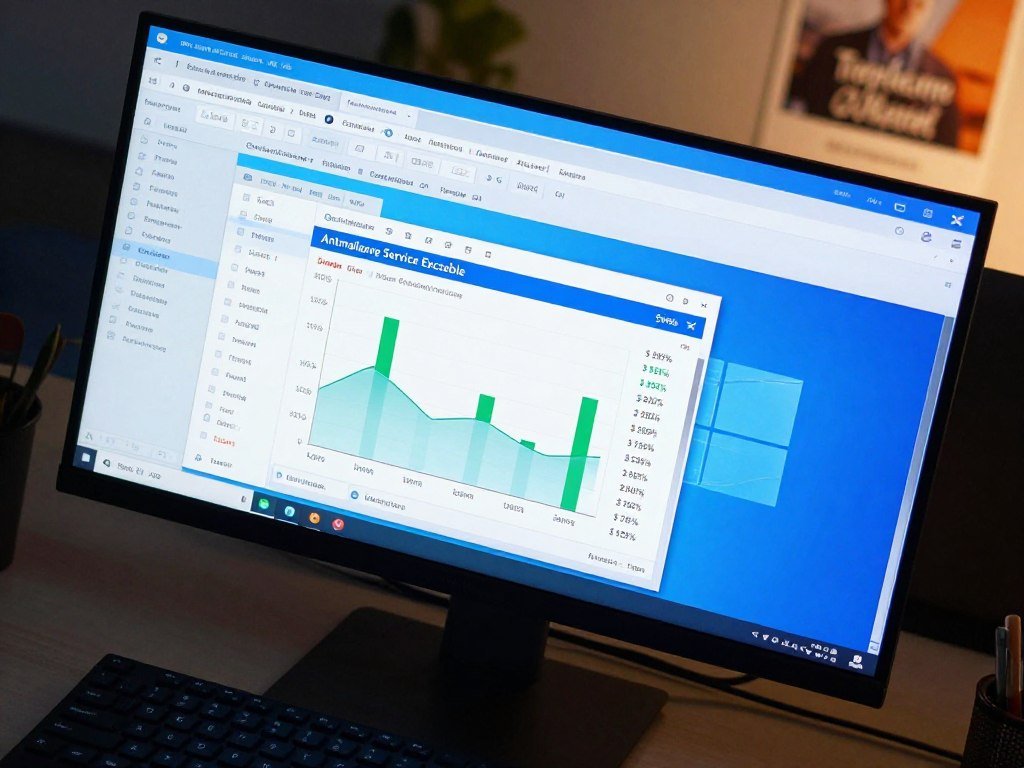
If Task Manager shows a process called Antimalware Service Executable, it is usually Microsoft Defender Antivirus doing background security work. Unexpected activity can make your computer feel slow, especially when CPU use rises. This guide explains the process, why scans can use system resources, and how to address slowdowns without casually removing protection.
Real-time protection means continuous monitoring that scans files before they are accessed or run. You can use that feature while checking whether a slowdown is brief or persistent. The aim is to make Windows security less disruptive without leaving your computer exposed.
Key Takeaways
- The process is usually part of Microsoft Defender Antivirus.
- Scanning can raise CPU use for a while.
- Check scan activity before changing protection settings.
- Measure persistent slowdowns before tuning scans.
- A temporary CPU spike during a scan is different from a persistent performance problem.
What Is an Antimalware Service Executable?
The process name shown in Task Manager is MsMpEng.exe, the executable behind Microsoft Defender Antivirus. It is a built-in Windows security process, not an app you need to remove. In Windows 11 and Windows 10, Microsoft Defender Antivirus comes with the operating system.
Its name can look unfamiliar when you first spot it, but its role is part of ordinary Windows security.
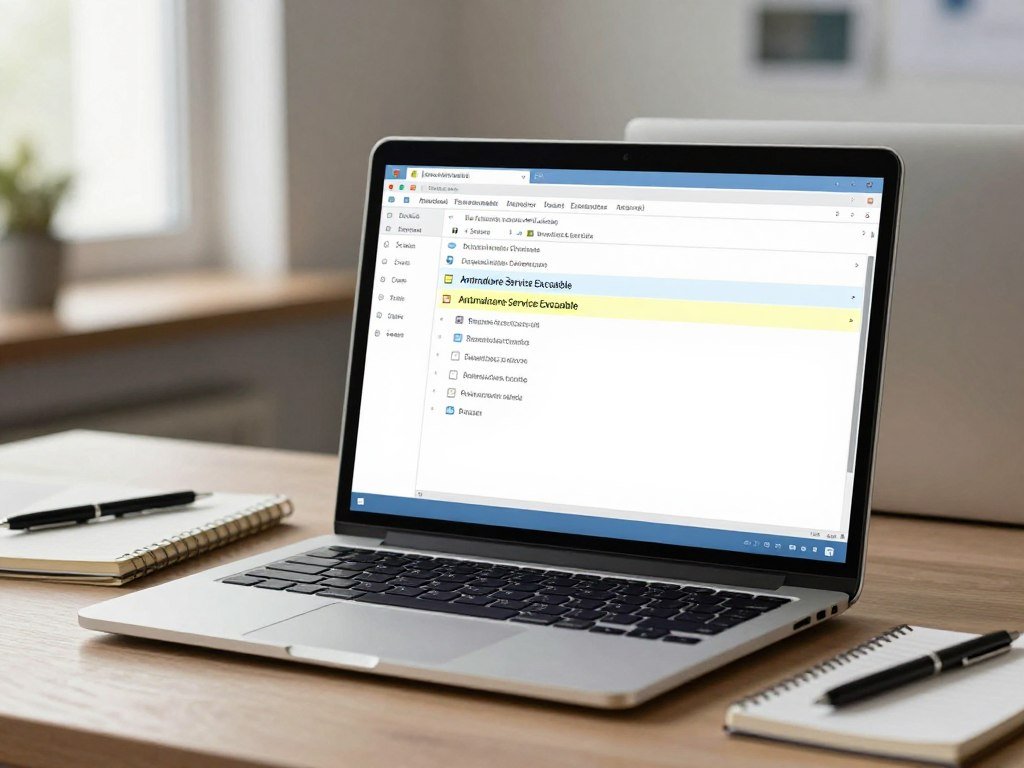
The process and its service
Task Manager labels the background process Antimalware Service Executable, while its executable file is MsMpEng.exe. The service executable is tied to Microsoft Defender Antivirus, whose associated service is named WinDefend.
The process name alone cannot prove that a file is genuine. Elastic Security’s detection rule for suspicious Microsoft antimalware activity flags renamed copies and executions from unusual paths. Check file details if the name or location seems wrong.
What it does in Windows 10 and 11
In Windows 10, this built-in antivirus checks for threats and helps protect your computer. Windows 11 includes the same Microsoft Defender Antivirus service as a built-in security feature.
Other antivirus software may offer extra features, but it is optional. If you install another product, check that it has taken over real-time protection rather than leaving two active scanners to compete. You can compare antivirus software for Windows if you want to review other options.
Treat the process name as an identification clue, not as a reason to delete or disable it.
A real service executable supports Windows security while you use apps, browse the web, and handle files.
How Microsoft Defender Scans and Protects Files
Real-time protection checks a file before it is accessed or run, so protection is not limited to scheduled scans. Microsoft Defender Antivirus scans files before access or execution, wherever they are stored. A quick scan or full scan adds a separate check.
The default scheduled-scan approach pairs quick scans with always-on real-time protection and cloud protection. The Microsoft guide to Virus & threat protection covers these features and other scan options.

| Scan type | When it runs | What it checks | Practical role |
|---|---|---|---|
| Real-time protection | As files are accessed or run | Files in any location | Ongoing threat protection |
| Quick scan | On a schedule or when started | Common places where threats may hide | Routine scheduled check |
| Full scan | When you start one | Files across mounted drives | Broader check when needed |
A full scan starts with a quick scan, then checks files in order across mounted fixed, removable, and network drives. Mapped network drives, OneDrive-synced folders, and client-side cached or offline files are scanned by default.
Those locations can make a full scan broader than its name may suggest. A quick scan is the routine scheduled choice for most protection needs.
A full scan checks more broadly than a quick scan, so reserve it for a reason rather than treating it as the default routine.
Why Can Antimalware Service Executable Use High CPU?
A burst of CPU activity can simply mean Defender is examining files or handling a scan triggered by a security-intelligence update. Higher use during active scanning does not by itself show a virus threat or a system fault. The workload and the computer affect how long the scan takes.
Some items take more work for the antivirus to assess. Microsoft lists these possible causes of increased CPU use:

- Unsigned binary files.
- Complex file formats, such as HTA and CHM files.
- Obfuscated scripts that are harder to inspect.
- File-hash computation, which calculates a file’s identifying value.
Scan activity and ordinary resource use
A scan can use CPU and memory while it examines files. Memory use can rise during an active scan, so one brief increase is not enough to diagnose a lasting problem.
Look at whether the activity fades after the scan ends. If it stays high, investigate the ongoing use rather than relying on one moment’s reading.
File types and update-triggered scans
A security-intelligence update can trigger a scan by default, even outside the time set for a Defender scheduled scan. That timing can make the process seem busy when you did not start a scan yourself.
High CPU use has no single cutoff that proves something is wrong. The length and size of the scan, along with the computer’s workload, shape the activity you see.
Check whether resource use settles after scan activity ends before treating a short spike as persistent.
How to Check What Is Driving CPU Use
If CPU use stays high, measure which files and paths are slowing a Defender scan before changing protection settings. The Microsoft Defender Antivirus performance analyzer identifies paths, files, processes, and extensions that most affect scan time. Its report gives you a better starting point than guessing.
You can use the analyzer in PowerShell. It needs Defender platform version 4.18.2108.7 or later and PowerShell 5.1. PowerShell 7.x needs platform version 4.18.2201.10 or later.

Use this short checklist to find what is keeping the service executable process busy:
- Check Task Manager and Windows Security to see whether a scan is active.
- Open PowerShell as an administrator and record scan performance.
- Review the report for the main scan-time contributors.
Run this command in an administrator PowerShell window to start a recording:
New-MpPerformanceRecording -RecordTo <recording.etl>
Use the computer and workload that show the slowdown while the recording runs. Then analyze the saved recording with this command:
Get-MpPerformanceReport
The report can show whether a particular path, file, process, or extension takes more scan time than others. Check the results before making a change that could affect protection settings.
If you can’t stop Antimalware Service Executable, force-ending a core security process is not a reliable fix. Measure the scan and use supported configuration instead of trying to end it.
Use a recording from the affected PC and workload, since scan performance depends on the specific environment.
How to Reduce CPU Use Without Weakening Protection
The safest first adjustment is to schedule scans for a quieter time or give scheduled scans low CPU priority. Keep real-time protection on while making scan work less disruptive. A scan can then run when you are less likely to need the computer.
Choose a scan time and priority
Use Windows Task Scheduler to change when the Defender scheduled scan runs. Open Task Scheduler Library > Microsoft > Windows > Windows Defender, then select Windows Defender Scheduled Scan.
You can set the task for a quieter time and configure scheduled scans to run at low CPU priority. That can make scanning less noticeable while the computer is in use.
Adjust the scan CPU limit cautiously
The default Scan Average CPU Load Factor is 50. Lowering this limit can reduce CPU use, but a full scan may take longer to finish.
Make changes based on CPU measurements from the computer and workload you want to improve. A setting that helps one system may not suit another.
Keep exclusions narrow
Custom exclusions can leave files unchecked, so most users do not need to add them. If you have a clear reason, open Windows Security and go to Virus & threat protection > Manage settings > Add or remove exclusions.
File and folder exclusions apply to scheduled scans, on-demand scans, and real-time protection. Process exclusions apply only to real-time protection and monitoring, so they do not have the same coverage.
Do not exclude MsMpEng.exe or the Windows Defender folder as a routine fix. Protect any configured exclusions with tamper protection, which helps prevent unwanted changes to security settings.
Keep any exclusion tied to a specific, trusted item rather than a broad folder or file type. That keeps the change limited to the item you have a reason to trust.
Add an exclusion only for a specific, trusted item whose repeated scanning has been identified as a cause.
Should You Disable Microsoft Defender Antivirus?
For most people, disabling Microsoft Defender Antivirus is not the right fix for high resource use. Microsoft generally does not recommend disabling or uninstalling the antivirus. Its operating mode affects whether it scans, reports, and responds to threats.
| Mode | Scans and reports threats | Remediates threats | Availability or meaning |
|---|---|---|---|
| Active | Yes | Yes | Primary antivirus protection |
| Passive | Yes | No | Only on endpoints onboarded to Microsoft Defender for Endpoint |
| Disabled | No | No | Antivirus protection is off |
Tamper protection guards real-time protection, behavior monitoring, cloud protection, and exclusions from changes. Management tools or Group Policy may appear to accept a change while tamper protection blocks it.
Do not use unsupported workarounds to disable protection or end its service.
For Windows 11, keep the antivirus enabled rather than trying to turn it off permanently. The same advice applies to a permanent shutdown in Windows 10: do not rely on Registry, Group Policy, or service-disabling workarounds.
Use an organization-managed configuration only when it fits the device’s supported security setup. If this is a work-managed endpoint, ask the security administrator before changing its protection mode.
Conclusion
MsMpEng.exe is a Windows security component, not a process to remove just because it appears in Task Manager. Resource use during scanning does not by itself mean you should remove protection.
First check whether a scan is active. If CPU use remains high after scanning ends, measure Defender performance on your PC before changing its configuration.
FAQ
What does antimalware do?
Antimalware checks files and activity for malicious software and helps Microsoft Defender Antivirus detect and respond to threats. It can scan files as you access them or during scheduled checks. If it finds a threat, the antivirus can take steps to protect your computer. Keep the security features on so they can check activity as it happens.
Why is the Microsoft Defender Antivirus service using so much memory?
Active scans can raise memory use while Microsoft Defender Antivirus checks files. A brief increase during a scan is different from memory use that stays high after scanning ends. Check whether scan activity is still underway before treating one reading as a lasting problem. If use remains high, investigate the scan workload on that computer.
Should I disable Microsoft Defender Antivirus service?
Generally, no. Keep Microsoft Defender Antivirus enabled unless an administrator has set up another supported protection arrangement. Disabling it can leave your computer with less protection against threats. If another antivirus is installed, check that it has taken over real-time protection instead of assuming both products will share that job well.
Why is Windows Defender using 100% of my CPU?
A scan or security-intelligence update may be driving the CPU use. Check whether a scan is active and whether the activity settles after it ends. If the high use persists, measure which files, paths, or processes affect scan time before changing protection settings. A single CPU reading does not show which workload caused it.
How to get rid of antimalware service executable?
Do not delete it. The executable file is MsMpEng.exe, part of Microsoft Defender Antivirus, and removing it can disrupt Windows security. If you see high CPU use, check for an active scan first. If the slowdown continues, measure scan performance instead of trying to remove the process or its files.
Is it okay to turn off antimalware service executable?
Generally, no. Turning off the process reduces protection, and Microsoft generally does not recommend disabling or uninstalling Microsoft Defender Antivirus. Use supported settings to reduce scan impact while keeping protection active. If a work device needs a different mode, its security administrator should manage that change.
Is antimalware service executable a virus?
The genuine process is part of Microsoft Defender Antivirus, but a process name alone does not prove a file is genuine. Check the file details and its location if something seems unusual. A renamed file or one running from a nonstandard path may need investigation. Do not delete a file based only on its displayed name.



