Apple silicon Macs use Apple-designed ARM-based chips. Intel Macs use x86 processors, and that difference affects software compatibility and everyday use. If you are choosing a Mac or checking an older one, the processor can shape which apps work, how long the battery lasts, and how you run Windows. Neither platform wins every task.
Performance depends on the exact chip and workload, while battery life also changes by model and battery condition. Software makers may offer versions for both platforms, but older tools can have limits. Windows setup differs, too. The right choice depends most on the apps and Windows workflow you need to keep working. Compare those needs before focusing on processor labels alone.
Key Takeaways
- Apple silicon uses Apple-designed ARM-based M-series chips.
- Intel Macs use x86 processors.
- App support depends on each app and its add-ons.
- Windows setup differs between Intel and Apple silicon Macs.
- Compare exact Mac models, not processor names alone.
How Can You Tell Which Processor Your Mac Has?
The quickest way to identify your Mac’s processor is to read the “Chip” or “Processor” line in About This Mac. That label gives you the model name needed for app and Windows checks. The same menu works on a laptop or desktop Mac.
An M3 is Apple silicon; an Intel Core name means you have an Intel Mac. An Intel processor may appear with a model number, such as Intel Core i7. Record the full name, since different chips can have different support and performance.
Write down the full chip or processor name, including its model number, before comparing software support.
- Open the Apple menu in the top-left corner of the screen.
- Choose About This Mac.
- Read the “Chip” or “Processor” line.
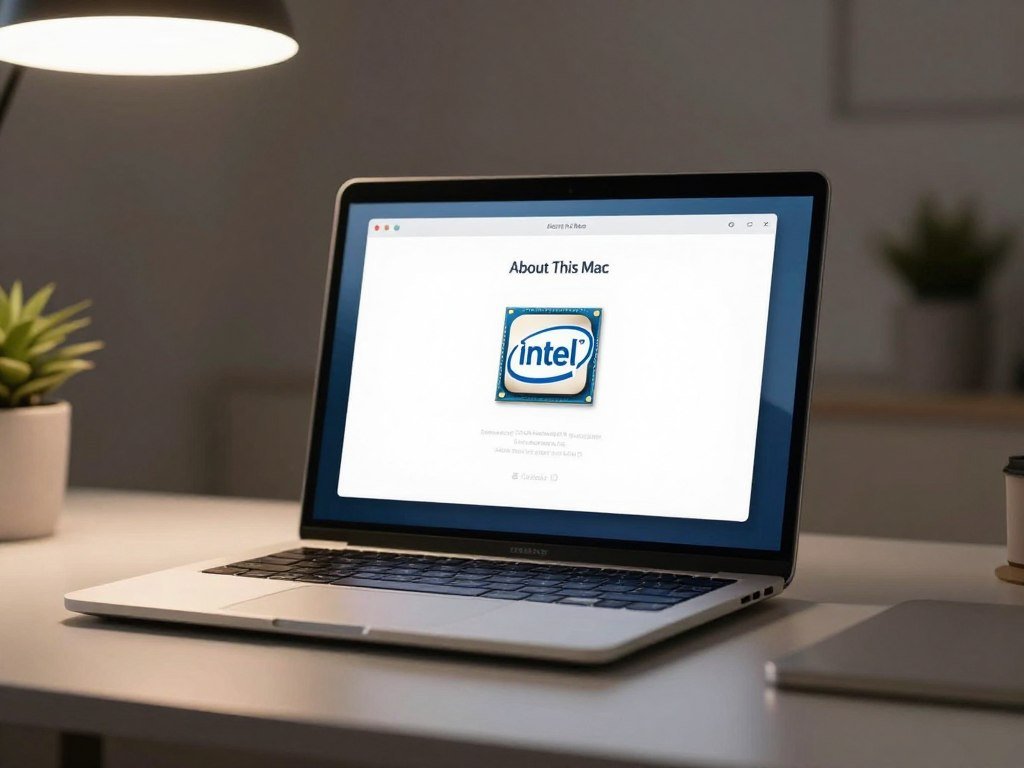
The wording is direct: Apple silicon Macs show “Chip” followed by the chip name. Intel Macs show “Processor” followed by the Intel processor name. An M3 identifies an Apple silicon Mac, not an Intel model.
This check works the same way whether you are comparing a MacBook Air, MacBook Pro, iMac, or Mac mini. It can also help when someone asks, “Is M3 silicon or Intel?” The answer is Apple silicon. Note the exact chip or processor name before checking app or Windows compatibility.
What Is Apple Silicon vs Intel?
The central difference is that Apple silicon is ARM-based, while Intel Macs use x86 processors. In practical terms, the two platforms use different designs for processing instructions, so software may need a version built for its Mac. Neither architecture is always faster in every task.
Apple announced its move from Intel to Apple silicon in 2020. The M1 is Apple silicon, and Apple introduced it in November 2020 as its first chip designed exclusively for macOS. The M2 followed in 2022, then the M3 in 2023 and M4 in 2024.
ARM Architecture Versus x86
ARM architecture and x86 are two instruction set designs. An app built for one may need a matching version or translation to run on the other. This helps explain why two Macs can behave differently with the same older software.
Apple M chips are Apple-designed processors for Macs and some iPad models. Intel processors in older Macs use the x86 architecture. The platform name tells you which kind of software support to check, but it does not predict every app’s speed.
What an M-Series Chip Combines
A system on a chip (SoC) is a processor package that combines the CPU, GPU, memory controller, Neural Engine, and other system functions. Apple’s M-series chips bring these parts together in one package.
Apple silicon also uses unified memory, which shares memory across the CPU, GPU, and other components. That design lets the parts use the same pool of memory instead of keeping separate pools. The architecture explains why software compatibility can differ even when two Macs appear to run the same app.
How Do the Processors Compare in Performance?
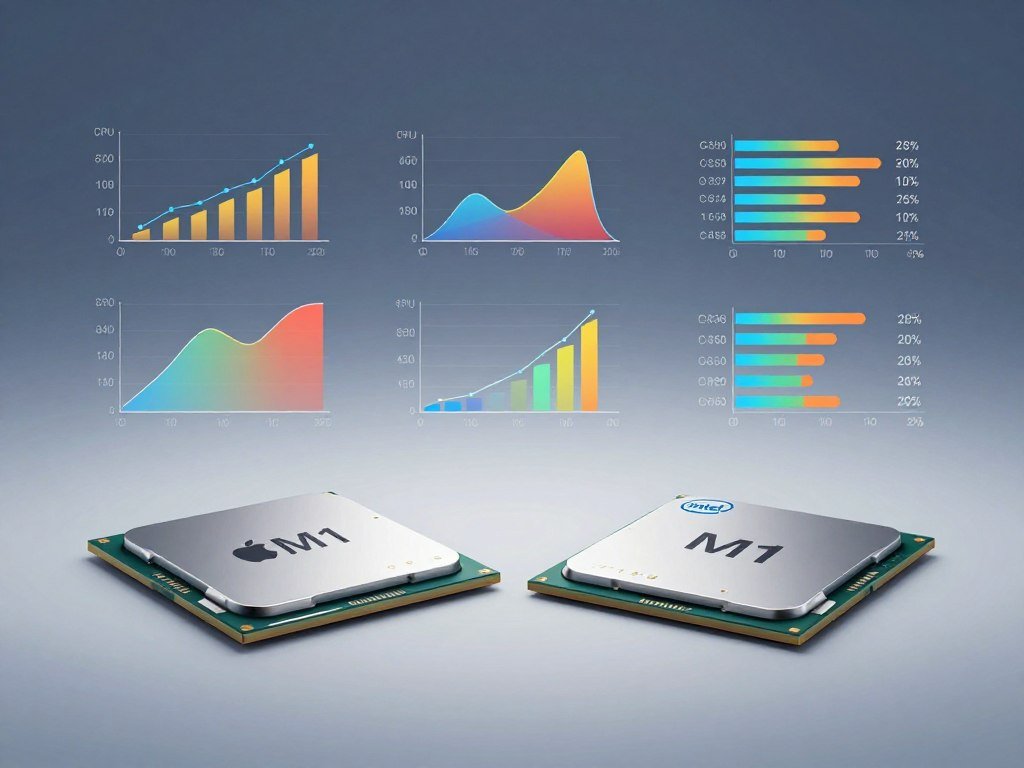
In this specific PassMark comparison, the M1 scores higher than the Intel Core i7-10750H in both overall CPU Mark and single-thread rating. That result applies to these two processors, not every Apple silicon and Intel pairing. The M1 also has fewer threads and a lower listed TDP.
The M1 leads both PassMark scores in this comparison. The scores are based on PerformanceTest submissions, and a benchmark cannot show how every app performs on every Mac. The chip, cooling, workload, and app version all matter.
| Metric | Apple M1 8 Core 3200 MHz | Intel Core i7-10750H @ 2.60GHz |
|---|---|---|
| CPU Mark | 14,121 | 11,416 |
| Single-thread rating | 3,672 | 2,603 |
| Physical cores and threads | 8 cores, 8 threads | 6 cores, 12 threads |
| Listed TDP | 15.1 W | 45 W |
| Clock speed, including turbo | 3.2 GHz | 2.6 GHz, up to 5.0 GHz turbo |
The M1 first appeared in PassMark’s chart in Q1 2021. The Intel processor first appeared in Q1 2020. The PassMark M1 results list the M1’s average CPU Mark and single-thread rating.
Searches for Intel AMD comparisons or Apple silicon vs. Intel often mix chips from different years and types of computers. Intel Apple silicon comparisons can also change by task. A number beside “vs. Intel” does not tell you how a video editor, game, or office app will run.
There is no simple compared Intel result that fits every workload. Match any performance comparison to the exact chip, workload, and app version you expect to use.
What Changes for Apps and Compatibility?
Most compatibility checks start with one question: does the app have an Apple silicon or Universal version? A Universal app includes code for both Apple silicon and Intel Macs. Intel apps were made for Intel processors, while Apple silicon apps are built for Apple’s ARM-based platform.
Check essential apps and add-ons one by one. This matters especially for older software, plug-ins, extensions, and drivers, which may work differently from the main app. Engineering tools such as CAD or simulation software can have their own platform and processor limits, so check the exact app and version.

Native, Universal, and Intel Apps
Rosetta translates Intel-based Mac apps in the background so they can run on Apple silicon Macs. It does not guarantee that every Intel app, plug-in, extension, or driver will work. A component may rely on support that the app itself does not provide.
To inspect an app, open Finder, select it, and choose Get Info. Finder labels apps “Application (Intel),” “Application (Universal),” or “Application (Apple silicon).” These labels show which processor types the app was made to support.
A Universal app can open using Rosetta when it needs an Intel-only plug-in, extension, or add-on. In Get Info, select “Open using Rosetta” if that option appears. This can help with some add-ons, but it is not a promise that every part will work.
Rosetta’s Current Limits
Rosetta is available on Apple silicon Macs using macOS 27 or earlier. In macOS 28, its function is limited to certain older, unmaintained games that rely on Intel-based frameworks. That change makes long-term app support important if your work depends on an old Intel app.
Apple recommends replacing Intel-based apps with Universal or Apple silicon versions for better performance and future support. If you rely on a specialized tool, test its plug-ins, extensions, and drivers as well. A software check for engineering laptops can help you compare course tools across platforms. Prefer a maintained Universal or Apple silicon app when both versions are available.
Can You Run Windows on Both Types of Mac?
Windows setup depends on whether the Mac has an Intel processor or Apple silicon. Intel Macs can use Boot Camp to install Windows in a dual-boot setup. Apple silicon Macs instead run Windows 11 on Arm in a virtual machine.
Boot Camp is unavailable on Apple silicon Macs. A virtual machine lets Windows and macOS run alongside each other, while Boot Camp requires a restart to switch systems. Windows 11 on Arm is not the same as a native x86 Windows installation.
- Intel Mac with Boot Camp for native Windows dual boot.
- Intel Mac with a Windows virtual machine.
- Apple silicon Mac with Windows 11 on Arm in a virtual machine.
Windows 11 on Arm can run many x86 and x64 Windows applications through translation. App support varies, and some hardware or driver features may not work in a virtual machine.
Microsoft lists Parallels Desktop versions 18, 19, and 20 as authorized for Windows 11 Pro and Enterprise on M1, M2, and M3 Macs. Its Windows 11 options for Apple silicon Macs also describe limits for some hardware, games, and apps.
If a Windows tool needs a particular accessory, test that device with the intended setup. Confirm that your essential Windows apps and peripherals work in the setup you intend to use.
Which Intel Macs Still Support Current macOS?
macOS 26 Tahoe is the last major release that supports Intel Macs. macOS 27 Golden Gate, released September 14, 2026, runs only on Apple silicon and requires M1 or later.
Only four Intel Mac models support macOS 26 Tahoe. Apple used Intel processors in Macs from 2006 through 2023, when it discontinued its last Intel Mac Pro. Many older Intel Macs remain in use, but their support depends on model and release.
Tahoe Is the Intel Cutoff
Older Intel Mac generations include MacBook, MacBook Air, MacBook Pro, Mac mini, iMac, and Mac Pro models. That does not mean every model can run the latest macOS. The year and exact configuration matter.
Every Intel MacBook Air stopped at macOS 15 Sequoia and is incompatible with macOS 26 Tahoe. For other Intel models, compare the model name and year with the supported list below.
The Four Intel Models That Still Run Tahoe
| Intel Mac model | Model year and identifying detail | macOS 26 Tahoe support |
|---|---|---|
| 16-inch MacBook Pro | 2019 | Supported |
| 13-inch MacBook Pro | 2020, four Thunderbolt 3 ports | Supported |
| 27-inch Retina 5K iMac | 2020 | Supported |
| Mac Pro | 2019 | Supported |
Older Intel Macs can still be useful, but a model outside this group cannot install macOS 26 Tahoe. The macOS 26 Tahoe Intel support list identifies the remaining supported models.
A Mac mini can have an Intel processor or Apple silicon, depending on its generation. The same is true for several other Mac families, so a family name alone does not identify the chip. Check the exact model year and port configuration before treating a 13-inch MacBook Pro as Tahoe-compatible.
Which Processor Fits Your Next Mac?
For most people buying a Mac today, Apple silicon is the practical choice; an Intel Mac makes sense when a required legacy workflow has no workable replacement. Current macOS support and mainstream app support make it a better fit for most new buyers.
Choose Intel only when a needed app, driver, or Boot Camp setup depends on it. Apple silicon laptops are generally more power-efficient, though battery life depends on the model, battery condition, and workload. Fan noise also varies by Mac design and task.
Do not choose an Intel Mac for a familiar name alone; keep it when a specific legacy task needs that platform.
An M4 is Apple silicon, not Intel. On a laptop, the architecture can affect both app compatibility and Windows setup. Apple’s listed 13-inch MacBook Air configurations with M5 have a 10-core CPU, an 8-core or 10-core GPU, 16GB or 24GB of memory, and 512GB or 1TB of storage.
Listed 15-inch MacBook Air configurations with M5 have a 10-core CPU and 10-core GPU. They offer 16GB or 24GB of memory and 512GB or 1TB of storage. These choices give you a sense of the memory and storage options you may need to plan around.
Before buying, use this short checklist:
- Confirm support for essential apps and add-ons.
- Check which Windows workflow your work requires.
- Choose enough memory and storage up front.
- Verify support for the specific Mac model.
For broader laptop choices, compare the best laptops for different needs. If you plan to add a hub, check your Mac’s ports and display support before choosing one. Choose memory and storage for the long term, since they cannot be upgraded on Apple silicon Macs.
Conclusion
For most new Mac buyers, Apple silicon offers the clearest path to current Mac software support. Intel Macs may still be worth keeping when a critical legacy app, driver, or Boot Camp workflow depends on them.
Performance scores can help compare specific chips, but compatibility often decides whether a Mac fits your daily work. Before buying or replacing a computer, check its exact model and test the apps and accessories you rely on.
Before making a change, check your Mac model and verify the apps and Windows workflow you cannot do without.
FAQ
Is M1 equal to i7?
No, M1 does not equal every Intel Core i7 processor. In the listed PassMark comparison, the M1 beats the Intel Core i7-10750H in CPU Mark and single-thread rating. Other i7 chips can have different designs, speeds, and power limits. Your result also depends on the app and task, so compare the exact processors in the computers you are considering.
What are the key differences between the Apple A chip and the M chip?
Both are Apple-designed chip families, but they serve different devices. M-series chips are made for Macs and some iPad models, while A-series chips are used in iPhone and iPad devices. The names do not mean that one is a direct version of the other. To choose a device, check its full model and the apps it supports, not just the chip family.
How do I see if my Mac is Intel or Silicon?
Open the Apple menu and choose About This Mac. An Apple silicon Mac shows “Chip” followed by its chip name, while an Intel Mac shows “Processor” followed by its Intel processor name. For example, M1 and M3 are Apple silicon. An Intel Core name means the Mac has an Intel processor. The same check works on Mac laptops and desktops.
Why did Apple stop using Intel?
Apple moved Mac computers from Intel processors to its own ARM-based chips and system-on-a-chip design. This gave Apple a platform it could design around its own CPU, GPU, memory controller, Neural Engine, and other system functions. The transition began in 2020. There is no need to assume one single reason explains the change; the shift involved Apple’s processor platform and Mac design.
Is my PC Apple silicon?
No, a PC made by another company is not Apple silicon. The term refers to Apple-designed chips used in Apple devices, including M-series chips in Macs. Some non-Apple PCs do use ARM processors, but those chips are not Apple silicon. Processor type and operating system are separate details, so an ARM-based Windows PC does not become a Mac because it uses ARM.



