A password can be stolen without you knowing, but it does not have to be the only thing standing between an attacker and your account. Reused passwords can expose several accounts at once, while guessed passwords put your data at risk. A second sign-in check makes access harder for someone who has only your password. It does not promise perfect protection, since attacks can target people and devices in other ways. Still, this added step can block an attacker who would otherwise sign in with a stolen password. You can turn it on for email, banking, social media, and other important accounts. The steps are usually brief, and many services let you choose a method that fits your devices. Turning on an extra sign-in check is a practical step for protecting the accounts that matter most.
Key Takeaways
- A password can be stolen, guessed, or reused.
- An extra check makes account access harder for attackers.
- Extra sign-in protection lowers risk but cannot stop every attack.
- Start with email, banking, and other important accounts.
- Choose a method you can use and recover if needed.
What Is Multi-Factor Authentication? The Core Idea
MFA requires at least two kinds of proof, rather than simply asking for two pieces of information. The proofs must come from different factor categories. An authentication factor is one piece of evidence used to verify that someone is who they claim to be.
The three categories are something you know, something you have, and something you are. NIST SP 800-63 describes digital identity guidelines for authentication and authenticator use. Its digital identity guidelines explain how authentication supports access to online services.
| Factor category | What it proves | Examples |
|---|---|---|
| Something you know | Remembered information | Password or PIN |
| Something you have | Control of a device or authenticator | Phone or security key |
| Something you are | A biometric trait | Fingerprint or face scan |
Valid MFA uses at least two different factor categories, not two entries from the same category.
Two-factor authentication, or 2FA, uses exactly two factors. It is a type of MFA, which can also use more than two. Both terms describe a way to check identity before granting access, though services may use different authentication steps.
A password and PIN both rely on remembered information. A password and a PIN are still one factor category, even though they are two separate entries.
How Does an MFA Login Work?
Imagine signing in to a work account from a new device and entering your password first. The login process adds a second verification step before granting access. What happens next depends on the method your workplace has set up.
The system checks the first credential, then asks for another proof. You might enter a code or approve a Google prompt on a trusted phone. Google Authenticator can also provide a code for an additional verification step.

| Stage | User action | System response | Result |
|---|---|---|---|
| Enter password | Submit the first credential | Check it | Continue to a challenge |
| Receive challenge | Select or open the requested method | Request additional proof | Wait for verification |
| Verify factor | Enter a code or approve a prompt | Confirm the factor | Continue if valid |
| Access | Complete the challenge | Grant the authorized session | Deny access if verification fails |
At the first stage, your password shows that you know the account credential. The challenge asks you to confirm another part of your identity. The system then checks whether your response matches the account’s approved sign-in method.
MFA checks identity at sign-in, but it does not decide what every authenticated user may access afterward. Separate account permissions control which files, apps, and systems you can use. That difference matters at work, where access may vary by role.
If the second proof fails, the system should withhold access rather than treat the password as enough.
Which MFA Methods Are Practical and Phishing-Resistant?
A security key or passkey is a stronger choice when phishing resistance is the priority. FIDO authentication methods can resist common tricks that steal codes. The best available option still depends on what the service supports and which devices you use.
FIDO authenticators work with the W3C Web Authentication API. They can be built into a phone or laptop, or carried as a hardware key. The NIST MFA guidance describes why stronger authentication can help protect an account after password theft.
Passkeys and FIDO Security Keys
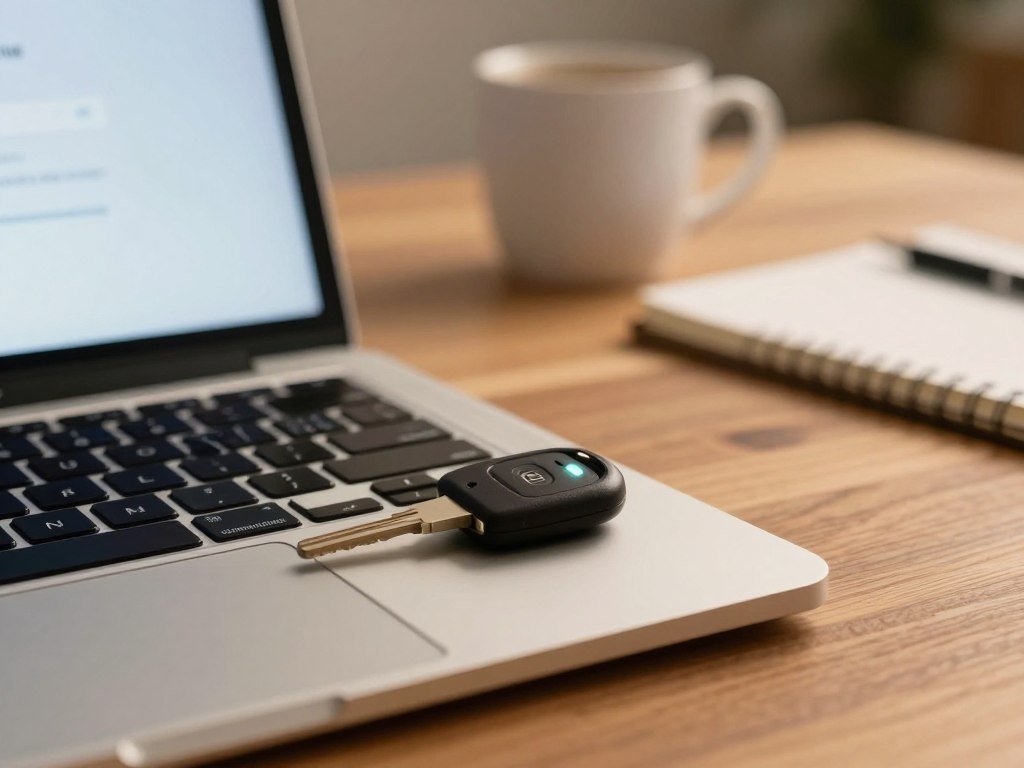
FIDO security keys connect to a computer or phone by USB, Bluetooth, or near-field communication. Some have a fingerprint reader, while others ask you to confirm use with a touch. They provide a second factor when paired with a password, or support passwordless sign-in where a service allows it.
A built-in authenticator can stay on your phone or laptop. A hardware key is a separate device, which can be useful if you want an authenticator you carry apart from your computer. Both are FIDO-based options, though setup and device support vary across accounts.
Authenticator Apps and Push Approvals
Authenticator apps create a one-time passcode, or OTP, that changes over time. You enter it after your password to verify another factor. Multi-factor authentication apps such as Google Authenticator can provide codes without relying on text delivery.
Push approvals send a sign-in request to an app on your device. You can approve a sign-in you started or reject one you do not recognize. If the service supports number matching, you enter the number shown on the sign-in screen instead of approving with one tap.
Text and Email Codes
Text messages and email codes are easy to set up and can serve as fallback methods. They are more exposed to risks than phishing-resistant options. An attacker may move your phone number through SIM-swapping, or enter an email account that lacks strong protection.
The federal phishing-resistant authenticator playbook covers FIDO2 and WebAuthn options for phones, computers, and roaming security keys. You can also compare passkeys, passwords, and 2FA before choosing how to protect an account. If a service offers only weaker options, use the strongest method it supports rather than leaving the account password-only.
Can Attackers Get Around MFA?
An MFA prompt arriving while you are not trying to sign in is a reason to stop, not tap approve. MFA lowers risk, but some attacks can still get around it. An unexpected request may mean someone has your password and is trying to access your account.
Real-time phishing sites can copy a real sign-in page and pass your password and code to the service as you type. The attacker may then use the result to enter the account. Repeated prompts can also wear users down until one approval slips through.
Real-Time Phishing and Push Bombing
Push bombing, also called push bombardment, sends repeated approval requests to a user’s phone. An attacker hopes the person will accept one to stop the alerts. Do not approve a request you did not start, even if the prompts keep coming.
If phishing-resistant MFA is not yet available, CISA recommends considering number matching. It asks the user to match a number displayed during sign-in, which can make accidental approvals harder. It does not offer the same protection as a phishing-resistant credential.
CISA’s number-matching recommendation is a practical option when stronger MFA is not ready. If you receive an unexpected approval request, take these steps:
- Do not approve the request.
- Change the account password.
- Review recent account activity for unfamiliar sign-ins.
Stolen Sessions After Sign-In
An authenticated session lets you keep using an account without repeating the full sign-in each time. Websites often store a session token or cookie in the browser to remember that approved session.
An attacker who steals that token or cookie may reuse the session without completing the original MFA challenge. This can happen after sign-in, so the initial second factor does not protect every action forever. Treating a session like a valuable credential helps explain why MFA cannot erase all account risk.
Treat an unexpected request as evidence that someone may already know your password.
Why Should You Turn On MFA?
MFA can make users 99% less likely to be hacked, a strong reason not to rely on a password alone. It can block access when an attacker has exposed your password. That extra protection is one layer, not a guarantee against every kind of compromise.
In a 2026 consumer study, 33% of people had experienced an account compromise or received a breach notice in the prior year. For organizations, the 2026 workforce study found that 68% had deployed or were actively deploying passkeys for employee sign-ins. Yet 57% still relied on phishable methods for employees’ main daily sign-in.
In the same 2026 workforce study, 28% of organizations had achieved a fully passwordless workforce. Organizations using passkeys reported several gains:
| Reported outcome | Share | What changed |
|---|---|---|
| Improved security confidence | 47% | Confidence in security |
| Faster employee logins | 45% | Login speed |
| Improved employee satisfaction with IT | 43% | Employee satisfaction |
| Fewer password-reset tickets | 35% | Support workload |
| Fewer phishing-related incidents | 32% | Phishing-related incidents |
Microsoft reported that 92% of its employee productivity accounts used phishing-resistant authentication methods. Its stated objective was to protect 100% of user accounts with securely managed, phishing-resistant MFA. These figures show why organizations often set stronger goals for employee access.
The FIDO Alliance’s 2026 workforce findings include reported outcomes from organizations using passkeys. A password can still be stolen, but MFA gives an attacker another barrier to cross.
The 2026 passkey workforce results also show reported gains in security confidence and employee login speed. For an organization, covering the everyday sign-in path matters as much as setting an ambitious security goal.
How Do You Set Up MFA on Android and Other Accounts?
On Android, you can start Google 2-Step Verification from your Google Account’s security settings. Multi-factor authentication on Android is enabled through those account sign-in controls. The exact choices depend on your account and devices.
Use these steps in the Google Account settings:
- Open your Google Account.
- Tap “Security & sign-in.”
- Under “How you sign in to Google,” tap “Turn on 2-Step Verification.”
- Follow the on-screen prompts and select an available method.
Google 2-Step Verification can use a passkey, Google prompt, authenticator-app code, text or voice code, QR code, or backup code. Add a backup option during setup, so one unavailable device does not leave you without another way to verify your sign-in.
Other services place similar controls in security, sign-in, or privacy settings. Look for a choice called MFA, two-step verification, or two-factor authentication. You may need to sign in on a browser to find all account security options.
A newly added phone number may take up to 7 days to become trusted. Allow up to 7 days for a newly added phone number to be trusted.
What If You Lose Your Phone or Get Locked Out?
Losing the phone used for sign-in does not always mean losing the account, if another recovery method is ready. A second way to verify your identity can keep a lost device from becoming a lockout. The options depend on the account and what you set up earlier.
Before you erase or replace a device, check whether you still have another signed-in device or a saved recovery code. Some services let you manage backup codes while you can still access the account. A lost phone also deserves a quick check for active sessions.
Recovering a Google Account
Google may let you verify sign-in through another signed-in phone, a backup phone number, a security key, a passkey on another device, or a saved backup code. If your phone is lost, sign out of it and change your Google Account password.
Recovery after losing a security key can take 3-5 business days when you have no other second step. That wait gives Google time to check the recovery request. Keep any available device or recovery method ready during the process.
Using Backup Codes and Authenticator Apps
Google backup codes are 8-digit codes, and each code can help you sign in when another method is unavailable. You can revoke the current set and generate replacements from your Google Account security settings. Old codes stop working after you replace them.
Google Authenticator can generate codes without a network or cellular connection. It supports time-based and counter-based codes, and you can transfer accounts to another device with a QR code. Code sync to a Google Account is also available.
Recovering a Discord Account
On Discord, a signed-in user can view backup codes in User Settings under “My Account” after entering the account password. Discord backup codes are unused 8-digit codes, so a code already used cannot help with another sign-in.
A locked-out user needs an unused backup code or another available verification option. Discord support cannot remove MFA or issue new codes when you cannot access any existing codes. Save recovery codes somewhere separate from the phone they are meant to replace.
How Should Organizations Choose and Roll Out MFA?
A good organizational choice is the one that fits the systems employees already use and protects the accounts with the greatest access. The right MFA solution depends on your identity setup, security needs, and support capacity. A short pilot can reveal problems before a full rollout.
Compare how each option handles identity management, device health checks, federation, hardware tokens, and older systems. The shortlist should also fit the help desk’s ability to support staff. Provider examples include miniOrange, Microsoft Entra ID, Okta MFA, Cisco Duo, Google Workspace MFA, and Ping Identity.
Other options include RSA SecurID, Thales SafeNet, IBM Security Verify, ManageEngine ADSelfService Plus, SecureAuth, and Silverfort. These are examples to assess, not a ranked list. A provider’s fit depends on the systems your organization already runs.
Single sign-on, or SSO, lets one authenticated sign-in work across multiple applications. MFA checks identity during sign-in, while SSO shares that sign-in across apps. You can use both together, since they solve different access needs.
Use a small rollout plan with clear checkpoints:
- Prioritize administrator accounts and accounts with sensitive access.
- Pilot the sign-in process with a small group.
- Give users clear setup steps and help-desk instructions.
- Test account recovery before expanding deployment.
Ask pilot users to try recovery, not just normal sign-in, so missing steps appear early. Test the recovery path with the pilot group before making MFA mandatory across the organization.
Can Passkeys Replace Passwords or MFA?
Passkeys are a passwordless sign-in option, not a reason to abandon the goal of verifying identity securely. A passkey can replace a password-based sign-in where an account supports it. The broader MFA goal remains: make sure the person signing in is authorized.
Passkeys are FIDO cryptographic credentials stored on a phone, computer, or security key. Public-key cryptography lets the service check a sign-in without receiving a shared secret. The credential is designed to resist phishing.
How Passkeys Verify You
You unlock a passkey with a biometric, PIN, or pattern on the device. That local action lets the device use the credential; the fingerprint or PIN itself is not sent to the service as proof. Supported accounts can use passkeys for passwordless, phishing-resistant sign-in.
A passkey changes how an account verifies you, but it does not remove the need for secure identity checks.
Some accounts may still ask for another step under their sign-in policy. A passkey can replace a password-plus-code flow where the service accepts it, but each account sets its own rules. Keep a separate recovery option available before changing sign-in methods.
What Passkey Adoption Means
The FIDO Alliance estimated that 5 billion passkeys were in use worldwide as of May 7, 2026. In its 2026 research across 10 countries, 90% of people knew about passkeys, 75% had enabled one on at least one account, and 49% used them regularly when available.
The passkey and password comparison explains how these sign-in choices differ. If an account offers a passkey, add one and keep a separate recovery option available.
Conclusion
A password is a useful start, but an extra sign-in check gives an account another layer of protection. A strong available sign-in method can make it harder for someone else to use a stolen password. It cannot prevent every attack, so keep your recovery options ready and watch for sign-ins you did not start.
Start with an account that holds important messages, money, or personal details. Choose one important account today, turn on its strongest available sign-in method, and save its recovery option separately.
FAQ
What is the MFA process used for?
The MFA process verifies identity before access to an account, application, VPN, or network is granted. It uses at least two different factor categories, such as a password and a phone approval. That extra check can block a person who has only stolen or guessed the password. It does not decide what an approved user may do after sign-in.
How does 2FA work if I lose my phone?
You can use another signed-in device, a saved backup code, a security key, or a passkey on another device. The available choice depends on what you set up before losing the phone. Google recovery can take 3-5 business days if you lose a security key and have no other second step. Keep recovery codes away from the phone they replace.
Is OTP a 2FA?
An OTP is one verification method, not automatically 2FA. It becomes part of two-factor authentication when paired with a separate factor, such as a password. A code sent by text or created by an authenticator app is still just one proof. The second factor must come from a different category than the first.
What are the top 10 MFA solutions?
Ten options to assess are Microsoft Entra ID, Google Workspace MFA, Okta MFA, Cisco Duo, miniOrange, Ping Identity, RSA SecurID, Thales SafeNet, IBM Security Verify, and ManageEngine ADSelfService Plus. This is not a ranked order. Compare each option against your current systems, device needs, security rules, and support capacity. A strong fit should work across the accounts employees need to protect.
What will replace MFA?
Passkeys can replace passwords in sign-ins that support them, but they do not replace the broader need to verify identity. They advance phishing-resistant authentication by using a cryptographic credential instead of a shared password. Some services may still require another sign-in step under their account policy. The goal remains secure access, even as the sign-in method changes.
Can I still get hacked if I have 2FA?
Yes, some attacks can still get around 2FA. Real-time phishing can capture a password and code, push bombardment can wear someone down, and stolen session tokens can let attackers reuse an approved sign-in. These risks do not make 2FA useless. They show why you should reject prompts you did not start and use phishing-resistant methods when available.
What are the downsides of two-factor authentication?
Two-factor authentication adds a step to sign-in, and losing a phone or key can make account recovery harder. Codes may also be delayed, and some methods are more open to phishing than others. You can reduce lockout risk by saving backup codes or setting up another approved method. Choose a method that you can use reliably.
Do passkeys override 2FA?
A passkey may replace a password-and-code sign-in when the service accepts it, but the account’s sign-in policy decides whether another step is required. Some services use a passkey as the complete sign-in, while others may ask for extra proof. Your device PIN or biometric unlocks the passkey locally. It does not set the service’s access rules.



