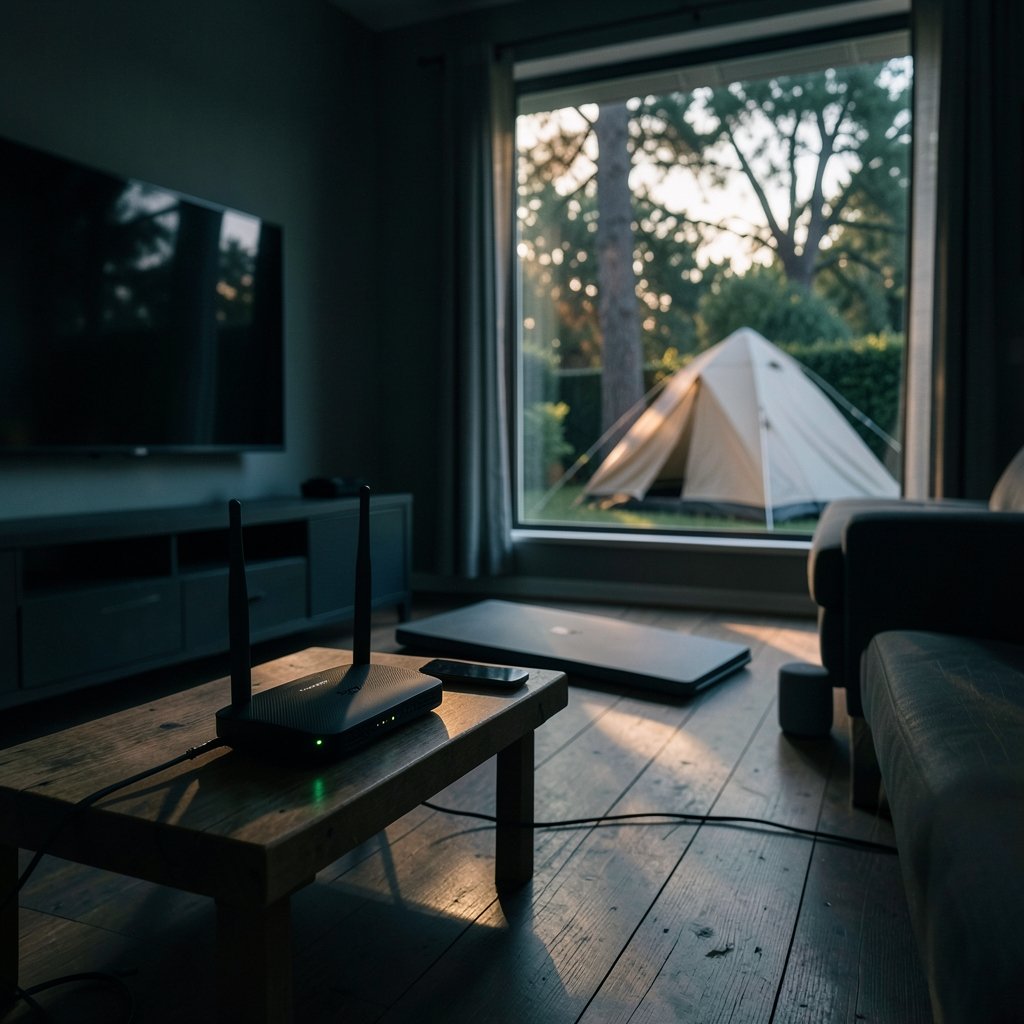
Roughly one in three households still runs a single merged WiFi network name, which means millions of devices quietly fight for airtime on the same crowded band. That single decision, left on autopilot, explains a huge share of the buffering, lag, and dropped video calls people blame on their internet provider. The fix is rarely a faster plan. It is usually picking the right band for the right device.
The 2.4GHz versus 5GHz question sounds technical, but it boils down to a trade-off anyone can understand: reach versus speed. Get that trade-off right and a mid-range router suddenly feels like an upgrade.
Why the Band You Choose Matters More Than the Router
Every WiFi router broadcasts on radio frequencies, and the two workhorse bands behave very differently. The 2.4GHz band is the old reliable: it pushes through walls, floors, and furniture, but it carries less data and shares space with a lot of noise. The 5GHz band is the fast lane: more bandwidth, cleaner air, but a shorter reach.
Think of it like sound. A bass note from a subwoofer travels through your whole apartment and annoys the neighbors. A high whistle barely makes it past the door. Radio waves follow the same physics: lower frequencies penetrate obstacles better, while higher frequencies carry more information but fade faster. (FCC Radio Spectrum Allocation)
That is the entire foundation. Everything else, from channel counts to interference, flows from it.
The Core Trade-Off: Range vs. Speed
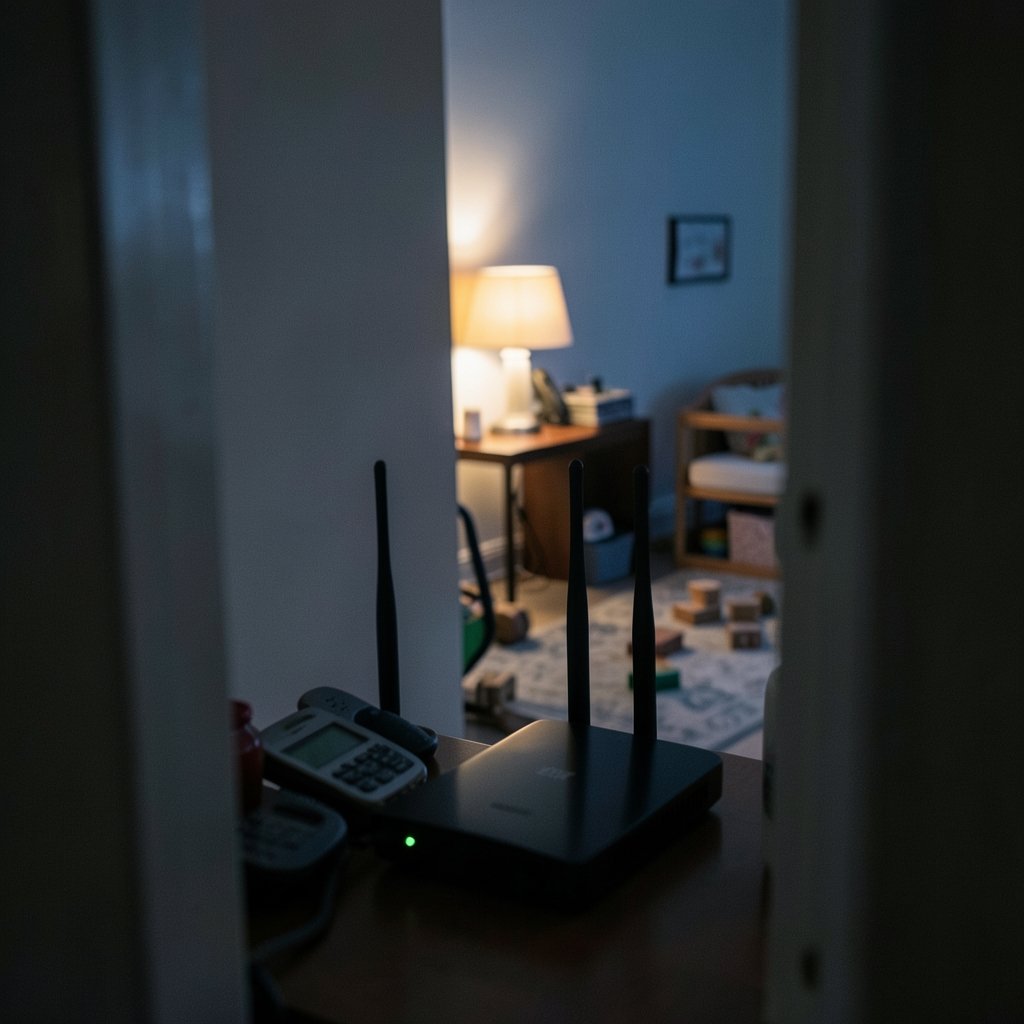
Here is the practical comparison most people actually need.
| Factor | 2.4GHz | 5GHz |
|---|---|---|
| Typical range | Longer, better through walls | Shorter, struggles with obstacles |
| Top speed | Lower | Much higher |
| Congestion | High (crowded band) | Lower (cleaner air) |
| Non-overlapping channels | About 3 | Many more |
| Best for | IoT, smart home, distant rooms | Streaming, gaming, video calls |
| Device compatibility | Nearly universal | Older gadgets may not support it |
The 2.4GHz band typically offers only three non-overlapping 20MHz channels in North America, usually channels 1, 6, and 11. In an apartment building, every neighbor is squeezing into those same three lanes. Add Bluetooth headphones, baby monitors, cordless phones, and microwave ovens, and you get a band that is technically open but practically jammed.
The 5GHz band offers far more non-overlapping channels, which allows wider 40, 80, and even 160MHz channels. Wider channels mean more throughput. It is the difference between a two-lane road and an eight-lane highway. (Kindle vs Kobo Paperwhite vs Libra Colour 2026: Which Wins?) (List of WLAN channels)
The catch is reach. Higher-frequency signals attenuate faster, so 5GHz coverage shrinks as you move away from the router or put walls in the way. A device three rooms away on 5GHz may show a weak signal and drop to slower speeds than the same device on 2.4GHz.
When 2.4GHz Is the Smarter Choice
Despite its reputation as the slow band, 2.4GHz wins in several common situations.
- Smart home devices. Many smart plugs, bulbs, cameras, and doorbells are 2.4GHz-only. They simply will not connect to a 5GHz network. If a new smart device refuses to pair, this is almost always the reason.
- Long distance from the router. A garage, backyard, or far bedroom often gets a usable 2.4GHz signal where 5GHz gives up.
- Older hardware. Laptops and phones from roughly a decade ago may not support 5GHz at all.
- Low-bandwidth tasks. A smart thermostat or a sensor does not need speed. It needs a stable, far-reaching connection.
A common mistake: buying a shiny new mesh system and then wondering why the smart bulbs keep dropping offline. The fix is to make sure a 2.4GHz network is available and clearly named, not hidden behind a band-steering setup that confuses cheap IoT radios.
When 5GHz Wins
For anything that moves a lot of data and stays relatively close to the router, 5GHz is the better pick almost every time.
- 4K streaming. Netflix, YouTube, and Plex all benefit from the extra throughput.
- Online gaming. Lower congestion means lower and more stable latency.
- Video calls. Work meetings stay crisp when the band is not fighting a dozen neighbors.
- Large file transfers and backups. Photo libraries and cloud syncs finish faster.
If a device sits in the same room as the router and needs speed, put it on 5GHz and leave it there. This is where the band shines, and it is why modern routers push clients toward 5GHz whenever the signal is strong enough.
The same logic applies to phones. If someone is shopping for a handset and wondering which iPhone has the best camera, the camera matters for photos, but the WiFi band matters for everything the phone does afterward, from uploads to cloud backups. (Which ai is best for coding)
How to Tell Which Band You Are On
Most people have no idea which band their device is using, and that is the root of a lot of frustration. A few quick checks solve it. (Which option best completes the table title the united nations)
- Open the WiFi settings on your phone or laptop.
- Look at the network name. Many routers append “-5G” or “-2.4G” to the SSID.
- If names are merged, check the connection details. On most phones, tapping the network shows the frequency or band.
- On a computer, the network properties usually list the band or channel directly.
If you cannot tell, split the bands. Give the 2.4GHz network one clear name and the 5GHz network another. It takes two minutes in the router admin page and removes all guesswork. While you are in there, a memorable, distinctive network name also helps you spot your own network in a crowded list, and picking something sensible is easier than it sounds.
Common Mistakes That Wreck Performance
Even with the right band chosen, a few habits quietly sabotage WiFi.
Putting the router in a closet or corner. Radio waves do not like metal, concrete, or fish tanks. A central, elevated spot beats any gadget claiming to boost signal.
Leaving 2.4GHz on a crowded channel. If neighbors crowd channel 6, switching to 1 or 11 can help noticeably. A WiFi analyzer app shows what is actually in use around you.
Assuming more bars means more speed. Signal strength and throughput are different things. A strong 2.4GHz signal can still be slower than a weaker 5GHz one.
Ignoring the device’s own limits. A cheap smart plug will never use 5GHz no matter how many times you reset it. Match the device to the band it supports.
Forgetting about the router’s age. A router from 2014 may not handle modern congestion well. If the hardware is ancient, no amount of band juggling fixes it.
Band Steering, Mesh Systems, and the Merged Network Debate
Many modern routers ship with band steering, a feature that presents one network name and quietly moves devices between 2.4GHz and 5GHz. When it works, it is elegant. When it does not, devices get stuck on the wrong band or refuse to connect at all.
In practice, band steering works best with newer phones and laptops and worst with budget smart home gear. If a device keeps dropping, temporarily disabling band steering or creating a separate 2.4GHz network for IoT devices is often the fastest fix. Mesh systems add another wrinkle: each node needs a strong backhaul, and if the nodes talk to each other over WiFi, that traffic competes with your own devices. Wired backhaul, where possible, is always better.
There is a broader lesson here about defaults. Features that “just work” usually do so for the average case, and the average case is not a house full of mixed hardware. A little manual tuning pays off. The same principle shows up when people compare subscription services without reading the fine print: the default option is rarely the best one for everyone.
What About 6GHz and Newer Standards?
WiFi 6E and WiFi 7 add a third band at 6GHz, which is even faster and cleaner than 5GHz but with an even shorter reach. For most homes, the 2.4GHz versus 5GHz decision still matters more, because the majority of devices in use today only speak those two languages. Newer hardware gradually shifts the calculus, but the underlying trade-off, reach versus speed, does not change.
Standards history helps here. The 802.11n standard brought 5GHz into mainstream homes, 802.11ac was built for 5GHz, and 802.11ax (WiFi 6) runs on both bands. Each generation improved how efficiently the bands are shared, which is why a modern router handles a crowded 2.4GHz band better than an old one. The official IEEE 802.11 standards documentation tracks these generations if you want the technical detail.
A Simple Rule That Works for Almost Everyone
If all this feels like a lot, here is the short version.
Put speed-hungry devices that stay near the router on 5GHz. Put everything else, especially smart home gadgets and far-away devices, on 2.4GHz. If your router merges the bands and things misbehave, split them and assign devices manually.
That single habit solves most WiFi complaints. It also explains why two households with identical internet plans can have wildly different experiences. One has matched devices to bands; the other is letting a dozen gadgets fight over three crowded channels.
Conclusion
The 2.4GHz versus 5GHz decision is not about which band is objectively better. It is about matching the tool to the job. The 2.4GHz band wins on reach, compatibility, and stubborn persistence through walls. The 5GHz band wins on speed, cleanliness, and capacity. A home that uses both deliberately will outperform a home that leaves everything on a single merged network, often by a wide margin.
Start with the devices that frustrate you most. Move the smart plugs and distant gadgets to 2.4GHz. Move the TV, console, and work laptop to 5GHz. Then check back in a week. Most people find the buffering disappears and the connection feels steadier, all without spending a cent on new hardware.
FAQ
Is 5GHz always faster than 2.4GHz?
Not always. 5GHz has a higher ceiling, but only when the signal is strong. At long range or through thick walls, a weak 5GHz connection can be slower and less stable than a solid 2.4GHz one. Distance and obstacles matter as much as the band itself.
Why won’t my smart device connect to WiFi?
Most smart plugs, bulbs, and cameras are built for 2.4GHz only. If your router presents a single merged network or a 5GHz-only one, the device may fail to pair. Create or enable a separate 2.4GHz network, then try again.
Should I split my WiFi into two network names?
Splitting is often the most reliable fix for mixed households. It lets you assign each device to the band it handles best and removes the guesswork of band steering. The downside is that you have to choose manually, but that control is usually worth it.
Does the WiFi channel number really matter?
On 2.4GHz, yes. With only three non-overlapping channels, picking one that neighbors are not using can noticeably improve stability. On 5GHz, there are many more channels, so congestion is less of a daily problem.
Can I use both bands at the same time?
Yes. A dual-band router runs both bands simultaneously, and different devices can use different bands at once. That is the whole point: put each device where it performs best rather than forcing everything onto one frequency.
Will a new router fix slow WiFi?
Sometimes, but not always. If the problem is a device stuck on the wrong band or a router buried in a closet, a new router changes nothing. Fix placement and band assignment first, then upgrade hardware only if the old router genuinely cannot keep up.