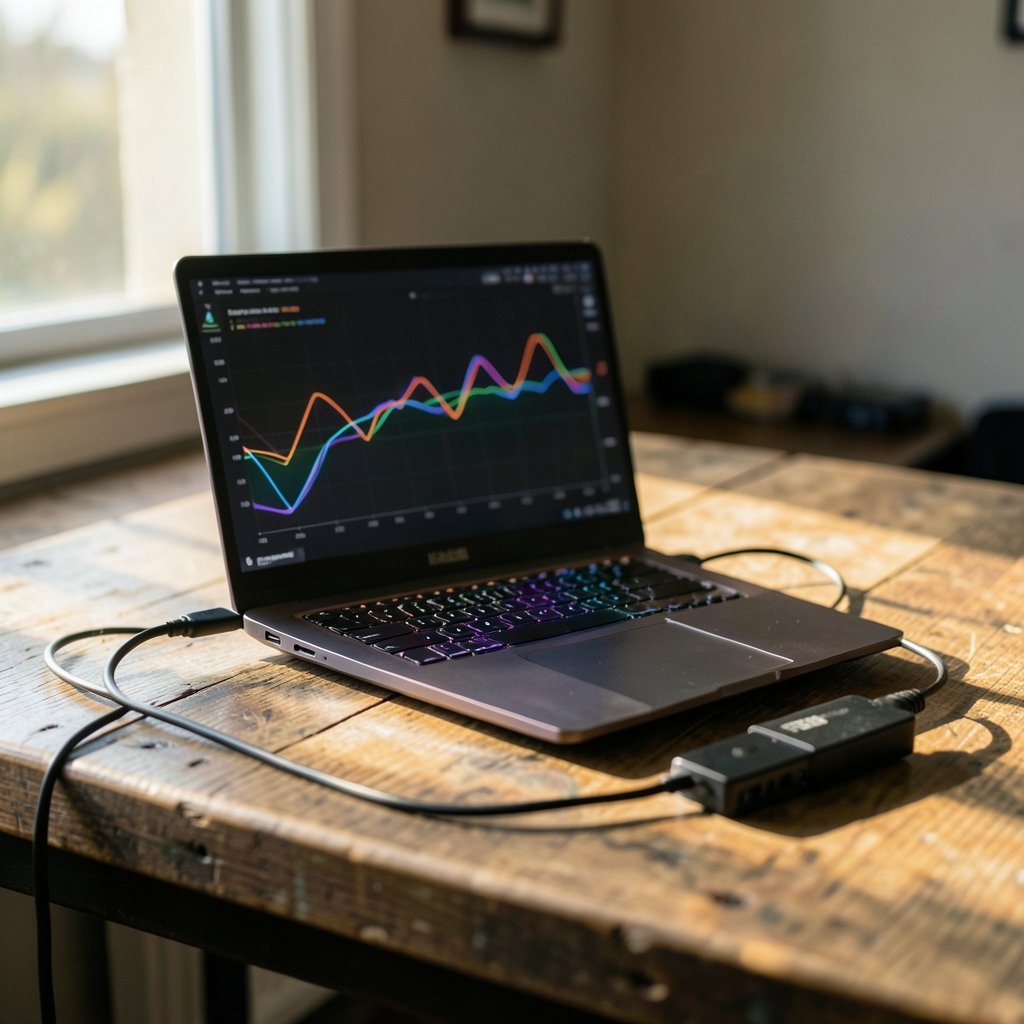
What if the cable connecting your laptop to a desktop graphics card mattered as much as the card itself? That question sits at the heart of the OcuLink vs USB4 debate, and in 2026 it matters more than ever. External GPU setups have moved from niche tinkering to a genuinely practical way to add gaming or rendering horsepower to a thin-and-light machine. But the connector you choose shapes everything: how many frames you get, how many cables you juggle, and whether your setup survives a Windows update. (USB4)
This guide breaks down how each standard actually behaves, where each one falls short, and which one fits your workflow. No hype, no hand-waving, just the trade-offs that show up when you plug in.
Why the Connector Choice Matters More Than the GPU
People obsess over which graphics card to drop into an enclosure. Fair enough. But the link between your laptop and the card is the real bottleneck in most external setups. A flagship GPU choked by a narrow, high-overhead connection will underperform a midrange card on a cleaner link.
The two contenders take opposite philosophies:
- OcuLink carries raw PCIe lanes over a cable, typically four lanes (x4). It was originally built for internal server and storage links, standardized under SFF-8611/8612 by PCI-SIG. There is no USB tunneling and no display protocol sharing the pipe. It is PCIe, straight through.
- USB4 tunnels PCIe, DisplayPort, and USB over a single USB-C cable, with the original spec capped at 40 Gbps. The USB-IF published version 1.0 back in 2019, and a faster 80 Gbps revision (USB4 v2.0) was announced in 2022. Whether your specific 2026 laptop or dock actually ships that faster tier is a per-product question you have to check.
That difference in architecture explains almost every practical advantage and drawback below.
How OcuLink Actually Performs
OcuLink’s appeal is simplicity. Fewer protocol layers mean less overhead, and for eGPU use that tends to translate into more consistent PCIe bandwidth reaching the card. If your goal is raw throughput and you don’t mind a slightly less elegant setup, OcuLink is the purist’s pick.
The catch is everything else. OcuLink does not deliver power to your laptop, does not carry your display signal in the same cable, and does not support the smooth hot-plug experience people expect from USB-C. You are, in effect, running an internal-style PCIe connection out the back of your machine. That means:
- A separate power brick for the laptop.
- A separate cable for your monitor (or routing display through the eGPU’s own outputs).
- A reboot or careful shutdown before disconnecting, in many setups.
For a desk-bound workstation that never moves, none of this is a problem. For someone who unplugs twice a day, it gets old fast.
The Compatibility Reality Check
Here’s where buyers get burned. OcuLink is not a universal plug-and-play standard in the consumer sense. Support depends on whether your laptop exposes an OcuLink port at all, and many mainstream machines simply don’t. Enthusiast and handheld devices are more likely to offer it. Before committing, confirm three things: that your device has the physical port, that the dock’s PCIe generation matches what your host can deliver, and that drivers behave on your OS.
A common mistake is assuming a dock rated for a newer PCIe generation will automatically run at that speed. It negotiates down to whatever the host and slot support. Buy the dock for the port you have, not the port you wish you had.
How USB4 Handles External Graphics
USB4 wins on convenience, and it isn’t close. One USB-C cable can carry your PCIe traffic, drive your display, and charge your laptop. Hot-plug works the way you’d expect. The ecosystem is broader, and because USB4 is largely compatible with Thunderbolt 3, a huge installed base of docks and enclosures already speaks the language. (USB4)
The trade-off is overhead. Tunneling PCIe inside a broader protocol stack adds latency and can cap effective bandwidth below what the raw number suggests. Thunderbolt 3 and 4, which tunnel PCIe in a closely related way, have historically delivered roughly 22 to 32 Gbps of effective throughput for eGPU workloads. That’s plenty for many games and creative apps, but it’s a ceiling worth knowing about.
USB4 also puts more of the outcome in the host’s hands. PCIe tunneling limits vary by laptop and by dock, so two machines with the same port can produce noticeably different results. If you’re shopping for a machine to pair with an enclosure, the best phones and laptops of 2026 roundups are a reasonable starting point for understanding which devices actually expose full-featured ports rather than stripped-down ones.
OcuLink vs USB4: Side-by-Side Comparison
| Factor | OcuLink | USB4 |
|---|---|---|
| Underlying transport | Raw PCIe x4 over cable | PCIe tunneled with USB and DisplayPort |
| Typical overhead | Low | Higher |
| Bandwidth consistency | Generally strong | Host- and dock-dependent |
| Single-cable setup | No | Yes |
| Laptop charging over cable | No | Yes |
| Display over same cable | No | Yes |
| Hot-plug support | Limited | Yes |
| Ecosystem breadth | Narrow, enthusiast-focused | Broad, mainstream |
| Best for | Fixed desk, max throughput | Portable, all-in-one convenience |
Read that table as a personality test. OcuLink is the specialized tool. USB4 is the Swiss Army knife. Neither is “better” in the abstract; the right answer depends on whether your setup moves.
Real-World Performance Expectations
Benchmark numbers get quoted with false precision, so treat any single figure with suspicion. What holds up across setups is the pattern: OcuLink tends to reduce overhead and deliver steadier PCIe bandwidth, while USB4 and Thunderbolt trade some raw efficiency for flexibility. In games, that gap often shows up more in frame-time consistency than in average frame rate. In rendering and compute work, sustained throughput matters more, and a cleaner link can pull ahead.
The honest caveat: 2026-specific benchmark data varies enormously by host, dock, and driver version. Anyone claiming a universal percentage advantage is overselling. The responsible move is to look for benchmarks on your exact laptop model, not a generic chart.
Practical Tips That Actually Help
- Match the dock to your host’s PCIe generation. Overbuying gains nothing if the host caps lower.
- Update firmware on both ends. eGPU flakiness is frequently a stale dock firmware issue, not a hardware failure.
- Test before you commit. If you can borrow or return a dock, do it. Return windows are your friend.
- Watch power delivery. With OcuLink, budget for a separate charger; with USB4, confirm the dock delivers enough wattage for your laptop under load.
Common Mistakes People Make
The single biggest error is buying an OcuLink dock for a laptop that doesn’t expose the port, then discovering it after the return window. The second is expecting USB4 to behave identically across machines. It won’t. The third is ignoring the display path: with OcuLink you need a plan for getting video to your monitor, and people routinely forget this until the box arrives.
A subtler mistake is chasing the newest spec tier without checking real support. USB4 v2.0 exists on paper, but shipping hardware in 2026 is a mixed bag. Verify the specific product, not the marketing banner.
Who Should Pick Which
Choose OcuLink if your machine stays on a desk, you already have or can add the port, and you want the cleanest possible PCIe path to your card. It rewards people who treat their laptop as a desktop replacement.
Choose USB4 if you move between locations, want one cable for everything, and value hot-plug and charging over the last few percent of throughput. It rewards people who treat their laptop as a laptop.
If you’re weighing a broader hardware upgrade alongside your eGPU plans, it helps to see how the rest of the market is shifting. Stories like the Xbox layoffs and studio sales in 2026 and the Nintendo Switch 2 Lite chip rumors show how fast the compute landscape is moving, which is exactly why a flexible eGPU setup can outlast a fixed console or desktop.
The Software and Driver Dimension
Hardware gets the headlines, but drivers decide whether your setup feels magical or maddening. USB4 and Thunderbolt benefit from years of OS-level support, and hot-plug detection is generally smoother. OcuLink, being closer to a bare internal link, can behave more like plugging a card into a slot: reliable once running, but less graceful about surprise disconnects.
Linux users should check kernel documentation for Thunderbolt and USB4 behavior before buying, since implementation details matter there. Windows users should confirm their laptop vendor ships current eGPU-friendly BIOS and firmware. If you enjoy tinkering with game engines, the same “test on your actual hardware” discipline applies; the Roblox Studio vs Unity vs Godot comparison for 2026 makes a similar point about tooling choices depending on your real workflow.
A Note on Portability Peripherals
Your eGPU doesn’t exist in isolation. If you also game on the go, the Steam Deck out-of-stock alternatives for 2026 are worth a look, and timing your purchases around sales events can stretch your budget. The Black Friday car deals and pricing guide for 2026 is a reminder that seasonal timing applies to tech too. And if you’re tracking how platform fees shape what you pay for software, the Apple Supreme Court case over the 27 percent App Store fee is a useful read on where digital costs are heading.
Conclusion
The OcuLink vs USB4 question in 2026 comes down to a single word: movement. If your laptop lives on a desk and you want the most direct, lowest-overhead path to a desktop-class GPU, OcuLink delivers that with minimal fuss once it’s running. If your laptop travels and you want one cable to charge, display, and render, USB4 is the pragmatic winner despite its overhead.
Neither standard is a mistake. The mistake is buying for the spec sheet instead of your actual habits. Check your ports, verify your host’s real limits, keep the return window open, and let your workflow pick the cable.
Frequently Asked Questions
Is OcuLink faster than USB4 for eGPUs?
In general, OcuLink tends to deliver lower overhead and more consistent PCIe bandwidth because it carries raw PCIe lanes without tunneling. USB4 adds protocol overhead that can reduce effective throughput. That said, real-world results vary by host, dock, and driver, so the gap is not a fixed percentage across all setups.
Can I use an OcuLink eGPU with any laptop?
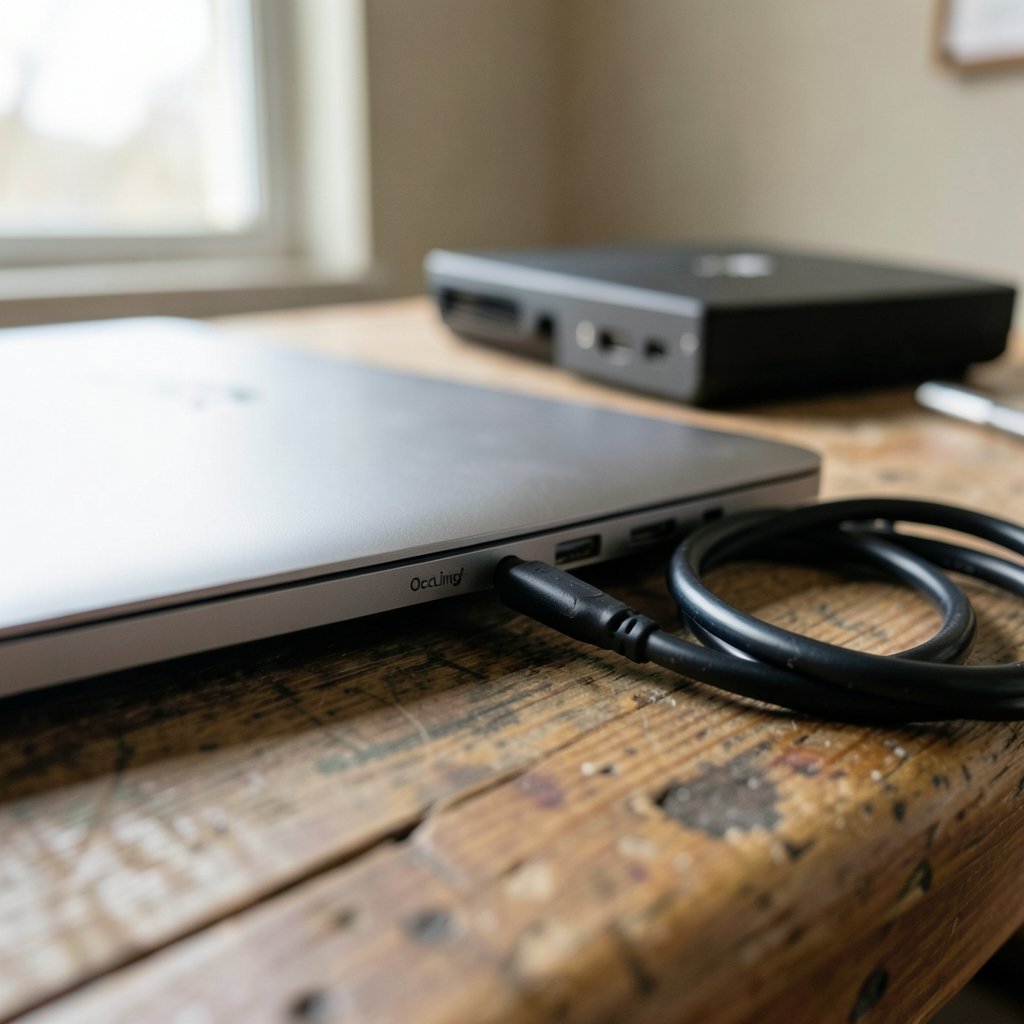
No. OcuLink requires your laptop to physically expose an OcuLink port, and many mainstream machines do not. Enthusiast devices and some handhelds are more likely to include it. Always confirm the port exists before buying a dock.
Does USB4 support hot-plugging an eGPU?
Yes. USB4 supports hot-plug, and because it is largely compatible with Thunderbolt 3, the experience is generally smoother than with OcuLink. OcuLink behaves more like an internal PCIe link, so surprise disconnects are less graceful.
Can USB4 charge my laptop while running an eGPU?
It can, provided the dock supplies enough wattage for your laptop under load. This is one of USB4’s biggest practical advantages: a single cable can carry PCIe traffic, display output, and power. OcuLink cannot charge your laptop, so you need a separate power connection.
Do I need a separate monitor cable with OcuLink?
Usually yes. OcuLink carries PCIe data only, so display output typically comes from the eGPU’s own video ports or a separate cable. USB4 can carry DisplayPort alongside PCIe and USB in the same cable, which simplifies desk setups considerably.
Is USB4 v2.0 worth waiting for in 2026?
It depends on verified product support. USB4 v2.0 promises up to 80 Gbps, but whether a specific 2026 laptop or dock actually ships that tier varies. Check the exact product specifications rather than the marketing label, and don’t delay a purchase you need now for a spec you may not get.