
You press the power button. Nothing happens. No fans, no lights, no beep. Maybe a tiny LED blinks once and dies. Your first instinct is that the machine is dead and you need a new one. That instinct is wrong more often than you’d think.
Most “won’t turn on” PCs are not dead. They are stuck behind a simple fault: a loose cable, a tripped outlet, a sleepy standby rail, or a switch that never actually told the motherboard to wake up. The trick is to work through the problem in the right order so you don’t waste an afternoon reseating parts that were fine all along.
This guide walks through the exact sequence technicians use, from the wall socket inward. It also covers the 2026-specific wrinkles worth knowing, including newer power supply standards and recent Windows update behavior.
Start With the Boring Stuff Nobody Checks
Before you open the case, rule out the obvious. It sounds patronizing, but a huge share of “dead PC” calls end with a swapped cable or a different wall outlet.
- Test the outlet. Plug in a lamp or phone charger. If it’s dead, check the breaker or the switch on the power strip.
- Check the power strip. Many strips have a master switch that gets bumped. Some have a tripped breaker button on the side.
- Swap the power cable. Use a known-good cable from a monitor or another PC.
- Check the rear PSU switch. Many power supplies have an I/O rocker switch on the back. It gets flipped to O during cleaning or moving.
- Look for a standby light. Most motherboards have a small LED that glows when power is connected, even with the PC off. No glow at all points toward the PSU or the cable path. A glow with no response points toward the front panel or the board itself.
If the standby LED is dark after all of that, the problem is upstream of the motherboard. If it glows but the PC won’t boot, skip ahead to the front panel section.
Read the Motherboard Before You Touch Anything
Modern boards talk. You just have to listen.
Debug LEDs are four small lights near the RAM slots or the top right corner, usually labeled CPU, DRAM, VGA, and BOOT. If one stays lit when you press power, that’s the subsystem that failed its check. A solid DRAM light is a memory problem. A solid VGA light means the graphics card or its power connection.
POST beeps still exist on many boards, but only if you have a tiny speaker plugged into the front panel header. Many cases no longer include one. A cheap speaker is one of the best diagnostic tools you can own.
Q-code displays on higher-end boards show a two-digit hex code. Look it up in the manual, not on a forum. The manual is the authority.
Write down what you see before you change anything. That single note often saves an hour of guessing.
The Paperclip Test: Is the PSU Actually Alive?
If there’s no standby light and no fan twitch, the power supply is the prime suspect. You can test it without a motherboard.
Unplug the PSU from the wall, then from the board. Find the 24-pin connector. On the main latch side, locate the green wire (pin 16 on standard ATX) and any adjacent black ground wire. Bend a paperclip into a U and bridge those two pins. Plug the PSU back in and flip the switch.
If the fan spins, the PSU produces power. If nothing happens, the unit is likely dead. A proper PSU tester costs less than a dinner out and gives you voltage readings instead of a yes/no.
One caveat: a spinning fan does not prove the PSU is healthy under load. It only proves it turns on. A failing unit can spin happily and still collapse the moment the CPU asks for current.
Reseat the Memory, Then Clear the CMOS
Two fixes solve a surprising number of no-boot machines.
Reseat the RAM. Pull each stick, listen for the click on reinstall, and make sure the tabs snap shut. If you have two sticks, try one at a time in the slot the manual marks as primary. A single bad stick or a slot that isn’t fully seated will stop POST cold.
Clear the CMOS. Unplug the PC, then either short the clear-CMOS jumper or pull the coin cell battery for a few minutes. This resets BIOS settings to defaults. It’s the fix when someone enabled an aggressive memory profile, changed the boot order, or the board got confused after a power cut.
If clearing CMOS brings the machine back, go back into BIOS and re-enable settings one at a time. That way you learn which change caused the problem.
Test With the Minimum Number of Parts
When nothing else works, strip the machine down. This is the single most reliable diagnostic step and the one people skip because it feels like work.
| Keep connected | Disconnect |
|---|---|
| CPU and cooler | Graphics card (if the CPU has integrated graphics) |
| One RAM stick | All other RAM sticks |
| 24-pin and 8-pin CPU power | All drives |
| Front panel power switch | Front USB, audio, RGB, fans |
| Monitor on the board’s video output | Anything else |
Power on. If it POSTs in this state, add parts back one at a time until it fails. The last part you added is your culprit. This method is slow but it almost never lies.
If the stripped build still won’t power, the fault is in the CPU, the board, or the PSU. That’s when you start swapping known-good parts, ideally from a working machine.
Don’t Forget the Front Panel Switch
Here’s a scenario that fools people constantly. The PSU is fine. The board is fine. The PC simply never receives the “turn on” signal because the case’s power button is broken or the header is miswired.
Find the front panel header on the board. Locate the two pins labeled PWR_SW. Unplug the case connector and briefly touch those two pins with the tip of a screwdriver. If the machine springs to life, the case switch or its wiring is the problem. You can leave it running that way, wire up a replacement switch, or use the reset button as a stand-in.
While you’re there, check that the header isn’t plugged in one pin off. Off-by-one mistakes are common after a rebuild and produce exactly this symptom.
The 2026 Context Worth Knowing
A few current issues deserve a mention, because they change how you interpret symptoms.
Power supply standards have moved. ATX 3.0 and 3.1 units with 12V-2×6 connectors are now standard on new builds. Connector seating matters more than it used to. If your machine shut down under load and now won’t start, unplug and firmly reseat the GPU power connector before anything else. A partially seated connector can cause intermittent shutdowns that look like random failures.
Windows updates can break boot, not power. A machine that lights up and spins but never reaches the desktop is a different problem from one that’s completely dead. Recent Windows 11 releases have shipped with boot issues that Microsoft tracks on its release health dashboard, and checking that page takes thirty seconds. If your PC powers on but stalls at the logo, that’s a software or storage problem, not a PSU problem. Don’t buy a power supply for a boot loop.
CPU instability is not a no-power fault. The Intel 13th and 14th generation instability saga produced crashes, not dead machines. If your PC won’t turn on at all, that microcode issue is almost certainly irrelevant. It’s a common misdiagnosis that sends people down the wrong path.
Older hardware ages out quietly. A six-year-old power supply that ran fine in 2020 may simply be at the end of its capacitor life. If the machine is that old and the PSU has never been replaced, a fresh unit is a reasonable investment even if you’re not certain it’s the cause.
When to Stop and Get Help
There’s a point where DIY stops being economical. Stop and get professional help if any of these apply:
- You’ve swapped in a known-good PSU and the board still shows no standby light.
- You smell burning, see bulging capacitors, or spot scorch marks.
- The CPU socket has bent pins and you’re not comfortable straightening them.
- You’ve done the minimum-parts test and still can’t isolate the fault.
- The machine is under warranty. Opening it may void coverage, so call the builder first.
A shop with a POST card and a bench PSU can diagnose in twenty minutes what takes you a weekend of guessing.
Practical Habits That Prevent the Next Outage
A few small habits pay off. Plug the PC into a surge protector rather than the wall, and replace it every few years since the protection wears out. Label your front panel connectors before you unplug them. Keep the case interior reasonably dust-free, because dust clogs heatsinks and stresses fans. And write down your BIOS settings before you change anything, so a bad experiment is one reset away from undone.
If you’re weighing a repair against a replacement, it helps to know what the market looks like. Our roundup of the best phones of 2026 is a useful reminder that a working desktop still does things a handset can’t, and our Black Friday car deals guide shows how timing a purchase around sales events can save real money if you do decide to replace hardware. Gamers facing a dead rig often look at portables as a stopgap, and the Steam Deck out-of-stock alternatives piece covers what’s actually available. If you’re building rather than fixing, the comparison of Roblox Studio vs Unity vs Godot in 2026 is worth a read before you commit to a toolchain.
Conclusion
A PC that won’t turn on is a puzzle with a short list of suspects. Work from the wall socket inward: outlet, cable, switch, standby light, PSU test, RAM, CMOS, minimum parts, front panel. Each step eliminates a whole category of fault, and most machines come back to life within the first four.
The biggest mistake is buying parts before diagnosing. The second biggest is assuming a dead machine means a dead motherboard. Slow down, test in order, and let the evidence point to the culprit. Nine times out of ten, the fix costs less than a pizza.
Frequently Asked Questions
Why does my PC do nothing at all when I press the power button?
Complete silence usually means the motherboard isn’t receiving standby power. Check the wall outlet, the power cable, the rear PSU switch, and whether the board’s standby LED glows. If it’s dark, test the power supply) directly with a paperclip or a PSU tester.
How can I tell if the power supply is dead?
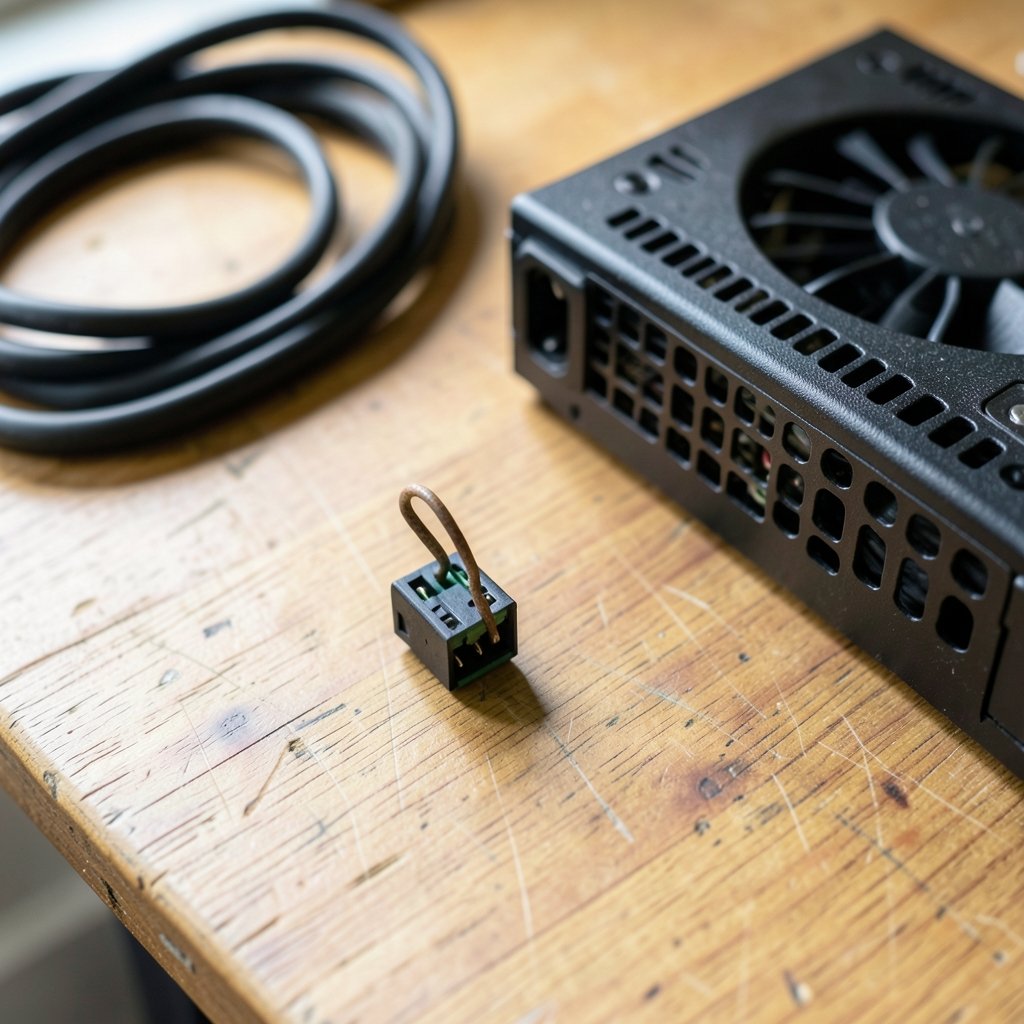
Bridge the green and black pins on the 24-pin connector with a paperclip and switch the PSU on. If the fan doesn’t spin, the unit is probably dead. If it spins, the PSU produces power, though a tester gives you real voltage readings and a more reliable answer.
My fans spin but the screen stays black. Is that the same problem?
No. Spinning fans mean the machine has power. A black screen points to POST failure, a graphics issue, a memory fault, or a boot problem. Check the motherboard debug LEDs and try the monitor cable on a different output before assuming hardware failure.
Could a recent Windows update stop my PC from turning on?
An update can prevent Windows from booting, but it can’t stop the hardware from powering up. If fans spin and lights come on but Windows never loads, check Microsoft’s release health page for known issues. If nothing happens at all, the cause is hardware, not software.
Is it safe to test the power supply myself?
Yes, if you follow basic precautions. Unplug from the wall before touching any connector, never open the PSU casing itself, and don’t work on a powered system with wet hands. The paperclip test only touches low-voltage signal pins and is safe when done correctly.
When should I give up and buy a new PC?
If you’ve tested with a known-good power supply, done the minimum-parts test, and the machine still shows no signs of life, the board or CPU is likely gone. At that point, price the replacement parts against a new build. On older machines, a full replacement is often the better value.



