

Few things derail a workday faster than a laptop that suddenly insists it has no internet. According to Microsoft’s own support documentation, network connectivity problems remain one of the most frequently reported issues across Windows devices, and the Wi-Fi stack is where most of them surface. The good news: the vast majority of “Wi-Fi not working” cases on Windows 11 trace back to a handful of causes, and most are fixable in under fifteen minutes without reinstalling anything.
This guide walks through the fixes in the order that actually works, starting with the cheapest checks and ending with the more invasive resets. It also flags the mistakes people make most often, because a surprising number of “broken Wi-Fi” reports turn out to be a switched-off toggle or a forgotten network profile.
Start With the Obvious Checks Most People Skip
Before touching a single setting, confirm the basics. It sounds patronizing, but technicians report that a meaningful share of Wi-Fi tickets resolve at this stage.
- Check the Wi-Fi toggle in Quick Settings. Click the network icon in the taskbar (bottom right). If the Wi-Fi tile is greyed out, click it once. Windows 11 sometimes leaves Wi-Fi off after a failed update or a battery-saver event.
- Look for a physical switch or function key. Many laptops have a Wi-Fi kill switch on the side or a Fn key combination (often Fn + F2, F8, or F12) that disables the radio at the hardware level. If that switch is off, no software fix will help.
- Turn off airplane mode. Airplane mode overrides everything else. Check Quick Settings and Settings > Network & internet.
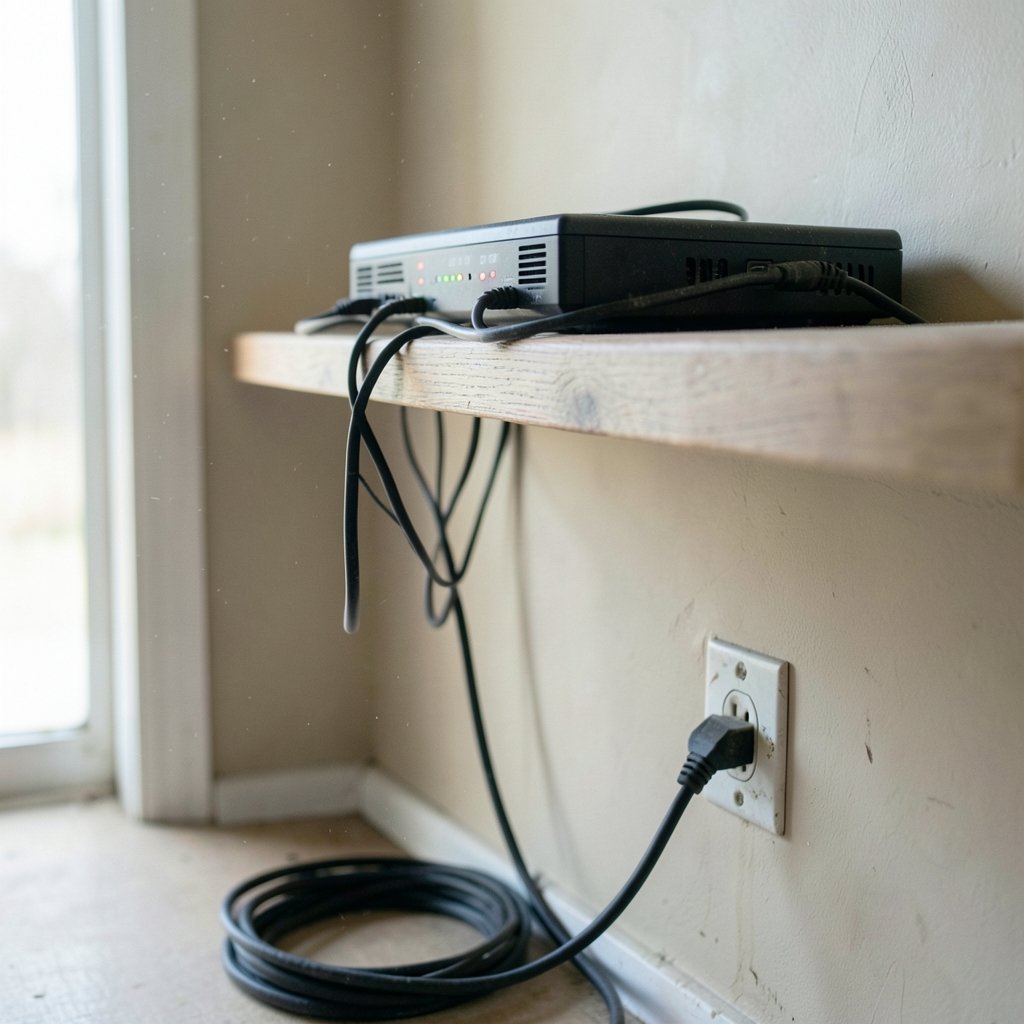
- Restart the router. Unplug it for thirty seconds, plug it back in, and wait two minutes. Other devices losing Wi-Fi at the same time is a strong signal the problem is the router, not Windows.
- Try another device on the same network. If your phone connects fine, the fault is on the PC side. If it doesn’t, call your provider.
If the Wi-Fi icon is missing entirely from the taskbar, jump ahead to the adapter section. If the icon shows but there’s a yellow warning triangle, the problem is usually authentication or IP assignment, which the later steps address.
Run the Built-In Network Troubleshooter First
Windows 11 ships with a troubleshooter that handles more cases than its reputation suggests. Right-click the network icon in the taskbar and choose Troubleshoot problems, or go to Settings > System > Troubleshooting > Other troubleshooters and run Network and Internet.
The tool checks adapter status, DHCP configuration, and DNS reachability, then applies fixes automatically where it can. It won’t solve a dead driver, but it will catch a disabled adapter or a misconfigured IP address in seconds. Microsoft documents this workflow in its Windows networking help pages, and it’s the correct first software step because it costs nothing and occasionally works.
One caveat worth knowing: the exact menu path has shifted across Windows 11 feature updates. On 22H2 and 23H2 the troubleshooter lives under System > Troubleshooting; on 24H2 and later it sits under System > Troubleshooting > Other troubleshooters. If the path doesn’t match, type “troubleshoot” into the Start menu search instead.
Check the Wi-Fi Adapter in Device Manager
If the troubleshooter finds nothing, look at the adapter directly. Press Win + X and choose Device Manager, then expand Network adapters. You’re looking for an entry with “Wi-Fi,” “Wireless,” “WLAN,” or “802.11” in the name. (IEEE 802.11)
| What you see | What it means | What to do |
|---|---|---|
| Adapter listed normally | Hardware detected, driver loaded | Move on to driver update or network reset |
| Downward arrow on the icon | Adapter disabled | Right-click > Enable device |
| Yellow warning triangle | Driver error or conflict | Right-click > Update driver, or roll back |
| No wireless adapter at all | Hardware not detected | Check BIOS/UEFI, reseat the card on desktops, or test with a USB Wi-Fi dongle |
A missing adapter is the one scenario that usually points to hardware. On laptops, a failed Wi-Fi card is uncommon but real, and a cheap USB adapter is a legitimate workaround while you wait for a replacement.
Update, Roll Back, or Reinstall the Wi-Fi Driver
Drivers cause a large share of stubborn Wi-Fi failures, particularly after a Windows update pushes a new version that disagrees with older hardware. There are three moves here, and the order matters.
Update the driver. In Device Manager, right-click the adapter and select Update driver > Search automatically for drivers. Also check Settings > Windows Update > Advanced options > Optional updates, where Microsoft ships driver fixes that don’t install automatically.
Roll back the driver. If Wi-Fi broke right after an update, this is often the fastest cure. Right-click the adapter > Properties > Driver tab > Roll Back Driver. Windows keeps the previous version for exactly this reason. If the button is greyed out, no rollback package exists.
Reinstall the driver. Right-click > Uninstall device, tick “Attempt to remove the driver,” restart, and let Windows reinstall it on boot. If Windows doesn’t, download the latest driver from your laptop manufacturer’s support page on another device and transfer it by USB.
A common mistake: people download “driver updater” utilities that install generic or mismatched drivers and make things worse. Stick to Windows Update or the manufacturer’s own site.
Forget and Reconnect the Network
Authentication failures produce the maddening state where Wi-Fi shows as connected but nothing loads, or Windows repeatedly asks for the password. The fix is to clear the saved profile and start fresh. (Decky loader not working steam deck fix 2026) (Fix Wi-Fi connection issues in Windows)
Go to Settings > Network & internet > Wi-Fi > Manage known networks, select your network, and choose Forget. Then reconnect and re-enter the password. This clears corrupted credentials and stale security settings, and it resolves a surprising number of cases where the router’s password was changed but Windows kept trying the old one.
While you’re there, confirm you’re joining the right band. If your router broadcasts separate 2.4 GHz and 5 GHz names and your adapter is older, the 5 GHz network may simply be out of range or unsupported. Connecting to the 2.4 GHz SSID often restores a connection instantly.
Reset the Network Stack With Command-Line Tools
When software-level fixes fail, resetting the TCP/IP stack and DNS cache is the standard escalation. Microsoft documents these commands as advanced steps, and they’re worth trying before anything drastic. Open Terminal (Admin) or Command Prompt (Admin) and run each command, pressing Enter after each:
- `ipconfig /release` releases the current IP address.
- `ipconfig /renew` requests a fresh one from the router.
- `ipconfig /flushdns` clears the DNS resolver cache.
- `netsh winsock reset` rebuilds the Winsock catalog.
- `netsh int ip reset` resets TCP/IP settings to defaults.
Restart the PC afterward. The `netsh` resets are the heavy hitters and fix corrupted network stacks that survive every other repair. Be aware of the trade-off: they also wipe custom VPN and proxy configurations, so you may need to re-add those afterward. Microsoft’s own guidance frames these as troubleshooting steps for persistent problems, not routine maintenance, and overusing them is a common habit among forum regulars that rarely helps. (How to fix antimalware service executable high cpu usage)
If DNS is the specific culprit, changing your DNS servers manually to a public resolver in Settings > Network & internet > Wi-Fi > Hardware properties is a lighter-touch alternative.
Disable Fast Startup and Check Power Settings
Here’s one that isn’t strongly documented by Microsoft but is widely reported by support technicians: Fast Startup can leave the Wi-Fi adapter in a half-initialized state after shutdown, so Wi-Fi fails on the next boot or after sleep. Treat this as community-sourced guidance rather than official doctrine, but it costs nothing to test.
Open Control Panel > Power Options > Choose what the power buttons do > Change settings that are currently unavailable, then untick Turn on fast startup and save. Restart fully and see if the problem recurs.
Related: in Device Manager, open the Wi-Fi adapter’s Properties > Power Management tab and untick “Allow the computer to turn off this device to save power.” This stops Windows from cutting power to the radio during idle periods, which can cause dropouts that look like random disconnects.
Rule Out Interference and Router-Side Problems
Sometimes Windows is innocent. Before assuming a software fault, check the environment:
- Distance and obstacles. Walls, metal furniture, and microwave ovens all degrade 2.4 GHz signals. Move closer and retest.
- Channel congestion. In apartment buildings, crowded channels cause dropouts. Log into the router and switch to a less congested channel, or enable auto-channel selection.
- Router firmware. Outdated firmware causes intermittent disconnects. Check the router admin page for updates.
- Network name issues. If you’re setting up a new router, avoid cryptic SSIDs that are hard to identify; a clear, unique name makes troubleshooting far easier when several networks overlap.
If the connection drops only on one device and never on others, the fault is almost certainly local to that PC. If it drops everywhere, the router or ISP is the place to look.
Use Safe Mode and Clean Boot to Isolate Conflicts
Third-party software causes more Wi-Fi failures than people expect. VPN clients, firewalls, and “network optimizers” install filter drivers that can break connectivity after an update. Microsoft documents a clean boot procedure specifically for isolating this kind of conflict: it starts Windows with only essential services, letting you identify the culprit by re-enabling services in batches.
The quick version: open System Configuration (type `msconfig` in Start), go to the Services tab, tick “Hide all Microsoft services,” then click Disable all. Restart. If Wi-Fi works in this state, a third-party service is responsible, and you can re-enable them in halves until the connection breaks again. Safe Mode achieves something similar for driver-level conflicts.
When to Suspect Malware or a Corrupted Windows Install
Persistent network weirdness, especially with unexpected pop-ups or browser redirects, occasionally points to malware tampering with network settings. Running a full scan with Windows Security is a sensible checkpoint before you spend hours on driver work. If you want a second opinion, free removal tools are worth a look, and a guide on how to check for viruses on a Windows PC covers the manual sweep in detail. (Undo shortcut key for windows and mac)
If every fix fails, a network reset (Settings > Network & internet > Advanced network settings > Network reset) reinstalls all network adapters and resets every component to factory defaults. It’s the nuclear option, and it works more often than it should. As a last resort, an in-place repair upgrade of Windows 11 preserves files while replacing system components.
Conclusion
Wi-Fi failures on Windows 11 almost always fall into one of five buckets: a switched-off radio, a driver problem, a corrupted network profile, a broken network stack, or a router-side issue. Working through them in that order, from the free checks to the command-line resets, resolves the overwhelming majority of cases without a technician. The pattern that matters most is sequence: confirm the hardware toggle, run the troubleshooter, inspect the adapter, then escalate. Skipping to `netsh` resets first is the single most common mistake, because it wipes VPN settings and rarely fixes what a driver rollback would have solved in two minutes. Keep a note of which fix worked, and the next time the connection drops, you’ll be back online before your coffee cools.
Frequently Asked Questions
Why does my Wi-Fi keep disconnecting on Windows 11?
Intermittent drops usually trace to power management cutting power to the adapter, outdated drivers, or router-side interference. Disable the “turn off this device to save power” option in Device Manager, update the driver, and test whether other devices on the same network drop at the same time. If they do, the router is the problem.
How do I reset my network settings in Windows 11?
Go to Settings > Network & internet > Advanced network settings > Network reset, then confirm and restart. This removes and reinstalls all network adapters and returns settings to defaults. You’ll need to re-enter Wi-Fi passwords and re-add any VPN connections afterward.
Why is the Wi-Fi option missing from my Windows 11 taskbar?
A missing Wi-Fi icon usually means the adapter is disabled, the driver failed, or the radio is switched off by a function key. Check Device Manager for a disabled or error-flagged adapter, run the network troubleshooter, and confirm airplane mode is off. If the adapter doesn’t appear at all, suspect a hardware fault.
Does resetting Winsock fix Wi-Fi problems?
Sometimes. `netsh winsock reset` rebuilds the Windows networking catalog and fixes corruption that survives other repairs, but it’s an advanced step and clears custom proxy and VPN settings. Try driver updates and forgetting the network first, then use the reset if those fail.
Can a Windows update break my Wi-Fi?
Yes. Updates occasionally install a driver version that conflicts with older wireless hardware. If Wi-Fi broke immediately after an update, open Device Manager, right-click the adapter, and use Roll Back Driver on the Driver tab to restore the previous version.
How do I know if the problem is my PC or my router?
Test a second device, such as a phone, on the same network. If the phone connects normally, the fault is on the Windows PC. If every device fails, restart the router, check its firmware, and contact your internet provider if the outage persists.



