
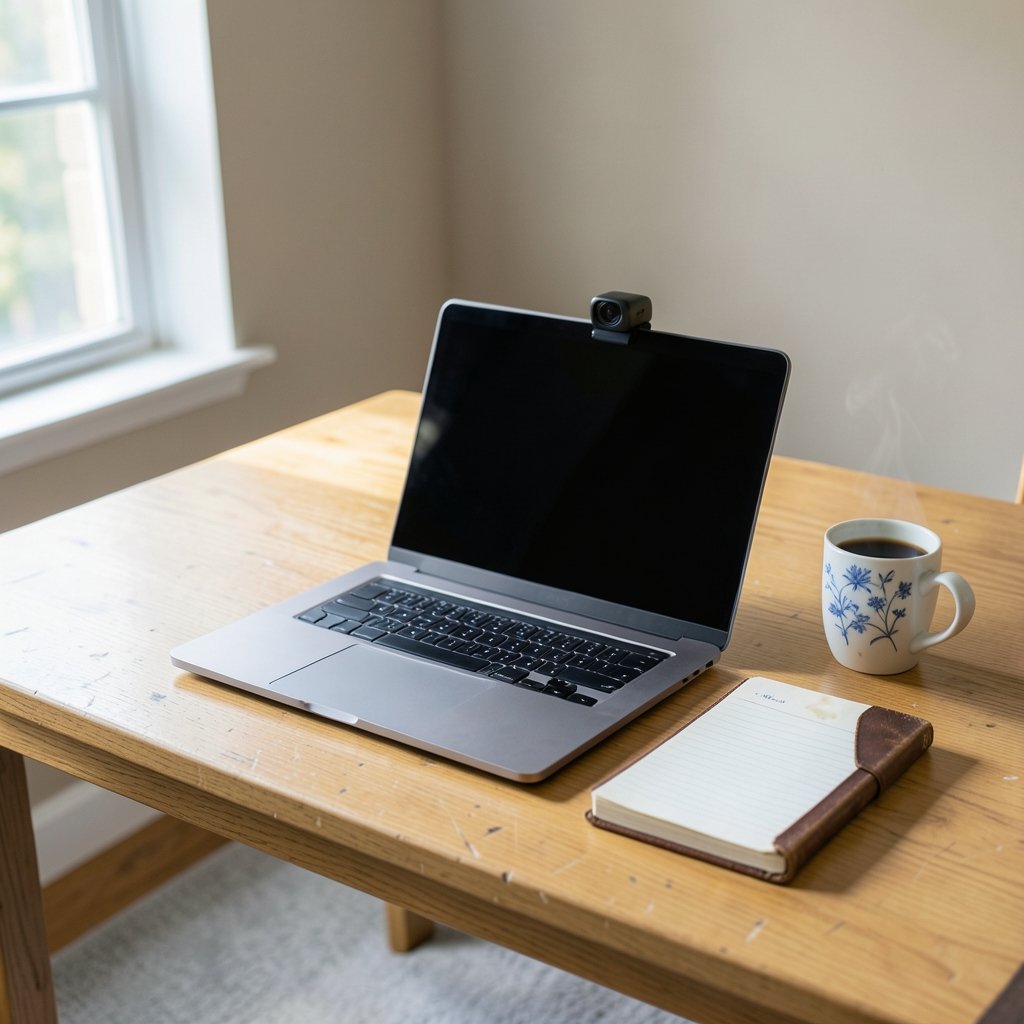
Microsoft’s own support community is flooded with the same complaint every week: a laptop that worked fine yesterday suddenly shows a black rectangle in a video call. The camera isn’t broken. In most cases, a single privacy switch, a stubborn driver, or a background security suite has quietly cut off access. Windows 11 handles cameras differently from Windows 10, and that shift in how permissions work is behind a large share of these failures.
The good news is that the fix usually takes under ten minutes once you know the order to check things in. This guide walks through the causes from most common to least common, with the exact settings paths and the mistakes that trip people up along the way.
Start With the Physical Checks Nobody Bothers Doing
Before touching a single setting, rule out hardware. It sounds obvious, and that’s exactly why people skip it.
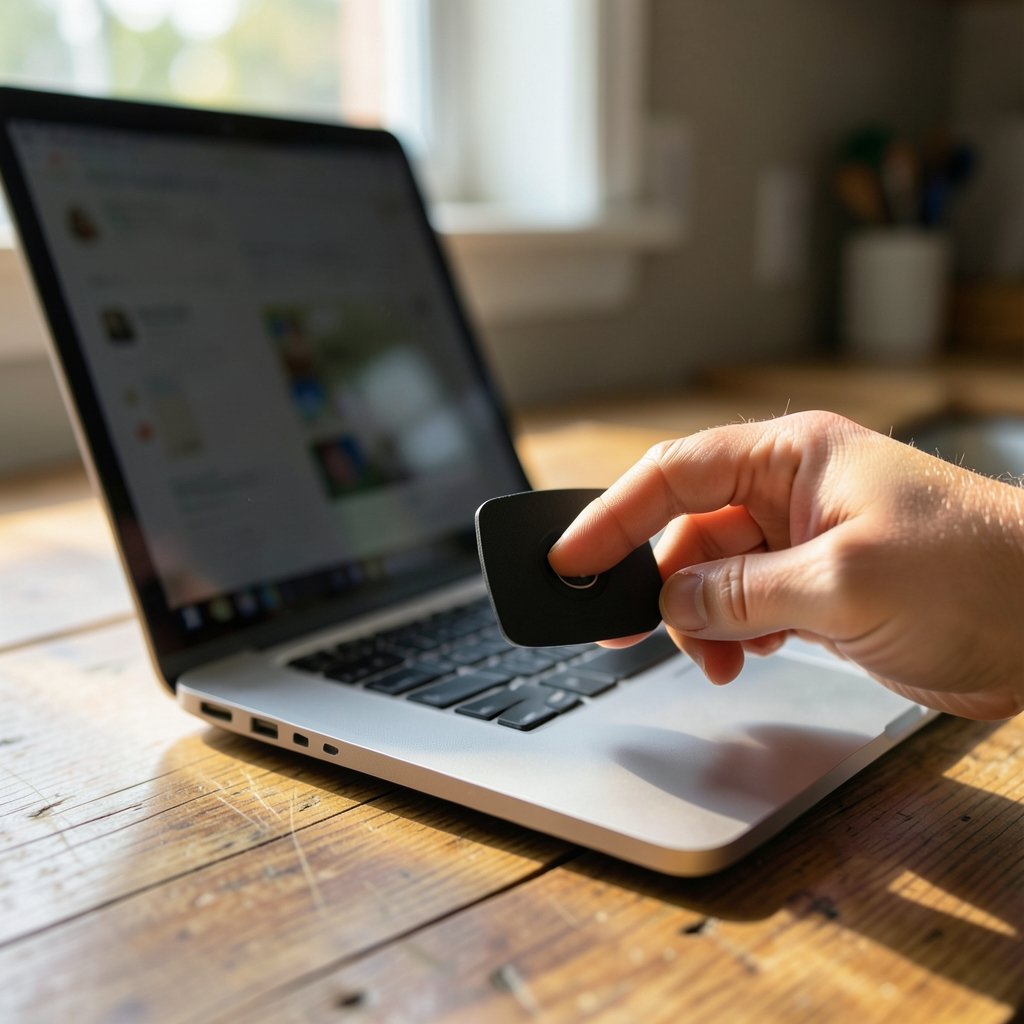
Many business and consumer laptops ship with a sliding privacy shutter over the lens. Lenovo, HP, and Dell all use them on various models, and they slide shut easily when a laptop goes into a bag. A tiny plastic tab covering the lens looks identical to a dead camera on a video call.
Function-key kill switches are the other hardware culprit. Several laptop lines map a camera disable to a key combination, often Fn plus a function key marked with a camera icon. Pressing it toggles the camera off at the firmware level, and no amount of Windows settings will override it until it’s pressed again.
Then check the cable if it’s an external webcam. A camera that fails only when plugged into a USB hub or a front-panel port is usually fighting for power or bandwidth. Plugging directly into a rear motherboard port on a desktop is the fastest way to confirm this. If the camera springs to life on a direct connection, the hub was the problem all along.
Check the Windows 11 Camera Privacy Switch First
This is the single most common software cause, and it’s the one most people miss because the toggle lives two menus deep.
Windows 11 has a system-wide camera switch that overrides everything else. Head to Settings > Privacy & security > Camera. At the top sits a Camera access toggle. If that’s off, every app on the machine loses the camera at once, and no app-level setting can bring it back. (Best camera bag for hiking) (Intel support article on camera issues)
Below the system-wide switch is a list of individual apps, each with its own toggle. This is where the confusing cases live. A user might find that Zoom works but the built-in Camera app doesn’t, simply because one app’s permission is on and the other’s is off. Microsoft’s documentation on app permissions for the camera covers this split clearly, and it’s worth reading once so the two-layer system makes sense.
One practical tip: after flipping the main switch back on, close and reopen the affected app. Some programs cache the “no camera” state at launch and won’t recheck until restarted.
Repair or Reset the Camera App Itself
If permissions are fine but the built-in Camera app still shows a black screen or an error code, the app’s own data may be corrupted. Windows 11 gives you two repair tools for this, and they’re easy to reach.
Go to Settings > Apps > Installed apps, find Camera, click the three-dot menu, and choose Advanced options. There you’ll see Repair and Reset. Repair reinstalls the app files while keeping your data. Reset wipes the app’s local state entirely. Try Repair first, then Reset if the problem persists.
This step fixes a surprising number of cases where the camera works in third-party apps but not in Microsoft’s own. It’s also the step people skip because they assume a broken app means broken hardware. It rarely does.
Deal With the Driver in Device Manager
Drivers are the second-biggest culprit after privacy settings. Open Device Manager (right-click the Start button and pick it from the menu), then look for a Cameras node. On some systems the device appears under Imaging devices instead, so check both.
If the camera shows a yellow warning triangle, the driver has a problem. Right-click the device and try Disable device, then Enable device again. This forces Windows to reinitialize it, and it clears a lot of transient glitches.
If that doesn’t work, right-click and choose Update driver > Search automatically for drivers. Windows 11 ships an inbox USB Video Class (UVC) driver that covers the vast majority of webcams, so this often resolves itself without any manufacturer download.
The most overlooked fix is Roll Back Driver. If the camera broke right after a Windows Update, open the device’s Properties > Driver tab and check whether Roll Back Driver is available. If it is, Windows kept the previous driver and you can revert in one click. This is the documented remedy for update-related breakage, and it’s far faster than hunting for an older installer online.
Look at Third-Party Antivirus Camera Shields
Here’s a cause that catches people off guard: security software with a webcam protection feature. Several major suites, including products from ESET, Kaspersky, Bitdefender, and Avast, include a camera shield that blocks access independently of Windows settings.
The telltale sign is a camera that works in one app but not another, or one that fails only after a security update. Open your antivirus dashboard and search its settings for “webcam,” “camera protection,” or “privacy.” If a shield is active, either disable it temporarily to test or add the affected app to its allow list.
This is also a good moment to mention that a machine slowed to a crawl by security software can behave strangely in general. If the system feels sluggish alongside the camera issue, it’s worth checking whether the antimalware service executable is eating CPU, since a struggling system can cause device timeouts that look like hardware faults.
Rule Out Conflicting Apps and Background Processes
Only one program can own a webcam at a time. If a background app grabbed the camera first, everything else gets a black screen.
Open Task Manager and look for anything camera-related running in the background: video conferencing tools that launched at startup, streaming software, or virtual camera drivers installed by OBS-style tools. Close them and test again.
Virtual camera drivers deserve special mention. Apps that create a fake “virtual” camera can register themselves as the default device, and if that virtual device misbehaves, every app that picks it up fails. Check the camera dropdown inside the failing app and make sure the actual hardware is selected, not a virtual entry.
Try a Clean Restart and a New User Profile
Two underrated fixes remain. The first is a full shutdown rather than a restart. Windows 11’s Fast Startup feature means a normal shutdown doesn’t fully power-cycle the hardware, so a camera stuck in a bad state can survive it. Holding Shift while clicking Shutdown forces a complete power cycle.
The second is testing a different user account. Create a temporary local account and sign in. If the camera works there, the problem is a corrupted profile setting rather than hardware or drivers, and migrating to a fresh profile is often cleaner than chasing the corruption down. If you want to move files and settings around afterward, knowing the standard Windows keyboard shortcuts makes that housekeeping much faster.
A Quick Comparison of Causes and Fixes
| Symptom | Most Likely Cause | First Fix to Try |
|---|---|---|
| Camera fails in every app at once | Global privacy switch off | Settings > Privacy & security > Camera |
| Works in one app, fails in another | Per-app permission or antivirus shield | Check app toggle, then security suite |
| Black screen only in Camera app | Corrupted app data | Repair, then Reset the app |
| Broke right after an update | Bad driver | Roll Back Driver in Device Manager |
| Fails only on a USB hub | Power or bandwidth | Plug into a direct rear port |
| Yellow triangle in Device Manager | Driver error | Disable, then re-enable the device |
What Actually Works in Practice
The pattern that emerges from support forums and repair shops is consistent. Roughly speaking, the fixes break down into three buckets: privacy settings, drivers, and everything else. Working through them in that order saves time because each check takes under a minute.
The biggest mistake people make is jumping straight to reinstalling drivers or buying a new webcam. In most cases the hardware is fine and the software simply lost permission to use it. The second biggest mistake is ignoring the physical shutter, which costs nothing to check and resolves a genuinely large share of “broken camera” reports.
A useful habit is to note the Windows build number when something breaks. Microsoft has changed the Settings app layout across feature updates, so menu names shift between versions. Recording the build makes it far easier to follow current instructions or report a bug accurately.
Conclusion
A camera that stops working in Windows 11 is almost never a dead camera. The failure usually traces back to a privacy toggle, a driver that needs a rollback, or a security suite doing its job a little too enthusiastically. Work through the checks in order: physical shutter, top-level privacy switch, app permissions, app repair, driver rollback, then antivirus shields. Most people find their answer in the first three steps.
If the camera still refuses to cooperate after all of that, the next stop is the laptop manufacturer’s support site for model-specific function keys, or Microsoft’s own troubleshooting pages. And if the machine has other odd behavior alongside the camera fault, it’s worth a broader health check, including a scan with a reputable free virus removal tool, before assuming the webcam itself has failed.
Frequently Asked Questions
Why does my camera work in one app but not another in Windows 11?
Windows 11 controls camera access at two levels: a system-wide switch and individual per-app toggles. If the device-wide switch is on but a specific app’s toggle is off, only that app loses access. Third-party antivirus webcam shields can also block individual apps selectively. Check both the per-app permission and any security suite’s camera protection settings.
How do I know if my laptop has a physical camera shutter?
Look closely at the top bezel around the lens. Most shutters are small sliding tabs, often with a tiny red dot to show when closed. Check your laptop manual or the manufacturer’s support site if you can’t tell. Many business laptops from Lenovo, HP, and Dell include them, and a closed shutter looks exactly like a broken camera.
Does rolling back a camera driver really fix update-related failures?
Often, yes. When a Windows Update installs a new driver and the camera stops working, Device Manager usually retains the previous version. The Roll Back Driver option becomes available in the device’s Properties under the Driver tab. It’s a one-click revert and is the fastest documented fix for update-caused breakage. (Decky loader not working steam deck fix 2026)
Why does my webcam fail only when plugged into a USB hub?
USB hubs share power and bandwidth across connected devices. A webcam needs a steady stream for video, and a busy or underpowered hub can’t always provide it, so the camera drops out or shows a black frame. Plugging directly into a rear motherboard port on a desktop almost always resolves it.
Can antivirus software block my camera without warning?
Yes. Several major security suites include webcam protection that blocks camera access by default or after an update. The block happens outside Windows settings, so the Windows privacy toggle looks correct while the camera still fails. Open your security software’s privacy or webcam settings to check. (Webcam)
What should I do if none of these fixes work?
Test the camera on another computer to confirm the hardware works, then try a different user profile on the same machine. If it fails everywhere, the camera module or its internal cable may be faulty, especially on laptops that have been dropped or opened for repairs. At that point, manufacturer service is the sensible next step.



