

A plugged-in USB drive that never appears is one of the most common hardware complaints in tech support, and the cause is almost never the device itself. The “USB device not recognized” error is Windows telling you that enumeration failed — the handshake where the operating system asks a device what it is and how much power it needs — and that handshake can break at the port, the cable, the driver, or the power supply. The good news: the fix is usually a five-minute job once you know the order to try things in.
Start with the boring stuff: ports, cables, and power
Before touching Device Manager, rule out the physical layer. It sounds obvious, but most “dead” USB devices are actually fine hardware connected through a bad cable or an underpowered port.
- Try a different port, on a different controller if possible. Front-panel ports on desktops often run through an internal header that’s loose or failing. Rear I/O ports connect directly to the motherboard.
- Swap the cable. Charge-only USB cables have no data lines at all. They’ll power a device and never let it enumerate. This is the single most common cause of a “not recognized” error with phones and external drives.
- Skip the hub. Unpowered hubs split a single port’s current across several devices. Plug directly into the machine to test.
- Check power draw. Per the USB Implementers Forum, a USB 2.0 port supplies up to 500 mA and a USB 3.x port up to 900 mA. A 2.5-inch external drive or a fast-charging phone can pull more than that, so it fails to start up. A powered hub solves it.
If the device works on another computer, the problem is your machine. If it fails everywhere, the device or its cable is the culprit — and no amount of driver fiddling will help.
Use Device Manager to see what Windows actually thinks
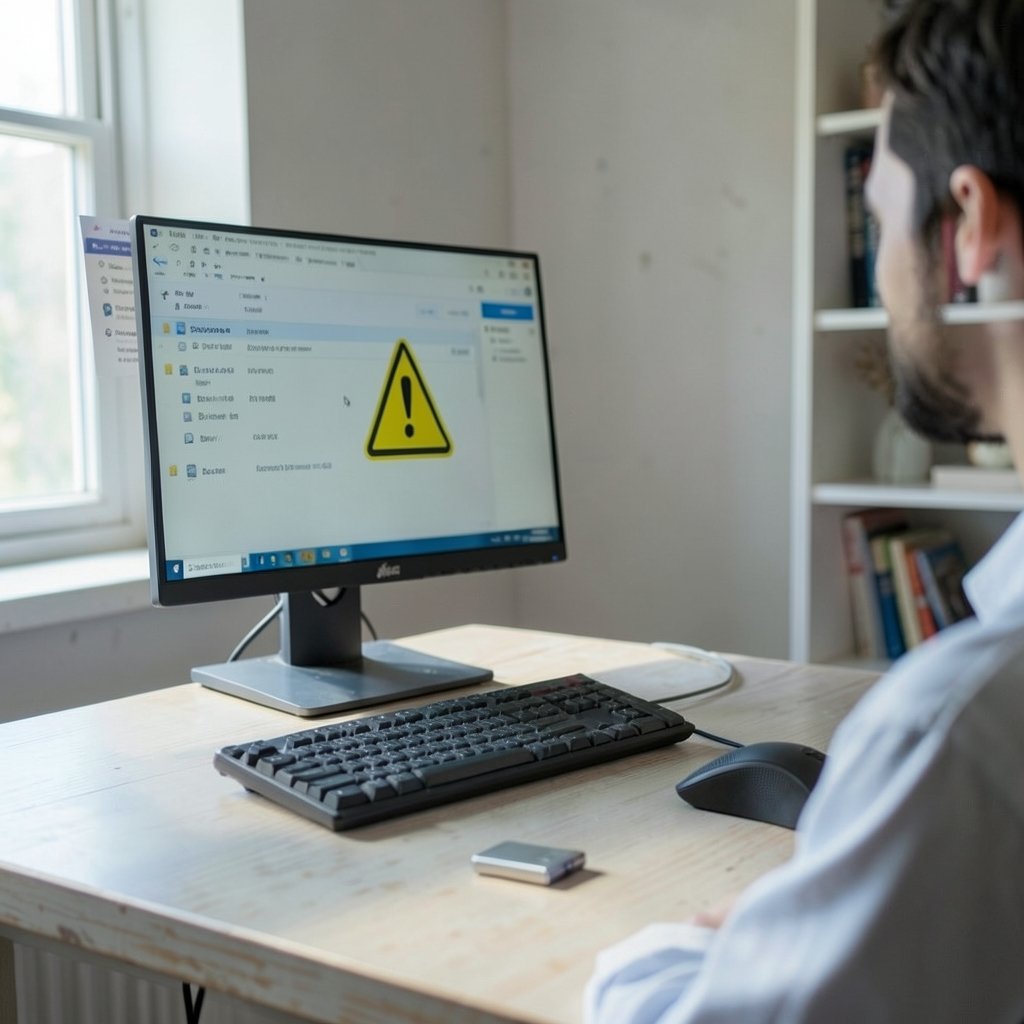
Device Manager is the diagnostic heart of this process. Open it with Win + X and pick Device Manager, then look in two places:
- Universal Serial Bus controllers — a device with a yellow warning triangle here has a driver problem.
- Other devices — an entry called “Unknown Device” or “USB Device” with a warning icon means Windows saw something plug in but couldn’t identify it.
Right-click the flagged entry and open Properties. The Details tab lets you switch to “Hardware Ids,” which tells you whether Windows is reading a real vendor ID or getting nothing back. A blank or generic ID points to a cable or port fault; a proper ID points to a driver issue.
The uninstall-and-rescan trick
This clears out corrupted driver state and works more often than people expect:
- Unplug the device.
- In Device Manager, right-click the flagged entry and choose Uninstall device.
- If the option appears, tick Attempt to remove the driver for this device.
- Unplug every other USB device you can spare.
- Restart the computer.
- Plug the device back in and let Windows reinstall it from scratch.
If the device now shows up, you’ve fixed it. If it reappears with the same warning, move on.
Update, roll back, or replace the USB host controller driver
The host controller is the chipset component that runs all your USB ports, and a mismatched driver can break every port at once. In Device Manager, expand Universal Serial Bus controllers and look for entries like “USB xHCI Compliant Host Controller” or “Intel USB 3.0 eXtensible Host Controller.”
- Update: right-click, choose Update driver, then Search automatically. For chipset drivers, though, the motherboard or laptop maker’s support page is more reliable than Windows Update, which often serves an older generic driver.
- Roll back: if the problem started right after a Windows update, open Properties, go to the Driver tab, and hit Roll Back Driver. This is the fastest fix for a regression introduced by an update.
- Reinstall: if rollback is greyed out, uninstall the host controller and restart. Windows will reinstall a clean copy automatically.
One caution: avoid third-party “driver updater” utilities. They frequently install mismatched packages and create a second problem on top of the first. Stick to the manufacturer’s own downloads.
Turn off USB selective suspend
Windows aggressively powers down idle USB ports to save battery, and some devices never wake up cleanly from that state. Disabling USB selective suspend is a two-minute change that resolves a surprising number of intermittent disconnects:
- Open Control Panel and go to Power Options.
- Click Change plan settings next to your active plan, then Change advanced power settings.
- Expand USB settings, then USB selective suspend setting.
- Set it to Disabled for both battery and plugged-in states.
- Apply and restart.
On laptops, also check the device’s own power management: in Device Manager, open the USB Root Hub properties, go to the Power Management tab, and untick “Allow the computer to turn off this device to save power.” If your machine is also struggling with background processes eating resources, the same approach of hunting down power and scheduling settings applies — see this guide on how to fix antimalware service executable high cpu usage for a similar method.
Run the built-in troubleshooter — with a caveat
Windows has historically shipped a hardware and devices troubleshooter that can reset the USB stack automatically. You can launch it from Settings > System > Troubleshoot > Other troubleshooters, or by running `msdt.exe -id DeviceDiagnostic` from the Run box.
Be aware that Microsoft has been retiring several legacy troubleshooters in recent Windows 11 builds, so the USB-specific entry may not be present on your machine. If it’s missing, don’t chase it — the manual steps in this article cover the same ground. If it’s there, run it before you start editing anything manually; it costs nothing and occasionally fixes the problem outright.
Reset the USB stack from a command line
When Device Manager won’t cooperate, a full re-enumeration of every USB device forces Windows to rebuild its device tree. Open Command Prompt as administrator and work through these in order, restarting between attempts:
- `devmgmt.msc` to reopen Device Manager if it’s frozen.
- Uninstall all USB host controllers and root hubs (the machine will lose mouse and keyboard — use a PS/2 port or have another input method ready).
- Restart and let Windows reinstall everything.
For stubborn cases, a system file check is worth running: `sfc /scannow` in an elevated prompt repairs corrupted system files that can break device enumeration. If that finds nothing, `DISM /Online /Cleanup-Image /RestoreHealth` repairs the component store that SFC pulls from.
What to do when nothing works: BIOS, firmware, and hardware
If the device fails in Device Manager, in Safe Mode, and on a clean Windows install, you’re looking at firmware or hardware.
- Update the BIOS/UEFI. USB controller bugs are a classic firmware fix, particularly on laptops from the last few years.
- Check BIOS USB settings. Look for XHCI Hand-off, Legacy USB Support, and any “USB power delivery in sleep” options. Toggling XHCI Hand-off fixes enumeration failures on some boards.
- Test in Safe Mode. If the device works there, a third-party driver or security tool is interfering.
- Inspect the port physically. Lint, bent pins, and worn connectors cause intermittent contact. A flashlight and a wooden toothpick solve more of these than any software tool.
Two other scenarios are worth knowing. If you’re troubleshooting a handheld gaming PC, USB and driver problems often overlap with software-layer issues, and the fixes in this Decky loader not working Steam Deck fix 2026 walkthrough follow a similar diagnostic order. And if you’re connecting through a dock or hub rather than a bare port, the hub itself may be the failing component — the same selection logic that applies to best usb c hub buying decisions (power delivery budget, controller quality, cable rating) explains why cheap hubs drop devices. (If a USB device isn’t working on Mac)
A quick comparison: which fix for which symptom
| Symptom | Most likely cause | First fix to try |
|---|---|---|
| Device never appears at all | Cable, port, or power | New cable, rear port, powered hub |
| Yellow warning in Device Manager | Driver fault | Uninstall device, restart, rescan |
| Works, then disconnects randomly | Power management | Disable USB selective suspend |
| Fails after a Windows update | Driver regression | Roll back the host controller driver |
| Fails on every computer | Dead device or cable | Test with another cable, then replace |
| Only fails on one machine, all ports | Chipset or BIOS | Update chipset driver, then BIOS |
The mistakes that make it worse
A few habits reliably turn a simple fix into a long afternoon. Don’t plug and unplug repeatedly while Windows is mid-enumeration — give it ten seconds. Don’t install registry “USB fix” patches from random forums; they often disable power management globally and cause sleep problems later. Don’t assume a USB-C cable is a data cable just because it charges. And don’t skip the cross-machine test: five minutes with a second computer tells you whether you’re fixing software or replacing hardware, which changes everything that follows.
If you need to check whether the problem is network-related rather than USB, knowing how to find your ip address on any device is a useful companion skill, since USB network adapters fail in ways that look identical to connectivity problems.
On macOS, the equivalent checks are System Information > USB (to confirm the device is seen at all), a different port, and resetting the SMC on Intel Macs. Apple Silicon machines have no SMC reset, so cable and port swaps carry most of the diagnostic weight.
Conclusion
“USB device not recognized” is a handshake failure, not a death sentence. Work in order — cable, port, power, then Device Manager, then drivers, then power settings — and you’ll solve the large majority of cases without ever opening a command prompt. The pattern to remember is that physical causes outnumber software causes, and that the cheapest test (a different cable and a rear port) is almost always the one worth doing first. Save the driver surgery for when the device shows up in Device Manager but refuses to work, and save the hardware diagnosis for when it fails everywhere you plug it in.
FAQ
Why does my USB device say “not recognized” but still charge?
Charging only needs the power pins, while recognition needs the data pins. A charge-only cable, a damaged data line, or a port with bent data pins will deliver power and never enumerate. Swap the cable first — it’s the culprit more often than the port.
How do I know if the problem is the device or the computer?
Plug it into a second machine. If it’s recognized there, the fault is in your computer’s port, driver, or power settings. If it fails on both, the device or its cable is faulty. This one test decides whether you’re troubleshooting software or shopping for hardware.
Can a USB hub cause the “not recognized” error?
Yes, in two ways. Unpowered hubs can’t supply enough current for drives and fast-charging devices, and cheap hubs use controllers that mishandle enumeration. Test by plugging directly into the computer. If it works, the hub is the problem.
Does uninstalling the USB driver break my computer?
No. Windows rebuilds the USB device tree automatically on restart, and your keyboard and mouse will work again once it does. Have a backup input method ready if you’re uninstalling host controllers, since PS/2 or a second machine may be needed for a few minutes.
Why does the device disconnect randomly instead of failing outright?
That pattern usually points to power management. Windows suspends idle USB ports to save energy, and some devices don’t resume cleanly. Disabling USB selective suspend in Power Options, and unticking the power-saving box on each USB Root Hub, typically ends the dropouts.
Is a BIOS update really necessary for a USB problem?
Only as a last resort after drivers and power settings have failed. That said, USB controller bugs are a documented firmware fix on some laptops, and toggling XHCI Hand-off in BIOS resolves enumeration failures on certain motherboards. Update firmware only from the manufacturer’s official support page.



