

Smart speakers have become quiet fixtures in millions of homes. Amazon alone has sold hundreds of millions of Alexa-enabled devices worldwide, and the Echo Dot is the most popular model in that lineup. Yet for all that ubiquity, the small glowing puck is remarkably opaque about its own inner life. When it stops responding, mishears every command, or refuses to join a new Wi-Fi network, owners are left staring at a spinning blue ring wondering what to do next.
The answer is usually one of two things: a restart or a factory reset. They sound alike, but they are very different procedures with very different consequences. Getting them mixed up is the single most common mistake people make. This guide walks through both, explains which one to try first, and covers the quirks that vary by Echo Dot generation.
Restart First: The Fix That Solves Most Problems
Before anyone reaches for the reset button, the device should be power cycled. A simple restart clears temporary glitches, reconnects to the network, and resolves the majority of “Alexa isn’t responding” complaints. It also erases nothing. All Wi-Fi credentials, linked accounts, smart home devices, and preferences stay exactly where they were.
The procedure takes about a minute:
- Unplug the power adapter from the back of the Echo Dot.
- Wait at least 15 to 20 seconds. This gives the internal capacitors time to discharge.
- Plug the adapter back in.
- Watch the light ring. It should turn blue and then orange as the device boots, then settle into a steady state.
- Wait up to two minutes for the device to reconnect to Wi-Fi before testing it with a voice command.
A few practical notes from experience help here. Pulling the plug is better than tapping the mute button, which only disables the microphone and does nothing to the software. And if the device is plugged into a smart plug that someone has scheduled to cut power, the Echo Dot may be losing power every night without anyone realizing it. That single setup detail explains a surprising number of “my Echo Dot keeps going offline” reports. (Amazon Echo)
If the device responds normally after a restart, stop there. There is no reason to go further.
When a Factory Reset Is Actually Necessary
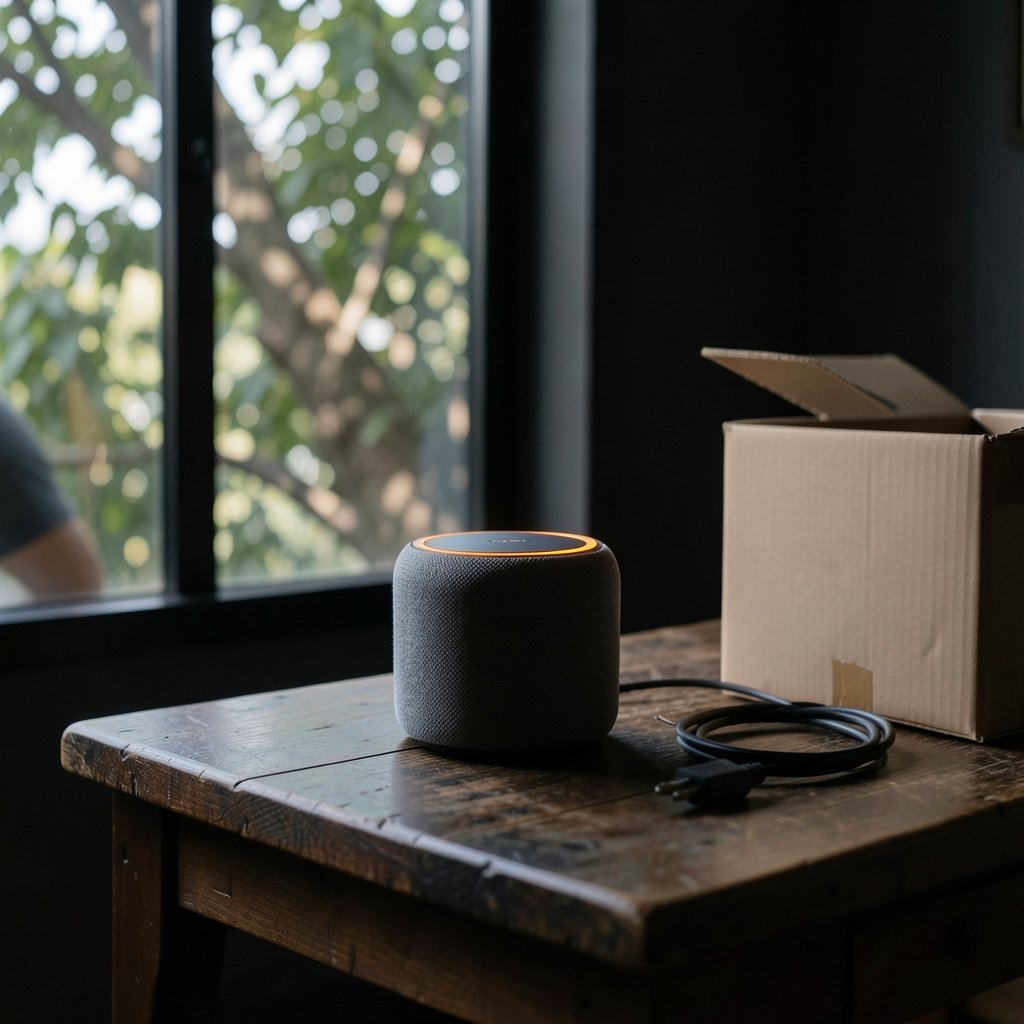
A factory reset wipes the device back to its out-of-box state. Wi-Fi details, the Amazon account pairing, alarm and timer settings, and any stored preferences are all erased. The device then enters setup mode, waiting to be configured again through the Alexa app.
That is a heavier step than most people need, and it should be reserved for specific situations:
- The device is being sold, gifted, or returned, and the previous owner’s account should not remain attached.
- The device is being moved to a new home or a new Wi-Fi network, and the standard network-change process in the app keeps failing.
- The Echo Dot is stuck in setup mode after a failed configuration attempt.
- Amazon support has recommended it after other troubleshooting has been exhausted.
- The device refuses to connect to Wi-Fi even after a restart and a router reboot.
What a factory reset will not do is fix a weak Wi-Fi signal, a dead outlet, or an Amazon account problem. Those need to be addressed at the source.
How to Factory Reset an Echo Dot by Generation
The method differs across generations, and this is where most online guides get vague. Here is the breakdown.
| Generation | Reset Method | Typical Hold Time | What to Watch For |
|---|---|---|---|
| 1st generation | Press and hold the small Reset button on the bottom using a paperclip or pin | About 5 seconds | The button is recessed and easy to miss |
| 2nd generation | Press and hold the Action button (the button with the dot symbol) | About 25 seconds | Light ring turns orange when the reset triggers |
| 3rd generation | Press and hold the Action button | About 25 seconds | Same orange ring confirmation |
| 4th generation (including clock models) | Press and hold the Action button | About 25 seconds | Button sits on top of the sphere |
| 5th generation (including clock models) | Press and hold the Action button | About 25 seconds | Button sits on top of the sphere |
Step-by-Step for 2nd Generation and Later
- Plug the Echo Dot into power and let it finish booting. A reset will not work on a device with no power.
- Locate the Action button. On the puck-shaped models it is on top, marked with a small dot. On the spherical models it is also on top, usually near the center.
- Press and hold the button firmly. Do not tap it. Keep holding.
- Wait through the initial light sequence. The ring will typically flash blue, then orange, before turning solid orange.
- Release the button the moment the ring turns solid orange. Holding longer does nothing extra.
- The device announces that it is in setup mode and the ring turns orange with a rotating pattern.
- Open the Alexa app, go to Devices, tap the + icon, choose Add Device, then Amazon Echo, and follow the on-screen prompts.
The most common failure is releasing too early. Many people let go after five or ten seconds because nothing seems to be happening. The light ring stays blue for a long time before it changes. Patience is the entire trick.
The second most common failure is holding the wrong button. On devices with a mute button, pressing that one only disables the microphone. The Action button is a separate control.
Step-by-Step for 1st Generation
The original Echo Dot, the flat puck with the volume ring on top, uses a different approach. There is a small recessed Reset button on the underside. Straighten a paperclip, press it into the hole, and hold for roughly five seconds until the light ring turns orange. Then set the device up again through the Alexa app.
A Note on Hold Times
Third-party guides disagree about the exact duration, and some cite 20 seconds while others say 25 or even 30. The safest rule is to hold the button until the light ring turns orange and then release. If nothing has changed after 30 seconds, release, wait ten seconds, and try again. The orange light, not the stopwatch, is the real signal.
Reconnecting After the Reset
Once the ring glows orange, the Echo Dot is broadcasting itself as an available device. The Alexa app should detect it automatically, though sometimes it takes a minute or two. If it does not appear, closing and reopening the app often helps, as does confirming that the phone is connected to the same Wi-Fi network the Echo Dot should join.
During setup the app will ask for the Wi-Fi network and password, the Amazon account to link, and a preferred language. After that, the device re-downloads its firmware and any skills associated with the account. Smart home devices, routines, and alarms tied to the account usually reappear on their own, but device-specific settings like a preferred wake word may need to be re-entered.
One practical tip: before resetting, take a photo of any routines or custom settings that matter. The account-level data survives, but it is easy to forget exactly how a morning routine was configured until it stops working.
Common Mistakes and What Actually Works
A few patterns come up again and again among people troubleshooting Echo Dots.
Resetting when a restart would do. This is the big one. A factory reset costs 10 to 15 minutes of setup time and gains nothing if the real problem was a temporary network hiccup. Always restart first.
Resetting to fix Wi-Fi range. If the Echo Dot sits at the far edge of the router’s coverage, a reset will not help. Moving the device, adding a mesh node, or switching to the 2.4 GHz band usually will. The Echo Dot line generally performs better on 2.4 GHz networks for range, even when a 5 GHz network is available.
Forgetting the old account. A secondhand Echo Dot still linked to the seller’s account cannot be set up. The factory reset must happen first, and it must be done while the device has power. Buyers should insist on seeing the orange ring before handing over money.
Interrupting the reset. Unplugging the device mid-reset can leave it in an unstable state. Let the process finish, even if it seems slow.
Assuming the light ring is broken. On some units the ring is dim by design. Cup a hand over the top to see the color clearly in a bright room.
For broader context on how smart speakers fit into connected homes, the Wikipedia entry on smart speakers covers the category’s history and the privacy debates that surround always-listening devices. Readers weighing whether to keep a device in a bedroom may find that background useful.
What Happens to Your Data After a Reset
Amazon’s privacy documentation makes clear that a factory reset removes local settings but does not automatically delete voice recordings or purchase history stored in the cloud. Those are tied to the Amazon account, not the device. Anyone who wants a clean slate should also review their voice history and smart home device list in the Alexa app’s settings, and remove the device from the account entirely if it is being sold.
This distinction matters for resale. A factory reset protects the next owner from inheriting access to a home network, but it does not scrub the seller’s cloud data. Both steps are needed for a genuinely clean handoff. The Federal Trade Commission’s guidance on protecting personal data offers a sensible general framework for what to clear before passing on any connected device.
Conclusion
Resetting an Echo Dot is not complicated, but the sequence matters. Restart first, because most problems are temporary and a power cycle costs nothing. Reach for the factory reset only when the device needs a genuine clean slate: a new network that will not take, a resale, a stuck setup loop, or a support recommendation. When the time comes, hold the Action button until the ring turns orange, release, and let the Alexa app guide the rest. The orange light is the only confirmation that counts, and it is worth waiting for.
Frequently Asked Questions
Does resetting an Echo Dot delete my Amazon account or purchases?
No. A factory reset removes the device’s local settings, Wi-Fi credentials, and account pairing. The Amazon account itself, along with purchases, skills, and cloud-stored voice recordings, stays intact. The device simply needs to be linked to an account again during setup.
How long should I hold the button to reset an Echo Dot?
For second-generation and later models, hold the Action button for about 25 seconds, or until the light ring turns solid orange. Release as soon as it does. First-generation models use a recessed Reset button on the bottom, held for roughly five seconds.
What if the light ring never turns orange?
Try again with a longer hold, up to 30 seconds. Confirm the device has power and that the correct button is being pressed; the mute button will not trigger a reset. If the ring still will not change, unplug the device for 30 seconds, plug it back in, let it fully boot, and repeat.
Can I reset an Echo Dot without the Alexa app?
The reset itself happens entirely on the device, so the app is not needed to trigger it. The app is required afterward to reconnect the Echo Dot to Wi-Fi and link it to an Amazon account.
Will a factory reset fix Wi-Fi connection problems?
Sometimes, but not usually. If the Echo Dot cannot reach the router, a restart and a router reboot should come first. A reset helps when the stored network credentials are corrupted or the device is stuck in a failed setup loop. Weak signal strength needs a physical fix, not a software one.
Do I need to reset an Echo Dot before selling it?
Yes, and it should be done in front of the buyer so they can see the orange ring. A reset removes the seller’s Wi-Fi details and account pairing, which protects both parties. Sellers should also remove the device from their Amazon account in the Alexa app and review their stored voice recordings.
