
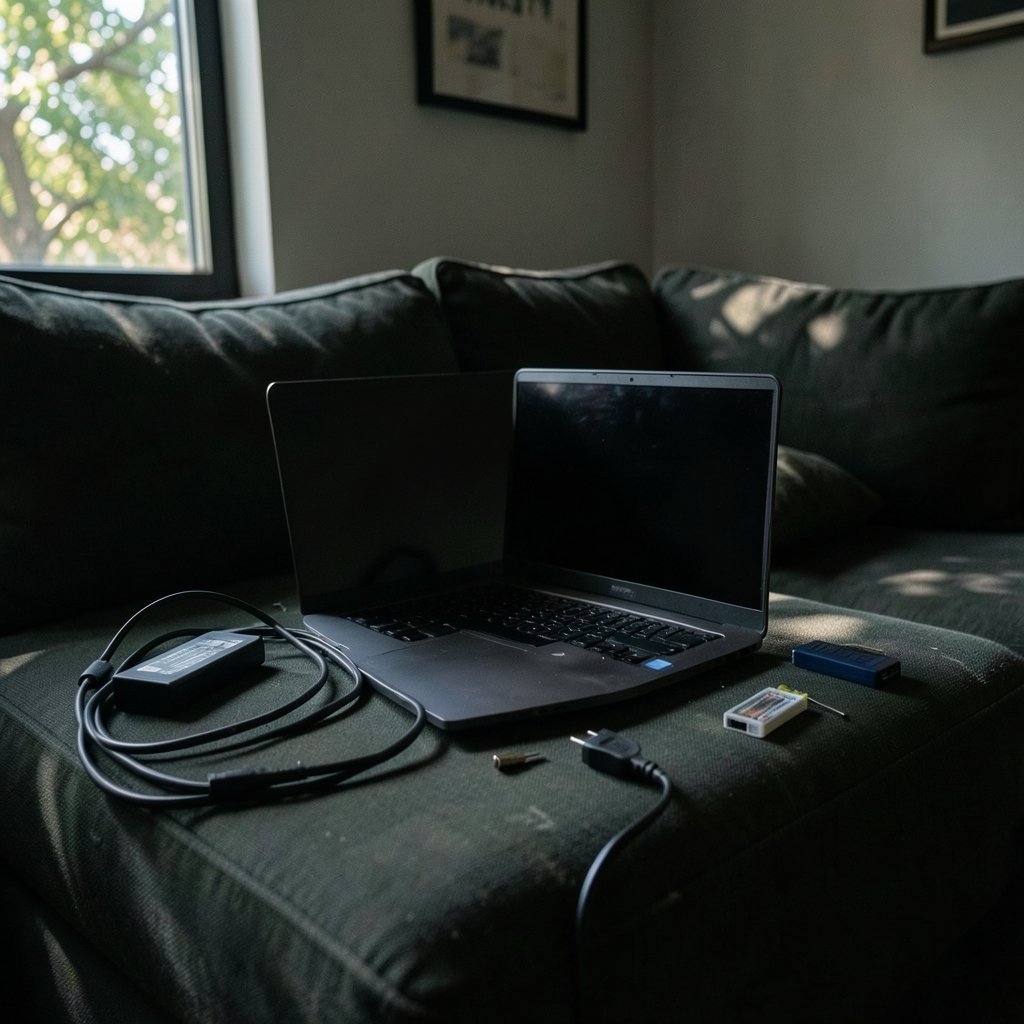
Roughly one in five laptop owners reports a battery that no longer holds a charge the way it used to, and battery complaints consistently rank among the top hardware issues in consumer surveys. The frustrating part? Most people assume a dead battery means a dead laptop. It usually doesn’t. A surprising number of “battery failures” are actually charger faults, software glitches, or simple wear that can be managed. Here’s a practical walkthrough of the most common laptop battery problems, what causes them, and what actually fixes them in real-world use. (Lithium-ion battery)
Why Laptop Batteries Fail in the First Place
Every modern laptop runs on a lithium-ion pack. These cells degrade through charge cycles, heat, and age. Most manufacturers rate a pack for roughly 300 to 1,000 full charge cycles before capacity drops to around 80 percent of its original design. That number varies widely by vendor and chemistry, so treat any single figure with suspicion.
Heat is the quiet killer. A laptop that runs hot on a desk, gets left charging at 100 percent in a warm room, or sits on a bed blocking its vents will age faster than one kept cool. This is the single biggest factor most people ignore.
Problem 1: The Battery Drains Way Too Fast

What’s happening
A new laptop might last eight hours; two years later it barely makes it through a meeting. This is normal capacity fade, but sometimes the drain is far worse than the battery’s age should explain.
Fixes that work
- Open the battery health report. On Windows, run `powercfg /batteryreport` in Command Prompt to see design capacity versus current full-charge capacity. On macOS, check System Settings under Battery.
- Cut background drain. Browser tabs, cloud sync clients, and always-on apps eat power silently. Check the battery usage panel and close what you don’t need.
- Lower screen brightness and shorten the display timeout. On many laptops, the screen is the single largest power draw.
- Disable high-performance power modes when unplugged.
If the health report shows capacity has fallen below about 60 to 70 percent of design, replacement is the realistic answer. If it still shows 90 percent but runtime is terrible, the culprit is software or a swollen background process, not the cell.
Problem 2: The Laptop Says “Plugged In, Not Charging”
This message drives people up the wall. It usually has nothing to do with the battery itself.
Common causes and fixes
- Faulty or underpowered charger. A third-party adapter with the wrong wattage may power the laptop but not charge the battery. Test with the original charger.
- Worn DC jack or cable. Wiggle the plug gently. If charging flickers, the jack or cable is failing.
- Battery management firmware. Many laptops stop charging at a set threshold (often 60 or 80 percent) to protect battery life. This is a feature, not a bug. Check the manufacturer’s battery care settings before panicking.
- Driver or firmware glitch. A full shutdown (not sleep), unplugging, holding the power button for 15 seconds, then restarting resolves this more often than people expect.
If you’re shopping for a replacement machine because the old one keeps failing, it’s worth reading up on the best budget laptops under 1000 so you don’t overpay for specs you won’t use.
Problem 3: A Swollen or Bulging Battery
This is the one problem you should never ignore. Lithium-ion cells can swell from gas buildup caused by age, heat, or manufacturing defects.
Warning signs
- The trackpad feels stiff or won’t click.
- The chassis bulges or the keyboard flexes upward.
- The laptop rocks on a flat table.
What to do
Stop using the laptop immediately, do not charge it, and do not puncture or press the swollen pack. Store it in a cool, dry place away from anything flammable and arrange safe disposal or replacement through the manufacturer or a local hazardous-waste facility. Swollen batteries are a genuine fire risk, and this is one case where DIY repair is a bad idea.
Problem 4: Sudden Shutdowns at 20 or 30 Percent
A laptop that dies at 25 percent isn’t out of power. It’s misreporting. One or more worn cells can no longer deliver the voltage the system expects under load, so the reported percentage becomes fiction.
Fixes
- Generate a battery report and compare design capacity to full-charge capacity.
- Test under load: play a video or run a benchmark and watch when it shuts down.
- If shutdowns happen consistently at a fixed percentage, the pack is worn unevenly and needs replacement.
- Update the BIOS or firmware first. Occasionally a firmware update corrects the reporting curve.
The old advice to “fully discharge and recharge to recalibrate” mostly applies to legacy nickel-based batteries. For modern lithium-ion packs, deep discharges can actually cause harm. Skip that ritual.
Problem 5: The Battery Won’t Charge at All
Total charging failure narrows the suspects fast.
| Symptom | Likely cause | First fix to try |
|---|---|---|
| No charging light at all | Dead charger or cable | Swap charger, test outlet |
| Light on, charge stuck at 0% | Battery disconnected or dead | Reseat battery connector (if removable) |
| Charges only at an angle | Worn DC jack | Wiggle test, then repair |
| Charges then stops randomly | Overheating or firmware | Clean vents, update BIOS |
If the laptop is under warranty, contact support before opening anything. A single stripped screw can void coverage.
Problem 6: Rapid Drain After a Replacement Battery
Third-party replacement packs are a minefield. Counterfeit and low-quality cells are common, and safety agencies have issued recalls for knockoff batteries. A cheap replacement that dies in six months isn’t a bargain.
Buy official replacements where possible, or at minimum a reputable brand with a real warranty. After installing, let the battery charge fully once and check the health report to confirm the new pack reports sensible capacity. If it reports wildly different numbers than its label claims, return it.
Problem 7: Battery Overheating While Charging
A warm laptop under load is normal. A hot battery area, a burning smell, or a chassis too hot to touch is not.
Practical steps
- Clean the vents and fan. Dust buildup is the most common cause of chronic overheating.
- Use the laptop on a hard, flat surface, never on a blanket or cushion.
- Avoid charging in direct sun or in a hot car.
- Check for a runaway process in Task Manager or Activity Monitor.
- If the battery itself gets hot while the rest of the laptop stays cool, stop using it and get the pack checked.
Heat management matters beyond the battery, too. If you’re choosing a machine for heavy workloads, guides like the best laptops for engineering students tend to weigh cooling design heavily for exactly this reason.
Problem 8: Battery Life Collapsed After an Update
Operating system updates occasionally change power management behavior, and users notice within days.
Fixes
- Roll back the update if the timing lines up precisely.
- Reinstall or update the chipset and power management drivers from the manufacturer’s site, not a generic driver tool.
- Check for a new BIOS release; vendors often patch power bugs quietly.
- Reset the power plan to default and rebuild any custom settings.
This kind of problem is annoying precisely because nothing is physically broken. Patience and a driver refresh usually win. (Computer Workstations eTool)
Habits That Actually Extend Battery Life
Most battery advice online is recycled folklore. Here’s what holds up in practice:
- Cap the charge at 60 to 80 percent if the laptop supports it and you mostly work plugged in. Vendors including Lenovo, Dell, and Apple offer charge-limit modes for this reason.
- Keep it cool. Heat accelerates aging more than anything else you control.
- Avoid deep discharges. Topping up regularly is kinder to lithium-ion cells than running to zero.
- Store at around 50 percent if the laptop will sit unused for weeks, in a cool place.
- Use the original charger. Wrong voltage or wattage stresses the charging circuit.
A common mistake is leaving a gaming laptop plugged in at 100 percent on a soft surface for months. That combination of full charge plus trapped heat is close to worst-case for longevity.
When Replacement Is the Only Sensible Fix
Replacement makes sense when the health report shows severe capacity loss, the pack is swollen, or sudden shutdowns persist after firmware updates. It’s usually cheaper than a new laptop and takes under an hour on most models with removable backs.
For context on how hardware costs are shifting, coverage of the Trump semiconductor tariffs on laptops and servers in 2026 shows why keeping an existing machine alive is often the smarter financial move right now.
If you do decide to replace the whole device, it’s worth comparing current options carefully. Roundups of the best laptops in 2026 for every budget can help you match a machine to your actual workload rather than overspending.
A Quick Diagnostic Routine
Before assuming the worst, run this sequence:
- Check the battery health report for design versus actual capacity.
- Test with the original charger and a different outlet.
- Update BIOS, chipset, and power drivers.
- Clean the vents and confirm the laptop stays cool.
- Look for background apps draining power.
- If all of that fails and capacity is genuinely low, replace the battery.
This routine resolves a large share of complaints without spending a cent.
Conclusion
Laptop battery problems look scary but break down into a handful of familiar patterns: capacity fade, charging faults, swelling, misreported percentages, and heat damage. The good news is that most of these have practical fixes, and only a few genuinely require a new pack. The best defense is boring: keep the machine cool, avoid deep discharges, cap the charge when you can, and check the health report before you panic. A laptop battery is a consumable part, not a permanent one, and treating it that way saves both money and grief.
Frequently Asked Questions
How long should a laptop battery last?
Most lithium-ion laptop packs hold up for roughly two to four years of regular use, or around 300 to 1,000 full charge cycles before capacity falls to about 80 percent. Heavy heat exposure and constant full-charge storage shorten that window considerably.
Can a swollen laptop battery explode?
Explosion is rare, but a swollen battery is a real fire risk and should never be charged, pressed, or punctured. Stop using the laptop, store the pack in a cool dry place away from flammable material, and arrange safe disposal or replacement.
Is it bad to leave a laptop plugged in all the time?
Not inherently, but keeping a battery pinned at 100 percent in a warm environment accelerates wear. If your laptop offers a charge-limit mode, capping it at 60 to 80 percent while plugged in is a genuinely useful habit.
Does fully discharging a battery recalibrate it?
For modern lithium-ion packs, no. Deep discharges can cause harm rather than help. That advice comes from older nickel-based battery chemistry and doesn’t transfer to today’s laptops.
Why does my laptop shut down at 30 percent?
A laptop that dies well above zero usually has worn cells that can’t deliver the needed voltage under load, so the reported percentage is inaccurate. Check the battery health report and plan a replacement if capacity is far below design.
Can I replace a laptop battery myself?
On many models with removable back panels, yes, and it takes under an hour with basic tools. Check the manufacturer’s service documentation first, and remember that opening the chassis can void a warranty. Swollen batteries should be handled by a professional.



