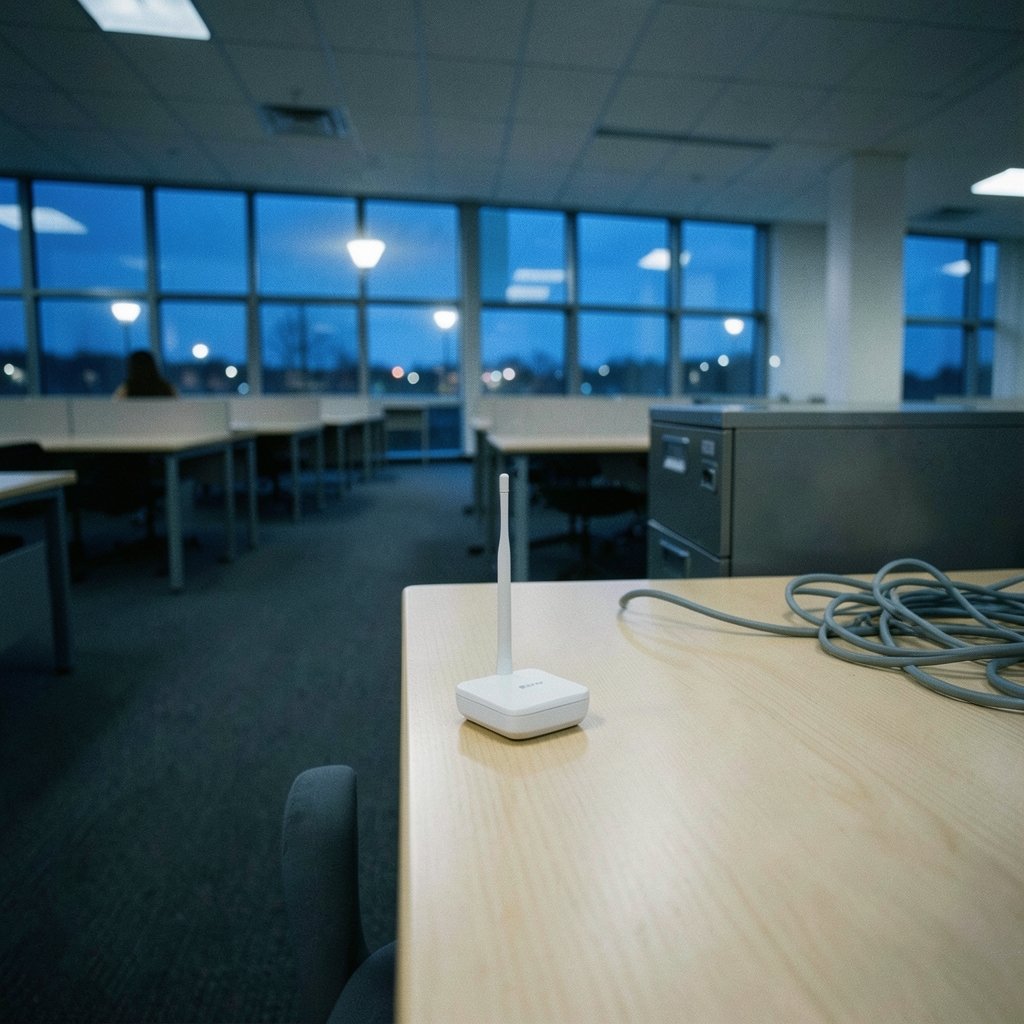
Does your smart home fall apart the moment you walk into the kitchen? Lights that respond instantly in the living room suddenly lag, sensors drop off the network, and automations fire late or not at all. In many homes, the culprit isn’t a bad device or buggy firmware. It’s where the Zigbee coordinator sits.
Placement is one of the most overlooked parts of building a reliable Zigbee network. People spend hours comparing bulbs and sensors, then shove the coordinator into a metal cabinet next to the router and wonder why the mesh feels fragile. This guide breaks down what the coordinator actually does, why physical position matters, and the practical steps that make a real difference.
What the Zigbee Coordinator Actually Does
Before talking about placement, it helps to be clear about the job. The Zigbee coordinator is the device that forms the network. It picks the channel and network identifier, acts as the trust center for security keys, and serves as the gateway between your Zigbee devices and your smart home hub or app. In most homes, it’s a USB stick plugged into a small computer or hub, or a dedicated bridge box.
According to the Connectivity Standards Alliance, Zigbee is built on the IEEE 802.15.4 standard, which defines the low-power radio layer underneath. That radio layer is the reason placement matters so much. Zigbee isn’t Wi-Fi. It trades raw speed for low power and long battery life, and that trade-off makes it more sensitive to physical obstacles and interference. (Radio Frequency Safety)
The coordinator is also a single point of failure in many setups. If it can’t hear a device, that device is effectively offline, even if it’s sitting three rooms away and perfectly healthy.
Why Position Beats Almost Everything Else

Radio waves at 2.4 GHz, the band Zigbee shares worldwide, behave a lot like light. They travel well through open space, weaken through walls, and stop almost dead against metal and water. A coordinator buried behind a TV, inside a cupboard, or next to a fridge is fighting a losing battle before a single device joins.
The IEEE 802.15.4 standard defines the physical and media access layers that govern how these signals are transmitted, including channel behavior and output power. What that means in practice is simple: the coordinator’s antenna needs a clear path to as much of the home as possible.
There’s a second layer to this. Zigbee is a mesh network. Mains-powered devices like smart plugs, bulbs, and repeaters act as routers, passing messages along. Battery devices like door sensors and buttons are end devices and don’t route traffic. So the coordinator’s job isn’t to reach every device directly. It’s to reach enough routers that the mesh can do the rest.
That’s why a coordinator in a central, elevated spot with a few well-placed routers often outperforms a “better” coordinator stuck in a corner.
The Practical Rules That Actually Work
Here are the placement habits that consistently produce stable networks, drawn from how the technology behaves rather than marketing claims.
Put it central and high
The single biggest improvement most people can make is moving the coordinator toward the middle of the home and off the floor. Radio performance improves with height and line of sight. A coordinator on top of a shelf in a central hallway will usually beat one on the floor of a back bedroom.
Keep it away from metal and water
Metal reflects and blocks 2.4 GHz signals. Water absorbs them. That means avoiding metal cabinets, filing cabinets, radiators, mirrors, fish tanks, and large appliances. A coordinator tucked behind a stainless steel fridge is close to the worst possible spot.
Separate it from Wi-Fi gear
Wi-Fi and Zigbee share the 2.4 GHz band, and they can interfere with each other. Placing the coordinator right on top of a Wi-Fi router or next to a microwave is asking for trouble. A little distance helps, and so does choosing a Zigbee channel that doesn’t overlap your Wi-Fi. Silicon Labs publishes guidance on Zigbee channel evaluation that explains how overlapping channels affect performance. (Zigbee)
Watch out for USB 3.0 noise
Many popular coordinators are USB dongles. USB 3.0 ports and cables are known to emit noise around 2.4 GHz, which can degrade Zigbee reception. The common fix is a short USB extension cable that moves the dongle away from the host computer and its ports. It’s a cheap change with a surprisingly large effect.
Give it breathing room from the host
If the coordinator is plugged directly into a hub or mini PC, the device itself can block signal on one side. An extension cable that lifts the dongle into open air is one of the most repeated pieces of advice in the community, and for good reason.
Coordinator vs. Router Placement: What Matters More
A common mistake is obsessing over the coordinator while ignoring routers. In a mesh, routers do most of the heavy lifting. A well-placed router in a dead zone can fix coverage that no amount of coordinator repositioning will solve.
| Factor | Coordinator placement | Router placement |
|---|---|---|
| Primary role | Forms network, bridges to hub | Extends mesh, relays messages |
| Typical device | USB stick or bridge | Smart plug, bulb, repeater |
| Best position | Central, elevated, clear of metal | Spread across the home, filling gaps |
| Impact of poor placement | Whole network feels fragile | Local dead zones and dropouts |
| Power source | Usually fixed | Mains-powered |
The takeaway: get the coordinator into a sensible central spot, then add routers where coverage is thin. The two work together.
Common Mistakes People Make
A few placement errors show up again and again.
- Hiding the coordinator for aesthetics. Tucking it into a cabinet or behind furniture looks tidy but wrecks reception.
- Placing it in the room with the most devices. The coordinator doesn’t need to be near the most devices. It needs to be near the center of the mesh.
- Ignoring the host device. A coordinator next to a Wi-Fi router, a NAS, or a metal PC case is fighting interference all day.
- Assuming more power solves everything. A higher-gain antenna helps, but it can’t push through a metal wall.
- Forgetting the channel. A crowded channel makes even good placement feel bad. Checking for Wi-Fi overlap is part of the job.
If you’re weighing where to set up your whole smart home, the same logic that applies to choosing a good location for a hub applies here. Our guide to the best place to live for connected living touches on how layout and building materials shape connectivity, and the principles carry straight over to Zigbee.
How to Test Whether Placement Is Working
You don’t need expensive gear to check your setup. A few simple habits will tell you a lot.
- Map your devices. Sketch the home and mark where each Zigbee device sits. Look for clusters far from the coordinator.
- Check link quality. Tools like Zigbee2MQTT and Home Assistant’s ZHA integration show link quality scores for each device. Low scores point to weak spots.
- Watch for dropouts. Devices that go unavailable regularly are usually at the edge of range or behind an obstacle.
- Move one thing at a time. Reposition the coordinator, wait a day, and compare. Changing several things at once makes it impossible to know what helped.
- Add a router, not a second coordinator. A smart plug in a dead zone often fixes more than moving the coordinator again.
The Zigbee2MQTT documentation and the Home Assistant ZHA integration docs both explain how to read network maps and link quality, which turns guesswork into evidence.
Antennas, Range, and Realistic Expectations
Coordinator hardware varies a lot. A basic dongle with an internal antenna will usually underperform one with an external antenna, especially in a larger home. But antenna gain isn’t magic. It shapes the signal pattern rather than creating range out of nothing, and a high-gain antenna pointed the wrong way can actually make things worse.
The Silicon Labs Zigbee resources are a useful reference for understanding how radio performance depends on antenna design and output power. The practical lesson is that a modest coordinator in a good spot beats a fancy one in a bad spot almost every time.
It’s also worth remembering that Zigbee shares the 2.4 GHz band with a lot of other equipment. Cordless phones, baby monitors, and even some LED drivers can add noise. Placement that keeps the coordinator away from these sources pays off.
When to Move the Coordinator vs. When to Add Hardware
Not every problem is a placement problem. Here’s a simple way to decide.
If most devices work but a few in one area are flaky, the coordinator is probably fine and you need a router in that area. If the whole network feels sluggish and devices across the home drop out, the coordinator’s position or channel is likely the issue. If devices join but disconnect constantly, check for interference and USB noise before buying anything new.
A useful rule of thumb: fix placement first because it’s free, then add routers, then consider a coordinator with a better antenna. Spending money before checking the basics is the most common way people waste it.
Conclusion
Zigbee coordinator placement isn’t glamorous, but it’s one of the highest-leverage things you can do for a smart home. Put the coordinator central and elevated, keep it away from metal, water, and Wi-Fi gear, lift USB dongles off noisy ports with an extension cable, and let routers do the work of covering distance. Get those basics right and the mesh tends to take care of itself.
The good news is that most of these fixes cost nothing but a few minutes and a bit of moving furniture. Start with position, check your link quality, and adjust from there. A stable Zigbee network is usually less about better hardware and more about smarter placement.
Frequently Asked Questions
Where should a Zigbee coordinator be placed?
Place it centrally in the home, elevated, and with a clear line of sight to as many rooms as possible. Keep it away from metal, water, large appliances, and Wi-Fi routers. A central hallway shelf usually beats a corner cupboard.
Does the Zigbee coordinator need to be near the devices?
No. Because Zigbee is a mesh, the coordinator mainly needs to reach routers, which then relay messages to end devices. Being near the most devices matters far less than being near the center of the mesh.
Can a Zigbee coordinator be too close to a Wi-Fi router?
Yes. Wi-Fi and Zigbee share the 2.4 GHz band, so close proximity can cause interference. Keep some distance between them and choose a Zigbee channel that doesn’t overlap your Wi-Fi channels.
Why do people put USB coordinators on extension cables?
USB 3.0 ports and cables can emit noise around 2.4 GHz, which degrades Zigbee reception. A short extension cable moves the dongle away from the host device and into open air, improving signal quality.
Does moving the coordinator really fix dropouts?
Sometimes. If devices across the whole home are flaky, placement or channel is often the cause. If only devices in one area drop out, adding a router there is usually the better fix.
How do I know if my coordinator placement is good?
Check link quality scores in tools like Zigbee2MQTT or Home Assistant’s ZHA, watch for devices that regularly go unavailable, and map where your devices sit. Low scores and repeated dropouts point to weak spots worth fixing.