
What happens to your NAS when the power dies at 2 a.m.? If the answer is “I hope for the best,” you are one thunderstorm away from a corrupted RAID array, lost family photos, or a rebuild that eats an entire weekend. A UPS keeps the box alive during short outages, but the real magic is the graceful shutdown: the NAS notices the battery is running low, closes its services cleanly, and powers off before the lights go out for good. Here is how to set that up properly, whether you run Synology, QNAP, TrueNAS, or a home-built Linux server. (Power Outages (Ready.gov))
Why a Graceful Shutdown Beats Just Plugging In a UPS
A UPS alone only buys time. The battery holds the NAS up for five, ten, maybe thirty minutes, and then it dies anyway. The difference between a hard crash and a graceful shutdown is the difference between a filesystem that survived and one that needs repair.
During a hard power loss, the NAS stops mid-write. Databases, virtual machines, Docker containers, and even the ext4 or ZFS metadata can be left in an inconsistent state. ZFS is famously resilient thanks to copy-on-write, but resilience is not the same as “no damage.” A clean shutdown flushes caches, stops services in the right order, and unmounts volumes properly. That is exactly what NUT (Network UPS Tools) and the built-in vendor tools are designed to do.
The second reason matters just as much: automation. Nobody wants to be the person who has to be home to press a button. A properly configured setup shuts everything down by itself, sends a notification, and lets you go back to sleep. (Pokemon pinball ruby sapphire mgba rumble setup 2026)
The Core Concept: One UPS Server, Many Clients
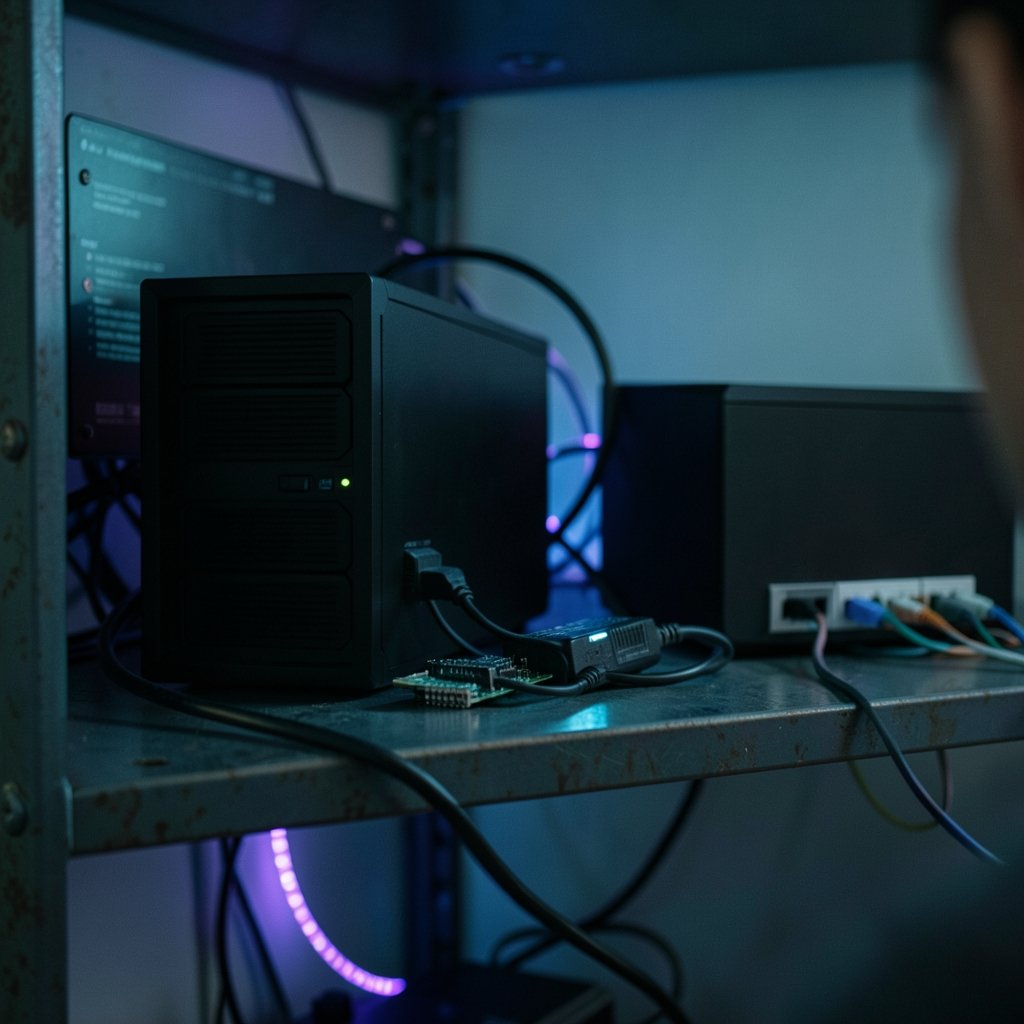
The most common mistake in NAS UPS setups is treating each device as an island. If you have a NAS, a desktop, and a Raspberry Pi all plugged into the same UPS, you want them to all shut down together, not each reacting to its own USB cable.
The standard pattern is a NUT server/client model:
| Role | What it does | Typical device |
|---|---|---|
| NUT server | Talks to the UPS over USB, serial, or SNMP and publishes its status on the network | The NAS itself, or a small always-on box |
| NUT client | Subscribes to the server and triggers a local shutdown when the battery is low | Other NAS units, PCs, servers |
| Driver | The low-level process (for example `usbhid-ups`) that reads the UPS hardware | Runs on the server |
One device owns the USB cable. Everything else listens over TCP port 3493. This is the setup that scales, and it is the one worth building even if you only have two machines today. (VS Code Extensions Cursor Setup 2026: How to Configure)
Step-by-Step: NUT on a Linux NAS or Home Server
If you run TrueNAS, Unraid, OpenMediaVault, or plain Debian/Ubuntu, NUT is the engine underneath. The exact package names vary, but the logic is identical.
- Connect the UPS by USB and confirm the system sees it. Run `lsusb` and look for the UPS vendor. If it does not appear, try another cable; data cables and charge-only cables look identical and this trips people up constantly.
- Install NUT from your distribution’s package manager. On Debian-based systems that is `nut` plus the client package.
- Pick the right driver. Most consumer USB UPSes work with `usbhid-ups`. Serial units need a different driver, and SNMP network cards need `snmp-ups`. Guessing wrong here is the number one reason a UPS “isn’t detected.”
- Configure `ups.conf` with a name for your UPS and the driver. Keep the name short and lowercase; it appears in every other config file.
- Set up `upsd.conf` so the server listens on the network interface rather than only localhost, if other devices will connect.
- Configure `upsmon.conf` with the UPS name, the number of power supplies it feeds (`MINSUPPLIES`), and the monitor user credentials. This is where you define what “low battery” means for your shutdown.
- Enable and start the services, then verify with `upsc` against your UPS name. You should see battery charge, load, and status values.
- Test it. More on this below, because skipping the test is how people discover a broken config during an actual outage.
The official NUT documentation is the reference for every directive, and it is worth reading the man pages for `upsmon.conf` specifically. Small syntax differences between NUT versions cause a lot of silent failures.
Synology, QNAP, and TrueNAS: The Built-In Route
Not everyone wants to hand-edit config files. The major NAS vendors ship UPS support in the web interface, and for most home users it is genuinely good enough.
Synology DSM
Synology hides UPS settings under Control Panel → Hardware & Power → UPS. You can enable USB UPS support, choose whether the NAS enters Safe Mode or shuts down entirely, and set a time delay before that happens. Safe Mode unmounts volumes and stops services but keeps the NAS reachable, which is handy if you want to log in remotely after power returns.
The catch: Synology’s built-in UPS server feature lets other Synology devices act as clients, but mixing brands gets messy. If you have a QNAP on the same UPS, NUT on a separate box is cleaner.
QNAP QTS
QNAP puts UPS options under Control Panel → System → External Device (the exact path shifts between QTS versions). You get USB UPS support, an SNMP UPS option for network cards, and configurable shutdown delays. QNAP also supports acting as a network UPS server for other devices. (Network-attached storage)
TrueNAS
TrueNAS exposes UPS monitoring in the web UI with driver selection, shutdown mode, and shutdown timer. It is essentially a friendly front end for NUT, so the underlying behavior matches what you would get from a manual install.
| Platform | USB UPS | SNMP UPS | Network client mode | Easiest for beginners |
|---|---|---|---|---|
| Synology DSM | Yes | Yes | Yes (Synology to Synology) | Yes |
| QNAP QTS | Yes | Yes | Yes | Yes |
| TrueNAS | Yes | Yes | Yes (via NUT) | Moderate |
| Manual NUT | Yes | Yes | Yes (any brand) | No |
Choosing Shutdown Timing That Actually Works
This is where most setups go wrong, and it has nothing to do with software. It is arithmetic.
Work out your runtime budget. A 1500VA UPS with a modest NAS and a switch might give you 20 to 30 minutes. Now subtract the time you want the NAS to stay up in case power returns quickly, say 5 minutes. Then subtract the time the shutdown itself takes, which on a NAS with lots of Docker containers can be several minutes. What is left is your safety margin.
A few practical rules that hold up in the real world:
- Never shut down on the first power blip. Set a delay of at least 60 to 120 seconds so brief flickers do not trigger a full shutdown cycle.
- Shut down on low battery, not on a fixed timer. NUT’s low-battery flag is more reliable than a countdown, because runtime depends on load.
- Give virtual machines and databases time to stop. If your NAS runs VMs, the guest shutdown often needs more time than the host.
- Test with a real load. A NAS idling with no drives spinning shuts down faster than one mid-scrub.
If you are the type who likes to tinker with emulation and retro setups on the same hardware, you already know how much a sudden power cut can cost, which is why the same care that goes into protecting a retro gaming machine should go into protecting the hardware hosting it.
Testing the Setup Without Wrecking Your Data
You would not deploy a backup you never restored. Treat shutdown the same way.
The safest test is a simulated event. NUT includes commands to force a shutdown sequence without pulling the plug, which lets you watch the logs and confirm each service stops in order. Do this during a maintenance window, not while a backup job is running.
The more realistic test is pulling mains power for a few minutes and watching the whole chain. Things to watch for:
- Does the NAS detect the outage within a few seconds?
- Do the client devices receive the low-battery signal at the right moment?
- Does the shutdown complete before the UPS dies?
- Does everything come back up cleanly when power returns?
Write down the timings. If the NAS finishes shutting down with 30 seconds of battery left, your margin is too thin. Add a bigger UPS or shorten the delay.
Common Mistakes That Break Graceful Shutdown
After enough of these setups, certain failure patterns repeat. Watch for these.
Wrong driver. The UPS shows up as a generic HID device and NUT reports nothing useful. Check the NUT hardware compatibility list for your exact model.
Monitor user mismatch. The `upsmon` credentials must match what `upsd` expects. A typo here produces a client that connects but never triggers a shutdown.
Only one power supply counted. If a server has two PSUs and only one is on the UPS, `MINSUPPLIES` needs to reflect that. Get it wrong and the machine either never shuts down or shuts down too early.
Forgetting the switch and router. If the network gear is not on the UPS, the NAS loses connectivity the moment power drops, and remote notifications never arrive. Put the switch on the battery side.
No notification path. Configure email or a push notification so you actually learn the UPS fired. Silent shutdowns hide failing batteries.
Skipping firmware updates. UPS firmware bugs are real, and vendor tools sometimes fix detection issues that no amount of config editing will solve. Version mismatches are usually the culprit in software stacks generally, and UPS tooling is no different.
When to Use NUT Instead of Vendor Tools
Vendor tools are convenient, but they have limits. They typically only coordinate with devices from the same brand, they hide the underlying logic, and they sometimes lack fine-grained control over shutdown ordering.
NUT wins when you have a mixed environment: a Synology NAS, a Linux server, a Windows PC, and a Raspberry Pi all on one UPS. It also wins when you want to script custom behavior, like shutting down a VM host first and the storage array last. The trade-off is configuration effort and the need to read documentation carefully.
For a single NAS with a single UPS and no other devices, the built-in tool is fine. Do not over-engineer it. For anything more complex, NUT is the right foundation. If you also run game servers or multiplayer backends on the same hardware, the shutdown ordering matters even more, because a clean stop prevents corrupted state. (Playfab multiplayer servers setup 2026)
Conclusion
A UPS without graceful shutdown is half a solution. The battery keeps the lights on, but the software is what actually saves your data. Start by deciding who owns the USB cable, configure the shutdown trigger around low battery rather than a guessed timer, and test the whole chain before you trust it. Whether you use Synology’s Safe Mode, QNAP’s built-in tools, TrueNAS, or a full NUT deployment, the goal is the same: when the power goes out, the NAS should close up shop on its own terms and come back without drama.
Frequently Asked Questions
What is a graceful shutdown on a NAS?
A graceful shutdown is an orderly power-off where the NAS stops services, flushes caches, and unmounts volumes before cutting power. It is triggered automatically by UPS monitoring software when the battery reaches a low level, rather than happening as an abrupt crash.
Do I need NUT if my NAS already has UPS support?
Not necessarily. If you have one NAS and one UPS, the built-in vendor tool is usually enough. NUT becomes valuable when you need to coordinate shutdown across devices from different brands, or when you want fine control over shutdown ordering and timing.
How long should the NAS stay on after a power outage starts?
Long enough to ride out brief flickers, typically 60 to 120 seconds, but short enough that the shutdown finishes with margin to spare. Base the number on your measured UPS runtime under real load, not the marketing figure on the box.
Can one UPS shut down multiple devices?
Yes. The standard approach is a NUT server that talks to the UPS and NUT clients on other devices that listen over the network. When the server reports low battery, every client triggers its own local shutdown at roughly the same time.
How do I test graceful shutdown without risking data?
Use the software’s built-in test commands to simulate a low-battery event while watching the logs, and schedule it outside backup windows. Once that works, do one real mains-pull test with nothing critical running and record the timings.
What happens if the NAS shuts down but the UPS runs out first?
That is the failure mode to avoid. If the shutdown does not complete before the battery dies, you get the same crash you were trying to prevent. Measure the actual shutdown duration, add a safety margin, and size the UPS or shorten the delay accordingly.



