
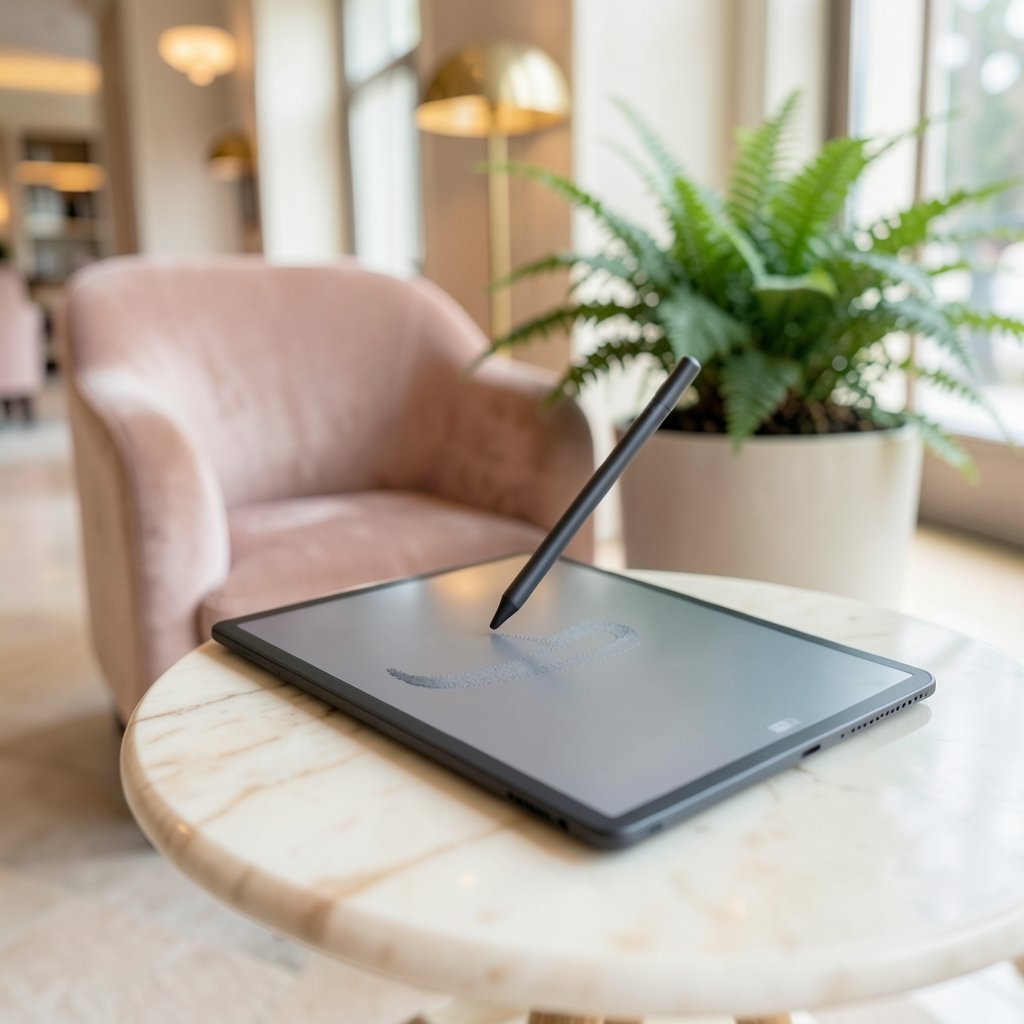
Does your handwriting ever feel like it is dragging a half-second behind your hand? If you have ever tried to sign a PDF on an E Ink tablet and watched the ink appear just after your stylus tip, you have felt writing latency firsthand. That tiny gap between pen movement and pixel change is the single biggest factor separating an E Ink tablet that feels like paper from one that feels like a laggy touchscreen. (Electronic paper)
This article breaks down what E Ink writing latency actually is, why it varies so much between devices, which hardware and software choices shrink it, and what to check before you buy. It also covers the trade-offs nobody mentions in the spec sheet, plus practical fixes for the lag you already have.
What writing latency really means on an E Ink tablet
Latency is the delay between your stylus moving and the screen updating to show the new ink. In reviews you will often see it called “pen-to-pixel” time or “ink latency.” It is measured in milliseconds, and lower is better.
Here is the catch: almost no manufacturer publishes a standard latency figure. Measurement methods differ wildly. One reviewer may test inside a note-taking app with a specific stylus and firmware version; another may test in a sketching app with a different refresh mode. Comparing those two numbers is like comparing lap times from two different racetracks.
What matters more than any single figure is consistency. A tablet with a slightly higher but steady delay often feels better than one that is fast most of the time and stutters when the screen decides to do a full refresh.
Why E Ink is inherently slower than LCD or OLED
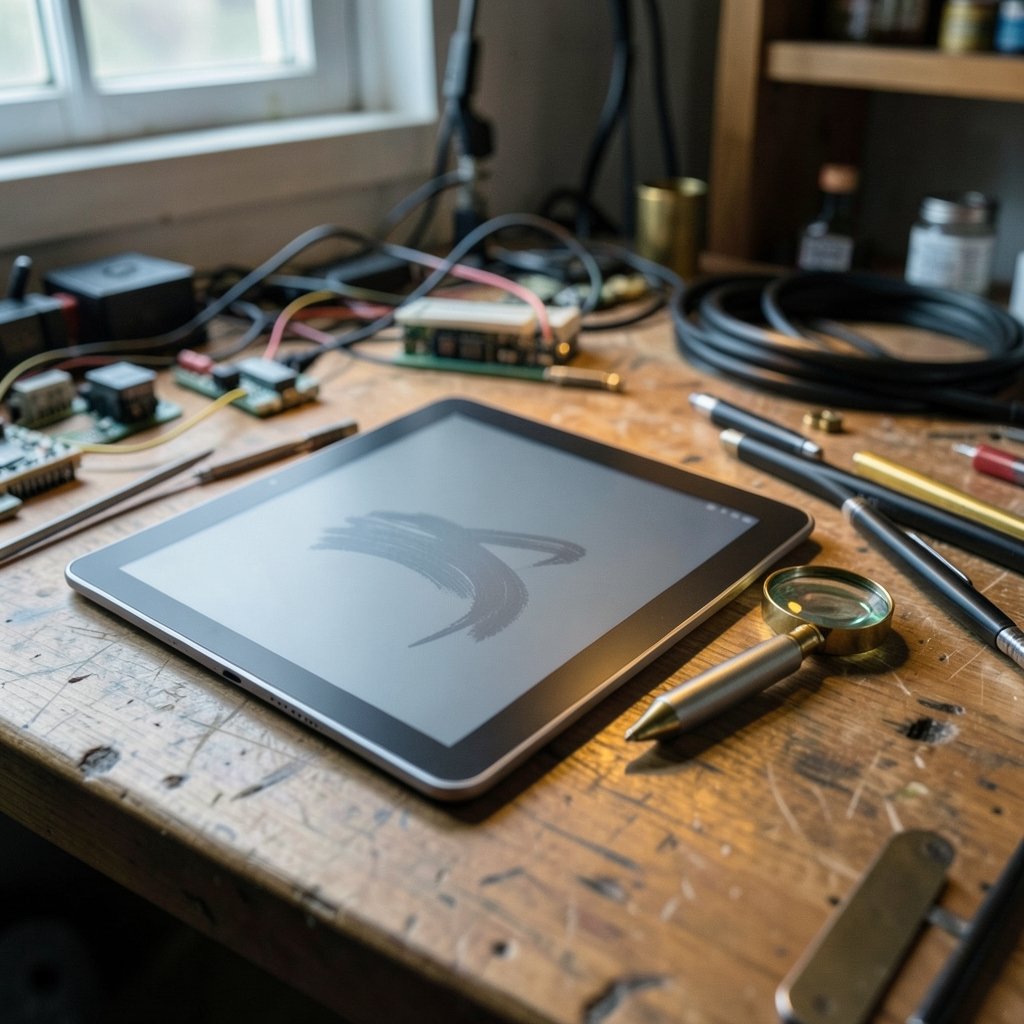
E Ink works by physically moving charged pigment particles inside microcapsules. An electric field pushes black particles to the surface or pulls them away. That physical movement takes time, unlike an LCD pixel that simply switches a liquid crystal.
The technology’s own documentation frames the core trade-off: faster refresh modes reduce latency but can leave faint remnants of the previous image, known as ghosting. Slower, full-screen refreshes produce a cleaner image but flash the whole screen. Every E Ink writing device is essentially negotiating that balance hundreds of times per second while you write.
This is also why E Ink tablets handle handwriting differently from reading. When you read, the screen can update lazily. When you write, the device must predict and draw ink in near real time, often using a fast “partial refresh” region just around the stylus tip.
The hardware factors that decide how fast ink appears
Several physical components stack up to create the delay you feel. Improving any one of them helps, but the slowest link sets the ceiling.
Display film and panel generation
Not all E Ink panels are equal. Newer film generations and higher-resolution panels with faster waveform tuning generally respond quicker. Manufacturers periodically announce faster film technology, but the improvement reaches buyers only when a specific device ships with that panel and firmware tuned for it.
The digitizer and stylus
The digitizer layer under the screen tracks the stylus position. Its sampling rate and the stylus’s own reporting rate both add delay. A stylus that reports position 120 times per second will feel more responsive than one reporting 60 times per second, all else equal. This is why some tablets feel dramatically better with the included stylus than with a third-party pen.
The processor and drawing pipeline
The device has to take stylus coordinates, run them through prediction algorithms, and render ink strokes. A faster processor and a well-optimized drawing pipeline cut this stage. This is where software engineering matters as much as silicon.
Refresh mode in use
Most E Ink tablets offer multiple refresh modes: a fast mode for writing, a balanced mode, and a quality mode for reading and images. In fast mode, latency drops but ghosting increases. In quality mode, the screen may briefly flash and strokes appear with a visible lag. The mode you are in changes the experience more than most spec sheets admit.
How the major writing tablets compare in practice
Exact millisecond figures are unreliable across reviews, so treat the table below as a qualitative guide to how these device families are typically described, not a lab benchmark.
| Device family | Typical latency reputation | Refresh modes | Notes |
|---|---|---|---|
| reMarkable | Consistently praised for paper-like feel | Limited, tuned for writing | Firmware updates have repeatedly targeted latency |
| Onyx BOOX | Fast in performance modes, variable | Several user-selectable modes | More settings mean more ways to misconfigure |
| Supernote | Balanced, strong for note-taking | Focused on writing workflows | Often tuned for consistency over peak speed |
| Kindle Scribe | Good for basic notes, less refined | Fewer options | Aimed at readers who occasionally write |
The pattern is clear: devices built primarily for handwriting tend to feel tighter, while multipurpose Android-based tablets can be faster in bursts but less predictable. If writing feel is your top priority, test the actual device with the actual app you plan to use. Store demos rarely run your workflow.
Why the app matters as much as the tablet
Here is the mistake almost everyone makes: they judge latency by tapping around the home screen, then feel disappointed when their note-taking app lags. The home screen is not where the drawing pipeline is stressed.
Latency varies by app because each app renders ink differently. A lightweight notes app may draw strokes with minimal processing. A feature-rich PDF editor with handwriting recognition running in the background may add visible delay. Some apps let you toggle a “fast ink” or “low latency” setting; others do not.
Practical advice: before buying, search for latency discussions specific to your intended app on that specific model. A tablet that feels instant in its built-in notes app can feel sluggish in a third-party annotation tool. If you plan to write a lot, the best AI writing tools for content creators can help you polish the text later, but they will not fix a laggy stylus.
Refresh modes explained without the jargon
Think of refresh modes as gears on a bicycle. You would not climb a hill in top gear, and you should not write in a mode tuned for photo-quality images.
Fast or partial refresh redraws only the region that changed, usually around the stylus. It is the quickest option and the one you want for handwriting. The cost is ghosting, where faint traces of erased strokes linger.
Full refresh clears and redraws the entire screen. It eliminates ghosting but flashes the display and introduces a noticeable pause. Most devices trigger it automatically every so often or when you open a new page.
Balanced or quality modes sit in between and are best for reading, comics, or anything with images.
If your tablet feels laggy, the first thing to check is not the hardware. It is whether you are stuck in a quality mode. Many users never touch the refresh setting and then blame the device. Dig into the display settings before you conclude the tablet is slow.
What actually works to reduce the lag you feel
If you already own an E Ink tablet and want tighter handwriting, these steps genuinely help, in rough order of impact.
- Switch the display to the fastest refresh mode available, then accept the extra ghosting or trigger a manual full refresh when it builds up.
- Use the stylus that shipped with the device. Third-party pens often report position more slowly or lack pressure and tilt support.
- Close background apps. Android-based tablets in particular slow down when memory is full.
- Update the firmware. Latency improvements are one of the most common items in release notes for writing tablets.
- Test a different notes app. Sometimes the fix is simply an app with a leaner drawing engine.
- Reduce screen resolution or disable heavy handwriting recognition while actively writing, if your device allows it.
What does not work: buying a faster stylus for a slow panel, or expecting a software update to transform an older device. Firmware helps at the margins, but panel generation sets the floor.
The trade-offs nobody puts on the box
Chasing the lowest possible latency has costs. Faster refresh modes drain the battery quicker because the display controller works harder. Aggressive ghosting reduction means more full-screen flashes, which many writers find distracting. And ultra-fast modes can make thin strokes look ragged or introduce visible artifacts around the pen tip.
There is also a psychological factor. A device that is slightly slower but perfectly consistent feels more like paper than one that is blazing fast and occasionally stutters. Handwriting is rhythmic; interruptions are more jarring than a small constant delay. When you evaluate a tablet, write a full paragraph rather than a single word. The rhythm tells you more than any single stroke.
If your goal is to capture handwritten notes and then turn them into polished articles, pairing a comfortable writing tablet with the right editing tools matters. A good AI grammar checker for clear writing catches the errors that creep in during fast note-taking, and knowing how to humanize AI writing keeps the final draft sounding like you.
Who should care about latency, and who should not
Latency matters most for people who write by hand for long stretches: students in lectures, journalists in the field, designers sketching, and anyone who thinks best with a pen. For these users, a laggy tablet is not a minor annoyance; it breaks concentration.
It matters less for readers who occasionally highlight a passage or jot a quick note. If 90 percent of your use is reading, prioritize screen quality, battery life, and file support over millisecond figures. A cheaper tablet with modest latency can be a perfectly good reading device.
The same logic applies to accessories. If you are choosing between devices on a budget, a cheap tablet with a decent stylus often beats an expensive tablet with a pen you dislike using. Comfort and consistency beat raw speed.
How to test latency before you commit
You cannot trust a spec sheet, and you cannot trust a five-second demo in a store. Here is a simple test routine that works in person or on a returnable online purchase.
Write a full sentence at normal speed and watch the ink trail your pen tip. Then write quickly and look for dropped strokes. Next, write a long paragraph and check whether ghosting builds up to a distracting level. Finally, switch apps mid-session and see whether the feel changes. If the tablet passes all four, the latency is good enough for real work.
If you are buying online, choose a retailer with a generous return window and test within the first week. Latency is one of the few things you genuinely cannot evaluate from reviews alone, because it depends on your handwriting speed and your tolerance for ghosting.
Conclusion
E Ink writing latency is not a single number you can look up and compare. It is the sum of the panel, the digitizer, the stylus, the processor, the firmware, the app, and the refresh mode you happen to be using. That is why two tablets with similar specs can feel completely different under your hand.
The practical takeaway is simple. Prioritize devices built for writing, use the included stylus, keep the display in its fastest mode while you write, and test with a full paragraph rather than a single stroke. If you do that, you will end up with a tablet that disappears under your hand, which is exactly what a good writing tool should do.
Frequently asked questions
What is a good writing latency for an E Ink tablet?
There is no official standard, and manufacturers rarely publish comparable figures. In practice, a good tablet should feel like the ink appears under your pen tip with no perceptible gap when you write at normal speed. If you notice the delay while writing a sentence, it is too high for comfortable long-form note-taking.
Why does my E Ink tablet lag more in some apps than others?
Each app has its own drawing engine. A lean notes app renders strokes with minimal processing, while a feature-rich app running handwriting recognition or heavy formatting in the background adds delay. The tablet’s refresh mode also interacts with the app, so the same device can feel fast in one program and sluggish in another.
Can firmware updates really improve stylus latency?
Yes, firmware updates frequently target writing responsiveness, and latency improvements are a common item in release notes for writing-focused tablets. The gains are usually incremental rather than transformative, because the panel and digitizer set a physical floor that software cannot fully overcome.
Does a faster refresh mode always mean a better writing experience?
No. Faster refresh modes reduce delay but increase ghosting, where faint traces of previous strokes remain on screen. Many writers prefer a slightly slower but cleaner mode for reading and a fast mode only while actively writing. The best setting depends on whether you value instant ink or a clean page more.
Is E Ink ever as responsive as writing on an iPad?
E Ink cannot match the raw switching speed of LCD or OLED because it physically moves pigment particles. However, well-tuned E Ink tablets feel closer to paper than to glass, and many writers prefer that feel even with slightly higher latency. The comparison is less about speed and more about which sensation you find less distracting.
Do third-party styluses increase latency?
Often, yes. Third-party pens may report position less frequently or lack the pressure and tilt support the tablet expects, which can make strokes feel less responsive. The stylus included with the device is almost always the safest choice for the lowest latency and the most predictable handwriting feel.



