
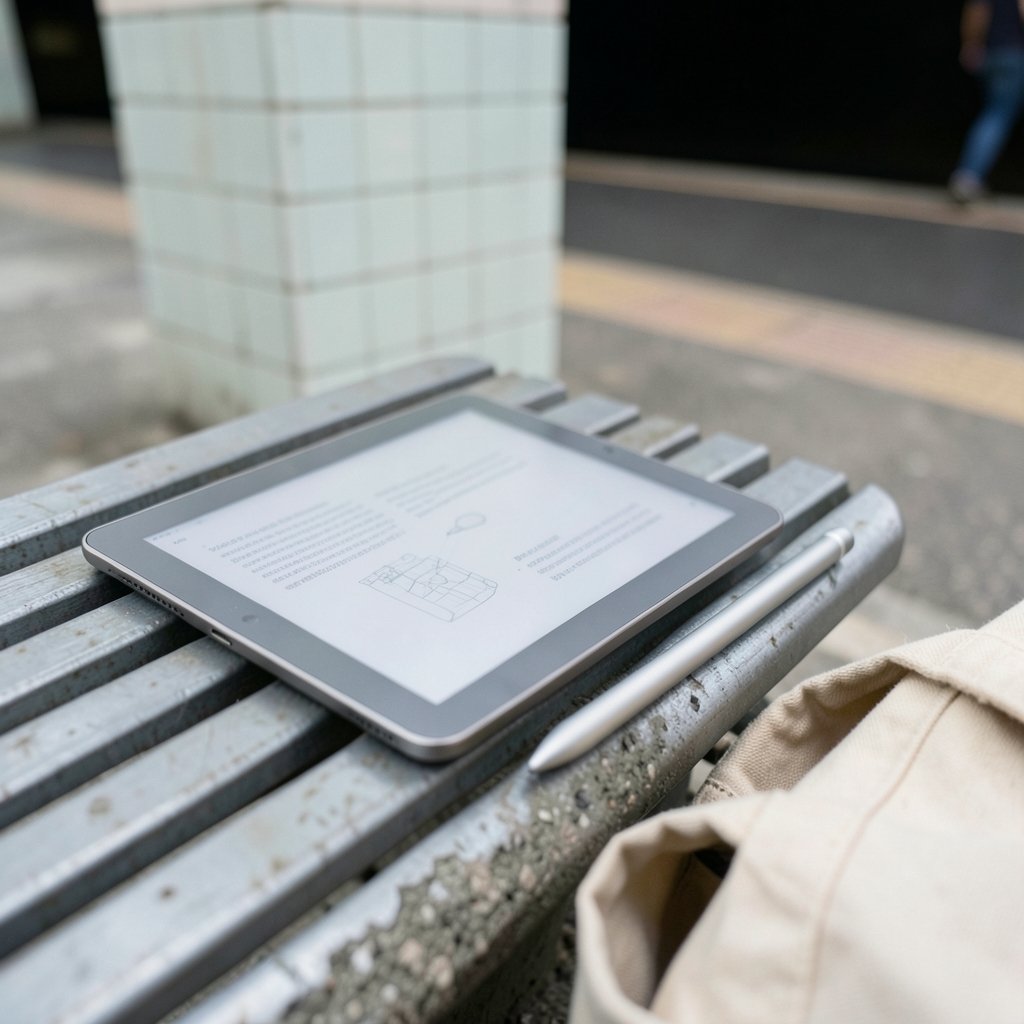
Can a screen that looks like paper really replace a backpack full of printed journal articles? For graduate students, researchers, and anyone who reads dense academic PDFs for hours, that question has real money and real eyestrain behind it. An E Ink tablet for academic papers promises distraction-free reading, handwritten annotation, and a library that weighs nothing. The reality is more nuanced, and the gap between marketing and daily use is where most buyers get surprised. (Electronic paper)
This guide walks through what matters: display technology, PDF handling, annotation workflows, and the trade-offs nobody puts on the spec sheet. It stays balanced, because E Ink is excellent at some tasks and genuinely frustrating at others.
Why E Ink Appeals to People Who Read Papers All Day
Academic reading is a strange activity. It is not scrolling social media, and it is not watching video. It is slow, focused, repetitive reading of two-column PDFs with figures, equations, and footnotes. That workload suits E Ink unusually well.
The core appeal comes down to a few practical points:
- No backlight glare in the same way as LCD. Front-lit E Ink reflects light rather than beaming it into the eyes, which many readers find easier during long sessions.
- Single-purpose focus. There are no notifications, no tabs, and no tempting browser. For deep reading, that constraint is a feature.
- Battery life measured in weeks. A device that lasts a month between charges fits a research schedule better than one that needs a charger every evening.
- Handwriting that feels close to pen on paper. Annotation with a stylus on E Ink has improved dramatically, and for many academics, marginalia is not optional.
The catch is that E Ink is a slow-refresh technology by design. Page turns have a visible flash, scrolling is poor, and anything animated feels broken. If a reader’s workflow depends on fast navigation or heavy multitasking, E Ink will fight them.
Screen Size and Display Technology: The Decision That Matters Most
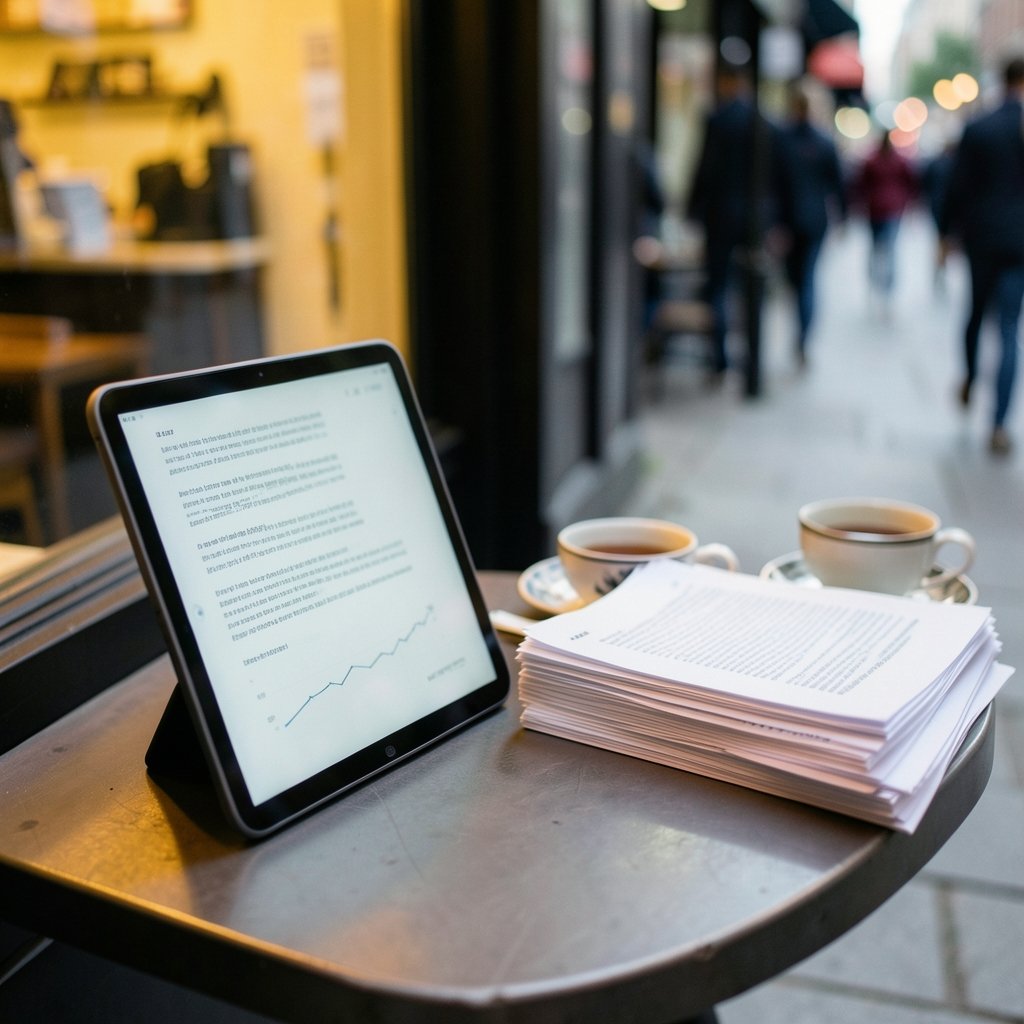
Before comparing brands, understand that the panel decides most of the experience. Two specs dominate: size and panel type.
Size: 10.3 Inches Is the Practical Minimum
Academic PDFs are usually formatted for A4 or US Letter. On a 7- or 8-inch screen, a full page becomes unreadable without zooming, and zooming on E Ink is painful. Most people reading papers seriously end up at 10.3 inches or larger. A 13.3-inch device shows a full page at close to original size, which is genuinely pleasant, but it costs more and weighs more. (Which option best completes the table title the united nations)
Panel Type: Monochrome Versus Color
Color E Ink exists, and it is tempting for papers with charts and highlighted figures. But color filter array panels historically trade contrast and effective resolution for that color. Text looks slightly softer, and colors appear muted and pastel rather than vivid. For pure text reading and note-taking, monochrome panels remain the sharper choice. For readers who constantly work with color-coded figures, color is a convenience with a visible cost.
| Factor | Monochrome E Ink | Color E Ink |
|---|---|---|
| Text sharpness | Excellent | Good, slightly softer |
| Color figures | Grayscale only | Muted, low saturation |
| Contrast | High | Lower |
| Best for | Text-heavy papers, notes | Charts, maps, highlighted PDFs |
| Price | Lower | Higher |
A useful rule of thumb: if 90 percent of the reading is text, choose monochrome. If color figures are central to the work, accept the contrast compromise.
PDF Handling: Where Most Tablets Quietly Fail
This is the section worth reading twice. A device can have a beautiful screen and still be useless for research if it handles PDFs badly.
Academic PDFs are fixed-layout documents. They were not designed to reflow. Many E Ink tablets offer a “reflow” mode that attempts to re-typeset the text for a smaller screen, and results vary from acceptable to chaotic, especially with equations, tables, and multi-column layouts. What usually works better is cropping and column navigation: displaying one column at a time at full width, then paging through. Most serious reading apps support this, and it is the workflow that actually holds up.
The second trap is annotation export. When a reader marks passages and writes on a PDF, where do those marks go?
- Flattened into the PDF. The marks become part of the file and appear anywhere the PDF is opened. This is the most portable option.
- Stored as a separate layer or sidecar file. Marks may only display in the vendor’s app, which becomes a problem when sharing with co-authors or moving to another device.
- Exported as a summary. Some tools create a separate notes document that lists annotated passages, which is handy for literature reviews but does not replace marks in the document.
Before buying, confirm exactly how annotations leave the device. A tablet that traps notes in a proprietary format creates a future migration headache. Anyone building a long-term research library should test this early, ideally during a return window.
Matching the Device to the Workflow
Different readers need different things, and the market reflects that. Here is how the main categories compare for academic use.
| Workflow need | What to prioritize | What to avoid |
|---|---|---|
| Reading and annotating PDFs | Large screen, capable PDF app, flattened export | Small screens, weak PDF support |
| Handwritten notes and drafts | Low stylus latency, good palm rejection | Devices without stylus support |
| Color figures and charts | Color panel, decent contrast | Grayscale-only if color is required |
| Distraction-free writing | Physical keyboard support, clean OS | Feature-heavy tablets with app clutter |
| Budget reading | Refurbished or mid-range models | Paying for features never used |
There is a real argument for starting modestly. A cheaper device teaches a reader what they actually need, and the best cheap tablet options now handle PDF annotation well enough for many users. Upgrading later with clear priorities beats guessing on a premium purchase. The same logic applies when comparing the best tablet overall against a dedicated E Ink device: if the reading is mixed with video calls, spreadsheets, and heavy multitasking, a conventional tablet wins. E Ink wins when focus is the point.
Students balancing coursework, PDFs, and note-taking often land in the middle, and guides on the best tablets for students work can help frame the trade-offs between price, battery, and stylus support. For anyone whose day is mostly documents and handwritten notes, the best tablets for students are frequently E Ink models rather than iPads.
Practical Tips, Common Mistakes, and What Actually Works
Experience with these devices tends to produce the same lessons. Here is what holds up in daily use.
Do organize before you buy. Collect ten representative PDFs, including the messiest two-column paper with equations, and test them on a demo unit if possible. Spec sheets do not reveal how a device handles a badly scanned 1990s journal article.
Do check stylus latency and palm rejection in person. Writing feel is subjective, and reviews cannot convey it. A device that feels laggy will quietly stop being used for notes.
Do plan a file-management system. E Ink tablets often sync through a vendor cloud. Researchers with institutional storage or reference managers should confirm that PDFs can be moved in and out without friction.
Do not expect fast scrolling. E Ink refreshes slowly. Workflows built around scrolling through long documents will frustrate. Paging and column navigation are the native rhythm of these devices.
Do not buy color for the wrong reason. Color E Ink is genuinely useful for figures, maps, and highlighted text, but it is not a replacement for an LCD when color accuracy matters.
Do not overlook the keyboard. Many researchers draft while reading. A device with reliable Bluetooth keyboard support and a decent writing app can replace a laptop for first drafts, which changes the value calculation considerably.
Do watch for firmware changes. Annotation features and export options shift with updates. A capability present at purchase can change, so check vendor release notes rather than relying on old reviews.
Where E Ink Still Falls Short
Honesty matters here. E Ink tablets are poor at video, weak at web browsing, and mediocre at anything requiring smooth motion. Search within large PDF libraries can be slow. App ecosystems are limited, so specialized reference managers may not run natively. Syncing across devices is often less seamless than on mainstream platforms. (Web Content Accessibility Guidelines (WCAG) 2.1)
For readers who need one device for everything, an E Ink tablet is a second device, not a replacement. For readers whose core work is reading and annotating documents, that limitation is acceptable because the device does its one job well.
Conclusion
An E Ink tablet for academic papers is not a universal upgrade. It is a focused tool that rewards a specific kind of reader: someone who spends hours with fixed-layout PDFs, annotates by hand, and values a calm, distraction-free screen over speed and versatility. The decision hinges on three questions. Is the screen large enough for a full page? Does the PDF app handle columns and export annotations cleanly? Does the stylus feel good enough to use daily?
Answer those honestly, test with real papers rather than demo files, and the choice becomes much clearer. For the right reader, an E Ink tablet turns a chaotic pile of printouts into a searchable, portable library. For everyone else, a conventional tablet remains the safer bet.
Frequently Asked Questions
Is an E Ink tablet good for reading academic PDFs?
Yes, for most text-heavy papers, provided the screen is at least 10.3 inches. The main requirement is a PDF app that supports column cropping and reliable annotation export. Small screens and weak PDF software cause most of the frustration people report.
Can I annotate PDFs with a stylus on E Ink?
Yes. Most modern E Ink tablets support stylus highlighting and handwriting directly on PDFs. The critical detail is export format. Flattened PDFs display marks anywhere, while layer-based annotations may only appear inside the vendor’s app.
Is color E Ink worth it for papers with charts?
It depends on how central color is to the reading. Color E Ink shows figures in muted tones with lower contrast than monochrome panels. If color-coded charts are necessary, it helps. If reading is mostly text, monochrome offers sharper text for less money.
How long does an E Ink tablet battery last?
Battery life varies by model and front-light use, but most devices last days to weeks between charges under normal reading. Heavy Wi-Fi syncing, front-light use at high brightness, and frequent app switching all reduce that figure.
Can an E Ink tablet replace a laptop for research work?
Rarely as a sole device. E Ink tablets excel at reading, annotating, and drafting with a keyboard, but they handle video, complex web apps, and heavy multitasking poorly. Most researchers treat them as a focused companion device rather than a laptop replacement.
What size E Ink tablet is best for two-column papers?
A 10.3-inch screen is the practical minimum, and 13.3 inches shows a full page at close to original size. With column cropping, 10.3 inches reads comfortably. Without it, two-column layouts become cramped and require constant zooming.
For researchers weighing a purchase, the most reliable approach is to treat the tablet as a reading and annotation instrument first, and everything else second. That framing keeps expectations honest: the device will not run every reference manager natively, and it will not scroll like an LCD. What it will do is make long reading sessions calmer and keep a personal library portable and searchable. Buy for the papers you actually read, test with the messiest PDFs you own, and confirm annotation export before committing. Chosen that way, an E Ink tablet earns its place on the desk. (Best tablet)



