
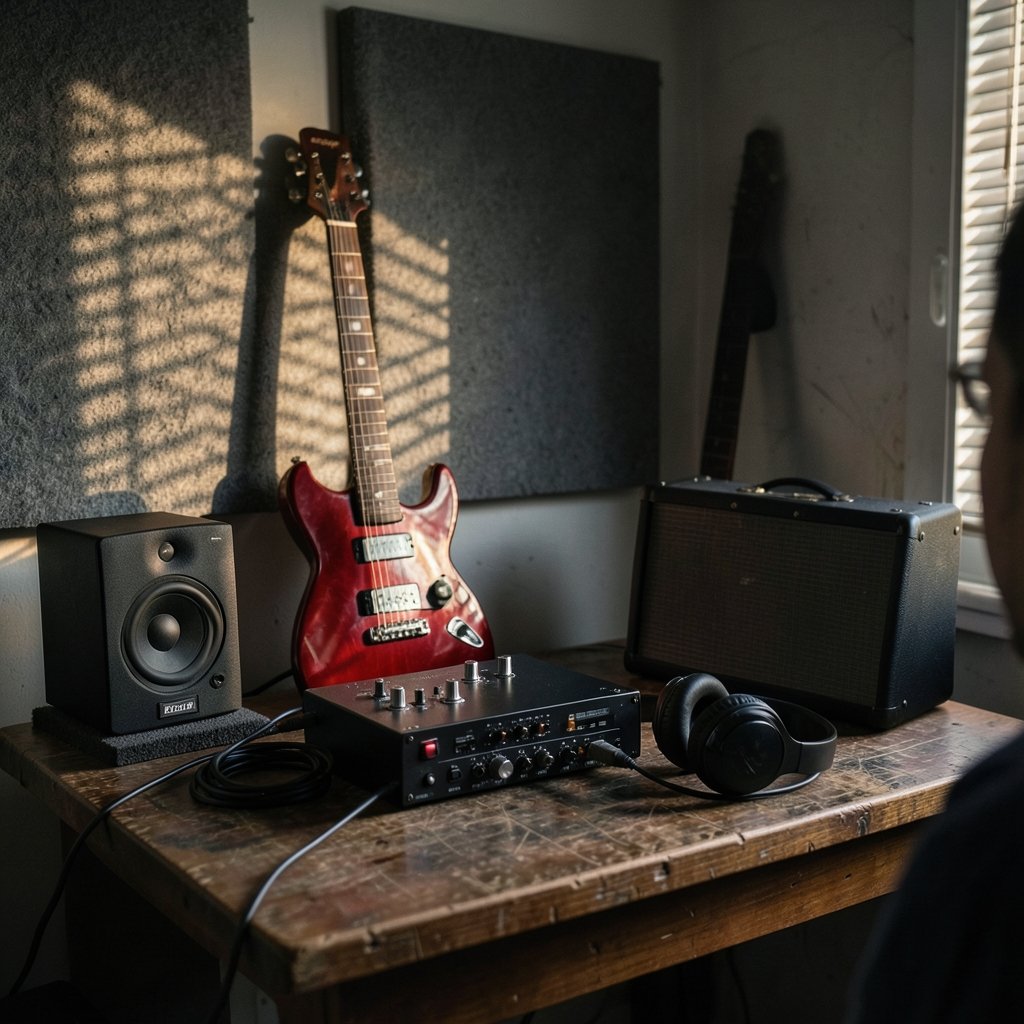
Have you ever strummed a guitar into your interface, only to hear the sound arrive a split second late in your headphones? That tiny but maddening delay is monitoring latency, and it is the single most common frustration for anyone recording at home. The fix is a feature most interfaces ship with but few users understand: direct monitoring. Once you grasp what it does, when to switch it on, and the trade-offs involved, your recording sessions get faster and far less annoying.
What Direct Monitoring Actually Means
Direct monitoring sends the signal from your microphone or instrument straight to the interface’s headphone and main outputs inside the hardware itself. The audio never makes the round trip into your computer and back. That round trip is where latency lives: the signal has to be converted to digital, travel through USB or Thunderbolt, get processed by your recording software, then come back out through the interface’s converters. Every stage adds a small delay, and the cumulative result is the echo-like lag you hear. (Audio interface)
A direct monitoring path skips all of that. The analog signal is split, with one copy going to your computer for recording and another going straight to the outputs for your ears. Because the monitoring copy stays in the analog domain, the delay drops to the converter and circuitry level, which is typically imperceptible.
The concept is stable across every manufacturer, though the naming varies. Focusrite calls it Direct Monitor. Other brands use terms like zero-latency monitoring, hardware monitoring, or DSP monitoring. They all describe the same fundamental idea: hear the input before the computer gets involved.
Why Software Monitoring Feels Laggy
When you monitor through your DAW, the delay is dominated by buffer size and your audio driver. The buffer is a chunk of audio the computer prepares in advance so playback does not stutter. A large buffer keeps things stable but adds delay. A small buffer reduces delay but strains your processor.
On Windows, the ASIO driver handles this; on macOS, Core Audio does. Software monitoring latency commonly lands somewhere between a few milliseconds and a few tens of milliseconds depending on buffer settings and sample rate. That range sounds trivial, but human ears are sensitive. Most players notice timing problems once delay creeps past roughly 10 milliseconds, and singers often detect it sooner because they hear their own voice through bone conduction alongside the delayed headphone signal.
The practical upshot: if you want to record comfortably without fiddling with buffer settings, direct monitoring is the simplest path.
How to Turn It On and Use It
Setup differs by interface, but the workflow is remarkably consistent. Here is the general process that works on most hardware:
- Connect your microphone or instrument to the correct input and set gain so the loudest part of your performance peaks well below clipping.
- Find the direct monitoring control. On many interfaces it is a physical button labeled Direct Monitor, Mono, or similar. On others it lives inside a control panel app.
- Enable monitoring for the specific channel you are recording. Some interfaces let you monitor input 1 and input 2 independently.
- Set the mix between your live input and computer playback. Many interfaces use a single blend knob for this.
- Arm the track in your DAW, hit record, and listen. You should hear your performance with no audible lag.
A common mistake is leaving the DAW’s own input monitoring switched on at the same time. That gives you two copies of your signal arriving at slightly different times, which sounds hollow, phasey, or doubled. Turn off software monitoring in the DAW whenever hardware monitoring is active.
Another frequent slip: forgetting that the blend knob sits fully toward “input.” You hear yourself perfectly but cannot hear the backing track. Nudge it toward the playback side until the balance feels right.
The Trade-Off Nobody Warns You About
Here is where expectations often crash. Direct monitoring typically bypasses your DAW plug-ins entirely. If you have a compressor, amp sim, reverb, or vocal chain loaded on the track, you will not hear any of it while monitoring directly. You hear the dry signal as it enters the interface.
For some sessions this is fine. Tracking a clean vocal or acoustic guitar rarely needs effects in the headphones. But guitarists relying on amp simulators, or singers who need reverb to feel comfortable, often find the dry sound uninspiring. Performance quality can suffer when the headphone mix feels sterile.
This is exactly why DSP-based monitoring exists. Interfaces from Universal Audio, RME, Antelope, and others run effects on hardware chips inside the interface itself, so you get processing with near-zero delay. RME’s TotalMix FX, for example, offers a full internal mixer with EQ, dynamics, and reverb, all before the signal reaches the computer. Universal Audio’s Console software works on the same principle. These systems solve the dry-signal problem, but they come with a learning curve and, usually, a higher price. (Audio Interfaces Overview)
If you are comparing hardware and weighing what fits your budget, it helps to look at how other tech purchases break down. The same logic that applies to comparing Audi lease deals month by month, or sizing up Audi Q5 lease deals against your actual needs, applies to interfaces: match the feature set to what you will genuinely use, not to the spec sheet.
Direct Monitoring vs Software Monitoring: A Side-by-Side View
| Feature | Direct (Hardware) Monitoring | Software (DAW) Monitoring |
|---|---|---|
| Latency | Effectively imperceptible | Depends on buffer and driver |
| DAW plug-ins audible | No, unless DSP effects are built in | Yes, all plug-ins |
| CPU load | None | Increases as buffer shrinks |
| Setup effort | One button or control panel toggle | Buffer tuning, driver settings |
| Best for | Tracking, overdubs, live feel | Mixing, heavy processing needs |
| Risk | Dry sound, doubled signal if DAW monitoring stays on | Timing discomfort for performers |
The table makes the decision clearer. Use direct monitoring when you are performing. Use software monitoring when you need to hear processing and latency does not bother you, such as when you are editing or mixing rather than playing.
When Direct Monitoring Gets Tricky
Punch-ins and overdubs are where the feature shows its limits. If you are recording a guitar part over an existing track and you need to hear the amp tone from the previous take, direct monitoring gives you the raw input instead. Some players compensate by splitting the signal or by using DSP effects. Others simply accept the dry sound for tracking and fix the tone later.
There is also a subtlety about the phrase “zero latency.” It is marketing language. There is still converter latency and analog path delay, typically well under a millisecond to around one millisecond depending on the hardware. In practice, almost nobody perceives it, but it is not literally zero. If a manufacturer claims absolute zero, treat it as shorthand rather than physics.
Finally, feature availability varies by model and firmware. A budget interface might offer only a single global direct monitor switch, while a mid-range unit gives per-channel control and a blend knob. Always confirm the specifics for your exact model before buying, because two interfaces from the same brand can behave quite differently.
Practical Habits That Save Sessions
Experienced engineers develop small routines around monitoring. Set gain first, before touching any monitoring controls, so you are judging levels accurately. Label your interface’s buttons with tape if the front panel is cryptic. Keep a note of your preferred blend position for vocals versus instruments. And always do a quick ten-second test recording before a full take: play, listen, confirm the timing feels right.
It also pays to think about your monitoring environment as a whole. Just as a poor screen undermines a gaming setup, which is why guides like this one on the best monitor for PS5 matter to gamers, a poor headphone mix undermines a recording. Closed-back headphones reduce bleed into microphones, and their isolation makes direct monitoring easier to judge. Open-back models sound more natural but leak sound, which can ruin a vocal take.
For producers who also work with visual or creative tools, understanding how software pricing tiers work is a transferable skill. The same way people study Leonardo AI pricing plans and features before committing, you should understand what your interface’s control software offers before assuming a feature is missing.
Frequently Asked Questions
Does direct monitoring affect the recorded audio quality?
No. Direct monitoring only changes what you hear while recording. The signal captured by your computer is identical whether monitoring is on or off. It is a listening convenience, not a processing step.
Why do I hear my voice twice when recording?
This almost always means both hardware direct monitoring and the DAW’s software input monitoring are active. Two copies of the signal arrive at slightly different times, creating a doubled or phasey sound. Disable input monitoring in your DAW and keep the hardware path on.
Can I hear plug-ins while using direct monitoring?
Generally no, unless your interface has built-in DSP effects. Standard direct monitoring routes the raw input to your ears, bypassing the DAW entirely. Interfaces with onboard processing, such as those using TotalMix FX or Console software, let you apply EQ, compression, and reverb with negligible delay.
Is direct monitoring really zero latency?
Not literally. A small amount of converter and circuit delay remains, usually well under a millisecond to about one millisecond. That is far below the threshold most people can perceive, which is why the marketing term persists. Software monitoring delay, by contrast, is often many times larger.
Should I always use direct monitoring?
Use it whenever you are performing, especially on timing-sensitive parts like drums, bass, and vocals. Switch to software monitoring when you need to hear heavy processing, or when you are mixing and latency no longer matters. Many engineers toggle between the two depending on the task.
What if my interface has no direct monitoring button?
Check the manufacturer’s control panel software first, since many interfaces hide the monitoring controls there rather than on the front panel. If the feature genuinely does not exist, you can reduce software latency by lowering your buffer size and using a proper ASIO or Core Audio driver.
Conclusion
Direct monitoring is one of those features that seems minor until you use it, and then you wonder how you ever recorded without it. It solves the latency problem at its source by keeping your live signal inside the hardware, giving performers an immediate, natural feel in their headphones. The trade-off is real: you lose DAW plug-ins on the monitored channel, and you need to remember to switch off software monitoring to avoid a doubled signal. But for tracking, the benefits outweigh the drawbacks almost every time.
The best approach is to learn your specific interface. Find the monitoring control, understand the blend knob, and build a small routine around it. Pair that knowledge with sensible gain staging and the right headphones, and your sessions will feel smoother and sound better. Latency stops being an obstacle and becomes something you simply route around.
For performers who rely on a specific tone, a pragmatic compromise is to record a DI signal and reamp later, monitoring through a lightweight amp sim in the DAW only when the buffer allows. Whatever path you choose, the goal stays the same: keep the performer comfortable and the timing tight, then let the mix phase handle polish.



