
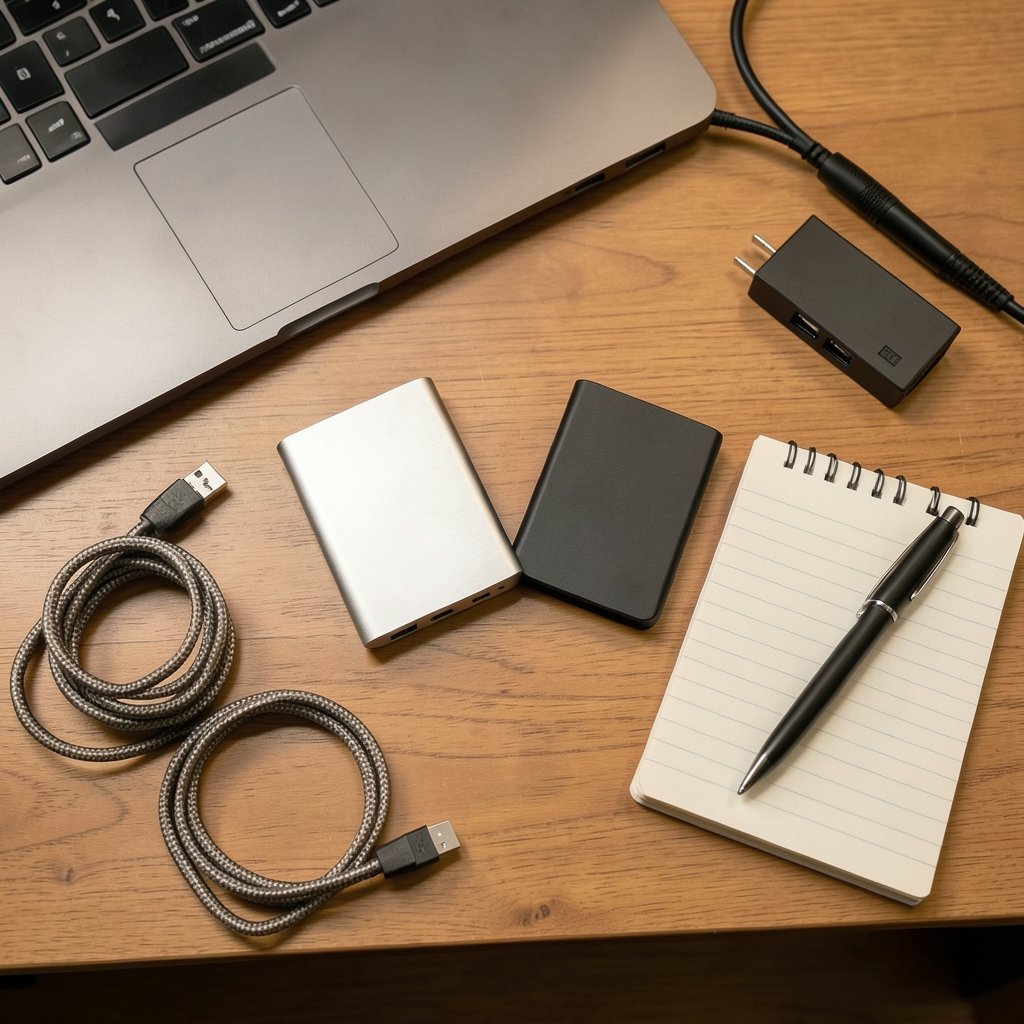
What if the only thing standing between you and a much faster portable drive isn’t the drive at all, but the port, cable, or file system you already own? That question underlies every “Portable SSD 170 vs 340” decision. The two numbers look like a simple size or speed jump, but the real outcome depends on whether your laptop, cable, and operating system can actually feed the drive. The sections below show how to check compatibility before an upgrade, with attention to 2027. (Solid-state drive (Wikipedia))
First, a Needed Reality Check on the 170 vs 340 Labels
Here’s the honest part most buying guides skip. “Portable SSD 170” and “Portable SSD 340” don’t match any widely documented product family that can be confirmed today. The numbers may be internal SKUs, regional model codes, capacity figures, or a shorthand for speed tiers. That ambiguity matters, because it changes what you are comparing.
| If 170 / 340 means… | What you are really comparing | First thing to check |
|---|---|---|
| Capacity (GB) | Storage space | Free space needs and price per GB |
| Speed (MB/s) | Sequential throughput | Host port standard and cable rating |
| Model/SKU codes | Two different hardware builds | Interface spec (NVMe vs SATA, USB generation) |
| Price tiers | Budget vs premium build | Bridge chip, thermal design, warranty |
Treat the labels as a starting assumption, not a fact. Whatever they turn out to mean, the compatibility checklist below applies the same way. That is the useful part: the method survives the marketing.
Why Connector Shape Tells You Almost Nothing

A USB-C port looks identical whether it carries USB 2.0 at 480Mbps, USB 10Gbps, USB4 at 40Gbps, Thunderbolt, DisplayPort video, or plain power. The shape is a convenience, not a speed rating. A USB-C port on a 2017 laptop may be limited to USB 3.1 Gen 1 (5Gbps), while a 2024 machine may offer 40Gbps over the same connector.
The USB naming itself changed. Since the 2022 rebrand, consumer labels are speed-based: USB 10Gbps and USB 20Gbps replace the older “USB 3.2 Gen 2” and “Gen 2×2” language. A drive marketed as “USB 3.2 Gen 2” is a 10Gbps device, and “Gen 2×2” is 20Gbps that requires host support. For the full explanation of how these labels map to real speeds, the USB-C connector and cable standards overview is worth reading before you buy. (USB Charger (USB Power Delivery) overview)
USB4 is a different layer again. It is built on Thunderbolt 3 technology, and Thunderbolt 4 hosts accept USB4 and USB 3.x devices. But a USB4 drive on a Thunderbolt 3 port may run at reduced capability. The connector shape alone does not confirm the standard; check the port’s actual standard in your system settings or manual.
The Cable Is the Most Common Bottleneck
In practice, a disappointing upgrade is often a cable problem, not a drive problem. Passive USB-C cables are typically rated for 5A/100W and up to 10Gbps or 20Gbps depending on the cable. Reaching 40Gbps over USB4 or Thunderbolt usually needs certified active cables or specifically rated passive ones, often limited to short lengths around 0.8m.
Common mistakes people make here:
- Reusing the thin charging cable that came with a phone.
- Assuming any USB-C cable supports the drive’s top speed.
- Plugging into a hub that splits bandwidth across devices.
- Testing speed once, in a single large file copy, and calling it done.
What actually works is boring but reliable: use the cable shipped with the drive, plug directly into the machine, and test with a sustained multi-gigabyte transfer rather than a tiny file.
Inside the Enclosure: NVMe vs SATA and the “Up to” Trap
Many portable SSDs use NVMe (PCIe) internals, while some budget models use SATA. Sustained write speed and thermal throttling differ substantially between the two. Marketing numbers usually quote peak sequential read, which is the easiest figure to hit and the least representative of real work.
Check the interface spec, such as “PCIe Gen3 x4” versus “SATA III,” rather than the headline “up to” number. A drive that claims a huge peak may slow sharply once its cache fills or its controller warms up. If you plan to move large video files or run backups, sustained performance matters far more than the peak.
This is also where a broader storage comparison helps. If you are weighing form factors, comparing whether a USB flash drive or a portable SSD lasts longer shows why the SSD’s controller and thermal design matter for longevity as well as speed.
Power, Hubs, and Brownouts
Bus-powered portable SSDs draw power from the host port. USB 3.x ports supply up to 900mA (4.5W) at 5V under the USB 3.0 specification, while USB-C with USB Power Delivery can supply more. On older ports or hub-connected setups, a high-performance drive may brown out, disconnect, or throttle.
If your drive randomly ejects during large transfers, power is a prime suspect. Try a direct port, a powered hub, or a shorter certified cable before blaming the drive.
File System Compatibility: The Step People Skip
A drive can be perfectly compatible at the hardware level and still “not work” because of formatting. exFAT is readable and writable on Windows, macOS, and Linux and handles large files, which makes it the usual cross-platform choice. NTFS is read-only on macOS by default, and APFS is macOS-only. Microsoft’s exFAT file system specification explains the format in detail if you want the technical picture.
Before an upgrade, decide which machines the drive must serve. A drive formatted for one ecosystem can look broken on another. Reformatting is quick, but it erases data, so plan the move.
TRIM, SMART, and Encryption: Check the Support Matrix
Some USB-to-SATA or USB-to-NVMe bridge chips do not pass through TRIM or SMART data, and hardware encryption may depend on vendor software. These features affect long-term drive health and security. Check the vendor’s OS support matrix for the specific model before you rely on encryption or health monitoring. If a feature is essential, confirm it in writing rather than assuming it.
A Practical Pre-Upgrade Checklist
Work through these steps in order. Each one catches a different failure mode.
- Identify your host port’s actual standard in system settings or the laptop manual.
- Confirm the drive’s interface spec (NVMe vs SATA, USB generation) from the spec sheet.
- Match the cable to the target speed and use the one in the box.
- Check bus power limits if you use a hub or an older machine.
- Decide the file system based on every OS the drive will touch.
- Verify TRIM, SMART, and encryption support if you need them.
- Run a sustained transfer test after setup, not a single small file.
If your upgrade is really about the computer rather than the drive, it is worth checking whether your PC supports Windows 11 before you upgrade, since the operating system and its drivers shape which ports and features behave as expected.
What Changes by 2027, and What Doesn’t
Standards move slowly compared with marketing. USB4 Version 2.0 (80Gbps) was published in September 2022, and further updates have been signaled, but no one can confirm today exactly what will ship or be required in 2027. Treat any 2027-specific compatibility claim as speculative unless a dated standards document backs it.
What won’t change: connector shape still won’t guarantee speed, cables will still be the weak link, and file systems will still trip people up. If you are planning a purchase around 2027, buy for the ports you have now and the standard you can verify, not a rumor.
For readers comparing specific drives, a detailed breakdown of the Samsung portable SSD P9 vs P7 vs T9 buyers should know in 2026 shows how model tiers differ in ways the spec sheet hides.
Common Mistakes That Waste Money
The same errors show up again and again. Buying the fastest drive for a 5Gbps port caps your gain. Trusting a hub to deliver full bandwidth leads to disappointing results. Skipping the reformat leaves a drive that seems dead on the “wrong” computer. And judging performance from a single file copy hides thermal throttling that appears minutes later.
None of these are exotic. They are ordinary oversights, and each one is cheap to avoid with a five-minute check.
How to Test Your Setup in Ten Minutes
After you connect the drive, do a quick reality check. Copy a folder of several gigabytes, watch whether the speed holds or collapses, and confirm the drive stays mounted. Then check that your operating system sees it with the expected capacity and file system. If numbers fall far short of the port’s rating, swap the cable and try a direct port before returning anything. This simple routine separates a genuine compatibility problem from a fixable accessory issue.
If your upgrade involves software as well as hardware, a similar “check first” habit pays off. Anyone weighing a workspace switch can review Notion alternatives and their limitations before switching, and the same logic applies to Cursor alternatives that have real limits worth checking before switching. Compatibility thinking is a transferable skill.
Conclusion
The “Portable SSD 170 vs 340” question is really a question about your whole setup. The drive is one link in a chain that includes the port standard, the cable rating, the power budget, the bridge chip, and the file system. Any weak link caps the result, no matter how impressive the box looks. Confirm what the 170 and 340 labels actually mean, verify your host port, use the right cable, choose the right format, and test with a real transfer. Do that, and the upgrade in 2027 will deliver what you paid for rather than what the marketing promised.
FAQ
What does “Portable SSD 170 vs 340” actually compare?
The labels are not tied to any widely documented product line, so they may refer to capacity, speed tiers, model codes, or price bands. Confirm what the numbers mean from the seller’s spec sheet before comparing, then apply the same compatibility checklist regardless of the answer.
Does a USB-C connector mean the drive will run at full speed?
No. USB-C is only a connector shape. The same port can carry USB 2.0, USB 10Gbps, USB 20Gbps, USB4, or Thunderbolt. The actual speed depends on the host port’s standard, the cable rating, and the drive’s interface.
Why is my new SSD slower than advertised?
The most common causes are a lower-speed host port, an under-rated cable, a bandwidth-sharing hub, or thermal throttling during sustained writes. Test with a large multi-gigabyte transfer over a direct port and the cable that shipped with the drive.
Which file system should I use for a portable SSD?
exFAT is the usual choice when the drive must work across Windows, macOS, and Linux and handle large files. NTFS is read-only on macOS by default, and APFS is macOS-only, so pick based on every machine the drive will touch.
Can I trust 2027 compatibility claims?
Be cautious. USB4 Version 2.0 was published in September 2022, but no one can confirm exactly what will ship or be required in 2027. Rely on dated standards documents and the ports you can verify today rather than future-facing marketing.
How do I know if my port supports 20Gbps or 40Gbps?
Check the laptop’s manual or system settings for the exact USB or Thunderbolt standard; the port shape alone does not confirm it. A USB 20Gbps port needs host support for Gen 2×2, and 40Gbps USB4 or Thunderbolt typically requires certified cables and compatible hardware on both ends.



