What if the slowest part of publishing a video is not the filming, the editing, or even the thumbnail, but the captions? For most creators and media teams, that is exactly where the bottleneck sits. Auto-captioning has quietly become one of the most competitive corners of the AI tool market, and the options now split sharply by job: some tools want to be your full editor, some only want to hand you a clean SRT file, and some are really clipping engines with captions bolted on. This roundup cuts through that and names the tools worth your time in 2027, with the trade-offs spelled out.
The 2027 shortlist at a glance
| Tool | Best for | Accuracy and languages | Price or free tier |
|---|---|---|---|
| Kapwing | Team collaboration on video projects | 99% accuracy, 100+ languages | Free with watermarks |
| Opus Clip | Clip-first workflows with AI curation | 98%+ accuracy, 40+ languages | Free, 60 credits/month |
| Adobe Premiere Pro | Professional editors already in Adobe | ~95% on clear audio, 18+ languages | Single App at $22.99/month |
| VEED.io | Browser-based auto subtitles with styling | Language coverage varies by plan | Free tier available |
| Sonix | Transcript-first teams needing SRT export | Multilingual, editable transcripts | Paid plans, check official page |
| Happy Scribe | Multilingual transcription and subtitles | Many languages, machine and human | 10 free minutes, SRT on every plan |
| Maestra | Translation-heavy subtitle workflows | Eight export formats | 60 minutes for $12, no plan required |
| Rev | Choosing between AI speed and human accuracy | Human option available | Check official page for rates |
| ElevenLabs | Quick subtitle files from short clips | Files up to 10 minutes or 50 MB | Free tier, SRT and VTT export |
| Clipchamp | A finished captioned video at no cost | Export up to 1080p, no watermark | Free |
That table is the short version. The rest of this article explains who each tool actually suits, where it stumbles, and what to watch before you commit a workflow to it.
Kapwing: the collaboration pick for teams
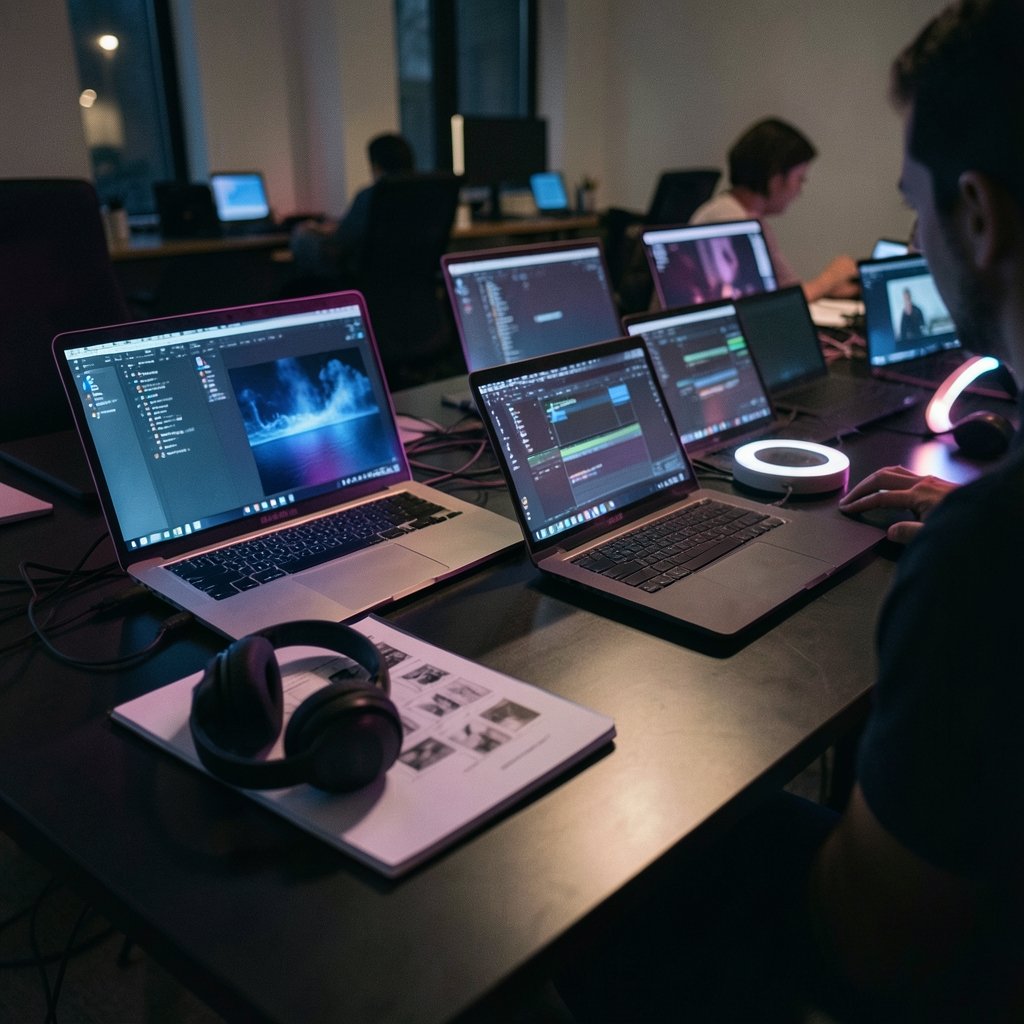
Kapwing earns its spot at the top of many roundups because it treats captions as a team sport. Its standout features are real-time simultaneous editing, time-stamped comments pinned to specific frames, a Brand Kit for consistency, and shared asset libraries. If three people touch the same video before it ships, those features matter more than raw transcription speed.
The reported accuracy sits at 99% across 100+ languages, which is the kind of number that sounds like marketing until you test it on your own audio. The honest limitation is the free tier: watermarks make it unusable for client work, so budget for a paid plan if you are publishing anything commercial. It runs entirely in the browser, which is great for remote teams and less great if you work with very large source files on a weak connection.
Opus Clip: captions as a byproduct of clipping
Opus Clip is not really a subtitle tool, and pretending otherwise leads to disappointment. It is a clipping engine that scores moments for virality on a 0-100 scale, reframes to vertical, and captions each clip in one pass. The platform reports generating 172M+ clips for 10M+ users, with 98%+ accuracy across 40+ languages and AI B-roll generation of up to 50 clips per day on Pro.
The free plan gives 60 credits a month, Starter runs $15 a month, Pro $29, and Business is custom-priced. The limitation is structural: standalone subtitle editing is lighter than in a dedicated editor. If you need frame-accurate control over a two-hour documentary, look elsewhere. If you need twenty vertical clips with animated captions by Friday, this is the tool. Creators building a short-form pipeline often pair it with a voice workflow, and the same logic applies when you are picking from the 12 best AI voice generators indistinguishable from human speech for narration. (Best ai generators print demand sellers 2027)
Adobe Premiere Pro: for editors who never leave the timeline
Premiere Pro’s caption workflow wins on one thing: it lives where the edit lives. Accuracy lands around 95% on clear audio across 18+ languages, and the Single App plan is $22.99 a month. For editors already inside the Adobe ecosystem, adding a separate caption subscription is friction nobody wants.
The limitation is the price of entry and the learning curve. This is not a tool for a marketing generalist who needs captions on a product demo once a quarter. It is for people whose day job is the timeline. One practical tip: clean your audio before generating captions. Room echo and overlapping speakers are the two biggest causes of bad timestamps, and no model fixes a muddy recording.
VEED.io: the friendliest browser option
VEED.io builds auto subtitles into the core editing flow: upload, choose Auto Subtitles, pick a language, and get time-synced captions you can tweak line by line. The styling is visual rather than technical, with fonts, colors, backgrounds, position controls, and presets tuned for TikTok, Reels, and Shorts.
It suits creators who do not want to wrestle with complex timelines. The limitation is depth: heavy multi-track editing and precise audio repair are better handled elsewhere. Language coverage varies by plan, so check the official page before assuming your target market is supported.
Sonix: transcript first, subtitles second
Sonix approaches captions from the transcript side. Users convert supported audio and video into editable transcripts and synchronized subtitles, with transcript correction, subtitle splitting, visual sync controls, translation, formatting, and export in supported subtitle formats. It is aimed at production companies, legal teams, research institutions, and businesses that need dependable workflows rather than flashy styling.
That positioning is the limitation too. If you want animated word-by-word captions for social video, Sonix is the wrong shape of tool. If you need a defensible transcript that doubles as a caption source, it fits. The same transcript-first logic appears in developer-facing tools: AssemblyAI offers API-based speech recognition with SRT and VTT export, word-level timing, and a chars_per_caption parameter for controlling caption length, as documented in this Dutch-language overview of SRT file generators. Teams building captioning into their own apps should read the Portuguese and Spanish versions of that guide as well, since they cover the same export and timing mechanics.
Happy Scribe: multilingual work with a human fallback
Happy Scribe focuses on transcription and subtitles across many languages, with an online editor for cleanup. It offers both machine-generated and human-produced output, and it gives 10 free minutes with SRT available on every plan, plus VTT and 15+ formats from Pro.
The limitation is that the human option costs more and takes longer, so it is a poor fit for same-day publishing. The free 10 minutes is genuinely useful for testing accuracy on your own recordings before you buy, which is more than most competitors offer.
Maestra: built for translation-heavy subtitle work
Maestra started as a transcription and subtitling tool and expanded into translation and voice features from that base. Its workflow suits teams whose process begins with an accurate transcript and ends with subtitles in several languages. It exports eight formats and sells 60 minutes for $12 with no plan required.
That pay-as-you-go model is the appeal for irregular volume. The limitation is that teams doing high weekly volume will outgrow credit packs fast and should compare subscription math before committing.
Rev: when accuracy cannot be a maybe
Rev’s main advantage is choice. It offers an automated draft when speed matters most, or human-produced captions when accuracy has to be guaranteed. For legal, medical, and broadcast work, that human option is often the deciding factor.
The limitation is obvious: human captions cost more and take longer than machine output. Use Rev when a captioning error carries real consequences, not for a weekly vlog.
ElevenLabs and Clipchamp: the free-file specialists
ElevenLabs takes files up to 10 minutes or 50 MB and exports SRT, VTT, and four more formats. Clipchamp gives a free SRT with no stated limit and exports finished video up to 1080p with no watermark. For a short clip that needs a subtitle file today, both are practical.
The limitation is scale. Neither is designed for long-form series work or team collaboration, and feature limits shift, so confirm current terms on the official pages.
Open-source options worth knowing
If your audio cannot leave your machine, or your volume makes per-minute pricing absurd, the open-source stack is genuinely competitive. OpenAI Whisper ships under the MIT licence with six model sizes, from tiny at 39M parameters needing about 1GB of VRAM to large at 1550M parameters needing about 10GB. faster-whisper runs up to 4x faster at the same accuracy with lower memory, WhisperX adds word-level timestamps and speaker diarization under 8GB of GPU memory for large-v2, and Subtitle Edit is a desktop editor driving several Whisper engines. The curated list of AI media tools on GitHub tracks free desktop options like SmartSub, which handles video-to-subtitle conversion, translation, AI dubbing, and subtitle burning across Windows, macOS, and Linux.
The limitation is setup and maintenance. You are trading a subscription for GPU hardware, configuration time, and no support line. That trade is excellent for a studio with an engineer and terrible for a solo creator on a laptop.
How to choose without wasting a month
Start from the deliverable, not the feature list. Ask what file or asset has to exist at the end, then work backward.
- If the deliverable is a subtitle file for a long video, prioritize SRT and VTT export on every plan. Happy Scribe, Maestra, and Sonix all qualify.
- If the deliverable is a finished captioned video, prioritize the editor. Clipchamp and VEED cover this without a watermark or with a low-cost upgrade.
- If the deliverable is twenty vertical clips, prioritize clipping. Opus Clip is the specialist.
- If accuracy is non-negotiable, prioritize a human option. Rev is the clearest path.
- If data cannot leave your building, prioritize self-hosting. Whisper and its derivatives are the answer.
Two mistakes show up again and again in practice. The first is judging a tool on a clean studio recording, then discovering it collapses on a two-person podcast with crosstalk. Test on your messiest real file, not a demo clip. The second is ignoring the export format until the end. A tool that produces beautiful on-screen captions but cannot hand you an editable SRT will cost you hours when a client asks for a text version. The roundup of 7 AI subtitle generators for watch time and accessibility makes the same point from the accessibility side: captions are a compliance asset, not a cosmetic choice. (10 best ai video generators 2027 text video ranked)
Also check how each tool handles speaker labels and punctuation before you commit. Auto-captioning often drops question marks and runs sentences together, which reads badly on screen. A five-minute manual pass on punctuation improves perceived quality more than any styling preset.
Conclusion
There is no single best AI subtitle generator in 2027, and any list that claims otherwise is selling something. Kapwing wins for teams, Opus Clip wins for clipping, Premiere Pro wins for editors, Sonix and Happy Scribe win for transcript-first multilingual work, and Whisper wins for anyone who needs captions to stay on their own hardware. Pick the tool that matches the file you need to deliver, test it on your worst audio, and keep a second option in your back pocket for the jobs it was never built to handle.
FAQ
What is the best free AI subtitle generator?
Clipchamp is the strongest free option for a finished captioned video, exporting up to 1080p with no watermark. For a subtitle file, Clipchamp gives a free SRT with no stated limit, and ElevenLabs handles files up to 10 minutes or 50 MB with SRT and VTT export. Happy Scribe offers 10 free minutes with SRT on every plan.
Which AI subtitle generator is most accurate?
Reported figures vary by tool and by audio quality. Kapwing states 99% accuracy across 100+ languages, Opus Clip states 98%+ across 40+ languages, and Premiere Pro lands around 95% on clear audio. Every one of those numbers assumes clean sound, so test on your own recordings before trusting a headline figure.
Can AI subtitle generators translate captions into other languages?
Yes. VEED, Kapwing, Happy Scribe, and Maestra all translate, and Kapwing gives 5 free minutes to test it. Sonix also offers translation alongside subtitle splitting and sync controls. Translation quality varies by language pair, so review output before publishing to a new market.
What is the difference between an SRT file and burned-in captions?
An SRT file is a separate subtitle track that viewers can switch on or off. Burned-in captions become a permanent part of the video image and cannot be turned off. SRT is better for accessibility and search, while burned-in captions are common for social video where platform players may not expose subtitle controls.
Is open-source subtitle software good enough for professional work?
For many teams, yes. Whisper runs under the MIT licence with six model sizes, faster-whisper is up to 4x faster at the same accuracy, and WhisperX adds word-level timestamps and speaker diarization. The trade-off is hardware, setup time, and no support line, so it suits teams with technical capacity rather than solo creators.
How much do AI subtitle tools cost?
Pricing ranges widely. Opus Clip runs $15 a month for Starter and $29 for Pro, Adobe Premiere Pro Single App is $22.99 a month, and Maestra sells 60 minutes for $12 with no plan. Several tools offer free tiers with limits, so confirm current rates on each official page before budgeting.