For most people choosing a sign-in method in 2026, a passkey offers the strongest phishing protection. It avoids a password and a separate code.
When a service does not support passkeys, password plus MFA remains a useful way to protect your account. Recovery options and device compatibility still matter, since a secure login must work when you need it.
This comparison explains what each method checks and where the trade-offs matter. You can use it to choose a practical sign-in method for the accounts you rely on most.
Key Takeaways
- Passkeys offer strong everyday protection against phishing.
- Password plus MFA remains useful when a service does not support passkeys.
- A device PIN unlocks a credential but does not replace it.
- Device support and account recovery affect which method you can use.
- Keep a fallback until you have tested another way to sign in.
The practical choice depends on the accounts you use and the recovery options you have set up.
Passkeys vs Passwords vs 2FA 2026: How Does Each Sign-In Work?
A password is a shared secret, traditional MFA adds another check, and a passkey proves possession of a cryptographic credential. Each asks you for something different, and the service checks a different kind of proof.
Public-key cryptography is a system that uses a private key to prove account ownership and a matching public key to verify that proof. Passkeys use FIDO cryptographic credentials tied to an account on a website or app.
What a Password and Traditional MFA Require
A password is a secret you create or receive, then type or retrieve when you log in. The service checks whether it matches the secret linked to your account.
Password plus MFA adds a second check, such as a code, push approval, or hardware token. You first enter the password, then complete that added step.
How a Passkey Uses Public-Key Cryptography
A passkey replaces the password with a cryptographic credential. Its private key may sync across devices or stay bound to one device. Passkey storage options affect where you can use it.
| Credential | User action | What the service checks | Typical sign-in example |
|---|---|---|---|
| Password | Type or retrieve a secret | Secret matches account record | Enter password on a website |
| Password + MFA | Enter password and second proof | Password and added check | Password, then SMS code |
| Passkey | Approve with device unlock | Cryptographic proof from credential | Tap prompt and use Face ID |
Manually entering a password or one-time password differs from WebAuthn verifier-name binding. That binding ties the authentication check to the website’s name.
A passkey proves account ownership; a device PIN only unlocks the credential that creates that proof.
What a Device PIN Does
A device PIN, pattern, or biometric unlocks a passkey locally. It is not sent to the website as the account credential.
Password vs passkey vs PIN comes down to what each proves: the password is a shared secret, the passkey is a cryptographic credential, and the PIN unlocks the device. This is passwordless authentication because you do not enter an account password at sign-in.
A device PIN unlocks a credential locally, while the passkey is what proves account ownership to the service.
Which Sign-In Method Best Resists Phishing?
A passkey offers the strongest phishing resistance because the authenticator checks the legitimate site or app before signing a challenge. That site check stops a lookalike domain from getting a valid passkey response.
Passwords and manually entered one-time passwords lack phishing resistance. WebAuthn can provide verifier-name binding, which links the check to the right website name.
Where Passwords and Passkeys Differ in Real Attacks
A fake site can capture a password or a code that you type into its form. Attackers can then try that information on the real service or other accounts.
Passkeys are designed to resist phishing and credential stuffing because they do not rely on passwords or shared secrets. A Verizon 2024 report found 77% of hacking-related breaches involved stolen credentials.
| Method | Phishing exposure | Credential reuse exposure | Server-breach exposure |
|---|---|---|---|
| Password | High, can be captured | High if reused | Stored verifier may be exposed |
| Password + SMS or TOTP | Code can be captured | Password can be reused | Password record may be exposed |
| Passkey | Low, bound to site | Low, no shared password | Private key stays with authenticator |
In FIDO Alliance 2025 consumer research, 36% of people had at least one account compromised due to passwords. The number shows why unique credentials matter.
A passkey does not block every attack. Account recovery attacks and a still-enabled password fallback remain separate risks.
A VPN protects traffic between your device and its server, but it cannot make a malicious link safe. A VPN privacy guide explains that difference.
Keep any password fallback protected, since a passkey cannot protect a login that still accepts a stolen password.
Which Option Makes Everyday Logins Easier?
Passkeys usually remove the most repetitive part of sign-in: remembering or retrieving a password and then entering another code. For routine logins, approving one prompt can take less effort.
A passkey can use Face ID, Touch ID, a fingerprint, or a device PIN. Biometrics authenticate you locally; they are not passwords typed into the website.
What Changes at Sign-In
Password logins can mean typing a password or opening a password manager to retrieve it. Traditional MFA may then ask you to switch apps or check a text for a code.
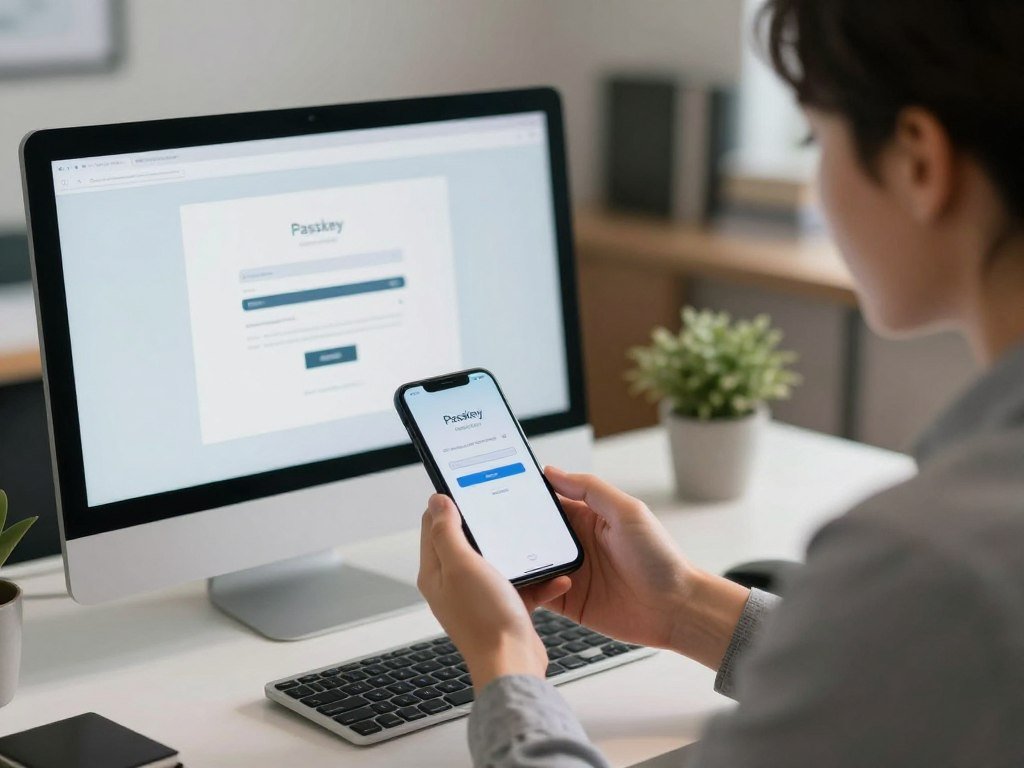
A passkey prompt appears on a supported device. You approve it with the device’s unlock method, without typing an account password or one-time code.
For example, you can start a login on your computer and approve the passkey prompt on your phone. The phone handles the approval while the computer finishes the login.
Using Passkeys Across Your Devices
A passkey can be stored on a phone, computer, or hardware security key. The device you use most often can shape how convenient sign-in feels.
Some people keep a password manager because it can hold passwords and passkeys across devices. Others prefer a credential saved on one device, especially when they rarely sign in elsewhere.
Consider how much time you spend switching between devices, apps, and verification codes. A login method that works smoothly on your usual devices is easier to keep using.
Choose a method that works on the devices you actually use, not just the one you have in front of you today.
What Do NIST’s AAL Rules Require?
NIST’s AAL2 rules require two distinct factors and a phishing-resistant option, while AAL3 adds a non-exportable key and proof of two distinct factors. The assurance level matters when an application has formal security requirements.
AAL means Authentication Assurance Level. NIST SP 800-63B Revision 4 was published in 2025 and replaced the earlier version.

At AAL1, an application needs single-factor authentication. NIST recommends that applications assessed at AAL1 offer MFA options, even though the level does not require two factors.
At AAL2, the user must prove control of two distinct authentication factors. The application must also offer a phishing-resistant authentication option.
The NIST SP 800-63B rules set out these requirements for remote digital authentication.
At AAL3, authentication must resist phishing and use a non-exportable authentication key. The user must prove control of two distinct factors.
A passkey does not automatically meet every assurance level. The implementation and key handling affect whether it meets a specific requirement.
For example, a synced credential and a device-bound key may be handled differently under a particular policy. The term passkey alone does not describe every detail an assessor needs.
Check the current requirement for your application rather than assuming that every passkey implementation meets AAL3.
What Happens If You Lose a Device?
Losing one device is manageable when the passkey is synced or another sign-in method has already been enrolled. The storage choice matters because a device-bound credential may not exist elsewhere.
A synced passkey can remain available on another signed-in device, while a device-bound passkey may need a planned backup. Losing every enrolled device can require the service’s recovery process.
Synced Credentials and Device-Bound Credentials
A synced credential can be available on other devices tied to the same credential manager account. Losing one phone does not necessarily remove the passkey from those devices.
A device-bound credential stays with the device where it was created. If that device is lost, you may need another enrolled credential or the service’s account recovery route.
Backup and Account Recovery Options
Plan for the possibility that a phone breaks, gets lost, or cannot be unlocked. These four backup steps give you more than one way back in:
- Enroll a second passkey on another available device.
- Keep a separate hardware security key where appropriate.
- Confirm the service’s account-recovery route.
- Protect the email account used for recovery.
Email resets and backup codes are recovery options, not extra passkeys. They depend on the service and the recovery details you set up.
A separate hardware security key can help when you cannot use your phone or computer. Store it somewhere safe and separate from your main device.
Before relying on a device-bound passkey, verify the account’s recovery route while you can still sign in.
Where Does Passkey Adoption Stand in 2026?
Passkeys have moved beyond an early experiment, but adoption includes both limited trial use and broad use across a person’s accounts. People are adopting them at different rates, so one passkey does not mean every login has changed.
In an independent 2024 survey, 53% of people had enabled a passkey on at least one account, while 22% had enabled them wherever possible. Those numbers describe different levels of uptake.
The first figure includes someone who tried one passkey on one account. The second describes people who enabled passkeys on every account they could.
Passkey adoption does not prove that every service supports them or that every user is ready to switch. Choose a method based on the account and the devices you need.
| Account type | Practical primary method | Fallback | Main consideration |
|---|---|---|---|
| Personal email and social accounts | Passkey where supported | Password plus MFA | Protects accounts used for resets |
| Shopping and media | Passkey where supported | Unique password | Check payment and profile access |
| Work accounts | Organization-approved method | Required company option | Follow workplace policy |
| Older or shared systems | Supported individual method | Password plus MFA | May not support personal credentials |
For work accounts, the choice may depend on the employer’s systems and rules. A personal passkey may not fit a shared device or a team login.
Start with a high-value personal account that supports passkeys and has a recovery method you understand.
How Do Passkeys Work Across Devices and Services?
Whether a passkey follows you to another device depends on whether it is synced through a credential manager or bound to one device. Storage sets the reach of the credential.
Synced passkeys can follow you across devices signed in to the same manager account, while a Windows Hello passkey stays on its original PC.
Syncing, Device-Bound Storage, and Credential Portability
Apple stores passkeys in iCloud Keychain and syncs them across Apple devices signed in to the same Apple Account using end-to-end encryption. Google Password Manager also syncs passkeys across devices signed in to the same Google Account using end-to-end encryption.
Windows Hello passkeys are device-bound. The private key stays on the PC where the passkey was created, so it does not sync through a credential manager.
Apple added passkey transfer to another credential-manager app that supports the FIDO Alliance Credential Exchange standard in iOS 26, iPadOS 26, and macOS Tahoe 26. That support does not mean every credential manager can transfer passkeys.
PlayStation as a Practical Example
PlayStation supports passkey sign-in on PS5 and PS4, its website and app, and Remote Play for Mac. Passkeys also work on most mobile devices running iOS 16 or later, or Android 9 or later.
A PlayStation account can have more than one passkey through Manage Passkeys. The service also offers a “Can’t Sign In with Passkey” route using email or a QR code.
You can use a passkey on another device if that device can access the same passkey or password manager. If you prefer, PlayStation lets you disable passkey sign-in and create a password in Account Management security settings.
PlayStation passkeys are safer than passwords against phishing during sign-in, but a password fallback remains a separate route. PlayStation cautions against using an Android PIN code as a passkey, and some hardware security keys may have issues.
On PlayStation, add a second passkey before disabling the password route, and avoid using an Android PIN as the passkey.
How Do You Change From a Password to a Passkey?
Start the switch by confirming that the account supports passkeys and that you can still recover it if a device is lost. Keep access first, then create the new credential.
Test the passkey on another available device before removing a password fallback. This confirms that the credential manager and the service work together.
Create and Save a Passkey
Follow these five steps when changing an account’s sign-in method:
- Confirm that the service supports passkeys.
- Check the account’s recovery options.
- Create a passkey in the account security settings.
- Confirm that it appears in your selected credential manager.
- Test sign-in on another available device before removing a password fallback.
Keep a Usable Backup
Google Password Manager can save passwords and passkeys for devices signed in to the same Google Account. You can view and manage saved credentials on Android, in Chrome, or through its website.
Google says saved passwords and passkeys can be used on any device signed in to that Google Account. Its optional setting can also create a passkey automatically when you sign in to an app or site with a saved password.
You can turn automatic passkey creation on or off. Check that the new credential appears in the manager you chose, especially if you use more than one account or device.
A password manager comparison can help you weigh device access, syncing, and storage before choosing a manager.
Test the new passkey on a second device before relying on it as your only sign-in method.
Passkey vs 2FA: Do You Still Need an Authenticator?
A passkey can replace the password-and-code routine for many accounts, but it does not automatically satisfy every separate MFA policy. The service’s rules matter, especially for work accounts and sensitive actions.
Two-factor authentication uses two distinct factors; MFA can use two or more. A passkey’s role depends on how the service or organization has set up authentication.
How Passkeys Compare With Authenticator Apps
Traditional 2FA commonly pairs a password with an authenticator-app code, SMS code, push approval, or hardware token. Password plus TOTP requires you to enter a time-based one-time password after your password.
Password plus SMS follows the same pattern, but sends the code by text. A manually entered code can be phished if you enter it on a fake site.
A passkey sign-in uses a cryptographic credential instead of the password-and-code routine. Whether that meets a separate-factor policy depends on the policy and authenticator setup.
When a Separate Factor Still Helps
A separate factor may remain useful in these cases:
- A service or policy explicitly requires it.
- A sensitive action needs step-up verification.
- An account recovery route needs an independent method.
Step-up verification asks for another check before a high-impact action, such as changing important account settings. A separate method can add a layer when the service is built to require it.
Keep a separate authenticator only when the service, organization, or sensitive action actually requires one.
What If a Website or Account Does Not Support Passkeys?
If a service does not support passkeys, keep the account protected with a unique password and the strongest additional method it offers. Some systems need a hybrid approach until their apps support passkey sign-in.
A password manager helps you use unique passwords, but it does not make a password phishing-resistant. Passkey sign-in requires a website or app that supports the WebAuthn authentication flow.
Older services may only accept passwords, while shared accounts may not support separate credentials for each person. Some workplace tools also rely on systems that cannot handle individual device credentials.
Use this fallback checklist for accounts without passkey support:
- Use a unique password stored in a password manager.
- Enable an authenticator-app code or hardware security key if supported.
- Avoid SMS as the first choice when a stronger option is available.
- Use the service’s approved process for shared accounts instead of sharing personal passkeys.
Keep shared-account access within the service’s approved process; do not pass personal passkeys between users.
A password manager can help you create and store a different password for each login. It cannot stop a fake site from collecting a password you enter there.
Revisit unsupported accounts when their sign-in options change, especially those that protect sensitive data.
Conclusion
For most accounts that support them, passkeys are the strongest everyday sign-in choice. They offer phishing resistance without requiring you to type a password and code.
Password plus MFA remains a practical fallback for unsupported services and specific requirements. Your choice also needs to work with the devices and recovery options you rely on.
Pick one important account, add a passkey, and verify its recovery option before changing anything else.
FAQ
Can I use a passkey without a fingerprint or face scan?
Yes, a compatible device can use its screen-lock PIN or another supported unlock method. The passkey still proves account ownership; the PIN only unlocks the credential on that device. Some devices offer a pattern or another local check. Choose an unlock method you can remember, since you may need it when biometrics do not work.
Can I use the same passkey on an iPhone and an Android phone?
Sometimes, but it depends on the credential manager and the accounts signed in on both phones. A passkey synced through one manager may not appear in another manager automatically. Cross-device sign-in or credential transfer support may also differ. Before relying on the same credential on both phones, check that the service and manager support the route you plan to use.
Should I keep my password after adding a passkey?
Yes, keep it until you have tested another passkey or recovery route. A password fallback can still be phished, even when you also have a passkey. Test the new sign-in on another available device and make sure you can reach the account’s recovery options. Then decide whether removing the password fits the service’s settings and your needs.
Is a passkey safe if my phone is stolen?
A passkey still requires the phone’s unlock method, which helps protect it from someone who finds the device. You should also secure the stolen phone and the account that syncs its credentials. Use the device maker’s lost-device tools when available, and contact the service if you cannot protect the account. A passkey does not protect a separate password fallback.
How many passkeys should I add to an account?
Add a backup passkey on another available device or authenticator when the service allows multiple credentials. One extra credential gives you another sign-in route if your main phone is lost or damaged. Keep each device protected with its own screen lock. The right number depends on how many devices you use and what the service supports.
Does a password manager store passkeys?
Some credential managers store and sync both passwords and passkeys. Check which devices are signed in to the same manager account, since that can affect where a synced passkey appears. A manager may also keep credentials separate across accounts or profiles. Confirm that the passkey is saved in the manager you expect before relying on it elsewhere.