You can check a graphics card’s temperature in Task Manager or use an overlay to watch it while you play. Task Manager is the quickest no-download check on a supported dedicated card. An overlay or monitoring app works better when you need live readings during gaming.
Thermal throttling is a GPU’s automatic reduction of clock speed to control heat. Temperature is one clue when you diagnose performance drops, but one reading alone does not prove a problem. A game can slow down for other reasons, too. This guide shows you how to check GPU temperature 13 steps 2026, compare readings, and decide what to inspect without guessing.
Start with one reading under the workload that usually makes you wonder about heat.
Key Takeaways
- Task Manager offers a quick reading on supported dedicated GPUs.
- A gaming overlay can show live temperature and clock speed.
- Core, hotspot, and memory readings describe different sensors.
- Compare repeatable runs before judging a change.
- Use your card’s own thermal limits when deciding what to do.
How to Check GPU Temperature in Task Manager
For a quick check on a supported Windows PC, select the dedicated graphics card in Task Manager’s Performance tab. This simple check can show the GPU temperature without another download. Windows 10 and Windows 11 can show core temperature when the graphics driver is current.
Press Ctrl+Shift+Esc to open Task Manager. Then follow these steps to check GPU temperature in Windows 11 or a supported Windows 10 system:
- Open Task Manager with Ctrl+Shift+Esc.
- Choose Performance in the left menu.
- Select the dedicated GPU entry to view its graphs and temperature.
Task Manager shows the core temperature, not the hotspot temperature or memory junction temperature.
The GPU temperature feature arrived with the Windows 10 May 2020 update. The reading appears below the utilization graphs when your card and driver support it. Integrated graphics may not show the same temperature field.
Task Manager updates the value slowly and does not keep a history. That makes it handy for a quick look, but less useful for catching brief peaks during a game. You will need another method to watch changes in real time.
Treat the displayed value as a quick snapshot, not a record of the card’s hottest moment.
How to Check GPU Temperature 13 Steps 2026 With NVIDIA Tools
For a live gaming readout, the NVIDIA App’s overlay is the fastest option on a GeForce card. It stays on screen while a game runs, so you can watch temperatures during play. The overlay can show GPU temperature, clock speed, and frame rate.
Read the NVIDIA App Overlay While Gaming
Press Alt+Z to open the NVIDIA App overlay by default. Open its performance settings and turn on the performance readout. Choose the metrics you want visible, then return to your game.
The readout helps connect a change in temperature with a drop in clock speed or frame rate. It is a live display, though, not a saved log. If you need to compare runs later, use a monitoring app that records readings.
Query Temperature Limits With nvidia-smi
The command-line tool nvidia-smi can show current temperature and driver-reported limits. Open a command prompt and run nvidia-smi -q. Look for the temperature section in the output.
The target temperature is the card’s reported operating goal. The slowdown temperature marks when it can reduce clock speed to manage heat. Maximum operating temperature is the stated upper operating limit, while shutdown temperature is the point tied to protective shutdown behavior.
One card’s output may report a target of 83°C and maximum operating temperature of 92°C, with slowdown at 94°C and shutdown at 97°C. Those are example values for one card, not universal limits. The labels help you read the output, but your model may report different thresholds.
Use the threshold reported for your own card rather than treating the example temperatures as a universal target.
Check Radeon Temperature in AMD Adrenalin
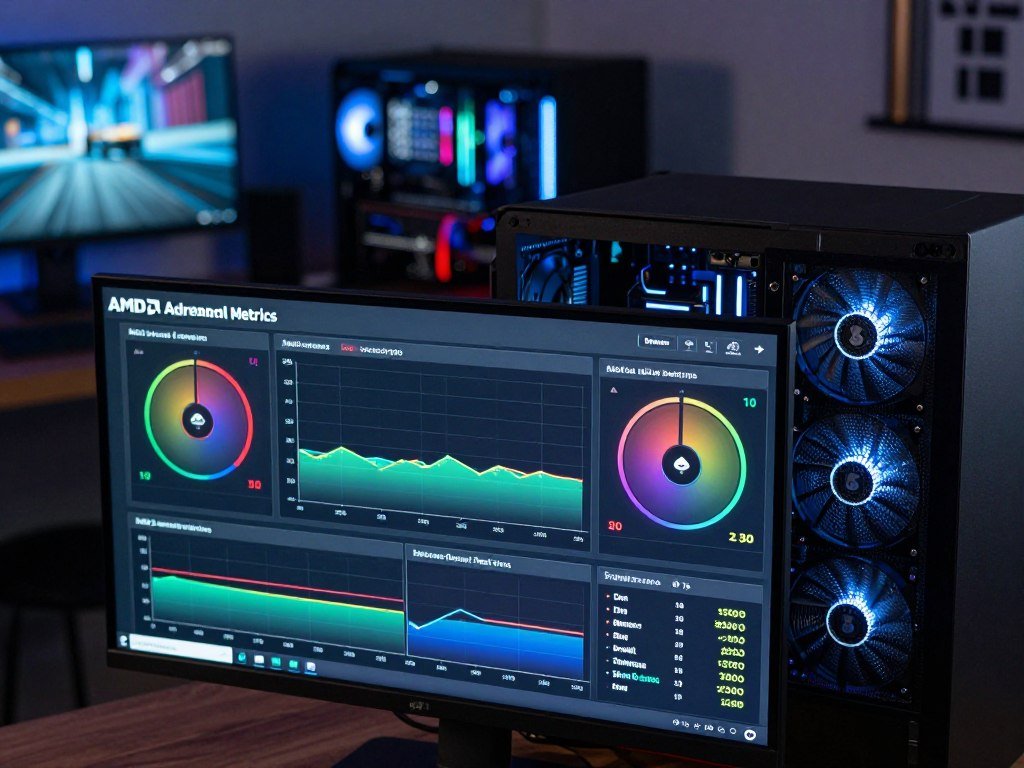
Radeon owners can enable a live temperature display from Performance > Metrics in AMD Software: Adrenalin Edition. The sensor overlay can show GPU temperature, hotspot temperature, and fan speed when those readings are available. Choose only the readings your card and driver expose.
Open Adrenalin and find Performance, then Metrics. Turn on the metrics overlay and select the readings you want to see. The exact controls can vary with software versions, so use the labels shown in your installed app.
Use this quick setup list:
- Open AMD Software: Adrenalin Edition.
- Go to Performance > Metrics.
- Enable the overlay and choose available readings.
GPU temperature is the core temperature reading. Hotspot temperature tracks the hottest on-die point, while fan speed shows how fast the card’s fans spin. The overlay may offer some, all, or none of these, depending on the graphics card and driver.
A live readout can help you see what happens during a game, but it does not save a record by itself. If you plan to compare runs, note the readings or use a tool with logging features.
Check that the selected overlay shows the sensor you intend to watch before starting a game.
Which GPU Monitoring Tool Fits Your Setup?
HWiNFO is a strong choice for detailed sensor checks, while MSI Afterburner is useful when you want a gaming overlay. Pick by purpose, not by the number of readings on screen. HWiNFO, GPU-Z, and MSI Afterburner can expose GPU metrics such as core temperature, memory junction temperature, fan speed, clock speed, and voltage.
| Tool | Live overlay | Sensor details | Useful for |
|---|---|---|---|
| HWiNFO | Available | GPU sensors and system readings | Detailed sensor checks |
| GPU-Z | No built-in overlay | GPU sensors and card details | GPU-focused checks |
| MSI Afterburner | Available | GPU temperature, fan, clock, voltage | Gaming overlay and fan control |
| HWMonitor | No overlay claim | Broad system sensor readings | Checking several components |
Core Temp is a CPU-focused monitoring utility, not a GPU temperature tool. GPU-Z and MSI Afterburner focus on the GPU, while HWiNFO can show a wider set of system sensors. HWMonitor is a broad system-monitoring option, without a claim here that it provides an overlay.
Think about what you want to see while playing. A visible overlay helps you watch temperatures and clock speed without leaving the game. A sensor list is more useful when you want to inspect details outside a game.
Choose the tool that shows the sensor you actually need, rather than installing several apps to watch the same core reading.
Set Up Open Hardware Monitor and Save a Log
Open Hardware Monitor can show supported GPU sensors and save their readings to a CSV file. A saved record makes it easier to compare sensor changes over time. Version 0.9.6 runs on Windows with .NET Framework 4.5 or later.
Run the program with administrator rights to access most hardware sensors. Find the GPU in its sensor list, then expand its entry to view the readings your hardware reports. Sensor names and available fields vary by device.
Open Hardware Monitor supports NVIDIA, AMD, and Intel integrated and discrete GPUs. It can show hotspot and memory junction temperature when the graphics hardware exposes those sensors. An integrated GPU may offer fewer readings than a dedicated card.
To keep a record, enable logging and choose a sampling interval. The available intervals run from 1 second to 6 hours. A CSV file can help you compare readings from different sessions in a spreadsheet.
Pick an interval that fits the question you are checking. A short interval captures brief changes, while a longer one produces a smaller file over a long run. Keep the same interval when you compare two sessions.
Confirm that the CSV contains the sensor columns you plan to compare before relying on the log.
What GPU Temperature Is Normal During Use?
A reading of 70°C under load falls within the general 60-80°C safe range. That is a guide, not a guarantee for every model. Check your card’s own limits, especially when a reading approaches the upper end.
These general GPU temperature ranges can help you decide what to check next:
| Range | General label | What to check |
|---|---|---|
| Idle 30-50°C | Idle | Whether the card is at rest |
| 60-80°C | Safe | Normal behavior under load |
| 85-90°C | Tolerable | Your model’s stated limit |
| 95-100°C | Throttling | Clock speed and thermal limits |
A 2026 general guide lists 30-50°C for idle and 60-80°C as a safe range. It labels 85-90°C tolerable and 95-100°C as throttling territory. These are broad guide ranges, not a promise that every graphics card follows the same limits.
The core temperature is the average chip reading. The hotspot temperature is the hottest on-die reading, so the two values are not identical. A higher hotspot reading does not mean the core sensor is wrong.
Temperature can also change with the card’s design and workload. Compare the right sensor with its own limit rather than using one number for every reading. A core temperature and a hotspot temperature describe different parts of the same chip.
Check your card’s own reported thermal limits before judging a reading near the high end.
Compare Idle and Gaming Temperatures With a Baseline
A temperature reading becomes more useful when you can compare it with a repeatable run under the same conditions. Like-for-like readings help you spot a real change instead of a different workload. Keep your settings steady each time you test.
Record an Idle Reading
Wait five minutes after startup before recording an idle reading. Then log idle behavior for five minutes, without opening a demanding app or game. This gives the desktop time to settle before you compare it with a load run.
Write down the conditions beside the readings. Room temperature can affect a run, and driver updates or a different fan mode can change the result. Keep these details together:
- Room temperature and driver version.
- Workload, resolution, and quality settings.
- Frame limit and fan mode.
- Case state, including whether its panels are installed.
Run the Same Workload Under Load
Use one game benchmark or another repeatable workload for at least 15 minutes. Keep the resolution, quality settings, frame limit, fan mode, and case state the same on each run.
A game that renders more frames can put a different load on the GPU. Changing the resolution or frame cap can also change its work. That makes a reading from one setup hard to compare with a reading from another.
If you are choosing a workload, a gaming PC guide that compares game settings can help explain why resolution and quality affect GPU demand. Use one game or benchmark consistently, rather than switching between tests.
Keep the notes beside the log so the next comparison does not depend on memory.
Why Does a GPU Run Hot?
Dust and restricted airflow are common reasons a card’s temperature rises over time. A pattern can point toward a likely cause, but it cannot prove one fault. Check the conditions around the card before assuming its cooler has failed.
| Symptom | Likely cause | First check |
|---|---|---|
| Readings rise as filters collect dust | Dust buildup or reduced airflow | Inspect filters and fan paths |
| Temperature climbs on warmer days | Higher room temperature | Compare room conditions |
| One sensor runs unusually hot | Sensor gap, paste, or cooler contact | Compare core and hotspot readings |
| Temperature climbs during a demanding game | Heavy workload, fan fault, or overclock | Check workload, fans, and settings |
Dust can collect on filters, fans, and heatsinks. Poor case airflow can trap warm air, while a high room temperature gives the cooling system warmer air to use. Cooler design and spacing inside the case can affect airflow, too; Tom’s Hardware’s airflow guide explains how case layout can shape heat removal.
A demanding game can raise temperature because the GPU is doing more work. Overclocking without enough cooling can add strain. A faulty fan or worn thermal paste may also contribute, but unusual readings alone cannot confirm either issue.
Choosing a case or board setup also means checking card clearance and fan connections. A gaming motherboard selection guide covers fit and useful connections for PC builds. Case space matters when the graphics card blocks nearby airflow.
Treat a temperature pattern as a clue to inspect, not as a diagnosis by itself.
How Can You Lower GPU Temperature?
Begin with the low-risk checks: dust, unobstructed airflow, and working fans. Start outside the card before considering repairs. Do not open the graphics card to replace thermal paste unless you have the right experience.
Try these five actions in order:
- Power off the system, then clean dust filters and fans.
- Clear the GPU’s intake and exhaust path.
- Check that the GPU fans operate normally.
- Cap unnecessary frame rates or close demanding background tasks.
- Ask an experienced technician to assess suspected cooler contact or thermal paste issues.
A more aggressive fan curve can lower temperatures, but it adds noise. Change the curve gradually and listen for sounds that suggest a fan is struggling. Fan speed should rise and fall as expected when the GPU gets busy.
Overclocking needs adequate cooling. If you have raised clock speeds or power settings, return them to the card’s usual settings before testing again. That gives you a clearer view of the system’s normal behavior.
Case airflow also depends on fan placement and room around the card. Before changing parts, confirm the graphics card has a clear path for cool air and warm air to leave. Avoid blocking vents with cables or nearby objects.
If cleaning and airflow checks do not change a persistent abnormal reading, get the card inspected before attempting a cooler repair.
Can You Check CPU and Whole-PC Temperatures With These Tools?
HWMonitor can show CPU and GPU readings alongside other temperatures and system sensor values. One sensor list can include fan speed, voltage, power, current, utilization, and clock speed. It can also monitor memory modules and storage devices when they have thermal sensors.
Core Temp focuses on CPU monitoring, so it is not a GPU temperature monitor. To get CPU monitoring software, use Core Temp’s official project site and check the current download before installing it. HWMonitor covers more types of system sensors in one view.
A normal website cannot reliably read hardware temperature sensors by itself. You need a local monitoring app or a supported system interface for that access. A web page may show data from an app or device, but the page alone cannot read a computer’s sensors.
CPU temperature depends on the processor model and workload. An 84°C reading under load is not automatically unsafe, and a brief peak differs from a sustained reading. Check the processor’s specified thermal limit instead of applying a GPU range.
HWMonitor 1.68 was released September 14, 2026, and added PCI Express error counters on AMD and Intel GPUs. Its readings can include more than temperature, so use the sensor name to tell which value you are viewing.
Use the processor’s own specified thermal limit when interpreting CPU readings, not the GPU guide’s ranges.
Why Is the GPU Temperature Missing?
A missing temperature line usually calls for a compatibility and driver check before any hardware diagnosis. It does not prove that the graphics card has failed. Temperature readings depend on a supported device, available sensors, and a working driver.
Check these four things:
- Identify the GPU under Device Manager > Display adapters.
- Tell integrated graphics apart from a dedicated graphics card.
- Check that the graphics driver is installed and current.
- Try a vendor app or monitoring utility that supports the device’s sensors.
Device Manager may list NVIDIA, AMD, or Intel graphics hardware. An integrated GPU and a dedicated graphics card can expose different readings, so first confirm which device you are checking.
A missing hotspot or memory junction reading does not mean the core temperature is missing.
Not every GPU exposes every temperature sensor. Some tools can show the core temperature but not hotspot or memory junction temperature. The sensor support depends on the hardware and driver, not just the monitoring app.
Windows can show incomplete or generic hardware details in some cases. If the adapter name looks uncertain, confirm it another way; this Windows hardware identification guide explains how system details can vary. Check the exact adapter before treating a missing field as a fault.
If no monitoring tool detects the device, confirm that Windows lists the intended graphics adapter and its driver.
Conclusion
A temperature check is most useful when it tells you whether your card is behaving as it normally does. A quick snapshot can catch an obvious change, while a repeatable gaming log gives you better evidence over time.
Record one normal run and keep its conditions with the reading. When you judge later results, use the thermal limits reported for your own graphics card. That gives you a sound reference instead of a guess based on another model.
Record your next normal gaming session and keep that reading as the reference for future checks.
FAQ
How do I check my GPU temps?
On Windows, open Task Manager with Ctrl+Shift+Esc, select Performance, then choose the dedicated GPU. The temperature appears below its utilization graphs when the device and driver support it. For live gaming readings, turn on an overlay from your graphics software. A monitoring app is a better choice when you want detailed sensors or saved readings to compare later.
Is 70C too hot for GPU?
No, 70°C is inside the general 60-80°C safe range for a GPU under load. That range is a guide, not a rule for every graphics card. Compare the reading with the limits reported for your own model, and make sure you are comparing the same sensor each time. Core and hotspot temperatures measure different parts of the chip.
Can I check my PC temperature online?
No, a normal website cannot reliably read your computer’s hardware temperature sensors on its own. Use a local monitoring app or a supported system interface to access those readings. A website can display readings sent by a separate app or device, but opening a page alone does not give it sensor access. Use a trusted app and check what sensors it supports.
Is 84 C hot for a CPU?
Not automatically, since an 84°C CPU reading under load depends on the processor model and workload. Check the model’s specified thermal limit, and note whether the reading lasts or appears only as a brief peak. A demanding task can raise temperature more than light desktop use. Do not judge a CPU reading by GPU temperature ranges.
How do I check all my PC temps?
Use a sensor monitor such as HWMonitor to check CPU, GPU, fan, memory, and storage readings when your hardware supports them. Expand each device in the sensor list and read the labels carefully, since not every part has a temperature sensor. A broader tool can show more system data than a GPU-only utility. Record the readings you want to compare.
How can I test my CPU temperature?
Use a local CPU monitoring utility, then record readings during the workload that concerns you. A short idle check gives you a point of comparison, while a run under your normal work or game shows how the processor behaves under load. Keep the task and settings consistent when repeating the test. Compare results with your processor’s stated thermal limit.
What app to check PC temps?
HWMonitor covers many system sensors, HWiNFO is useful for detailed readings, and Core Temp focuses on CPU monitoring. GPU-Z and MSI Afterburner are options for GPU-focused checks. Choose an app that supports the sensors on your hardware and shows the readings you need. You do not need several tools just to watch the same core temperature.
Is 90 C too hot for a CPU?
A sustained 90°C CPU reading is high enough to compare with the processor’s model-specific thermal limit. Check whether the temperature holds there under load or only appears as a brief peak. The processor’s limit, workload, and cooling setup matter more than a GPU temperature guide. If readings remain near the limit, review the system’s cooling and fan behavior.