A $1,000 gaming budget can cover a capable 1080p system. The best fit, DIY build or prebuilt, depends on what you already own.
CPU-GPU balance means how well the processor and graphics card keep up with each other in your games and settings. A tower that uses the full budget can leave no room for a monitor or other desk gear. This roundup offers a clear pick for ready-to-play buyers and a parts-first choice for hands-on shoppers.
Your price limit can mean the tower alone or everything needed to play. That difference affects value more than a flashy case or RGB lighting. Treat the tower budget and the full desk setup as separate decisions before comparing specific machines.
Key Takeaways
- Skytech Nebula is the main prebuilt gaming choice for most buyers.
- The September 2026 parts list suits shoppers ready to assemble a DIY build.
- Plan around 1080p for a balanced budget system.
- Check the total price with Windows if you need an operating system.
- Reuse a monitor, keyboard, and mouse when you can.
Best Gaming PC Under $1000: Which Option Fits?
For most shoppers who want a ready-to-play tower, the Skytech Nebula is the clearest overall starting point. It is the leading prebuilt gaming candidate for a typical buyer who wants an assembled system.
The best gaming PC under $1000 in 2026 depends on whether you want to build or buy. The Nebula gives you a direct path to gaming without assembly, while the September 2026 DIY configuration gives hands-on shoppers more control over parts.
For a $1,000 budget, 1080p is the sensible target. It leaves more room for useful performance than aiming at 1440p from the start. Your value comes from matching the system to your games, not buying the biggest number on a product page.
- Best overall prebuilt: Skytech Nebula for a ready-to-play tower.
- DIY parts build: September 2026 configuration for buyers who can assemble it.
- Discrete-graphics prebuilt candidate: abytespark AOV590, if its current price fits your budget.
- Integrated-graphics option: MXZ R5 5600GT for lighter play, if its current price fits.
The AOV590 and MXZ offer different routes, not guaranteed deals under the cap. Their price and the exact configuration matter. Do not assume a candidate fits simply because its hardware suits your gaming plans.
For most buyers, the Nebula is the simple choice when assembly is off the table. The parts list can be a better fit if you enjoy choosing hardware and already own the setup extras. Decide first whether you are paying for an assembled system or selecting parts yourself, since that choice changes what the budget must cover.
What Does the September 2026 DIY Build Cost?
The September 2026 parts list prioritizes the graphics card, with the processor and platform selected around it. That focus puts most of the hardware budget toward game graphics. The listed components fit below $1,000 before Windows, but the full configuration does not.
A DIY build spreads its cost across a CPU, graphics card, memory, motherboard, storage, case, and power supply. Each part has a separate job, so the price alone does not show what you are getting.
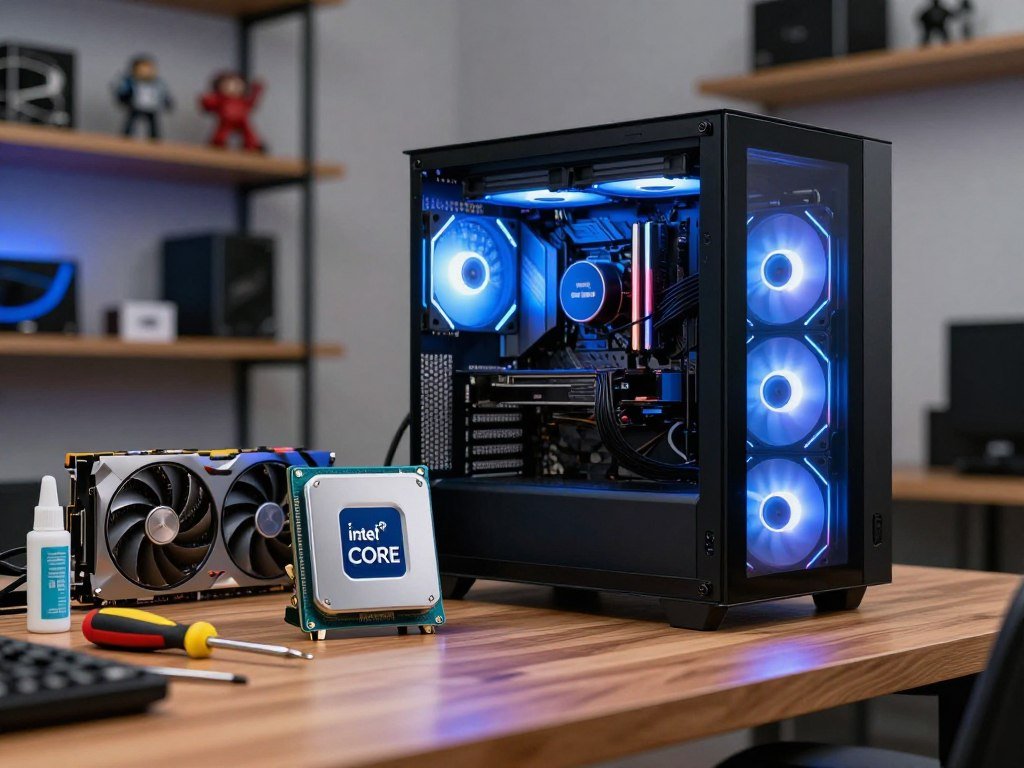
The CPU, graphics card, memory, and motherboard
The Intel Core i3-14100F costs $105 and has four cores and eight threads. It handles game and system tasks while the graphics card draws each frame.
The Gigabyte Radeon RX 9060 XT 8GB costs $400. This graphics card has the largest role in gaming performance, so it anchors the parts choice.
The G.Skill Ripjaws V kit costs $120. It provides 16GB of DDR4-3200 memory with a CL16 timing rating, split across two 8GB sticks.
The ASUS B760M-AYW WiFi D4 motherboard costs $110 and supports the listed Intel Core CPU. It has two PCIe Gen 4 M.2 slots and a PCIe Gen 5 video-card slot.
Its other features include six USB ports and Wi-Fi 6. Together, the processor, card, RAM, and motherboard make a core parts set, not a complete ready-to-use computer.
Storage, case, power supply, and operating system
The TeamGroup MP44L is a 500GB PCIe Gen 4 NVMe SSD priced at $103. Its sequential read speeds reach up to 5,000MB/s, though capacity may feel tight with many large games installed.
The NZXT H3 Flow micro-ATX case costs $60 and includes one rear 120mm fan. The Thermaltake Smart 500W 80+ power supply costs $40 and includes a five-year warranty.
The Intel Core i3-14100F includes a CPU cooler, so the listed parts do not need a separate cooler purchase. The case and power supply complete the core hardware, but Windows remains a separate line.
Windows 11 Home on USB is listed at $129. Adding that Windows purchase takes the full listed configuration above the $1,000 cap. If Windows is part of your purchase, count its listed $129 before treating this configuration as a complete sub-$1,000 build.
Which Prebuilt Gaming PCs Compare Well?
The Skytech Nebula offers the most straightforward prebuilt comparison point among these systems. Its listed parts make it easier to judge than a listing that focuses on case design or RGB. The Nebula was listed at $899 in July 2026.
That price came with an AMD Ryzen 5 5600, NVIDIA GeForce RTX 4060 8GB, 16GB DDR4-3200 RAM, and a 500GB NVMe SSD. The table shows how its core setup compares with three other prebuilt gaming candidates.

| System | CPU | Graphics | RAM | Storage |
|---|---|---|---|---|
| Skytech Nebula | Ryzen 5 5600 | GeForce RTX 4060 8GB | 16GB DDR4-3200 | 500GB NVMe |
| MXZ R5 5600GT | Ryzen 5 5600GT | Radeon Vega 7 integrated | 16GB DDR4 | 1TB NVMe |
| abytespark AOV590 | Ryzen 5 5500 | Radeon RX 590 8GB GDDR5 | 16GB DDR4 | 512GB NVMe |
| HP Victus 15L | Ryzen 5 5600G | Radeon RX 6400 4GB GDDR6 | 8GB DDR4-3200 | 512GB PCIe NVMe |
The configurations point to different strengths. The MXZ relies on integrated graphics, while the other three list discrete graphics cards. That difference affects which games and settings each system can handle comfortably.
The table cannot tell you whether a system’s current price fits your own limit or whether its graphics suit your games. Check the listing’s exact parts, since a product name can cover more than one configuration. Compare the exact CPU, graphics card, memory, and storage configuration on the listing before choosing a prebuilt.
Which PC Fits Each Gaming Budget?
A dedicated graphics card is the more flexible starting point if your library includes demanding games as well as esports. That flexibility matters when you want to play more than lighter competitive titles. Choose by the games you play, not by RGB or a broad performance claim.
The listed candidates cover distinct needs, from a discrete GPU to integrated graphics. Their current prices decide whether they fit a particular budget, so treat each as a hardware option rather than an automatic deal.
Dedicated graphics for a wider game library
The abytespark AOV590 pairs a six-core, 12-thread Ryzen 5 5500, boosting to 4.2GHz, with a Radeon RX 590 8GB GDDR5. It also has 16GB DDR4 and a 512GB NVMe SSD.
The listed game range includes Fortnite, GTA V, Valorant, CS2, Apex Legends, and Elden Ring. Its stated performance is 60+ FPS at 1080p medium settings. It includes Windows 11 Home, an RGB keyboard, mouse, mouse pad, and four RGB fans.
That bundle can reduce the need for extra gear, but check its current price before treating it as a budget fit. The discrete card makes it the more flexible candidate for a wider game library.
Integrated graphics for lighter 1080p play
The MXZ R5 5600GT uses a six-core, 12-thread Ryzen 5 5600GT that boosts to 4.6GHz. It pairs 16GB DDR4 with a 1TB NVMe SSD, Windows 11 Pro, and RGB fans.
Its Radeon Vega 7 graphics are integrated into the processor, not a separate graphics card. The MXZ is described for Valorant, Fortnite, CS2, Rocket League, and GTA V at 1080p medium settings.
That mix can suit lighter play, but integrated graphics share system resources. Consider the MXZ only if its current price fits your limit and its game focus matches yours.
A compact option for familiar competitive games
The HP Victus 15L pairs a six-core, 12-thread Ryzen 5 5600G, boosting to 4.4GHz, with a discrete Radeon RX 6400 4GB GDDR6. It has 8GB DDR4-3200 RAM and a 512GB PCIe NVMe SSD.
The Victus includes Windows 11 Home, Wi-Fi 6, Bluetooth 5, and nine USB ports. It is described as producing high frame rates at 1080p in Valorant, CS2, Fortnite, and Rocket League, without a set FPS figure.
Its compact format may appeal if desk room is limited. The 8GB of RAM is lower than the 16GB listed in the other comparison candidates, so weigh that difference in your choice.
What a gaming PC under $500 can realistically do
A gaming PC under $500 can be worthwhile for lighter games and esports if you keep expectations modest. That price often means accepting integrated graphics, used hardware, or other compromises.
The MXZ is one configuration to consider only if its current price falls within your limit. For this range, favor a clear list of parts over RGB details or a promise that names many games.
Match the computer to the games you actually play, not just to its RGB lighting or advertised frame-rate language.
What Performance Should You Expect at 1080p?
A balanced budget system should be planned first around 1080p, with 1440p treated as a game- and settings-dependent bonus. That is the practical target for many buyers. 1080p means 1920×1080, while 1440p means 2560×1440.
The GPU has the largest effect on gaming frame rates because it draws the scenes you see. For 1080 gaming, a graphics card can often deliver a stronger experience than a more costly CPU paired with a weaker card.
CPU-GPU balance still matters. A CPU-heavy game or a high-frame-rate goal can make the processor a limit, even when the graphics card is capable.
Higher resolution asks the GPU to draw more pixels, while demanding graphics settings add more work. Lowering settings can ease that load, but each game responds in its own way.
The Skytech Nebula supports DLSS 3, which includes upscaling and frame generation features. Those tools depend on game support, and they do not replace checking results for the title you want to play.
Tom’s Hardware’s 2026 GPU benchmark hierarchy compares graphics cards in tests at 1080p, 1440p, and 4K. Its June 2026 testing covers 48 GPUs and 19 tests, but GPU results do not predict every whole-PC result.
A fast screen can show more frames only when your system and game produce them. Before paying extra for a faster monitor, check that the GPU can make useful use of its refresh rate in your favorite games.
What Should You Check Before Buying?
Start with the actual configuration and checkout total, because a gaming label alone does not tell you whether a system fits your budget. The final number matters more than a sale badge. Check the parts and the price together before you commit.
Listings change, and two systems with similar names can have different hardware. Use this short checklist to compare the machine you will actually receive.
- Final checkout total: include taxes and any required setup purchases.
- Exact CPU, GPU, RAM, and storage configuration: compare model names and capacities.
- Included operating system and setup needs: check what is installed and ready.
- Power supply, cooling, and upgrade constraints: review wattage, space, and connections.
Some systems exceed the $1,000 ceiling despite appearing in budget searches. The Skytech Chronos 3 is listed at $1,150 with an Intel Core i5-14400F, Radeon RX 9060 XT 8GB, 16GB DDR5 RAM, and a 1TB NVMe SSD.
The CyberPowerPC Gamer Xtreme is listed at $1,099.99. Its air cooler is very loud, and its Windows 11 installation is marketed as bloat-free, a claim that does not change the price.
Both listings sit above a $1,000 ceiling, so they are comparison points, not picks within that limit. A 2023 recommendation may reflect older prices or parts, so recheck its current configuration rather than assuming it still suits today’s market.
Keep the full checkout total below your own ceiling after accounting for any required setup purchases.
Is a DIY Build or Prebuilt Better for You?
Choose a DIY build if selecting parts and assembling the machine are worthwhile to you, and choose a prebuilt if getting a ready-assembled system matters more. Your comfort with the work is a useful guide. A DIY build gives you parts control; a prebuilt saves assembly work.
Both routes can lead to a capable gaming PC. The difference is who picks the components, checks fit, and handles setup.
Choose a DIY build for parts control
A DIY build lets you choose each component, which can help you set priorities across the CPU, graphics card, RAM, and storage. You also need to make sure those components work together.
Use these steps to plan and finish the build:
- Check compatibility across the parts.
- Assemble the components in the case.
- Install the operating system.
- Test the system before relying on it.
Compatibility includes more than matching a CPU to a motherboard. Case size, cooling space, and power connections can affect whether the parts fit and work as intended.
Choose a prebuilt to avoid assembly
A prebuilt arrives assembled, which saves you the hands-on work and gives you one system to set up. That can be a good choice when you want to start gaming without learning how each part fits.
Check the exact parts and upgrade options before choosing. A model name may cover different hardware, and a prebuilt can cost more than assembling comparable parts because assembly and support contribute to the price.
ATX and micro-ATX are common motherboard and case form factors. For either route, confirm the motherboard form factor, case clearance, and power connections before committing to an upgrade.
What Accessories Fit Under the Budget?
If you need a screen too, decide whether your $1,000 limit covers the tower alone or the complete setup. A display changes the math for anyone starting without one. A monitor is the essential extra if you do not already own a screen.
The optional gear below adds $227 at listed prices when bought together. Existing peripherals can be reused, leaving more of the budget for the tower or a monitor.
| Item | Model | Listed price | Key feature |
|---|---|---|---|
| Monitor | Sceptre E248B-FPT168 | $114 | 24-inch 1920×1080 IPS, 165Hz, FreeSync |
| Keyboard | SteelSeries Apex 3 | $50 | Gaming keyboard |
| Mouse | Logitech G502 Hero | $38 | 16,000-dpi sensor |
| Headset | HyperX Cloud Stinger 2 | $25 | 50mm drivers, DTS Headphone:X virtual 7.1 surround |
The Sceptre’s 1080p resolution suits the common target for a budget gaming system. Its 165Hz refresh rate is useful only when your games and GPU can produce enough frames to take advantage of it.
For more help matching screen resolution and refresh rate to your system, see this budget gaming monitor guide. Reuse working peripherals first, then prioritize a display that matches your target resolution and refresh rate.
Conclusion
The right pick is the one that matches both your gaming target and what your budget needs to cover. For most ready-to-play buyers, the Skytech Nebula is the clearest choice among the prebuilt options.
The September DIY configuration suits shoppers who want to choose and assemble parts, but Windows takes the full listed setup above the cap. The tower and the desk setup can have separate budgets, so decide what your limit includes before you shop.
Write down your three must-play games and target resolution, then use those requirements to make your final shortlist.
FAQ
Is $1000 enough for a gaming PC?
Yes, $1,000 can support a capable 1080p gaming system. The key choice is whether that amount covers only the tower or also Windows and desk gear. A buyer who already owns a monitor and peripherals has more room for the PC itself. If you need a screen, keyboard, and mouse, include those costs before picking a tower.
What is the best PC build under $1,000?
The September 2026 DIY pairing of the Intel Core i3-14100F and Radeon RX 9060 XT 8GB is the parts-first choice. Its listed hardware components fit below the cap before Windows. Windows 11 Home on USB adds $129, which pushes the full listed configuration above $1,000. Count the operating system if you need to buy it.
What’s the best budget PC for gaming?
The Skytech Nebula is the ready-to-play option for most buyers who want a prebuilt tower. It gives you an assembled system without the work of choosing and fitting each part. A hands-on shopper may prefer the DIY route, especially when controlling the parts matters. Compare the exact configuration and current price before deciding.
Is a $500 gaming PC worth it?
Yes, a $500 gaming PC can be worthwhile for lighter games and esports if you keep expectations modest. At that price, integrated graphics or used hardware may be needed to fit the budget. You may also need to accept less storage or memory. Focus on the games you play most, not claims about a long list of titles.
Is 32 GB RAM overkill for gaming?
No, 32GB is not overkill for every gaming setup, though it is not essential for every player. It can help with demanding games, multitasking, and keeping more applications open while you play. For a budget build, 16GB remains a reasonable starting point. You can weigh an upgrade later against the cost of a stronger graphics card.
Is a $2000 PC good for gaming?
Yes, a $2,000 PC can be very good for gaming. That larger budget can support more graphics performance, a higher refresh rate, or a higher resolution. The extra spend helps most when your screen and favorite games can use it. Paying for 4K parts makes less sense if you plan to play on a 1080p display.
What is the lifespan of a gaming PC?
A typical gaming PC can stay useful for about 5-7 years. The point when you need an upgrade depends on game demands, settings, maintenance, and your performance expectations. You might keep the same system longer by lowering graphics settings. Dust cleanup and sound cooling can also help the parts keep working well.
Is a $700 PC good for gaming?
Yes, $700 can be a good 1080p entry point if the configuration puts enough money toward a discrete graphics card. Check that it also includes enough RAM and storage for your games. Compare the exact parts rather than trusting the price or a broad gaming label. The right fit depends on the games and settings you want.



