
A second screen can make a travel workday easier by keeping a document and its reference material visible at once. It can also hold a video call while you take notes or review a spreadsheet. A portable display will not replace a roomy home-office monitor, but it can make a hotel desk or shared workspace more useful.
Small screens fit more easily in a bag, while larger ones give you more room for side-by-side windows. The right balance depends on your work, your travel setup, and the space you usually have. Your laptop’s video output matters too. DisplayPort Alt Mode is a USB-C feature that carries DisplayPort video through the USB-C connection.
This list pairs common work needs with screens that suit them, from everyday documents to detailed creative tasks. It also helps you spot connection and size trade-offs before buying. Start by matching the screen size and connections to the way you actually work.
Key Takeaways
- Choose the HP Series 5 Pro for an all-around screen with broad color support.
- Pick the MSI Pro MP165 E6 when a low price matters most.
- Consider OLED or 4K for image-heavy work that needs fine detail.
- Touch and gaming features suit specific tasks, but add trade-offs.
- Check laptop video support and cable needs before you travel.
Best Portable Monitors for Remote Work: Which Pick Fits Your Setup?
For most remote workers, start with the HP Series 5 Pro, while the MSI Pro MP165 E6 is the budget choice. The best portable monitors fit your daily work, travel habits, and laptop rather than chasing the longest feature list. Start with your main task, then weigh the trade-offs.
Choose a screen for the work you do most often, not for a feature you may rarely use. The table narrows the field to five clear use cases. It gives you a practical starting point before you compare individual features.
| Use case | Pick | Priority |
|---|---|---|
| All-around remote work | HP Series 5 Pro 514pn | Broad daily use |
| Budget work | MSI Pro MP165 E6 | Lower purchase cost |
| 4K OLED work | ViewSonic VX1655-4K-OLED | Fine detail and contrast |
| Touch-enabled work | ViewSonic TD1656-2K | Direct screen input |
| Gaming alongside work | Asus ROG Strix XG17AHPE | Fast motion in games |
Let your main work task set the shortlist, then compare the trade-offs that affect your day.
A 2021 search for best portable monitors for remote work may lead to older models or advice. This is a 2026 shortlist, not a historical 2021 buying guide. Use it to compare current product choices, then check which features matter to your setup.
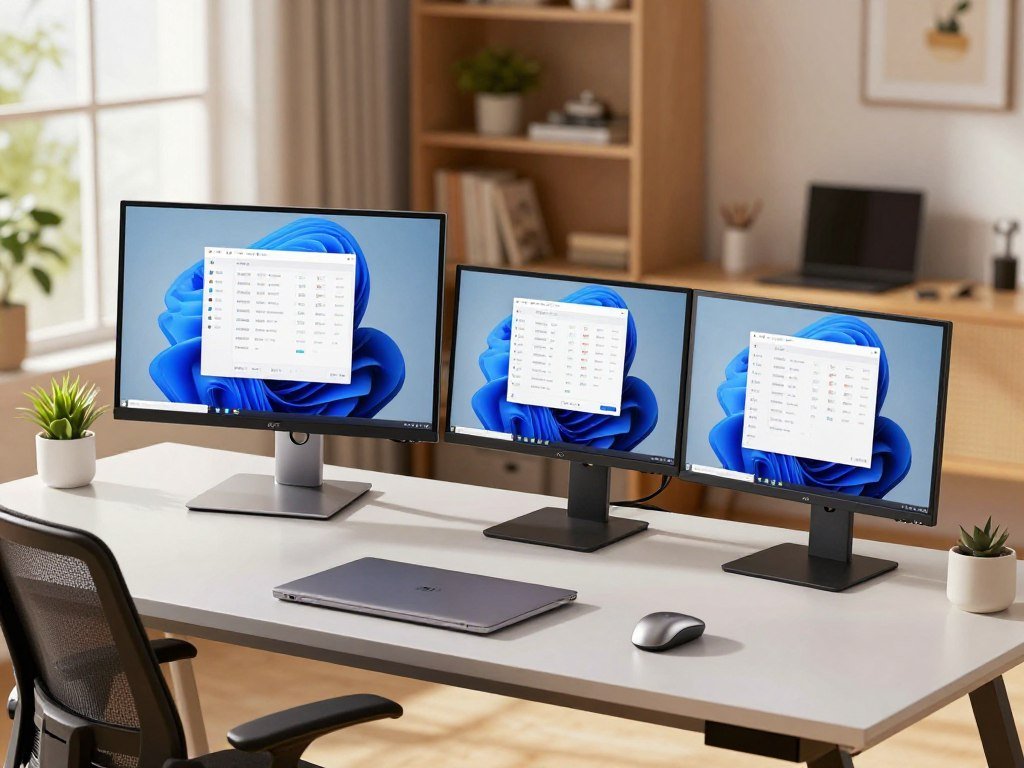
Each portable monitor here serves a distinct role, so the table is a filter rather than a universal ranking. If you work with notes, calls, or large files, consider how each choice fits into your laptop workflow. Use the table to narrow the field, then compare the details that matter to your setup.
Which Portable Monitor Gives Remote Workers the Strongest All-Around Screen?
The HP Series 5 Pro 514pn is the strongest all-around pick for workers who value a sharp, color-capable screen in a compact format. In 2026, PCMag’s overall portable-monitor pick is listed at $339.00. Its 16:10 panel gives documents more vertical room than a wide 16:9 screen.
Full coverage of sRGB, Adobe RGB, and DCI-P3 makes this display useful for work that depends on color. Those color spaces are common targets in design, photography, and video work. Broad coverage helps you see a wider range of colors, though a display still needs calibration for color-critical jobs.
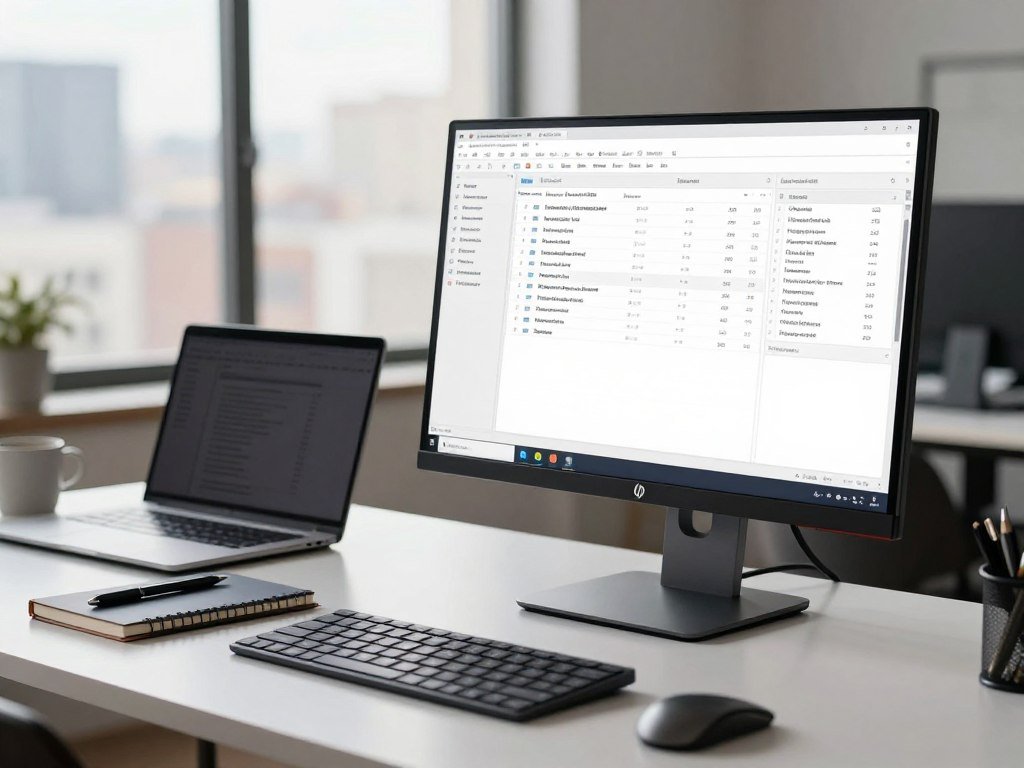
The extra height can reduce scrolling through long reports and keep more spreadsheet rows in view. That space can also help when you compare a document with notes beside it. For remote work, the panel balances clear text with room to keep reference material visible.
The HP uses USB-C-only connectivity, which keeps its connection options simple but can limit older devices. A laptop or other device without compatible USB-C video may need an adapter, and an adapter cannot add video support the computer lacks. The MacBook Pro USB-C hub guide explains how video support and passthrough charging affect hub choice.
That color range is especially helpful if your work moves between web graphics and print or video projects. For basic email and documents, those color features may matter less than price or connections. Check that your laptop supports video over USB-C before choosing this model.
Which Budget Portable Monitor Works for Everyday Remote Tasks?
The MSI Pro MP165 E6 is a sensible low-cost choice for documents, browser tabs, and other everyday work. In 2026, it is PCMag’s budget pick, listed at $79.99 at Amazon, with a 4.0, or Excellent, rating in its portable-monitor roundup. Useful basics matter more than extras at this price.
For cheap portable monitors for remote work, prioritize useful connections and a stable kickstand. The MSI has a 15.6-inch 1920 x 1080 display, 250 nits of brightness, and a built-in tilt-adjustable kickstand. It weighs 1.72 pounds, supports VESA mounting, and offers USB-C and HDMI.
PCMag found that the MSI exceeded its brightness rating during testing. A hands-on MSI Pro MP165 E6 review also notes its sturdy build and stand, while flagging muted colors and weak contrast. That trade-off may matter for photo work, but is less important for routine documents.
The Arzopa A1 is another simple option, with a 15.6-inch 1080p display, an integrated kickstand, two USB-C ports, and a mini-HDMI port. Compare these four points before picking between the models:
- Whether the screen suits simple office tasks.
- Whether your laptop supports a compatible video connection.
- Whether the kickstand feels stable on your usual work surface.
- Whether your device uses HDMI or mini-HDMI.
The MSI’s standard HDMI input and the Arzopa’s mini-HDMI port call for different cables. Mini-HDMI needs a matching cable or an adapter, so check which HDMI cable your device needs before packing the monitor.
Is a 4K OLED Portable Monitor Worth It for Remote Work?
The ViewSonic VX1655-4K-OLED makes sense when fine detail and OLED contrast matter more than keeping the purchase inexpensive. In 2026, it is listed at $499.93 at Amazon. Its 4K OLED display suits image-heavy work where fine detail and rich contrast can improve the viewing experience.
For ordinary documents and email, 4K OLED is a specialized upgrade, not a requirement. You may notice its value more when reviewing detailed images or video than when reading text or joining calls. The higher resolution also gives you more pixels to work with on a compact screen.
Two USB-C ports, each with 60-watt power delivery, offer useful flexibility. You can connect a compatible device through one port and use the other for power, depending on your equipment. The display’s ports may also help when your desk setup includes more than one USB-C device.
If you often edit images on the road, the screen may earn its higher cost. For a longer desk session, its portable size may feel cramped compared with a larger home-office monitor. The UHD monitor guide compares how screen size and pixel density affect detailed work. Choose it for the work that benefits from its display, not just the largest resolution number.
Which Touchscreen Portable Monitors Work Best for Hands-On Tasks?
For handwritten notes and direct interaction, the Lenovo ThinkVision M14t Gen2 and ViewSonic TD1656-2K are the clearest touch-focused options. Both include a stylus, but they serve different screen-size needs. Touch helps most when you mark up files or write notes by hand.
Choose a touch monitor only if your computer and work apps support the input you plan to use. Touch is an extra convenience, not a substitute for laptop compatibility. The operating system and app support can affect how well gestures or pen input work.
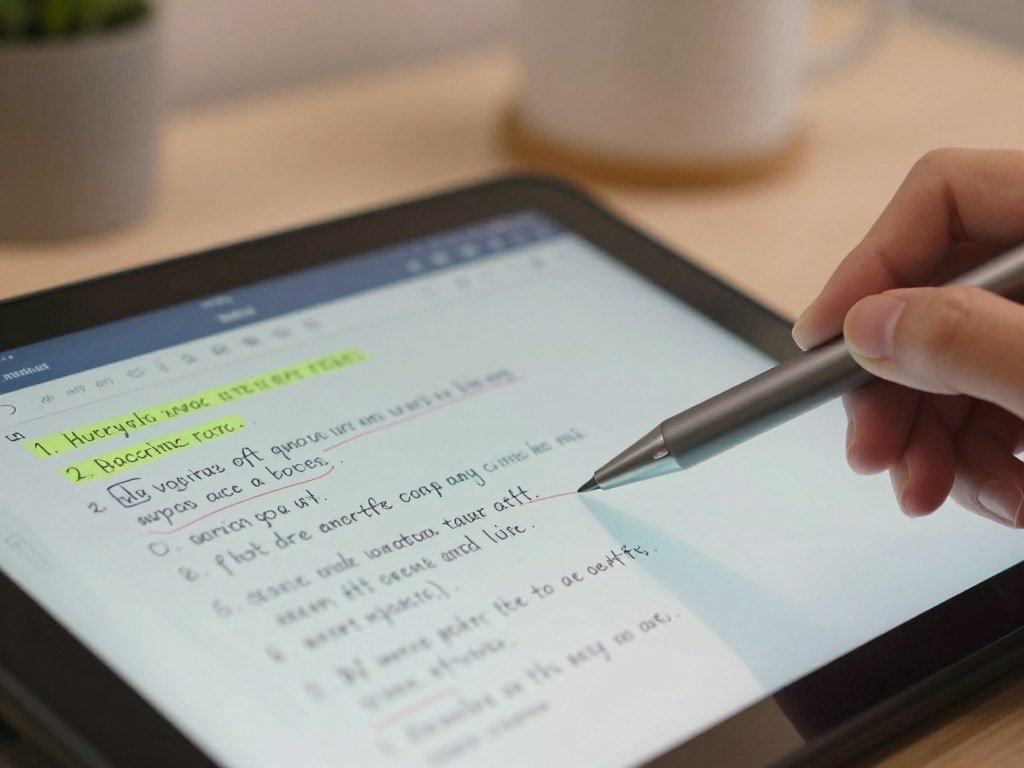
Lenovo ThinkVision M14t Gen2 for stylus-based notes
The Lenovo ThinkVision M14t Gen2 has a touch-enabled 16:10 display and includes a stylus. In 2026, PCMag lists it at $324.49 at Amazon. Its shape suits written notes and document markups, especially when you want a smaller screen that travels easily.
A 14-inch touchscreen business monitor offers another compact form factor, with a 2240 x 1400 display and 300 nits of brightness. That size may suit a bag with limited room, while a larger screen offers more space for direct edits.
ViewSonic TD1656-2K for a sharper touch workspace
The ViewSonic TD1656-2K has a 16-inch 2560 x 1600 display, a 60Hz refresh rate, and two USB-C ports. It supports finger and stylus input, and includes a stylus. In 2026, PCMag lists it at $379.93 at Amazon.
Before buying, check these three points:
- Whether your operating system supports touch input.
- Whether you need a stylus for notes or markup.
- Whether touch helps with the work you do every day.
The larger panel suits people who want room to tap or write directly on screen. Check touch support on your laptop’s operating system before relying on gestures or pen input.
When Do Dual-Screen or Wireless Portable Monitors Make Sense?
A dual-screen setup is useful when one extra panel is not enough, while wireless casting matters most when reducing cables is the priority. Both options can make a remote workspace more flexible, but they bring different trade-offs. More screens mean more to carry, so consider your usual work surface.
Choose a multi-panel setup only when the added workspace solves a real work problem. A narrow hotel desk may not have room for two displays, and extra panels add weight to a travel bag. A single portable monitor may be easier to set up for everyday tasks.
Dual screens for keeping more windows visible
The Asus ZenScreen Duo OLED (MQ149CD) is listed at $599.00 in 2026. It offers two stacked displays in one portable unit, which can keep a call, notes, and a document visible at once. A PCMag review of the ZenScreen Duo OLED examines its dual-screen modes, stand, and practical limits.
The JSAUX FlipGo Horizon Pro uses two 15.6-inch 1080p panels and weighs 6 pounds. That expanded workspace can help when you manage several windows at once, but the weight makes it a less appealing choice for frequent transit. Both models need a work surface wide enough to hold their panels.
Wireless casting when fewer cables matter
The ViewSonic VG1656N has a 16-inch 1920 x 1200 display, a built-in battery, wireless casting, and two USB-C ports. Its battery can reduce dependence on a power outlet, while wireless casting can cut down on cable clutter.
Wireless video does not work with every laptop or device, so check support for your equipment. A wired connection is often more direct when you need a simple setup and steady video. Consider the size of your usual work surface before carrying more than one panel.
Which Portable Gaming Monitors Suit Work and Play?
The Asus ROG Strix XG17AHPE is the strongest work-and-play pick here, while the lighter Arzopa Z1FC suits handheld gaming on the move. Remote work plus gaming calls for a balance of refresh rate, screen size, and portability. Fast motion is useful for games, but it does not replace a comfortable work display.
The Asus combines a 240Hz refresh rate with a 17.3-inch 1080p screen and a 2.34-pound weight. It has 300 nits of brightness, a 3ms response time, Nvidia G-Sync, two USB Type-C ports, and a Micro HDMI port. One USB-C port carries video, while the other supports power delivery.
| Model | Screen and resolution | Refresh rate | Weight | Best fit |
|---|---|---|---|---|
| Asus ROG Strix XG17AHPE | 17.3-inch, 1920 x 1080 | 240Hz | 2.34 lb | Work and high-refresh gaming |
| Arzopa Z1FC | 16.1-inch, 1920 x 1080 | 144Hz | 1.7 lb | Handheld gaming and travel |
| Nexigo NG17FGQ | 17.3-inch, 1080p | 300Hz USB-C, 240Hz HDMI | not stated here | High refresh through either input |
The Arzopa Z1FC is listed at around $100 and is compatible with the Steam Deck and Asus ROG Ally. At 1.7 pounds, it is lighter than the Asus, though its 16.1-inch screen is smaller. That may suit a handheld console and a compact travel setup.
The Nexigo NG17FGQ offers a 17.3-inch 1080p screen and a 3ms response time. Its maximum refresh rate depends on the connection: 300Hz over USB-C and 240Hz over HDMI. A monitor’s advertised refresh rate only helps when your device and chosen port can send video at that rate.
For console play, check the exact HDMI input’s supported resolution and refresh rate. The PS5 supports up to 120Hz output, and a game must offer a 120Hz mode to use it. Match the refresh-rate requirement to the connection you will actually use.
When Does a High-Resolution Portable Monitor Help Creative Work?
Creative work benefits from higher resolution when small details matter, but 4K by itself does not make a monitor a good gaming choice. The Espresso 17 Pro has a 17.3-inch 3840 x 2160 display, 450 nits of brightness, and weighs 2.4 pounds. Sharpness matters most when your work depends on fine image detail.
A 4K work display and a high-refresh gaming display solve different problems. The Espresso 17 Pro is a 4K example for detailed visual work, not a gaming monitor recommendation. The Espresso Displays 15 Pro is another example, with a 15.6-inch 4K touch display priced at $699.
Video editors and image makers may value extra detail when checking a crop or fine lines. That does not tell you how smoothly a display handles fast motion. If gaming is part of your routine, check the refresh rate rather than treating resolution as a stand-in.
Is a 4K portable gaming monitor practical for work?
A 4K portable monitor can be practical for creative work, but a 4K portable gaming monitor needs a suitable refresh rate too. The Arzopa Z3FC offers a middle ground with a 16.1-inch 2560 x 1440 display, 400 nits of brightness, and a 1.72-pound weight. It is listed at around $150.
The Arzopa Z3FC supports 180Hz through DisplayPort and 144Hz through HDMI. That difference matters if you want to use a particular cable or device. Its 1440p display can balance detail and refresh rate, while the Espresso examples focus on 4K resolution.
Do not assume that a 4K label means a screen handles games well. The 4K resolution may suit detailed images and video, while a faster 1440p display may suit games better. For fast games, check the refresh rate available through the port you plan to use.
What Size and Resolution Should You Choose?
For most laptop-based remote work, a 12- to 17-inch display is a useful size range to consider. A compact portable monitor travels more easily, while a larger screen gives you more room for documents and side-by-side windows. Fit your work first, then consider how often you carry it.
For many laptop tasks, 1080p or 1920 x 1200 is enough. Higher resolution makes the biggest difference when you work with fine details, detailed images, or video. Common portable monitors suitable for laptops use native resolutions of 1920 x 1080 or 1920 x 1200 pixels.
Choose screen size around the work you do
Screen size affects both your bag and your workspace. A smaller display can fit more easily into a laptop bag, while a larger one helps when you keep several windows open. If your work involves long documents, extra height can make each page easier to scan.
Sizes across the market range from 10.5 inches to 18.5 inches and beyond. Prices range from around $50 to well over $700, so the physical size and cost can vary widely. Think about where you will set the screen before choosing a large panel.
Match resolution to text, images, and battery needs
At a comfortable viewing distance, 1080p text is clear enough for many tasks. A 1920 x 1200 display adds vertical room, which can help with documents and web pages. Higher resolution is most useful when you need to see fine image detail.
Use these four checks to narrow your choice:
- Will the monitor fit in your laptop bag?
- How much workspace do you expect to have?
- Will text remain easy to read at your usual distance?
- Does your work involve detailed images?
Choose the smallest screen that still lets you work comfortably at your usual viewing distance.
How Do Portable Monitors Connect and Get Power?
A single USB-C cable can handle video and power only when the laptop port supports the required video mode. For video, that means DisplayPort Alt Mode, while USB Power Delivery can carry power. One cable is convenient, but the laptop and monitor must support the needed features.
USB-C with DisplayPort Alt Mode and USB Power Delivery can carry video and power over one cable. Your laptop’s USB-C port must support video, and it must provide enough power for the screen. A hub can route video only if the laptop port already supports that feature.
USB-C for a single-cable setup
Check the laptop’s port details rather than relying on the USB-C shape alone. A USB-C port may support charging and data without supporting video. If you use a hub, check its video support, charger, power output, and laptop compatibility together.
HDMI for devices without USB-C video
HDMI carries video but does not power a portable monitor. You will need a separate USB-C power connection or another power source for the display. Portable-monitor HDMI inputs are often mini-HDMI or micro-HDMI, so the cable end must match.
| Connection | Video signal | Power |
|---|---|---|
| USB-C with DisplayPort Alt Mode | Yes, through supported USB-C | Can carry power with USB Power Delivery |
| HDMI | Yes | No, separate power needed |
| Mini- or micro-HDMI | Yes, with a matching cable | No, separate power needed |
Before you pack, check these three details:
- Your laptop’s video output.
- The monitor’s input type.
- Whether the monitor needs an extra power source.
Before you travel, test the full cable setup with the exact laptop and power source you plan to use.
Can an iPad Replace a Portable Monitor for Remote Work?
An iPad can serve as a second screen if your computer supports the right software connection. Sidecar is the straightforward option for a supported Mac, and it works wirelessly or over USB. Your existing tablet may be enough if its screen size and connection suit your tasks.
A Windows computer needs third-party software, such as Duet Display, to use an iPad as a second screen. The setup depends on computer compatibility and the apps you use. A tablet can work well for some people, but it is not a universal replacement for a dedicated portable monitor.
A dedicated display may be simpler if you switch between different computers or need a screen made for monitor use. An iPad can be handy when you already own one and want to avoid carrying another device. Test its fit with your work before relying on it during a trip.
Check these three points before leaving a monitor at home:
- Whether your computer supports Sidecar or the software you need.
- Whether you prefer a wired or wireless setup.
- Whether a tablet-sized screen suits your work.
Sidecar pairs an iPad with a supported Mac, while Duet Display offers a third-party route for Windows. App behavior and setup can vary with the devices you use, so test the setup with your actual work apps before leaving the dedicated display at home.
Conclusion
The best choice comes down to the work you do and the connections your laptop supports. The MSI Pro MP165 E6 suits buyers who want a low-cost second screen. The HP Series 5 Pro 514pn is a stronger fit if you value its broad color coverage.
Before you commit, check laptop video compatibility and the cables your setup needs. A monitor that matches your work but cannot connect easily may stay in your bag. Check your laptop’s ports, choose the feature you will use most, and then compare current listings.


