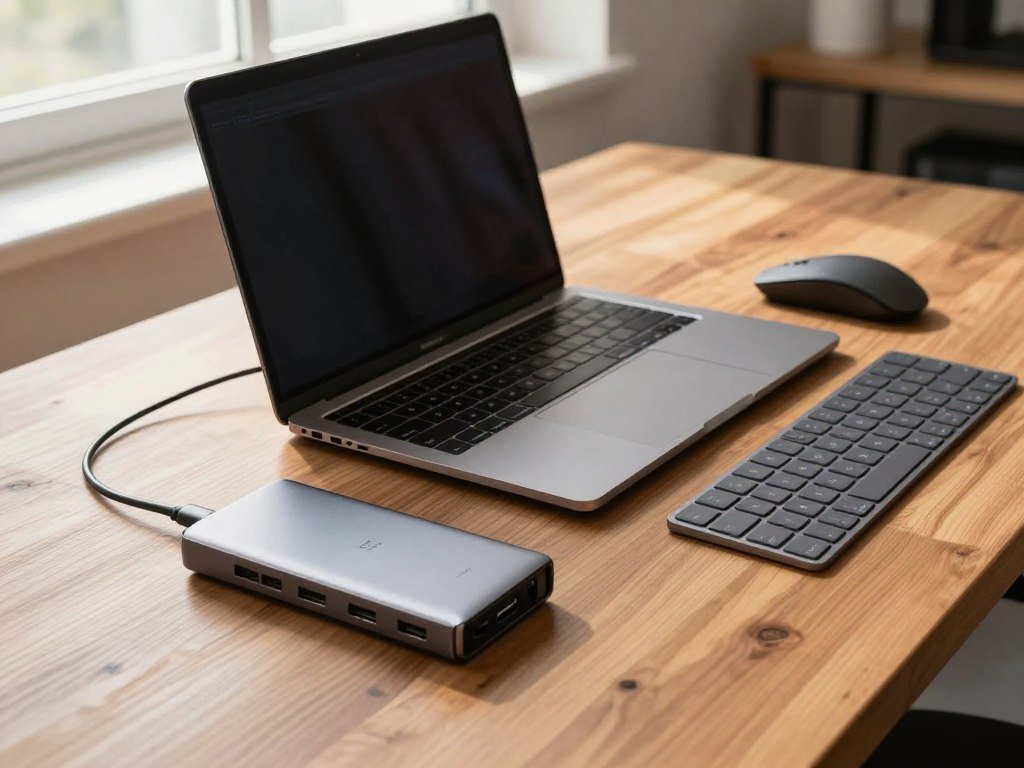
A MacBook Pro can be powerful and still run short of the connections your desk needs. Your laptop may need a mouse, keyboard, monitor, and other devices at once.
The best USB-C hub for MacBook Pro use depends on your model, connected devices, display needs, and charging setup. This guide helps you weigh those needs before you buy.
The Anker 555 is a useful general-use choice. The Plugable 9-in-1 offers an alternative when its ports and power options suit your setup better.
Start with the connections you use every day, then check what your Mac already provides. The right pick is the one that solves the connections you use every day without adding ports you will not use.
Key Takeaways
- Choose a hub that fits your MacBook Pro model and daily setup.
- The Anker 555 is the broad everyday option for many users.
- The Plugable 9-in-1 suits a different mix of ports and charging needs.
- Your Mac’s chip sets its native external-display limit.
- Check the charger and cable before relying on hub passthrough power.
Best USB C Hub for MacBook Pro: Which One Fits Most People?
For most MacBook Pro owners who need one compact expansion device, the Anker 555 is the straightforward starting pick. It gives you everyday expansion without asking you to build a desk around a large dock.
The best USB hub for typical office and travel needs is the Anker 555. The Plugable 9-in-1 suits buyers who need its particular port mix and higher conditional passthrough power.
A USB-C hub expands connections from one host port. Your Mac’s own port and chip still set the limits for charging and external displays.
| Choice | Best fit | Main trade-off |
|---|---|---|
| Anker 555 | Everyday expansion | UHS-I card readers |
| Plugable 9-in-1 | Users who need its port mix and higher conditional passthrough | Full output depends on compatible PD 3.1 and EPR equipment |
| Direct Mac ports with a separate adapter | Minimal add-ons | No consolidated hub connections |
The Anker works as a practical multiport device for common accessories. The Plugable’s higher output is conditional, so the charger and host must support that setup.
Neither USB-C hub changes the number of displays your Mac can natively support. A second HDMI socket on another device would not change that limit either.
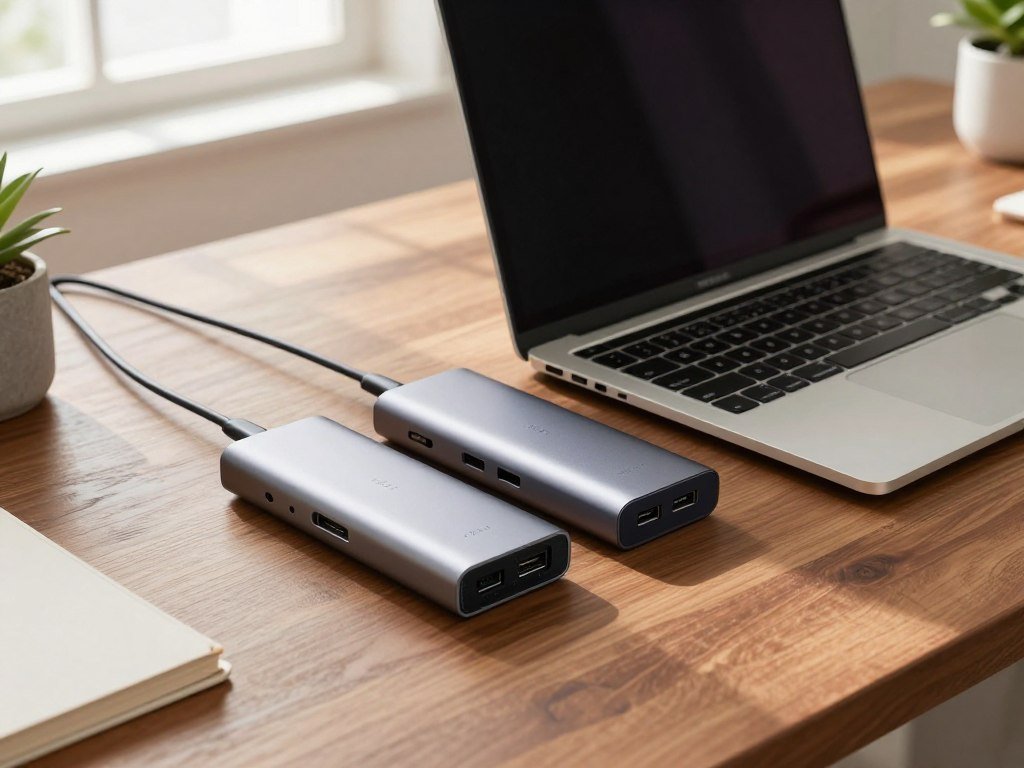
Choose by the ports and displays you actually connect, not by the largest number printed on the box.
Check Your MacBook Pro’s Chip and Ports
The MacBook Pro’s chip and screen size tell you more about hub compatibility than the year printed on a listing. Check the exact model before you choose a video-capable USB-C hub.
A 2022 MacBook Pro hub choice should start with the exact model and chip, not the year alone. Similar-looking laptops can have different port features.
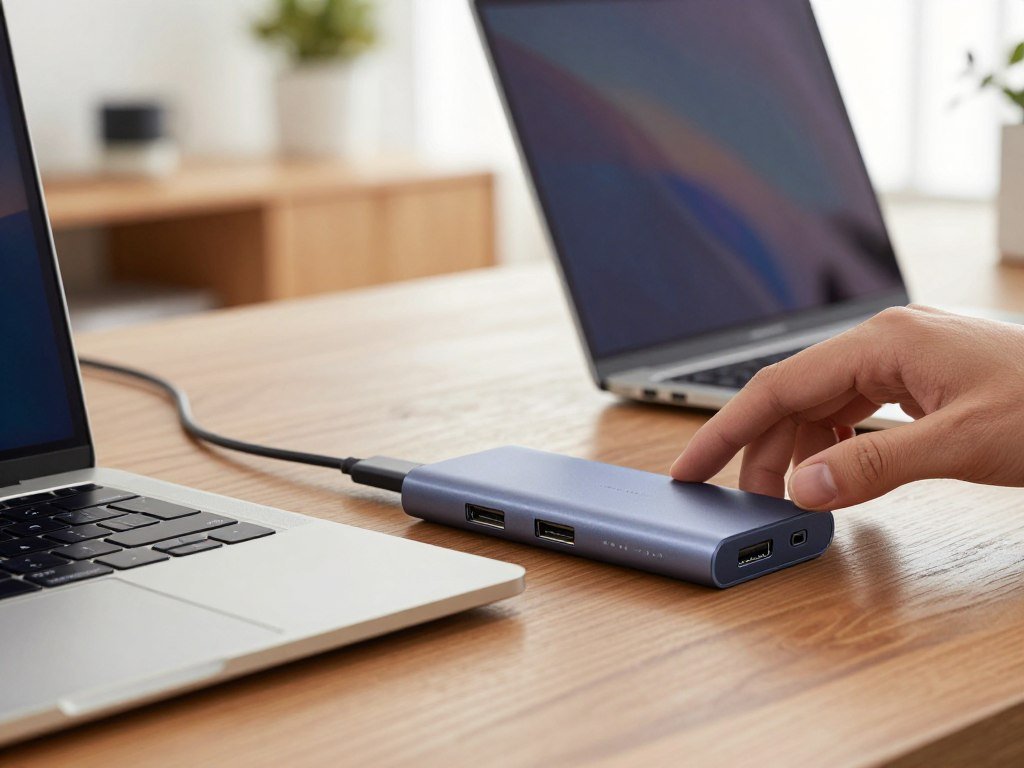
Identify the chip and screen size
Find the chip name and screen size in your Mac’s system settings or model details. Apple lists Thunderbolt 4 ports on 14-inch MacBook Pro models with M1 Pro, M2 Pro, M3 Pro, M1 Max, M2 Max, M3 Max, M4, or M5 chips introduced in 2021 or later.
Apple also lists Thunderbolt 4 ports on 16-inch MacBook Pro models introduced in 2021 or later. For broader laptop buying context, see this laptop configuration guide.
Check the ports and video capability
Check whether a USB-C port supports charging and DisplayPort Alt Mode. DisplayPort Alt Mode is a feature that lets a compatible USB-C port carry DisplayPort video to an external display.
The same USB-C-shaped connector can support different features on different Mac models. A USB-C port may carry data, power, video, or a mix, depending on the laptop and device.
For example, the 2026 14-inch M5 Pro and M5 Max MacBook Pro has a 14.2-inch screen with a native resolution of 3024 by 1964 pixels. It also supports adaptive refresh rates up to 120Hz.
Confirm the model identifier and port capabilities before choosing a hub with video output.
How Many External Displays Can Your MacBook Pro Support?
A MacBook Pro’s chip, not the number of HDMI sockets on a hub, sets its native external-display ceiling. The maximum differs by chip, so match the setup to your Mac.
The table lists each chip’s maximum with the built-in display in use. A hub routes a video signal but cannot raise that native maximum.
| Mac chip | Maximum external displays with built-in display | Supported configuration |
|---|---|---|
| M4 or M4 Pro | 2 | Each up to 6K at 60Hz or 4K at 144Hz |
| M4 Max | 4 | Four displays up to 6K at 60Hz or 4K at 144Hz |
| M5 | 2 | Two displays up to 6K at 60Hz or 4K at 144Hz |
| M5 Pro | 3 | Three displays up to 6K at 60Hz or 4K at 144Hz |
| M5 Max | 4 | Four displays up to 6K at 60Hz or 4K at 144Hz |
The counts cover external screens used alongside the MacBook Pro’s built-in screen. They do not mean every hub can drive that many displays by itself.
Check the display method as well as the chip count. A hub might send video through HDMI or another supported connection, but its layout must suit your monitors.
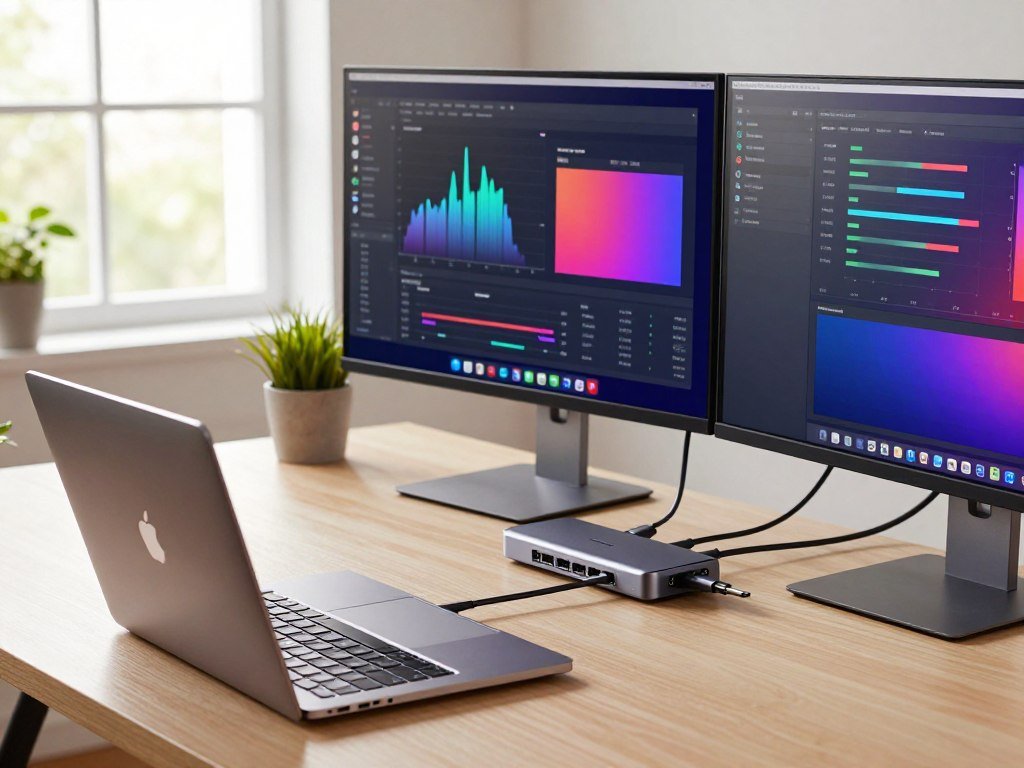
Match the hub’s video path to the display count your chip supports before buying.
Which Ports Should Your Hub Add?
Start by listing the accessories you plug in at the same time, not the ports you might someday use. That list gives you a useful port plan for your laptop.
Buy only the connections your current devices need. A USB-C connector can carry data, video, and power, but its functions depend on the port and device.
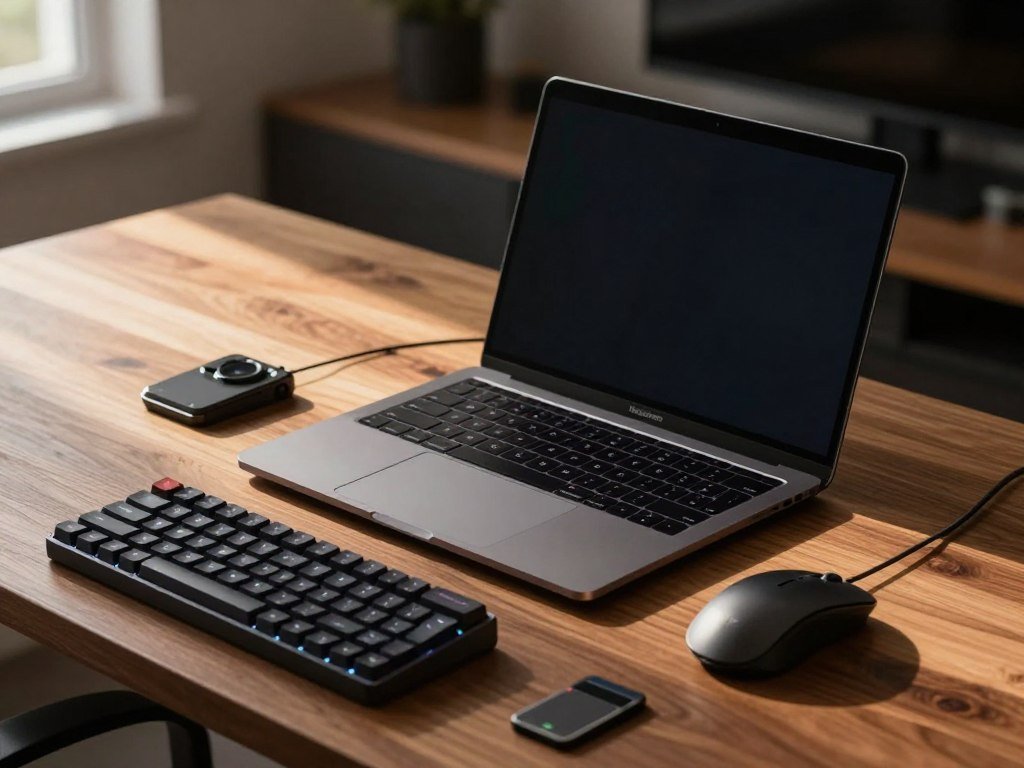
Connect Older USB-A Accessories
USB-A ports still help with a mouse, keyboard, printer, or older storage device. If you use two USB-A ports at once, count both accessories before you choose a hub.
USB-A can save you from carrying a separate adapter for familiar gear. USB-C data ports serve newer accessories, but check that the port supports the connection your device needs.
Add Video, Network and Card Connections
Use this short checklist to map other needs:
- HDMI for a monitor or presentation display.
- Ethernet for a wired network connection.
- SD and microSD readers for camera cards.
- USB-C data for compatible accessories.
Some MacBook Pro models already have useful connections built in. The 2026 14-inch Pro models include HDMI, SDXC, a headphone jack, and MagSafe 3, so avoid paying for duplicates without a clear reason.
Check the exact laptop configuration and port features rather than assuming every model has the same connections. This laptop buying guide also covers how port needs can shape a laptop choice.
A hub that covers the devices on your real desk is more useful than one with a long but irrelevant port list.
Is a Compact Hub Enough for Everyday Work?
If your routine is a mouse, keyboard, one monitor, and occasional file transfer, a compact hub is often enough. It keeps a small work kit together without taking over your desk.
The Anker 555 is a sensible everyday starting point for a typical office setup. Its mix covers common needs without requiring a full desktop connection unit.
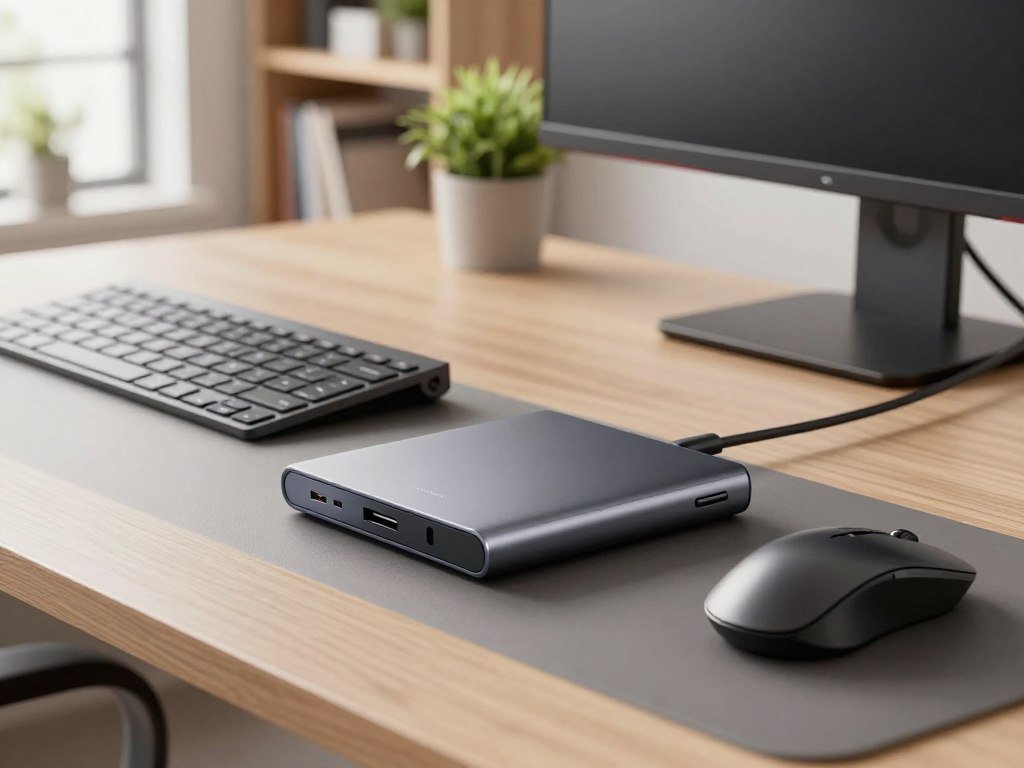
- A mouse and keyboard can share the hub while you work at a desk.
- One external monitor can support common office tasks.
- Ethernet can help when you need wired networking.
- A card reader can move camera files while you travel.
The Anker 555 provides USB-A, HDMI, USB-C data, Ethernet, and memory-card connections for common peripherals. The Plugable 9-in-1 also combines display, data, network, and card-reader connections in a compact hub.
A different category may fit better if you need more screens, another port arrangement, or permanent desk cabling. A compact USB-C hub makes more sense when you carry it between work spots.
For a portable work kit, keep the connections you use regularly and leave rarely used extras behind.
Anker 555 USB-C Hub Review: The Practical All-Rounder
The Anker 555 is a compact everyday pick when one HDMI connection and a broad mix of familiar ports cover the job. Its practical layout suits many office and travel routines.
At $49.99 in 2026, it is a useful fit if you do not need a second video connection. Its USB-C data connection does not carry video.
Where Its Port Mix Helps
The HDMI 2.0 port supports 4K at 60Hz in 2026. That gives you one direct route to a compatible monitor or presentation screen.
Two USB-A 3.1 Gen 2 data ports handle familiar accessories. Gigabit Ethernet gives you a wired network option, while SD and microSD slots accept camera cards.
The hub has a carrying pouch and an 18-month warranty. Its compact form can suit a bag when your work moves between home and office.
The Charging and Card-Reader Limits
The hub accepts up to 100W passthrough input, uses 15W for its own operation, and provides up to 85W to the laptop. Input and laptop output are different figures.
The SD and microSD readers support UHS-I, a card-reader tier that may be a limit for some faster cards. The USB-C data port is not a second display output.
The listed Anker 555 price and port details help show where this model fits. It is best suited to users who need one HDMI connection, not two.
Treat its USB-C data connection as a data port, not a second way to connect a monitor.
Plugable 9-in-1 USB-C Hub Review: More Power Options
The Plugable 9-in-1 is worth considering when its charging conditions and port layout match your laptop and accessories. Its higher output option depends on the right host and charger.
In 2026, the USBC-9IN1E costs $49.95, but its highest output needs compatible PD 3.1 and EPR equipment. PD means Power Delivery, a USB-C charging standard.
Port Layout and Display Connection
The hub supports one external display up to 4K at 60Hz over HDMI. The laptop must support DisplayPort Alt Mode and DisplayPort 1.4 for that video setup.
It includes Gigabit Ethernet and SD and microSD readers rated up to 312Mbps. The USB layout also includes two USB-A ports, one USB-C data port, and an added USB 2.0 connection.
That additional USB 2.0 port can suit a basic accessory that does not need a faster data link. Check your peripherals before deciding whether the layout matches your desk.
Charging Conditions and Cable Fit
With a PD 3.1 host and EPR charger, the hub supports up to 140W input and 125W output to a compatible host. EPR means Extended Power Range.
With PD 3.0 systems, it supports up to 100W input and 85W output. Full compatibility requires a full-featured USB-C host port with Power Delivery and DisplayPort Alt Mode, or a USB4 or Thunderbolt 3, 4, or 5 host.
Its built-in cable is fixed, not removable, and measures 0.62 feet. The short reach may keep a travel setup compact but can limit placement on a wide desk.
Check the charger, host port, and fixed cable reach together before choosing it.
Hub, Adapter or Dock: Which Form Fits Your Setup?
A single adapter, a multiport hub, and a full docking station solve different connection problems. Choose the smallest useful form for your devices and desk.
A compact USB-C hub suits a small set of accessories, while a desk dock suits a more permanent setup. The power arrangement also differs.
| Type | Typical connection role | Power arrangement |
|---|---|---|
| Adapter | Single-purpose connection such as USB-A or Ethernet | Depends on the specific adapter |
| Hub | Several connections through one host port | Usually needs a separate USB-C charger for host passthrough charging |
| Docking station | Fuller desktop setup | Commonly has its own power supply |
An adapter is often enough when you only need one missing connection, such as Ethernet. A hub groups several ports through one connection to your laptop.
Docking stations and docks often support a fuller desk setup. Their own power supplies can support that role, while the larger setup may be less convenient to carry.
Choose the smallest category that can handle the peripherals and power arrangement you actually need.
How Much Power Should a USB-C Hub Pass Through?
For a 2026 14-inch M5 Pro or M5 Max MacBook Pro, a 96W-or-higher USB PD source is the stated fast-charge threshold. That threshold applies to the full charging setup, not just the hub’s maximum input.
Passthrough is not the same as power delivered to the laptop because the hub also uses power. The laptop output is the figure to compare with your Mac’s needs.
Compare the Hub Output With Your Mac’s Needs
The included adapter rating gives you a useful point of comparison for the 2026 14-inch models:
| 2026 14-inch configuration | Included adapter | Fast-charge threshold |
|---|---|---|
| M5 Pro 15-core CPU | 70W | 96W or higher USB PD source |
| M5 Pro 18-core CPU | 96W | 96W or higher USB PD source |
| M5 Max | 96W | 96W or higher USB PD source |
The M5 Pro with a 15-core CPU includes a 70W adapter. Its 18-core CPU configuration includes a 96W adapter, as does the M5 Max version.
Fast Charging Has a Higher Threshold
Those 2026 14-inch M5 Pro and M5 Max models support fast charging with a 96W or higher USB PD power source. A lower-output path may still charge, but does not meet that stated fast-charge threshold.
The charger, hub, and host must all support the claimed configuration. A high number on one part cannot make up for a limit in another.
Compare the hub’s laptop output with your Mac’s adapter rating, not just the hub’s maximum input.
Can a USB-C Hub Run Two External Displays?
A dual-monitor hub works only when the MacBook Pro’s chip and the hub’s video method support the arrangement. One hub cannot raise your Mac’s native display maximum.
The best USB-C hub for MacBook Pro dual-monitor use is one whose video method matches your chip’s native support. The number of video sockets alone is not enough.
Native Display Support and Hub Routing
On listed M4 and M4 Pro MacBook Pro models, a supported hub or daisy chain can carry up to two external displays over one Thunderbolt port. M5 MacBook Pro models also support routing up to two displays through one Thunderbolt port.
These routes use the Mac’s existing display support. A hub can carry the signal, but it cannot add a display beyond the native limit.
Check the monitor connection method and the Mac’s supported display count together. A two-display setup only works when both parts support the arrangement.
When DisplayLink Software Is Relevant
DisplayLink docks use a separate software-dependent route to support additional displays. DisplayLink is not the same as native video output through DisplayPort Alt Mode.
The software requirement means this option differs from a hub that simply routes a native video signal. Check software needs and chip limits before planning a multi-screen desk.
Verify the exact chip’s display limit before choosing a dual-monitor hub or dock.
Will a Hub Slow Down File Transfers?
A hub can reduce real-world transfer speed when several active devices share the same host connection. Each port has its own rating, but the devices share the connection back to the Mac.
Check the specific data port and the full hub workload. A display, storage drive, and other active peripherals can compete for available bandwidth.
| Hub port | Connection type | Maximum listed data rate |
|---|---|---|
| Anker 555 USB-A | USB 3.1 Gen 2 | 10Gbps |
| Anker 555 USB-C data | USB 3.1 Gen 2 | 10Gbps |
| Plugable USB-A and USB-C data | USB 3.1 Gen 2 | 10Gbps |
| Plugable USB 2.0 | USB 2.0 | 480Mbps |
The Anker 555 has two USB-A 3.1 Gen 2 data ports and one USB-C 3.1 Gen 2 data port, each rated up to 10Gbps. The Plugable has USB-A and USB-C data ports rated up to 10Gbps, plus a USB 2.0 port.
The cable and connected device also affect the result. Match the hub and cable to the slower device’s requirements so one link does not limit the transfer.
For large transfers, avoid loading the same hub with display traffic and several busy storage devices if speed matters.
Do You Need Ethernet and Card Readers?
Ethernet and card slots earn their place when they replace connections you would otherwise need as separate adapters. They are useful extras only when your network or cards need them.
Check your card format and your Mac’s built-in slots before paying for another reader. The 2026 14-inch M5 Pro and M5 Max MacBook Pro already has an SDXC card slot.
Wired Ethernet can help when you need a cable connection instead of relying on Wi-Fi. It can also save a separate adapter when your laptop lacks the port you need.
An SD or microSD reader is useful for moving camera files without carrying another accessory. The Anker 555 has SD and microSD readers that support UHS-I.
The Plugable 9-in-1’s SD and microSD readers support up to 312Mbps. That stated rate gives you a different reader option, not a reason to add a slot you will never use.
Owners of the 2026 14-inch M5 Pro or M5 Max should check whether their cards fit the built-in SDXC slot. Check the exact card format you use and whether your Mac already has the slot before adding another reader.
Does Hub Size and Cable Length Matter?
A hub that fits your daily carry and reaches the laptop comfortably is more useful than one that stays in a drawer. Check its physical fit for your bag and desk.
The Anker 555 is shorter and wider, while the Plugable 9-in-1 is longer and narrower. Both weigh under five ounces.
The Anker 555 measures 4.76 by 2.17 by 0.6 inches and weighs 4.5 ounces. Those dimensions help you judge how it will fit in a laptop sleeve or accessory pouch.
The Plugable 9-in-1 measures 7.2 by 1.3 by 0.6 inches and weighs 4.7 ounces. Its built-in cable is fixed and measures 0.62 feet, so it cannot be swapped for a longer lead.
For context, the 2026 14-inch M5 Pro MacBook Pro weighs 3.5 pounds, while the M5 Max model weighs 3.6 pounds. Those laptop weights describe a travel load, not hub quality.
Measure the space around your laptop and the cable reach you need before settling on a compact layout.
What Are the Downsides of Using a USB-C Hub?
A hub’s main compromises are shared bandwidth, shared power, and fewer independent connections than a full dock. That trade-off is usually manageable when the connected devices fit the hub.
A hub divides its host connection among active devices and its power between the laptop and hub. A long port count does not mean every port works independently.
- Shared bandwidth can affect data transfers when devices run at once.
- A long port list may include fewer useful connections for your setup.
- Passthrough power is shared between the hub and the laptop.
- One host connection and cable can become a single point of inconvenience.
Do not rely on an unpowered hub to run several power-hungry devices. Use a separately powered device or dock when an accessory needs its own power supply.
A correctly used hub is not inherently a cause of computer damage. Replace a damaged or poorly matched accessory instead of relying on unreliable connections.
Connect a device directly or use its own power supply when its needs exceed what the hub is designed to provide.
How to Choose a Budget Hub Without Overbuying
A useful budget choice starts with the connections you need, not the lowest price or the longest feature list. Count the real needs first, then compare price and features.
The Anker 555 costs $49.99 in 2026, and the Plugable USBC-9IN1E costs $49.95. The best budget pick is the one that fits your actual setup.
- Count the devices you use at the same time.
- Check the Mac’s supported external-display count.
- Compare laptop charging output with your adapter.
- Pay for card readers or Ethernet only if you will use them.
Anker or Plugable is the better fit according to your port and charging needs, not the brand name alone. Compare each model’s connections with the devices you plan to plug in together.
A maximum passthrough figure depends on compatible host and charger conditions. The Plugable’s 125W output, for example, requires a PD 3.1 host and EPR charger; its PD 3.0 setup provides up to 85W output.
Spend extra only for a port, display path, or charging condition you can name in your own setup.
When Should You Choose a Hub, Dock or Adapter?
Choose an adapter for one missing connection, a hub for a handful of peripherals, and a dock for a fuller desk setup. The right choice depends on how many connections you need and where you use your laptop.
An adapter generally provides one connection, such as USB-A or Ethernet. A USB-C hub adds several ports through one host connection.
A docking station suits a permanent desk setup with a broader group of connections. Docks commonly have their own power supply, which is useful for a fixed workstation.
That power supply and a larger footprint are trade-offs, not signs that a dock is always better. A compact hub is easier to carry when you work in more than one place.
If you move the laptop often and connect only a few devices, keep the setup compact.
Conclusion
The best hub for your MacBook Pro is the one that fits its chip and your actual accessories. The Anker 555 is a practical everyday choice for common connections.
The Plugable 9-in-1 suits buyers whose host, charger, and port needs match its stated conditions. Before you choose, check your exact chip and count the ports and displays you need at once.
Then confirm that the charger and cable fit your setup. Before ordering, verify your model, display plan, and required connections against the product’s specifications.
FAQ
Can you use a USB hub on a Mac?
Yes, you can use a USB hub on a Mac when it matches the Mac’s port and the devices you plan to connect. Check Power Delivery support when the hub must charge your laptop. Check DisplayPort Alt Mode when you want video through USB-C. A hub can add connections, but your Mac’s own hardware still sets its charging and display limits.
Are all the USB-C ports the same on a MacBook Pro?
No, USB-C describes the connector shape, not every feature a port supports. Charging, data speed, and video support depend on the Mac model and port. Check the exact model’s details before you buy a hub or cable. A USB-C-shaped port may support data but not the video or charging feature you expect.
Are USB-C hubs worth it?
USB-C hubs are useful when one connection needs to serve several peripherals. A hub can keep a mouse, storage device, and monitor connected through one host port. It adds little value when your Mac’s built-in ports already cover your setup. Think about the devices you use together, since a hub’s ports share its connection to the laptop.
What is the best USB-C hub for a MacBook?
For typical MacBook Pro office and travel use, the Anker 555 is the general-use pick. Choose the Plugable 9-in-1 when its port mix and charging conditions better fit your setup. The right choice depends on your Mac’s chip, the devices you connect at once, and whether your charger supports the hub’s claimed output.
What should you not plug into a USB hub?
Do not depend on an unpowered USB hub to run several power-hungry devices. Some devices need a direct connection or their own power supply to work as intended. Check the device’s power needs before routing it through a hub. A separately powered device or dock is a better choice when the accessory requires its own supply.
Can a USB hub damage a computer?
A properly used, compatible hub is not inherently damaging to a computer. Stop using a hub, cable, or accessory that is damaged or gives unreliable connections. Match the hub to your computer’s ports and the devices you plan to connect. If an accessory needs its own power source, use that supply instead of relying on hub passthrough.
Do you lose speed with a USB hub?
You can lose real-world speed because hub ports share the host connection. A storage drive transferring files while a display and other active devices use the hub can reduce available bandwidth. The port’s listed speed is a maximum, not a promise that every connected device gets that rate at once. Match your cable to the devices you use.



