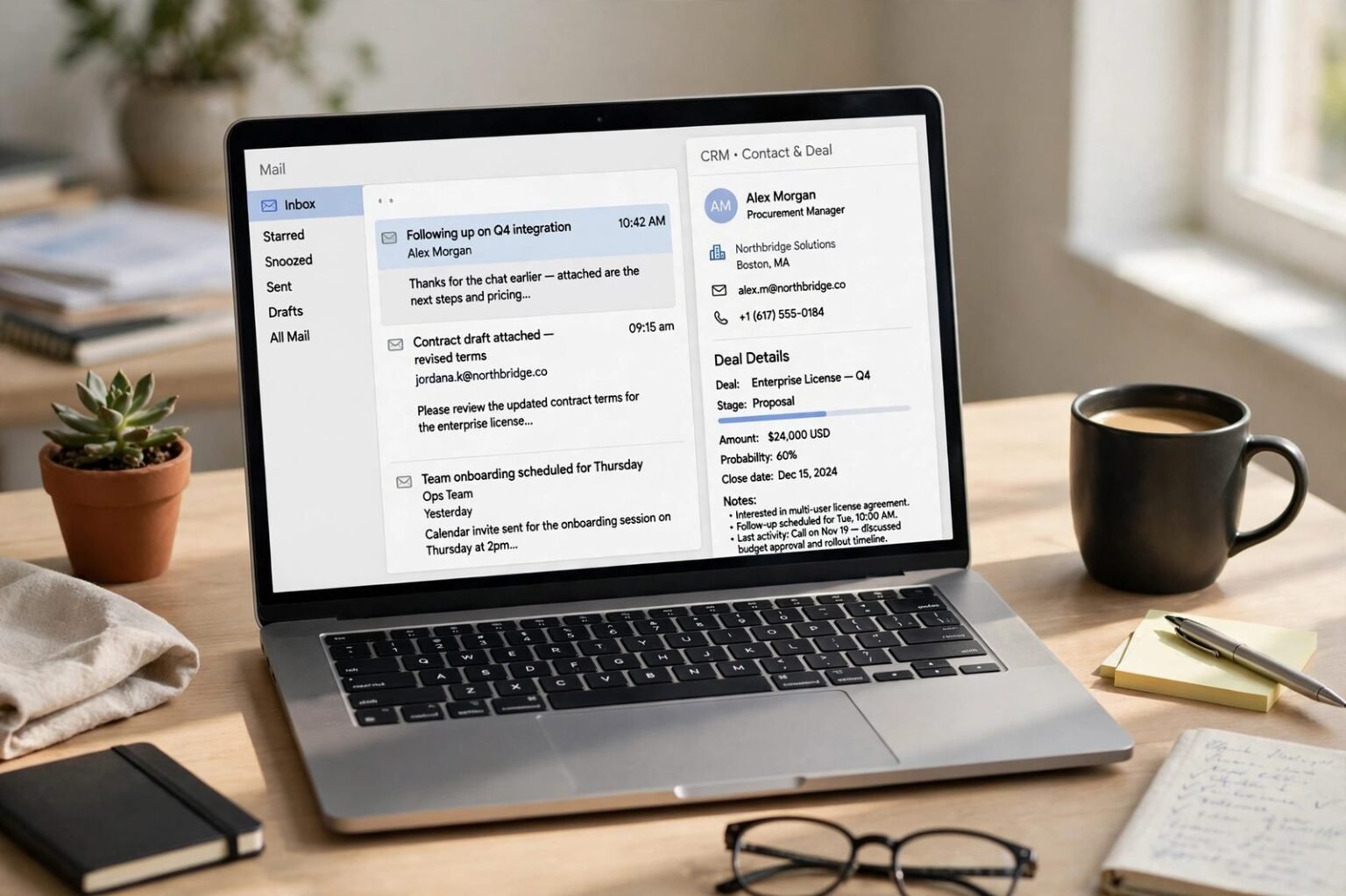
An AI video editing tool cuts, captions, and polishes a video, so a creator can turn raw footage into a finished video in minutes instead of hours. It can remove silences, add captions, suggest cuts, and even edit a video from a text prompt, without the creator needing to learn a complex editor.
This guide compares the AI video editing tools that work best in 2027, on the same things: how easy they are to use, how good the AI editing is, what they cost, and where each one falls short. Prices change, so treat the prices here as approximate starting prices and check the current plan before buying. No tool in this list is linked to its own website. All links in this article go to other occcy.com guides.
The short answer is simple. For most creators, CapCut or Descript is the best place to start, because they are easy, affordable, and powerful. For professional editing with AI help, Adobe Premiere Pro is best. For turning text into video, Runway is the most useful. The rest of this guide explains why, and when to choose something else.
Key takeaways
- Best overall for most creators: CapCut, free to try, with paid plans from about $10 a month.
- Best for editing by text: Descript, from about $16 a month, letting you edit video by editing the transcript.
- Best for professionals: Adobe Premiere Pro, from about $23 a month, with AI tools inside a full editor.
- Best for text-to-video: Runway, from about $15 a month, generating and editing video from text.
- Check the export limits before you pay: a cheap plan can limit resolution, length, or watermark-free exports.
At a glance: the shortlist
| Tool | Best for | Starting price | Standout limit |
|---|---|---|---|
| CapCut | Most creators | Free tier; paid from about $10 a month | Watermark on some free exports |
| Descript | Editing by text | Free tier; paid from about $16 a month | Less control than a full editor |
| Adobe Premiere Pro | Professionals | From about $23 a month | Steep learning curve |
| Runway | Text-to-video | Free tier; paid from about $15 a month | Credits limit generation |
| Filmora | Beginners | Free tier; paid from about $20 a year | Watermark on free exports |
| Opus Clip | Short clips | Free tier; paid from about $15 a month | Only for short clips |
| Pictory | Text to video | From about $19 a month | Templates can look generic |
CapCut — Best overall
CapCut is the best starting point for most creators because it is free to try, easy to learn, and powerful. Its AI can auto-caption, remove background, suggest cuts, and turn a script into a video, with templates for TikTok, Reels and Shorts. Its paid plan, from about $10 a month, removes watermarks, adds more effects, and unlocks cloud storage.

Some free exports carry a watermark, and its AI is less precise than a professional editor’s. For a creator who posts short video daily, it is the fastest tool in this list. For a professional who needs full control, Premiere Pro will be better.
Pros: Free to try, easy to learn, good AI captions and templates, fast for short video.
Cons: Watermark on some free exports, less precise than a pro editor, cloud features need a paid plan.
Descript — Best for editing by text
Descript lets you edit video by editing the transcript, from about $16 a month, with a free tier. Delete a word in the transcript, and it is cut from the video. Remove filler words with one click, add captions, and record a screen or a podcast, all in the same app. It is best for creators who talk to camera, record podcasts, or make tutorials, where the words matter more than the visuals.
It gives less control than a full editor, with fewer effects and colour tools. For a talking-head video or a podcast, that does not matter. For a cinematic video, a full editor will be better.
Pros: Edit video by editing text, removes filler words, good captions, easy for beginners.
Cons: Less control than a full editor, fewer effects, pricey for casual use.
For creators who also write scripts, our guide to best AI writing tools in 2027 covers the writing tools that work best alongside a video editor.
Adobe Premiere Pro — Best for professionals
Adobe Premiere Pro is the best choice for professionals, from about $23 a month. It is a full video editor, with AI tools for auto-captioning, speech-to-text, scene detection, and removing background noise, inside a tool that can handle any project, from a short clip to a feature film. It works with Adobe’s other tools, such as After Effects and Audition, for a complete workflow.
It has a steep learning curve, and it is more than most creators need. For a professional editor, it is the standard. For a beginner, CapCut or Filmora will be faster to learn.
Pros: Full professional editor, strong AI tools, works with Adobe apps, handles any project.
Cons: Steep learning curve, expensive, needs a powerful computer.
Runway — Best for text-to-video
Runway is best for generating and editing video from text, from about $15 a month, with a free tier. Type a prompt, and it can generate a clip, extend a video, remove an object, or change a scene, with AI models built for video. It is most useful for a creator who needs a clip they cannot film, or wants to experiment with AI-generated footage.
Credits limit how much video you can generate, and the results can be unpredictable, so it works best alongside a real editor, not instead of one. For text-to-video, it is the most capable tool in this list. For everyday editing, CapCut or Descript will be faster.
Pros: Text-to-video, object removal, scene editing, creative and flexible.
Cons: Credits limit generation, results can be unpredictable, not a full editor.
Filmora — Best for beginners
Filmora is best for beginners who want a simple editor with AI help, from about $20 a year, with a free tier. It has AI captions, smart cutout, and templates, with a clean interface that is easy to learn. It suits a creator who is new to video, and wants to make a good-looking video without learning a professional tool.
Free exports carry a watermark, and its AI is simpler than CapCut’s or Descript’s. For a beginner, it is a good first editor. For a creator who posts daily, CapCut will be faster.
Pros: Easy to learn, cheap, good templates, AI captions.
Cons: Watermark on free exports, simpler AI, less powerful than rivals.
Opus Clip — Best for short clips
Opus Clip turns long videos into short clips for TikTok, Reels and Shorts, from about $15 a month, with a free tier. It finds the best moments, adds captions, and formats the clip for each platform, so a creator can turn one hour-long video into ten short ones in minutes. For a business or creator who posts short video, it is the most useful tool in this list.
It only works for short clips, so a creator who needs a full editor will also need CapCut or Descript. For repurposing long video, it saves hours. For editing a full video, it will not be enough.
Pros: Turns long video into short clips, adds captions, fast, affordable.
Cons: Only for short clips, clips need checking, free tier is limited.
For creators who post on social media, our guide to best AI social media tools in 2027 covers the scheduling tools that work best with a video editor.
Pictory — Best for text to video
Pictory turns text into video, from about $19 a month. Paste a script or a blog post, and it will pick stock footage, add captions, and create a video, with a voiceover if you want one. It suits a business that needs to turn written content into video, without filming anything, such as a blog, a newsletter, or a training course.
Its templates can look generic, and the stock footage may not match the brand. For a business that needs many videos from text, it is useful. For a creator who films their own footage, a real editor will be better.
Pros: Turns text into video, fast, good for repurposing content, voiceover included.
Cons: Templates can look generic, stock footage may not match, pricey for casual use.
How to choose
Start with the video you make. If you make short social video, start with CapCut. If you talk to camera or record podcasts, choose Descript. If you are a professional, choose Premiere Pro. If you need AI-generated footage, choose Runway. If you turn text into video, choose Pictory.
Check three things before paying. First, the export limits: resolution, length, watermark, and monthly credits. Second, the price per month, and what happens when you need more exports. Third, the exit: can you export your projects and media if you cancel? Our guide to best AI tools for comparing subscription renewal terms in 2027 covers the renewal terms that matter for any AI tool subscription.
Checklist: before you pay
Use these checks before subscribing to any AI video editing tool.
- Try it with a real video for at least a week, not with test footage, and check the export quality.
- Check export limits: resolution, length, watermark, and monthly credits.
- Check the price for the exports you will actually need, not only the headline price.
- Check AI accuracy: does it caption correctly, and does it cut where you want?
- Check the learning curve: can you finish a video in an hour, or does it take a day to learn?
- Check export: can you take your projects and media out if you cancel?
Frequently asked questions
What is the best AI video editing tool?
For most creators, CapCut, because it is free to try, easy to learn, and powerful for short video. For editing by text, Descript is best. For professionals, Adobe Premiere Pro is best.
Is there a free AI video editing tool?
Yes. CapCut, Descript, Runway, Filmora and Opus Clip all have free tiers, with limits on exports, resolution, or watermarks. They are enough to try the tool and finish a first video before paying.
How much does an AI video editing tool cost?
Most tools in this guide start at about $10 to $23 a month, with a free tier on most. Filmora is cheaper, at about $20 a year. Price usually rises with exports, credits or users.
Can AI edit a video for me?
Yes, it can cut silences, add captions, suggest cuts, and even edit from a text prompt, but always check the result before publishing. AI can cut a good line, miss a key moment, or caption a word wrong.
Which tool is best for captions?
CapCut, Descript and Premiere Pro all have good auto-captioning. Descript is best for editing by text, CapCut is fastest for short video, and Premiere Pro is best for professional captions.
Can I switch video editing tools later?
Yes, if your media can be exported. Check export before buying, and test it with a small project. Switching is easier when your footage is saved as files, not only inside one tool.
The bottom line
For most creators, start with CapCut. For editing by text, choose Descript. For professionals, choose Premiere Pro. For text-to-video, choose Runway. Do not pay for the most powerful editor if you will not use it, and do not choose the cheapest if it watermarks your exports.
Try the tool with a real video, check the captions before publishing, and keep your footage in files you own. A video tool only helps if it lets you finish a video faster, and if the result still looks like you made it.
Note: Prices and plans change. Check the product’s current plan details before buying — no link is provided here by design, all links in this article go to other occcy.com guides.