

An external hard drive is still the simplest way to buy breathing room for a laptop, a photo library, or a video project. Cloud storage is convenient, but it charges every month, needs a fast connection, and caps out at whatever plan you pay for. A portable drive costs once, works offline, and moves at the speed of its cable. For anyone who edits video, shoots photos, or simply keeps years of files on a laptop with a small internal drive, the right external drive is one of the best-value tech purchases of the year.
The choice in 2027 comes down to two families. Portable SSDs are small, silent, drop-resistant, and fast enough to edit 4K video straight from the drive, with read speeds from around 1,000 MB/s to 2,000 MB/s over USB-C. Traditional hard drives are slower, usually topping out near 130 MB/s, but they cost far less per terabyte and are the sensible pick for archives, backups, and media libraries you rarely touch. Neither is wrong; they solve different problems, and many people end up owning one of each.
We compared eight of the most popular drives on the market, weighing real-world speed, build quality, capacity options, warranty, and price per terabyte. The Samsung T9 takes the top spot overall for its balance of speed and reliability, the WD Elements wins for budget buyers who need maximum space, and the LaCie Rugged remains the pick for anyone who works outdoors. Here is the full shortlist, followed by a detailed look at each drive.
Key takeaways
- Samsung T9 is the best overall external drive in 2027: fast, compact, and reliable enough for editing directly from the drive.
- WD Elements is the best value for bulk storage, offering multi-terabyte capacity at the lowest cost per terabyte in this roundup.
- LaCie Rugged is the best choice for field work, with drop, crush, and rain resistance built in.
- Portable SSDs run at roughly 1,000 to 2,000 MB/s, while traditional hard drives top out near 130 MB/s, so match the drive type to the job.
- Buy at least twice the capacity you think you need, and keep a second copy of anything irreplaceable, because no single drive is a backup plan on its own.
At a glance: the shortlist
| Product | Best for | Starting price | Standout limit |
|---|---|---|---|
| Samsung T9 | Best overall | From around $110 (1TB) | USB 3.2 Gen 2×2 needed for full 2,000 MB/s |
| SanDisk Extreme Pro | Best for creators on the move | From around $130 (1TB) | Premium price per terabyte |
| WD My Passport | Best all-round hard drive | From around $70 (2TB) | Slower than any SSD here |
| Seagate One Touch | Best for everyday backups | From around $75 (2TB) | No hardware encryption on base model |
| LaCie Rugged | Best for field work | From around $80 (2TB) | Heavier and bulkier than rivals |
| Crucial X9 Pro | Best value portable SSD | From around $80 (1TB) | Top speed of 1,050 MB/s |
| Kingston XS2000 | Best pocket-sized SSD | From around $80 (1TB) | Gets warm under sustained writes |
| WD Elements | Best budget bulk storage | From around $60 (2TB) | No bundled backup software |
Samsung T9 — Best overall
The Samsung T9 is the drive we recommend to most people, because it gets the fundamentals right and then adds speed that most rivals cannot match. It reads at up to 2,000 MB/s and writes at up to 2,000 MB/s over USB 3.2 Gen 2×2, which is fast enough to edit 4K footage directly from the drive without copying it to your laptop first. In everyday use that means large file transfers finish in seconds rather than minutes, and a 100GB video project copies over in roughly a minute on a compatible port.
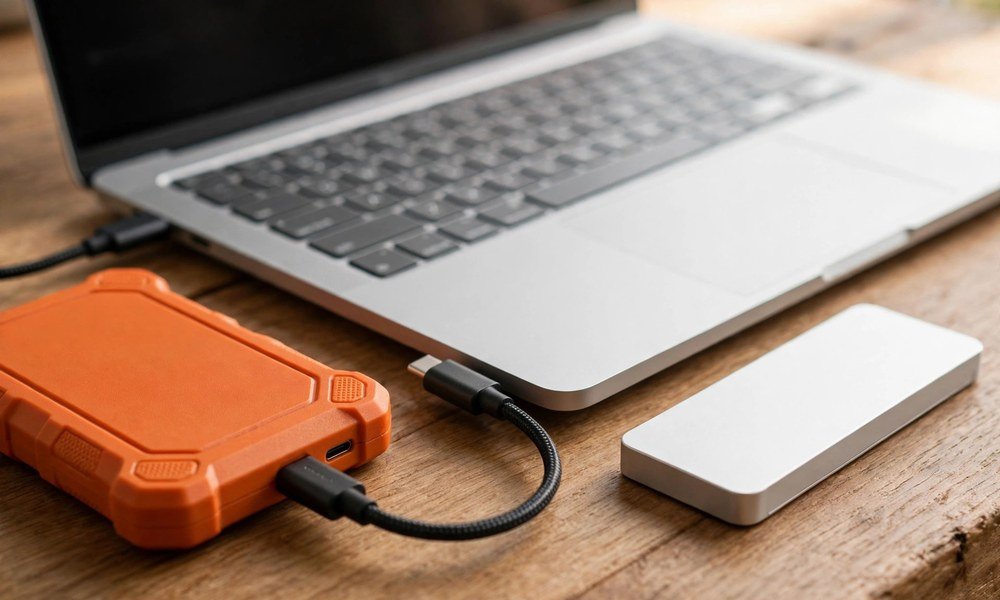
The T9 is also genuinely portable. It is roughly the size of a credit card, weighs about 122 grams, and its rubberised finish gives it a secure grip and some protection against drops of up to 3 metres. Samsung includes both USB-C to USB-C and USB-C to USB-A cables in the box, so it works with older laptops without an adapter hunt. Capacities run from 1TB to 4TB, and the drive is covered by a five-year warranty, one of the longest in this roundup.
There is one catch worth knowing before you buy. The headline 2,000 MB/s speed needs a USB 3.2 Gen 2×2 port, which many laptops still lack; on a standard USB-C port you will see roughly half that, still very fast, but not the full headline figure. If your machine has a Thunderbolt or USB4 port, it will still connect, just at the drive’s USB ceiling. Even so, the T9 is the safest all-round pick, and pairing a fast drive like this with a cloud copy is the simplest version of a proper backup routine, as explained in our guide to the best cloud backup services.
Pros: Up to 2,000 MB/s read and write speeds; compact and light with drop protection; five-year warranty; both cable types included.
Cons: Full speed needs a USB 3.2 Gen 2×2 port; pricier per terabyte than slower SSDs.
SanDisk Extreme Pro — Best for creators on the move
The SanDisk Extreme Pro is built for photographers and videographers who shoot on location and need a drive that keeps up with a camera card and survives being tossed in a bag. It also reaches up to 2,000 MB/s read and write speeds, and its aluminium chassis with a silicone bumper is rated for drops of up to 3 metres, with IP55 dust and water resistance for rain and dust on a shoot.
What sets it apart is the way it handles sustained work. The Extreme Pro holds its speed better than most portable SSDs during long writes, which matters when you are dumping several hundred gigabytes of footage at the end of a shoot day. It also has a handy carabiner loop moulded into the corner, so it clips to a bag strap instead of rattling around loose. Capacities run from 1TB to 4TB, and SanDisk backs it with a five-year warranty.
The main downside is price. The Extreme Pro typically costs more per terabyte than the Samsung T9 or the Crucial X9 Pro, and the premium buys durability and sustained-write performance rather than extra headline speed. For a desk-bound user that premium is hard to justify, but for anyone who works outdoors it is money well spent. Check current pricing before buying, as SanDisk drives are frequently discounted.
Pros: Up to 2,000 MB/s speeds; IP55 dust and water resistance; strong sustained-write performance; carabiner loop.
Cons: Premium pricing; no faster than the cheaper T9 on paper.
WD My Passport — Best all-round hard drive
The WD My Passport is the default recommendation for anyone who needs a lot of storage without paying SSD prices. It is a traditional spinning hard drive in a slim, pocketable enclosure, available from 1TB all the way to 6TB. A 2TB model starts from around $70, which works out to a fraction of the cost per terabyte of any SSD in this roundup, and it is the obvious pick for archiving photo libraries, media collections, and old project files.
Speed is the trade-off, and it is a real one: expect transfer rates of around 120 to 130 MB/s, so a 1TB copy takes hours rather than minutes. That is fine for backups and archives, where the drive sits on a shelf and works in the background, but it is a poor choice for editing video directly or running apps from the drive. The My Passport includes WD’s backup software and 256-bit AES hardware encryption with password protection, which is a meaningful security advantage over budget drives that ship with no encryption at all.
The drive is available in several colours, runs quietly, and draws all its power from the USB port, so there is no separate power brick. It comes with a three-year warranty. If your budget is tight and your files mostly sit still, this is the drive to buy, and it is also the most sensible second drive to own alongside a fast SSD for active work.
Pros: Very low cost per terabyte; up to 6TB capacity; hardware encryption and backup software included; slim and portable.
Cons: Around 130 MB/s maximum speed; unsuitable for editing directly from the drive.
Seagate One Touch — Best for everyday backups
The Seagate One Touch is aimed squarely at people who want backups to be boring and automatic. It is a compact hard drive with a fabric-textured finish, available from 1TB to 5TB, and it ships with Seagate’s Toolkit software, which can run scheduled backups, mirror folders, and sync files between the drive and your computer without you thinking about it.
Performance is in line with other portable hard drives, at around 120 to 130 MB/s, and the drive is bus-powered over USB-C, so it works with modern laptops out of the box. Seagate also includes a short trial of a photo backup plan with some models, which is a nice touch for anyone whose main goal is protecting a photo library. The two-year warranty is shorter than WD’s three years on the My Passport, which is worth noting.
The One Touch is a good fit for students, families, and anyone setting up their first backup drive, because the software does the heavy lifting and the price is low. The base model has no hardware encryption, so if you carry sensitive files, either step up to a model that includes it or encrypt the drive yourself. For pure plug-in-and-forget backups at home, it is hard to beat at this price.
Pros: Easy automatic backup software; compact and light; low price; capacities up to 5TB.
Cons: No hardware encryption on the base model; two-year warranty is shorter than rivals.
LaCie Rugged — Best for field work
The LaCie Rugged is the drive you buy when the environment is the problem. Its distinctive orange bumper is not decoration: the drive is rated for drops of up to 1.2 metres, crush resistance of up to a tonne, and rain resistance, and the SSD versions add dust and water protection on top. It is the drive most often seen on film sets, in the field with photographers, and in bags that get thrown around.
The range splits into two lines. The Rugged HDD models use a traditional hard drive and offer up to 5TB at a low price, with speeds around 130 MB/s. The Rugged SSD models are much faster, up to 1,050 MB/s on the standard model and up to 2,000 MB/s on the Pro, but they cost considerably more per terabyte. Both lines are compatible with Mac and Windows, and LaCie includes a month of Adobe Creative Cloud with many models, which is a genuine bonus for creative buyers.
The trade-offs are size and price. Even the SSD version is noticeably thicker and heavier than the Samsung T9 or Kingston XS2000, and you pay a premium for the armour. If your drive never leaves your desk, that premium buys nothing. If it travels with you to shoots, sites, or the outdoors, it is the most durable option in this roundup and the one most likely to survive the trip.
Pros: Best-in-class drop, crush, and rain resistance; HDD and SSD versions; Adobe Creative Cloud trial included.
Cons: Bulkier and heavier than rivals; premium pricing for the protection.
Crucial X9 Pro — Best value portable SSD
The Crucial X9 Pro is the value pick among portable SSDs, offering solid speed and good build quality at a price that undercuts the flagship models. It reads at up to 1,050 MB/s, which is roughly eight times faster than a portable hard drive and fast enough for 4K editing, photo work, and large file transfers without frustration. Capacities run from 1TB to 4TB.
The X9 Pro is small, light, and rated for drops of up to 2 metres, with IP55 dust and water resistance. It includes a lanyard hole, works with Windows, Mac, Android, and iPad, and comes with a five-year warranty. Crucial also ships it with a one-month trial of a cloud backup service, which is a thoughtful extra for anyone setting up a backup routine for the first time.
The only real compromise is the 1,050 MB/s ceiling, which is half the headline speed of the Samsung T9 and SanDisk Extreme Pro. In practice, most laptops without a USB 3.2 Gen 2×2 port will not see the difference, because the port itself is the bottleneck. If your machine tops out at USB 3.2 Gen 2, the X9 Pro delivers the same real-world speed as the flagships for less money, which makes it the smart buy for most people.
Pros: Strong value for a portable SSD; 1,050 MB/s is fast enough for most work; drop and water resistant; five-year warranty.
Cons: Half the headline speed of 2,000 MB/s rivals; no carabiner loop.
Kingston XS2000 — Best pocket-sized SSD
The Kingston XS2000 is the smallest drive in this roundup, barely larger than a matchbox and weighing under 30 grams. It still manages read speeds of up to 2,000 MB/s over USB 3.2 Gen 2×2, which puts it in the same performance class as the Samsung T9 and SanDisk Extreme Pro, despite being the most pocketable drive here by a clear margin.
It is rated IP55 for dust and water resistance, comes with a removable rubber sleeve and a USB-C to USB-C cable, and is available from 500GB to 4TB. The tiny size makes it the easiest drive to carry every day, and it is a natural fit for anyone who moves files between a phone, a tablet, and a laptop. Kingston backs it with a five-year warranty.
The XS2000 has one quirk: under long sustained writes it can get noticeably warm, and its speed can dip as the drive heats up. For short bursts, which is how most people use a portable drive, this is not an issue. It is also worth noting that the 500GB model is the cheapest way into a 2,000 MB/s drive, which makes it a good starter SSD if you do not need a full terabyte yet.
Pros: Extremely small and light; up to 2,000 MB/s; IP55 rated; five-year warranty.
Cons: Can get warm and slow down during very long writes; tiny size makes it easy to misplace.
WD Elements — Best budget bulk storage
The WD Elements is the cheapest way to add terabytes to your setup. It is a plain, no-frills portable hard drive, available from 1TB to 5TB, with a 2TB model starting from around $60. There is no bundled backup software, no encryption, and no colour options, just a black box that stores files. For many buyers, that is exactly the point.
Performance matches other portable hard drives at around 120 to 130 MB/s, and the drive is bus-powered and plug-and-play on Windows and Mac. It is the drive to buy when you need a second or third copy of an archive, a place to dump a media library, or a cheap drive to leave at a relative’s house as an off-site backup. The two-year warranty is short, but at this price the drive is effectively disposable.
The lack of software and encryption is the only real drawback, and both are easy to work around: your operating system’s built-in backup tools handle scheduling, and free encryption tools cover security. If you want the lowest possible price per terabyte and do not need frills, the WD Elements is the pick.
Pros: Lowest cost per terabyte here; up to 5TB; simple plug-and-play; compact.
Cons: No bundled software or encryption; two-year warranty; slow compared with SSDs.
How to choose
Start with the job, not the brand. If you edit video or photos directly from the drive, buy a portable SSD with at least 1,000 MB/s read speed; anything slower will make your editing software stutter. If you are archiving files, backing up, or storing a media library, a traditional hard drive gives you far more space for the same money, and the slower speed will not matter.
Next, check your ports. A 2,000 MB/s SSD only reaches full speed on a USB 3.2 Gen 2×2 port, which many laptops do not have. If your machine only has USB 3.2 Gen 2 or Thunderbolt, a 1,050 MB/s drive like the Crucial X9 Pro will feel just as fast in practice and cost less. Capacity is the other big decision: buy at least twice what you need today, because photo and video libraries only grow, and a drive that is more than 80 percent full will slow down and leave you no room to work.
Finally, think about where the drive lives. A drive that travels needs drop and water resistance, which points to the LaCie Rugged or SanDisk Extreme Pro. A drive that sits on a desk does not, so save the money. And remember that an external drive is storage, not a backup strategy on its own: the safest setup is one fast drive for active work, one large drive for archives, and a cloud copy of anything you cannot replace. Our roundup of the best cloud storage services is a good place to start if you want that third copy without buying more hardware.
Checklist: before you pay
- Check your laptop’s USB ports and buy a drive speed your machine can actually use.
- Buy at least twice the capacity you need today, and leave 20 percent of the drive free.
- Confirm the drive is formatted for your system, or be ready to reformat it before first use.
- Check the warranty length: five years on the SSDs here beats two years on the budget hard drives.
- Decide whether you need hardware encryption, or plan to encrypt the drive yourself.
- Plan a second copy of anything irreplaceable, because a single drive is not a backup.
Frequently asked questions
Should I buy an SSD or a traditional hard drive?
Buy an SSD if you edit video or photos from the drive, move large files often, or carry the drive around, because SSDs are faster, silent, and far more resistant to drops. Buy a traditional hard drive if you need maximum capacity on a budget and the files mostly sit still, such as archives, backups, and media libraries. Many people own one of each.
How much storage do I need?
For most people, 1TB is the minimum sensible size for a portable SSD, and 2TB is the sweet spot for a hard drive. Photographers and video editors should look at 2TB or 4TB, because a single 4K project can easily run to hundreds of gigabytes. Whatever size you pick, buy more than you think you need, since storage needs only grow.
Will a 2,000 MB/s SSD work on my older laptop?
Yes. USB is backwards compatible, so a fast SSD will connect to any USB-C or USB-A port with the right cable. You will simply see lower speeds, limited by your port: around 500 MB/s on USB 3.0, around 1,000 MB/s on USB 3.2 Gen 2, and the full 2,000 MB/s only on USB 3.2 Gen 2×2. The drive still works perfectly, just not at its headline speed.
Are external hard drives good for backups?
Yes, and they are the most common backup device for a reason: they are cheap, fast to restore from, and work without an internet connection. The rule to follow is to keep at least two copies of anything important, ideally with one copy off-site or in the cloud. A single external drive is storage, not a backup plan, and drives do fail.
What should I do if my external drive stops working?
First, try a different cable and a different port, since cables fail more often than drives. If the drive still does not appear, check whether it shows up in your operating system’s disk management tool. If the data matters and the drive is not detected at all, stop trying to fix it yourself and look at professional recovery options; our guide to the best data recovery software covers the software tools that can help when a drive is still readable.
Do external drives work with phones and tablets?
Most modern portable SSDs work with USB-C phones and tablets, including iPad and recent Android devices, and they are a handy way to move large video files or free up space. Traditional hard drives usually need more power than a phone can supply, so they are less reliable on mobile. Check that your device supports external storage before buying, and use the cable that came with the drive.
The bottom line
For most buyers, the Samsung T9 is the best external hard drive in 2027: it is fast enough for professional editing, small enough to carry everywhere, and backed by a five-year warranty. If your budget is tight, the Crucial X9 Pro delivers the same real-world speed on most laptops for less money, and the WD Elements is the cheapest way to add terabytes of archive space. For field work, the LaCie Rugged is still the toughest drive you can buy.
Whatever you choose, buy more capacity than you need, check your ports before paying for speed you cannot use, and keep a second copy of anything you cannot afford to lose. Prices and capacities change often, so check current pricing before you buy, and expect new models to arrive through the year as faster USB standards become more common on laptops.
Note: Prices and plans change. Check the product’s current plan details before buying — no link is provided here by design, all links in this article go to other occcy.com guides.



