You can get Pokémon Pinball: Ruby & Sapphire to rumble in mGBA by enabling its Game Boy Player feature and checking that your controller supports vibration. The game sends a rumble signal through the emulator, but a controller needs its own vibration motor to make you feel it. This setup can be confusing when regular controls work and the controller stays still. This guide covers both standalone mGBA and the mGBA core inside RetroArch, so you can use the route that fits your setup. It also shows how to test the signal and protect your save while you adjust controls. Keep a clean copy of your game file before changing settings or applying a patch.
The Game Boy Player was a GameCube accessory for playing Game Boy Advance games, and mGBA can emulate some of its features.
Key Takeaways
- Enable Game Boy Player features in mGBA or its RetroArch core.
- Turn on the game’s own Rumble option after the emulator setting.
- Use a controller with a physical vibration motor.
- Test rumble with a table nudge during play.
- Back up your save and keep a clean game file.
Pokemon Pinball Ruby Sapphire mGBA Rumble Setup 2026: Which Route Should You Use?
The first choice is whether you launch mGBA by itself or through RetroArch, because each exposes the Game Boy Player rumble setting in a different place. The Game Boy Player feature recreates some functions of the GameCube accessory, including the game’s rumble signal. You still need a controller with a physical motor.
Use standalone mGBA for a direct desktop setup, or keep the mGBA core in RetroArch if that is already your usual emulator. A rumble patch is a separate option for compatible flashcart hardware, not a setting for either emulator route.
| Route | Where the setting lives | What to check | Best fit |
|---|---|---|---|
| standalone mGBA | mGBA settings | Enable Game Boy Player features | Direct desktop setup |
| RetroArch mGBA core | Core options and RetroArch input settings | Enable Game Boy Player rumble and vibration | People already using RetroArch |
| rumble patch | Patched game file and compatible hardware | Confirm the patch targets your setup | Only if the built-in route fails |
The emulator can send a rumble signal, but only a controller with a physical vibration motor can produce the effect.
Standalone mGBA and RetroArch are different ways to run the same game, not different versions of the game itself. If you already use RetroArch, keep the setup inside its mGBA core rather than switching emulators just to test rumble.
Set Up Rumble in Standalone mGBA
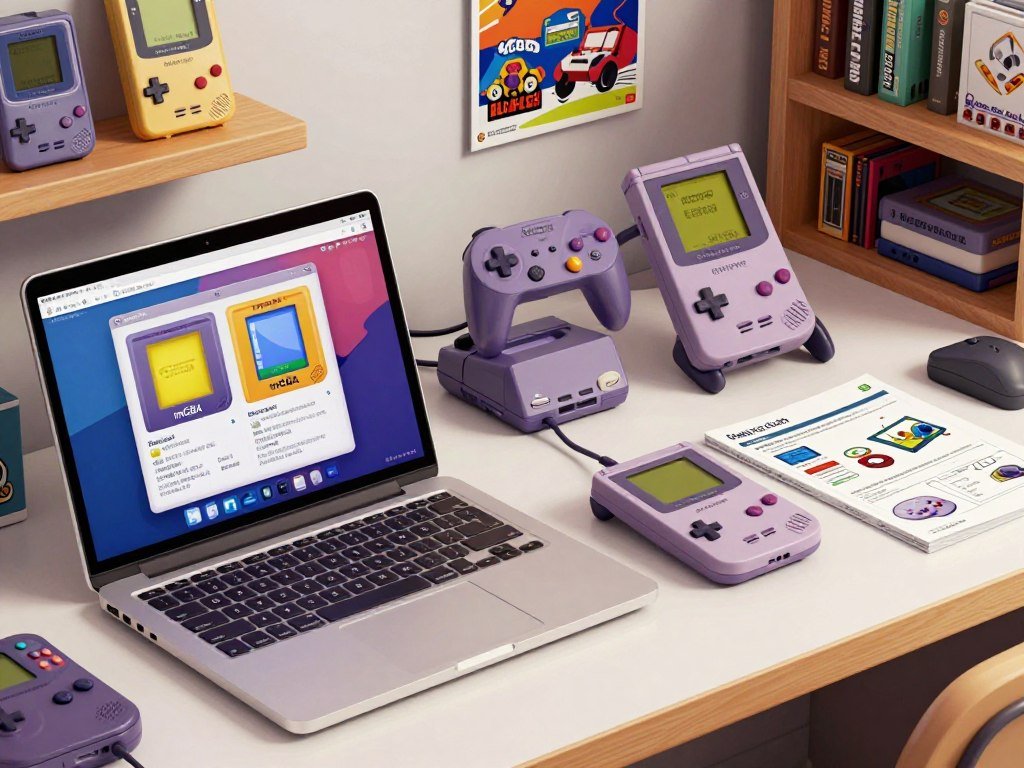
In standalone mGBA, start by enabling Game Boy Player features before opening the game’s own Options menu. The setting tells the emulator to support the Game Boy Advance game’s related functions, including rumble. Apply the change before launching the game.
Enable Game Boy Player Features
Open Settings and choose the Emulation tab. Turn on the Game Boy Player feature, then apply the change. The wording and layout can differ between mGBA versions, so look for the setting in the emulation options if its label has changed.
The mGBA project lists support for Game Boy Advance peripherals, including the Game Boy Player, in its official mGBA FAQ. That support handles the game’s signal; your controller still needs working vibration hardware.
Check Controller Mapping
Open Tools, then Settings, then Controllers, to check the active profile. Confirm the profile uses the controller you plan to play with, and connect a vibration-capable controller before testing.
- Open mGBA settings and find the Emulation tab.
- Enable Game Boy Player features and apply the change.
- Check the active controller profile under Tools, Settings, Controllers.
- Connect a controller with a vibration motor.
- Launch the game after applying the settings.
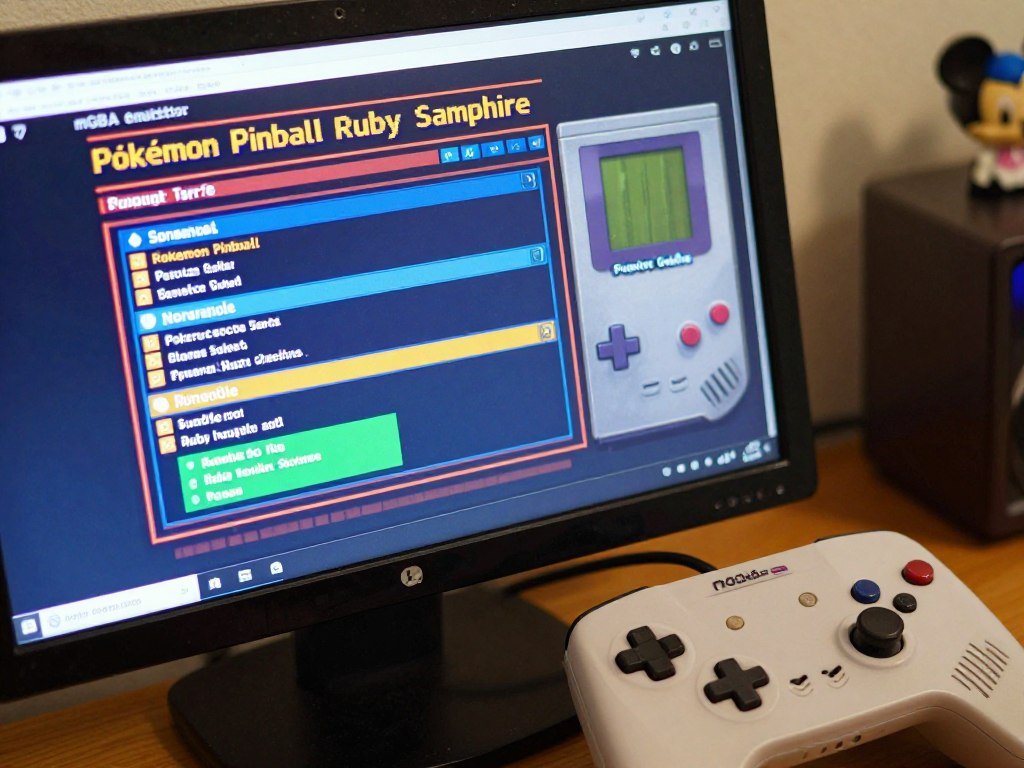
If the selected controller has no vibration motor, changing the emulator setting cannot make it vibrate.
Turn On Rumble in the Game’s Options
Once the game is running with Game Boy Player features enabled, turn on Rumble in the game’s Options menu. The game has its own rumble switch, separate from the emulator setting. It must be on for the game to send its rumble signal during play.
Open the Options menu and move to the Rumble setting. Switch it on, then return to the game. This setting controls the game’s response, while mGBA handles the emulated Game Boy Player feature.
If Rumble is unavailable or grayed out, the game probably did not start with the Game Boy Player feature active. Close the game, check the emulator setting, and launch it again. Changing that setting after the game starts may not update the environment it detected.
A visible Rumble option is a useful sign that the game recognized the feature. It does not prove that the controller’s motor works, so treat the in-game switch and physical vibration as separate checks.
Confirm the in-game option remains on after returning to play.
Protect Your Save While Mapping Controls
Check your controller mapping before an intense session, because this game has a save-erasing button combination. Holding Left on the D-pad and pressing L and R together three times erases the game’s save data. A misfire can cost you progress, even when you meant to test a control.
Look for duplicate bindings in the active controller profile, especially if one physical button triggers more than one input. Avoid repeated L and R presses while holding Left, since that combination matches the save-wipe shortcut.
- Inspect the mapped buttons for duplicate inputs.
- Avoid testing the save-wipe shortcut during setup.
- Back up the save data before experimenting.
A separate save backup can help you recover if a control test goes wrong. The PKHeX save backup guide also covers keeping an untouched copy before making changes.
Keep a backup of your save before changing controls or trying unfamiliar button combinations.
Test Whether Vibration Reaches Your Controller
Test vibration with a table nudge, because it gives you a direct way to check whether the game’s rumble signal reaches the controller. Start a game, use the table-nudge input, and notice whether the emulator registers a rumble response. The controller needs a physical vibration motor to turn that response into movement.
A controller can handle normal gameplay inputs without having a motor. Buttons and directional controls may work well while vibration remains absent, so do not treat working controls as proof of rumble support.
Pay attention to two separate results: whether the emulator responds to the nudge and whether the controller physically vibrates. If the emulator registers the action but the pad stays still, check the controller’s hardware or host settings.
Try the same controller with another game that supports vibration. That can help show whether the issue is tied to this game or to the controller and its connection.
If other games also fail to vibrate, check the controller’s vibration support before changing this game’s settings again.
Configure the mGBA Core in RetroArch
In RetroArch, enable supported-core vibration first, then set Game Boy Player Rumble in the loaded mGBA core’s options. The mGBA core is mGBA running inside RetroArch, so its settings differ from standalone mGBA. Check both the frontend vibration control and the core option.
Turn On RetroArch Vibration
Open RetroArch’s main Settings menu and find its input or vibration area. Enable vibration for supported cores. Menu names and locations can vary across RetroArch versions and platforms.
RetroArch includes vibration support for compatible cores, but the connected controller must also have a motor. A normal input profile does not add vibration to a controller that lacks that hardware.
Enable Game Boy Player Rumble in Core Options
Load the game with the mGBA core, then open the Quick Menu. Choose Core Options and look for Game Boy Player Rumble. Set it to enabled. The option name or menu layout may vary slightly with your RetroArch version.
- Open the game with the mGBA core.
- Enable vibration in RetroArch’s input or vibration settings.
- Open Quick Menu and select Core Options.
- Set Game Boy Player Rumble to enabled.
The Libretro mGBA option list shows the Game Boy Player Rumble core option as an enabled-or-disabled setting that needs a restart. Check the active core name before editing options, since a different core can expose different settings.
Save the RetroArch Core Setting
Save the setting as an mGBA core override if you want other RetroArch cores to keep their own behavior. A core override applies to mGBA rather than changing every emulator core. Use a core override for a setting meant only for this game’s core.
Open the Quick Menu and find Overrides. Choose the option to save a core override. The menu label may vary by platform, but the saved choice should name the active core rather than a global profile.
A global setting affects RetroArch more broadly, while a core override stores options for one core. Keeping the mGBA choice local can prevent unrelated games from inheriting a setting they do not use.
Overrides are useful when you have more than one core installed. If another core has different rumble behavior, its settings can remain separate from the mGBA setup.
Confirm the override belongs to the mGBA core before closing RetroArch.
Restart the Game and Check Its Rumble Toggle
Restart the game after changing the Game Boy Player setting so Pokémon Pinball can initialize with the updated environment. A core option changed during play may not take effect until you restart. Reset or close and relaunch the game from RetroArch.
After it loads, open the game’s Options menu and set Rumble to on. The game has its own toggle, so the core setting alone does not replace this step.
Use the core name shown in RetroArch to confirm the game is running in mGBA. A different core may offer other options or handle the Game Boy Player feature differently.
If the Rumble option remains unavailable, check that the mGBA core is active and its Game Boy Player setting is enabled. Restart once more after correcting a core option.
If the option is still unavailable, recheck the active core and the Game Boy Player setting before testing again.
Troubleshoot Rumble That Still Does Not Work
A missing in-game toggle points to the emulated Game Boy Player environment, while a visible toggle with no vibration points toward the controller or host settings. Use the symptom to narrow the check instead of changing several settings at once.
The Game’s Rumble Option Is Missing
Check whether Game Boy Player features were active before the game launched. In RetroArch, confirm that the loaded core is mGBA, since another core may not show the same option. Restart after changing the setting.
The Option Is On but the Controller Stays Still
Check that the controller has a physical vibration motor. If you use RetroArch, confirm vibration is enabled for supported cores. A second supported game can help test whether the controller vibrates outside this title.
| Symptom | Likely check | Next action |
|---|---|---|
| Rumble toggle missing | Game Boy Player feature or active core | Check the feature, then restart |
| Toggle on, no vibration | Controller motor or host support | Test another supported game |
| Vibration stops after switching cores | Current core options | Load mGBA and check its rumble setting |
Changes can affect only one part of the setup. The game can show its Rumble option even when the controller cannot vibrate, while the right controller cannot help if the game never sends the signal.
Change one setting at a time so you can tell which check resolved the problem.
Consider an IPS Rumble Patch Only as an Alternative
A rumble patch is a separate route for compatible flashcart hardware, not the first setting to try in mGBA. An IPS patch modifies a game file so it calls a flashcart rumble function instead of relying on Game Boy Player rumble. That change does not automatically fix emulator rumble.
What the Flashcart Patch Changes
The original IPS patch targeted EZFlash Omega DE. A later version was described as working across rumble flashcarts, but the hardware target still matters. Flashcart rumble and an emulator’s Game Boy Player feature are different paths.
An earlier implementation caused graphical issues and a problem with Kyogre’s whirlpool. Those issues show why a patch should be tested on a separate copy rather than treated as a guaranteed fix.
Check Compatibility Before Applying It
Read the patch’s compatibility notes before changing a file. Check that it targets the flashcart you use, and keep an untouched copy in case the modified game has problems.
- Confirm the patch targets your flashcart hardware.
- Keep a clean backup of the game file.
- Test the patched copy separately.
A flashcart patch is not automatically an mGBA fix, and it cannot add a vibration motor to a controller. Keep the clean game file unchanged so you can return to the original setup if a patch causes problems.
Use Your Own Game File and Keep a Clean Copy
Keep the original game file untouched before experimenting with an IPS patch or other modification. A patch file changes a base game file; it does not supply the game itself. Apply a patch only to a game dump you are entitled to use.
Keep your clean dump and any patched copy in separate folders or with clear names. That gives you a baseline if a patch causes a glitch or you want to return to the built-in emulator setup.
The game file and emulator software are separate things. mGBA is an emulator, while the game file contains the game. The mGBA emulator setup guide also distinguishes emulator settings from game files.
- Preserve the clean game dump without changes.
- Keep the patched copy separate from the original.
- Retain a backup of the save data.
Check a patch’s compatibility notes before applying it, since patches can target specific hardware or file versions. Store the clean game file and the modified copy separately so you can undo a change without losing your baseline.
Know What the Game Includes Before You Test It
You can confirm the game is running normally on either of its two main tables before judging whether rumble works. The Ruby and Sapphire tables are the main play areas, with mini-tables adding extra rounds. You do not need to collect every Pokémon to test the rumble signal.
The game has a collection goal of 200 Pokémon and keeps separate high-score slots for each main table. A brief round on either table is enough to confirm that play is running as expected.
| Game element | Count or name | What it means in play |
|---|---|---|
| Main tables | 2, Ruby and Sapphire | Two main boards |
| Mini-tables | More than 4 | Additional play areas |
| Collectible Pokémon | 200 | Collection goal |
The game also gives each main table eight high-score slots, so Ruby and Sapphire track scores separately. That gives you a quick way to recognize the board and see whether play is progressing normally.
A game overview of Pokémon Pinball notes its two main tables, more than four mini-tables, and 200 collectible Pokémon.
Use a short session on a main table as a simple baseline rather than starting with a long collection run.
Use Catch and Hatch Modes for a Quick Gameplay Check
The central Poké Ball lights give you a visible progress check while you learn the Ruby board’s controls. Each board has three central lights: catching or hatching lights one, while evolving lights two. Lighting all three opens the bonus-stage warp hole.
On Ruby, Catch ’em Mode starts after at least two right-loop lights and sending the ball into Sharpedo. The mode reveals a Pokémon after three bumper hits, then catches it after three more.
- Light at least two right-loop lights.
- Send the ball into Sharpedo.
- Hit the bumpers three times to reveal the Pokémon.
- Hit the revealed Pokémon three more times to catch it.
Egg Hatch Mode is a different Ruby-board route. Send the ball through the Hatch Lane four times to hatch the egg, then hit the Pokémon twice to catch it.
These modes offer distinct ways to build progress during a short test. Catch ’em Mode uses bumper hits after the Sharpedo entry, while Egg Hatch Mode depends on repeated Hatch Lane trips.
Catching 15 Pokémon by any method on the Ruby board awards an Extra Ball.
Understand the Groudon, Kyogre, and Rayquaza Bonus Stages
Groudon and Kyogre each require 15 hits within a 3-minute bonus stage, and capture requires two consecutive wins without a Game Over. Groudon appears on Ruby, while Kyogre’s stage is on Sapphire. Rayquaza follows only after you capture Groudon or Kyogre.
| Stage | How it becomes available | Time and hit goal | Capture condition |
|---|---|---|---|
| Groudon on Ruby | Ruby bonus stage | 3 minutes, 15 hits | Win twice in a row without a Game Over |
| Kyogre on Sapphire | Sapphire bonus stage | 3 minutes, 15 hits | Win twice in a row without a Game Over |
| Rayquaza | After Groudon or Kyogre is captured | 3 minutes, at least 15 hits | Win twice without a Game Over |
Each legendary challenge gives you three minutes to reach its hit goal. For Groudon and Kyogre, a single win is not enough: you must win twice in a row without a Game Over to capture either one.
The Ruby-board bonus-stage cycle is Kecleon, Groudon, Kecleon, Groudon, then Rayquaza. Keep that order in mind if you are using Ruby to check longer play sessions.
Rayquaza becomes the next capture goal only after Groudon or Kyogre has been captured.
Know What Rumble Adds to a Play Session
Rumble adds a tactile cue when you nudge the table, but it is not required to play or progress. The signal gives you physical feedback through a compatible controller, while the game remains playable without one. Rumble changes how a nudge feels, not the rules of the pinball game.
You can still launch balls, use the tables, and work toward collection goals if your controller has no motor. That makes rumble a comfort and feedback feature, rather than a requirement for a complete game session.
Keep tactile feedback separate from the ball’s scoring upgrades. On Ruby, collecting a ball upgrade raises bonus scoring for a limited time; the upgrade does not control the controller’s vibration.
- Rumble gives physical feedback when you nudge the table.
- A controller needs a vibration motor to provide that feedback.
- Ball upgrades affect bonus scoring, not controller vibration.
On the Ruby board, Super Ball, Ultra Ball, and Master Ball multiply bonus scoring by 2, 3, and 4 for about 60 seconds per upgrade.
Conclusion
For most mGBA players, enable Game Boy Player features, turn on Rumble in the game, and test with a table nudge. A controller with a physical vibration motor is also needed, so check its support if the emulator responds but the pad stays still.
Use standalone mGBA for a direct setup or keep the setting in RetroArch’s mGBA core. Save your working configuration and keep an untouched copy of the game file.
FAQ
Are there shiny Pokémon in Pokémon Pinball Ruby and Sapphire?
Yes, shiny Pokémon can appear as rare variants in Pokémon Pinball: Ruby & Sapphire. Their appearance is separate from the game’s rumble settings, so finding one does not depend on enabling the Game Boy Player feature. A shiny sighting is an uncommon gameplay event, not a vibration test. You can set up rumble and play normally without encountering one.
How to catch groudon in pinball?
On the Ruby board, hit Groudon 15 times within its three-minute bonus stage, then win the stage twice in a row without a Game Over. One win does not capture it. If you lose a ball or get a Game Over between the wins, you must meet the capture condition again. The challenge is separate from enabling rumble.
Can you play Pokemon Pinball on GBA?
Yes, Pokémon Pinball: Ruby & Sapphire is a Game Boy Advance game. It is different from the earlier Pokémon Pinball title, which came out for the original Game Boy. The Ruby and Sapphire game uses two main tables and includes Pokémon from those games. You can play it on compatible Game Boy Advance hardware or through an emulator such as mGBA.
What is the best pinball game for GBA?
Pokémon Pinball: Ruby & Sapphire is a strong choice if you enjoy Pokémon and collection goals. Pinball Advance is another option if you want a pinball game without a Pokémon theme. The better pick depends on whether you prefer catching Pokémon between shots or a more traditional pinball style. Both offer a different feel for a Game Boy Advance session.
Does Pokémon Pinball Ruby & Sapphire have rumble without an emulator setting?
No, this mGBA setup relies on the Game Boy Player feature to pass the game’s rumble signal. Enable that feature before launching the game, then switch on Rumble in the game’s Options menu. The controller also needs a physical vibration motor. If the in-game toggle is missing, restart after checking the emulator setting.
Can any controller vibrate with mGBA?
No, a controller must have a physical vibration motor for you to feel rumble. The emulator or frontend must also pass the vibration signal to that controller. A controller can still handle regular gameplay inputs without vibration hardware. Check another supported game if you want to tell whether the problem is the controller or this game’s setup.
Will a flashcart rumble patch fix mGBA rumble?
Not necessarily, because the described IPS patches target compatible rumble flashcart hardware. A patch changes the game file to call a flashcart’s rumble function, rather than fixing mGBA’s settings. Check the patch’s stated hardware target before using it. Keep a clean copy so you can return to the unmodified game if the patch causes issues.
Can I keep a clean and patched copy of the game?
Yes, keep the original game file and the patched copy separate. Store a save backup apart from both files, too, so you can restore progress if a change causes trouble. A patch modifies a base game file; it does not replace your original. Clear file names make it easier to tell which copy you are launching.