A teacher’s laptop is a work machine with a very specific workload: lesson planning, grading, video calls, classroom presentations, and the occasional spreadsheet that decides a grade. It needs a great keyboard, a screen that is easy on the eyes after hours of marking, and a battery that survives a full teaching day without hunting for a socket.
The laptops below were chosen for reliability and comfort rather than raw speed. A teacher does not need a gaming GPU, but they do need a machine that boots fast, stays quiet in a classroom, and connects to a projector or interactive whiteboard without a fight. Ports matter here — HDMI and USB-A save a lot of dongle trouble.
Prices are approximate starting prices. Most of these laptops also qualify for education discounts, which can cut 5 to 10 percent off the list price, so it is worth checking the manufacturer’s education store before buying.
Key takeaways
- Best overall: Lenovo ThinkPad E14 — the best keyboard for long marking sessions, with the ports teachers need.
- Best for presentations: HP Envy x360 14 — flips into a tablet for whiteboard-style teaching.
- Best battery: MacBook Air M4 — 15 hours or more, so it never dies mid-lesson.
- Look for 16GB of RAM if you run a browser, video calls, and grading software at the same time.
- A bright screen and a good webcam matter more than a faster processor for classroom work.
At a glance: the shortlist
| Product | Best for | Starting price | Standout limit |
|---|---|---|---|
| Lenovo ThinkPad E14 | Best overall | $899 | Heavier than ultrabooks |
| HP Envy x360 14 | Presentations | $849 | Battery around 9 hours |
| MacBook Air M4 | Battery life | $999 | macOS only; few ports |
| Dell XPS 13 | Premium ultraportable | $999 | No HDMI port |
| ASUS Zenbook 14 | Value ultrabook | $799 | Speakers are average |
| Microsoft Surface Laptop 7 | Touchscreen | $999 | Repairs are expensive |
| Acer Swift Go 14 | Lowest price | $649 | Plastic build |
Lenovo ThinkPad E14 — Best overall
The ThinkPad E14 is built for people who type all day, and teachers type all day. The keyboard has deep, well-spaced keys, a red TrackPoint for precise navigation, and a spill-resistant design that survives a coffee accident during morning break. It is the most comfortable typing experience on this list.
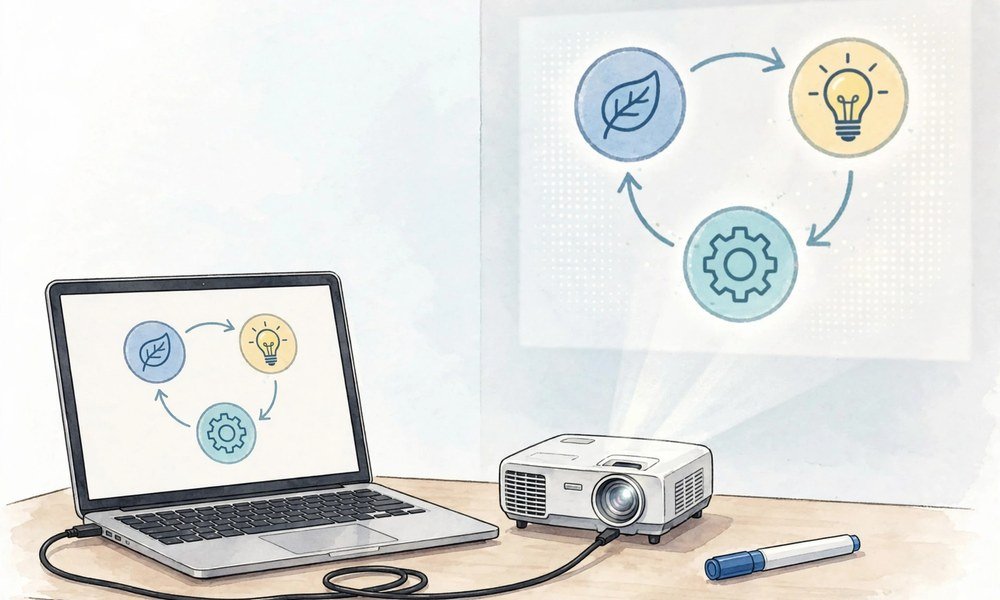
It also has the ports a classroom demands: HDMI for the projector, USB-A for a clicker or flash drive, and USB-C for charging. Battery life is around 11 hours, and the 14-inch screen is bright enough for a well-lit classroom. For video lessons, pair it with one of the best webcams for online teaching and the picture improves dramatically.
Pros: Best keyboard on the list; HDMI and USB-A ports; spill-resistant; durable build.
Cons: Heavier than ultrabooks at 1.4 kg; screen is good, not great; base model has 8GB RAM.
HP Envy x360 14 — Best for presentations
The Envy x360 14 flips 360 degrees, so it works as a laptop for marking and a tablet for presenting. A teacher can stand at the front of the room, annotate a diagram with the included stylus, and mirror it to the class display. That flexibility is hard to match with a standard laptop.
The touchscreen is bright and responsive, the speakers are better than most laptops at this price, and the webcam has a privacy shutter. Battery life is around 9 hours, which covers a teaching day but not much more, so keep the charger in the bag.
Pros: 2-in-1 design with stylus; bright touchscreen; good speakers; webcam privacy shutter.
Cons: Battery around 9 hours; slightly heavier in tablet mode; fan can be heard under load.
MacBook Air M4 — Best battery life
The MacBook Air M4’s headline feature is its battery: 15 hours or more of real teaching use, which means it can go two school days without charging. It is also completely silent, weighs 1.24 kg, and has a superb screen and keyboard. For teachers who work across Apple devices, the integration with iPad and iPhone is genuinely useful.
The trade-off is ports — just two USB-C ports, so connecting to an older projector needs an adapter. Teachers who need to work away from a desk will also appreciate the portability; our guide to the best laptops for remote work covers similar machines for home offices.
Pros: Outstanding battery life; silent and light; excellent screen; great trackpad.
Cons: Only two USB-C ports; macOS may not run some school admin software; adapter needed for HDMI.
Dell XPS 13 — Best premium ultraportable
The XPS 13 is the lightest premium laptop here, and its near-borderless screen makes a 13-inch display feel bigger than it is. It is fast, quiet, and beautifully built, with a keyboard that is comfortable for long marking sessions. Dell’s support is also straightforward, which matters when a work machine breaks mid-term.
The downside is the lack of an HDMI port — a USB-C hub is essential for classroom projectors. Battery life is around 12 hours, and the screen is bright and sharp. It is a premium choice for teachers who want a machine that feels good to use every day.
Pros: Superb screen and build; very light; fast and quiet; long battery life.
Cons: No HDMI port; higher price for the spec; webcam is only 1080p.
ASUS Zenbook 14 — Best value ultrabook
The Zenbook 14 packs a lot into $799: a bright OLED option on some configurations, a comfortable keyboard, a fingerprint reader, and a genuinely portable 1.2 kg body. It looks and feels more expensive than it is, and the OLED screen is a treat for grading essays late into the evening.
Battery life is around 11 hours, and the laptop charges quickly over USB-C. The speakers are the weak point — fine for video calls, thin for music — but that is a small complaint at this price.
Pros: Excellent value; OLED screen option; light and portable; fast charging.
Cons: Average speakers; no HDMI on some configs; trackpad is small.
Microsoft Surface Laptop 7 — Best touchscreen
The Surface Laptop 7 combines a premium aluminium body with a sharp touchscreen and a battery that lasts around 13 hours. The 3:2 screen ratio shows more of a document at once, which is a real advantage when marking long essays or reading lesson plans.
It runs Windows 11 with the Snapdragon X chip, which is fast and efficient, though a few older Windows apps may run in emulation. For teachers deep in the Microsoft ecosystem — Teams, OneDrive, OneNote — it feels tailor-made.
Pros: Great touchscreen; 3:2 screen shows more of a page; long battery life; premium build.
Cons: Repairs are costly; some legacy apps run emulated; only USB-C and USB-A ports.
Acer Swift Go 14 — Best lowest price
The Swift Go 14 is the cheapest way to get a light, capable Windows laptop with a good screen. At $649 it weighs 1.3 kg, has a bright 14-inch display, and runs a full day of teaching work without complaint. The keyboard is comfortable, and the webcam is a solid 1080p.
The build is mostly plastic, and the speakers are nothing special, but for a teacher buying their own machine on a budget, the Swift Go 14 is hard to fault. Students who want help organising their study can also try the best AI tools for students — many of them are useful for teachers too.
Pros: Lowest price on the list; light and portable; good 1080p webcam; decent battery.
Cons: Plastic build; average speakers; base storage is 256GB.
How to choose
Start with the keyboard, because you will use it more than any other part. A ThinkPad or a MacBook Air keyboard will feel better after three hours of marking than a cheap membrane keyboard. Then check the ports: HDMI is still the most common projector connection in schools, and a laptop without it means carrying a hub forever.
Battery life should cover a full teaching day — aim for 10 hours or more. A bright screen matters in a classroom with big windows, and a good webcam matters if you teach any lessons online. Finally, check whether your school’s admin software runs on Windows only; if it does, a Mac is a poor choice however good the hardware is.
Education discounts are worth chasing. Apple, Lenovo, Dell, and HP all run education stores with 5 to 10 percent off, and some schools have bulk purchase schemes that cut the price further.
Checklist: before you pay
- Confirm the laptop runs your school’s admin and grading software.
- Check it has an HDMI port or budget for a reliable USB-C hub.
- Look for 16GB of RAM if you keep many tabs and apps open at once.
- Test the keyboard in a shop — comfort matters more than specs after hour three.
- Ask about the education discount and the warranty length.
- Check the webcam quality if you teach online lessons or record classes.
Frequently asked questions
What is the best laptop for a teacher in 2027?
The Lenovo ThinkPad E14 is the best all-rounder for most teachers, thanks to its keyboard and ports. If battery life matters most, the MacBook Air M4 wins. If you present with a stylus, the HP Envy x360 14 is the pick.
How much RAM does a teacher need?
8GB is workable, but 16GB is the smarter buy. Teachers typically run a browser with many tabs, a video call, and grading software at the same time, and 16GB keeps that smooth.
Do teachers need a touchscreen laptop?
Not always, but it helps for annotating slides, marking PDFs, and teaching from the front of the room. A 2-in-1 like the Envy x360 is the best way to get it without paying a premium.
MacBook or Windows for teaching?
Windows is the safer choice if your school uses Windows-only admin software. A MacBook is better for battery life and for teachers already using iPhone or iPad.
Is 14 inches the right screen size for teachers?
Yes, for most. A 14-inch screen is big enough to mark comfortably and small enough to carry between classrooms. Go to 15.6 inches only if the laptop mostly stays on one desk.
Should teachers buy a laptop with a warranty extension?
Yes, if the laptop is used daily in a classroom. Accidental damage cover is worth it — a laptop that travels between rooms and gets used by students will eventually be dropped.
The bottom line
For most teachers, the Lenovo ThinkPad E14 is the best buy: the keyboard, the ports, and the durability are exactly what classroom work needs. If you want the longest battery life and the lightest bag, the MacBook Air M4 is the alternative, as long as your school’s software runs on macOS.
Whichever you choose, spend on the keyboard, the screen, and the battery — not on a faster processor you will never notice. Check the education discount before you pay, because it can save enough for a decent hub and a protective sleeve.
Note: Prices and plans change. Check the product’s current plan details before buying — no link is provided here by design, all links in this article go to other occcy.com guides.