The best photo editing software for Windows in 2027 depends on what kind of photographer you are, but the short answer is this: Adobe Lightroom leads for organising and editing large photo libraries, Photoshop leads for detailed retouching, Capture One leads for professional colour work, and Affinity Photo is the best Windows alternative with a one-off price. The rest of this guide compares the leading options, explains the difference between a photo organiser and a photo editor, and helps you choose based on your workflow and your budget.
Windows users have the widest choice of photo editing software on any platform. Every major editor runs on Windows, and the platform’s range of hardware — from budget laptops to high-end workstations with powerful graphics cards — means there is a setup to suit every budget. That abundance is also the problem: with so many good options, choosing the right one takes some thought. The answer depends less on which tool is best in general and more on which tool fits the way you work.
Key takeaways
- Lightroom leads for organising and editing large photo libraries.
- Photoshop leads for detailed retouching and compositing.
- Capture One leads for professional colour accuracy and tethered shooting.
- Affinity Photo is the best Windows alternative, with a one-off price.
- GIMP is the best free photo editor for Windows.
- Choose based on your workflow: library management, retouching, or both.
What makes good photo editing software for Windows
Good photo editing software for Windows is judged on its editing quality, its library management, and how well it uses your hardware. Editing quality is about the tools: exposure, colour, sharpening, noise reduction, and the ability to make local adjustments to part of an image. Library management is about organising thousands of photos — searching, tagging, rating and finding the ones you need. A tool that edits well but cannot organise a large library will frustrate a working photographer.
Hardware matters more on Windows than on Mac, because Windows runs on such a wide range of machines. A good photo editor should use your graphics card for acceleration, handle large RAW files smoothly, and work well on a machine with a good monitor. If you edit photos seriously, a calibrated monitor matters as much as the software — colours you cannot see accurately are colours you cannot edit accurately.
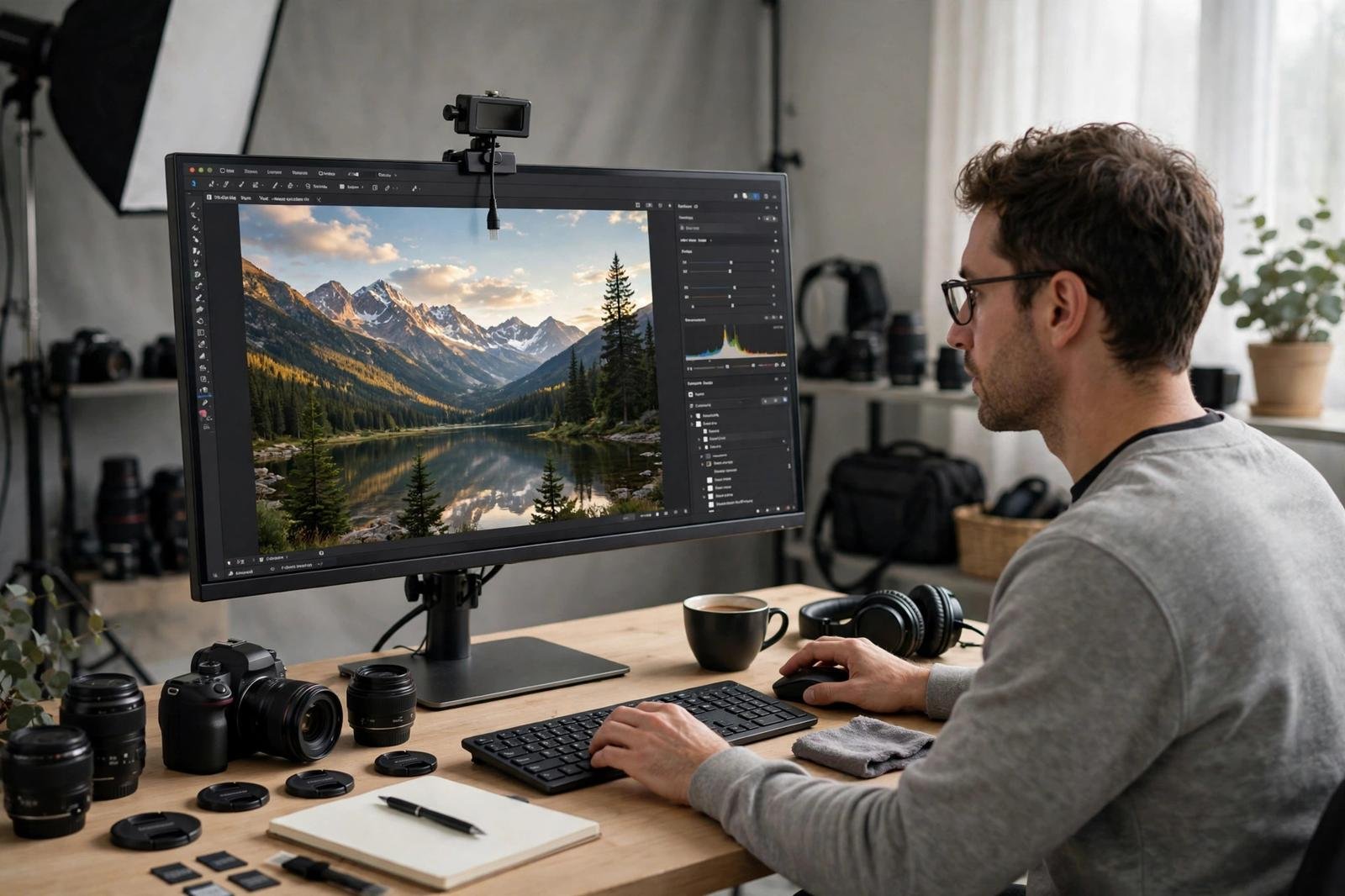
Adobe Lightroom: best for organising and editing
Best for: photographers with large libraries who need to organise, edit and export photos efficiently.
Lightroom is the standard tool for photographers who shoot a lot. It combines a photo library — with ratings, keywords, collections and search — with a capable non-destructive editor that covers exposure, colour, cropping, local adjustments and lens corrections. Its strength is workflow: you can import a thousand photos from a shoot, rate the best ones, edit them consistently, and export them in minutes.
Lightroom is subscription software, available as part of Adobe’s Creative Cloud photography plan, which also includes Photoshop. Check current pricing. Its main limit is that it is not a pixel editor: for detailed retouching, compositing or graphic design work, you need Photoshop alongside it. For most photographers, the combination of Lightroom and Photoshop is the standard setup.
Adobe Photoshop: best for retouching
Best for: detailed retouching, compositing, and any photo work that needs pixel-level control.
Photoshop is the most powerful photo editor available, and it remains the standard for retouching, compositing and creative photo work. Its tools for removing objects, blending images, retouching skin, and working with layers and masks are the most developed available. Its AI features — including generative fill, which can extend or alter an image from a text prompt — have become genuinely useful for working photographers and retouchers.
Photoshop is subscription software, available alone or as part of Creative Cloud. Check current pricing. Its main limit is that it is not a photo organiser: it has no library management, and it is slow for editing hundreds of photos. Most photographers use Lightroom for the bulk of their editing and Photoshop for the images that need detailed work. See our Photoshop vs Lightroom comparison for a fuller explanation of how the two work together.
Capture One: best for professionals and colour work
Best for: professional photographers who need the best colour accuracy, tethered shooting, and precise control.
Capture One is the choice of many professional studio and commercial photographers, and its strength is colour. Its colour editing tools are more precise than Lightroom’s, and its tethered shooting — connecting a camera directly to the computer and seeing images appear as you shoot — is the best available. For a studio photographer, that combination is essential.
Capture One is available by subscription or as a one-off purchase, depending on the version. Check current pricing. Its main limit is its learning curve and its narrower ecosystem: fewer presets, fewer tutorials, and a smaller community than Lightroom. It suits professionals who need its specific strengths and are willing to learn it properly.
Affinity Photo: best Windows alternative
Best for: Windows users who want a capable, professional photo editor with a one-off price and no subscription.
Affinity Photo is the best alternative to Photoshop for Windows users. It offers layers, retouching, colour adjustments, HDR merging, panorama stitching and focus stacking, all in a clean, fast interface. Its performance is good, and it can open and save Photoshop files, which makes it practical for anyone who receives PSD files.
Affinity Photo is a one-off purchase. Check current pricing. Its main limit is library management: it is an editor, not a photo organiser, so it does not replace Lightroom’s catalogue. For a Windows user who edits individual photos and wants to avoid a subscription, it is excellent value.
GIMP: best free photo editor for Windows
Best for: photo editing, retouching and raster-based design work at no cost.
GIMP — the GNU Image Manipulation Program — is a free, open-source photo editor that has been developed for decades. It offers layers, masks, filters, colour correction and a wide range of retouching tools, and it can open and export common image formats. For a photographer, a student or a small business that needs serious photo editing without paying for Photoshop, GIMP is the most capable free option on Windows.
GIMP’s weakness is its interface, which is less polished than Photoshop’s and takes time to learn. But it is free, it is actively maintained, and it does the work. If you need a free Photoshop alternative for Windows, GIMP is the first tool to try.
How the leading tools compare
| Tool | Best for | Price model | Standout feature |
|---|---|---|---|
| Adobe Lightroom | Organising and editing libraries | Subscription | Best photo library workflow |
| Adobe Photoshop | Retouching and compositing | Subscription | Most powerful pixel editing |
| Capture One | Professional colour and tethered shooting | Subscription or one-off | Best colour accuracy and tethering |
| Affinity Photo | Windows editing without subscription | One-off purchase | Professional tools, no monthly fee |
| GIMP | Free photo editing | Free, open source | Full photo editor at no cost |
A practical checklist for choosing photo software for Windows
- Decide whether you need a library or an editor. If you manage thousands of photos, you need Lightroom or Capture One. If you edit individual images, Photoshop, Affinity Photo or GIMP will do.
- Check your file format. If you shoot RAW, make sure the tool supports your camera’s RAW format. Most major tools do, but check before you buy.
- Test performance on your PC. Photo editing is demanding. Try the free trial on your own computer with your own photos, and check that your graphics card is being used for acceleration.
- Consider the subscription question. Lightroom and Photoshop are subscriptions; Affinity Photo and Capture One offer one-off purchases. Work out the two-year cost of each option.
- Try the free options first. GIMP is a capable free editor, and Windows Photos includes basic editing. Use them before paying for anything.
- Check the export you need. Make sure the tool exports in the formats you need — JPEG, TIFF, PNG — at the quality you need for print or web.
RAW files, libraries and non-destructive editing
Two concepts matter when choosing photo software. The first is RAW. A RAW file is the unprocessed data from your camera’s sensor, and it contains far more information than a JPEG. Editing a RAW file gives you much more control over exposure, colour and detail. If you shoot RAW, you need software that handles it well — Lightroom, Capture One and Affinity Photo all do.
The second is non-destructive editing. A non-destructive editor does not change your original file; it records your edits as instructions and applies them when you export. That means you can always go back and change an edit, or start again, without losing the original. Lightroom and Capture One are non-destructive by design. Photoshop is destructive by default, though it supports non-destructive workflows with smart objects and adjustment layers. For most photographers, non-destructive editing is the right approach.
FAQs
What is the best photo editing software for Windows?
Lightroom is the best overall for most photographers, because it combines library management with capable editing. Photoshop is the best for retouching, Capture One is the best for professional colour work, and Affinity Photo is the best Windows alternative without a subscription.
Is Lightroom or Photoshop better for Windows?
They do different jobs. Lightroom is better for organising and editing large numbers of photos. Photoshop is better for detailed retouching and compositing. Most photographers use both, and Adobe sells them together in a photography plan.
Is there a good free photo editor for Windows?
Yes. GIMP is a free, open-source editor with advanced tools, and it is the best free option on Windows. Windows Photos also includes basic editing for everyday use.
Do I need a subscription for photo editing on Windows?
Not necessarily. Affinity Photo and Capture One offer one-off purchases, and GIMP is free. Lightroom and Photoshop are subscription-only.
What is the best photo editor for Windows for beginners?
GIMP is a good free starting point, though its interface takes time to learn. Affinity Photo is the best next step if you want professional tools without a subscription, and Lightroom is the best choice if you manage a large library.
Does Affinity Photo work well on Windows?
Yes. Affinity Photo is fully supported on Windows, runs well on a wide range of hardware, and can open and save Photoshop files, which makes it practical for professional work.
The bottom line
The best photo editing software for Windows in 2027 starts with Lightroom for library management and editing, Photoshop for retouching, Capture One for professional colour and tethered work, and Affinity Photo as the best Windows alternative with a one-off price. GIMP is free and capable for anyone on a budget. Choose based on your workflow — library or editor, subscription or one-off — and test the free trial on your own photos before committing. If you are comparing the two Adobe tools, our Photoshop vs Lightroom comparison explains how they work together, and the Lightroom vs Capture One comparison covers the professional choice in more depth.