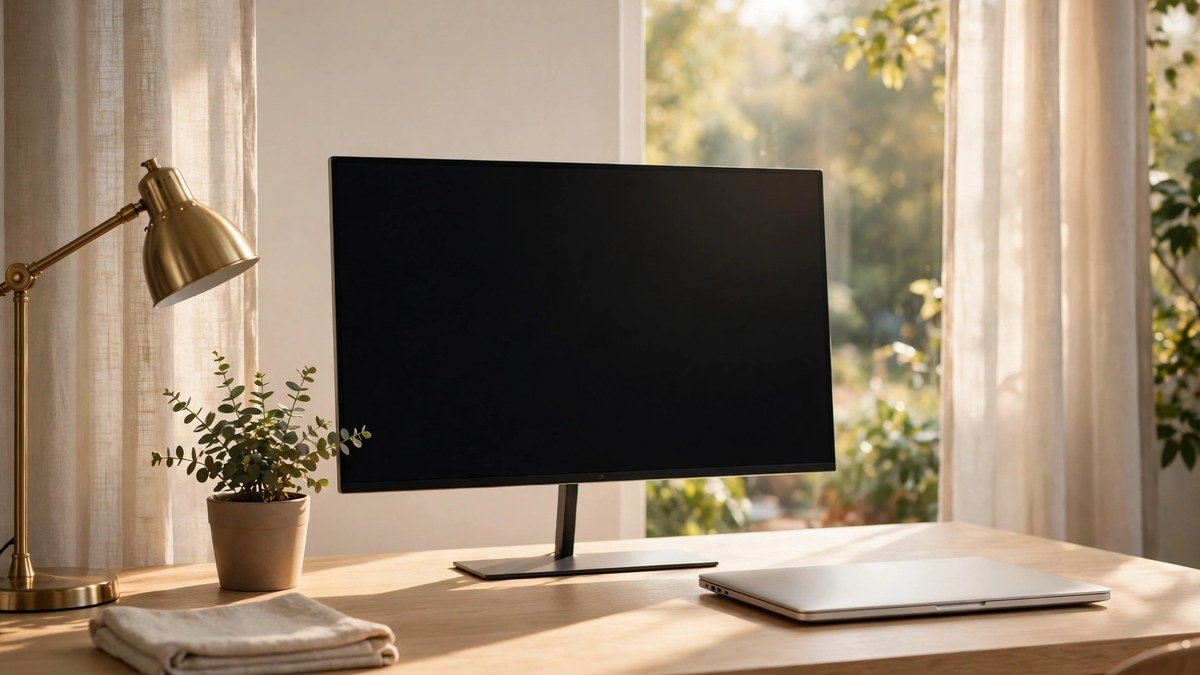
The home office monitor is the one piece of kit you stare at for eight hours a day, so it is worth choosing properly. A good one is sharp enough that text never strains your eyes, bright enough for a room with windows, and adjustable enough to sit at exactly the right height. A bad one gives you headaches by lunch and a sore neck by Friday.
For most home offices, a 27-inch screen is the right size: big enough to show two documents side by side, small enough to fit a normal desk. QHD resolution is the minimum worth buying at that size; 4K is noticeably sharper and worth the extra money if you read all day. USB-C with power delivery is the feature that matters most after the panel itself, because one cable can carry video and charge a laptop.
We picked seven monitors that suit real home offices, from a $150 budget screen to a $650 premium panel, with starting prices listed below. Every one is comfortable for all-day work, and each one suits a different kind of desk.
Key takeaways
- Best overall for a home office: the Dell P2723QE, with 4K, a USB-C hub and a stand that adjusts every way that matters.
- Best budget pick: the LG 27UL500, a 4K IPS panel that costs less than many QHD screens.
- Best all-in-one: the Samsung M7, with streaming apps and a camera for video calls built in.
- 27 inches at QHD or 4K is the sweet spot for most desks; go bigger only if you have the depth.
- USB-C power delivery of 65 W or more is the feature that simplifies a laptop-based desk the most.
At a glance: the shortlist
| Monitor | Best for | Starting price | Standout limit |
|---|---|---|---|
| Dell P2723QE | Best overall | around $450 | 60 Hz refresh rate |
| LG 27UL500 | Budget 4K | around $250 | No USB-C port |
| Samsung M7 | All-in-one smart screen | around $350 | VA panel viewing angles |
| ASUS VA27DQSB | Eye comfort | around $180 | 1080p at 27 inches |
| BenQ GW2790QT | Video calls | around $300 | QHD, not 4K |
| HP E24 G5 | Small desks | around $150 | 24-inch screen |
| Lenovo ThinkVision T27h-30 | Colour and build | around $380 | 60 Hz, no speakers |
Dell P2723QE — Best overall
The P2723QE is the default home office monitor for a reason: a 27-inch 4K IPS panel, a USB-C hub with 90 W power delivery, and a stand that adjusts for height, tilt, swivel and pivot. Text is crisp, colours are accurate out of the box, and one cable connects a laptop and charges it at the same time. Dell’s three-year warranty includes advance replacement, which matters when the screen is your livelihood.
It is a 60 Hz panel, so it will not impress gamers, and there are no built-in speakers worth mentioning. Neither matters for office work. If you want one monitor that simply works, all day, every day, this is the one to buy first, and it is easy to add a matching second one later if your desk grows. For a complete desk, pair it with headphones made for office calls so meetings stay private.
Pros: Sharp 4K panel, 90 W USB-C hub, excellent stand, strong warranty.
Cons: 60 Hz only, no useful speakers, premium price.
LG 27UL500 — Best budget 4K
The 27UL500 is the cheapest 4K monitor worth buying. Its 27-inch IPS panel covers 98% of sRGB, supports HDR10, and renders text with a clarity that QHD screens at this price cannot match. The stand tilts and adjusts for height, the bezels are thin, and the on-screen controls are simple.
What you give up is connectivity: there is no USB-C port, so a laptop needs HDMI or DisplayPort plus a separate charger. There are no speakers and no hub. If your desk is a desktop PC or a docked laptop, none of that matters, and the panel quality for the price is hard to beat.
Pros: True 4K at a budget price, good sRGB colour, simple and reliable.
Cons: No USB-C, no speakers, basic stand.
Samsung M7 — Best all-in-one
The M7 is a 32-inch 4K monitor with a smart TV platform inside, so it streams Netflix and YouTube, runs video calls and mirrors a phone without a computer. For a home office in a small flat, that means one screen does the work of a monitor and a television, and the included remote makes switching painless.
The panel is VA, so contrast is strong but colours shift when viewed from the side, and the 60 Hz refresh is fine for work. The built-in camera and speakers are good enough for calls, though a dedicated webcam still looks better. If your office doubles as a living room, the M7 earns its place.
Pros: Streaming apps built in, 32-inch 4K, camera included, good value.
Cons: VA viewing angles, average speakers, smart features add complexity.
ASUS VA27DQSB — Best for eye comfort
The VA27DQSB is a 27-inch 1080p monitor built around eye comfort: flicker-free backlight, a low blue light mode certified by TUV, and an adjustable stand. At around $180 it is the cheapest screen here, and for email, documents and calls it is perfectly comfortable.
The compromise is resolution. At 27 inches, 1080p text is visibly softer than QHD or 4K, and you will see individual pixels if you look closely. If your budget is tight and your work is mostly text, it is a fine buy; if you can stretch to QHD, do it, because your eyes will notice the difference every day.
Pros: Very affordable, flicker-free, low blue light, good stand.
Cons: 1080p at 27 inches, no USB-C, plain design.
BenQ GW2790QT — Best for video calls
The GW2790QT is built for people who spend their day on video calls. It has a built-in 2K camera with noise-cancelling microphones, a QHD IPS panel with good colour, and a USB-C port with 65 W power delivery. The camera sits in the top bezel and can be covered with a physical shutter, which is a small detail that matters.
QHD at 27 inches is sharp enough for all-day work, and the panel covers 99% of sRGB. The speakers are better than most monitor speakers, though still not a replacement for headphones. For a home office where calls are the main event, this is the most complete single purchase.
Pros: Built-in 2K camera, noise-cancelling mics, USB-C hub, good colour.
Cons: QHD not 4K, camera quality is good not great, 60 Hz.
HP E24 G5 — Best for small desks
Not every home office has room for 27 inches. The E24 G5 is a 24-inch 1080p IPS monitor with a stand that adjusts every way and a three-sided micro-edge bezel, so it fits a small desk or a shared table without dominating it. At 24 inches, 1080p is sharp, and the panel is comfortable for long sessions.
It has HDMI, DisplayPort and VGA, but no USB-C, so laptop users need a separate charger. Colour is sRGB and brightness is modest. It is the right pick for a spare room, a kitchen table office, or a second screen, and its price makes it easy to buy two.
Pros: Compact and affordable, good stand, sharp at 24 inches.
Cons: Small screen, no USB-C, basic brightness.
Lenovo ThinkVision T27h-30 — Best build and colour
Lenovo’s ThinkVision T27h-30 is a 27-inch QHD monitor with a factory-calibrated IPS panel covering 99% of sRGB, a USB-C hub with 90 W power delivery, and a stand that feels more expensive than the price suggests. The build quality is a step above most monitors at this price, with a metal base and clean cable management.
It is QHD rather than 4K, so text is not quite as crisp as the Dell, and there are no speakers. But for a home office where the monitor also needs to look good on a video call background, it is a strong choice. If you use a Mac, check the monitors made with Macs in mind before deciding, since scaling behaviour differs.
Pros: Calibrated QHD panel, 90 W USB-C, excellent build, good stand.
Cons: QHD not 4K, no speakers, 60 Hz.
How to choose
Start with size and resolution together. At 27 inches, QHD is the minimum and 4K is worth the premium if you read text all day; at 24 inches, 1080p is fine. Then check the stand: a monitor that cannot reach eye level will give you a sore neck no matter how good the panel is, and a cheap fixed stand is a false economy. Height adjustment is the single most important ergonomic feature.
Next, count the cables. If you use a laptop, USB-C with 65 W or more turns one cable into a docking station; without it, you need a separate charger and a hub. Finally, think about light: a matte screen copes with a window behind you far better than a glossy one, and 300 nits or more keeps the picture readable in a bright room. A good monitor should disappear into your work, so make sure your laptop and camera sit at the same eye level and the screen does the rest.
Checklist: before you pay
- Measure your desk: 27 inches needs about 65 cm of width and 60 cm of depth for comfortable viewing.
- Check your laptop’s video output and charger wattage against the monitor’s USB-C power.
- Look for height adjustment on the stand, not just tilt.
- Prefer a matte screen if your desk faces or backs onto a window.
- Confirm the warranty length and whether the seller offers advance replacement.
- Keep the box for a week — dead pixels and backlight bleed show up in the first few days.
Frequently asked questions
What size monitor is best for a home office?
27 inches is the sweet spot for most desks: big enough for two windows side by side, small enough to fit. Go 24 inches for a small desk, 32 inches only if you sit further back or have a deep desk.
Is 4K worth it for office work?
Yes, if you read text all day. 4K at 27 inches makes text look printed and reduces eye strain over long sessions. QHD is perfectly usable and cheaper, but once you have used 4K it is hard to go back.
Do I need USB-C on a monitor?
Not if you use a desktop PC, but for a laptop it is the most useful feature after the panel. One USB-C cable can carry video, data and up to 90 W of charging, which removes a charger and a hub from your desk.
How high should a monitor sit?
The top of the screen should be at or slightly below eye level, about an arm’s length away. A height-adjustable stand or a monitor arm makes this easy; a stack of books is a poor substitute.
Are curved monitors good for home offices?
Curved ultrawides suit single-screen setups where you want lots of width, but they can distort straight lines and cost more per inch. For most home offices, a flat 27-inch screen is the safer buy.
Should I buy a monitor with built-in speakers?
Monitor speakers are fine for system sounds and the occasional call, but they are no substitute for headphones or desktop speakers. Do not pay extra for them; buy the best panel you can afford instead.
The bottom line
For most home offices, the Dell P2723QE is the right buy: 4K, a proper USB-C hub and a stand that adjusts every way that matters. If the budget is tight, the LG 27UL500 gives you the same sharp 4K panel for far less, and the BenQ GW2790QT is the best choice if your day is mostly video calls.
Whatever you choose, prioritise the panel and the stand over smart features and speakers. Prices and plans change, so check the current price before buying.
Note: Prices and plans change. Check the product’s current plan details before buying — no link is provided here by design, all links in this article go to other occcy.com guides.