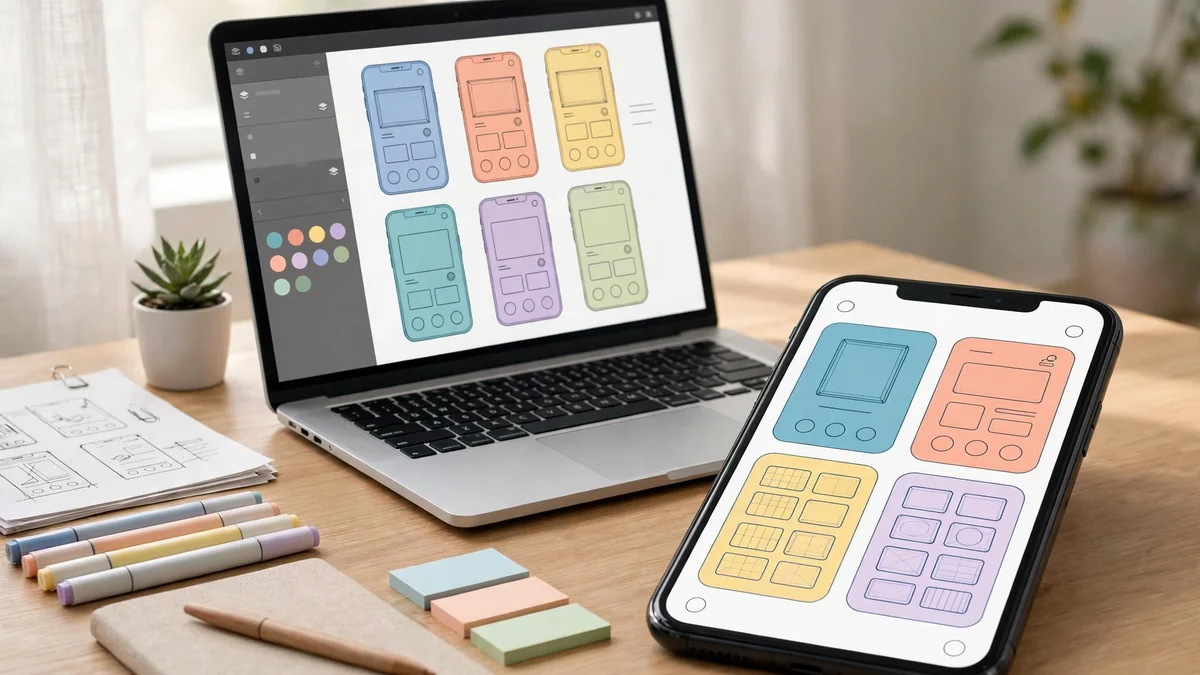
Best AI tools for mobile app design in 2027 help small teams ship polished apps without a large design department. The best AI tools for mobile app design turn a short text prompt, a sketch, or a screenshot into editable screens, a navigation flow, and a consistent set of components in minutes. That speed matters because mobile users judge an app in seconds, and a confusing first screen is usually the last screen they see.
What matters most is not how impressive the first generated screen looks. It is whether you can edit it, keep it consistent across dozens of screens, export clean assets for developers, and test the result with real users. A tool that produces a beautiful single screen but locks you into fixed layouts will slow you down once you need settings, checkout, onboarding, and empty states. The tools below were chosen for editable output, mobile-specific patterns, and a realistic path from idea to a working app.
Prices below are approximate starting prices and can change, so check current pricing before you buy. The shortlist covers Uizard for overall speed, Figma AI for teams, Galileo AI for fast prototypes, Visily for beginners, Framer AI for live pages, Builder.io for developers, Bravo Studio for no-code native apps, and TeleportHQ for responsive layouts. If you only try three, start with Uizard, Figma AI, and Galileo AI.
Key takeaways
- Uizard is the best overall choice for turning prompts and sketches into editable mobile screens quickly.
- Figma AI is the best option for teams that already design in Figma and need shared components and handoff.
- Galileo AI produces the fastest polished prototypes from a single text description.
- Visily is the easiest starting point for beginners and non-designers who need clean mobile layouts.
- Check export, editing, and pricing limits before you commit, because free plans often cap screens and exports.
At a glance: the shortlist
| Product | Best for | Starting price | Standout limit |
|---|---|---|---|
| Uizard | Overall speed | From about $12 per month | Free plan limits projects |
| Figma AI | Design teams | From about $15 per editor, per month | AI features need a paid plan |
| Galileo AI | Fast prototypes | From about $19 per month | Free credits are limited |
| Visily | Beginners | From about $12 per month | Advanced export needs paid plan |
| Framer AI | Live pages | From about $5 per month | Best for web-first flows |
| Builder.io | Developers | Free to start, paid plans vary | Learning curve for setup |
| Bravo Studio | No-code native apps | From about $21 per month | Native features need paid plan |
| TeleportHQ | Responsive layouts | Free to start, paid plans vary | Code export quality varies |
Uizard — Best overall
Uizard turns text prompts, hand-drawn sketches, and screenshots into editable mobile app screens. You describe the app, pick a style, and get a set of connected screens with buttons, forms, lists, and navigation that you can change like any normal design file. It is particularly strong for early ideas, because you can move from a rough concept to a clickable prototype in one session instead of spending a week drawing every screen by hand.

Its theme generator keeps colours, fonts, and spacing consistent, which is where many AI designs fail. You can also generate images and copy inside the tool, so the prototype feels closer to a real product. For founders and product managers, that makes user testing much more useful, because people react to a realistic flow rather than a grey wireframe. If you want a broader view of design tools, read our guide to the best AI design tools for a wider comparison.
Pros: Fast prompt-to-prototype flow; sketch-to-screen conversion; consistent themes and components.
Cons: Generated copy still needs editing; complex custom interactions are limited; free plan is restricted.
Figma AI — Best for teams
Figma AI adds generation, renaming, rewriting, and search to the design tool most product teams already use. You can generate a first draft of a mobile screen from a prompt, then refine it with the same components, variables, and developer handoff your team already relies on. That matters more than raw generation speed, because most app work is iteration, not a single first draft.
Pros: Works inside the standard Figma workflow; strong components and handoff; useful search and cleanup tools.
Cons: Needs a paid plan for full AI access; still requires design judgement; output quality depends on your prompt.
Galileo AI — Best for fast prototypes
Galileo AI focuses on one job: turning a short description into a polished, high-fidelity mobile interface. You type what the app should do, and it returns screens with realistic content, spacing, and visual hierarchy. It is a good choice when you need something presentable for a pitch, a stakeholder review, or an early user test within hours.
Pros: Very fast high-fidelity results; realistic content and spacing; clean Figma export.
Cons: Limited free credits; fewer collaboration features than Figma; less control over fine details.
Visily — Best for beginners
Visily is built for people who are not professional designers. You can start from a screenshot, a prompt, or a template, and it produces clean mobile layouts with sensible spacing and readable type. Its template library covers common app patterns such as onboarding, dashboards, profiles, shopping, and messaging, so you do not have to invent a layout for every screen.
Pros: Easy to learn; strong templates for common app screens; screenshot-to-design conversion.
Cons: Less flexible for advanced custom design; export options are limited on lower plans; generated copy needs checking.
Framer AI — Best for live pages
Framer AI is best known for websites, but it is useful for mobile app design when you need a live, testable version rather than a static mockup. You can generate a landing page, onboarding flow, or marketing site for your app, publish it, and see how real users respond. That live feedback is often more valuable than another round of internal review.
Pros: Quick live publishing; strong responsive layouts; useful animations and forms.
Cons: Web-first, not a native app builder; limited native app patterns; paid plans needed for custom domains.
Builder.io — Best for developers
Builder.io connects AI generation to real code and content. Its visual editor lets teams generate and edit interfaces, then connect them to data, APIs, and existing codebases. For developers, the appeal is control: the design is not trapped in an image or a static file, and it can become part of a working product.
Pros: Connects design to real code and data; strong for developer-led teams; reusable components.
Cons: Steeper setup than simpler tools; overkill for a quick prototype; pricing varies by use.
Bravo Studio — Best for no-code native apps
Bravo Studio turns Figma designs into real native mobile apps without writing code. You design the screens in Figma, connect them to data and APIs in Bravo, and publish to the App Store and Google Play. For designers who want a working app rather than a prototype, that direct path is its main advantage.
Pros: Figma designs become real native apps; supports common native features; no coding required.
Cons: Depends on Figma quality; native features cost more; learning curve for data connections.
TeleportHQ — Best for responsive layouts
TeleportHQ generates responsive interfaces and exports front-end code, which makes it useful for teams that need to move from design to a working product quickly. You can start from a prompt or a template, adjust the layout for phone, tablet, and desktop, and export code that developers can use as a starting point.
Its strength is handling different screen sizes without redrawing every layout. That is a real problem in mobile design, where a screen that looks good on a large phone can break on a smaller one. TeleportHQ is less polished than Figma for detailed visual design, but it is practical when the goal is a working, responsive front end rather than a perfect static mockup.
Pros: Responsive layouts across screen sizes; code export for developers; fast starting point.
Cons: Exported code still needs review; less refined than dedicated design tools; collaboration is simpler.
How to choose
Start with your goal. If you need a quick prototype to test an idea, choose Uizard or Galileo AI. If you work in a team and need shared components, version history, and developer handoff, choose Figma AI. If you are a beginner, Visily will get you further with less frustration. If you need a real native app without code, Bravo Studio is the clearest path, while Builder.io and TeleportHQ suit teams that want code output.
Also check three practical limits before you pay: how many projects and screens the plan allows, whether you can export to Figma or code, and whether the tool keeps your brand styles consistent. A tool that looks cheap can become expensive if you need to rebuild screens elsewhere. For related app-building context, see our guide to the best AI tools for mobile app development, which covers the step after design.
Checklist: before you pay
- Test the free plan with a real screen from your app, not just a sample template.
- Check that you can edit text, colours, spacing, and navigation after generation.
- Confirm export to Figma, code, or your developer workflow before you commit.
- Read the renewal price, not just the first-month or annual headline price.
- Check screen, project, and export limits on the plan you intend to use.
- Test the prototype on a real phone with at least three users before building.
Frequently asked questions
Can AI design a complete mobile app on its own?
No. AI can produce strong first drafts and speed up routine screens, but it does not understand your users, your business rules, or edge cases. You still need a person to set the flow, check usability, and refine the details.
Which tool is best for a first prototype?
Uizard or Galileo AI are the fastest for a first prototype. Uizard is better if you want to edit and expand the flow, while Galileo AI is better if you want a polished set of screens quickly.
Do I need Figma to use these tools?
Not always. Visily, Uizard, and Galileo AI work on their own, and Bravo Studio uses Figma as its design source. Figma AI is the best choice only if your team already works in Figma.
Can I export AI designs to code?
Some tools can. TeleportHQ and Builder.io offer code export, and Bravo Studio turns designs into native apps. Exported code usually needs developer review, so treat it as a starting point rather than a finished product.
Are free plans enough for a small app?
Sometimes, for a short test or a simple prototype. Free plans usually limit projects, screens, or exports, so a real app with many screens will usually need a paid plan.
How do I know if an AI design is actually usable?
Test it on a real phone with real users. Watch where they hesitate, tap the wrong thing, or fail to complete a task. That test will tell you more than how polished the screens look in a design file. For wider design inspiration, our roundup of the best AI tools for web design shows how similar tools handle responsive layouts.
The bottom line
For most people, Uizard is the best overall AI tool for mobile app design in 2027 because it is fast, editable, and realistic enough for user testing. Figma AI is the best choice for teams that already design in Figma, and Galileo AI is the best choice when you need a polished prototype in hours. Beginners should start with Visily, while developers should look closely at Builder.io and TeleportHQ.
Pick the tool that fits your next step, not the one with the longest feature list. Build one real flow, test it on a phone, fix the problems you find, and only then pay for a larger plan. That approach will save more time than any single AI feature.