You can create an image with Grok Imagine by signing in, choosing Image, describing the result you want, and tapping Generate. You can start on the web or in the Grok app, then choose an image or video workflow. A clear first idea helps you get a result you can judge and improve.
This walkthrough focuses on images first, with optional video guidance when you are ready. You will learn how to write prompts, edit images, prepare exports, check usage limits, and take a separate API path. Start with one clear image idea and refine it after you see the first result.
Key Takeaways
- Choose Image for a still picture or Video for a moving clip.
- Give the model a subject, setting, and visual direction.
- Change one detail at a time when refining a result.
- Use reference images when you need to guide an edit.
- Check your plan and usage before starting a large batch.
- Use the API only if you want to create images through code.
What Can Grok Imagine Create?
Grok Imagine handles five workflows, from generating a still image from text to changing an existing video. Choose the starting input that matches your task: a written idea, a picture, or a video clip.
The main difference is what you give the model and what you want back. The same basic interface flow works across tasks: choose Image or Video, enter a prompt, select a mode, and generate.
| Workflow | Starting input | Result |
|---|---|---|
| Text-to-image | Written prompt | New still image |
| Image editing | Existing image and prompt | Changed still image |
| Text-to-video | Written prompt | New video clip |
| Image-to-video | Still image and prompt | Moving video clip |
| Video-to-video | Existing video and prompt | Changed video clip |
Start with the input closest to the result you want, and the model has less to guess.
Image workflows, from a prompt to an edit
Text-to-image creates a picture from a description without needing an existing image. It suits a new concept, such as a tiny bookshop on a rainy street, or a product scene you have not photographed.
Image editing starts with a picture you already have. You can ask for a change to its setting, color, or another detail while keeping useful parts of the original. A grok AI image workflow can begin with either route, so decide whether you need a fresh composition or a revision.
Video workflows and generation modes
Video generation turns a prompt or visual input into a clip. Text-to-video begins with a scene description, while image-to-video adds motion to a still. Video-to-video uses an existing clip as its starting point.
Normal, Fun, Custom, and Spicy are the available generation modes. Normal, Fun, and Spicy provide named choices; Custom lets you give more specific creative direction. The mode changes how you approach generation, but it does not replace a clear prompt.
If you are learning the tool, start with text-to-image or image editing before trying a motion workflow.
What Access and Subscription Do You Need?
You can open Grok Imagine at grok.com/imagine or in the Grok app for iPhone and Android, then sign in with an X, Apple, Google, or Grok account. Your plan determines whether you can create images, videos, or both.
As of October 18, 2026, Premium is the first listed plan with video generation. X Subscription launched on October 12, 2026, replacing SuperGrok for new subscribers.
| Plan | Monthly price | Imagine images | Imagine video |
|---|---|---|---|
| Free | $0 | Limited generation | No |
| Plus | $8 | Yes | No |
| Premium | $30 | Yes | Yes |
| Super | $100 | Yes | Yes |
| Ultra | $200 | Yes | Yes |
These prices and plan details are dated October 2026. Free includes limited image generation, but it does not include video generation. Plus includes Imagine image generation without video access.
Paid plans draw from a shared usage pool, so activity in other Grok features can affect how much Imagine use remains. Premium includes four times more usage than Plus; Super includes 15 times more, and Ultra includes 50 times more.
The plan names matter when you choose a workflow. A person making still images may need less access than someone creating clips, while a shared paid allowance can be used across features.
For image-only use, Plus includes Imagine image generation; for video generation, Premium is the first listed plan that qualifies.
How to Use Grok Imagine to Create Your First Image
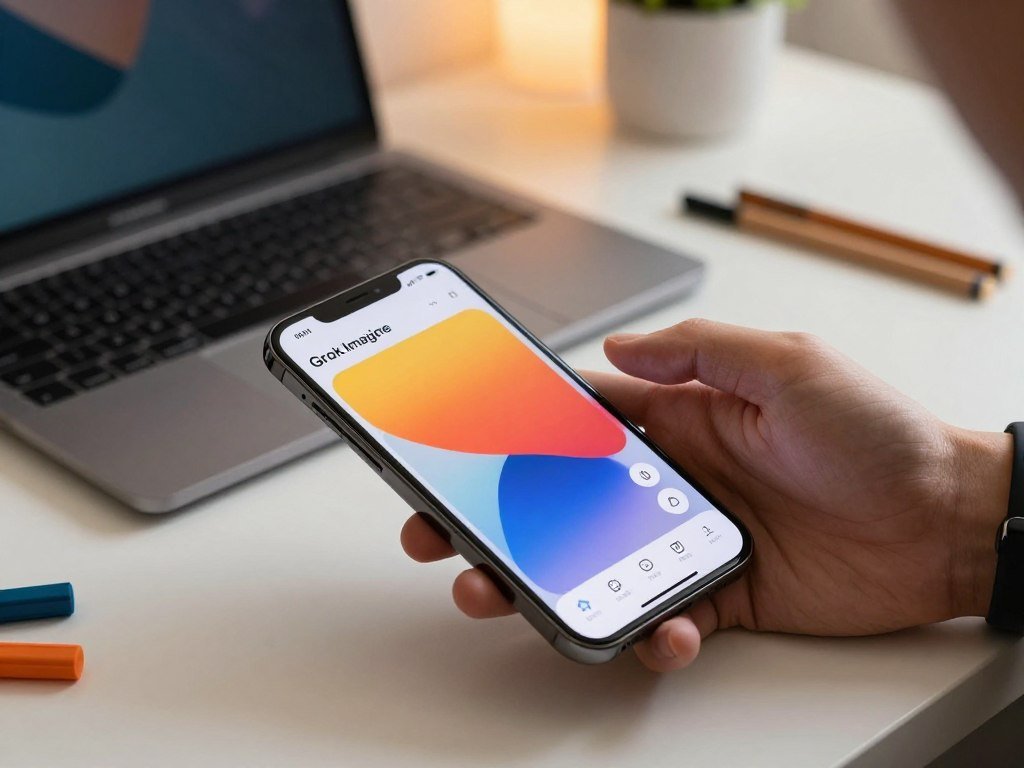
On a phone, open the Grok app, sign in, tap Imagine, select Image, and enter what you want to see. The first generation gives you a starting point to review, not a finished design you must keep.
The canvas uses the same basic flow on the web and in the mobile app. Grok Imagine Image 2.0, released August 11, 2026, is the current image-generation and editing model, though not every mode or account uses an identical model.
Open the canvas and choose Image
Use these four steps to make a first image in the Grok image generator:
- Open grok.com/imagine in a browser or open the Grok app.
- Sign in to the account you plan to use.
- Select Image on the Imagine canvas, rather than Video.
- Write an initial description, select a generation mode, tap Generate, and review the result.
The web and phone canvases both give you a place to enter a prompt and choose a mode. On an iPhone or Android phone, the app keeps the process close to the web version: open Imagine, select Image, and describe the picture.
Generate, review, and make a first adjustment
Keep your first prompt simple enough that you can tell which details shaped the result. For example, you might describe a yellow raincoat hanging beside a blue door, with soft afternoon light. That gives you a subject, a setting, and a visual cue to check.
After generation, compare the result with your idea. Notice whether the main subject is clear, whether the setting fits, and whether the image has the mood you wanted. The first output can be useful even when one detail misses.
If the composition feels close, adjust one part of the prompt rather than replacing every instruction. A more focused retry makes it easier to see what changed. The app can also produce different results from the same general idea, so judge the image itself, not just the prompt.
Treat the first output as a draft, and decide on one specific change before generating again.
How Do You Write a Prompt for a Better Image?
A useful image prompt reads like a compact creative brief, not a string of broad quality adjectives. Clear details give the model a stronger idea of what belongs in the frame and how it should look.
Put the most important visual information before decorative details. An aspect ratio is the proportional relationship between an image’s width and height, such as square 1:1 or vertical 9:16.
Build a short design brief
Use this six-part order to give each prompt instruction a clear job:
- Subject: name the main person, object, or character.
- Action: say what the subject is doing.
- Environment: describe the place and nearby details.
- Lighting: state the light source, direction, or softness.
- Lens or style: name a camera view or visual style.
- Exact text to include: give the words that must appear.
“A product on a table” leaves many choices open. Name the product, the setting, the light direction, the composition, and the style when those details matter to your image quality.
Specify layout, style, light, and exact wording
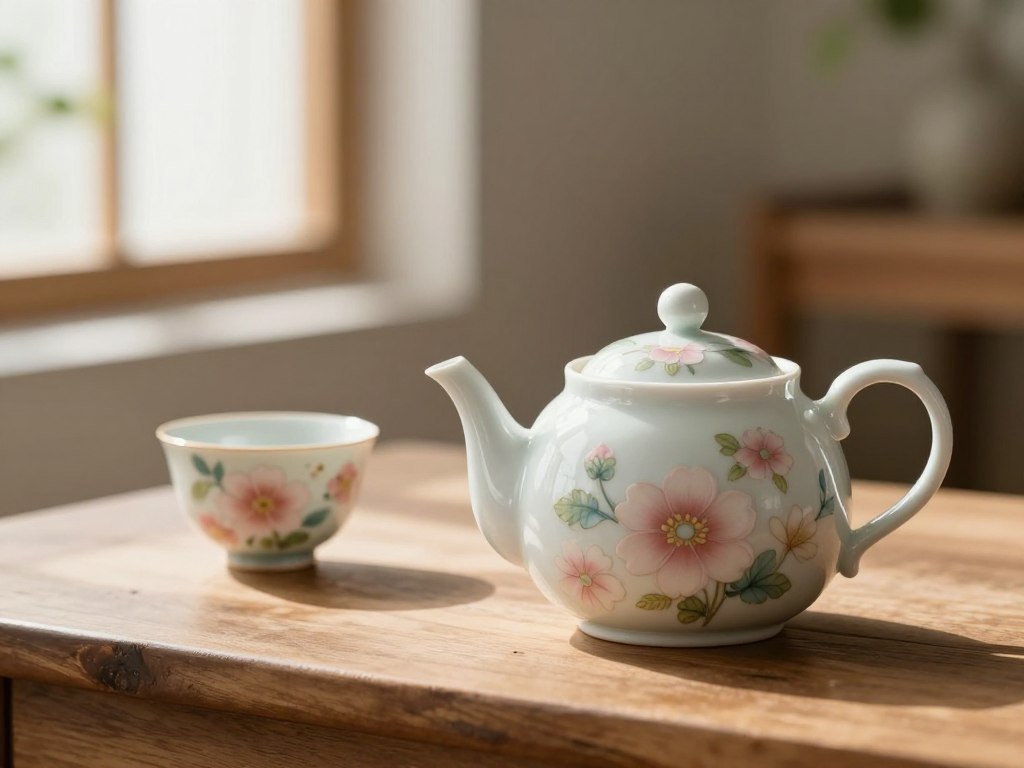
For example, try: “A small white ceramic teapot with a blue rim, centered on folded cream linen; pale kitchen wall behind it; soft window light from the left; close product photograph, warm neutral color; leave clear space at the upper right.” This gives the model a defined subject, backdrop, lighting, and layout.
Use 1:1 for a square social image. Choose 16:9 for a widescreen layout or 9:16 for a mobile or story frame. These shapes affect how much space you have around the subject, so include a format that matches the place you plan to use the image.
For wording that must appear, put it in quotation marks and name its location. For example, say, “Fresh from the garden” in small green letters at the lower left. Treat spelling, capitalization, and placement as deliberate instructions, not a promise of perfect rendering.
Some image modes allow more detail about light, mood, camera angle, and style. Custom mode can also accept direction about motion paths. Those options help when you have a specific look in mind, but a short brief is often easier to control.
If exact wording matters, specify the text and placement, then inspect the result before using it.
How Do You Edit an Image or Use References?
If the composition is already close, edit the existing image rather than asking for a completely new version. A targeted edit can keep the parts you like while changing one area.
Grok Imagine Image 2.0 includes a magic wand, segmentation, and background removal. These tools help you focus an edit on a subject or region instead of changing the whole picture.
Make a targeted change with selection tools
The magic wand helps you make a localized edit to a selected area. Segmentation can select a more precise region when a broad selection would include nearby details. Background removal isolates a subject from its setting, which can help when you need the product on a clean or different backdrop.
Use this four-step editing routine to keep each revision focused:
- Select the region you want to change.
- Describe one change in plain terms.
- State which details must remain unchanged.
- Inspect the result before starting another edit.
For a product image, you might select a label and ask to change its color while keeping its shape, text, and position. That gives the model a narrow task and tells it which product details still matter.
Combine references with clear roles
Reference images can give the model visual examples to follow. The Grok apps support up to five reference images in one generation, so use only the ones that add a clear visual cue.
Label each reference by its role in your prompt. One image might show the product, another the background, and another the style. This helps keep a scene reference from being mistaken for the item you want copied.
For example, use one reference image for a glass bottle and another for a pale stone countertop. Tell the model to preserve the bottle’s shape from the first image and use the second image’s background. The prompt should name both roles so each reference guides the right part of the result.
Change one selected region at a time so a useful background or product detail is less likely to shift.
How Can You Make Prompts More Reliable?
A prompt becomes easier to control when each instruction has one clear job. Concrete wording gives the model direction without burying the main idea under competing details.
Change one or two details per retry instead of rewriting the whole prompt. This makes it easier to judge whether a new instruction improved the result.
A Grok Imagine prompt generator is optional. You can dictate a scene with the microphone, which turns spoken description into a prompt, or draft a short prompt yourself. Read the result and check that it still says what you meant.
Weak: “A beautiful, amazing, cinematic image of food.” Stronger: “A bowl of tomato soup on a wooden cafe table beside a folded napkin.” The second version names a subject and a place, so the model has less to guess.
That example also works as a simple Grok Imagine prompt example: a concrete object and setting give the model more useful direction than broad praise. Add light, mood, camera angle, or style when those details matter. Custom mode lets you specify those visual choices, along with a motion path.
More descriptive text is not always better. A prompt that asks for a subject to sit still and sprint at once gives competing actions. Several unrelated styles can also pull the image in different directions.
Good Grok Imagine prompt tips are practical: keep the subject clear, remove conflicting details, and adjust only what the result got wrong. You do not need a special phrase or a long block of adjectives to guide a useful generation.
Before generating, remove any detail that contradicts the subject, style, or scene you actually want.
How Should You Choose an Image Format and Prepare a Repeatable Workflow?
Choose the frame shape for where the image will appear, because a square post and a vertical story need different compositions. The destination helps you decide how much room the subject needs.
Use 1:1 for square social posts, 16:9 for wide layouts, and 9:16 for mobile or story formats. API documentation lists these and other aspect ratios for different image formats.
A square frame can suit a single product centered in a social post. A wide frame can leave room beside the subject for a title or other design element. A vertical frame can give a mobile story more height for a person, product, or scene.
The xAI image-generation API supports additional aspect ratios beyond those three, including 4:3, 3:4, 3:2, and 2:3. It also lists 2:1, 1:2, 19.5:9, 9:19.5, 20:9, 9:20, 21:9, and 5:2. Those API options are separate from the app’s visible controls.
Smart Resize recomposes a finished image to fill a new frame instead of simply cropping it. It supports nine formats, which can help when you want related versions for different channels.
A repeatable product or campaign workflow starts with one main visual. Finish that image first, then resize it for the channels you plan to use. Keep a record of which version fits each destination so the set stays organized.
Inspect each resized version for text placement and subject position before exporting it.
How Do You Create a Video From Text or an Image?
For text-to-video, describe a subject doing one clear action; for image-to-video, start from a still you already like. A single main action gives the clip a readable center.
Grok Imagine Video 1.5 supports text, image, and voice references and generates video at up to 1080p. Typical generation takes roughly 17 seconds, though an individual result can take longer or less.
Start from a written scene or a still image
Text-to-video starts with a written scene and creates a moving clip from that description. Image-to-video starts with an existing still, giving the model a visual starting point for the scene. A still is useful when you already like the subject or composition.
Video-to-video is another workflow, where an existing clip provides the starting material for a change. Each route uses a different input, so choose the one that best matches what you already have.
Describe motion, camera behavior, and sound
Write a video prompt in this order: subject, action, scene, camera behavior, style or mood, and optional audio direction. Keep the first action easy to see. For example: “A red car passes through a rain-dark city street at sunset; slow pan across wet asphalt; warm, quiet film look.”
That scene gives the car one main movement and describes how the camera should behave. Custom mode can also take camera angle, lighting, mood, style, and motion-path instructions. Keep those choices aligned with the scene rather than adding unrelated visual directions.
Video generation can include synchronized audio, such as ambience, sound effects, or short dialogue when requested. You can ask for soft rain in the street scene or a brief line from a character, but the output may not match every sound detail exactly.
The official xAI video-generation announcement describes text-to-video, image-to-video, native audio generation, and video editing. Use audio direction only when it supports the action a viewer should notice.
Keep the first clip’s action simple enough to read clearly in its short runtime.
How Long Are Grok Imagine Videos, and Can You Extend Them?
The familiar 10-second figure belongs to Imagine 1.0 and should not be treated as a published maximum for Video 1.5. That distinction matters when you plan a clip or a longer sequence.
Ten seconds is the commonly associated February 2026 Imagine 1.0 practical app limit, not a documented Video 1.5 cap. Video 1.5’s current maximum should not be inferred from that earlier figure.
Extend From Frame chains a new video generation onto the end of an existing clip. Rather than treating the first clip as a finished scene, you can use its ending as the start of another generation.
For a smoother continuation, end the first clip on a frame that makes sense as the next scene’s starting point. Keep key scene details consistent, such as the subject, location, and lighting. A sudden change in those details can make the added part feel like a new scene.
Think about the full sequence before extending it. Decide what should happen after the first action, then make the new generation continue that event. For example, a person who turns toward a doorway could keep walking through it in the next part.
The Extend From Frame control provides a way to build on a clip, but it does not turn the earlier Imagine 1.0 figure into a confirmed Video 1.5 limit. Check the current clip controls in your account before planning a longer sequence.
Can You Use Grok Imagine Through the API?
The xAI API is an optional way to generate images programmatically, with per-image pricing listed for three model options. This route suits developers who want to send image requests through software rather than use the Grok app.
As of October 2026, the listed prices range from $0.02 per image to $0.05 per image or more. The image-generation API documentation was last updated October 8, 2026.
Check image pricing and output settings
| API model | Listed price per image | Notes |
|---|---|---|
| grok-imagine-image | $0.02 | Listed base image model |
| Image 2.0 | From $0.04 | grok-imagine-image-2.0 |
| Quality model | From $0.05 | Higher-cost option |
For grok-imagine-image-2.0, the default output resolution is 1K, and the API also supports 2K. Its quality parameter accepts low, medium, and auto. The right setting depends on the image task and the output you need.
The API supports a broad set of aspect ratios: 1:1, 16:9, 9:16, 4:3, 3:4, 3:2, 2:3, 2:1, 1:2, 19.5:9, 9:19.5, 20:9, 9:20, 21:9, and 5:2. That range covers square, wide, tall, and other frame shapes.
Handle image counts and temporary URLs
Use the n parameter to request between 1 and 10 images in one API call. That lets a program ask for a single result or several options to compare. Keep the number aligned with the task rather than creating images you will not review.
The API returns temporary image URLs by default. Download or process the image files promptly, since a temporary link should not be the only place you keep the output.
The API also supports editing from image inputs. You can use a public image URL, a base64 data URI, or a Files API file ID. The xAI image editing guide explains those accepted inputs and how edits can be chained for repeated changes.
Build URL retrieval and file handling into the workflow so temporary image links do not become the only saved copy.
How Do You Check and Manage Grok Imagine Limits?
The fastest way to check a paid Grok limit is to open Settings and read the schedule in Usage. Your account display shows the allowance remaining and the weekly reset time.
Paid usage is shared across Chat, Imagine, Voice, and Bot. When that weekly pool runs out, paid features pause until the reset.
Use these three steps to check your allowance:
- Open Settings in your Grok account.
- Choose Usage.
- Read the remaining allowance and displayed reset schedule.
The pool covers more than image and video generation. Chat, Voice, and Bot activity also draw from it, so use the Usage screen to see how much remains before a large Imagine task.
When a video limit pauses generation, the legitimate options are to wait for the weekly reset shown in your account or consider Extra Usage Credits. Those credits start at $5, are available from the Usage tab on the web, and expire one year after purchase.
A higher plan does not remove every usage limit. The shared pool still has a set allowance, and its schedule appears in account settings. The reset time displayed in your own account is the one to follow.
Use the reset time displayed in your own account rather than assuming every account resets at the same clock time.
How Should You Review, Download, and Share a Finished Result?
Before sharing, compare the finished result with the specific details you asked the model to preserve or change. A quick review can catch a missed subject, a flawed label, or a clip that does not fit its purpose.
Check the subject, requested action, faces, labels, required text, motion, audio, and final crop. The details you inspect depend on whether you made an image or video.
Preview a result before posting, especially when it includes personal photos or brand content.
For an image, confirm that the main subject and the requested change are present. Inspect faces, product labels, and any wording that must appear. Look at the crop at its destination size, since a detail near the edge may disappear in the final view.
For a clip, check that the motion matches the scene and that any audio fits the intended use. A sound effect can feel out of place even when the video looks right. Watch the clip from beginning to end before deciding it is ready.
The Grok app lets you download finished videos to your phone and share them to X or Instagram. Preview the saved version before posting, especially if the clip contains a personal photo or brand content.
For content you plan to use with others, check the whole result at its final size. A small label may look clear on a phone but hard to read in a larger layout. Review the version you intend to post, not just the first preview.
Save a copy you can find again before posting the version you have approved.
Conclusion
A clear first prompt and one focused revision are enough to build a useful Grok Imagine routine. Start with one image for a real task, then decide which detail deserves your next edit.
Keep the brief specific, and make one deliberate change at a time. Video can be a useful next experiment once you know how you want the still image to look.
Open Grok Imagine, create one image for a real project, and save the version you would actually use.
FAQ
How can I create an image on my phone?
Open the Grok app on your iPhone or Android phone, sign in, choose Imagine, and select Image. Enter a prompt, choose a generation mode, and tap Generate. Review the result in the app before making another version. If the image is close, adjust one detail in your next prompt instead of changing the whole scene.
What is the video limit on Grok Imagine?
There is no confirmed universal Video 1.5 maximum stated here. The familiar 10-second figure is the February 2026 practical app limit associated with Imagine 1.0, not a documented Video 1.5 cap. You can use Extend From Frame to chain another generation onto a clip. Check the controls in your account before planning a longer sequence.
Can you use Grok Imagine video for free?
No, the Free plan does not include Grok Imagine video generation. It includes limited image generation, so you can still try some still-image creation without a paid plan. Premium is the first listed X Subscription plan that includes video generation. If you only need still images, Plus includes Imagine image generation without video access.
How to get past video limit on Grok?
Wait for the weekly paid-plan pool reset or use eligible Extra Usage Credits; do not try to bypass the limit. Credits start at $5, are available from the Usage tab on the web, and expire one year after purchase. Settings under Usage shows the reset schedule for your account and the remaining allowance before generation pauses.
How long before Grok video limit resets?
Paid usage resets weekly, and Settings under Usage shows the exact schedule for your account. Chat, Imagine, Voice, and Bot all draw from the same paid-plan pool. When the pool runs out, paid features pause until the reset. Use the time displayed in your account rather than assuming every user resets at the same hour.
How do I get longer videos on Grok?
Use Extend From Frame to chain a new generation onto the end of an existing clip. Choose an ending frame that can lead into the next scene, then keep the subject and setting consistent. The familiar 10-second figure belongs to Imagine 1.0 and is not a documented Video 1.5 maximum. Check your current clip controls before planning a sequence.
How to check Grok limit?
Open Settings, choose Usage, and read the remaining paid allowance and reset schedule. The pool is shared across Chat, Imagine, Voice, and Bot, so activity in those features can affect what remains for image or video generation. When the pool runs out, paid features pause until the weekly reset shown in your account.