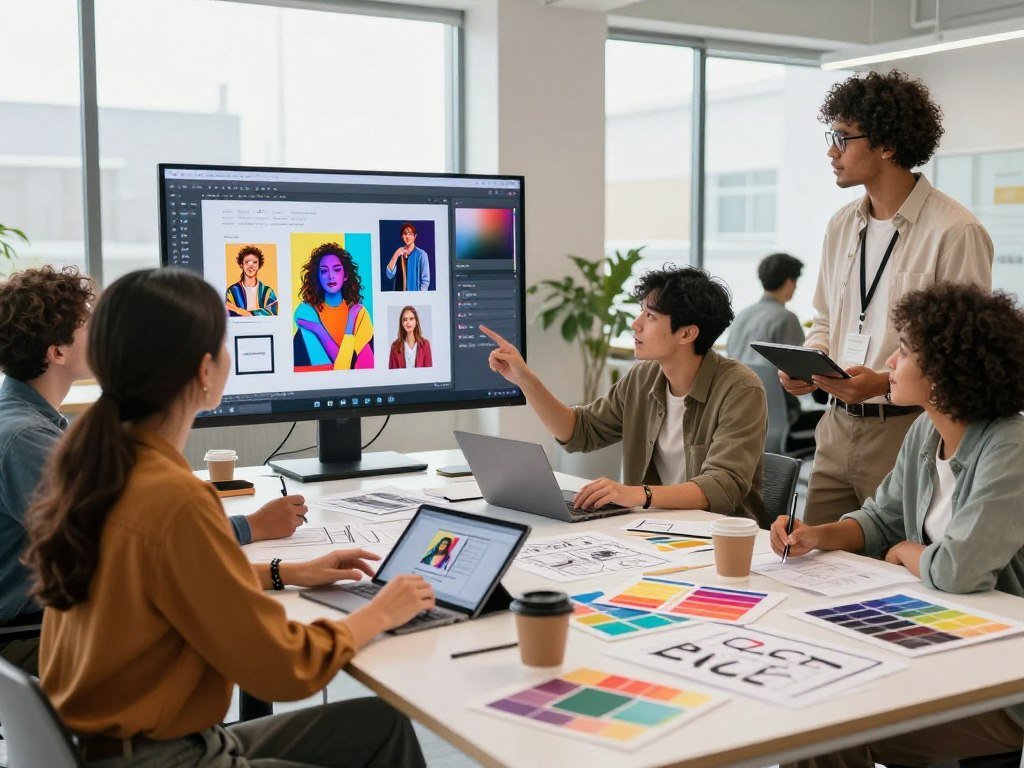
A useful image tool should turn a creative brief into an asset you can actually use, not just a striking first draft. You may need a quick social media visual or a polished campaign asset, and the right generator depends on that job. A prompt is written instructions that tell a model what visual to create.
These comparisons cover realistic images, artistic work, text-heavy graphics and design-led projects. Free access and workflow fit matter alongside output quality. A tool that looks impressive may still slow your content work if editing or exporting feels awkward.
The goal is to help you match image generation to your creative projects, budget and comfort level. Start by naming the job the visual needs to do, since that makes every later comparison more useful.
Key Takeaways
- Choose a tool based on the image you need to finish.
- Compare editing control, access and workflow fit, not just quality.
- Use reference images when a subject needs to stay consistent.
- Proofread text and check the final exported image.
- Test the same brief in two tools before paying.
How Do You Choose the Best AI Image Generator?
Google Nano Banana 2 is the strongest broad-use starting point in CNET’s 2026 comparison, but a project-specific need can make another tool a better fit. Its overall pick status offers a useful starting point, not a rule for every workflow.
CNET rated Nano Banana 2 8.5/10 after judging prompt matching, creativity, response speed and other traits on a 10-point scale. The best image generator for you also depends on editing needs, text rendering, access and what happens after image generation.
Use this checklist to compare image generators for your own work. A high score may matter less than a tool that fits the next step in your project.
- Output quality: Does the image suit the style and purpose you need?
- Prompt accuracy: Does the result include the details you described?
- Editing control: Can you change one area without losing useful parts?
- Access and limits: Can you use the platform often enough for your project?
- Workflow fit: Can you move the image into your next app or task?
The top-rated tool may be a poor fit when your project needs design templates or a specialized workflow.
For example, a quick social post may benefit more from built-in layouts than extra image controls. Someone making product concepts may care more about reference images and precise edits.
You can also compare AI image generators ranked for 2026 by the jobs they suit. That helps you find options beyond a single overall pick.
Before committing, test the same short brief in two tools and compare which output needs less correction.
How Does AI Image Generation Turn a Prompt Into a Picture?
A text-to-image workflow starts with a written description and returns a visual interpretation of that description. A prompt is a written instruction that tells a model what visual to create.
The model creates the visual, while the platform provides the interface and controls. Some tools work from text alone, while others also accept reference images or let you edit an existing image.
Many systems use diffusion models, which refine an image from noise in steps. Autoregressive models create image chunks in sequence. You do not need to know the model type to use the platform, but it can explain why tools behave differently.
- Text-to-image: Describe a scene, such as a red bicycle beside a garden wall.
- Image-to-image: Provide a reference photo, then ask for a watercolor style.
- Edit-and-iterate: Select an area or give a follow-up instruction to revise it.
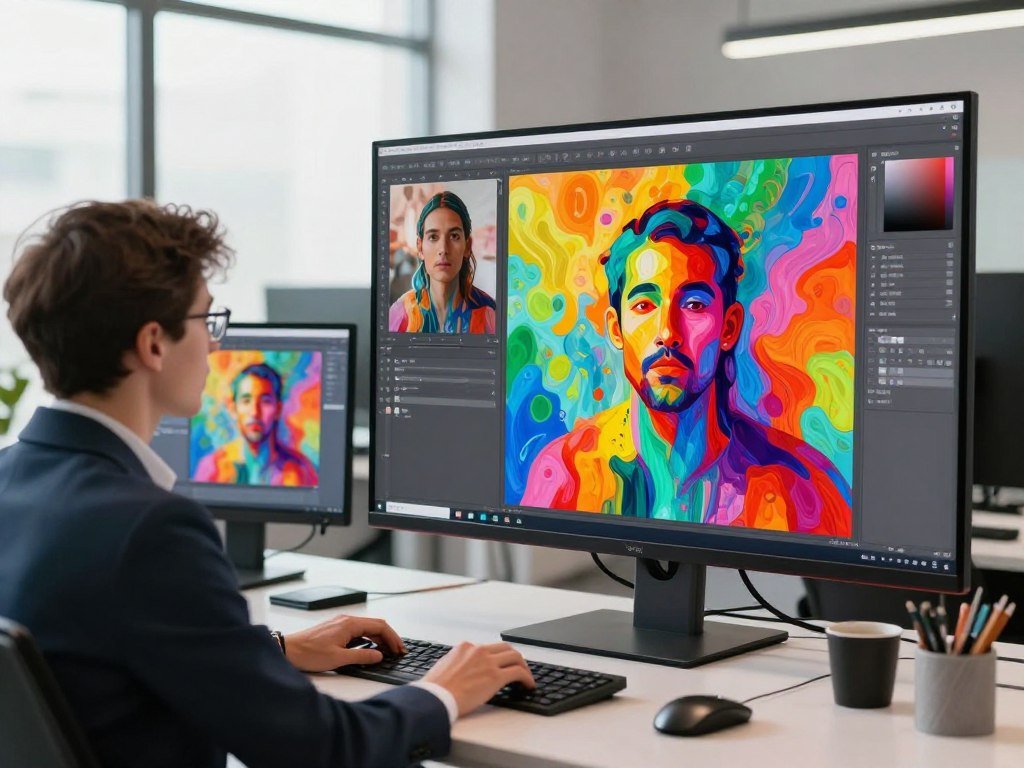
For example, you could use a reference portrait and ask for a painted style. Then you might revise only the background, leaving the person unchanged.
Some editing controls work through selections, while others rely on text instructions. The platform determines which controls are available and how much of the image you can target.
For a small correction, use an editing workflow when available instead of rebuilding the whole image from scratch.
Which AI Image Generators Stand Out in 2026?
The leading tools do not all win at the same job, so the comparison is more useful when each rating stays attached to its intended use. This task-based view helps you compare tools without treating every score as a universal ranking.
CNET’s 2026 scores cover different strengths, from professional workflows to open-source creation. The practical distinction often comes down to how a generator fits into your work.
| Tool | 2026 CNET score | Selected use case | Practical distinction |
|---|---|---|---|
| Adobe Firefly | 8.0/10 | Creative professionals | Creative Cloud integration |
| Canva | 7.5/10 | Beginners | Design templates |
| ChatGPT Images 2.5 | 7.0/10 | ChatGPT users | Conversational access |
| Stable Diffusion 3.5 | 7.0/10 | Open-source creation | Local customization |
| Midjourney V8.2 | 6.5/10 | Creative brainstorming | Artistic exploration |
CNET selected Adobe Firefly for creative professionals, Canva for beginners and ChatGPT Images 2.5 for ChatGPT users. It selected Stable Diffusion 3.5 for open-source AI creation and Midjourney V8.2 for creative work such as brainstorming.
A separate Curious Refuge test in 2025 rated Nano Banana Pro 9.50/10 and ChatGPT 1.5 8.55/10. It tested prompt adherence, visual fidelity, style and realism, so those scores do not share CNET’s scale or date.
Each generator gives users a different set of options, and a score cannot tell you how well its tools fit your project. Treat scores from different evaluations as separate snapshots, not as numbers on one shared scale.
Which Generators Make Realistic Images and Follow Detailed Prompts?
For a realistic subject that needs to stay recognizable across variations, begin with a reference-led workflow. Reference-led generation can help a model preserve a subject’s appearance or a visual style.
Start with Nano Banana 2 for reference-led photorealism, and try ChatGPT Images 2.5 when precise follow-up instructions matter more. That is a practical answer for realistic-photo work, though the strongest fit depends on how you plan to revise the image.
You can read more about image generator tools and their workflows when comparing reference support and editing options.
Nano Banana 2 for references and character consistency
Nano Banana 2 supports up to 14 reference images for style consistency and can create images at up to 4K resolution. Reference images give the model examples of a person, object or visual look to follow.
That can help when you need the same character in several scenes. For example, use a character reference, then ask for a new pose while keeping the same hair, clothes and face.
The model can generate and edit images, maintain character consistency and create legible text. Complex text still needs proofreading, especially when a graphic carries a name, price or short slogan.
ChatGPT Images 2.5 for conversational iteration
ChatGPT Images 2.5 suits people who prefer to refine a scene through conversation. You can ask for a change, review the result, then describe another adjustment without rewriting the whole brief.
Imagine a portrait with a person standing beside a window. You could request a seated pose while keeping the same visual identity, then adjust the lighting in a later turn.
Conversational editing can help when your ideas emerge as you see each version. It may take more back-and-forth than a ready-made layout, yet each instruction can target a specific change.
Inspect hands, small objects and any text before using a realistic-looking result in public-facing content.
Which Tools Are Best for Artistic Images and Creative Exploration?
For an image that needs a distinct mood more than strict layout precision, Midjourney is a strong creative starting point. Visual exploration matters when you are building a mood board, concept art or early ideas.
Midjourney suits mood-driven work, while FLUX 2 offers a balance of realism, stylization and reference-based control. Their strengths can support different stages of an art project.
Midjourney for mood and visual development
Midjourney can help you explore color, lighting and broad visual direction. It fits mood boards and concept art when the aim is to see possible looks before settling on a final design.
Its strength in artistic exploration can be a drawback for strict layouts. Midjourney is less suitable when a design needs precise text or strict pixel-level positioning.
Curious Refuge’s 2025 tests rated FLUX 2 at 8.78/10 and Midjourney at 8.62/10 across prompt adherence, visual fidelity, style and realism. Those results belong to that 2025 test, not CNET’s 2026 comparison.
FLUX for controllable styles and references
FLUX 2 offers reference-based control for projects that need a specific look across variations. It can balance realistic details with a stylized finish, which helps when a concept should feel polished but not like a photograph.
The model and platform both shape the creative process. Reference controls can help keep a subject or style aligned, while a platform’s editing tools affect how easily you can refine details.
Use an artistic generator for visual direction, then move to a design tool if the final asset needs exact placement.
Which Generators Handle Text and Graphic Design Best?
If a graphic depends on readable wording, prioritize text rendering before choosing a tool for its visual style. Text-led design calls for a generator that can place words clearly within an image.
Ideogram suits text-heavy visuals, Recraft suits brand assets, and Canva suits quick layouts. Each platform supports a different step in graphic design.
Ideogram for readable words in images
Ideogram 3.0 is designed for visuals where text matters, such as posters and social media graphics. Generated words can still contain errors, so check the image before using it.
Recraft for brand assets and vectors
Recraft supports export formats that include SVG, a vector file that can scale without losing sharpness. That helps when artwork must fit both a small icon and a large sign.
Its focus on brand assets and graphic design can suit structured work. It is more specialized than a general-purpose tool, so it may not cover every image task.
Canva for ready-to-use layouts
Canva lets you place generated images into templates for social posts and presentations. That can reduce the extra steps between image creation and a finished layout.
CNET’s overview of Canva’s AI editing tools describes its mix of templates and image features. The free plan has a hard limit on image generations.
| Tool | Strongest design use | Relevant feature | Watch-out |
|---|---|---|---|
| Ideogram 3.0 | Readable text in posters and social graphics | Text-led generation | Verify longer copy |
| Recraft | Brand assets and graphic design | Scalable SVG export | More specialized than a general-purpose tool |
| Canva | Quick social and presentation layouts | Generated images fit templates | Free image generations have a hard limit |
For final campaign copy, check every word in the exported design rather than trusting a preview.
How Does Adobe Firefly Fit Into a Professional Design Workflow?
Firefly’s main advantage is its place inside an Adobe workflow, not a promise that every raw generation will suit every brief. Workflow fit can matter when image generation leads directly to more design work.
Adobe Creative Cloud integration can reduce tool switching when you need compositing, retouching or other edits in Adobe apps.
For example, you could generate a background in Firefly, refine it in Photoshop, then bring it into a larger Illustrator project. Express can also serve as the next step when you are building a graphic.
That flow may help creative professionals who already work across Adobe apps. It keeps generation close to the editing tools used to finish the asset.
A good ecosystem fit does not automatically make Firefly the best pure text-to-image choice for every creative task. The subject, style and final use still matter.
Choose it when the next step is likely to happen in Photoshop, Illustrator or Express.
What Is the Best Free AI Image Generator for Realistic Results?
For free realistic image generation, Gemini is the practical first stop when you need more attempts in a day. More daily access makes it easier to compare several versions of a prompt.
As of April 2026, Gemini’s free tier offers 100 images per day at up to 2048×2048 resolution, with no watermark. ChatGPT’s free tier suits occasional conversational generation and edits.
Gemini for higher daily volume
Gemini gives you more room to try changes during one day. That can help when a realistic image needs several rounds before the subject, setting and composition feel right.
The free tier does not guarantee a certain image quality or speed during busy periods. Access can feel different when demand is high, so plan around your actual need.
ChatGPT for a small number of conversational edits
As of April 2026, ChatGPT’s free image-generation tier offers 2-3 images per day at 2048×2048 resolution, with no watermark. Its limit resets on a rolling 24-hour basis for each image slot.
That rolling reset means each slot returns at a different time, based on when you used it. ChatGPT can suit a user who wants to refine a small number of images through follow-up instructions.
Gemini is the stronger free starting point when you need more attempts, while ChatGPT suits a focused edit. Both free plans can change over time, and busy periods may affect speed.
Save the limited ChatGPT slots for prompts that are specific enough to benefit from conversational refinement.
Which AI Image Generators Offer Free Use Without a Generation Cap?
Perchance is the easiest no-account option for unlimited free generations, while local models offer more control at the cost of setup. No-account access can be useful when you want to try image generation quickly.
As of April 2026, Perchance offers unlimited free image generation at 512×768 resolution without an account. Local Stable Diffusion 3.5 and Flux Schnell can also avoid per-generation caps.
Perchance runs as a browser-based service, so you do not need to install local software. Its output size is modest, which may not suit every project.
Stable Diffusion 3.5 can run locally with unlimited generations on a GPU with at least 8GB of VRAM; 12GB or more is recommended. Flux Schnell can also run locally with unlimited generations and output of about 2 megapixels.
Local generation means the software uses your computer rather than a hosted platform for each image. You need suitable hardware and time to set up the tools.
For a broader comparison of free image generator access and limits, consider whether you prefer a browser service or local software. Unlimited use does not mean unlimited resolution, convenience or computing capacity.
Check whether your computer meets the Stable Diffusion VRAM requirement before downloading a local setup.
What Can Free Image Generator Plans Actually Deliver?
A free tier can be enough for a trial project, but queue speed and credit rules affect how useful it feels. Allowance details matter when you need to make more than a few images.
Ideogram offers a small weekly allowance, while Leonardo AI uses tokens that do not equal a fixed image count. Canva’s free plan has a hard limit on image generations.
| Tool | Free allowance | Resolution or credit detail | Best use |
|---|---|---|---|
| Ideogram 3.0 | About 10 slow-queue generations weekly | Up to 2048×2048 | Occasional text-led visuals |
| Leonardo AI | 150 tokens daily, about 30-50 images | Image count varies by model and settings | Experimenting across styles |
| Canva | Hard image-generation limit | No specific allowance stated here | Quick template-based design |
As of April 2026, Ideogram’s free tier provides approximately 10 slow-queue generations per week at up to 2048×2048 resolution. The queue may affect how quickly you receive an image.
Leonardo AI provides 150 tokens per day, estimated at roughly 30-50 images depending on model and settings. Changing a model or its settings can change how quickly those tokens run out.
Canva can work for a quick template-based design, though its free image generations have a hard limit. A small test can show whether that allowance covers your project.
Test a complete small project before relying on a free allowance for recurring production.
How Much Do Paid AI Image Generators Cost?
Entry-level subscriptions in this comparison start below $15 per month, while higher Midjourney tiers buy more Fast GPU time and added features. Monthly price is only one part of the comparison.
Google AI Plus costs $4.99 monthly, ChatGPT Go starts at $8, Adobe Firefly starts at $10, and Canva starts at $13. Their included features differ, so similar entry prices do not promise similar access.
Monthly subscriptions for general creative tools
Google AI Plus includes Nano Banana. ChatGPT Go is an entry plan for ChatGPT, while Firefly and Canva connect image generation with their design tools.
Those subscriptions may suit different work habits. A user who edits by chat may value different features from someone who builds layouts or works inside Adobe apps.
Midjourney plans and included GPU time
Midjourney plans vary in Fast GPU time, Relax mode and privacy features. GPU time is processing time, not a set number of images.
| Plan | Monthly price | Fast allowance | Relax or privacy feature |
|---|---|---|---|
| Basic | $10 | About 200 Fast minutes | No Relax mode |
| Standard | $30 | 15 Fast GPU hours | Unlimited Relax-mode images |
| Pro | $60 | 30 Fast GPU hours | Stealth Mode |
| Mega | $120 | 60 Fast GPU hours | No added feature listed |
Midjourney’s plan page showed a 20% discount for annual billing in June 2026. GPU minutes or hours do not translate into one fixed image count across settings and usage.
Check the plan’s usage unit and renewal terms before comparing subscriptions by monthly price alone.
Should You Choose an AI Model or an Image-Generation Platform?
A model determines how an image is generated, while a platform determines how you reach it and work with the result. The distinction helps explain why the same technology can feel different across apps.
A model is the generation technology; a platform is the interface, hosting or workflow around it. The two choices work together, but they are not the same thing.
FLUX is a family of image models developed by Black Forest Labs. Different platforms can host FLUX, so its model name alone does not tell you which editing tools are available.
Google models are available through Gemini, while Vertex AI provides API access to Google’s image models. Those access routes serve different workflows, even when they connect to Google models.
A platform can change the way you use a model through reference-image support, editing controls, export options and the sign-in or access method. Those features can shape how easily you finish an image.
A strong model may still be inconvenient if its hosting platform lacks the controls your project needs. Compare the access and editing workflow as carefully as the model name.
How Can You Improve AI Image Results With Better Prompts?
A clear prompt names the subject and the way the viewer should see it, not just a style label. Useful detail helps the model understand what belongs in the scene.
Include the subject, setting, perspective, composition, style and lighting. A prompt with these details gives the model a clearer brief.
Specify the subject, setting and composition
Use this six-part checklist when writing prompts:
- Subject: Name the main person, product or object.
- Setting: Say where the scene takes place.
- Perspective: Set the camera angle or viewer’s viewpoint.
- Composition: Describe where the main elements should sit.
- Style: Name a visual approach, such as watercolor or editorial photography.
- Lighting: Describe the light’s source, direction or softness.
For example, ask for a ceramic coffee mug on a kitchen counter, viewed from a low camera angle. Add a clean composition and soft window light for a bright morning look.
Refine one change at a time
When the first result is close, change one element at a time and keep the details that already work. ChatGPT and Gemini support image editing through follow-up conversational instructions.
You might keep the subject and lighting, then ask for a darker wall. If you change the setting, style and camera angle together, it becomes harder to tell which instruction shaped the result.
Exact text, small details and complex layouts still need visual checking. If a revision changes too much, restate the details to keep and ask for only one targeted adjustment.
What Should You Check Before Using an AI-Generated Image?
Before sharing a generated asset, check both who can see it and what the platform’s terms allow. Privacy and permissions deserve attention before a private draft becomes public content.
Generated images are not automatically safe for commercial use. Rules and privacy protections differ by platform and plan.
Review visibility and reference-image privacy
Check whether generated work or uploaded references may be public. Review how a platform handles reference images before you submit personal or business material.
Midjourney images are public by default on its Explore page and a user’s profile. That default can matter when you create work for a business or client.
Check permissions and the final file
Review the platform’s terms, any rights tied to third-party material, and the final file before publication. Google’s Gemini terms say users retain responsibility for copyrighted material and grant Google a limited license to display and promote content within its services.
Terms differ by platform, so one service’s rules do not settle another service’s conditions. Check the rights attached to reference images, logos and other material you provide.
- Audience: Who should see the finished image?
- Visibility: Can other users view your image or profile?
- Reference-image permissions: Do you have rights to upload the material?
- Text accuracy: Do names, labels and other words read correctly?
- Final export: Does the file look right at its intended size?
Keep sensitive reference material out of a workflow until you have checked its privacy settings and terms.
What Should You Test Before Paying for an Image Generator?
A short side-by-side test using the same brief can reveal more about fit than switching tools after every prompt. A fair test keeps the instructions steady, so differences are easier to see.
Compare prompt accuracy, visual quality, editing control and the time needed to get a usable output. A 2025 comparison tested 14 AI image generators across 29 tests, but your own project should set the final test.
Use one prompt for each of these four practical tasks:
- A realistic person or product with clear visual details.
- An image with readable words, such as a short poster headline.
- A multi-element scene with several objects in set positions.
- A targeted edit that changes one area while keeping the rest.
Keep the prompt and requested output similar across tools. Then score each result for prompt accuracy, visual quality, editing control and time to a usable image.
Rerun one prompt after making a small change. This shows whether the tool keeps useful details stable or alters parts you wanted to preserve.
A tool earns its place when it can finish your real task, not just create one striking sample.
The same brief can expose trade-offs that a collection of unrelated prompts would hide. One generator may follow the scene well but need more editing, while another may be faster to finish.
Pay only after one tool produces a usable result for the task you actually need to finish.
Conclusion
The best fit is the generator that makes your next project easier to complete, not the one with the most impressive label. Nano Banana 2 is a sound broad-use starting point, while Firefly, Canva, Midjourney, Ideogram and Stable Diffusion suit different creative needs.
Think about the work you need to finish and the tools you already use. A useful image generator should save correction time, not add another awkward step to your process.
Choose one upcoming project, run the same brief through two suitable tools, and keep the one that needs fewer corrections.
FAQ
Can I use AI-generated images commercially?
Yes, some AI-generated images may be used commercially, but permission depends on the platform’s terms and the rights to your reference material. Check the rules for your specific tool and plan before publishing. You remain responsible for copyrighted material under Gemini’s terms. Terms differ, so permission on one platform does not mean another platform allows the same use.
How do I keep the same character consistent across generated images?
Reuse reference images and describe the visual details that must stay unchanged. Nano Banana 2 supports up to 14 reference images for style consistency, which can help keep a character recognizable. Include details such as clothing, hair and face, then change only the pose or setting. Check each result, since references can guide consistency but cannot guarantee a perfect match.
Do free AI image generators add watermarks?
No, the free Gemini and ChatGPT image tiers listed here provide images without a watermark as of April 2026. Watermark rules can differ across services, plans and output types. A tool may also change its terms or free features over time. Check the final exported file before using it in a post or design.
What is the best AI image generator for readable text?
Ideogram is a strong starting point for text-led graphics. It is designed for visuals such as posters and social media images, where words need to appear inside the artwork. Longer copy can still contain errors, so proofread every line. Check the exported design at its final size, since small letters can be hard to spot in a preview.
Is Stable Diffusion free to run locally?
Yes, Stable Diffusion 3.5 supports unlimited local generations, but setup requires a GPU with at least 8GB of VRAM. A GPU with 12GB or more is recommended. Local use avoids a per-generation platform cap, but your computer still has limits on speed and processing capacity. You also need to install and configure the software.
How many images can I generate for free each day?
As of April 2026, Gemini offers 100 images per day, while ChatGPT offers 2-3 images per day. ChatGPT resets each image slot on a rolling 24-hour basis, so the slots return at different times. These free allowances do not promise a certain speed during busy periods. Other tools use weekly limits, tokens or local software instead.
Can an AI image generator edit an existing image?
Yes, many image generators accept reference images or support edits to an existing image. The degree of selective control depends on the platform. Some let you target a selected area, while others use a follow-up instruction to change the scene. Try a small edit first to see whether the tool preserves details you want to keep.
What should I test before choosing a paid image generator?
Use the same prompt for a realistic image, readable text, a complex scene and a targeted edit. Compare how well each tool follows the brief, how much editing it needs and how long it takes to reach a usable result. Rerun one prompt after a small change to see whether key details stay stable. Pick the tool that fits your real task.