
Safari is the stronger starting choice for an iPhone focused on Apple integration and privacy, while Chrome makes more sense if your browsing life is built around Google and mixed devices. Your everyday needs matter more than a general ranking. The browser you use most should fit your accounts, habits, and other devices.
This comparison focuses on the iPhone experience, not a Mac performance test. Battery life, ease of use, and the services you rely on can all shape your choice. Both apps can handle everyday browsing, but their tools and defaults suit different routines.
You can try another browser without giving up the one already on your phone. A few days of normal use can show which app feels right for opening links, checking saved pages, and moving between devices. Start with the browser that matches the devices you use most often, then change your default if your routine points elsewhere.
Key Takeaways
- Safari is a practical first choice for Apple-device integration and privacy defaults.
- Chrome suits users who rely on Google services and mixed-device syncing.
- Both apps use WebKit on iPhone outside the European Union.
- Your iPhone experience depends on app features, accounts, and the sites you visit.
- Try your preferred browser with everyday links before settling on a default.
Safari vs Chrome iPhone: Which Browser Fits Your Needs?
For most iPhone owners who use Apple devices and want strong privacy defaults, Safari is the better fit; Chrome wins when Google sync and mixed-platform access matter more. The best choice depends on which accounts and devices you use daily.
Safari is the practical first choice for Apple-centered users, while Chrome is stronger for Google-centered or mixed-device routines. Both browsers work on iPhone, but the apps connect to different account systems and services.
| Priority | Safari | Chrome |
|---|---|---|
| Apple-device continuity | Better fit; connects with Apple devices through iCloud | Works, but is less tied to Apple services |
| Google account and services | Can open Google sites and services | Better fit; connects browsing to a Google account |
| Mixed-platform browsing | Best fit for Apple devices | Better fit across Apple and non-Apple devices |
Choose Safari for an Apple-centered routine, or Chrome when Google services and mixed-device access matter more.
Chrome and Safari serve different priorities, even though both can open the same websites. Their settings, saved data, and built-in tools shape the daily experience.
In September 2026, Chrome held 47.44% of the U.S. mobile-browser market, while Safari held 46.38%. Those figures cover mobile browsing across the United States, not iPhone owners alone.
The audience figures cannot tell you which app fits your phone. Use the comparison to choose the browser that fits your routine, not the one with the larger overall audience.
Are Safari and Chrome the Same on iPhone?
Outside the European Union, Safari and Chrome on iPhone use the same rendering engine, WebKit, but they remain different browser apps. A rendering engine is software that interprets webpage code and draws the content of a page.
WebKit handles page rendering on both apps outside the European Union. The apps still differ in their interface, accounts, syncing, and built-in features, so Chrome on a phone does not work exactly like Chrome on a computer.
- WebKit controls how the page code is read and how page content appears on screen.
- The browser app controls its menus, account sign-in, saved data, and built-in tools.
- Desktop Chrome can use a different rendering engine, so its behavior does not predict Chrome iPhone behavior.
That shared engine can make ordinary pages look similar in either app. Yet your bookmarks, passwords, settings, and browsing history depend on the app and account you choose.
Outside the European Union, Apple requires iPhone browsers to use WebKit, including apps whose desktop versions use other rendering engines. In the European Union, browser rules differ.
Chrome on a desktop can use a different rendering engine from Chrome on iPhone. Judge the iPhone apps by their features and workflow rather than assuming desktop Chrome’s engine runs on your phone.
How Similar Are Their Speeds on iPhone?
On an iPhone, Safari and Chrome should feel close in ordinary page rendering, while a complex site or slow connection can make either feel slower. Your experience depends on more than the browser name.
There is no reliable speed winner for every iPhone browsing session. Page scripts, network quality, the browser interface, and website compatibility can each change perceived performance.

| Factor | Safari on iPhone | Chrome on iPhone |
|---|---|---|
| Rendering engine | WebKit outside the European Union | WebKit outside the European Union |
| Website compatibility | Works with most sites; some standards support can lag | Broad compatibility across websites |
| What can affect perceived speed | Network conditions, page complexity, and interface activity | Network conditions, page complexity, and interface activity |
A page with many scripts or ads can take longer to settle than a simple news page. A weak Wi-Fi or cellular signal can also make a quick browser seem slow.
Chrome is known for fast loading and broad website compatibility. Safari’s support for some web standards can lag behind Chromium-based browsers, which may matter on specialized sites.
Compare both on the sites you actually use, because a lab-style speed impression may not predict your daily experience. Test the same page on the same connection for a fair comparison.
Which Browser Is Easier on iPhone Battery?
If extending iPhone battery life is your priority, start with Safari, but do not assume a MacBook battery result predicts an iPhone result. Safari is Apple’s own iPhone browser, making it a sensible place to begin.
Mac battery comparisons are not measurements of iPhone battery use. Your phone’s battery drain depends on the screen, connection, video playback, and activity on open pages.

Screen brightness can raise power use, especially during a long reading session. A weak cellular or Wi-Fi signal can also make the phone work harder to stay connected.
Video playback and active webpages add more work than a mostly static page. Pages that keep refreshing or running scripts may use more power while you browse.
Hardware, connection strength, and page activity can matter more than which browser icon you tap. The same site may draw different amounts of power on separate days, even when you use the same app.
Check iOS battery usage after a normal day of browsing before switching solely on the promise of longer runtime. Include your usual mix of video, Wi-Fi, and cellular use in that check.
Which Browser Offers Better Privacy by Default?
Safari gives you stronger tracking protection by default, while Chrome requires more attention to its privacy settings. That gives Safari the simpler starting point for users who want less tracking setup.
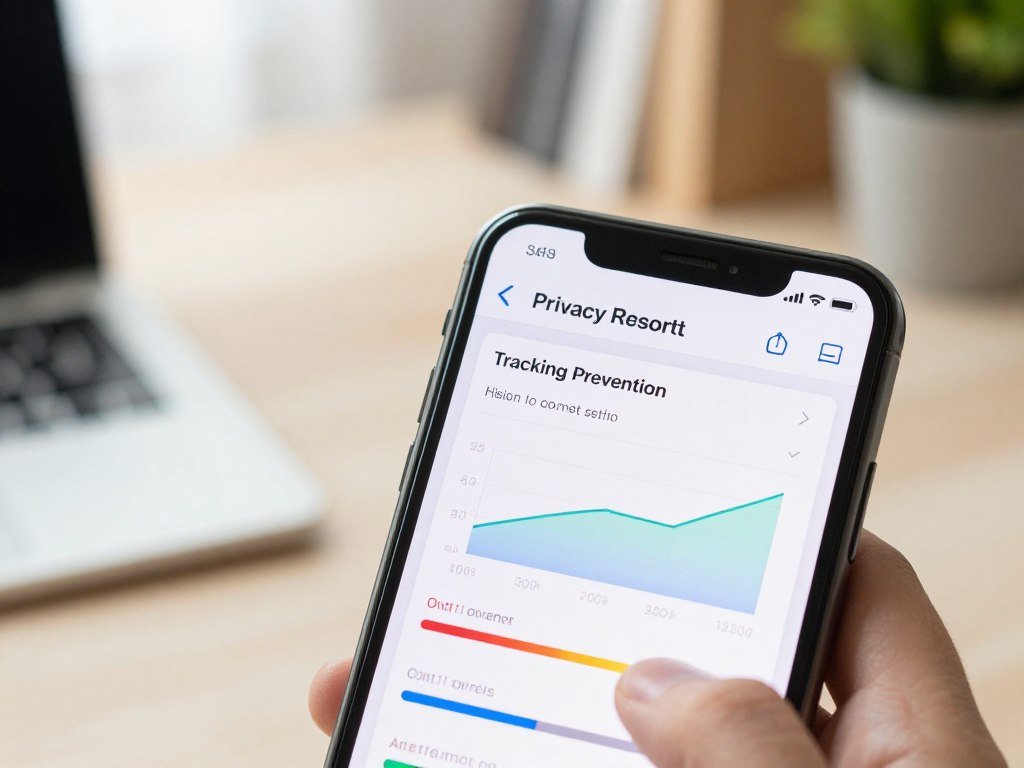
Safari blocks third-party cookies by default and uses Intelligent Tracking Prevention to help limit cross-site tracking. Its on-device intelligence also helps stop known trackers from using your IP address.
Tracking prevention without setup
Safari’s Privacy Report shows tracking activity it blocked, so you can see which sites tried to follow you. This can help explain why a page looks different after you visit another site.
Chrome offers privacy controls, but users may need to enable or adjust Google services and settings to get the protections they want. Some people move away from Chrome because Safari starts with more tracking prevention in place.
That difference does not mean every Chrome user chooses to leave. It means you may need to spend more time reviewing Chrome’s settings to match your privacy needs.
Private Relay and Private Browsing
Private Relay is available to iCloud+ subscribers. It hides your device’s IP address and encrypts browsing traffic before the traffic passes through Apple’s servers.
Safari Private Browsing removes unique trackers from URLs. This can limit tracking details that sites attach to web addresses as you move between pages.
- Review Safari’s Privacy Report to see blocked tracking activity.
- Decide whether iCloud+ Private Relay fits your needs and account plan.
- Check Chrome’s privacy settings and the Google services you use.
- Remember that tracker blocking does not make you fully anonymous online.
Tracker blocking does not prevent every form of data collection. Sites and apps may still collect information when you sign in or share details with them.
Remember that Private Relay is an iCloud+ feature, not a substitute for reviewing the privacy settings of the sites and apps you use.
How Do Safari and Chrome Handle Security and Passwords?
Safari combines suspicious-site warnings and encrypted connections with device-based authentication for saved passwords and Apple Pay. These features make account safety a daily concern, not just a setting.
Security and privacy are related, but they are not the same. Safari’s tracking controls address privacy, while warnings and sign-in protections help guard against unsafe sites and account theft.
Safari warns you about suspicious websites and upgrades a site from HTTP to HTTPS when HTTPS is available. HTTPS encrypts the connection between your phone and the website.
Safari can save passwords for autofill and use Touch ID or Face ID to confirm access. It can also alert you if a saved password appears in a third-party data leak.
Safari supports end-to-end encrypted passkeys, which are not stored in the cloud. Apple explains how to use passkeys on iPhone.
Apple Pay can approve checkout with Face ID or Touch ID on iPhone and iPad. Merchants do not see your credit-card number during that checkout.
Chrome’s Google account tools may suit you if you already manage credentials there. Your choice should match the account protections and recovery steps you actually use.
Keep account recovery options current, since browser protections cannot recover access to an account you have lost.
What Syncs Across Apple and Google Devices?
Safari is the natural sync choice across Apple devices, while Chrome is more convenient when your iPhone browsing needs to follow you across mixed devices. The best integration depends on where you save your browsing data.
Safari syncs through iCloud, while Chrome syncs through a Google account. Both can sync core browsing data between desktop and mobile versions.
Syncing within each ecosystem
Safari can sync tabs, history, bookmarks, passwords, and other browsing data across Apple devices through iCloud. Chrome uses a Google account to sync browsing details across devices where you sign in.
Both browsers can sync bookmarks, history, passwords, payment methods, tabs, and settings between their desktop and mobile versions. What appears on a device depends on the account and sync settings you use.
| Task | Safari | Chrome |
|---|---|---|
| Bookmarks and history | Syncs through iCloud across Apple devices | Syncs through a Google account |
| Passwords and payment methods | Syncs browsing data through iCloud | Syncs through a Google account |
| Tabs and settings | Syncs tabs and other data through iCloud | Syncs tabs and settings through a Google account |
If you are still choosing a computer, a laptop guide for different workloads can help you weigh Mac and Windows options.
Moving between iPhone and desktop
Safari supports Handoff and Continuity between iOS and macOS devices. These Apple features can help you continue a browsing task as you move from your phone to a Mac.
Chrome can be more convenient when you move between an iPhone and non-Apple computers. Its account-based sync gives your browser data a shared sign-in across those devices.
Before switching browsers, confirm which account or cloud service holds the passwords you depend on. Losing track of that account can make saved logins harder to find.
Which Browser Works Better Across Different Devices?
Chrome is the more practical choice if your iPhone must share browsing with Android, Windows, or Linux devices. Safari is a better match when your regular devices are all Apple products.
Chrome is available on more of the platforms named here, while Safari is available on iPhone and iPad. That wider reach can matter if your work and personal devices use different systems.
| Platform | Safari | Chrome |
|---|---|---|
| iPhone | Available | Available |
| iPad | Available | Available |
| Android | Not available | Available |
| Windows or Linux | Not available | Available |
Chrome’s platform range helps users who switch between devices during the week. Safari fits the Apple ecosystem, where iPhone and iPad are your main browsing tools.
- Identify the computer you use most often.
- Decide whether you need one shared sign-in and browsing history.
- Consider how often you move between work and personal devices.
Your main computer can shape the decision more than a small difference in phone features. A Windows work laptop and Android tablet make Chrome easier to use across your day.
Choose Safari when your regular devices are Apple products and you do not need Safari on a non-Apple computer.
What Can You Customize With Extensions?
Safari is the browser to consider if you want extensions on iPhone, while Chrome’s much broader selection matters most across its overall ecosystem. Check the specific add-on you need before choosing.
Chrome’s larger extension selection overall does not mean that its iPhone app offers the same catalog. iPhone availability and desktop options are different questions.
Safari extensions on iPhone
Safari supports extensions on iPhone, so you can add tools to the browser experience. Each extension has its own purpose and permissions, which can affect what it sees or changes.
Check what an extension does before granting access to websites or browsing data. A tool that reads page content may need broader access than a simple content blocker.
Extensions can help with writing checks, focus, task capture, or page cleanup. For desktop examples, compare these Chrome extensions for productivity, but do not assume they work on iPhone.
Chrome’s broader extension ecosystem
Chrome offers a much broader selection of extensions overall, especially across its desktop ecosystem. That large catalog is useful when you depend on an add-on at a computer.
Chrome on iPhone does not sync extensions with Chrome on desktop. A desktop tool you use every day may not appear in the iPhone app, even when both apps use the same account.
This difference matters if you expect the same browser setup on every screen. A long list of desktop add-ons does not show what an iPhone browser can install.
Consider whether you need an extension on the phone itself or only at a computer. The answer can change which app makes sense for each device.
Check an extension’s permissions and iPhone compatibility before relying on it for an essential task.
Which Browser Has Better Reading and Translation Tools?
Safari offers more control over Reader’s font and background, while Google Translate supports a much wider range of languages. That makes the better tool depend on whether you read or translate more often.
Safari Reader lets you choose a font and background shade, while Chrome’s Reader mode does not appear on mobile in the 2026 comparison.
Reader can make a long article easier to read by changing its look. You can pick a font and background that feel comfortable on your screen.
Safari’s native translation supported around 17 languages in the 2026 comparison. Google supported translation between more than 100 languages during that comparison.
Language coverage can depend on the page and the specific language pair. A large overall count does not guarantee that every page or language works the same way.
If you read mostly in English, Reader controls may matter more than translation totals. If you often visit pages in other languages, Google’s wider support may be more useful.
The language counts describe the 2026 comparison, not a permanent limit. Test translation on the languages you actually use rather than choosing by the largest headline count alone.
How Do the Browsers Handle Tabs and Focus?
Safari’s Profiles can separate work and personal browsing, and Distraction Control can hide recurring clutter on a page. These tools can make tab management feel more orderly.
Profiles keep selected history, Tab Groups, and favorites separate, while Distraction Control hides chosen page elements. Both features can help when work and personal browsing share one phone.
Keep work and personal browsing separate
Safari Profiles can keep browsing history, Tab Groups, and favorites apart. You might use one profile called Personal and another called Work.
Separate profiles help keep work searches from crowding personal tabs and favorites. They can also make it easier to find the history tied to one part of your day.
Profiles are useful when you actually need that separation. Extra profiles can add another place to look when you are searching for an open page.
Reduce distractions on a page
Safari’s Distraction Control lets you hide selected webpage elements and remember those choices on later visits. For example, you can hide a persistent overlay that covers the text you want to read.
Apple’s instructions for Distraction Control explain how to hide items and show them again. The feature works best for items that do not change often.
Removing an element can affect how a page works. A hidden menu, sign-in prompt, or other page control may be needed to finish a task.
Keep separate profiles only when the distinction helps you find the tabs and history you need.
How to Download Chrome and Change Your Default Browser
You can install Chrome and make it your default on a U.S. iPhone without deleting Safari. Download Google Chrome for iPhone from the App Store, then install it before selecting it as the default.
In the United States, choose a browser through Settings > Apps > Default Apps > Browser App. Some iPhones may show extra onscreen steps after you pick an app.
Install Chrome and set a default
Installing Chrome does not remove Safari or erase its data. You can keep both apps and open either one when you want.
- Open the App Store and search for Google Chrome.
- Download and install the Chrome app on your iPhone.
- Open Settings, then tap Apps and Default Apps.
- Tap Browser App, choose Chrome, and follow any onscreen steps.
Change or restore the setting
The same settings menu lets you select Safari or another installed browser later. You do not need to remove Chrome to restore Safari as your default.
Changing the default affects which app opens webpage links from other apps. It does not stop you from opening a link in another browser manually.
If you manage a family phone, explain the change before switching its default. That can prevent confusion when links open in a different app than expected.
Open a webpage link after changing the default to confirm it launches in the browser you chose.
Which iOS Versions Can Run Safari and Chrome?
Safari 26 runs on iOS 26, while Chrome 140 requires iOS 17 or later in the 2026 compatibility comparison. Those version details can help you check whether an older iPhone can install the app.
The stated requirements apply to those 2026 versions, not every future release. Browser updates can change which iOS versions an app supports.
Check the iOS version installed on your iPhone before updating or installing a browser. An app may need a newer system than the phone currently runs.
App compatibility is separate from browser preference. A phone that can run both apps still leaves you free to choose based on your habits.
Older hardware may also affect how smoothly newer pages and apps run. The iOS requirement tells you whether the app can install, not how fast every site will feel.
Check the current App Store listing for the version you plan to install, especially on an older iPhone.
What Are Safari’s Drawbacks on iPhone?
Safari’s main drawbacks are the possibility that some web apps or interface choices will suit Chrome users better. Its limits matter most when a site relies on newer web standards or familiar Chromium behavior.
Safari’s support for some web standards can lag behind Chromium-based browsers. That can affect specialized web apps, while Safari’s interface may feel unfamiliar to people used to Chrome.
A page built around a newer standard may work differently in Safari. This is more likely to matter on a specialized work or school tool than on a basic news page.
Safari also uses interface choices that some users may find less familiar. A different menu or tab control can slow you down until you learn where it sits.
Apple does not prevent iPhone owners from choosing Chrome as their default browser. WebKit rules do not mean Apple is telling you to avoid Chrome.
Safari’s stronger default privacy settings do not prove that it is always more secure. Browser security also depends on updates, safe account habits, and how you handle risky links.
If a site behaves differently in Safari, test it in Chrome before changing your default for every link.
Should You Consider Firefox or Brave Instead?
Firefox and Brave are worth considering if neither Safari nor Chrome fits the way you want to browse. Their appeal may come from a particular privacy control, interface, or account workflow.
Try an alternative based on the features you need, not a claim that one browser is best for everyone. Firefox and Brave are both available as iPhone browser choices.
For Safari versus Chrome versus Firefox, compare the current app descriptions and settings that matter to you. The same approach works when you compare Safari, Chrome, and Brave.
Do not assume a feature works the same way across every browser or platform. Read the current App Store details, then try your usual sites in the app.
Use these checks to compare an alternative with the apps you already know:
- Check which privacy controls the app enables by default.
- Review what browsing data it syncs and which account it uses.
- Test whether its interface works for your regular sites and tasks.
Testing a browser with familiar sites can reveal problems that feature lists miss. A page you use daily is a better test than a quick tour of the home screen.
Try one alternative with a few everyday sites before moving all saved logins or links to it.
Keep your existing browser available while you test. That way, a sign-in or work page that misbehaves will not interrupt your routine.
Conclusion
Choose Safari for an Apple-centered routine and privacy defaults, or Chrome when Google services and cross-platform syncing are central to your day. Your devices and accounts make the choice clearer than a general browser ranking.
Try your preferred app as the default for a few days. Switch back if essential sites or familiar habits work better in the other browser.
Set your preferred browser as the default and test it with the links and sites you open most often.
FAQ
Are Safari and Chrome the same on iPhone?
No. Outside the European Union, both apps use WebKit to display webpages, but they still have different interfaces, account systems, and built-in features. Chrome on a computer may use a different rendering engine from Chrome on iPhone. Your saved tabs, passwords, and history also depend on which account you use and how you set up syncing.
What is the best browser for iOS?
Safari is the better fit for Apple integration and privacy defaults, while Chrome suits Google services and mixed-device syncing. If you use a Mac, iPad, or other Apple devices, Safari fits that routine. If you move between an iPhone and Android or Windows devices, Chrome can keep your browsing in one account. Your most-used sites should also work well.
Why is Safari shutting down?
Safari is not shutting down; it remains available on iOS and iPadOS. You can keep using it even if you install another browser or change which app opens webpage links by default. An update or a change to your settings may alter how the app looks, but that does not mean Safari has been discontinued.
Do more people use Chrome or Safari on iPhone?
Chrome had 47.44% of the U.S. mobile-browser market in September 2026, while Safari had 46.38%. Those numbers describe mobile browsing across the United States, not iPhone owners alone. They include browsers used on different mobile devices, so they cannot tell you how many iPhone users chose either app.
What is the most secure browser to use on an iPhone?
Safari has stronger privacy defaults, but that does not make it the most secure choice for every person or task. Tracking protection limits some monitoring, while security also depends on software updates, account passwords, and how you respond to suspicious links. Use a strong sign-in method and keep recovery details current in whichever browser you choose.



