Your home WiFi network is the front door to everything connected in your house, from laptops and phones to smart TVs and cameras. Most people set up their router once and never touch the settings again, which leaves the default password and an old encryption standard in place.
Securing your home WiFi does not require technical skills or new equipment. A handful of settings changes will block the most common attacks: neighbours guessing a weak password, bots scanning for open routers, and malware spreading from one infected device to the rest of the house.
This guide walks you through the whole process, from changing the admin password to setting up a separate network for guests and smart home gadgets. Allow 30 to 45 minutes, and keep your new passwords written down somewhere safe as you go.
Key takeaways
- Change both passwords: the router admin password and the WiFi password are two different settings.
- Use WPA3 encryption, or WPA2 with AES if your router does not offer WPA3.
- A long, unique WiFi password matters more than hiding the network name or filtering MAC addresses.
- Put guests and smart home devices on separate networks so a compromised gadget cannot reach your laptop.
- Update the router firmware and check for unknown devices every few months.
At a glance: the threats and the fixes
| Threat | What it does | The fix |
|---|---|---|
| Weak WiFi password | Neighbours and bots join your network | Long unique password, WPA3 |
| Default admin password | Anyone on the network takes over the router | Change the admin password |
| Old encryption | Traffic can be read or cracked | WPA3, or WPA2 with AES |
| Outdated firmware | Known flaws stay open | Automatic updates on |
| One flat network | A hacked camera reaches your laptop | Guest and IoT networks |
| Remote access left on | Attackers log in from the internet | Turn remote admin off |
Step 1: Log in and change the admin password
Connect your computer to the router with an Ethernet cable if you can, then open a browser and type the router’s address, usually 192.168.1.1 or 192.168.0.1. The address and the default login are printed on a label on the bottom or back of the router. Log in with those default credentials.
Go to Administration or System and change the admin password first. The default password is the same for every router of that model and is easy to look up, so anyone who joins your network could log in and change your settings. Choose a long password you do not use anywhere else. While you are there, back up the current settings so you can restore them if a later change goes wrong.
Step 2: Update the router firmware
On the Administration or System page, look for Firmware Update and check for a new version. Router makers patch security flaws through firmware updates, and an unpatched router can stay vulnerable for years. If your router offers automatic updates, turn them on so future patches install without you remembering to check.
If no update is offered and your router is more than five years old, check the manufacturer’s support page to confirm it still receives security updates. A router that no longer gets patches is a risk on its own, and replacing it is the only real fix. If you are shopping for a replacement, the best mesh WiFi systems cover large homes with one network and get regular firmware updates.
Step 3: Set a strong WiFi password and WPA3 encryption
Open the Wireless or WiFi settings and find the security mode. Choose WPA3-Personal if it is available, or WPA2-Personal with AES if it is not. Never use WEP or WPA, and never leave the network open: both are trivially easy to break, and an open network lets anyone nearby use your connection and see unencrypted traffic.
Next, set a new WiFi password of at least 16 characters, using a passphrase of random words rather than a single dictionary word with a number at the end. A passphrase of four unrelated words is both strong and easy to type on a TV remote. Every device will need the new password, so reconnect them one by one after you save.
Step 4: Rename the network and split the bands
Change the network name, or SSID, to something that does not identify you or your router model. A name with the router’s brand and model tells an attacker exactly which flaws to try, and a name with your family name gives away personal information. Pick a neutral name you will recognise.
If your router shows separate 2.4 GHz and 5 GHz networks, you can give them different names or keep one combined name. The 5 GHz band is faster over short distances, while 2.4 GHz reaches further through walls. Separate names give you control over which band a device uses, which helps with older smart home gadgets that only support 2.4 GHz.
Step 5: Turn off risky features you do not use
Turn off remote administration, which lets anyone on the internet reach your router’s login page. It is usually under Administration or Remote Management, and it should be off unless you need to manage the router while away from home. Also turn off UPnP unless a game console or app you use requires it, because UPnP lets devices open ports on the router without asking you.
Turn off WPS, the push-button pairing feature, because its PIN method has a well-known weakness that lets an attacker guess the code. Pair new devices by typing the WiFi password instead. You will set up the guest network properly in Step 7.
Step 6: Check every device on the network
Open the connected devices list, usually under Network Map or Attached Devices, and look through every entry. You should recognise each one: your phones, laptops, TV, printer, and smart home gadgets. If you see a device you do not recognise, change the WiFi password and reconnect only your own devices.
While you are here, turn on the router’s device notifications if it offers them, so you get an alert when a new device joins. Repeat this check every few months. For the computers themselves, keep security software current as well; the best antivirus software for Windows adds a second layer of protection if a threat does get onto the network.
Step 7: Set up guest and smart home networks
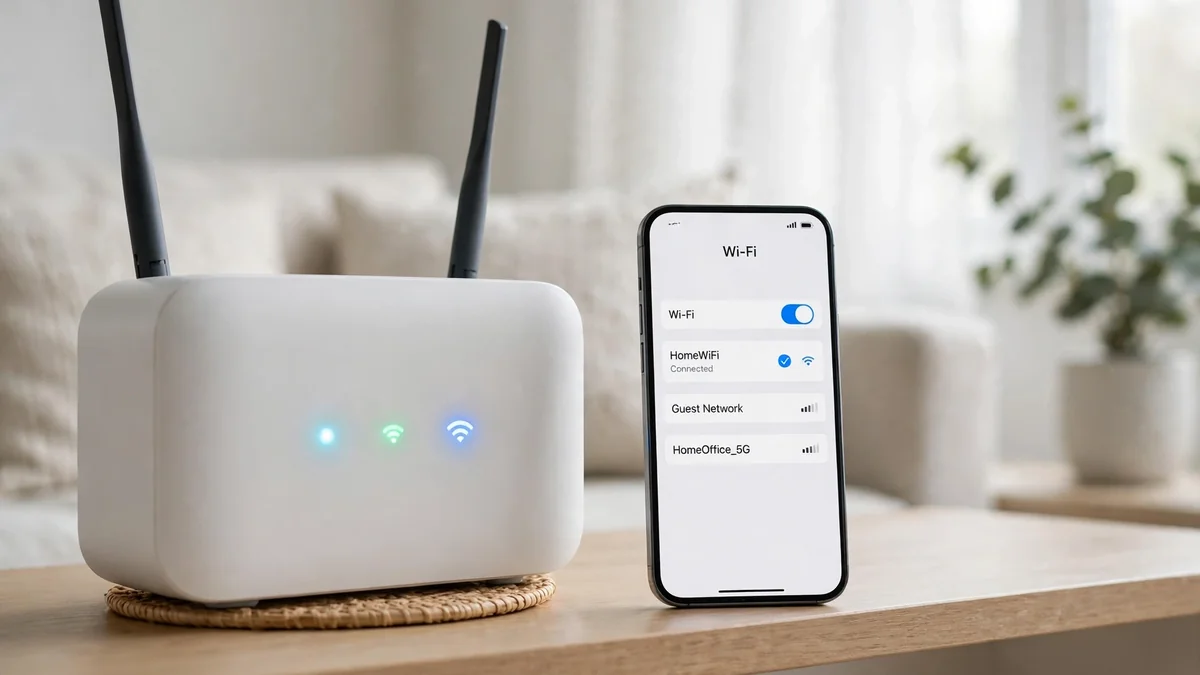
Turn on the guest network and give it a different name and password from your main network. A guest network isolates visitors’ devices so they can use the internet but cannot see your computers, printers, or shared files. Share the guest password with visitors instead of your main password, and change it every few months.
If your router supports it, create a separate network for smart home devices such as cameras, doorbells, plugs, and voice assistants. These gadgets rarely get security updates, so keeping them on their own network means a compromised camera cannot reach your laptop or your files. If your router does not offer this, the guest network is a workable substitute.
Step 8: Add a VPN and schedule regular checks
For extra privacy, consider running a VPN on your router so all traffic leaving the house is encrypted and your real IP address is hidden. A router VPN covers every device at once, including smart TVs and consoles. The best VPNs for streaming publish router setup files, and a nearby server keeps the speed loss small.
Finally, put a reminder in your calendar to repeat the key checks every three months: firmware update, connected devices list, and guest password. A ten-minute check four times a year keeps the setup you have just built working as intended.
Troubleshooting: common WiFi security problems
Devices will not reconnect after the password change
Forget the old network on each device and join again with the new password. Smart TVs and printers sometimes need a restart before they accept it. If a device still fails, check that it supports WPA3, and switch that band to WPA2 if it is an older gadget.
The WiFi is slower after switching encryption
Encryption itself rarely causes a real slowdown, so test with a wired connection to rule out weak signal. If only the 2.4 GHz band is slow, move nearby devices to 5 GHz. A router that drops speed sharply with WPA3 enabled may need a firmware update, or it may simply be too old for modern encryption.
You are locked out of the admin panel
Check that you are using the new admin password, not the WiFi password, because they are different settings. If you have forgotten it, the only recovery is a factory reset using the button on the router, which erases all settings, so restore from the backup you made in Step 1.
An unknown device keeps reappearing
Change the WiFi password again and reconnect your own devices one by one, watching the list after each one. Some devices show up under an unfamiliar manufacturer name, so check before assuming an intruder. If the device returns after a password change, it may be one of your own gadgets with randomised MAC addressing.
Checklist: before you call it done
- Admin password changed from the default, and settings backed up.
- Firmware updated, with automatic updates turned on.
- WPA3, or WPA2 with AES, and a WiFi password of at least 16 characters.
- Remote administration, WPS, and UPnP turned off unless needed.
- Guest network set up with its own password, and smart home devices separated.
- Connected devices list checked, with no unknown devices present.
Frequently asked questions
Should I hide my WiFi network name?
No. Hiding the SSID does not stop anyone with basic tools from finding your network, and it makes your own devices work harder to stay connected. A strong password and WPA3 protect you; a hidden name only adds inconvenience.
Is WPA3 better than WPA2?
Yes. WPA3 uses stronger encryption and protects weak passwords better, because it stops the offline guessing attacks that work against WPA2. Use WPA3 if all your devices support it, and fall back to WPA2 with AES only for older gadgets.
Do MAC address filters keep my network safe?
Not really. MAC addresses are easy to copy, so a filter only stops casual users, not anyone trying deliberately. It also creates work every time you add a device. Spend the effort on a strong password instead.
How often should I change my WiFi password?
Change it whenever someone you no longer trust had access, or when you spot an unknown device. Routine changes every few months are sensible for the guest network, but a long, unique main password does not need changing on a schedule.
Is the guest network really necessary?
Yes, if visitors or smart home gadgets ever connect. It costs nothing to run and it is the simplest way to keep untrusted devices away from your computers and files. Without it, every device on the network can see every other device.
Will securing my WiFi slow it down?
No, not in any way you will notice. Modern encryption is handled by the router’s hardware, and the speed difference between WPA2 and WPA3 is negligible. If your WiFi is slow, the cause is almost always signal strength, interference, or an old router.
The bottom line
Securing your home WiFi comes down to a few settings that most people never change: the admin password, the encryption standard, the WiFi password, and the features left on by default. Work through them once, separate your guests and smart home gadgets onto their own networks, and the most common attacks stop working.
The setup takes less than an hour and needs no new equipment in most homes. Check the firmware and the devices list every few months, and your network will stay ahead of the automated scans that target unsecured home routers.