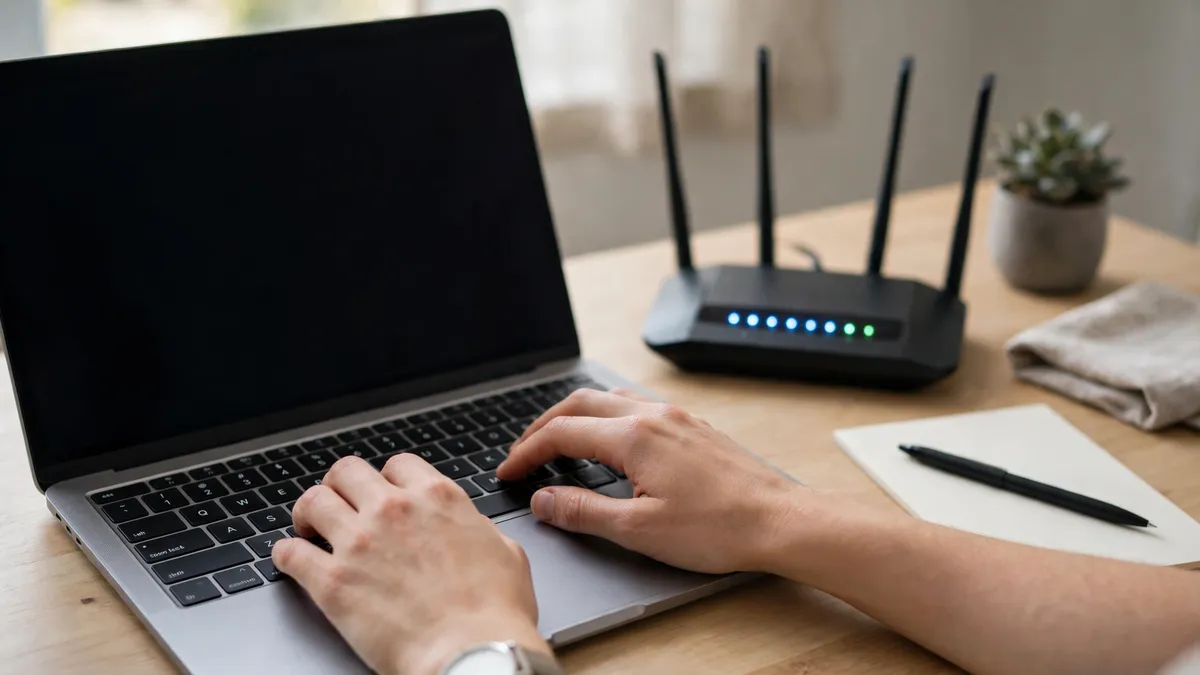
Learning how to update router firmware is one of the simplest ways to keep your home network fast, stable, and secure, because firmware is the software that runs your router. Makers release updates to fix bugs, patch security flaws, and improve performance, yet most routers do not install them on their own. Checking takes only a few minutes.
An out-of-date router can be an easy target for attackers and a quiet cause of dropped connections and slow speeds. Researchers regularly find flaws in router software, and makers patch them through firmware, so a router that has not been updated in a year or two may still carry known weaknesses. An update can also fix compatibility problems with new phones and laptops.
This guide shows you how to update router firmware safely, through an app, the admin page, or a manual file download. It covers how to check your current version, back up your settings, and confirm the new version is running. Follow the steps in order, do not switch the router off during the update, and your network will be running the latest software within fifteen minutes.
Key takeaways
- Firmware is the software inside your router; updates fix bugs, patch security flaws, and improve stability.
- Check for updates every two to three months, or turn on automatic updates.
- Back up your router settings before updating, in case the update resets them.
- Never switch off or unplug the router during a firmware update, as this can damage it permanently.
- After the update, confirm the new version number and test your Wi-Fi.
Check Your Current Firmware Version First
Before you update anything, find out which firmware version your router is running now. Open a browser on a connected device, go to the admin address on the router label, usually 192.168.1.1 or 192.168.0.1, and log in. The version is normally shown on the first page, or under System, Administration, or About.

Write the version number down, along with your exact router model from the label. Firmware is specific to each model, and installing the wrong file can stop the router working. If you use the maker’s phone app, it will usually show the model and current version on its main screen.
Step 1: Back Up Your Router Settings
Most updates keep your settings, but a backup takes a minute and protects you if the update resets the router or fails halfway through. In the admin page, look for a backup option under Administration, System, or Backup and Restore, and save the file to your computer. If there is no backup option, screenshot the important settings pages instead.
Also make sure you know your broadband login details and your admin password before you start, because you may need them if the router resets itself during the update. Warn everyone in the house that the Wi-Fi will drop for a few minutes while the router restarts.
Step 2: Check for an Update in the Admin Page or App
The easiest way to update is through the router itself, because it downloads the right file for your exact model. In the admin page, go to Administration, System, or Firmware Update, and click Check for Updates. If an update is available, the page will show the new version number and what it fixes.
If you prefer the phone app, open it and look for a firmware update notice on the router settings screen. Many modern routers will also show a small notification badge when an update is waiting, so it is worth opening the app every month or so. If the router says your firmware is up to date, you are done for now. For context on keeping the wider network healthy, our guide on how to speed up your Wi-Fi router covers the other fixes worth trying alongside an update.
Step 3: Download the Firmware Manually if Needed
Some older routers cannot check for updates on their own, so download the firmware file yourself from the maker’s support site. Go to the downloads page for your exact model and download the latest file, checking that the model number and hardware version match your router exactly. Do not rename the file, because some routers check the file name first.
Only download firmware from the router maker’s own website, never from a random download site or a forum link, because a fake or modified file could damage your router or compromise your network. If the support page lists several versions, pick the newest stable release rather than a beta version.
Step 4: Install the Update and Let the Router Restart
When you are ready, click Update, Upgrade, or Install, or choose the downloaded file with the Browse button if updating manually, then confirm and wait. The update usually takes three to ten minutes, during which the lights will blink and the Wi-Fi will drop, so do not close the browser, switch the router off, or unplug it. Interrupting an update is the most common way to damage a router.
Use a wired Ethernet connection from your laptop to the router if you can, because it is more stable than Wi-Fi during an update. If you must use Wi-Fi, stay close to the router and do not start any other downloads or video calls while the update runs. Once the router restarts, wait until the power light is solid and the internet light is on before you use the network again.
Step 5: Confirm the New Version and Test Your Network
After the restart, log back in and check the firmware version, which should now match the version you installed. If it has not changed, try again, or download the file manually. Also check that your Wi-Fi name, password, and settings are unchanged, and restore your backup if anything has been reset.
Now test the network properly. Connect your phone and laptop, load a few web pages, stream a short video, and check the speed in the rooms where you use Wi-Fi most. If a device will not connect, forget the network on that device and reconnect with the password. A fresh firmware version is also a good time to review your security settings, and our guide on how to secure your home Wi-Fi network walks through the settings worth checking.
Step 6: Turn On Automatic Updates if Your Router Supports Them
Many modern routers can install updates on their own, usually overnight, and turning this on means you will never fall behind again. Look for an automatic update setting in the admin page or the app and switch it on. Some routers let you choose a time window, so pick a quiet hour such as 3 a.m.
Automatic updates are safe for most homes, but if you depend on the network overnight, you may prefer to install updates by hand. Either way, check the firmware version yourself every few months, because automatic updates can fail silently. If your router is more than five years old and no longer receives updates, it may be time for a replacement.
| Detail | What to know |
|---|---|
| How often to check | Every two to three months, or monthly in the app |
| Time needed | About 10 to 15 minutes including the restart |
| Best connection | Wired Ethernet from a laptop to the router |
| Biggest risk | Switching the router off during the update |
| Before you start | Back up settings and note the current version |
| After the update | Confirm the version number and test the Wi-Fi |
| Automatic updates | Turn on if offered, ideally overnight |
Troubleshooting: When the Update Fails
If the update fails or the router seems stuck, start by waiting, because some updates take longer than the progress bar suggests. Do not unplug it unless it has been stuck for more than 30 minutes, in which case unplug it for 30 seconds and plug it back in. If the old firmware is still installed, try again over a wired connection.
A manual update that is rejected usually means the file is wrong for your model, so double-check the model number and hardware version on the label. If the admin page will not load after an update, clear your browser cache, try a different browser, and connect by cable. If the router will not start after an interrupted update, check the maker’s support site for a recovery mode.
When the update installs but the Wi-Fi is slower or devices keep dropping, the new firmware may have changed a setting, so check your Wi-Fi band and channel settings and restart the router once more. If the problem persists, you can roll back to the previous firmware on some routers, but only if the maker supports it. As a last resort, a factory reset and a restore of your backup can clear a bad update. If your router is an older mesh setup that struggles after updates, our guide to the best mesh Wi-Fi systems covers modern replacements that handle updates and large homes far better.
Checklist: Before You Update Your Router Firmware
- Note your current firmware version and your exact router model and hardware version.
- Back up your router settings, and save your broadband and admin passwords somewhere safe.
- Download firmware only from the router maker’s own support website, never from a third-party site.
- Use a wired Ethernet connection for the update if you possibly can.
- Do not switch off, unplug, or restart the router while the update is installing.
- Confirm the new version number afterwards, test the Wi-Fi, and turn on automatic updates.
Frequently Asked Questions
How do I know if my router needs a firmware update?
Log into the admin page or open the router app and use the check-for-updates button. You can also compare the version shown there with the latest version on the maker’s support site for your exact model. If the numbers do not match, an update is waiting.
Is it safe to update router firmware?
Yes, it is safe as long as you download the update from the router maker and do not interrupt the installation. The main risk is switching the router off or unplugging it during the update, which can corrupt the firmware. Backing up your settings first and using a wired connection makes it as safe as it can be.
Will a firmware update reset my Wi-Fi password?
Most updates keep your Wi-Fi name, password, and settings exactly as they were. A small number, especially major version changes, can reset some settings, which is why a backup is worth making first. If your settings do disappear, restore the backup file.
How long does a router firmware update take?
The download and install usually take three to ten minutes, plus another two to three minutes for the router to restart. Allow fifteen minutes in total and do not rush the process. If the router is still updating after 30 minutes with no change in the lights, it may be stuck, so check the maker’s guidance before unplugging it.
Can I update my router firmware from my phone?
Yes, if your router has a companion app, you can usually check for updates and install them from the app. The app handles the download and tells you when the router is restarting. For older routers without an app, use a laptop and the admin page in a browser instead, preferably over a wired connection.
What happens if I unplug my router during a firmware update?
Unplugging the router mid-update can corrupt the firmware and stop the router from starting. Some routers have a recovery mode that can fix this, usually by holding the reset button while powering on, but not all models do. If recovery fails, the router may need repair or replacement, so always wait out a slow update rather than pulling the plug.
The Bottom Line
Updating your router firmware is a small job with an outsized payoff, because it patches security flaws, fixes bugs, and keeps your network working well with the newest devices. Check for an update every two or three months, back up your settings first, and never switch the router off while it is installing.
A router that runs current firmware is faster, safer, and more reliable than one that has not been touched since the day it was installed. Make it a habit alongside a regular restart. If your router no longer receives updates at all, treat that as a clear signal to start looking for a replacement.