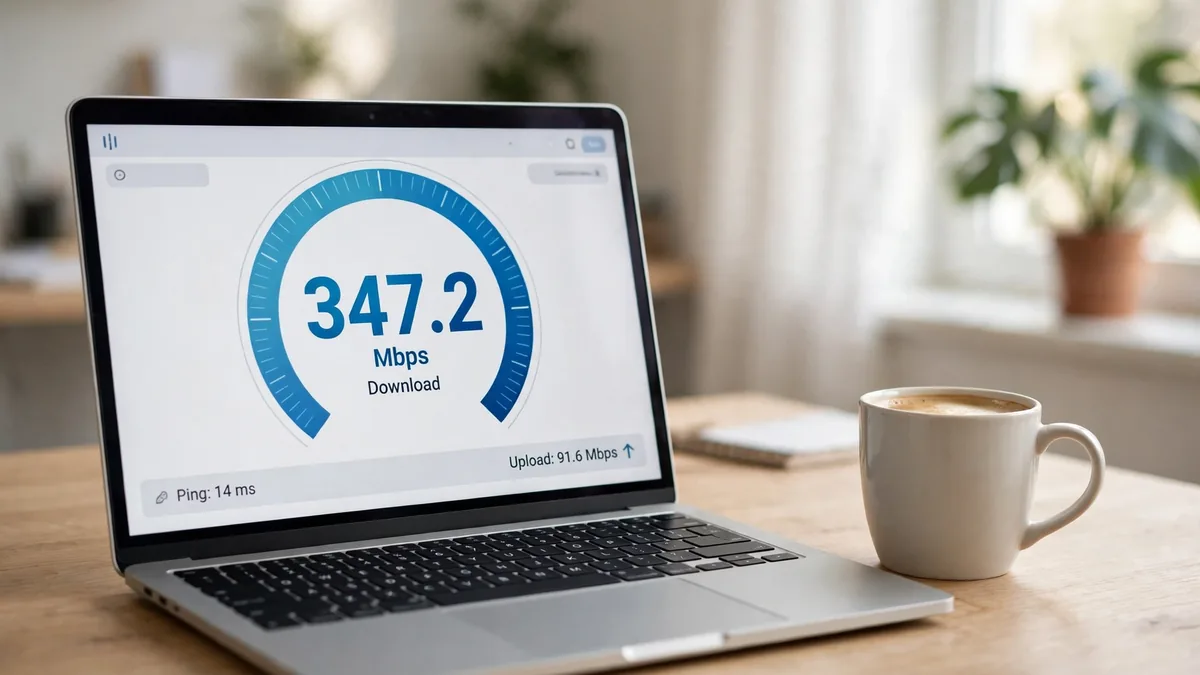
Learning how to check your internet speed takes about two minutes, and it is the only reliable way to know whether your connection does what you pay for. A speed test measures three things: download speed, upload speed, and ping. Download speed controls how fast pages load, videos stream, and files arrive. Upload speed controls video calls, cloud backups, and sending large files. Ping, in milliseconds, controls how quickly the connection responds, which matters most for gaming and live calls.
Most people only test when something feels slow, and that is when the result is hardest to read. A single test on a busy evening, from a phone in a far bedroom, says more about your Wi-Fi signal than about your plan, so a useful test controls those variables first.
This guide walks through the process in order: prepare your network, pick a test, measure over Wi-Fi and over a cable, repeat the test properly, and read the results against your plan.
Key takeaways
- Test download speed, upload speed, and ping together; one number alone does not describe your connection.
- Close background apps, pause downloads and cloud backups, and leave idle devices alone before you start.
- Run three tests and use the middle result, because a single test can be skewed by a brief spike or dip.
- Compare a wired ethernet test with a Wi-Fi test to learn whether the problem is your plan or your wireless signal.
- Most homes need 25 Mbps down for smooth 4K streaming and 100 Mbps down when several people are online at once.
What your speed test numbers actually mean
Download speed, in megabits per second (Mbps), is how fast data travels from the internet to your device. It decides how quickly pages appear, how sharp video looks, and how long downloads take. Upload speed, also in Mbps, is how fast data travels from your device to the internet. It decides how clear you look on video calls and how fast backups leave your home.
Ping, also called latency, is the delay before data starts moving: under 20 ms feels instant, while above 100 ms makes calls lag and games stutter, even when download speed looks fine. Jitter is the variation in ping, and low jitter under 10 ms means a steady connection.
Speeds are measured in megabits, not megabytes: eight megabits make one megabyte, so a 100 Mbps connection downloads at roughly 12.5 megabytes per second.
| Activity | Minimum download | What matters most |
|---|---|---|
| Web browsing and email | 5 Mbps | Low ping |
| Video calls (one person) | 10 Mbps down, 5 Mbps up | Upload speed and low jitter |
| HD video streaming | 10 Mbps | Steady download speed |
| 4K video streaming | 25 Mbps | Steady download speed |
| Online gaming | 25 Mbps | Ping under 50 ms |
| Large downloads and cloud backup | 100 Mbps | Download and upload speed |
| Household with several people online | 100 Mbps or more | Total bandwidth and router quality |
Step 1: Prepare your network before testing
A speed test measures whatever your network is doing at that moment, not what it could do. Start by pausing anything that uses the connection in the background: cloud backups, game downloads, software updates, and video streams all consume bandwidth and drag the result down. Close those apps or pause them until the test is done.
Next, make sure other devices are idle: a TV updating itself or a phone backing up photos can quietly take a large share of your connection. Finally, restart your modem and router if you have not done so in weeks, then wait two to three minutes until the lights are steady.
Step 2: Choose a speed test tool
Any well-known speed test works, and the differences between the major ones are small. Browser tests are the simplest: open the test page, wait for it to find the nearest server, and press start. Use the same test for every comparison, because different tests use different servers and can report slightly different numbers.

Phone apps from the same providers are useful for checking speeds around the house, since you can walk from room to room with the phone in your hand. Stand still during each test, because moving changes the signal. Use a laptop or desktop for your main test and the phone app for spot checks.
Step 3: Run your first test over Wi-Fi
Test from where you normally use the internet, using the device you use most. This first result is your everyday speed, so write it down with the time, the device, and the room, because you will compare it with later tests.
Watch the test while it runs. A healthy connection climbs quickly to a stable speed and holds it; if the number jumps wildly, the connection is unstable, and that matters as much as the average. Do not test from right next to the router: the best possible signal is not where you actually work or watch videos.
Step 4: Test with a wired ethernet connection
Plug a laptop directly into the router with an ethernet cable and run the same test again. This wired result is the closest measure of what your provider delivers, because it removes Wi-Fi entirely. If the wired speed matches your plan and the Wi-Fi speed does not, the problem is your wireless network, not your plan.
If the wired speed is also far below your plan, the problem is upstream: the line into your home, the modem, or the provider’s network. Use a cable rated Cat5e or better and a gigabit port, since older 100 Mbps ports cap the result. If your home has a mesh system, a mesh Wi-Fi system can also help you compare speeds between rooms once you know the wired baseline.
Step 5: Test in different rooms and at different times
Walk through your home with the phone app and test in each room where you use the internet. Speed falls with distance and with each wall in between: a sharp drop in one room points to a thick wall or interference, while a gradual fall everywhere points to the router’s range.
Repeat the main test at a different time of day, ideally once in the morning and once in the evening. Providers share capacity between neighbours, so speeds often dip during the evening peak, and the evening number is the one that shapes your experience. Keep a short log of date, time, room, device, download, upload, and ping.
Step 6: Run three tests and use the middle result
Run the test three times from the same spot, waiting about a minute between runs, and take the middle value of the three downloads. The median filters out a lucky spike and an unlucky dip; if the three results differ wildly, the connection is unstable, and that is itself a finding worth acting on.
Do not cherry-pick the best result, and do not panic over one bad result either: a single slow test can be caused by a neighbour starting a large download or a brief fault. When you compare results over days, keep the conditions the same: same device, same room, same test, similar time of day.
Step 7: Compare your result with your plan
Find the speed your plan promises, usually on your bill or in your provider’s app, and compare it with your wired test result. Providers advertise “up to” speeds, so a result slightly below the headline number is normal; below half the advertised speed, repeatedly, is a problem worth raising.
Before you pay for a faster plan, make sure you can use the speed you already have: a household testing at 90 Mbps on a 100 Mbps plan will not feel much difference from a 300 Mbps plan if the bottleneck is a weak Wi-Fi signal in the bedroom. If your router is several years old, a newer model may do more for real-world speeds than a plan upgrade. If you use a VPN, test with it off to see your true baseline, or read a guide to the best VPN for a router before changing anything.
Troubleshooting: when speed test results do not make sense
If the test shows high ping but normal download speed, the problem is latency, not bandwidth: try a different test server, since a distant or overloaded server inflates ping. If ping stays high everywhere, restart the router, test wired, and check whether anyone is uploading large files.
If one device is slow while others are fast, the problem is the device: check whether it is on the 2.4 GHz band while others use 5 GHz, whether its software needs updating, and whether a VPN is running on it. If speeds collapse only in the evening, test wired during the dip: if wired speed also falls, the provider’s network is busy; if only Wi-Fi falls, your neighbours’ networks may be interfering.
Checklist: get an accurate speed test every time
- Pause downloads, cloud backups, updates, and streams before testing.
- Use the same test tool, device, and room for every comparison.
- Test from the spot where you actually use the internet, not beside the router.
- Run a wired ethernet test to separate plan problems from Wi-Fi problems.
- Run three tests and record the middle result, with the time and room.
- Compare the wired result with your plan before deciding on an upgrade or a complaint.
Frequently asked questions
What is a good internet speed?
For one person browsing and streaming in HD, 25 to 50 Mbps down is enough. A household with several people streaming, gaming, and working from home usually needs 100 Mbps down or more.
How accurate are online speed tests?
They are accurate enough for everyday decisions when conditions are controlled, since they measure the path between your device and the test server. A wired test with background apps closed is the most accurate result you will get at home.
Why is my speed test slower than my plan?
The usual reasons are Wi-Fi signal loss, an old router, background downloads, or evening congestion. Test wired first: if the wired speed matches your plan, the problem is Wi-Fi. If the wired speed is also low at different times of day, contact your provider and share your test log.
Does a speed test use much data?
A single test typically uses between 50 and 150 MB, depending on the speed it measures. That is small on home broadband but worth knowing on a mobile plan with a data cap.
Should I test on Wi-Fi or with a cable?
Test both. The wired test shows what your provider delivers to your home, and the Wi-Fi test shows what you actually get where you sit. The gap between the two tells you whether to fix your Wi-Fi or talk to your provider.
How often should I check my internet speed?
Check when something changes: a new plan, a new router, a move, or a new problem. A quick monthly check is enough for most homes.
The bottom line
Checking your internet speed is a short job: prepare the network, use one test tool consistently, measure over Wi-Fi and over a cable, run three tests, and compare the middle result with your plan. That turns a vague sense that the internet feels slow into a clear answer about where the problem sits.
If the wired result matches your plan, the fix is inside your home: better router placement, the right Wi-Fi band, or newer hardware. If the wired result is far below your plan at every hour, take your test log to your provider. Either way, you now have numbers instead of guesses.