Android already has a built-in safety layer, but some users want more than app screening. If you use mobile devices for banking, messages and work, extra protection may help you avoid phishing and other threats. The right tools depend on how you use your phone.
Google Play Protect comes with Android. Third-party apps may add web protection, app locks or anti-theft tools. This roundup compares seven choices, including paid apps, free options and the built-in service. A false positive is a safe app or file incorrectly flagged as harmful.
Key Takeaways
- Bitdefender Mobile Security is the leading all-round paid Android pick.
- Google Play Protect offers a no-cost built-in baseline.
- Avast and AVG add tools with free, ad-supported versions.
- Sophos Intercept X for Mobile is free and ad-free.
- Norton 360 Deluxe suits readers covering several types of devices.
The right choice depends on whether you want extra scam defenses, a free app or a single subscription for several devices.
Which Is the Best Antivirus for Android Australia?
Bitdefender Mobile Security is the strongest first pick for someone who wants a dedicated Android security app, while Google Play Protect remains the no-cost starting point. For a paid Android-focused option, Bitdefender combines app checks with extra privacy and web tools. Start with your main need, not the longest feature list.
Choose Bitdefender for a phone-first paid app, or Google Play Protect for basic protection without an app subscription. Avast and AVG suit readers who want a free antivirus app with extra tools and accept advertisements. Sophos is another free choice, with an ad-free experience and a different interface.

Match your antivirus to the problem you want it to solve, rather than buying features you will never use.
A free antivirus for Android in Australia can be reasonable if you want basic scanning and accept fewer bundled extras. Google Play Protect remains useful even when you add another security app, since it is already part of Android.
Norton 360 is a better fit when you want one plan for Android and other devices. It is a cross-platform suite, rather than a phone-only choice. That difference matters if your household also needs protection for computers.
Free apps differ in their tools, ads and privacy features. Paid plans also vary in what they cover. Compare the features you will use with the kind of security you want, then choose the simplest fit.
Match the pick to your actual need, rather than paying for a bundle of features you will not use.
Is Google Play Protect Enough for an Android Phone?
For a careful user who installs familiar apps and keeps Android updated, the built-in protection can be a reasonable baseline. That may be enough if you stick to trusted app stores and avoid suspicious links. Google Play Protect is not the only part of staying safe.
Risk can rise when you install apps outside Google Play or open phishing links sent by text, email or messaging apps. Sideloading means installing an app from a file instead of a store. That can make it harder to judge who made the app and what it does.
Free antivirus software may add web checks or other tools, but it cannot make every risky choice safe. A cautious routine still matters. Use this checklist to judge whether the built-in layer suits your habits:
- Update status: Is Android running its latest available security update?
- App source: Do you install only from Google Play or another trusted store?
- Link habits: Do you avoid unexpected links asking for passwords or payment?
- Extra tools: Would web protection or remote theft controls help you?
A user who keeps software current and avoids risky links may not need a third-party antivirus app. But your habits matter more than a label on a security product. A phone used for work, banking and travel may face different risks from one used mostly for calls.
Consider how often you sideload apps, too. A file from a forum or message may look familiar but come from an unknown source. Extra security can be useful when you cannot confidently judge an app before installing it.
If you regularly install apps from outside Google Play or want added web and theft tools, compare a third-party app rather than assuming the default layer does everything.
What Do the Independent Android Tests Measure?
The September 2026 AV-TEST results show a group of Android apps at full marks, while Google Play Protect was half a point below the maximum for protection. Each score has a category, so read it in context rather than treating one number as a complete verdict.
AV-TEST gives up to 6 points each for protection, performance and usability, for 18 points total. Protection measures how well an app detects threats. Performance looks at its effect on a device, while usability considers false alarms and ease of use.

How AV-TEST scores Android apps
AV-TEST tested 14 Android security products using default settings in September 2026. Bitdefender earned 6/6 in all three categories. Google Play Protect scored 5.5/6 for protection and 6/6 for performance and usability.
| Product | Protection | Performance | Usability |
|---|---|---|---|
| Bitdefender | 6/6 | 6/6 | 6/6 |
| Google Play Protect | 5.5/6 | 6/6 | 6/6 |
| Avast | 6/6 | 6/6 | 6/6 |
| AVG | 6/6 | 6/6 | 6/6 |
| Norton | 6/6 | 6/6 | 6/6 |
TotalAV, Sophos, Avira and McAfee also earned full category scores in that test. The September 2026 AV-TEST scores describe the tested versions and settings, not every version you may install.
A separate July 2025 AV-TEST report assessed 14 products with default settings and measured malware protection, device performance and usability. The July 2025 Bitdefender report gives an earlier test period, so do not mix its results with 2026 scores.
What AV-Comparatives checks
AV-Comparatives’ 2026 review used Android 16 and assessed nine products. It checked malware protection, false positives, anti-theft features and battery drain. Its test included more than 3,000 recent Android malware samples and 500 clean apps.
Malware detection asks whether an app spots harmful samples. False positives measure whether it wrongly flags clean apps. The AV-Comparatives 2026 review also looked at how anti-theft tools work and whether security apps use extra battery.
AV-Comparatives’ May 2025 review used Android 15, 3,322 malware samples and 500 clean apps. It measured detection, false positives and battery impact. These are results from a different year and test setup, not a direct extension of the 2026 review.
Treat the result as evidence about the tested app and settings, not a promise that every new threat will be blocked.
Is Bitdefender Mobile Security the Best All-Round Pick?
Bitdefender is the strongest all-round fit here for readers who want app scanning plus web, privacy and anti-theft tools in one Android app. Its appeal is the mix: you can check apps, watch for fraudulent pages and respond if your phone goes missing.
The included VPN allows up to 200 MB of encrypted traffic per day, so it suits light use rather than replacing an unlimited VPN. That cap matters if you stream video or use a VPN for long work sessions.
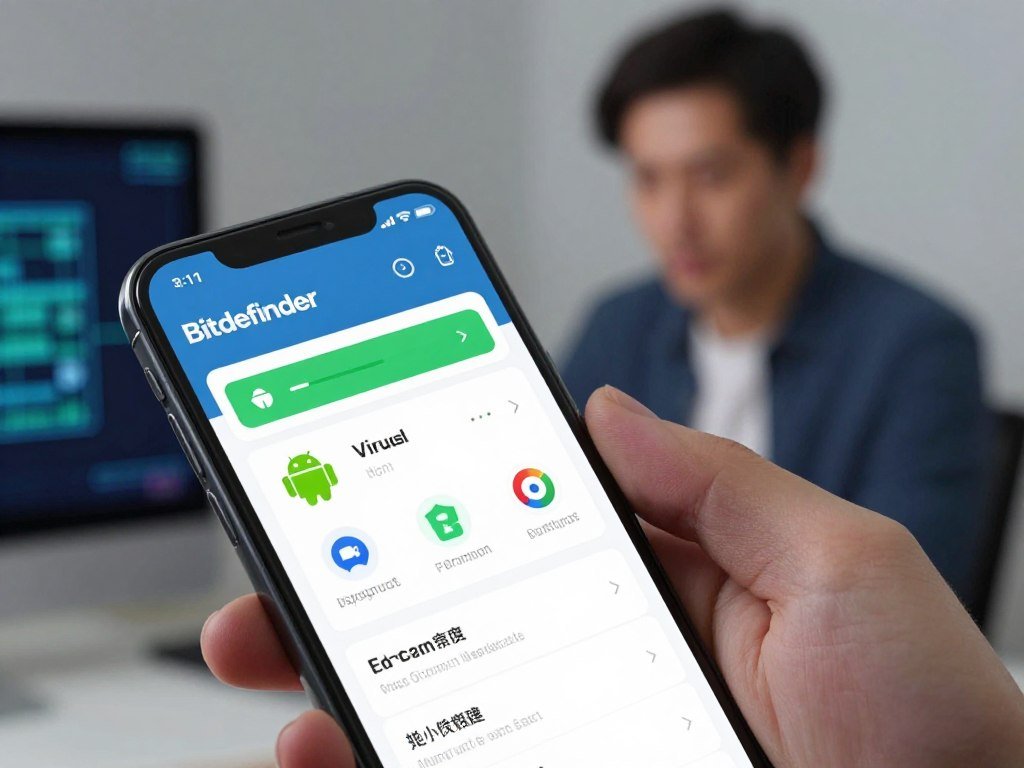
Bitdefender scans apps when you install them and lets you start on-demand scans. Web protection warns about fraudulent webpages. Account-breach alerts can flag risks tied to your accounts, while remote tools help you act if the phone is lost.
- App checks: Review newly installed apps for suspicious behavior.
- On-demand scan: Check the phone after a download seems unusual.
- Web protection: Get a warning before visiting a fraudulent page.
- App lock: Use a PIN to limit access to selected apps.
- Remote controls: Locate, lock or send a message to a missing phone.
Smart Unlock can turn off the PIN lock for trusted Wi-Fi networks. That may save time at home, but the feature depends on which networks you trust. Account-breach alerts add a separate layer of awareness beyond app scans.
Its feature set is useful if you want more than antivirus software that only scans files. The VPN is the key limit to keep in mind. It encrypts some daily traffic, but the allowance is capped and not designed for heavy use.
Check whether 200 MB of daily VPN traffic is enough for your own browsing before treating the bundle as a VPN solution.
What Does Google Play Protect Catch on Its Own?
Google Play Protect checks apps from Google Play before download and continues scanning the device for potentially harmful apps. It works in the background, with settings that affect how unknown apps may be reviewed.
It may warn you about a harmful app, deactivate it or remove it from your device. The service is on by default, and Google recommends leaving it on. It checks Play Store apps before download and also scans the device periodically.
Google offers an optional setting called “Improve harmful app detection.” Turning it on can send unknown apps to Google for analysis. App analysis is not mandatory for every user, and the setting lets you choose whether to enable that extra detection step.
Malware protection may receive information about network connections and potentially harmful URLs. It may also receive details about your operating system and installed apps. This helps explain why the service can check more than the name of an app.
Settings can change over time, so review the wording shown on your own phone. You can find Google Play Protect in the security settings or in the Google Play app. The exact menu path can vary by Android version and phone maker.
Review the harmful-app detection setting if you want to understand whether unknown apps may be sent for analysis.
Is Avast a Good Free Antivirus for Android?
Avast is a useful free Android choice for someone who wants more than a basic scan and does not mind advertisements. The trade-off is clear: you get extra tools without paying for the app, but ads are part of the free experience.
Avast is a practical free antivirus app for an Android phone if you accept ads. Its free version includes malware scans, anti-theft tools and Wi-Fi security checks. VPN access requires a premium plan, so do not assume it comes with the free app.
The free features can suit someone who wants a little more control without adding a subscription. You can use the app for these tasks:
- Start a scan for malware on the phone.
- Check Wi-Fi security before using a network.
- Use anti-theft controls for a misplaced device.
- Review scan findings and respond to alerts.
These features do not make the free version identical to a paid plan. App versions and included tools can change, so read the Google Play listing before you install. The paid VPN feature is separate from the free tools listed here.
Advertisements may appear while you use the app. If you only need a scanner and do not mind ads, Avast gives you a practical middle ground between built-in protection and a paid app.
For a wider look at no-cost security apps, compare these free antivirus software picks across devices. If ads disrupt your normal use, compare an ad-free option before installing Avast.
When Does AVG Antivirus Free Make More Sense?
AVG is a good fit for Android users who value broad real-time checks and a private place to store photos. Its appeal is practical: the app checks several parts of your phone and offers a locked photo vault.
AVG AntiVirus Free scans apps, games, settings and files in real time. It also includes an app lock and an encrypted photo vault. These tools address different needs, from checking for malware to keeping selected photos private.
AVG’s Web Shield helps protect against phishing and malicious websites. It uses Android’s Accessibility Service API, a system tool that lets an app read certain on-screen details to spot risky pages. This does not grant blanket access to every activity on your device.
Review the permissions AVG requests and what each one supports. The Accessibility Service API has a broad name, but its use here relates to the web protection feature. You can decide whether that trade-off suits your comfort level.
AVG may suit you if you want checks that extend beyond newly installed apps. The photo vault is a privacy feature, while Web Shield focuses on risky websites. Neither replaces careful choices about links or app downloads.
Review the requested Android permissions and decide whether Web Shield’s added phishing protection is worth enabling for you.
Should You Choose Norton for Multiple Devices?
Norton 360 Deluxe is the more relevant choice when you want Android protection as part of a broader cross-platform security plan. A suite covers more than a phone, which can help when you manage several devices in one household.
Norton 360 Deluxe bundles Mobile Security, a VPN and password management for Android, but its anti-theft features have been phased out. Do not choose Norton expecting remote recovery tools that the product no longer offers.
A dedicated mobile app focuses on one phone. A cross-platform suite can cover Android along with other device types, depending on the plan. PCMag named Bitdefender Total Security and Norton 360 Deluxe its Editors’ Choice security suites with Android protection in 2026.
| Product | Coverage role | Android-related extras |
|---|---|---|
| Bitdefender Mobile Security | Dedicated Android app | App checks, web and remote tools |
| Bitdefender Total Security | Cross-platform suite | Android protection within a wider plan |
| Norton 360 Deluxe | Cross-platform suite | Mobile Security, VPN and password management |
The 2026 security suite review compares products that cover more than Android. Norton’s appeal is the bundled plan, rather than a larger set of phone-only features.
Think about how many devices need coverage and whether you will use the added services. A phone-only app may be simpler if Android is your only concern. A suite makes more sense when its other coverage fits your household.
Choose a suite for the devices and extras you will actually use, not just because its name is familiar.
What Do You Get With TotalAV Mobile Security?
TotalAV is worth comparing if you want web protection and app-level extras alongside Android malware scanning. Its tools cover several jobs, from checking risky pages to managing phone storage.
TotalAV Mobile Security offers web protection, app locking, Wi-Fi checks and storage clean-up. Web protection can flag malicious or phishing pages before you visit them. An app lock can limit access to apps you select.
Wi-Fi checks give you another way to review a network before using it. Storage clean-up removes unneeded files or helps you find space. That is different from malware scanning, which checks apps and files for harmful code.
These tools serve separate purposes. Cleaning storage does not remove malware by itself, and a web warning does not make every link safe. Use each feature for the task it is meant to handle.
VPN and password-manager access depend on the subscription tier. A plan may include some extras while leaving others out. Check the listed version and plan details before assuming a feature is part of your subscription.
TotalAV may suit you if you want several phone tools in one app. The most useful plan depends on which extras you expect to use, not simply the number of items in a feature list.
Confirm which subscription tier includes any extra you expect to use before choosing a plan.
Is Sophos Intercept X a Better Ad-Free Free Option?
Sophos stands out for readers who want a free Android security app without advertising. That makes it less distracting than free apps that show ads while you use them.
Sophos Intercept X for Mobile is free and ad-free, with tools beyond malware checks. It includes a QR code scanner, an authenticator and anti-theft features. Those extras may appeal if you want several security tasks in one app.
A QR code scanner can help you inspect a code before following its destination. An authenticator can create sign-in codes for accounts that use two-step verification. Anti-theft tools can help you respond if the phone goes missing.
Sophos may feel less intuitive than some other choices. Its interface can suit confident users who are comfortable finding settings and understanding security tools. Beginners may prefer an app that makes each step clearer.
Take a few minutes to inspect the main screen and settings. A free app is less useful if you cannot find its scan controls or understand its alerts. Ease of use matters when you need to act quickly.
If you want the simplest possible setup, test the interface before making Sophos your everyday security app.
Which Free Antivirus Fits Your Android Phone?
The best free antivirus for Android in 2026 depends on whether you value built-in simplicity, extra tools or an ad-free app. Start with the kind of help you need, then compare what each option includes.
A free antivirus can be enough for some cautious users, but the right choice depends on their need for app, web or privacy tools. Google Play Protect is built into Android. Avast and AVG show ads in their free apps, while Sophos Intercept X for Mobile does not.
Free app features differ, and no free scan guarantees that every threat will be found. A careful user may prefer the built-in option. Someone else may want extra controls or an app without advertisements.
- Google Play Protect: Choose it for a built-in, no-cost baseline.
- Avast: Consider it if you accept ads in return for extra tools.
- AVG: Pick it if broad checks and privacy options matter to you.
- Sophos: Try it if you prefer an ad-free security app.
- Manual scan: Use your existing security app to check after a suspicious download.
These choices are not interchangeable, and a free version may have fewer extras than a paid plan. If you mainly use trusted apps and keep Android updated, a built-in baseline may suit you. Extra web tools can matter more if you often follow links.
You can also compare other free antivirus options if you want to see how Android apps fit a wider device plan. Check the listing for the app’s current features before you install it.
Before installing a free app, check its publisher, permissions and any limits on features.
Which Android Security Features Matter Most?
For most Android users, app scanning and web protection are the most directly useful features. They address common entry points: harmful apps and links that lead to fake pages.
Choose tools based on the risk they address, since no single feature blocks every threat. A scan can find a risky app, while web protection may warn you before you enter account details on a fake page.
App and malware checks
Real-time scanning checks files or apps as you access or install them. It can help catch a threat early. An on-demand scan starts when you tap the scan control, so you choose when to check the phone.
A manual scan can be useful after a suspicious download or security alert. It does not take the place of real-time checks, since you may forget to start one after a risky event.
Web, phishing and link protection
Web protection can block or warn you about suspicious links and fraudulent pages. That warning may appear before you enter a password or payment detail. It can help with links sent by text, email or messaging apps.
These tools cannot judge every message perfectly. Check the sender and the website address before entering sensitive details. A familiar brand name in a link does not prove the page is genuine.
Privacy, VPNs, locks and device recovery
An app lock limits access to selected apps, which can help when someone else uses your phone. A VPN encrypts internet traffic between your device and the VPN service. Remote location or lock tools help you respond if a phone is lost.
Those features solve different problems. A VPN does not scan apps for malware, and an app lock does not protect a link from phishing. Think about where and how you use your phone before adding extra tools.
| Feature | What it does | Risk it addresses | Useful when |
|---|---|---|---|
| App scanning | Checks apps and files | Malware | Installing or reviewing apps |
| Web protection | Warns about risky pages | Phishing links | Opening links from messages |
| VPN | Encrypts internet traffic | Traffic exposure | Using public Wi-Fi |
| Anti-theft | Helps locate or lock a phone | Loss or theft | Travel or crowded places |
Choose extras around the risks you actually face, such as suspicious links, shared-device access or public Wi-Fi.
How Much Does Android Antivirus Cost in Australia?
Android antivirus can cost A$0 for a free app, while a paid subscription’s Australian price depends on the plan and billing terms. The app itself may be free, even when some added services require payment.
Free apps and built-in protection do not require an app subscription. Paid Android security may come as a phone-only subscription or part of a multi-device suite. Australian prices depend on plan, device coverage, billing term and renewal price.
Free apps and built-in protection
Google Play Protect comes with Android, and free app options do not require paying for an app subscription. Some free apps may show ads or limit certain tools to a premium plan. Read the current listing to see what the free version includes.
A paid plan may suit you if you need added features or coverage for more devices. A phone-only plan and a multi-device suite serve different needs, so compare what each one covers.
Paid plans and renewal terms
Promotional offers can make a first term look cheaper than later terms. Australian subscription prices also change with billing length and device count. The renewal price is the recurring charge after the first term.
| Cost factor | What to check | Why it matters |
|---|---|---|
| Plan type | Phone-only or multi-device | Sets the kind of coverage |
| Device count | Number of covered devices | Shows whether household devices fit |
| Billing term | Monthly or longer term | Changes how often you pay |
| Renewal price | Recurring charge after first term | Shows the later cost |
Check the checkout page in Australian dollars and read the renewal terms before paying. Do not judge a plan by its promotional first-term figure alone. The final amount can depend on the selected plan and billing period.
Check the total amount due at renewal as well as the first payment before agreeing to a subscription.
How Can You Install an Antivirus App Safely?
Install an Android security app from a trusted listing and confirm that the publisher matches the product you intended to download. A familiar app name is not enough, since a fake listing can copy a real product’s branding.
Use one real-time antivirus app at a time to avoid conflicts. You can follow these steps to check the app and set it up with care.
- Verify the publisher name in the Google Play listing.
- Review requested permissions before installation.
- Install only one real-time antivirus app.
- Run the first scan and follow clear remediation steps.
- Check the app’s update and notification settings.
Permissions should fit the feature you want to use. A web protection tool may ask for access related to browsing, while a location feature may need location access. If a permission seems unrelated, pause and read the app’s explanation.
A second scanner can create trouble if it adds another real-time engine beside your main security app.
A second scanner can still be used for an on-demand check if it does not add a conflicting real-time engine. Do not run two real-time antivirus engines together. They may compete while scanning the same files or apps.
After setup, check that the app can update and that its alerts are easy to understand. Notifications help only if you can tell what action they ask you to take. Review the settings again if you add a new feature.
Keep Android and the security app updated, and revisit permissions when you enable a new feature.
Conclusion
Bitdefender is the clearest all-round choice if you want a dedicated Android app with several layers of protection. Google Play Protect remains a sensible no-cost baseline, while Norton 360 Deluxe suits readers who want a broader suite.
Before you commit, check the app’s permissions and the current Australian renewal terms. Make sure the tools match how you use your phone, and avoid paying for features you do not need.
Choose the option that fits your phone and budget, then install it from its verified Google Play listing.
FAQ
Is Google Play Protect enough to keep an Android phone safe?
Google Play Protect can be enough for cautious users who install trusted apps and keep Android updated. It checks Play Store apps and scans the device from time to time. Extra web, privacy or anti-theft tools may be a reason to add a third-party app. Your app sources and link habits also affect how much protection you may want.
How often should I scan my Android phone for malware?
Real-time protection checks apps as they are installed or used, so you do not need to start a manual scan on a fixed schedule. A manual scan is useful after a suspicious download or an alert. Follow the app’s instructions if it finds something, and remove an app only when you understand the warning.
Can I use two antivirus apps on one Android phone?
You can install more than one security app, but avoid running two real-time antivirus engines together. They may conflict while checking the same files, slow the device or create confusing alerts. Use one primary app for ongoing protection. A second scanner may be useful for an on-demand check if it does not add another real-time engine.
Does free antivirus for Android include a VPN?
Some free Android apps do not include VPN access, while others reserve it for a paid tier. Check the app’s current feature list and plan details before relying on it. Also look for any traffic cap, since a small daily allowance may suit occasional browsing but not video streaming or long work sessions.
Do Android antivirus apps block phishing texts?
Some Android security apps offer scam-message or web-link tools, but coverage depends on the app and the permissions you enable. A warning may help when a message points to a fraudulent page. It cannot judge every text correctly, so check the sender and web address before opening a link or entering account details.
Is an Android antivirus app safe to download?
An Android antivirus app is safer to download when you use a trusted app listing and confirm the publisher name. Review the requested permissions before installing, then compare them with the features you plan to use. Avoid links in unexpected messages that lead to app files, since those can make it harder to confirm the app’s source.