A phone upgrade can leave important accounts asking for a code that still appears only on your old device. Google Authenticator holds these sign-in codes, so installing its app on a new phone alone may not move them. A one-time password (OTP) is a short-lived verification code generated from a stored secret, usually without an internet connection.
Two-factor authentication adds a second check when you sign in, and losing access to its codes can block important accounts. You can use cloud sync or a QR-based manual transfer to move codes before a phone switch. Both methods let you plan the change while your old phone still works.
You do not need to rush into wiping your old phone. Check that your accounts work on the new device first, then retire the old one. Keep the old phone available until you can verify the codes on the replacement.
Key Takeaways
- Installing Google Authenticator on a new phone does not always move existing codes.
- Cloud sync works through the same Google Account on both phones.
- Manual transfer moves selected codes by scanning QR codes between phones.
- Keep exported QR codes private because they hold authentication secrets.
- Test important account sign-ins before erasing the old phone.
How to Use Google Authenticator Transfer to a New Phone
If the same Google Account is signed in to Google Authenticator on both phones, synced codes appear on the new phone automatically. This cloud sync route is the simplest way to keep account codes when you replace a phone.
In 2026, signing in to the same Google Account brings over codes that were already synced. Google Authenticator encrypts codes in transit and at rest across Google’s products. That does not mean the codes are end-to-end encrypted.
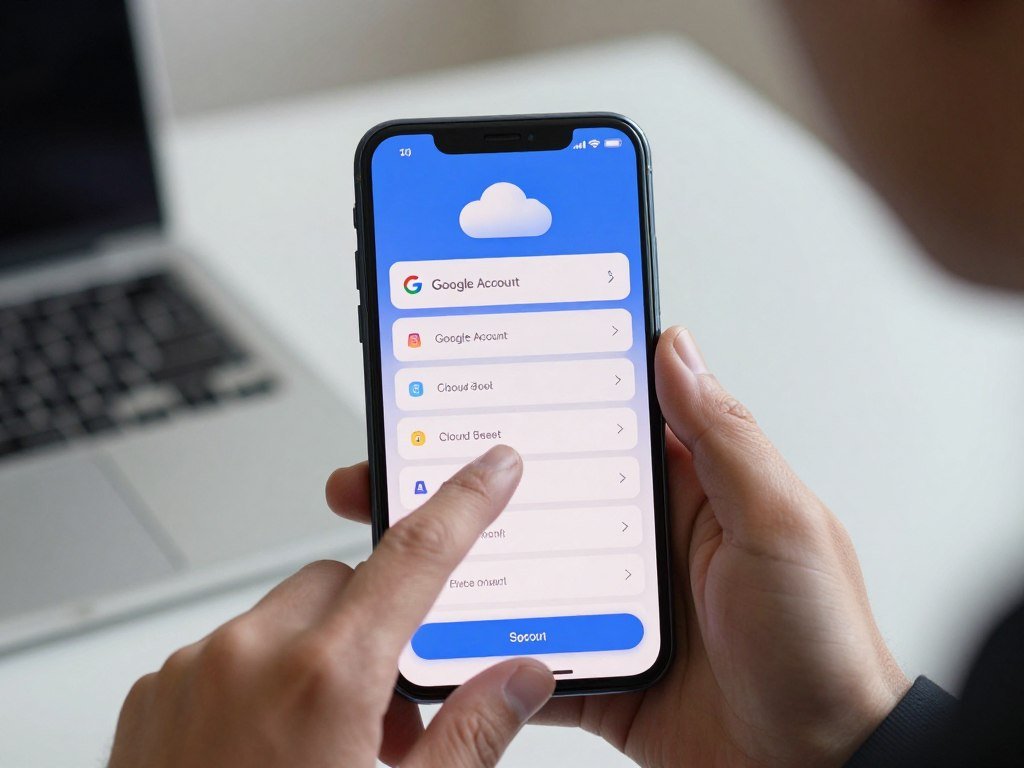
Cloud sync can restore only codes that were synced before the old phone became unavailable.
Sync codes with a Google Account
First, confirm that sync was active for the relevant Google Account in Google Authenticator on the old phone. Then sign in to that same Google Account in Google Authenticator on the new phone.
The codes tied to the synced account should appear in the app’s account list. If you used more than one Google Account, check the account shown in the app. Choosing a different account will not show codes synced under another one.
Google introduced Google Account synchronization to help users keep their one-time codes when they lose or replace a phone. You can read its Google Authenticator sync announcement for more about that feature.
Move codes without a QR code
Cloud sync is the QR-free option for moving Google Authenticator codes to a new phone. It works when sync was active and you can sign in to the same Google Account.
If codes stayed only on the old phone, cloud sync cannot bring them over. You need manual transfer instead, which uses QR codes made inside the app. You can select which stored accounts to copy during that process.
Signing in to Google Authenticator does not move locally stored codes by itself. Check that the account list has populated before relying on the new phone for a sign-in.
How to Export and Import Codes With a QR Code
Manual transfer works when you can use the old phone to export codes and the new phone to scan them. It can move selected accounts, including when you transfer Google Authenticator to a new iPhone.
The old phone must have Google Authenticator installed, and Google recommends using the latest app version. The new phone scans the QR code displayed by the old phone. The process copies codes, so they remain on the old phone too.
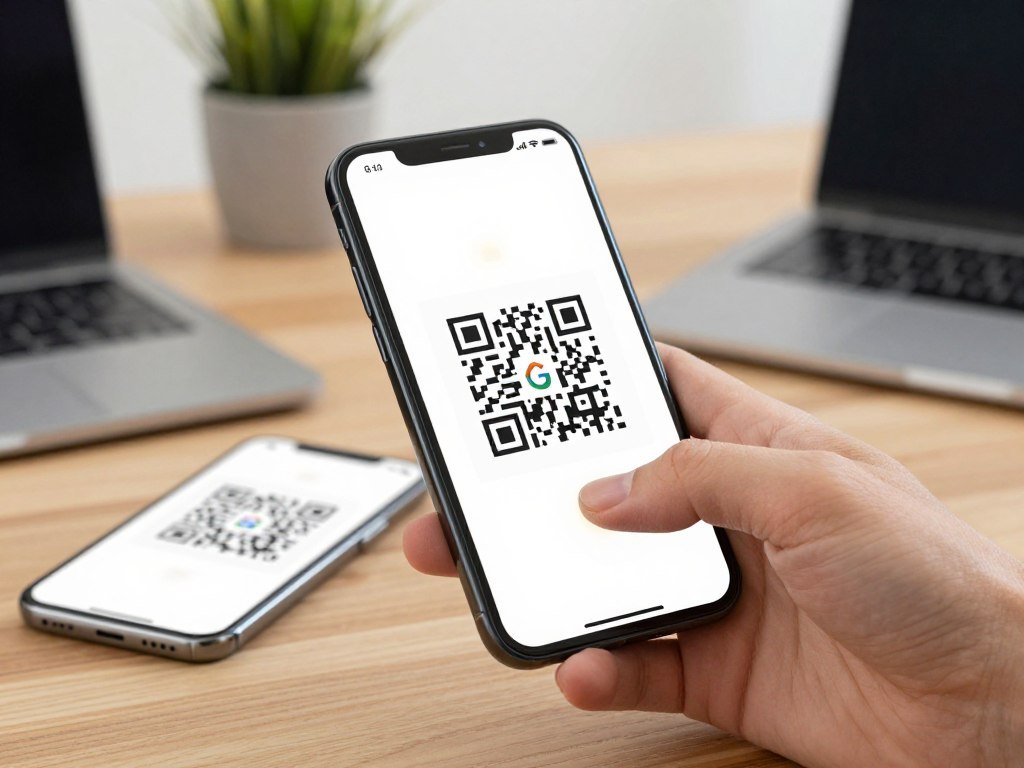
Export selected codes on the old phone
Keep both phones nearby. On the old phone, open Google Authenticator and use the current menu labels to choose which accounts to transfer:
- Tap Menu, then Transfer codes, then Export codes.
- Select the accounts you want to copy.
- Tap Next to display the transfer QR code.
Transferring multiple accounts may create more than one QR code. Leave the export screen open until you finish scanning every code on the new phone.
Import codes on the new phone
On the new phone, open Google Authenticator and select Menu, then Transfer codes, then Import codes. Scan each QR code displayed on the old phone.
Keep each QR code out of screenshots, messages, and public view. The code contains authentication secrets that could let someone create matching verification codes.
Scan the transfer on a new iPhone
The same manual transfer process can move codes to a new iPhone. Install Google Authenticator on the iPhone, then use its import option to scan the QR code shown on the old phone.
Google Authenticator can generate codes without internet access or mobile service, so the phones do not need a live data connection to make codes. The Google Play listing also describes its QR transfer feature and offline codes in the Google Authenticator app details.
Do not assume that one QR code covers every selected account. Scan each code shown during export, and keep every transfer QR code private because it contains authentication secrets.
What Should You Check Before Switching Phones?
A quick compatibility check can prevent a transfer from stalling after you have started. Google Authenticator has different requirements for installing the app and syncing codes, so check both before you switch.
Android installation requires Android 6.0 or later; code sync also requires a current-enough app version. In 2026, sync requires Google Authenticator 6.0 or later on Android and version 4.0 or later on iOS.
Check Android and iOS app requirements
On Android, confirm the phone runs Android 6.0 or later before installing Google Authenticator. That operating-system requirement is separate from the app-version rules for syncing.
For Android sync, Google Authenticator must be version 6.0 or later. On iOS, it must be version 4.0 or later. Update the app if it falls below the needed version.
| Platform or task | Requirement | What to check |
|---|---|---|
| Android installation | Android 6.0 or later | Confirm the phone’s Android version |
| Android sync | Google Authenticator 6.0 or later | Update the app |
| iOS sync | Google Authenticator 4.0 or later | Update the app |
Keep the old phone ready
Keep both phones powered on and accessible if you plan to use manual transfer. The old phone needs to show the exported QR code, while the new phone scans it.
If you plan to use cloud sync, sign in to the Google Account you intend to use. A different account can leave the new phone’s code list empty even when the old phone still shows codes.
Check the new phone’s available storage and network access before app setup. Those checks help avoid delays when installing the app or signing in to a Google Account. Update Google Authenticator on the old phone before exporting codes.
Can You Restore Google Authenticator Without the Old Phone?
Without the old phone, recovery depends first on whether its codes had already synced to the Google Account. Prior sync can make codes appear on a replacement phone after you sign in to that same account.
If sync was off, Google Authenticator cannot restore locally stored codes by itself. Each service protected by a code may then need its own recovery process, because the services manage their own sign-in rules.
If cloud sync was already on
If cloud sync was enabled before the old phone became unavailable, sign in to the same Google Account in Google Authenticator on the new phone. The synced codes can appear in the account list.
A passkey on another device may help verify your Google Account, but a passkey is not an Authenticator code. Learn more about passkeys and two-factor sign-in before treating one as a code replacement.
If sync was off or Google sign-in is blocked
When sync was off, contact each protected service through its own account recovery process. To regain access to a Google Account, available verification options can include:
- Another phone where you are already signed in.
- A phone number added to the Google Account.
- A saved Google Account backup code.
- A registered security key.
- A passkey on another device.
Google Account recovery can take 3-5 business days if you have no other second step or have forgotten your password. Work or school accounts may follow separate recovery rules set by an administrator. Google’s Workspace recovery guidance explains how administrators can help users locked out of accounts protected by 2-Step Verification.
Do not assume a successful Google Account recovery will restore codes for other services. Start account recovery with the Google Account or service that is currently blocking the most important sign-in.
How to Find and Create Google Account Backup Codes
Google Account backup codes provide a one-time sign-in alternative when a second step is unavailable. You can create them before a phone switch and keep them somewhere separate from the phone.
Each Google Account backup code is eight digits and works once. You need 2-Step Verification turned on to create a set. People in the Advanced Protection Program cannot download backup codes.
Generate a fresh set
Open your Google Account, then follow this path: Security, 2-Step Verification, Backup codes. Follow the prompts to create a set of codes.
Creating a new set gives you 10 codes and automatically deactivates the previous set. If you keep an old printout or file, it will no longer work after you generate the fresh set.
Store and use codes safely
Store the codes in a secure place separate from the phone you are replacing. A paper copy kept safely at home or a protected password manager can be easier to reach during a phone problem.
Use one code when Google asks for a second step and your usual method is unavailable. Mark that code as used so you do not try it again later.
Google Authenticator may take up to seven days to become available as a Google Account sign-in option after setup. Do not count on it as an immediate fallback during that period.
Before a phone switch, confirm you can reach the stored set without the old device. Replace any stored set as soon as you generate a new one, since the old set stops working.
Why Might Authenticator Codes Stop Working After a Transfer?
If a code is rejected repeatedly, check the phone’s clock before resetting the account. Google Authenticator depends on the phone’s time settings to generate matching verification codes.
In Google Authenticator version 7.0, the app uses the operating system’s time setting instead of an in-app time-correction control. Set the phone’s time and date to update automatically.
Check the phone’s time settings
Open the phone’s date and time settings and turn on automatic time. The setting helps keep the phone’s clock aligned with the service checking your code.
If the phone’s clock is wrong, a newly generated code can still fail. Correct the time first, then try a fresh code from Google Authenticator.
Codes can be generated without internet access or mobile service. A lack of connection alone does not explain why a code is invalid.
Tell a clock issue from a sync issue
A clock problem means a code appears but the service rejects it. A sync problem means the expected account entry is missing from the app’s list on the new phone.
If the list is missing, check whether cloud sync was enabled or whether the codes were stored only on the old phone. Use the transfer method that matches how those codes were saved.
If only one service rejects a code, check that service’s account setup before removing its two-factor authentication. Correct the operating-system time before changing the service’s two-factor setup.
Can You Move Authenticator Codes to a PC or Another App?
A PC or a different authenticator app needs its own supported import or backup route. Moving codes out of Google Authenticator does not create a universal desktop version of the phone app.
Bitwarden Authenticator can import Google Authenticator codes by scanning a QR code from Transfer accounts. Microsoft Authenticator and Windows apps use different backup or import paths.
Bitwarden’s import depends on a QR code made from Google Authenticator’s Transfer accounts screen. This is a different destination from syncing codes through a Google Account.
Microsoft Authenticator uses Cloud Backup with a Microsoft personal account on Android. On iOS, backup needs iCloud Drive, iCloud Keychain, and iCloud Backup enabled.
To restore Microsoft Authenticator, use the same device type and the recovery account that enabled backup on the old phone. Third-party verification-code entries restore, while work or school entries restore only the account name and require signing in again.
A Windows authenticator is a separate destination, not a direct Google Authenticator desktop transfer. Apppre Mobile’s Authenticator App – Password Manager for Windows scans QR codes shown on a computer screen and stores authentication data locally.
| Option | Transfer or backup route | Key condition | Important limit |
|---|---|---|---|
| Bitwarden Authenticator | Scan Google Authenticator transfer QR | QR comes from Transfer accounts | Import is QR-based |
| Microsoft Authenticator | Cloud Backup or iCloud backup | Same device type and recovery account | Work or school entries need sign-in again |
| Apppre Mobile Windows app | Scan a QR code shown on the computer | Local data storage | Free tier limits tokens and passwords and allows one backup |
The free Windows app supports a limited number of 2FA tokens and passwords and allows one backup. Local storage means the app’s data stays on that computer unless you make its available backup.
Choose a destination based on where you need the codes and how its backup works. Confirm the destination app supports the exact account type before relying on it for sign-in.
How to Secure Accounts After a Phone Is Lost or Stolen
A lost phone calls for both account-security steps and a separate plan to restore access. A missing phone may expose signed-in sessions as well as locally stored codes.
Sign out of the lost or stolen phone and change your Google Account password. These actions reduce the risk that someone can use an open session or access your account.
Review the devices signed in to your Google Account and remove the missing phone. Google recommends signing out of a lost or stolen phone and changing the account password.
If the phone had access to other accounts, review their signed-in devices and security settings too. Change passwords for services that may have been exposed, especially if the phone had saved sign-in sessions.
Keep account security separate from code recovery. Signing out and changing a password protect access, while each service may still need its own recovery process before you can sign in again.
If you use a work or school phone, tell the account or device administrator that it is missing. Make sure the password change is complete before treating the missing device as secured.
How to Verify the Transfer Before You Erase the Old Phone
A transfer is not verified until a real sign-in accepts a code from the new phone. An account entry in Google Authenticator shows that a code was copied or synced, but not that the code works.
Test important accounts before erasing the old phone. Google Authenticator codes are typically six digits and refresh about every 30 seconds.
| Check | What to do | Pass condition |
|---|---|---|
| Account list | Compare every service with a pre-transfer inventory | Each expected account appears |
| Live sign-in | Complete a real two-factor challenge for selected important accounts | The service accepts a code from the new phone |
| Code behavior | Confirm a six-digit code refreshes about every 30 seconds | Codes update normally |
| Old phone | Keep it available during checks | Erase it only after the new phone has passed |
A visible account entry is not proof of a working transfer; a real sign-in must accept the new phone’s code.
Use live sign-ins for the accounts that would cause the most trouble if locked. Keep the old phone charged and within reach while you test them.
If a code fails, check the phone’s time settings and the account’s entry before erasing anything. Leave the old phone intact until each important sign-in passes.
Make a final check against your list of services, not just the apps you use every day. Erase or trade in the old phone only after the new device has passed the checks.
Conclusion
A smooth phone change starts with choosing a transfer method before access to the old device is lost. Cloud sync is convenient when you can use the same Google Account, while manual QR transfer gives you a direct phone-to-phone option.
The safest next step is to decide which method fits your setup and begin while the old phone still works. Check that the replacement can complete real sign-ins before you erase the original device.
If you still have the old phone, start the transfer while it is powered on and within reach.
FAQ
How to access Google Authenticator without an old phone?
You can access synced Google Authenticator codes without the old phone if cloud sync was already enabled. Sign in to the same Google Account in the app on your new phone, then check whether the code list returns. If sync was off, Google Authenticator cannot restore codes stored only on the missing phone. Use each protected service’s recovery process and any saved backup options.
How do I find and create backup codes for Google Authenticator?
Open your Google Account, choose Security, then 2-Step Verification and Backup codes. You need 2-Step Verification turned on to create them. Google Account backup codes work for Google Account sign-in, rather than serving as a universal replacement for every service’s Authenticator code. Store the codes somewhere separate from your phone so you can reach them if that device is lost.
How do I transfer Microsoft Authenticator to a new phone?
Restore Microsoft Authenticator from the backup you enabled on the old phone, using the same device type and recovery account. Android backup uses Cloud Backup with a Microsoft personal account. iOS backup needs iCloud Drive, iCloud Keychain, and iCloud Backup. Third-party code entries restore, but work or school entries restore only their names, so you must sign in again.
I lost all my Google Authenticator codes. How can I recover them?
You can recover Google Authenticator codes through cloud sync only if sync was enabled before you lost access. Sign in to the same Google Account on a new phone and check the app. If the codes were stored only on the old phone, contact each protected service and follow its recovery process. Saved recovery options may help you regain access, but one service’s recovery does not restore another service’s codes.
How do I transfer Google Authenticator to my new phone?
Sign in to the same Google Account in Google Authenticator on your new phone if the old phone had cloud sync enabled. If you stored codes locally, use manual transfer instead: export selected accounts from the old phone and scan the QR codes with the new one. Keep the old phone available until you have tested sign-ins, since seeing an account in the app does not prove its code works.
What happens to Google Authenticator if the phone is lost?
Codes may return on a replacement phone if cloud sync was enabled before the phone went missing. Without prior sync, you will need to use each service’s recovery options to regain access. A lost phone may also keep signed-in sessions open, so sign out of it through your Google Account and change your password. Review other accounts that were accessible from that phone as well.