If you mainly need verification codes for personal accounts, Google Authenticator is the simpler starting point, while Microsoft Authenticator offers more for Microsoft sign-ins. Either app adds a second verification step beyond your password, which can help protect accounts if someone learns that password. A time-based one-time password, or TOTP, is a short verification code that refreshes on a timer.
For standard codes, the first app keeps the job simple. The second can suit you better if Microsoft sign-ins or an organization account are part of your daily routine. Both apps can work with other services, so your choice depends on the accounts you need to protect and how you sign in.
Before you choose, think past the next login. A lost phone can turn account recovery into a real chore, especially if it holds your only way into email, work, or banking. Keep your sign-in needs and recovery options in view.
Key Takeaways
- Standard verification codes are the main reason to choose the simpler app.
- Microsoft sign-ins and organization requirements may call for Microsoft’s app.
- Both apps can add a second step beyond a password.
- Your recovery plan matters as much as your first setup.
- List the accounts you would need to recover if your phone disappeared.
Google Authenticator vs Microsoft Authenticator: Which Fits Your Needs?
For standard TOTP codes, the two apps cover the same basic job, and both can generate codes without a network connection. The main difference is the range of code types and sign-in features each one supports.
Neither app has a standard official desktop app for Windows or macOS. A Google Authenticator vs Microsoft Authenticator comparison on PC means using your phone for codes while signing in on a computer, not installing either mobile app on the computer.
| Feature | Google Authenticator | Microsoft Authenticator |
|---|---|---|
| Code types | TOTP and counter-based | TOTP |
| Offline code generation | Yes | Yes |
| Third-party examples | Facebook and GitHub | Amazon and LinkedIn |
| Desktop app | No standard official app | No standard official app |
Both apps support TOTP codes for compatible accounts. Google Authenticator also supports counter-based codes, which change after each use rather than on a timer. Microsoft Authenticator can hold TOTP codes for third-party accounts such as Facebook, Amazon, Dropbox, Google, LinkedIn, and GitHub.
Set up each code on the device you will actually have available when signing in.
The offline code generation works after setup, so a weak or missing signal does not stop you from viewing a code. Push approvals are different: they need an internet connection and are covered separately.
A computer can still be part of your sign-in routine. Keep the phone close enough to read its code while you enter it on the computer, and check that you can reach that phone when you need access.
Which authentication methods does each app support?
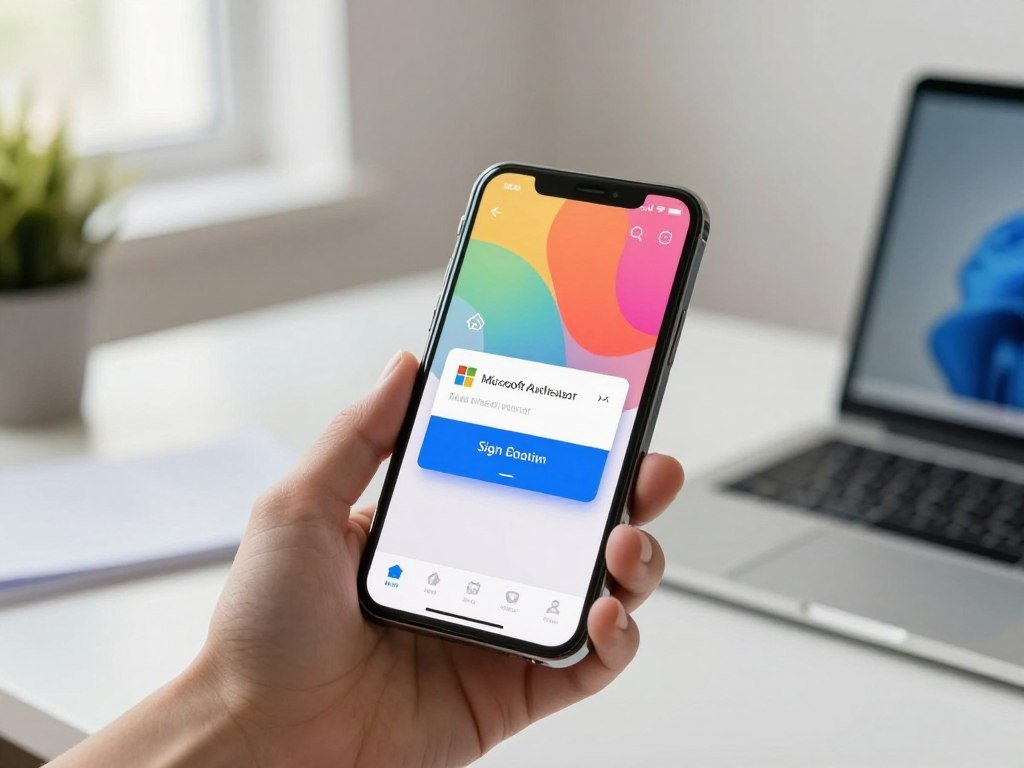
A Microsoft sign-in can ask you to approve a notification instead of typing a code, if that account and sign-in flow support it. Approval is not the same as entering a TOTP code, even though both help confirm your identity.
Microsoft Authenticator supports passwordless sign-in for eligible Microsoft accounts. Organization accounts can also use features set by an employer or school.
Microsoft Authenticator approvals and passwordless sign-in
For an eligible Microsoft account, a push notification can ask you to approve a sign-in. You may confirm with a fingerprint, face recognition, or PIN, based on the setup.
This approval flow replaces typing a password or code for that sign-in. It does not mean the app offers general push notifications for every service that uses TOTP. Google Authenticator focuses on codes, not broad approval prompts for third-party accounts.
Microsoft’s passwordless sign-in guide explains the approval process, including number matching and the PIN or biometric check.
Organization account authentication
Microsoft Authenticator can support certificate-based authentication for organization accounts. A device certificate helps prove that a registered device meets the organization’s sign-in rules.
The app can also support single sign-on across Microsoft apps and services. That may reduce repeated sign-ins in a Microsoft-centered workplace or school. Tools for managing access across cloud services can matter when an organization uses several platforms.
These features depend on how the organization sets up its accounts. An employer or school may require a particular method, even if another option appears in the app. Follow an organization’s required authentication method before changing its account setup.
How do backup and recovery work?
A new phone restores codes only when the relevant app’s recovery option was set up and the account type is eligible. Local codes need care because they may stay only on the old device.
Microsoft backup does not restore work or school account credentials. You must sign in and register those organization accounts again on a new device.
Google Authenticator sync and device transfer
Google Authenticator can work without signing in. Google sync requires a Google account, and you can also export accounts with a QR code or set them up using a QR code or key.
Moving codes from one app to the other is not a universal direct transfer. You may need to set up each account again through the service that uses it. If codes stayed only on your old phone and you cannot access its QR export or another recovery method, they may not transfer.
Keep the old device on hand while you check your new setup. Microsoft backup restores eligible one-time password codes for personal Microsoft accounts and some third-party accounts, including LinkedIn and Facebook.
Microsoft Authenticator backup limits
Microsoft backup treats account types differently. It can restore eligible OTP codes, but it does not back up work or school credentials. Passwordless credentials for personal Microsoft accounts also do not return; after restore, the account name appears, and you must sign in again.
On iOS, recovery requires iCloud Drive, iCloud Keychain, and iCloud Backup. On Android, Microsoft backup currently uses a Microsoft personal account as the recovery account. Starting in January 2027, Android backup is scheduled to use Google One backup instead.
| Recovery detail | Google Authenticator | Microsoft Authenticator |
|---|---|---|
| Cloud recovery | Optional Google-account sync | Platform-dependent Microsoft backup |
| iOS | Google sync if enabled | iCloud Drive, Keychain, and Backup enabled |
| Android | Google sync if enabled | Microsoft personal account now; Google One scheduled January 2027 |
| Work or school accounts | Account-provider recovery | Sign in and register again after restore |
Before a phone change, use this short checklist:
- Enable the intended backup before switching phones.
- Keep the old device available during setup.
- Confirm a new code or sign-in method works before erasing the old device.
Keep a second sign-in or account-recovery method available before you replace the device.
Which app offers better security and privacy controls?
If someone else can unlock your phone or reach a synced account, the codes stored there need protection too. Neither app name alone makes a standard TOTP code phishing-proof.
Protect the phone and check each website address before entering a code. A code can still be stolen if you enter it on a fake sign-in page.
Google sync adds convenience because codes can follow your Google account to another device. That convenience has a trade-off: Google Authenticator cloud synchronization does not currently use end-to-end encryption. Someone who gains access to your Google account may be able to reach its backed-up codes.
Microsoft Authenticator offers app-level protection. You can require Face ID or another biometric check to open the app, and codes can stay hidden until you tap them. Those controls help when someone can handle your phone but cannot pass the app lock.
These features do not make either choice universally safer. Your device lock, account sign-in, and care with unexpected login pages still matter. A separate antivirus app for safer browsing may help detect threats, but it cannot remove every online risk.
The cloud-sync rule is specific: Google sync is not end-to-end encrypted. If you enable Google sync, secure the associated Google account with a strong sign-in method and recovery options.
Which phones and computers can run the apps?
On an iPhone or Android phone, either app can handle standard authenticator codes for compatible accounts. Your phone brand matters less than the account features you need.
Both apps are available for supported iOS and Android devices. Their code functions work on phones, while computer sign-ins can use a phone for verification.
Using Google Authenticator and Microsoft Authenticator on iPhone and Android
Google Authenticator and Microsoft Authenticator both support compatible accounts on supported iPhones and Android phones. The interface and extra sign-in options differ, but the phone brand does not decide which one fits.
Choose based on your accounts and sign-in habits. If you mainly need standard codes, either app can serve that need. If you use Microsoft sign-ins or an organization account, check whether those accounts call for Microsoft-specific features.
What to expect on a PC or Mac
You can sign in on a PC or Mac and read a verification code from your phone. Microsoft Authenticator remains a mobile app, not a desktop program. The phone and computer work together, but the app itself stays on the phone.
Do not treat Microsoft Authenticator as a current password manager. Microsoft autofill stopped working in July 2025, and passwords stopped being accessible in the app in August 2025.
Microsoft’s Authenticator FAQ covers its current mobile features and password changes. Use a separate password manager if you need password storage or autofill.
Which authenticator should you choose?
For most people who only need standard verification codes, Google Authenticator is the simpler pick; Microsoft Authenticator is the stronger fit for Microsoft sign-ins and required organization access. Start with your accounts, not a feature list.
Both apps are free to download and use. The best authenticator app for you is the one that fits your sign-in needs and recovery habits.
Choose Google Authenticator if you mainly want standard codes for unrelated personal accounts. Choose Microsoft Authenticator if you regularly use Microsoft 365, Microsoft services, or required work and school authentication.
Authy is another option to compare. It is known for cloud backup and syncing, but those features do not make it the best choice for every account or user.
- Simple codes for unrelated personal accounts: Google Authenticator
- Microsoft sign-ins or required organization approvals: Microsoft Authenticator
- Cloud backup and syncing as a priority: compare Authy’s recovery and security approach before choosing.
Choose the app whose recovery method you can maintain, then test it with a noncritical account before relying on it for every login.
A small test account gives you a chance to learn the setup before you depend on it for email or work access.
Conclusion
Choose Google Authenticator for a straightforward code-only setup, or Microsoft Authenticator when Microsoft sign-ins and organization requirements matter most. Both can add a second step beyond a password, but your account rules may narrow the choice.
Check whether any work or school account requires Microsoft Authenticator before setting up or replacing an app. That quick check can prevent a blocked sign-in later.
Check your work or school sign-in rules, then set up your chosen app while you still have access to your current authentication method.
FAQ
Which is the best Authenticator app to use?
Google Authenticator is a simple pick for standard codes, while Microsoft Authenticator fits Microsoft sign-ins and organization requirements. Both apps can generate codes for compatible accounts. Your choice should also account for how you plan to recover your codes after changing phones. If your employer or school requires a specific method, follow that rule first.
Why is Microsoft discontinuing Authenticator?
Microsoft Authenticator is not being discontinued. Its autofill stopped working in July 2025, and passwords became inaccessible in the app in August 2025. The app still supports authentication features, including codes and sign-in approvals for eligible accounts. Use a separate password manager if you need to store passwords or fill them into websites.
Is Microsoft Authenticator compatible with Google Authenticator?
The apps do not directly sync with each other, but both can generate standard TOTP codes for services that accept them. You can set up a service’s code on either app, then use that app during sign-in. Moving an account between apps may require changing its authenticator setup through the service itself.
Can I transfer my Google Authenticator to Microsoft Authenticator?
There is no universal direct transfer between the apps. Set up each account through the service that uses it, then test the new code or sign-in method. Keep the old setup in place until you confirm access works. Some services let you add a new authenticator before removing the old one.
Which is safer, Microsoft Authenticator or Google Authenticator?
Their standard TOTP codes offer similar core protection, and neither makes a code phishing-proof. Google sync is not end-to-end encrypted, while Microsoft offers app-level biometric protection and hidden codes. Your phone lock and sign-in habits also matter. Never enter a code on a sign-in page unless you have checked its address.
What happens to Google Authenticator if you get a new phone?
Enabled Google-account sync can restore supported codes on a new phone. Local-only codes need an available QR export or account-by-account recovery through each service. Keep the old phone until you have tested your new sign-in method. Without the old device or another recovery option, some accounts may take extra work to regain.
Can I transfer my authenticator to a new phone, and if so, how?
Yes, you can transfer codes with an app’s sync or export option when available. If the app does not offer a suitable transfer, reconfigure accounts through their services. Keep the old phone available while setting up the new one. Confirm that each new code or approval works before you erase the old device.
How do I transfer the Google Authenticator app to a new phone?
Use Google Authenticator’s QR-code export from the old phone, then scan the code on the new phone. After the transfer, test several account sign-ins before wiping the old device. If you cannot access the QR export, use Google sync if it was enabled, or recover each account through its service.